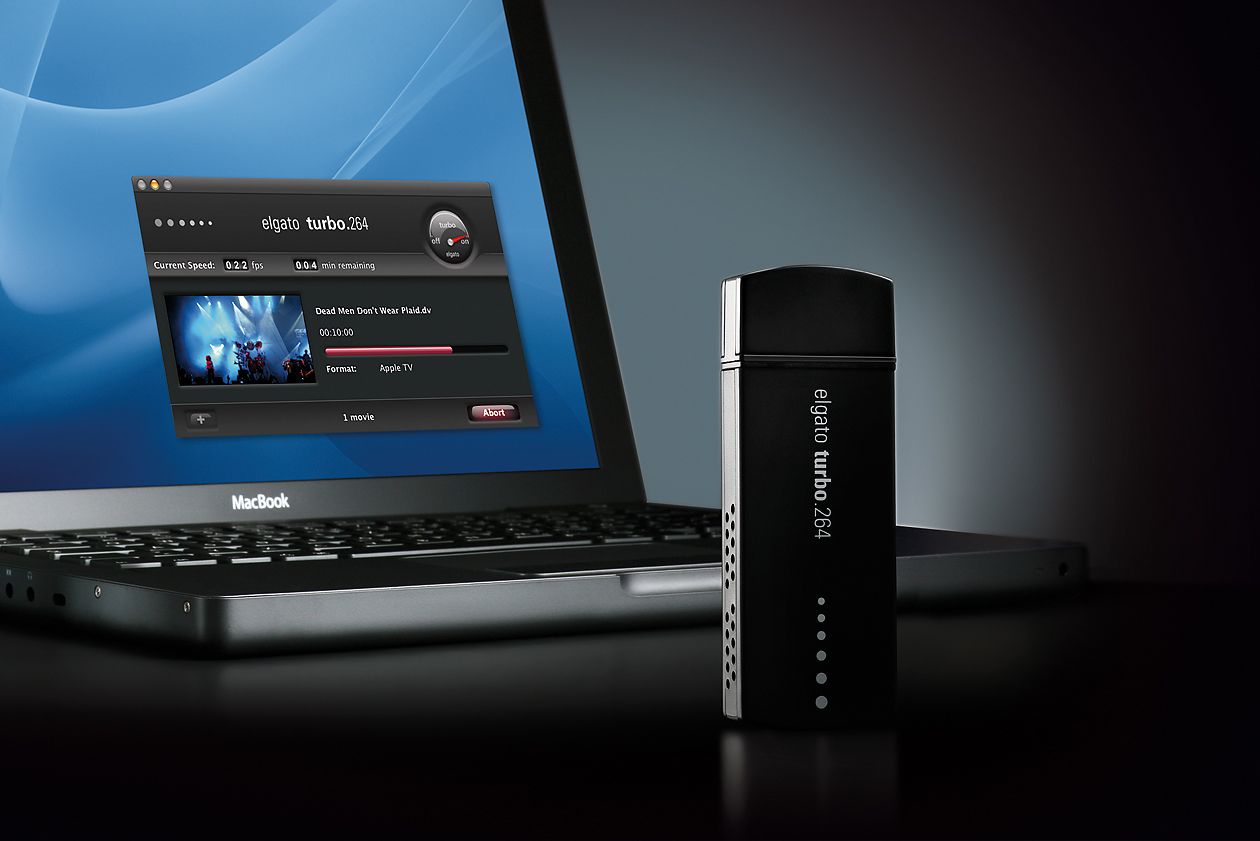
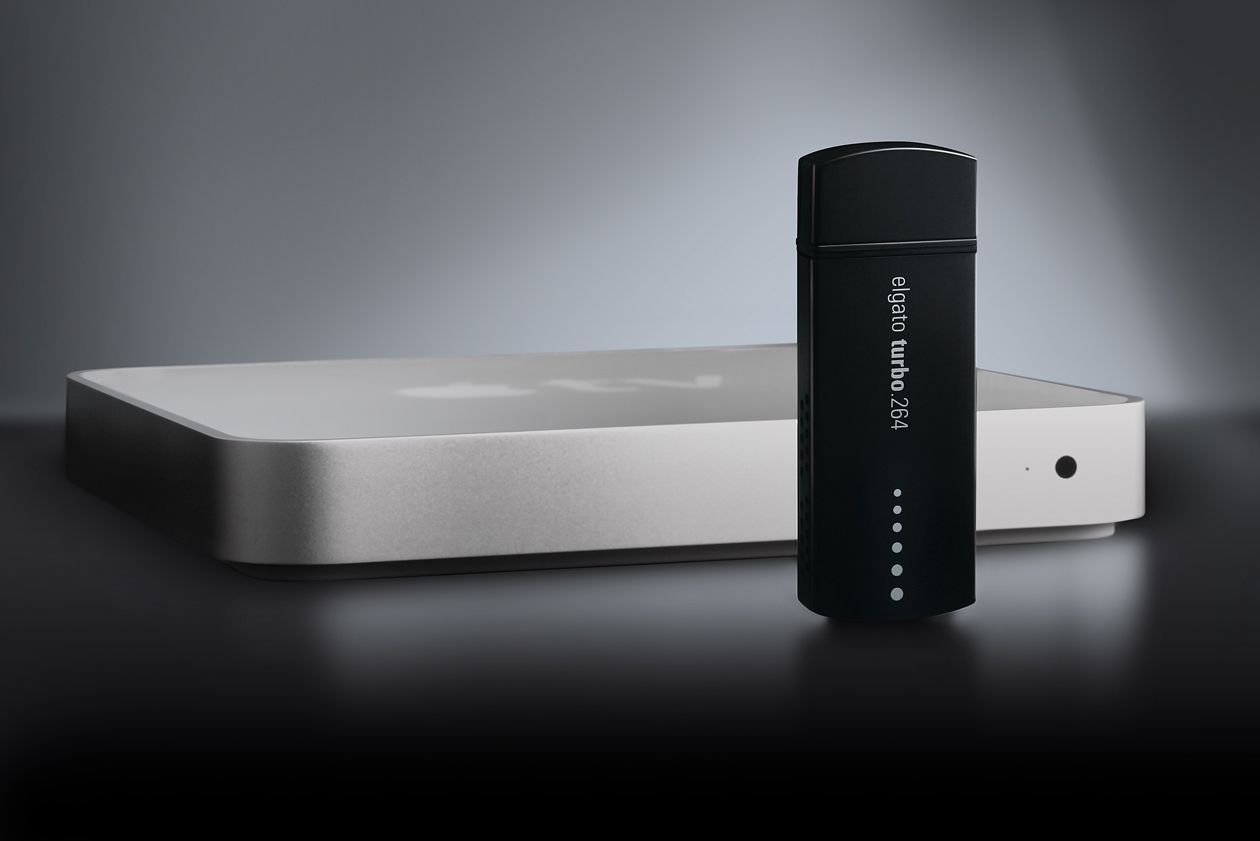
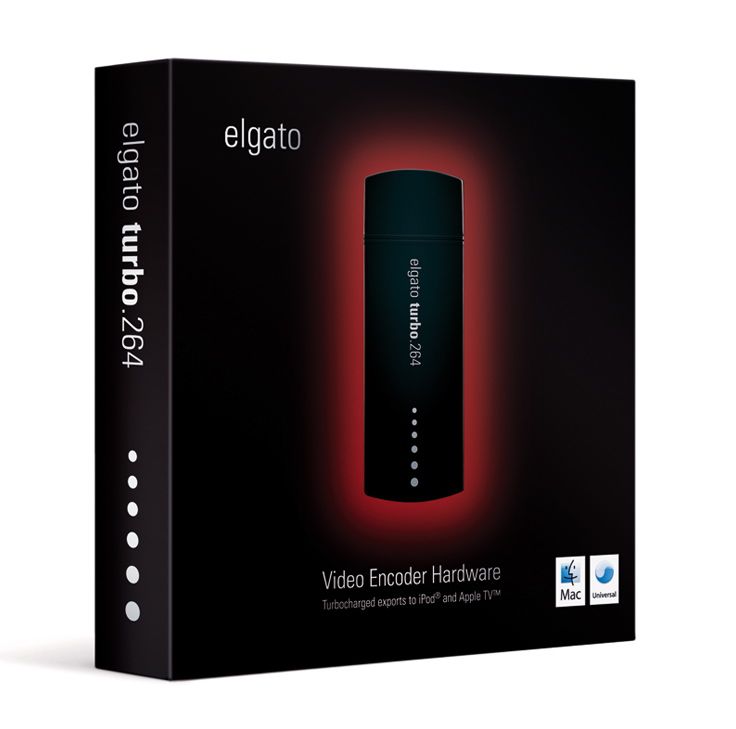
I’ve been using the Elgato Turbo.264 hardware encoder since February of 2008 (see item 5 here) and am happy with it. When I first saw it on the Elgato website, I thought it was a gimmick. After all, what could a little USB stick do that my iMac’s or my MacBook Pro’s CPU and GPU couldn’t do? I was in for a pleasant surprise.
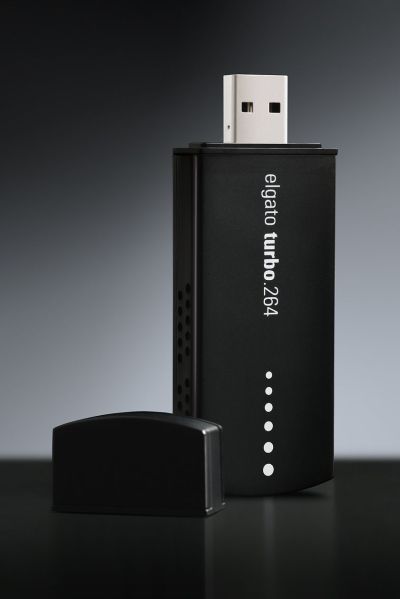
The Turbo.264 was launched on May 16, 2007. The original press release claimed that it would not only speed up encodings to the MP4 format using its own software, but that it would also speed up exports from iMovie, Quicktime Pro and other Mac software. I haven’t been able to figure out how to do the latter, but can definitely vouch for the former. I’ve converted virtually all of my DVDs to electronic format with the Turbo.264, and yes, it has sped up that process significantly.
Encoding speeds will vary depending on what your computer is doing at that time, and on the export quality (Apple TV, iPod, etc). You can easily select the type of output for your exports from a drop-down menu when you drag a movie onto the Turbo.264 app — yes, the UI is that easy to use. The encoding speeds I’m quoting below refer to exports for Apple TV, which are the highest quality in terms of resolution and bit rate.
I should mention that while the Turbo H.264 takes most of the processing load off your CPU, it doesn’t handle all of the computing tasks by itself. From my experience, encoding movies without the Turbo.264 meant the CPU usage stayed somewhere between 90-100%. Encoding movies with the Turbo.264 meant the CPU usage stayed somewhere between 25-35%, allowing me to use my machine for other tasks such as processing photos in Lightroom or working in Dreamweaver.
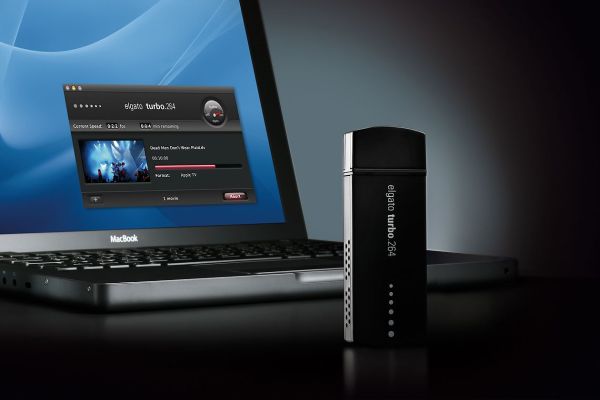
From my own experience, I’ve seen the Turbo.264 take a mere 2-3 hours to encode a movie on my iMac G5 (2GHz PowerPC CPU, 2GB RAM) when it would have taken me somewhere between 24-48 hours to do it with Quicktime Pro. This usually meant encoding speeds were somewhere between 20-24 fps. On my MacBook Pro (2.5GHz Intel Core 2 Duo CPU, 4GB RAM), encoding speeds approach and sometimes excel 30 fps, which means movies are encoded at normal playing speeds.
Speeds will also vary given the type of storage you’re using for the original movies and exported movies. I’ve seen slightly faster encoding speeds on Firewire 400 drives vs. USB 2.0 drives, and I’ve gotten my fastest encoding speed to date, 35-36 fps, when I used a FW 800 drive. In other words, the movie to be encoded should be stored on the FW drive, and you should also be exporting to that same FW drive. If you’re storing and exporting movies to your local drive, encoding speeds will be slower, and you’ll be slowed down even more by Time Machine, because it’ll kick in every hour and try to copy the changed files to the backup drive.
When I encoded movies, I usually had no other apps open, or if I did, it was usually only Firefox or Safari or Mail or some other lightweight app. As a matter of fact, I’m encoding a movie from a portable USB 2.0 drive (see item 4 here) as I write this, and I’m getting 31 fps, which seems to be the usual encoding speed on my MBP.
Encoding speeds were fastest when exporting for my iPod Touch (it’s the iPhone setting in the Turbo.264 app). It took as little as a half hour to encode a full movie for my iPod, which meant I could be done preparing movies for a long plane ride in about 2 hours.
Nothing’s perfect, and I do have a few complaints about the Turbo.264. While the encoding software is intuitive and easy to use, sometimes it’s too easy, and there’s no option that lets me separate chapters from titles. What happens then is for DVDs that aren’t built right — the main feature isn’t a separate title from the ads, previews and other features on the DVD — the Turbo.264 won’t know the difference and it will encode all of those things together with the main feature, which means I have to do extra work afterward cleaning up the file.
For example, I’ll sometimes get those annoying and tacky copyright warnings at the start of my encoded movies. I couldn’t care less about them and I don’t want to see them. These are my movies and I’m not doing anything illegal. Or, I’ll get the second title on a DVD appended onto the end of the first title, and then I have to split the file, making me do extra work.
If you’re looking for a product that will let you speed up the encoding of HD videos (720p and 1080p), the Turbo.264 can’t help you there; it can only encode videos up to 800x600p in resolution. On the plus side, it will encode both NTSC and PAL videos, which is to be expected given that Elgato is a German company.
Sometimes, and only for some movies, the Turbo.264 won’t properly mux the audio with the video. The sound will be off by a fraction of a second (or more), which is really annoying. I discussed the muxing issue in more detail in the past. The thing to do is to always check the encoded files carefully. Sometimes you may need to re-encode some files, or use an alternative encoding app, such as Handbrake.
This leads me into a discussion of the Turbo.264 alternatives. There are two that I’ve used and liked: Handbrake, mentioned above, and ffmpegx. They are both faster than using Quicktime Pro, naturally, but both are slower than Turbo.264. Of the two, only Handbrake can encode with the H.264 codec, which is the preferred way to encode MP4 files these days, and it’s much slower than Turbo.264 at that. However, if you use the ffmpeg codec in Handbrake, it is significantly faster than Turbo.264, about 2-3 times faster when exporting for Apple TV, at a similar bit rate (cca 2500 kbps). Of course, then you can get into a discussion of the quality issues between the two codecs, and that’s beyond the scope of this review. The important thing is that the alternative is there if you want it.

The question you’ve got to ask yourselves is this: is your time more precious than $100? If you find yourselves with a big library of movies that you want to encode for Apple TV or for WD TV, and you want to encode them using the H.264 codec, then the answer is yes — at least it was in my case. For a few days at least, Elgato is making that decision easier: if you’re in the US, they’re running a special MacWorld deal for this week only (until 1/10/09), and they’re selling the Turbo.264 for $69.95.
Reference: official specs for Turbo.264. Buy it from: Amazon, B&H Photo. Photos used courtesy of Elgato.







 Raoul Pop