
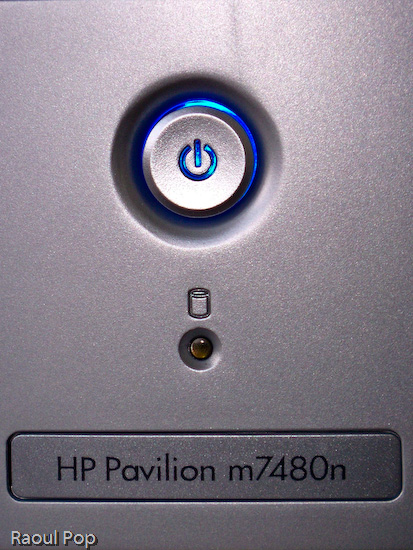
I’ve been using the Pavilion m7480n desktop for the last 2 and a half months, and I’m pleasantly impressed. This is a great desktop system, it’s fast, stable, packed with great features, but most of all, it’s well designed, and that’s what sets it apart from other desktops on the market.
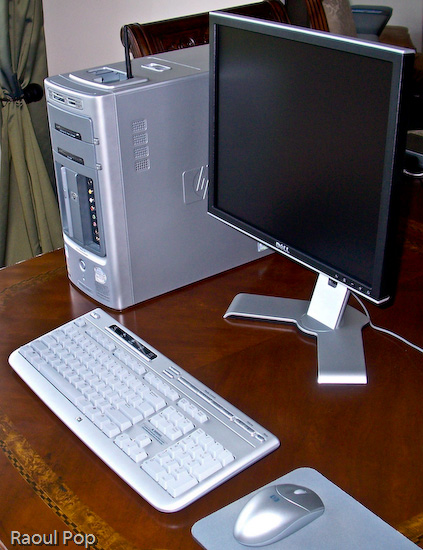
I have never seen so many great and useful features packed into the desktop form factor. Let’s start with the front side of this computer, which is, as far as I’m concerned, fantastic.
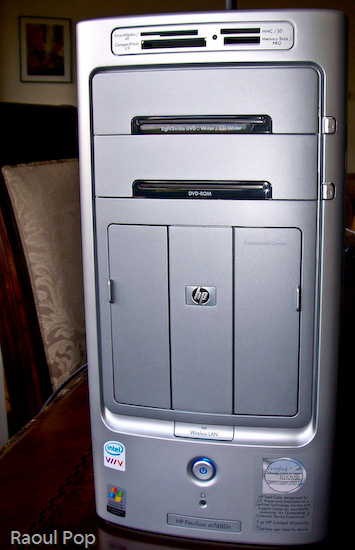
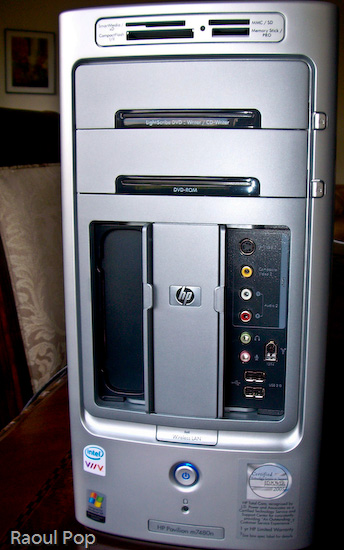
A lot of computers have flash memory readers, but not a lot of them have them custom-built into the desktop case, located right at the top for easy access, and have so many choices when it comes to card formats.Want an all-in-one solution for writing DVDs and CDs? The LightScribe drive is it. Not only will it write single- and double-layer DVDs, DVD-RWs, CD-Rs and CD-RWs, but it will also print your label for you. Also included is an extra DVD-ROM/CD-ROM drive, just for fun.
See the two panel doors? One of them is for the Personal Media Drive Bay, which is hands-down, the coolest feature you’ll find in any desktop computer. Want extra storage? Just slide in a Personal Media Drive. Want to add another hard drive? Just slide in another Personal Media Drive. Seriously, it’s that easy! The drive slides in, and automatically connects to the computer through USB, and is also powered by a special connector, no wires required. I don’t know about you, but I’m really annoyed by the extra power cords and power adapters that come with external storage drives. Sure, the drive may look nice by itself, but when you add the bulky adapter and power cord, it’s suddenly not so nice and neat. So the great thing about HP’s Personal Media Drives is that there are no cables and power adapters – you only need the drive, which is a beautiful thing.
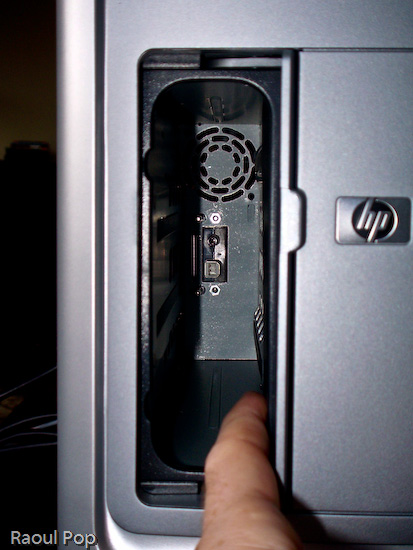
You’d think HP would charge you a ridiculous price for this extra convenience and the custom form factor, but they don’t, which is also nice. Currently, they come in three sizes: 160GB, 300GB and 400GB. The 160GB PMD is $149.99, the 300GB PMD is $249.99, and the 400GB PMD is $319.99, which runs a little above the low margin of the market for personal storage, but not by a lot.
Let’s look at the other useful front panel: the Connectivity Center. Tell me honestly, have you seen such a thorough front panel on any other computer line? I haven’t. There’s an S-Video port, composite video ports, the standard headphone/microphone jacks, two USB ports, and — a really nice thing — a Firewire (1394) port. Finally, a computer manufacturer gets it, and puts a ready-to-use Firewire port on the front of a computer.
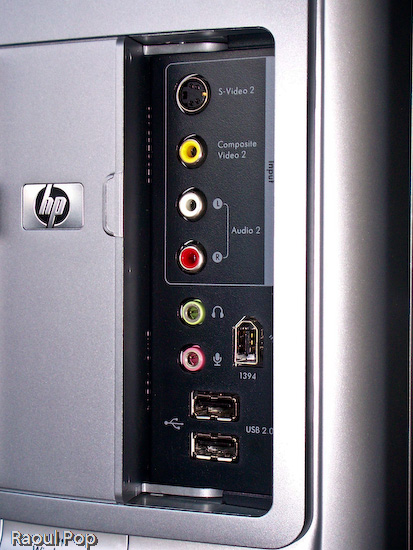
Also on the front side of the desktop, let’s not forget the little things, like the sliding doors that hide inside the chassis for the front panels (the Personal Media Drive Bay and the Connectivity Center). They’re very useful because when you don’t use the panels, you can close the doors and hide away the ports. And, you don’t have to flip them up, like on a Dell desktop (yuck), or you don’t have to slide them up and have the door fall back down after it’s gotten a little used — no, you simply slide them to the side. It just works. An added bonus on the front is a Wireless Lan light that turns on when a connection has been established — this is a great visual indicator for those of us who are less tech savvy.
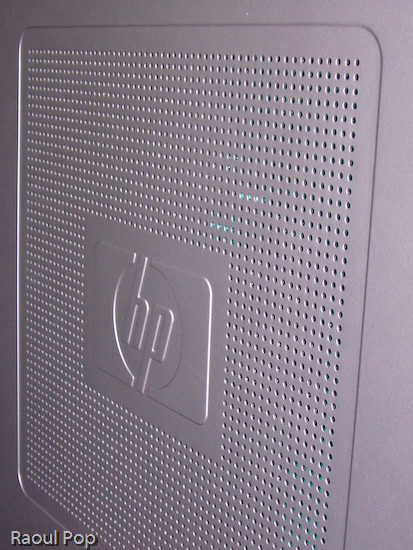
It isn’t just the front of the desktop that’s interesting. I like the side cooling grille as well. One small note: although the finish of the desktop case looks like plastic, it’s actually metal. Only the front and top side of the case are plastic — the sides are metal. Another useful feature is that this desktop runs very quietly. I’ve had desktops in the past that really made a lot of noise, so I can readily appreciate the silence in the room when I use this system. The only sound I can hear out of it is the hard drive — and that only when I really push it.
Another notable feature is the dock for an HP Photosmart printer right on top of the computer. Like the Personal Media Drive Bay, this is a feature that’s unique to HP desktops, and I really like it. Who’d have thought of building in a dock for a photo printer on top of the computer — but it makes perfect sense. You have the card reader right on top as well, so you simply slide in the flash card containing your photos or you connect your camera, and print your photos right away. You don’t have to worry about where you place the printer, because it’s right on top of the computer. This is beautiful, functional design.
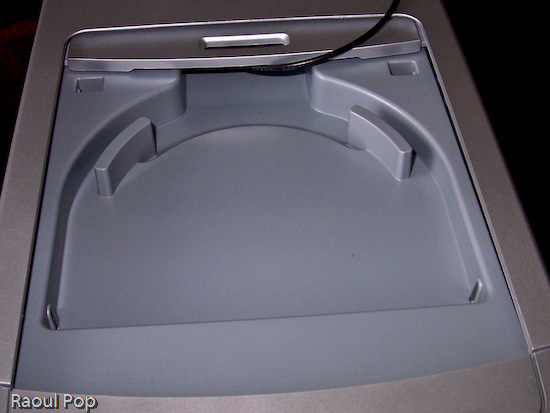
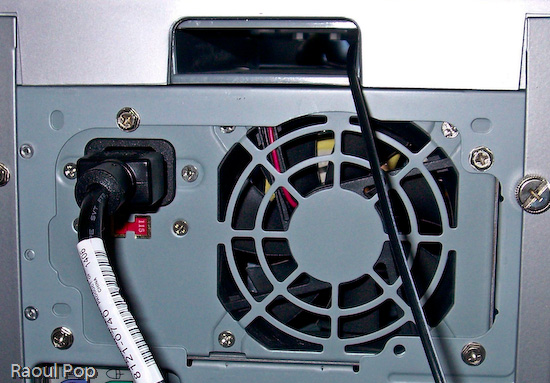
The cover for the dock is easily removed, and the really nifty thing is that HP designers included a slot at the back end of the dock for the printer wires (USB, power). That way, you can slide them right through the case and out the back, easily connecting the printer to the computer and the power supply. Very, very nice! For example, I used the dock to sit my wireless antenna in it, and I slid the antenna cable through the very same slot, pulling it out through the back of the case, as you can see below.
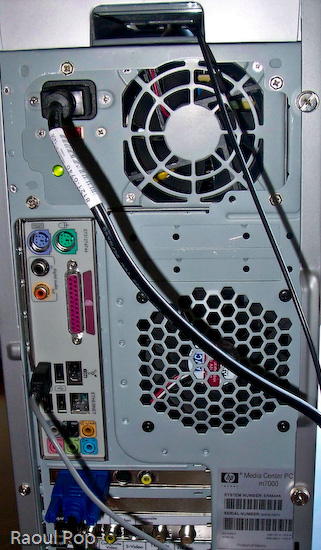
The back panel itself is also very useful. Besides the usual connectors and ports, it has digital sound in and out, connectors for 5.1 speakers, 4 USB ports and another Firewire (1394) port, a video card with S-video and RCA video out ports, and an input slot with the following ports: composite A/V, S-video, TV/Cable antenna and FM antenna. I would have liked to see a DVI-out connector on the video card, but other than that, this is a pretty good collection of connectors and ports.
This system comes standard with a wireless keyboard and mouse, and they both work great. The battery life is as expected or longer: I only had to replace the batteries in the mouse after 2 months, and the keyboard batteries are still going strong. The only thing that could be improved on the keyboard are the keys. While they work fine, they’re a bit loud, and could stand to be made quieter. The multimedia controls on the keyboard also work all the time, which, at least for me, is a departure from the norm. I’m used to seeing multimedia keys on other laptops and desktops be unreliable, so it’s nice to see them working non-stop for a change.
The HP Pavilion m7480n is one great desktop. It comes with an Intel Dual Core chip, which clocks in at 3.00GHz for each core. My system had 2GB of RAM in it, and it ran wonderfully on that. The hard drive was 300GB, and HP reserved 10GB of it for a separate recovery drive that can be used to restore the OS and applications when needed. But what sets this desktop apart isn’t necessarily the specs (which are top of the line anyway) but the amazingly useful design. Serious thought was given to functionality and ease of use when it came to the case of this desktop, and that’s what impresses me and really counts.
 Raoul Pop