I’m a fan of ioSafe‘s rugged hard drives, which you can trust with your data through very rough conditions. I was glad to write about the ioSafe Solo (their first product), and the ioSafe SSD, because no other company on the market offered such unparalleled protection from destruction.
Now they’re launching a new model, the ioSafe Rugged Portable — their first drive made for travel.
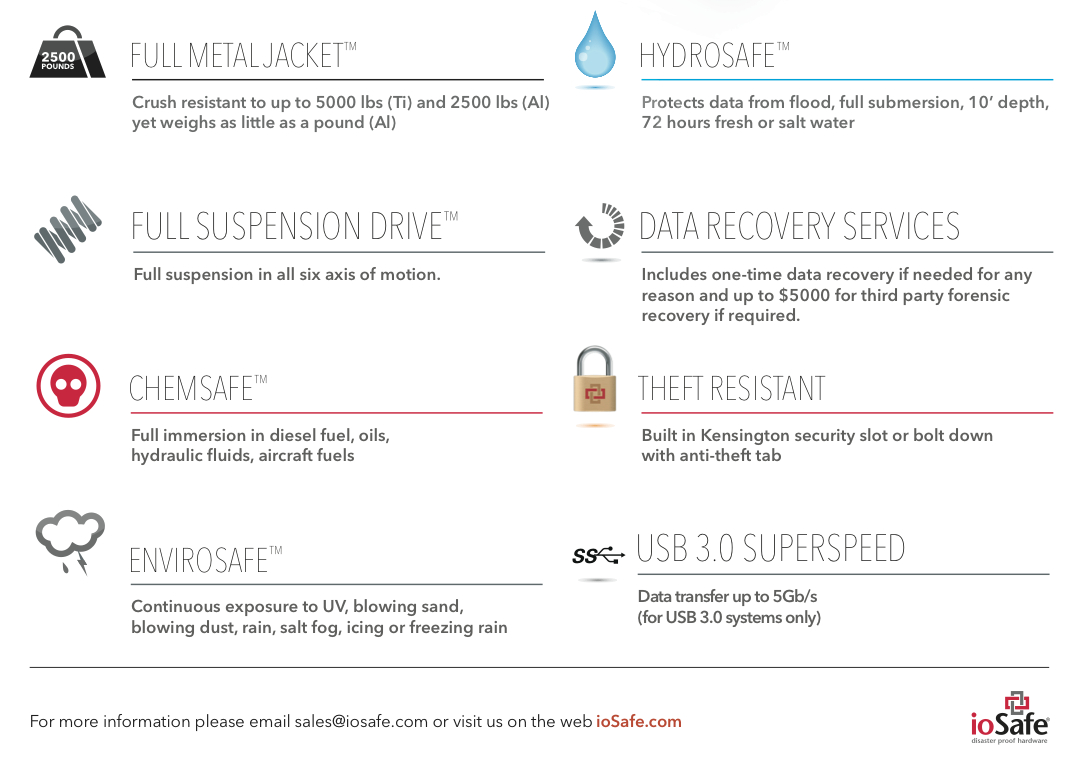
As you can see, they’re using a new design, with a machined Aluminum or Titanium enclosure that can withstand up to 5,000 lbs (Ti) or 2,500 lbs of pressure (Al). The drive is suspended on all six axes of motion, and can withstand a drop from 20′ (SSD version) or 10′ (HDD version).
Of course, the drive can still withstand immersion in water — up to 10′ (Al) or 30′ (Ti), both up to 3 days in duration. And it’s got a whole other bunch of protections built in as well:
ChemSafeTM Technology – Full immersion in diesel fuel, oils, hydraulic fluids, aircraft fuels, 12” depth for 1 hour with no data loss per MIL-STD-810G Method 504
EnviroSafeTM Technology – Continuous exposure to UV, blowing sand, blowing dust, rain, salt fog, icing or freezing rain, 24 hours with no data loss per MIL-STD-810G Methods 505.4, 506.4, 509.4 and 510
AltiSafeTM Technology – High altitude operation. 15K ft. (Alum.) and 30K ft. (SSD and Ti.) rated altitudes per MIL-STD-810G Method 500.4
Theft Resistant Kensington® Lock compatible slot solid metal construction – theft protection
As you’ve no doubt gathered so far, there are multiple flavors of the drive, with HDDs or SSDs inside, and Aluminum or Titanium enclosures. And it ships with USB 3.0, FW800 and USB 2.0 connections — your choice.
Possibly the best feature — given the drive’s title — is its weight, which comes to 1 lbs for the Al enclosure and 1.5 lbs for the Ti enclosure.
I made a quick video that shows you why it’s always important to check a SATA drive’s jumper settings. Many of us assume that since we’re dealing with SATA, not PATA/IDE drives, the jumper settings are no longer important. After all, the Master/Slave relationship no longer applies to the SATA model. Not so. The jumper settings on SATA drives control other important drive settings, such as their speed of operation.
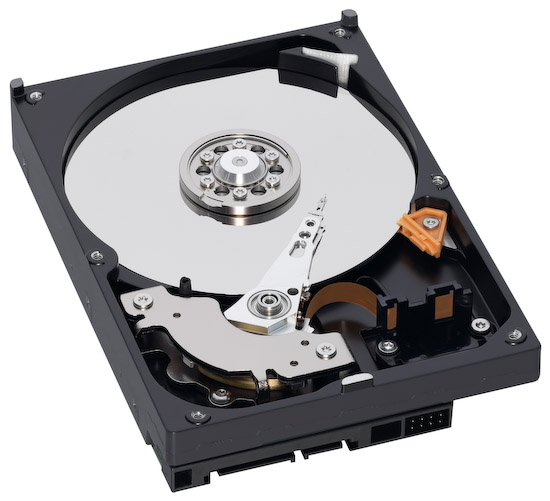
Have a look at this Seagate 500GB SATA drive, the one in my video. I assumed (wrong) that it was operating at 3.0 Gb/sec all along. It wasn’t. For over 2 years, I had three of these drives in one of my Drobo units, and I thought I was getting 3.0 Gb/sec from them, when in fact I was only getting 1.5 Gb/sec. That’s because they shipped with a jumper set to limit their speed of operation at 1.5 Gb/sec from the factory, and I didn’t check it before sticking them in my Drobo and forgetting about them.
I can understand why Seagate would want to ship the drives set to 1.5 Gb/sec. After all, some older computers might not be capable of 3.0 Gb/sec, and you’d run into compatibility issues. They assume IT geeks would know what to do, and they’re right, they would, if they’d only bother to look…
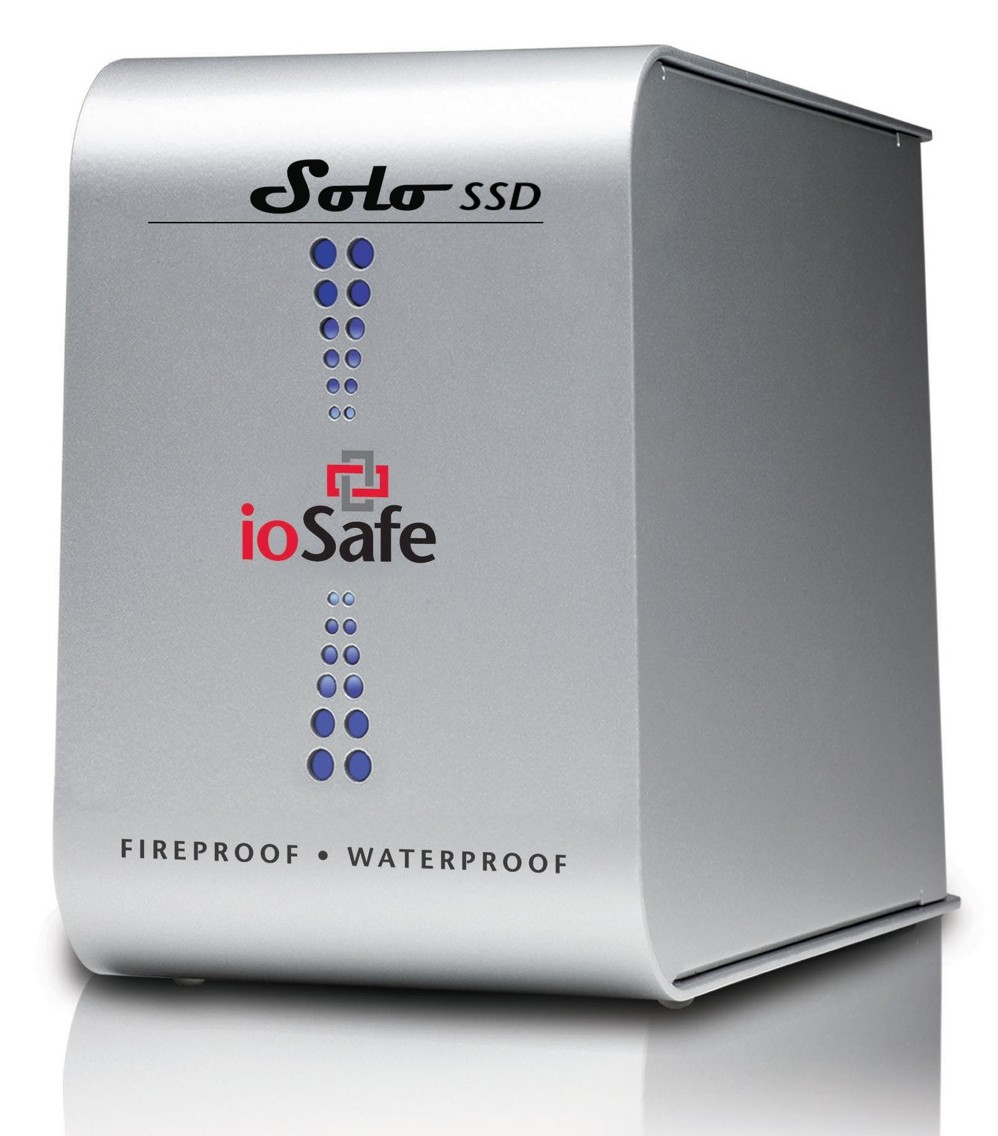
Back in September 2009, I wrote about the ioSafe Solo, a fireproof and waterproof drive. In January 2010, at CES in Las Vegas, ioSafe, the company behind these disaster-proof drives, launched a new product, the ioSafe Solo SSD.
It’s the same size as the ioSafe Solo, it looks the same outside, except for the branding, which now adds “SSD”, but inside, it’s a whole new ballgame. Instead of using a regular 3.5″ SATA drive, they’re using a 2.5″ Solid State Drive. This means they have even more spare space to play with when it comes to disaster-proofing the device — which they certainly did!
The ioSafe SSD isn’t only fireproof (same serious specs as ioSafe Solo), and waterproof (better specs than ioSafe Solo, now with full immersion up to 30 ft for 30 days with no data loss), but it’s also crushproof (5000 lbs, any axis with no data loss) and shockproof (20 ft drop into rubble, 1000g shock for 1ms with no data loss).
Here’s a video from CES where Rob Moore, the company’s CEO, burns the drive, then floods it with a firehose, then has it dropped from about 20 feet, then has it run over with a bulldozer. In the end, even though the enclosure gets destroyed, the data stored onto it remains perfectly safe.
Quoting from the press release:
“Combining ioSafe’s new proprietary ArmorPlate, a military grade steel outer casing with SSD technology, the new ioSafe Solo SSD adds unprecedented shock, drop and crush protection to the existing fire and water protection.
The ioSafe Solo SSD combined with ArmorPlate helps to protect data in a two story building collapse, 5000 lb. crush forces, 20’ drop into rubble and up to a 1000g shock. In addition the original HydroSafe™, FloSafe™ and DataCast™ work to keep the drive cool during normal operation and protect the data from fires up to 1550°F for 1/2 hour and complete water submersion of 30’ for 30 days in fresh or salt water. Like all ioSafe products, the ioSafe Solo SSD comes with ioSafe’s Data Recovery Service, a “no questions asked” policy to help customers recover from any data disaster including accidental deletion, virus or physical disaster.”
The specs say the ArmorPlate military-grade steel is 1/4″ thick. That’s mighty thick. It also makes the ioSafe SSD about 5 lbs heavier than the ioSafe Solo. It now weighs in at 20 lbs.
I wonder if the whole device could withstand bullets, because then it would make a perfect military storage device for use in conflict zones. For example, it could be placed in tanks, humvees and helicopters to store video, audio and coordinate information during patrols. And at 256GB for the largest size drive, it could store plenty of HD video, if the military should want to go in that direction.
But let’s not go into hypothetical situations. The ioSafe SSD can work for disaster recovery right now. Should your place of business burn down or fall down or be flooded, any data stored on the ioSafe SSD will be available to you immediately, as soon as you dig it out of the rubble. That’s a tangible advantage. You can simply add this drive to your server room, or put it in the CEO’s or CFO’s office, and let him or her back up important documents to it, knowing they’ll be there in case of a disaster.
The thought just occurred to me — do you know how they could make it better? If it’s meant to survive disasters and be buried in rubble, it needs a geo chip of some sort, so you can locate it with a proximity device. It could be something simple that beeps faster the closer you are to the drive, so you don’t have to dig through all the rubble to find it, should it come to that.
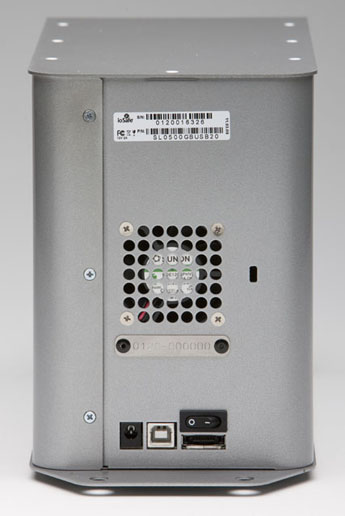
And there’s another goodie packed into the drive: an eSATA interface. This, coupled with an SSD, means you’ll get blazing fast write and read speeds. You can see the eSATA connector on the back, next to the USB and power connectors.
Pricing for the three different Solo SSD models starts at $499 for 64GB, $749 for 128GB, and $1250 for 256GB. It’s a bit steep, but then, SSDs are still expensive, and no other drive on the market (that I know of) offers this level of physical protection for your data.
Images used courtesy of ioSafe. You can see photos, videos, specs and more information about the Solo SSD on their website.
Sometimes you’ll need to switch your drive packs (the set of drives that sits in a Drobo) between two Drobos. Or say you’re using two drive packs on the same Drobo. How do you switch the two packs safely, to ensure you lose none of your precious data?
That’s the question I asked myself a couple of days ago, when I found that I needed to interchange the drive packs between my 2nd Generation (FW800) Drobo and my 1st Generation (USB 2.0 Drobo). I’d expected this move for a while, as I hinted to it in a recent post entitled “What’s on your Drobo“. It has to do with my photography workflow, and if you’d like to read through the rationale, you’re welcome to check out that post.
So, what’s involved?
Safely shut down the Drobo(s)
Disconnect power and FW/USB cables
Take out disk pack as a whole from one Drobo
Insert disk pack as a whole into another Drobo (or same Drobo, as the case may be)
Connect FW/USB cables
Connect power cables
Boot up the Drobo(s)
I’ve put together a video demonstration of the process, which you can watch below or on YouTube. This was unrehearsed, and it’s not something I did before, so there was a fair bit of related anxiety. I rely very heavily on my Drobo units for data archival, and I don’t ever want to lose any of my data. Thankfully, everything went smoothly, and things are working great!
The detailed steps involved in the process are listed in two tech notes on the Data Robotics website:
I need to add here that drive packs aren’t interchangeable between all Drobo models. You’ll need to read carefully through that second tech note listed above to make sure you don’t unintentionally corrupt your Drobo volume by putting the pack in an incompatible Drobo device.
If you’re wondering why one ought to bother to switch data packs, the decision needs to be made on a case-by-case basis. In my situation, the alternative would have been a manual copy of the data, which would have taken days, since I work with terabytes. Switching the drive packs took 15-20 minutes altogether (reading through the tech notes, emailing Drobo Support to ask them a question, and actually doing it). The trade-off, if I hadn’t done things correctly, would have been costly and possibly irreversible data loss. Fortunately, things went according to plan!
In January of 2009, I mentioned the price of storage had just dropped below 9 cents per gigabyte. I see now that 2 TB drives are selling below $150 (they’re $140), so it’s time to update my figures. At $139.99 for a 2 TB (2,000 GB) SATA hard drive, that comes out to less than 7 cents per GB. That’s a great deal, and it goes without saying that it’s the lowest price for data storage consumers have ever seen.
Updated 4/19/10: Micro Center is selling 2 TB Seagate SATA drives for $119.99. It’s an in-store special, with a one drive per household limit, but still, that makes it 6 cents per gigabyte. What can I say — expect the price to keep dropping…
On the downside, it seems hard drive manufacturers have hit a ceiling with 2 TB drives. I haven’t heard talk of 3 or 4 TB drives, or anything larger than that. Perhaps I haven’t been keeping up with storage news properly, so if you’ve heard some good news, do let me know!




 Raoul Pop