
Thoughts

Why is it that Apple has three messaging apps?


Back when Apple brought out FaceTime, I couldn’t get why it had to make a separate video chat app when it already had iChat. Now we have a third app included with iOS 5, called iMessage. Why?

If the people at Apple are intent on making little messaging apps, each with their micro-purpose, then I’d like to suggest some new ones to them:

  • iShmooze: giving people a direct chat line to their boss or work hierarchy
  • iRx: so you can chat about your medications with your neighbors and know-it-all relatives, and get better prescription advice than from your doctor
  • iExChat: for venomous quips exchanged between ex-spouses and other ex-es…
  • iSeeAds: for people interested in seeing targeted ads; perhaps you can work in a micro-pyramid scheme where people can get something like 1-5 cents when they view an ad or invite their friends to view ads; that should be popular…
  • iSeeDeadPeople: photo sharing for zombie and vampire lovers
  • iPotty: for those who love to share those precious moments in the bathroom
  • iAte: see above and substitute food; this one could come with a photo sharing option, for those who love taking photos of said food; in hindsight, perhaps the photo sharing option could be extended to the iPotty app as well, I saw some folks online who would be interested in that.

For a company renowned for its design and the clear focus of its products, I’m surprised to see three messaging apps. Why? Didn’t anyone put their hand up to say, “Hey, don’t we already have iChat?”

Perhaps it makes sense to have the separation, from a software and procotol perspective. Perhaps iChat was designed for the computer. Perhaps the AOL messaging protocols it still uses aren’t suited for the purposes of FaceTime and iMessage. But it still makes NO sense.

If Apple was able to take OS X and turn it into iOS, then take features from iOS and put them back into OS X, then it’s quite capable of making iChat the go-to app for all its messaging needs. Rewrite it and make it work! It’s already incredibly capable on the desktop. It can do text chat, audio chat, video chat, file sharing and screen sharing. I use it all the time to do video conferencing with my parents, all the way across the Atlantic Ocean, and I use it for screen sharing as well, when I help them troubleshoot issues on their computers or simply teach them how to use them better. Why in the world would you leave a capable app like that behind and write a new one called FaceTime? And then why would you further fragment that segment and make another one called iMessage? Why?

I’d like to see iChat be the one and only app that does everything this set of three apps does and more. I’d like to challenge the people at Apple to make it work the way it should work, tailored to the capabilities of each device where it will be installed.

Standard
How To

How to avoid nightmares when upgrading your Drupal install

I had some real “fun” today (about a full day’s worth) after upgrading one of my Drupal installs from 7.7 to 7.8. The whole site went awry: the template no longer showed, I was only getting text, I kept getting either 404 or 500 errors when clicking on links, and nothing I did seemed to make it better. Even restoring from a backup yielded the same garbled pages. It’s fixed now and working perfectly (well, not perfectly, because some modules are still in beta and there will always be some errors, but it’s working as expected, let’s put it that way).

If you’re only here because your site is garbled after an upgrade, let me save you some time. There are two reasons (I know of ) for it:

  1. You have Clean URLs enabled and your .htaccess file got replaced. That means the RewriteBase rule is now commented out. Don’t bother to turn off Clean URLs, there’s no need to do that. Uncomment it, refresh your site and links should be working properly.
  2. If your theme is now messed up and you only see text, plus you can’t navigate around your site, you have your site cache and compression turned on, don’t you? Yeah you do, and now the new version of Drupal doesn’t know how to read the cache files, because it didn’t write them. So do yourself a favor and turn the cache files off. You’ll have to use the “dirty” URLs if you can’t navigate to the admin panel, so instead of example.com/admin you’ll need to type example.com/?q=admin, and so on and so forth. Disable the compression and the cache, and delete all the cache files. Presto-change-o, your site now looks normal again!

So, what can you do to avoid having the same crappy day I did? Let’s take it by the numbers, shall we?

1. Put your site in maintenance mode.

2. Always, always back up your site and your database before doing a core upgrade.

I would recommend doing a backup even before upgrading modules. Don’t rely on backup modules. Do the backups manually, and just so you won’t panic when something goes wrong, test your backup method by restoring from it to a separate install, to make sure you’re doing the right things. This is especially important for database backups, where it’s REALLY important for you to be able to restore from a downloaded SQL file.

Before doing the core upgrade, do a full backup of the entire site, not just the sites folder. And just to make it easier for you to restore the sites folder afterward, do a separate backup of that folder, and of the .htaccess file at the root level of your drupal install. And back up the database, that’s really important! If you do this right, you’ll only need to use the database backup.

3. Turn off all site caching and compression and clear the site cache. This is really important! If you don’t do this, it’s quite likely that your site will be just as garbled as mine after the core upgrade.

4. Create a new site folder on your server, because you’re going to do a brand new install of Drupal (whatever the latest version is). Inside that folder, wget the latest drupal tar.gz file and untar it.

Okay, now comes the fun part.

5. Delete the sites folder in the new Drupal install and copy over your old sites folder.

6. Make sure any changes done to your .htaccess and robots.txt file are reflected in their counterparts in the new Drupal install. Or, it’s quite likely that the old thing that you need to change in the .htaccess file is to uncomment the Rewrite Base line. Find it and uncomment it.

If you don’t uncomment this line and you have Clean URLs enabled, your site will either give you 404 or 500 errors when you try to access the admin interface or alias URLs, so this is quite an important step!

7. Restore your database from the SQL backup. That is, create a new database on your server and through the web interface or through SSH, restore your database backup to it, to get an exact copy of your live Drupal database.

8. Now run the database update script. Browse over to your Drupal install + /update.php and run it to make sure the database upgrade is also completed.

9. Now you have some choices to make. Once you do this, you have two working installs of Drupal: the old, reliable install, which you’ve been using, and the new install, which should be working, but who knows what bugs there might be in the code, that you’ll only discover as you begin working with it.

So now you have two choices: you can either map your domain to the new directory or rename the old directory then rename the new directory to match the old. In other words, you’ll want your domain to point to the new Drupal install. Or, you have the luxury of saying “Forget this new version for now!” and keep using your old Drupal install, until they work out all the bugs (that’ll be the day…)

That’s it! Pat yourself on the back. This should have taken about 15 minutes or less, not a whole day…

I hope this has been helpful!

Standard
Reviews

Two feature requests for Apple’s Pages

I sent the following enhancement request to the Pages team via the Apple website and figured it’d be a good idea to share it here as well. Perhaps you have some suggestions for me, something that could help me in the meantime?
  1. Better memory management. My wife and I write graphics-rich books (recipe books, piano methods etc.). Currently, there is no way to layout an entire book in a single Pages document, because after 5-7 pages or so containing digital photographs imported at print-ready resolution, Pages runs into a memory management bottleneck and every keystroke takes 1-2 seconds. We’re forced to either work on individual pages as separate files, which makes pagination and text flow a real hassle, or to divide the book into sections of a few pages each and basically run into the same pagination and text flow issues.
  2. Support for offset printing in Pages. It’s great that I can export to digital book formats (ePub, PDF) but what I really need is support for export to offset printing methods. When I export to a PDF from Pages, the text is never 100% black. It’s a mixture of colors, which is a disaster in the making for offset printing and necessitates a lot of work on the resulting files after they’re exported from Pages, just to get them offset-ready. Please include a one-click PDF export for offset; call it what you will, but make it work.
I know Pages is not supposed to be a full-featured design and layout application, but it could almost fill those shoes if these two things were resolved.

Standard
Reviews

Initial thoughts after installing OS X Lion

I thought I’d jot down a few thoughts about OS X Lion, having just installed it on my MacBook Pro. I looked forward to getting it for months, and as luck would have it, I happened to be out of town with little internet access when it was released on the 20th.

  • The upgrade was painless. I bought it from the App Store, it began to download, and when it was done, it ran and finished without any bugs.
  • Without a media disc of some sort, or at least an image file, I am somewhat concerned about a re-install of the OS, should I need to do a fresh install. I hear there’s going to be a Lion Flash Drive available for sale in a month or so, but short of paying for that as well, is there some way for me to burn Lion on a DVD or make a bootable flash drive?
  • Overall, I like it. The design is more refined. It feels like a more mature OS.
  • I like the full-screen functionality of the apps.
  • The login screen is interesting. It’s a departure from what we’ve seen thus far. I like it, but I’m not sure what to think about the round thumbnails for the accounts yet. I’m used to square thumbnails. Photos are rectangular. Square photos? They used to be en vogue in the late 1800s. But who knows, maybe those round thumbnails will grow on me.
  • I do wish iCloud were launched at the same time as OS X Lion. For example, I don’t know if I did something to cause this, but every time I start up Safari, it wants to log me into MobileMe, where I don’t have an account. (I only have a .Mac email address.) If iCloud had been available right now, this glitch wouldn’t have occurred, because .Mac and MobileMe would have been unified already. And I think more people are going to run into it as they poke around in the new OS.
  • The hidden scrollbars are great, but they’ve changed the direction of the scrolling, haven’t they? It’s counter-intuitive… and yet it’s not. You now push up with two fingers on the trackpad to scroll down, and pull down to scroll up. If you think about it, it makes sense, but it’s been the other way around until now, so it’ll take a while to get used to it.
  • I like Launchpad. I think it’s a visually appealing way to present a list of all the Apps on my Mac, and to allow me to easily choose which one I want to run.

A couple of pieces of advice before you upgrade:

  • Run Software Update to make sure you’ve got the very latest version of Snow Leopard and whatever other updates you need.
  • Run Time Machine to make sure all your stuff’s backed up, just in case something goes wrong.

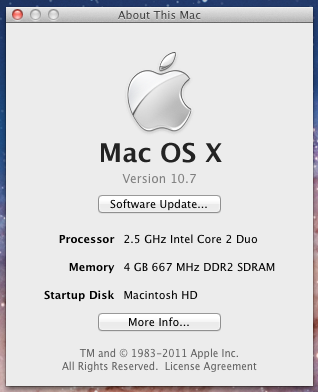
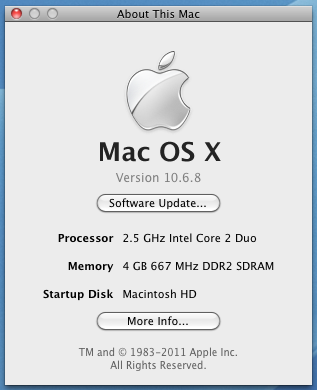
For those who like this sort of thing (I do), I’ve included a couple of before and after screenshots of my “About This Mac” window.

Before the upgrade to OS X Lion

After the upgrade to OS X Lion

That’s it for now.

Standard
Events

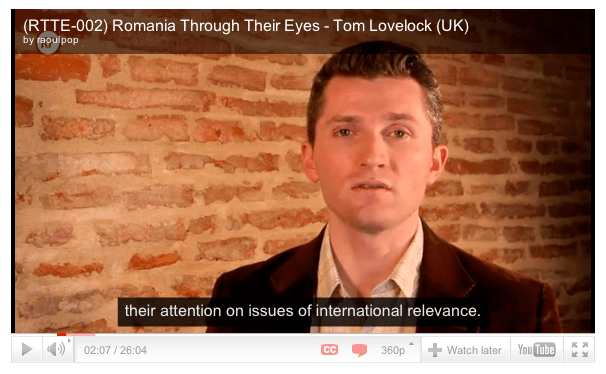
YouTube and WordPress update oEmbed player to include CC button

This is big news for those of us providing captions or subtitles for the videos published on YouTube. I noticed today that the oEmbed video player for YouTube videos, the one used for all WordPress blogs, has been updated to include the CC button. It didn’t have it the last time I checked, which was yesterday. My site subscribers would always ask me where the CC button was, and how to see the subtitles, and I had to tell them to go see the video directly on YouTube if they wanted subtitles, which was a bit of a chore, and it certainly didn’t make things obvious and easy for folks who were using that feature for the first time.

Well, I’m glad to announce that from now on, you’ll be able to turn video subtitles on or off right here, on my website, and for those videos of mine where I’m providing two separate subtitles tracks, you’ll be able to switch between them as well.

I can’t tell you enough how pleased I am about this. For someone like me, who produces video shows for international audiences, YouTube’s CC feature is key, and the ability to control subtitles from within the oEmbed player used on my websites is key as well. So I’d like to thank both WordPress and YouTube for updating the video player and for making my life easier!

Standard