Thoughts

Predictions about computer drives in the future

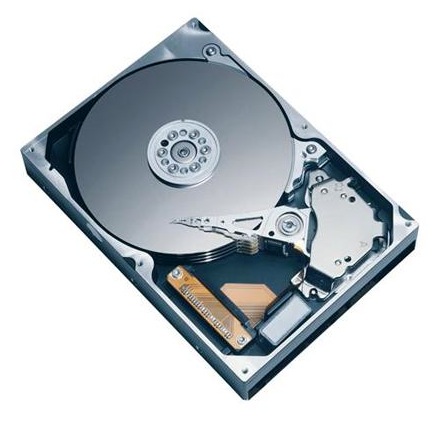
72GB SanDisk SSD SATA 1.8"

On 1/16/09, Computer World published an article where the author paints a future full of SSDs. He puts forth the idea that drives will not only be replaced by memory chips, but that these memory chips will be integrated into the motherboard, doing away with the SATA interface. There are a number of things I don’t agree with in that article, and I’m not the only one who’s annoyed. Others have called out the author for his statements as well.

For one thing, let’s remember that computer memory once relied on chips integrated into the central circuits. Going back to that sort of approach would be like going back in time. Weren’t we supposed to progress, not regress? The advantages have to be truly worthwhile, and I’m not convinced.

A claim made in the article is that of increased speed: “By making the drive part of a system’s core architecture — instead of a peripheral device — data I/O performance could initially double, quadruple or more.” I love these nebulous claims, don’t you? It could double, quadruple or more. Hey, why not 8x faster? Maybe 16x faster? Let’s just inflate the numbers, it looks great on paper…

From my experience, I noticed that transfer speeds to flash memory vary tremendously — based on how much used space there is on the memory itself, or the file size. Larger files transfer much faster than smaller ones. Sure, in my experience, there was a SATA or USB interface in the way, but that doesn’t change what happens with the flash memory itself.

We should also keep in mind that flash memory is limited in the number of write operations it can take before it expires. On the other hand, regular hard drives have a much longer life span. I for one don’t want to be in a situation where I have to replace an expensive SSD on my laptop because I’ve saved one too many files and it has just gone belly up.

That brings to mind another issue: will these SSDs be soldered onto the motherboard, or can I pull them out and replace them as needed, like I do with RAM modules? I think you can readily imagine how inconvenient it would be to have to service your computer if its SSD is soldered onto the motherboard.

How about space on the SSD? What do I do if I want to increase the space on my drive? Do I have to buy another full SSD? I’d much prefer we had SSD bays, like RAM bays, where I could stick additional SSD modules to automatically increase the space, just like it works with RAM. A partitioning tool integrated within the OS should then allow me to resize my existing partitions and spread them over the newly available space, or to create another partition out of that space.

I keep hearing people say that 250GB or 160GB is plenty of space for your laptop. That’s nonsense. I’m always maxing out my laptop’s hard drive when I go on trips, because I fill it with photographs and videos which I then unload to my external storage when I get home.

I find that for my needs, a 500GB or 1TB laptop hard drive is what I need right now. At some point in the future, I may need more. I haven’t started working with HD video for example. I know that’s a tremendous space hog. I think a 1TB drive would be the minimum I would need if I started to work in that arena.

With SSDs, price is still an issue, and so is space, at least for now. I just don’t find it practical to spend money on SSDs at the moment, and I don’t think my opinion will change unless their prices and storage specs start to match those of regular hard drives.While we’re on the subject of price, where in the world did Gartner get their figure of 38 cents per gigabyte? That’s the figure quoted in the article. I’m sorry, Gartner, but you folks need to check your math. I came up with 9 cents per gigabyte recently.

On the other hand, I do understand that the additional interface between the motherboard and the hard drive is a bottleneck. If we can do something to speed that up, I’m all for it. But you’ve got to prove to me (and to other consumers out there) that your technology is affordable and reliable and offers tangible benefits other than tech media hype.

I’m also excited about the possibility of increasing drive space on a modular basis, where I simply put in more SSD modules in expansion bays on the motherboard, like I do with RAM. But there’s no indication that we’re heading in that direction from the article itself. Until we get to that point, I’ll still continue to think that SSDs are aimed at the wrong market segment. Not everyone is a MacBook Air-toting management type. The bulk of computer users out there need affordable technology with plenty of storage, well made, and reliable over 3-4 years or more. SSDs just aren’t there yet.

Image used courtesy of SanDisk Corporation.

Standard
Reviews

Mozy advertising versus user experience

A few months ago, I was interested in offsite backup, and thought I’d give Mozy a try. Their Home Backup plan intrigued me. It was only $4.95, and was billed as unlimited. Could it actually work as advertised?

Short answer is no, not by a long shot. Sure, it only costs $4.95/month. That much is accurate. The unlimited part is where Mozy starts to stretch the truth. The problem lies with bandwidth, and I’ll give them this much: uplink speeds on US broadband connections, particularly on DSL lines, are horribly inadequate in order to perform any sort of decent backups.

But Mozy also does something I dislike, something that isn’t readily advertised on their site when users sign up: they cap the bandwidth for Home users at 1 Mbps. Even if you should be blessed with faster uplink speeds (like a fiber connection), you won’t be able to take advantage of it with Mozy. You’ll still only upload to the Mozy servers at 1 Mbps or less (usually around 600-800 kbps from my experience).

I had around 150GB of data I wanted to back up on my laptop at the time. It would have taken me several weeks (I think up to 13 weeks) to back up that data from my home DSL connection (860 kbps uplink). I had to reduce that amount to about 96GB, took my laptop into work, where the uplink pipe was much fatter, and still, it would have taken over 12 days to get that data backed up, because they were capping the uplink speed.

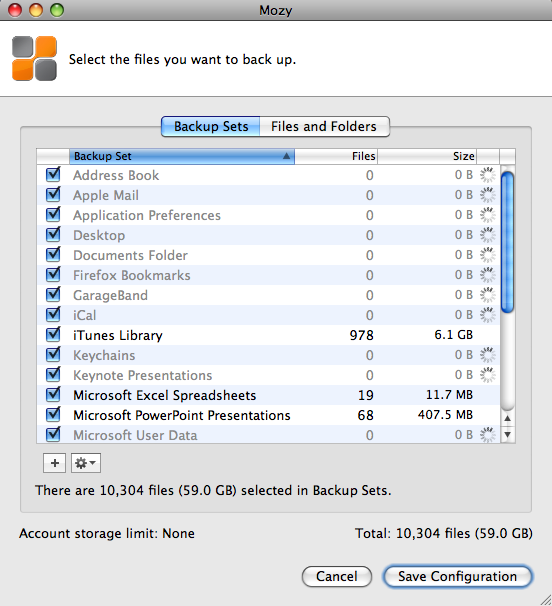
I then reduced my backup set even more, down to 59 GB (see below), hoping this would speed things up. It would have still taken a ridiculous amount of time to back up my data, and I only ended up getting frustrated with Mozy’s software in general, because of its poor design. Every time I wanted to configure the backup set, I needed to wait for the software to finish calculating the aggregate size for all file types, and that could take half an hour or more every time I opened that panel. Couldn’t they have cached this data when the operation was performed the first time?

Isn’t it ironic how they say the “Account storage limit” is “None”, yet you can never really quite test that None unless you leave your computer on and connected to the Internet for a month or more, which is clearly not feasible in the case of a laptop? Let’s not even consider the possibility that your Internet connection might go down, in which case the backup job would fail, and you’d need to start over…

In the end, in order to get any sort of progress with the Mozy backups, I reduced my backup set to 1GB. That’s right, 1GB, which allowed me to back up my Address Book, iCal, and Application Preferences, plus some documents. Then, and only then, did Mozy manage to complete the backup jobs in time.

I’m sorry, but I’m not going to pay $5/month so I can back up my contacts, calendar, and a few docs. That’s not acceptable to me. I canceled the service.

I did write to them to complain about this, and that’s how I found out about the 1 Mbps cap on uplink bandwidth. They also offered to give me a free month, but what good would that have been? I’d have only ended up more frustrated.

Some might say I should have tried the Mozy Business plan, which doesn’t cap uplink speeds and offers more options. For one thing, I don’t care for those extra options. For another, it would have cost me roughly $80/month ($3.95 for the license and $75 for the storage at $0.50 per 150GB). That’s not counting what it’d have cost me to back up my photos offline, which is what I really wanted to do. I have roughly 500 GB of photos, and according to Mozy’s pricing, that would be $250/month in addition to the $80/month I’d already be paying to back up my laptop.

Clearly, at those prices, Mozy is no longer the cheap, easy to use $4.95/month service that they advertise so widely, and instead of paying $330/month to them, I’d rather pay it to buy hard drives, copy my data, and ship them to my parents once every few months. It’d cost me a lot less.

I suppose they’re not entirely to blame. For some reason, $4.95 has become the price point for online home backup plans. Carbonite offers a similar plan for the same amount and other competitors are crowding around the same amount, although with different offerings. The thing is, you can’t really give people unlimited backup for $4.95 a month. Your costs as a business are higher. So what do you do? You fudge. You get truthy. Well, I don’t like it. I’d much rather see them offer a $15/month Home plan where they don’t cap the bandwidth but cap the amount I can back up — say, up to 75GB or something like that. I’ll let them work out the numbers, but the point is, I appreciate honesty a lot more than some cheesy pricing gimmick.

Updated 7/2/09: A reader (M.J. from Denmark) wrote to say the upload bandwidth cap at Mozy has been raised from 1 Mbps to 5 Mbps. It’s an interesting move on Mozy’s part, but I still have questions about their customer service and the ability to properly restore customers’ data, as other people have indicated in the comments below.

Standard
Reviews

Hardware review: LaCie Little Disk 500GB

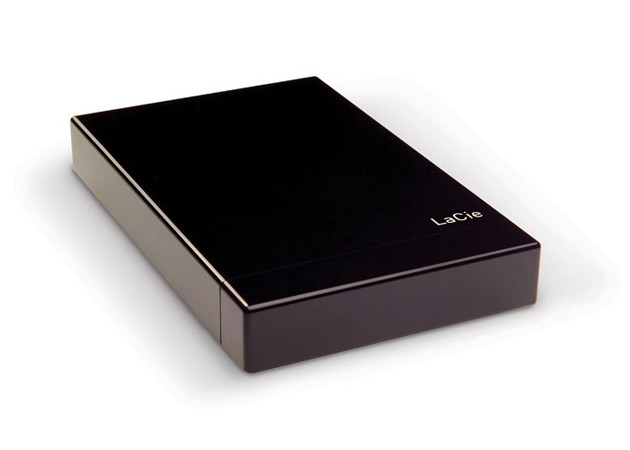
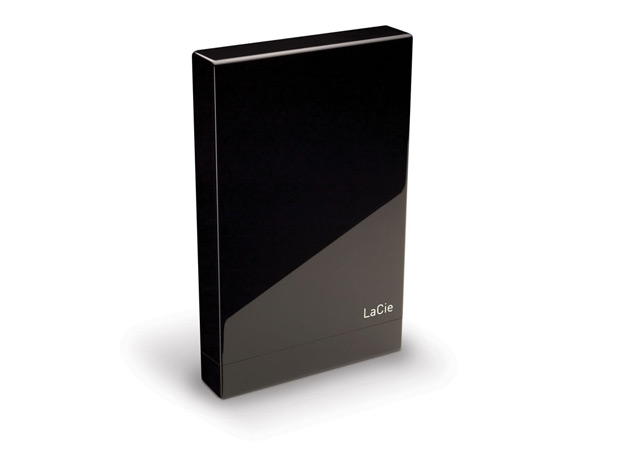
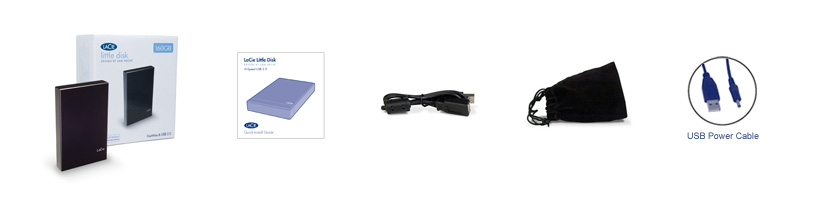
I needed a larger external drive to do my Time Machine backups, and the LaCie Little Disk 500GB was the best value for my money. It’s a portable drive (2.5″ form factor), it has 500GB of space, and it only cost me $100 at B&H. They’re pricing it at $124.95 now, so I guess I bought it at the right time (right before Christmas). (Amazon still has it for $100 if you want it.)

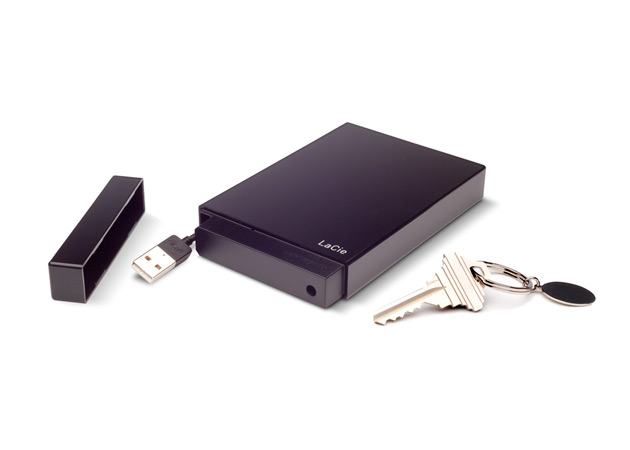
The design of the drive is distinctive, and builds upon the brick design that LaCie used to their advantage in the past. The enclosure is made of glossy black plastic, and it comes with a removable top/lid, which masks a short, retractable USB cable. I’m not crazy about that top, since it doesn’t sit tightly on the enclosure, but at least it can be removed easily.

In terms of weight, the drive is as light as other portable drives — perhaps even lighter. In terms of size, it is a little longer and thicker than my 160GB WD Passport drive, whose design, although almost three years old by now, is still one of the best I’ve ever seen.

I like my little LaCie drive though. It’s fast and roomy enough for me to back up my MBP’s 250GB hard drive as often as I need. Time Machine backups complete in minutes, and then I can simply eject the drive and put it away until I want to do another backup. I am even using the carrying pouch for now, to protect the drive as it sits in my backpack during travel.

Photos used courtesy of LaCie.

Standard
How To

The fastest way to back up with Time Machine

I wrote about backing up your Mac and PC in January of 2008, and I said Time Machine was a great way to back up your Mac. A year later, I still think so, though I have some reservations.

There are three ways to back up your Mac with Time Machine. There used to be only two, but thanks to Drobo Apps, we now have three. I’ll list them in descending order, sorted by backup speed. Here they are:

To External Hard Drive (USB, Firewire, eSATA)

This one’s easy, and it’s the fastest way. You get a dedicated external hard drive, you connect it to your Mac, and you let Time Machine do its thing. You can leave it connected all the time, or you can disconnect the hard drive and only back up when you want to. Time Machine won’t complain unless you haven’t backed up for a few days.

This is the backup strategy I’ve come to use, and believe me, it’s the one that gives me the least amount of headaches. I have a 500GB LaCie Mini hard drive that connects over USB. I plug it into my laptop, and within minutes, my backup is done.

Keep in mind that I’m a photographer, and I also shoot short videos every once in a while, so it’s pretty much a given that I’m backing up gigabytes of data every time. When the backup’s done, I eject the drive and put it away. This way I’m not bothered by hourly backups, which I don’t need.

To External Hard Drive via Time Tamer

Time Tamer

Go download Time Tamer, a very handy little app created by the folks that make the Drobo, and you can create an image file on your Drobo that is limited to twice the size of your Mac’s hard drive. This is useful because there is no other way to control the size of the Time Machine backup sets. There’s is no way to set a quota via its System Preferences panel, and so it’ll keep balooning until it fills the backup drive. Obviously, when you have a Drobo or another larger drive, that’s a problem.

I for one don’t want to fill up my Drobo with Time Machine backups — I have other more important uses for it. I did, however, want to limit the amount of external drives that sat on my desk, and thought I could eliminate one of them by using Time Tamer with my Firewire Drobo. Did that for a few months, but I can tell you it’s not optimal, at least not for me. It boils down to the amount of data one has to back up, really.

As it turns out, the throughput when writing to the image file just isn’t fast enough when you work with several hundred megabytes or more. Even though writing to the Drobo is usually a fairly fast operation, somehow writing inside the image file isn’t. From my own experience, it would sometimes take a whole hour to do an hourly backup, which meant that as soon as one backup finished, another would start.

To make things more annoying, the throughput to the Drobo itself, and my Mac’s general peppiness, were also affected negatively during backups. Everything churned at a slower pace. Getting at my photos or other files stored on the Drobo was a pain. If I happened to be playing a movie and a backup started, playback would stutter or stop for a few seconds. It just wasn’t a feasible way for me to work, so I stopped doing this and returned to doing my backups directly to a dedicated external hard drive.

To wireless or networked hard drive (such as Time Capsule)

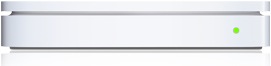
This will usually be the slowest way to back up your Mac via Time Machine. Think about it: you’re going to be pushing your bits via WiFi, and even though your hardware may be “n” specs instead of “b” or “g”, you’re still not going to get above 50 Mbps at best. Realistically, you’re looking at speeds somewhere between 15-45 Mbps, which is less than Fast Ethernet (100 Mbps) and nowhere near Gigabit Ethernet (1000 Mbps).

For comparison purposes, I have observed transfer speeds which approached USB 2.0 speeds when using a direct, wired, Gigabit Ethernet connection between two Macs (MacBook Pro and iMac G5). If you have a wired Gigabit network at home, this might be the only way to actually get decent backup speeds with Time Machine without needing to use USB or Firewire hard drives. But if you’re using WiFi, your transfer speeds are going to be anywhere between 15-20 times slower than Gigabit speeds, which means you’ll be sitting there a long time waiting for your backups to finish, should your backup set be anything over 100-200 MB.

When Time Capsule came out, I was tempted to buy it, just like I bought the Apple TV, only to regret that later. I’m glad I didn’t end up spending my money on Time Capsule, because it just isn’t suitable for me, or for anyone with larger backup sets. It certainly looks good, but that’s about all it does and all it’ll do until WiFi speeds approach Gigabit speeds.

Takeaway message

When one of my friends shared an article from Louis Gray via Google Reader, where he complains about how slow it is to back up to Time Capsule, was I surprised? Given all I’ve written above, do you see why I wasn’t?

Do the smart thing: if you’re using Time Machine, get a little portable drive like I did and run your backups that way. They’ll be fast, and you’ll be the one deciding when to back up, not Time Machine. I don’t know when Apple will decide to give us more configuration options for Time Machine, but until they do, those who care about their time should back up directly to an external drive.

Standard
Thoughts

Storage drops below 9 cents per gigabyte

I see that Newegg.com lists the Seagate 1.5TB SATA hard drive for $129.99 with free shipping. Sure, it’s an OEM drive, which means it’s not boxed, but who cares? Do you realize what this means? It means you’re paying $0.086 per terabyte gigabyte. Storage has become even cheaper — unthinkably cheap. The previous relevant price point was $100 for a 1TB drive, which meant $0.100 per gigabyte (a dime).

Seagate 1.5TB SATA Drive

A gigabyte is now cheaper than a dime! I just didn’t think it would happen this fast. I remember when a dime would get you 100MB, and I thought that was a lot. Okay, let me not kid myself: I remember when a dime would get you 1MB or less. Now you get 1GB, which is 1,000 times the storage capacity, for less than the same tiny dime. Amazing!

If you’re looking for extra storage capacity, now would be a good time. If I hadn’t already filled up my main Drobo with 1TB drives, I’d jump all over these, because they’re definitely at the right price point, especially now that they’ve been cleared for use with the Drobo once more.

Seagate FreeAgent Xtreme 1.5TB

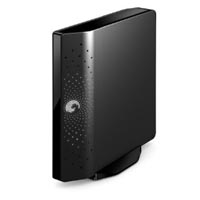
While I’m on the subject of good deals, let me remind you of my guide to getting good deals on hard drives. I mention it because Micro Center happens to be selling the Seagate FreeAgent Xtreme 1.5TB (a triple interface external hard drive) for $149.99. This means that you’re paying $20 for the enclosure over the price of the hard drive alone.

Remember, this is a triple interface drive (USB 2.0/FW400/eSATA), and that means the enclosure is very inexpensive. Instead of buying one of those DIY enclosures that may or may not work (I’ve been there), you’ll get something that’s guaranteed to work, or you can return it.

Standard