Lists

Condensed Knowledge – March 22, 2009

This is a summary of articles I read and found interesting during this past week. The list is shared from among my feed subscriptions:

Standard
Reviews

Gmail offers another pleasant surprise

The Gmail team has done it again, and they’ve given Gmail users a whole slew of cool new features.

New Gmail features

We’ve now got YouTube, Picasa and Flickr previews, built right into each email message. All we have to do is to put a link to a YouTube movie, or a Picasa or Flickr photo, and its thumbnail shows directly in the message. This feature can be enabled by service from the Labs settings in our Gmail accounts.

I love the “Undo send” feature and have already enabled it. My wife is already using the Offline version of email. It took a bit to sync all her messages, but it’s doing alright now.

Other Gmail features I love are as follows:

  • Superstars, which adds additional stars icons. I organize emails that I need to act on that way.
  • Signature tweaks, which places the signature above quoted text
  • Right-side labels
  • Navbar drag-and-drop, which allows me to re-organize the various items on the Gmail screen
  • Forgotten attachment detector
  • Vacation Time, which lets me specify beginning and ending dates for those times when I can’t get to my email
  • Create a Document, which allows me to create a Google Document right from my Gmail inbox (this is new)
  • Send & Archive, which allows me to reply and archive that message at the same time (this is new)
  • Title Tweaks, which changes the order of the text in the Gmail page title, allowing me to see right away how many unread messages there are (this is new)
  • Google Docs gadget, which displays my most recent Google Documents on my Gmail inbox screen

There’s more information about the new features on the Gmail Blog, here and here.

Standard
Reviews

In-camera HDR now here

Back in November of 2006, I had a few ideas about taking foolproof photos. I predicted that it wouldn’t be long before we might see in-camera HDR. That feature is now here. Let me show you two cameras that have recently become availble. They both do in-camera HDR.

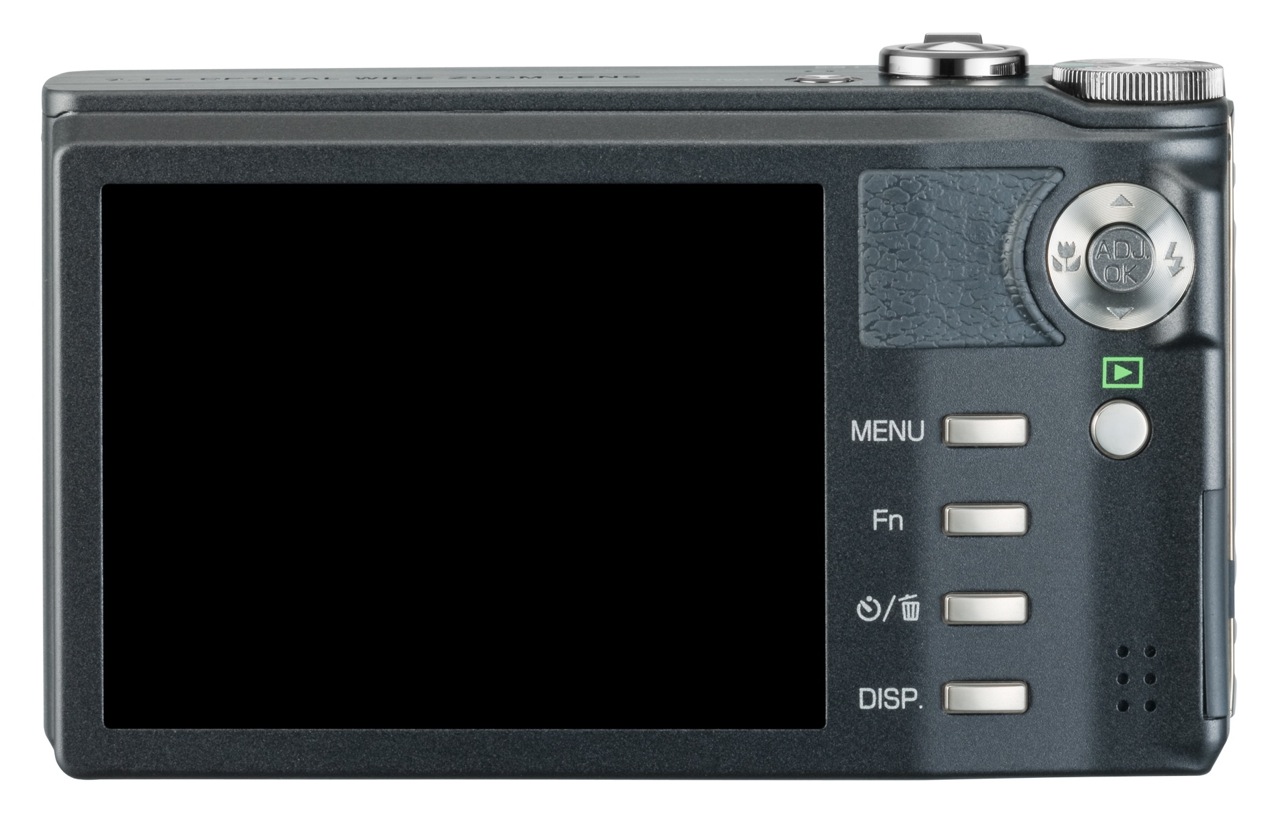
Ricoh CX1

Ricoh CX1 - 1

Here’s what Ricoh says about their in-camera HDR feature:

“It can be difficult to photograph scenes in which the level of brightness varies greatly. With dynamic range double shot mode, the CX1 shoots, consecutively at high speed, two still images with different exposures, and then it records an image that combines the properly exposed portions of each. Expanding the dynamic range up to a maximum equivalent to 12 EV makes it possible to record images that give an almost naked-eye impression.”

Ricoh CX1 - 2

[via Ricoh]

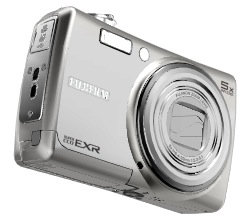
FujiFilm FinePix F200EXR

FujiFilm FinePix F200EXR - 2

Here’s what FujiFilm says about their in-camera HDR feature:

“Just as your eye sees the full range of shadows to highlights in high-contrast scenes, “D-range Priority” simultaneously captures two images to produce a single image with Wide Dynamic Range up to 800%, revealing subtleties in shadow and eliminating washout of the bright areas.”

FujiFilm FinePix F200EXR - 1

[via FujiFilm]

It looks like both companies use a two-exposure method, where one is underexposed to capture the very bright areas, and the other is overexposed to capture the dark areas. The two exposures are combined in-camera to create a single photo that contains the proper details from each exposure. You have to specifically turn on this feature — the camera won’t do it automatically — but the nice thing is that you only press the shutter button once.

I’m really glad to see this feature come to market. In some ways, it’s similar to a feature found on Canon DSLRs, called Auto Lighting Optimizer, except that feature adjusts the sensor signals within a single exposure to render a better photo instead of combining two photos. I imagine the dynamic range compensation obtained through that technique isn’t as pronounced as the in-camera HDR done by Ricoh and FujiFilm.

Standard
How To

How to travel with the Drobo

You might think this is a banal topic, but I don’t. I’ve had to take three of my Drobos with me on a recent overseas trip, and I had to make some clear decisions about how I was going to transport each of them.

The first thing I wondered about is whether there’s a carrying case or bag for the Drobo. I’ll talk about this first, then I’ll give you some practical travel advice.

Right, the carrying case — there isn’t any. There’s a grainy pic on TwitPic of some sort of a large plastic case with foam where you could place the Drobo and its hard drives, but that’s too big to take with you most places, particularly when you have lots of other luggage. It won’t work. We need something slim, something that fits right around the Drobo’s rectangular shape, has handles, sort of like a bowling bag, and yet is well-padded to protect the Drobo. Alas, there isn’t any such thing…

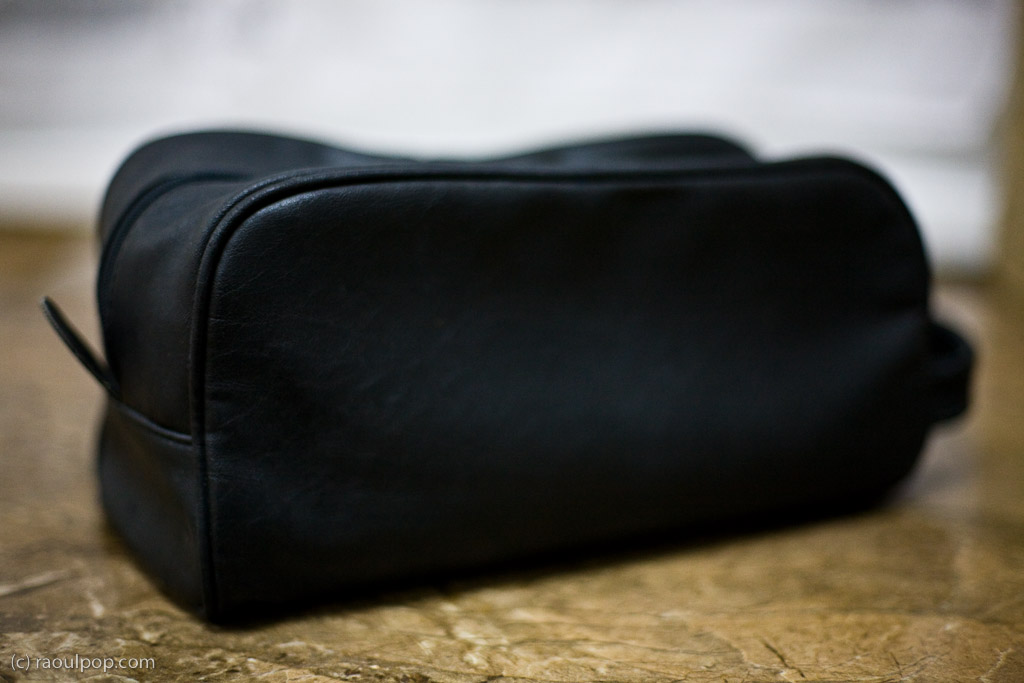
Let me show you a potential design that could work. It’s not something I invented — it’s my travel toiletry bag. Notice its handle is on the front, but I think there ought to be two handles at the top, one on each side, since the Drobo can be fairly heavy with the hard drives inside. The zipper ought to be down the middle of the case, at the top, and the bag ought to have two compartments on each side, or one below, where you can stick the power brick and the USB and Firewire cables.
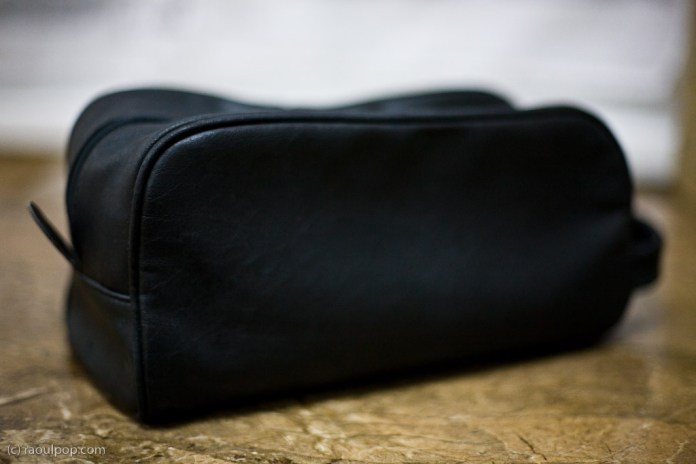
Potential design for a Drobo carrying case

If Data Robotics or some other company made this sort of a carrying case, we would simply take the Drobo, with its hard drives inside, put it in the bag, and stick the bag in our carry-on luggage. I wouldn’t trust airport personnel enough to check the bag containing the Drobo. Given the way they throw baggage around like it’s bales of hay, they’d likely damage the Drobo and our data.

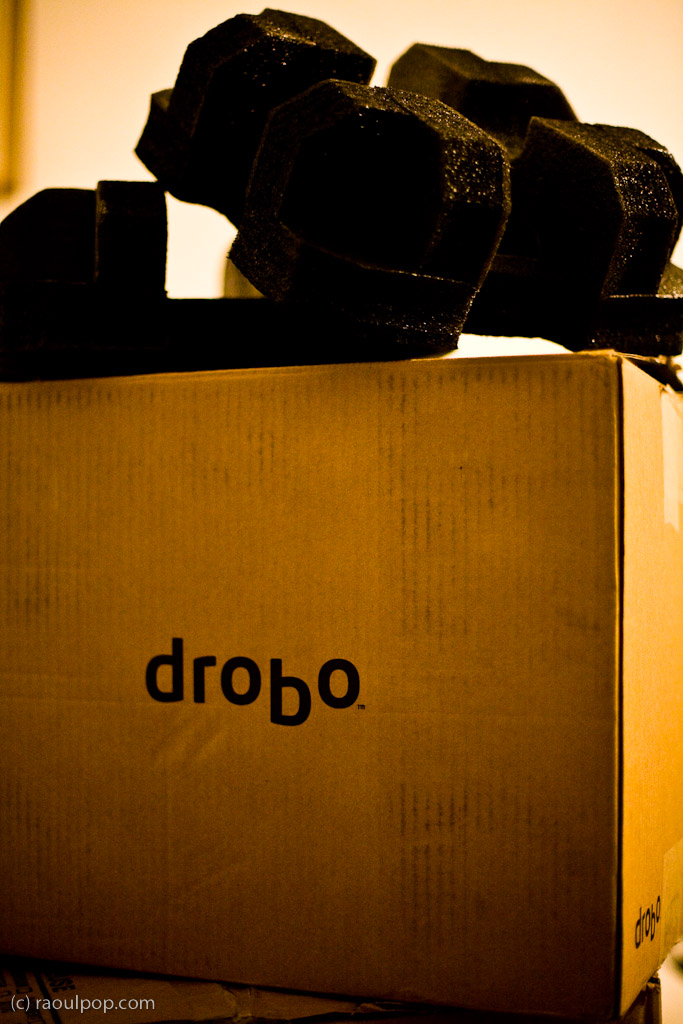
Now let’s get back to reality. There isn’t any carrying case yet. What do we do? What did I do? I was able to send two of my Drobos separately, by ship, and I placed them in their original boxes, which I packed into larger cardboard boxes with other items. They arrived safely, thank goodness. I love those Drobo boxes, they hold up so well! I kept all of them and used them often for storage or transport.

Original Drobo box

As for my third Drobo, the Firewire Drobo, my current primary storage unit, that had to come with me on the plane. I kept the hard drives inside it, packed it in woolen sweaters and other soft clothes, and put it in one of the carry-on bags. Yes, in case you’re wondering, I had to pull it out of the bag for airport security and show it to them. They kept wondering what it was and what it does, and couldn’t believe it was basically an external hard drive. Expect the same treatment from them, at least until they see more Drobos. As for the Drobo’s original box, I didn’t want to lose that, so I flattened it and placed it in one of the checked pieces of luggage along with the foam holders and the box that contains the wires, power brick and software CD. I’m glad to tell you that it arrived safely with me, and it’s connected to my MacBook Pro as I write this.

One last bit of advice. If you travel by car, and there isn’t yet any Drobo carrying case/bag, make room in your trunk for the Drobo’s original box. Pack it inside, and you’ll know that short of an accident, your Drobo will be well protected.

Standard
How To

Firmware update available for WD TV

There’s a firmware update available for the WD TV. It’s version 1.01, and you can download it and install it right now from the WD website. A lot of issues were resolved. The complete list is available in the release notes.

Here’s a summary of the salient points:

  • Now you can update the firmware when using a drive larger than 500GB. You may think this is an unlikely scenario until you try to use a large storage device like the Drobo with the WD TV.
  • Better subtitle support (SMI, SUB, ASS, SSA, MKV) with user-selectable font size for subtitles
  • Disk volume name display in folder navigation; this was an annoying bug, as you couldn’t tell which drive you were browsing if you had two of them connected to the WD TV
  • Jump feature: while fast forwarding or rewinding, if next of previous buttons are pressed, the WD TV will jump 10 minutes forward or backward
  • EXIF orientation flag functionality for auto picture rotate. Thank goodness! It was really annoying to have to turn my head sideways or bother with the rotate feature every time a photo taken in portrait mode was displayed.
  • Display sizing menu for photo playback: fit to screen, full screen, keep as original
  • Resolved issue where WD TV would not turn back on with remote after extended period of inactivity; previously WD TV had to be unplugged and was unrecoverable with the remote
  • Added 1080p 24hz support
  • Resolved info bar display issues in PAL (European display standard) mode

It’s important to note that there’s still a known and unresolved issue, namely this: if the user unsafely removes an HFS+ formatted drive from the media player without using the Eject button, the drive will become read only media. I’m not sure when this will be resolved.

The installation instructions for the firmware are what one would expect them to be and fairly simple to follow. I’ll reproduce them for you here from the WD release notes for firmware version 1.01:

  1. Go to http://support.wdc.com and download the latest firmware update compressed file for your Media Player. (Here’s the direct download link for version 1.01.)
  2. Click “Downloads” then the product name (or photo).
  3. Extract the two files (.BIN and .VER files) to the root folder of a portable USB drive.
  4. Connect the USB drive to the HD media player’s USB port.
  5. Press HOME, and then select the Settings bar.
  6. Select the firmware upgrade icon, and then press ENTER.
  7. You are prompted to perform the firmware upgrade.
  8. Select OK on the firmware update prompt, and then press ENTER.  This will restart the system.
  9. After restarting, the system automatically enters firmware upgrade mode.
  10. Once the update process is completed, the HD media player will restart again.
  11. Once the HD media player restarts, the new firmware is automatically loaded.
Standard