
- Bourne Energy’s RiverStar: a fresh approach to hydropower http://tinyurl.com/34j39h #
- Analysts see ‘ringback tones’ becoming an $800 billion industry http://tinyurl.com/2nbd6x #
- Ringback tones are one more way for fiscally dumb people to spend their money. Completely pointless ways to show off. #
- Nokia Trips the Silverlight Fantastic http://tinyurl.com/3cftxs #
- New colors, button-shift and accelerated market expansion for 3-wheel Can?Am Spyder roadster http://tinyurl.com/367mf2 #
- The good, the bad, and how to make me cry http://tinyurl.com/3dxp2c #
- Creating and Entrapping Terrorists http://tinyurl.com/22x6pk #
- The way infants and adults see color is processed in… http://tinyurl.com/33t9ud #
- How to Inoculate Your Children Against Advertising http://tinyurl.com/37w87u #
- Creating Sidebars That Work http://tinyurl.com/34mhx9 #
- Secrets: Another Way to Manage Secret Prefs in your Mac http://tinyurl.com/3543eq #
- Airship Dreams http://tinyurl.com/37kkjz #
- Daylight savings is found to waste energy http://tinyurl.com/3br78v #
- Economical dual-fuel TSI concept from Volkswagen http://tinyurl.com/3agevd #
- A new type of car door – the dragonfly wing http://tinyurl.com/3dfum4 #
- Illustration: Mabel Lucie Attwell’s Peter Pan and Wendy http://tinyurl.com/32lgdx #
- AOL swings doors to its IM service wide open http://tinyurl.com/2zu5ck #
- Brace yourselves for a possible actors strike http://tinyurl.com/2ly4qy #
- 14 Awfully Simple Things to Be Grateful for in Your Daily Life http://tinyurl.com/3y8kg7 #
- Are we actually ready for the multicore and virtualization era? http://tinyurl.com/2rul7w #
- Prospects for Flash on iPhone dim with Jobs comment http://tinyurl.com/25z7wn #
- Tiny Ferris: 1914 http://tinyurl.com/2j2mqg #
- All (Baby) Bottled Up in Montmartre http://tinyurl.com/2knaxx #
- AT&T to invest 1 Billion worldwide for expansion http://redir.internet.com/rss/click/www.internetnews.com/breakingnews/article.php/3732261 #
- Apparently the Google Reader + Twitter Greasemonkey script has a problem with ampersands in the article title. #
- 8 Lessons Bloggers Can Learn From Sony http://tinyurl.com/2lhnj5 #
- Set a Blank Password in Windows XP To Protect the Computer from Internet Attacks http://tinyurl.com/2fwevp #
Tag Archives: apple
A look at hard drives: finding the best deals


Given my recent push to find a feasible solution for my photo library, which resulted in the purchase of a Drobo (three, actually, but that’s beside the point), I’ve gotten to know a bit about hard drive prices. Here are my two cents on the issue.
Keep in mind that this advice is applicable only during the present time, since prices will continue to fluctuate and larger hard drives will become available, driving down the prices for the smaller ones. Let me also say that if you didn’t get your hard drives before, during or after Christmas, you missed out on some great deals.
Right now, the most economical drives (best size to price ratio) are the 500 GB ones. You can get great SATA drives with 16 MB caches (current standard size), 7,200 rpm and 3.0 GB/sec transfer speed at $120 (retail-boxed; OEM drives are cheaper).
If you must get a drive smaller than 500 GB, you can, but it’s not economical. The price per GB starts to go up once you go smaller. It’s about the economics of the thing. Regardless of the actual size of the drive, the price of the components and labor has to be factored in. Even if the drive is smaller in size, and it stands to reason that it should be cheaper, it costs money to put it together, and that cost is fairly inflexible. That’s why you may gasp when you look at the prices of 40 GB or 80 GB drives (if you can still find them) and you wonder why they cost so much when no one uses them anymore.
Back to bigger drives. I remember just 1-2 months ago, the 750 GB hard drives were double the price of the 500 GB ones, but the prices are coming down. In just another few months, or even less than that, they will close the gap and become the most economical drives you’ll find. That time isn’t here yet though. Right now, the least expensive 750 GB drives (retail-boxed) I can find start at $199. If 500 GB can be gotten for $100-120, then, proportionally speaking, 750 GB drives should be $150-180 in order to be as economical as the 500 GB drives. Not yet.
➡ Updated 2/27/08: The 1 TB (1,000 GB) drives have just dropped in price enough to be just as economical as the 500 GB drives. I’m very surprised that it’s happened this fast. The market has leapfrogged the 750 GB drives, as I thought it would. I’ve seen the WD 1 TB SATA drive pictured below for as as low as $230.
The 1 TB (1,000 GB) drivesaren’t economical yet, either. It’s likely that in 6 months or so, they’ll get to be great deals. It’s even possible that market forces will cause the prices to leapfrog over the 750 GB drives and push the 1 TB drives to the forefront. Right now, the least expensive 1 TB drive comes in at $260, which is more expensive than if you were to get two 500 GB drives. Keep in mind I’m talking strictly about the GB to price ratio here, not the convenience of having a single drive instead of two, which trumps the price difference somewhat.
Because I have a Drobo, I’m isolated somewhat from having to worry about whether I have a single drive or two drives. I can still get plenty of space if I stuff my Drobo with four 500 GB drives, then replace them with 750 GB or 1 TB drives later. Or, even better, I can take the wait and see approach. Right now, there’s plenty of space on the Drobo that stores my photo library, even with only two 500 GB drives inside. That means I can wait till the bigger drives get cheaper and buy an extra drive at that point.
Similarly, the Drobo that stores our movies and videos, plus our various other files, is doing just fine with three 500 GB drives. I don’t think I’m going to fill it up in the next month or two, and that means I can wait until the 750 GB drives, or maybe even the 1 TB drives, become economical.
With hardware, it’s about striking the balance between what you must have, and what can wait. Thankfully, even 500 GB is a ton of space for most people, so it’s a buyer’s market, as they say.
Another thing you can look at, once you know the prices of internal hard drives, is the prices of external drives. When you know how much an internal drive costs, you can subtract it from the cost of an external drive and figure out how much you’re paying for the enclosure and design alone, and whether it’s worth it to buy it.
This is why I said that the 500 GB LaCie drive was a bargain, and why I recommended that people buy it. Given that you can get a 500 GB drive for $100, and the drive costs $118 (at one point it cost only $109) you know this is a bargain. You’re paying only $18 to get the drive packaged nicely in a great USB 2.0 enclosure that makes no noise. Having fiddled around with plenty of enclosures in my time, I know a great deal when I see one.
By the same token, when you look at the G-Tech Quad Interface 500 GB drive, you know that’s not a bargain. When the drive itself costs only $100 and you pay $270 to get the drive and the enclosure, that means you’re paying $170 for just the enclosure and the quad interface. Is that worth it? You decide.
Don’t think I’m implying your decision has to be guided by price alone. While I dislike paying a premium for a product, I do it if I think it’s worth it. I think the Drobo is overpriced. I still bought three of them and I recommend them to others. I think Apple products are overpriced, but I still buy them and recommend them to others. (You’ll have to excuse my tone in that post — I was seriously irritated with Apple at the time, but what I said was true.)
It’s just that it’s worth knowing what you’re buying. If you’re going to spend your money on something, then you should do the research to back up your purchase decision. This is also why I’m steamed up about Apple’s non-transparency when it comes to their hardware specifications. I don’t know what I’m buying, and it bothers me. It doesn’t mean I don’t want to buy, it’s just that I’d like to know where my money’s going.
I hope this has been helpful to you.
How to backup and restore your Mac and PC
I had a conversation yesterday about this very topic that made me realize it’d make a great article. So here’s how to backup — and if needed, restore — both your Mac and PC in a pretty much foolproof sort of way.
Before I start, let me clarify three things.
First, using backup software does not necessarily mean you can restore your entire computer in case it crashes, gets infected with a virus, or the hard drive dies. Keep that in mind! Backing up your files means just that: you’re backing up your files and can restore them, not your computer. The question you need to ask yourselves is: “Does my backup software let me restore my entire computer (operating system + my files) or just my files?”
Second, you’ll need a good backup device. It won’t do to have both your computer and your backup device fail at about the same time, or you’ll be nowhere. So make sure to get a good external drive with plenty of space (I use these) or to use a device that’s built to secure your data against hardware failures (like a Drobo, which I also use). Apple has just released a wireless backup drive called Time Capsule, which should work nicely with Macs.
Third, I’d rather not get into arguments about how some piece of software is better than that piece of software. The point is to make things easy for those of you that are confused by all the pieces of software out there. In the end, you use whatever software works for you, but remember that this is what I recommend. I don’t want to bog people down with doing their virus checks with Whodalala and their spyware checks with Whodalulu, and… I think you get my point. An all-in-one solution works best, especially something that you install and then runs automatically. I believe strongly in automating these sorts of tasks and making it easy for the average person to use the software, and I’ve written about this in the past as well.
How to backup and restore a Mac
 This one’s really easy. Get Mac OS X Leopard and use Time Machine. It’ll do both file-level restores and full restores. It backs up your computer automatically every hour, and the first time you run it, it’ll do a full backup of everything on your computer. It’s great, I use it too, it works. In case your Mac should go kaput, you can restore it in its entirety after it gets fixed by booting up to the Leopard DVD and choosing “Restore System from Time Machine” from the Utilities menu. Should you only need to restore files, you’ve probably already seen the cool demo video and you know all about that.
 Don’t have Leopard? Still on Mac OS X Tiger? It’s okay. Use Carbon Copy Cloner. It’s wonderful, it’s free (you should donate if you find it useful though), and it can do full and incremental backups and restores. (Incremental means it’ll only backup or restore the files that have changed since the last backup or restore.) It works with both Tiger and Leopard, so you’re fully covered.
How to backup and restore a PC
This one’s a little trickier, but you just have to remember two names: OneCare Live and Norton Ghost.
 OneCare Live is made by Microsoft and will do most everything PCs need: defragmentation, virus checks, spyware checks, firewall, and backups. What’s more, the software will remind you if you haven’t backed up or ran scans lately. It’s an all-in-one piece of software that I’ve used for over a year, and I like it.
A nice thing about its pricing is that it lets you use one license on up to three computers and manage the OneCare settings from a single machine. This means you can install it on your children’s PC and your wife’s PC and manage their security settings from your own machine. You can even schedule all three to back up to a central location like a network drive or a Windows Home Server.
The thing to keep in mind about it is that it does NOT do full backups and restores. It will only look for your files (documents, spreadsheets, movies, photos, etc.) and back those up to an external device. That means that unless you want to be stuck re-installing the operating system and applications every time your computer crashes, you’d better have something else to work alongside OneCare.
That certain something else is Norton Ghost. I’ve used it as well, and it sure works as advertised. Many system admins swear by it, because it makes their jobs a lot easier. The way to use it is to get your computer all set up and ready to go (with the OS, apps and latest patches and updates all installed), and BEFORE you start using it, ghost it. You can either boot up from the Ghost CD and clone your entire hard drive to an external device like a USB drive or to DVDs, or you can run the Ghost application right from the operating system, with your computer functioning normally while it’s getting cloned.
Once you’ve ghosted your machine, keep that ghost image safely somewhere and do regular backups with OneCare Live. If your PC should ever crash, you can boot up with the Ghost CD and restore it from its ghost image, then do file-level restores with the OneCare application.
Just remember, it’s important to ghost your PC at that critical point after you’ve gotten everything you need installed, but BEFORE you get it infected with something or installed stuff you’ll want to uninstall later, otherwise the ghost image will understandably be pretty useless to you.
Hope this helps!
Upgraded to Leopard
 Almost two weeks ago, on 11/16/07, I upgraded to Leopard, the new version of Mac OS X. In spite of some negative experiences I’d read about, my upgrade went smoothly and I didn’t lose any data. All of my applications worked afterwards. A couple of them, like 3D Home Architect, required Leopard updates to make them stable again. My version of EyeTV needed to have its most recent upgrade re-applied.
There were a couple of hiccups that I wanted to mention. One occurred during the upgrade process itself, and the other afterwards.
- I started the upgrade process and booted from the DVD. Went through the various steps, but when it came time for the Leopard installer to find our iMac’s boot disk, it couldn’t see it. I waited for about 5 minutes, then I clicked the Back button a couple of times, went through those screens again, and after I waited for about 2 minutes, it finally saw the boot disk and allowed me to go on to the next step. I have a feeling this might not have been a hiccup, but that the installer was busy calculating the free disk space on the drive. I thought I’d mention this just case some of you have the same problem.
- After the upgrade completed, I configured Time Machine to back up to one of my external drives, and it started the initial backup. It kept going through the evening and overnight, then it crashed in the morning, and the iMac required a hard reboot. In other words, everything was frozen and I had to power it off manually. After I started it back up and restarted Time Machine, it finished the initial backup and it picked things up exactly at the point where it crashed. In other words, it didn’t start backing up the entire drive once more, which I thought was a nice touch.
One thing I did before starting to upgrade was to disconnect ALL peripherals. I figured there was no reason to complicate the upgrade process by having extra USB and Firewire drives, printers and other gadgets connected during that time. When the upgrade process completed, I re-connected them, and found, to my delight, that a new driver for my printer had been packaged with the OS. I didn’t have to run HP’s crummy, old drivers from 2005. Very nice!
I’m very happy with Leopard since we installed it. Our iMac runs a little faster now, thanks to the better memory management and pre-fetching features in Leopard. I love Time Machine and the Remote Desktop features included with the new iChat. These two features were my reasons to upgrade to Leopard, and I’m very glad to see that Apple delivered the goods.
Another feature I love is Spaces. I love being able to separate my applications so easily, and I love being able to assign them to different screens. I know that when I start up a certain app, it’ll run in a certain space and won’t clutter up my primary space. That’s awesome.
One thing I didn’t like about the previous version of OS X (Tiger), was the fact that when I used a key shortcut to access my home folder (Command + Shift + H) or the apps folder (Command + Shift + A), it would commandeer any existing open window and go to that location. I wanted to keep the existing location and open a new window, but Tiger wouldn’t let me do it. The same thing still happens in Leopard, and what’s more, when I use Spaces and I’m in screen 2, for example, pressing a key shortcut to access the apps folder will open it up in Screen 1, defeating the purpose of using separate screens. This is one piece of interaction that should be changed.
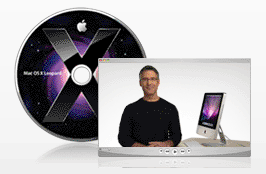 I’m otherwise a very happy customer, and I think Leopard is a worthwhile upgrade from Tiger. The new features are awesome.
If you’re thinking about upgrading, I would highly recommend watching the guided tour so you know what to expect. If you can’t watch the video, the booklet included with the Leopard DVD disc is another great resource.
More information
- Mac OS X Leopard (Apple)
- Mac OS X Leopard (Amazon)
- Mac OS X Leopard (B&H Photo)
A look at culture and technology through sound effects
I was listening to the radio one morning, and realized the sound effects they were using to advertise a website were the clicks of a keyboard likely made in the 80’s — you know, long key travel, spring-loaded action, hard clicks. But it worked.
More importantly, it is the only sound that can approximate a keyboard well, and transmit that action to an audience. Think about where keyboards are going today though. Apple is putting out keyboards that barely make any sounds — for example, see the new slim iMac keyboard, or the MacBook or MacBook Pro keyboards. Other hardware manufacturers are following suit, each advertising softer keys, more muffled sounds, etc. How do you record that? It can’t translate well over radio as a sound effect.
Remember how they used to advertise accessing the internet just a few short years ago? Through the sounds of modems. Tell me, could anyone afford to advertise internet access like that any more? No, they’d get laughed out of business, because most everyone is using high-speed access now. But is there a sound that can represent an Internet connection now? How do you represent it or record it?
What about the sound effects for phone calls? They were the simple, old-fashioned ring, right? Everyone knew what it was, and there was no confusion. Not any more. Although people still recognize the old phone ring, children growing up nowadays have so many choices when it comes to ringtones, that soon enough, the old phone ring will no longer be a recognizable sound effect for phone calls.
In some of the older movies or radio commercials, beeps, flashing lights and loud sounds were used as sound effects for computers. The starts and stops of tape reels were well known as well. What about the sounds of the punch cards, rolling through the machines and getting processed? Those are all things of the past. The only sounds computer hardware makes nowadays is the drone-like noise of the hard drives and cooling fans. It may be the representation of an efficient computing machine, but it’s pretty boring as a sound effect. Desktops or laptops (the newer ones anyway) make no sounds at all. We prize them based on how little sound they make, and rightly so, but we’ve lost the sound effects.
Remember the sound of switching TV channels? There was the manual, hard click of the round knob on the TV set (not many of you know about those anymore). If you were using a remote on older televisions, there was a sound pop, followed by a short period of static and the sound of the new channel that accompanied each channel switch. On newer televisions, that’s no longer the case. There’s no pop, click or jarring sound transition during channel switches. It’s all handled smoothly, and on some, the sound is gradually brought up to listening volume so as not to disturb you. But how do you represent a channel switch in a radio ad? You can’t, not anymore, not unless you use a decades-old sound effect.
The point of all these examples is to illustrate how technology is outpacing culture. I wanted to look at this through sound effects, but there are many ways in which it can be done. Just think of social networking sites, their invasion of privacy, and the new expectations of online behavior if you want to look at another aspect of this same issue.
One thing’s for sure — our culture has some catching up to do. While I love technology and embrace it (for the most part), we have to recognize that we’re in uncharted territory nowadays, in many, many areas of technology, particularly at its intersection with people and general culture. The rules aren’t even getting written, because no one is sure just how to grasp the situation. We each understand but a little portion of what’s going on — and that’s both scary and exciting, depending on your point of view.
 Raoul Pop


