Reviews

ChiliBox, the do-it-all machine

The ChiliBox

I’m pretty impressed with the specs for the ChiliBox. This little machine really seems to do it all, right out of the box, and for a very reasonable price. Given the proliferation of NAS devices these days, you wonder how much functionality you get out of them, and for some, it’s not much. Well, the ChiliBox could be the network server for a small business, eliminating the need for other servers or separate hardware. Have a look at its capabilities below, or check out the full spec sheet:

  • Firewall
  • NAS File Share (works with Windows, Mac and Linux)
  • VPN
  • Web Proxy Server
  • Remote Administration
  • Dynamic DNS
  • Wireless Access Point
  • NAT/PAT and Advanced Routing
  • Email
  • Backup
  • Anti-virus

Do you really need more to run your network? Unless you’re a medium to big company, you don’t. Just plug this in, and you’ve got more than you need to run everything at home or at work. If you need extra storage, just plug in another USB drive. How easy is that!

When I first saw it a few months ago, I said to myself, I’d love to have a small office and have a need to run this thing. Right now, I’ve already spent enough for my existing setup, but boy, I’m tempted to get this anyway…

Standard
Reviews

Clean your computer with CCleaner

CCleanerI tried CCleaner, a wonderful little freeware app that will clean temp files and other unused files, registry keys and cookies, on three separate PCs, and I’ve come to rely on it already. Two of those PCs were XP Professional machines, and one was a Windows 2003 Server running on VMWare Enterprise as a virtual machine. It did a great job on all three. It gave no error messages, it just cleaned things up nicely.

When I ran it on my first machine (at work), it found over 300 MB of files it could safely delete. Then I ran it on the server (also at work) and it found about 50 MB of files (granted, this was a new install, only days old.) Then I ran it on my laptop at home, and it found over 500 MB of files. I took a few screenshots for you to see. I like the fact that the CCleaner is very customizable. I can tell it what to delete and what to leave intact. I particularly like that I can specify which cookies to keep, and which to delete. To do the same yourself, go to Options >> Cookies. This means that I can keep a set of “safe” cookies, for sites I like and visit often, and delete all the rest. It’s wonderful, because it means that I won’t have to re-type my login information after running CCleaner.

CCleaner - Main Screen

This is the screen where you specify the registry scanning options:

CCleaner - Issues Screen

This is the screen where you tell it what cookies to keep, and what cookies to delete:

CCleaner - Cookies Screen

I highly recommend CCleaner. It works as advertised, and doesn’t cause any problems. A word of warning though. Before running it on my XP Pro machines, I created System Restore points, and I advise you to do the same before running it. (There is no such option on Windows 2003 Server.) Although CCleaner caused no problems whatsoever on all three machines where I used it, freak accidents are possible on Windows machines, and it’s good to have something to fall back on.

By the way, I think it’s a great idea to create System Restore points before you install any piece of software. It’s just good practice. That way, if something goes wrong, you simply restore your computer and move on, no harm done. Don’t rely on Windows to create the restore points automatically. I found out the hard way that sometimes you simply can’t restore from those points. Manual creation of restore points is the safest bet.

Standard
Reviews

Want to watch your recorded shows and movies over the Internet?

OrbWith all of the media hype surrounding Slingbox, and the Sony LocationFree Player, an easy and inexpensive (as in FREE) solution is getting overlooked: My Orb. But that’s to be expected. They haven’t advertised heavily, and they’re fairly unassuming. But don’t think that their product is underrated, because it’s not.

To use it Orb, all you do is install their software on your desktop system (only works with Windows XP machines), and it’ll let you access your photos, music and movies right through the Internet, right away. It’ll even stream your music in Windows Media Player or Quicktime streams, depending on what computer you access your files with (PC or Mac).

I wouldn’t have known about it myself, except that I bought a Creative web cam for my laptop, and found the software bundled onto the install CD. I tried it, and it really works like a charm! I simply installed the software, set up my account at My Orb, and logged in. All of my photos, music and videos were listed right in my account. I was able to stream my movies from my home machine, and watch them over the internet, at work. And if you’ve got a Media Center PC, it’ll even let you access your recorded TV shows, or the live TV stream. Cool!

And, what’s even cooler is that they’ve got this service called Orb Secure, which they make available for free to Creative web cam buyers, that’ll let you use your camera as a surveillance device. You can access the camera’s video stream at any time to see what’s going on at home, or even better, use it as a motion sensor, and set it to record video for a pre-set amount of time whenever movement is sensed. What’s more, this service will even email or SMS you whenever motion is detected. You can then watch either the live video stream, or the recorded video portions, right on the Orb site, and take action if needed (i.e., call the police). How cool is that!

So why spend your money on yet another piece of hardware? Use what you already have, and get your money’s worth. Look into Orb.

Standard
Reviews

Dictionary of Information Security by Robert Slade

Dictionary of Information SecurityHave you ever wondered just what the jargon of information security specialists really means? What are all those arcane words they throw around to scare us into submission as they lock down our computers even tighter? “What do you mean, we can’t even install a screensaver now?! Can I at least use the bathroom without your permission?”

Unfortunately, there are a lot of dumb Information System Security Officers (ISSOs) at corporations and organizations. I’ve known a few myself. These are the folks that barely know what they’re talking about, and go by the latest article they read. Their reaction to a new piece of software is to lock down the system and disallow it even before they research it properly. Case in point: was Skype shut down at your place of business or at a friend’s workplace? That was a dumb ISSO in action. They also know so little that they simply throw words around, and anyone with a little knowledge of computers can tell when they mess up. “No, ROM is not RAM, and no, it’s not a 300 Gigabit hard drive, it’s a 300 Gigabyte hard drive.”

That’s why books like this Dictionary of Information Security really help. We can educate ourselves, and know when they’re wrong. We can tell when they’re BS-ing, and when they’re telling the truth. My experience has been that they BS for 80 percent of the time, and don’t know what they’re talking about for the other 20 percent. “No, RSS doesn’t stand for Really Scary Stuff, it stands for Really Simple Syndication. And yes, it’s okay for us to subscribe to RSS feeds. Really.” Or, “No, this is a perfectly harmless screensaver. It’s not a RAT (Remote Access Trojan). You’re a rat, for all I care.” I could go on and on…

I love this book. Robert Slade did a great job putting it together, and the terms are explained in language that anyone possessing a cursory knowledge of computers can understand. I’m amused by the forewords, acknowledgments and preface. They’re abnormally long for a book this small, but that’s to be expected. This is, after all, the first Dictionary of Information Security, and a precedent has to be established, so to speak. But once you get down to the terms, you forget about all of the beginning sections, because if knowledge is power, this book packs a wallop.

Get it, and read it. I know it’s hard to believe, after all, who’d read a dictionary, but I’d read this one. And keep it around for reference. And when your ISSO gets on your nerves, start encrypting all your emails with PGP if he doesn’t stop scanning them. Or, if he doesn’t stop blocking access to your webmail account, set up a VPN connection to your home network and do all your web surfing through that. That’ll knock his SOCKS off! Let the fun begin!

Standard
Reviews

Hardware review: HP Pavilion m7480n desktop

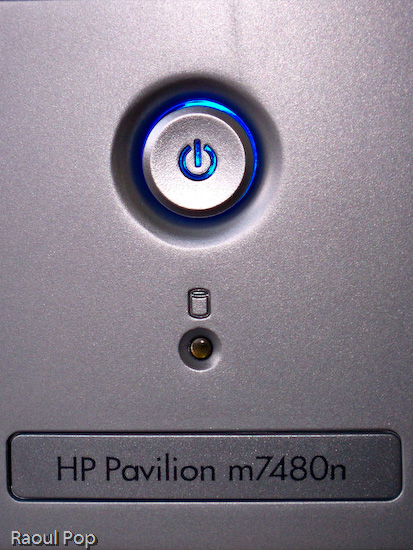
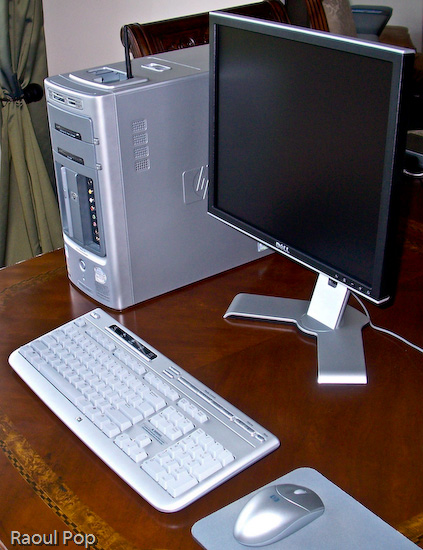
I’ve been using the Pavilion m7480n desktop for the last 2 and a half months, and I’m pleasantly impressed. This is a great desktop system, it’s fast, stable, packed with great features, but most of all, it’s well designed, and that’s what sets it apart from other desktops on the market.
HP Pavilion m7480n Desktop

HP Pavilion m7480n Desktop

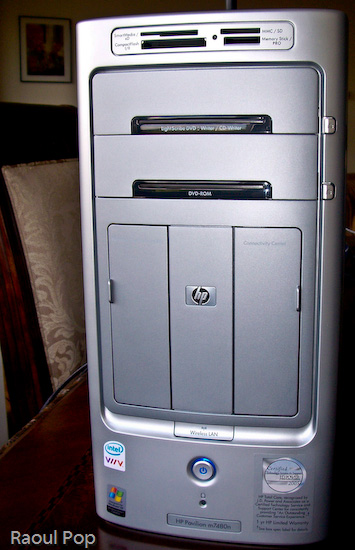
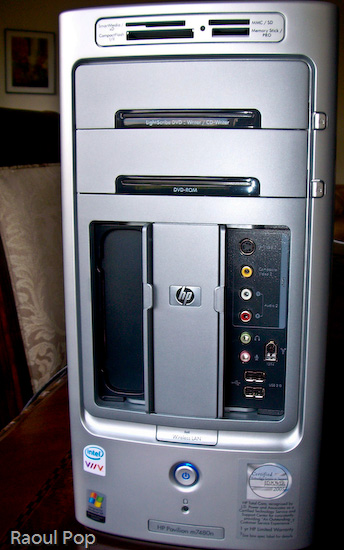
I have never seen so many great and useful features packed into the desktop form factor. Let’s start with the front side of this computer, which is, as far as I’m concerned, fantastic.
HP Pavilion m7480n Desktop

HP Pavilion m7480n Desktop

A lot of computers have flash memory readers, but not a lot of them have them custom-built into the desktop case, located right at the top for easy access, and have so many choices when it comes to card formats.Want an all-in-one solution for writing DVDs and CDs? The LightScribe drive is it. Not only will it write single- and double-layer DVDs, DVD-RWs, CD-Rs and CD-RWs, but it will also print your label for you. Also included is an extra DVD-ROM/CD-ROM drive, just for fun.

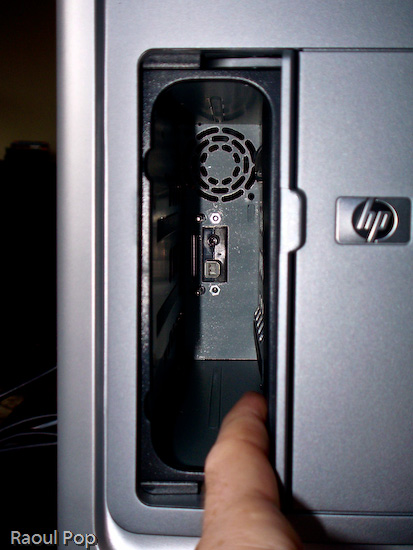
See the two panel doors? One of them is for the Personal Media Drive Bay, which is hands-down, the coolest feature you’ll find in any desktop computer. Want extra storage? Just slide in a Personal Media Drive. Want to add another hard drive? Just slide in another Personal Media Drive. Seriously, it’s that easy! The drive slides in, and automatically connects to the computer through USB, and is also powered by a special connector, no wires required. I don’t know about you, but I’m really annoyed by the extra power cords and power adapters that come with external storage drives. Sure, the drive may look nice by itself, but when you add the bulky adapter and power cord, it’s suddenly not so nice and neat. So the great thing about HP’s Personal Media Drives is that there are no cables and power adapters – you only need the drive, which is a beautiful thing.
HP Pavilion m7480n Desktop

You’d think HP would charge you a ridiculous price for this extra convenience and the custom form factor, but they don’t, which is also nice. Currently, they come in three sizes: 160GB, 300GB and 400GB. The 160GB PMD is $149.99, the 300GB PMD is $249.99, and the 400GB PMD is $319.99, which runs a little above the low margin of the market for personal storage, but not by a lot.

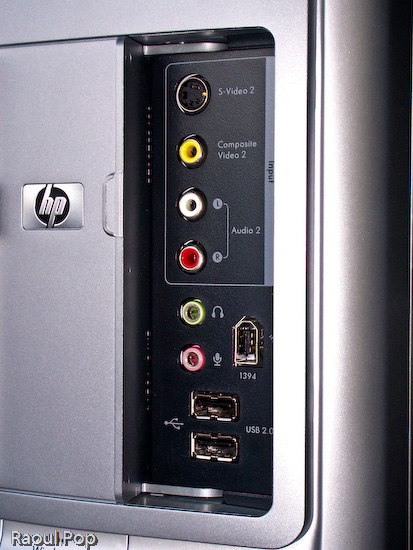
Let’s look at the other useful front panel: the Connectivity Center. Tell me honestly, have you seen such a thorough front panel on any other computer line? I haven’t. There’s an S-Video port, composite video ports, the standard headphone/microphone jacks, two USB ports, and — a really nice thing — a Firewire (1394) port. Finally, a computer manufacturer gets it, and puts a ready-to-use Firewire port on the front of a computer.
HP Pavilion m7480n Desktop

Also on the front side of the desktop, let’s not forget the little things, like the sliding doors that hide inside the chassis for the front panels (the Personal Media Drive Bay and the Connectivity Center). They’re very useful because when you don’t use the panels, you can close the doors and hide away the ports. And, you don’t have to flip them up, like on a Dell desktop (yuck), or you don’t have to slide them up and have the door fall back down after it’s gotten a little used — no, you simply slide them to the side. It just works. An added bonus on the front is a Wireless Lan light that turns on when a connection has been established — this is a great visual indicator for those of us who are less tech savvy.

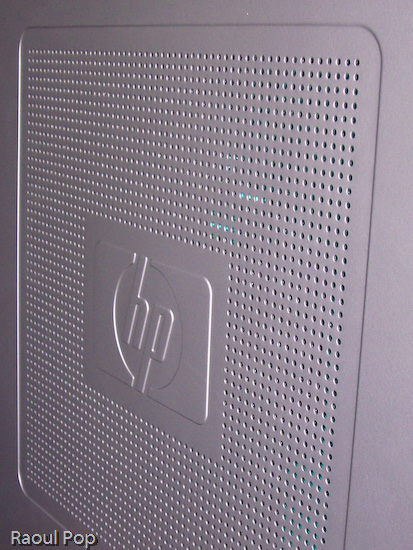
It isn’t just the front of the desktop that’s interesting. I like the side cooling grille as well. One small note: although the finish of the desktop case looks like plastic, it’s actually metal. Only the front and top side of the case are plastic — the sides are metal. Another useful feature is that this desktop runs very quietly. I’ve had desktops in the past that really made a lot of noise, so I can readily appreciate the silence in the room when I use this system. The only sound I can hear out of it is the hard drive — and that only when I really push it.
HP Pavilion m7480n Desktop

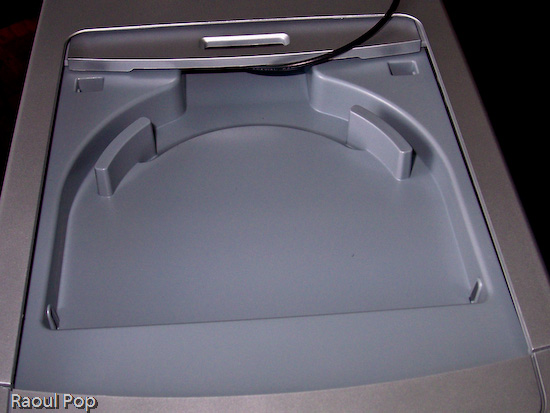
Another notable feature is the dock for an HP Photosmart printer right on top of the computer. Like the Personal Media Drive Bay, this is a feature that’s unique to HP desktops, and I really like it. Who’d have thought of building in a dock for a photo printer on top of the computer — but it makes perfect sense. You have the card reader right on top as well, so you simply slide in the flash card containing your photos or you connect your camera, and print your photos right away. You don’t have to worry about where you place the printer, because it’s right on top of the computer. This is beautiful, functional design.
HP Pavilion m7480n Desktop

The cover for the dock is easily removed, and the really nifty thing is that HP designers included a slot at the back end of the dock for the printer wires (USB, power). That way, you can slide them right through the case and out the back, easily connecting the printer to the computer and the power supply. Very, very nice! For example, I used the dock to sit my wireless antenna in it, and I slid the antenna cable through the very same slot, pulling it out through the back of the case, as you can see below.
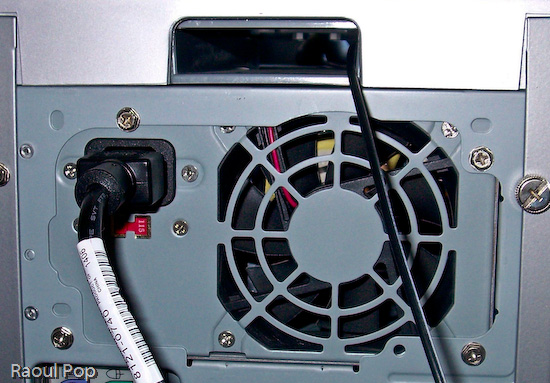
HP Pavilion m7480n Desktop

The back panel itself is also very useful. Besides the usual connectors and ports, it has digital sound in and out, connectors for 5.1 speakers, 4 USB ports and another Firewire (1394) port, a video card with S-video and RCA video out ports, and an input slot with the following ports: composite A/V, S-video, TV/Cable antenna and FM antenna. I would have liked to see a DVI-out connector on the video card, but other than that, this is a pretty good collection of connectors and ports.
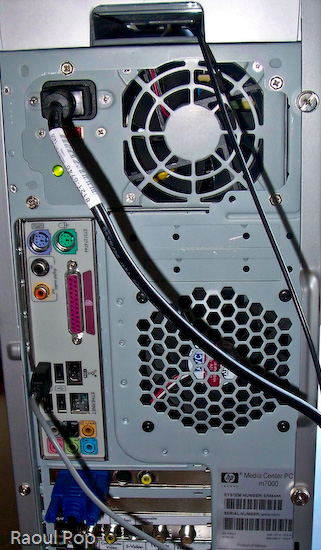
HP Pavilion m7480n Desktop

This system comes standard with a wireless keyboard and mouse, and they both work great. The battery life is as expected or longer: I only had to replace the batteries in the mouse after 2 months, and the keyboard batteries are still going strong. The only thing that could be improved on the keyboard are the keys. While they work fine, they’re a bit loud, and could stand to be made quieter. The multimedia controls on the keyboard also work all the time, which, at least for me, is a departure from the norm. I’m used to seeing multimedia keys on other laptops and desktops be unreliable, so it’s nice to see them working non-stop for a change.

The HP Pavilion m7480n is one great desktop. It comes with an Intel Dual Core chip, which clocks in at 3.00GHz for each core. My system had 2GB of RAM in it, and it ran wonderfully on that. The hard drive was 300GB, and HP reserved 10GB of it for a separate recovery drive that can be used to restore the OS and applications when needed. But what sets this desktop apart isn’t necessarily the specs (which are top of the line anyway) but the amazingly useful design. Serious thought was given to functionality and ease of use when it came to the case of this desktop, and that’s what impresses me and really counts.

Standard