Thoughts

Predictions about computer drives in the future

72GB SanDisk SSD SATA 1.8"

On 1/16/09, Computer World published an article where the author paints a future full of SSDs. He puts forth the idea that drives will not only be replaced by memory chips, but that these memory chips will be integrated into the motherboard, doing away with the SATA interface. There are a number of things I don’t agree with in that article, and I’m not the only one who’s annoyed. Others have called out the author for his statements as well.

For one thing, let’s remember that computer memory once relied on chips integrated into the central circuits. Going back to that sort of approach would be like going back in time. Weren’t we supposed to progress, not regress? The advantages have to be truly worthwhile, and I’m not convinced.

A claim made in the article is that of increased speed: “By making the drive part of a system’s core architecture — instead of a peripheral device — data I/O performance could initially double, quadruple or more.” I love these nebulous claims, don’t you? It could double, quadruple or more. Hey, why not 8x faster? Maybe 16x faster? Let’s just inflate the numbers, it looks great on paper…

From my experience, I noticed that transfer speeds to flash memory vary tremendously — based on how much used space there is on the memory itself, or the file size. Larger files transfer much faster than smaller ones. Sure, in my experience, there was a SATA or USB interface in the way, but that doesn’t change what happens with the flash memory itself.

We should also keep in mind that flash memory is limited in the number of write operations it can take before it expires. On the other hand, regular hard drives have a much longer life span. I for one don’t want to be in a situation where I have to replace an expensive SSD on my laptop because I’ve saved one too many files and it has just gone belly up.

That brings to mind another issue: will these SSDs be soldered onto the motherboard, or can I pull them out and replace them as needed, like I do with RAM modules? I think you can readily imagine how inconvenient it would be to have to service your computer if its SSD is soldered onto the motherboard.

How about space on the SSD? What do I do if I want to increase the space on my drive? Do I have to buy another full SSD? I’d much prefer we had SSD bays, like RAM bays, where I could stick additional SSD modules to automatically increase the space, just like it works with RAM. A partitioning tool integrated within the OS should then allow me to resize my existing partitions and spread them over the newly available space, or to create another partition out of that space.

I keep hearing people say that 250GB or 160GB is plenty of space for your laptop. That’s nonsense. I’m always maxing out my laptop’s hard drive when I go on trips, because I fill it with photographs and videos which I then unload to my external storage when I get home.

I find that for my needs, a 500GB or 1TB laptop hard drive is what I need right now. At some point in the future, I may need more. I haven’t started working with HD video for example. I know that’s a tremendous space hog. I think a 1TB drive would be the minimum I would need if I started to work in that arena.

With SSDs, price is still an issue, and so is space, at least for now. I just don’t find it practical to spend money on SSDs at the moment, and I don’t think my opinion will change unless their prices and storage specs start to match those of regular hard drives.While we’re on the subject of price, where in the world did Gartner get their figure of 38 cents per gigabyte? That’s the figure quoted in the article. I’m sorry, Gartner, but you folks need to check your math. I came up with 9 cents per gigabyte recently.

On the other hand, I do understand that the additional interface between the motherboard and the hard drive is a bottleneck. If we can do something to speed that up, I’m all for it. But you’ve got to prove to me (and to other consumers out there) that your technology is affordable and reliable and offers tangible benefits other than tech media hype.

I’m also excited about the possibility of increasing drive space on a modular basis, where I simply put in more SSD modules in expansion bays on the motherboard, like I do with RAM. But there’s no indication that we’re heading in that direction from the article itself. Until we get to that point, I’ll still continue to think that SSDs are aimed at the wrong market segment. Not everyone is a MacBook Air-toting management type. The bulk of computer users out there need affordable technology with plenty of storage, well made, and reliable over 3-4 years or more. SSDs just aren’t there yet.

Image used courtesy of SanDisk Corporation.
Standard
Thoughts

Storage drops below 9 cents per gigabyte

I see that Newegg.com lists the Seagate 1.5TB SATA hard drive for $129.99 with free shipping. Sure, it’s an OEM drive, which means it’s not boxed, but who cares? Do you realize what this means? It means you’re paying $0.086 per terabyte gigabyte. Storage has become even cheaper — unthinkably cheap. The previous relevant price point was $100 for a 1TB drive, which meant $0.100 per gigabyte (a dime).

Seagate 1.5TB SATA Drive

A gigabyte is now cheaper than a dime! I just didn’t think it would happen this fast. I remember when a dime would get you 100MB, and I thought that was a lot. Okay, let me not kid myself: I remember when a dime would get you 1MB or less. Now you get 1GB, which is 1,000 times the storage capacity, for less than the same tiny dime. Amazing!

If you’re looking for extra storage capacity, now would be a good time. If I hadn’t already filled up my main Drobo with 1TB drives, I’d jump all over these, because they’re definitely at the right price point, especially now that they’ve been cleared for use with the Drobo once more.

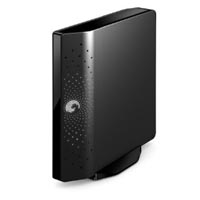
Seagate FreeAgent Xtreme 1.5TB

While I’m on the subject of good deals, let me remind you of my guide to getting good deals on hard drives. I mention it because Micro Center happens to be selling the Seagate FreeAgent Xtreme 1.5TB (a triple interface external hard drive) for $149.99. This means that you’re paying $20 for the enclosure over the price of the hard drive alone.

Remember, this is a triple interface drive (USB 2.0/FW400/eSATA), and that means the enclosure is very inexpensive. Instead of buying one of those DIY enclosures that may or may not work (I’ve been there), you’ll get something that’s guaranteed to work, or you can return it.

Standard
Reviews

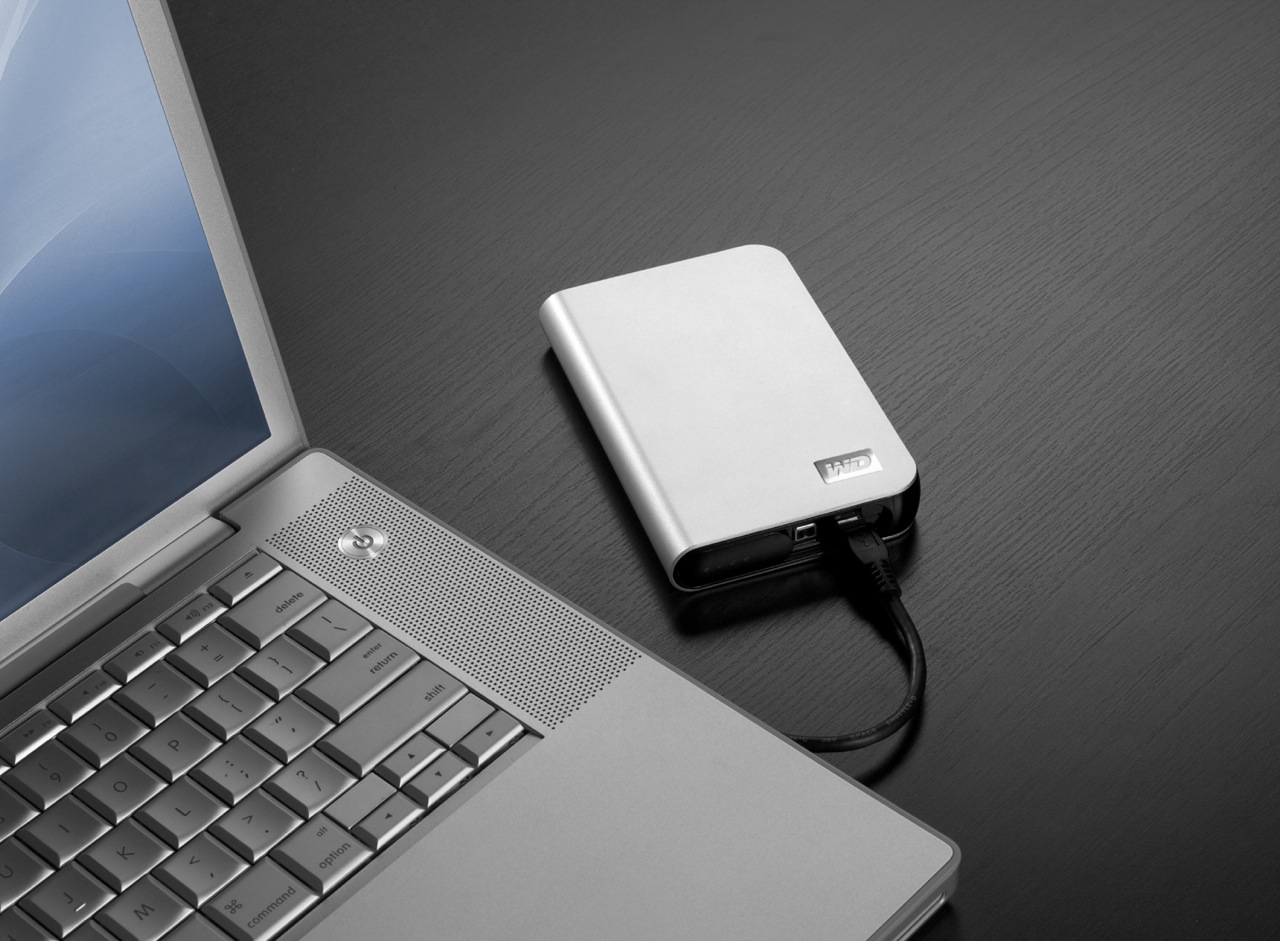
Hardware review: WD My Passport Studio

While the WD My Passport line of portable drives is a couple of years old, their My Passport Studio models are new, and their specs and capacities were greatly improved recently. The My Passport Studio line is meant for Mac users and comes formatted in HFS+, although the drives can be used just as well with Windows machines if they are reformatted to NTFS or FAT32.

On 10/30/08, WD introduced Firewire 800 connections and new capacities (400GB and 500GB) for these wonderful little drives. The base capacity was upgraded to 320GB, and the 250GB size was phased out. These latest drives feature triple interfaces (USB 2.0/Firewire 400/Firewire 800), which is something one normally sees only on external desktop hard drives (the 3.5″ size).

Technology moves fast, doesn’t it? Just a few months ago, the My Passport Studio models featured USB 2.0 and Firewire 400 connections. The top capacity was 320GB. I myself have a 1st generation My Passport drive, a 160GB model with a USB 2.0 connection. I bought it in February of 2007, and it’s worked great ever since.

The more recent models from the My Passport line have something that my 1st gen My Passport drive doesn’t have: an external capacity gauge. I think it’s neat to see how much space is used up on the drive at a glance. These latest drives also have something I haven’t seen before: turbo drivers for faster data transfers. The drivers are available for Mac computers only. I haven’t used the drive yet, but when I get it, I’ll be sure to test out data transfers with and without the drivers, to see if there’s an improvement between the two modes. I hope the drivers are well-developed and won’t introduce any sort of OS stability issues. I’ll also test data transfers between USB, FW400 and FW800.

I’m really looking forward to getting a 500GB Studio drive, because of its unbelievable capacity. It is double the size of my MBP’s hard drive, which is 250GB. I’m going to be able to store lots of photos and videos on it when I’m traveling, and use it to back up important files from my MBP and my iMac. I also think the My Passport line of drives are some of the best-designed portable hard drives on the market.

I can’t find the 500GB model in any online stores yet. Newegg still lists the Firewire 400 models, albeit at reduced prices, and Amazon only has the 400GB model. B&H Photo also only lists sizes up to the 400GB model. I don’t think I need to worry, since it’s very likely that by the end of November or sooner, the 500GB model will be available in most stores.

Photos used courtesy of Western Digital Corporation.

Standard
Reviews

A Dell order and return experience

On 7/31, I placed an order for a Dell S2409W 24-inch Widescreen Flat Panel LCD Monitor, a new model from Dell which has a 16:9 display ratio and runs about $350. I needed an external display for my MacBook Pro, because it’s getting cumbersome to edit photos on a 15″ screen.

On 8/21 (three weeks later), it finally arrived. After connecting it to my Mac, I discovered it just didn’t have the display quality I needed, and started thinking about returning it.

A couple of days later, after I tested it and calibrated it as much as I could, I filed a request for a Return Authorization on Dell’s website. I had to fill out a form with all of the order information and with my address (which I had to enter twice), because the website isn’t designed to pre-populate the fields based on the information already present in your account. There is a way to log in, which promises to pull that information for you, but even if you do log in, nothing gets pulled. You can’t just go to an order and click on a Return option.

I got an automated confirmation right away which assured me they are “working 24 hours a day, 7 days a week, to answer customer inquiries”, and that I could expect a response in “24 hours or less”.

Their response did not arrive within 24 hours. When it did, it said they are “unable to process a return authorization for the order,” and to “please contact Dell Consumer Customer Care at 800-624-9897.” I called them.

I was greeted by the Dell phone robot, and followed the various prompts to navigate the menus, until it was satisfied and passed me off to a real person. That’s when the fun really began.

Rep 1 (Indian): “Could I have the order number? What is your name? How can I help you?”
Me: “I’d like to return that order.”
Rep 1: Okay, let me connect you to someone that can help.”

Rep 2 (Indian): “Could I have the order number? What is your name? How can I help you?”
Me: “I’d like to return that order.”
Rep 2: “Okay, let me connect you to someone that can help.”

Rep 3 (Indian): “Could I have the order number? What is your name? How can I help you?”
Me: “I’d like to return that order.”
Rep 3: “Okay, let me connect you to someone that can help.”

Rep 4 (American): “Could I have the order number? What is your name? How can I help you?”
Me: “I’d like to return that order.”
Rep 4: “Why?”
Me: “Display quality is not satisfactory when connected to a Mac.”
Rep 4: “Have you tried to adjust it?”
Me: “Yes, but it just won’t display colors the way they need to be displayed.”
Rep 4: “Do you have a video card?”
Me: [Couldn’t believe what I’d just heard… Pause] “Of course, otherwise my computer wouldn’t work.” [Which is true — to my knowledge, you need either a graphics card or an embedded graphics chip to display video with a normal computer, and besides, they don’t ship Macs without some sort of video cards.] “Look, I just want to return the order…”
Rep 4: “Okay, I wanted to make sure, because you’ll be charged a 15% restocking fee.”
[Then she got to work on processing the Return Authorization and issued it to me.]

I spent 19:06 minutes on the phone to get the Return Authorization, and had to go through all of that stuff listed above. I’m not counting the time spent digging on the Dell website to submit the web request, which obviously didn’t come to anything.

You would think:

  • Dell would want to make it less onerous for its customers to get their business done when they deal with them over the phone.
  • It’d take less than four people to get to the right person.
  • I wouldn’t have to speak to three Indian reps at some call center in India, then get transferred to an American rep somewhere here in the States, before someone could address the reason for my call.
  • Someone who processes RMAs wouldn’t try to troubleshoot a product, especially when I’m not interested, and when they don’t know how a computer works.
  • Dell would have a way to pass the order number and customer name from rep to rep, so I wouldn’t have to say them over and over and over.

You’d be right to think all those things. Unfortunately, every time I interact with Dell, I see that they still don’t have their act together. They’re too big, disorganized, they don’t treat their customers properly, and they make it a hassle to deal with the company. As for their design philosophy, it’s practically non-existent, unless making ugly stuff counts — except for their recent Studio laptops and Studio Hybrid desktops. Is it any wonder they’re not doing so well?

And what’s up with the 15% restocking fee? I thought the industry “standard” was 14%.

Standard
Reviews

Hardware review: Dell S2409W Flat Panel Display

The Dell S2409W 24-inch Widescreen Flat Panel LCD Monitor is a new model from Dell which has a 16:9 display ratio and runs about $350. Its native resolution is 1920×1080 pixels, which means it can display full quality HD content (1080p). It has three inputs: VGA, DVI and HDMI, which means you could connect it to your computer and to a DVD player or some other video device, and switch between the inputs as needed.

I purchased this monitor on 7/31, and it arrived on 8/21. My reason for buying it was the price. It is one of the lowest prices for a 24″ display from a reputable company, and I was also drawn to the 16:9 display ratio. I had a chance to work with it over these past four days.

I like the design of the monitor. It’s fairly thin in terms of depth, the rounded bezel is interesting, and the white power light is a very nice touch. It sits on a round base that has a sort of round indentation built-in, which I found to be a handy spot for post-it notes or a small remote control.

My computer setup is described in detail here. I have a MacBook Pro, and I do a lot of photography editing. As soon as I connected the S2409W to my MBP, I could see that fonts and curves weren’t displayed properly. There was some noticeable rasterization that took place at the edges of smaller objects on screen. I’m not sure of the word to describe it, but edges weren’t smooth, they were craggy.

I set up my MBP and the monitor in dual display mode, and I dragged windows back and forth between the two displays repeatedly, in order to compare the differences. As soon as a window made it onto the Dell monitor, things just didn’t look as good and as crisp as on my MBP’s display.

Also, no matter how much I calibrated it, I couldn’t get the contrast and brightness settings right. If the contrast was too low, then colors and shadows appeared washed out, and if the contrast was too high, the light-dark difference bothered my eyes. If I turned down the brightness, there was too little light on-screen, and if I turned it up, there was too much light, which made my eyes burn.

The next day, I brought my MBP into work and connected it to my Dell W2407WFPb monitor, another 24-inch flat panel display. This particular model belongs to the UltraSharp model line, which is higher quality. Here the colors showed up properly from the start, without calibration, and there was much less rasterization around the edges of letters and other small objects. I had to admit the S2409W display isn’t made as well as the W2407WFPb, which is understandable, since the latter model retails anywhere from $600-700.

I did one more thing: I started my XP VM on the Mac while connected to the S2409W, set it to full screen, and noticed that, at least when running Windows, the display quality was acceptable.

No matter how much I tried to adjust the display while I worked on my Mac, I couldn’t get it to work in a satisfactory manner for me. Since I do most of my work on a Mac and within OS X, the Dell S2409W won’t work for me, and I will have to return it.

Updated 8/28/08: You can read about my Dell return experience if interested. I find it very encouraging that Dell is now engaging with its customers the way they’ve done it after I wrote that post.

On a more general note, I haven’t been very successful with my monitor picks so far. I already tried using an HDTV as my computer monitor, but that didn’t work out. Now using a regular monitor hasn’t worked out either. It looks like I may need to spend upwards of $700 to get a good monitor that will work well for my needs.

Keep in mind that my needs are more demanding than those of the average user, and that I may be more critical of a monitor’s display quality than you may be. You may find the S2409W does just fine for you, particularly if you do most of your work on Windows, where it seems to work better. At $350 for a 24-inch display, it fits the bill as well.

Promotional: Shopping for Dell hardware? Use Dell coupon codes on your next purchase.

Standard