Reviews

In-camera HDR now here

Back in November of 2006, I had a few ideas about taking foolproof photos. I predicted that it wouldn’t be long before we might see in-camera HDR. That feature is now here. Let me show you two cameras that have recently become availble. They both do in-camera HDR.

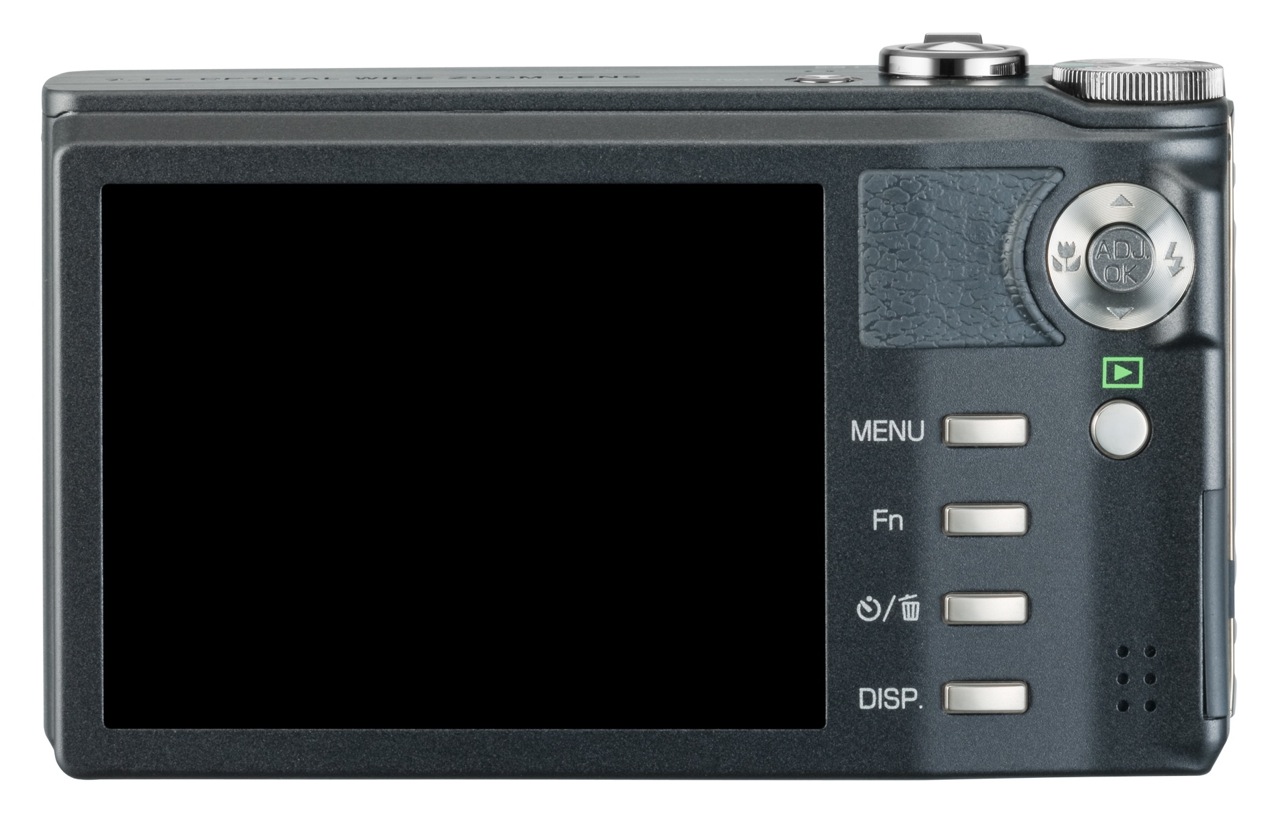
Ricoh CX1

Ricoh CX1 - 1

Here’s what Ricoh says about their in-camera HDR feature:

“It can be difficult to photograph scenes in which the level of brightness varies greatly. With dynamic range double shot mode, the CX1 shoots, consecutively at high speed, two still images with different exposures, and then it records an image that combines the properly exposed portions of each. Expanding the dynamic range up to a maximum equivalent to 12 EV makes it possible to record images that give an almost naked-eye impression.”

Ricoh CX1 - 2

[via Ricoh]

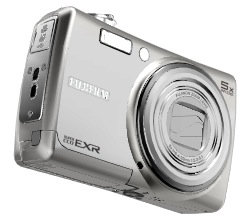
FujiFilm FinePix F200EXR

FujiFilm FinePix F200EXR - 2

Here’s what FujiFilm says about their in-camera HDR feature:

“Just as your eye sees the full range of shadows to highlights in high-contrast scenes, “D-range Priority” simultaneously captures two images to produce a single image with Wide Dynamic Range up to 800%, revealing subtleties in shadow and eliminating washout of the bright areas.”

FujiFilm FinePix F200EXR - 1

[via FujiFilm]

It looks like both companies use a two-exposure method, where one is underexposed to capture the very bright areas, and the other is overexposed to capture the dark areas. The two exposures are combined in-camera to create a single photo that contains the proper details from each exposure. You have to specifically turn on this feature — the camera won’t do it automatically — but the nice thing is that you only press the shutter button once.

I’m really glad to see this feature come to market. In some ways, it’s similar to a feature found on Canon DSLRs, called Auto Lighting Optimizer, except that feature adjusts the sensor signals within a single exposure to render a better photo instead of combining two photos. I imagine the dynamic range compensation obtained through that technique isn’t as pronounced as the in-camera HDR done by Ricoh and FujiFilm.

Standard
Reviews

Hardware review: Second-Generation Drobo

Updated 1/14/19: I have revised my opinion of Drobo devices. After experiencing multiple, serious data loss events on multiple Drobo models, even recent ones, I no longer consider them safe for my data.

Updated 11/23/09: The new Drobo S is now available. It has five drive slots, single or dual-drive redundancy, and triple interfaces (eSATA, FW800 and USB 2.0).

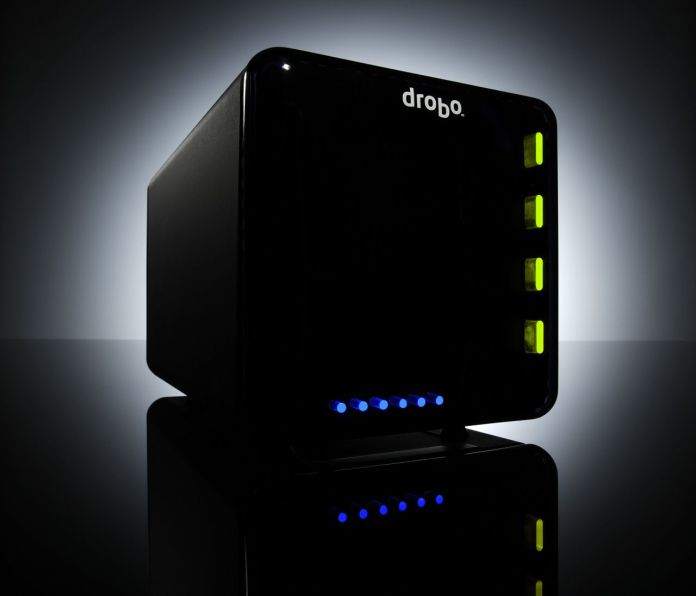
My review of the new Firewire Drobo is somewhat overdue, but I wanted to spend a few good months with it before I wrote it. I have now spent that time, and am happy to say this new Drobo can be an avid computer user’s single storage device. Whatever reservations I had about the first-generation Drobo were eliminated by this new version, and I can now wholeheartedly recommend it to anyone who needs to store a large amount of data and safeguard against a hard drive failure.
Background

You may or may not know that I also reviewed the original Drobo. I published that review in December of 2007, after spending about a month with a USB Drobo, and updated it frequently since then, outlining the various good or bad points I found during my heavy-duty use of the device. Since that time, I became the owner of four Drobos (three USB Drobos and one Firewire Drobo) and found a couple of firmware bugs — I’m not claiming to be the first one to have found them, just saying I also found them — which were later addressed by firmware upgrades. The bugs were an overestimation of used space, and a significant drop in transfer speeds after the Drobo’s used space reached 80% or greater of the total available space. I had a number of different issues with my Drobos, all of which were detailed in my original review, and are now resolved.

I also wrote about the Drobo from the perspective of product design for the consumer and corporate markets. Tom Loverro, one of the execs from Data Robotics, responded at length to my article with some very interesting insights about the inception and introduction of the product to those markets.

What’s new

What is it that differentiates the new Firewire Drobo from its predecessor? I’ll summarize it:

  • Faster read/write performance thanks to an upgraded core processor and faster transfer method (Firewire vs. USB); slower read/write performance was a big point of contention with the first-generation Drobo
  • Two Firewire 800 connectors in addition to the USB 2.0 connector, so you can daisy-chain other Firewire devices to the Drobo
  • Different design for the cooling grille and a bigger cooling fan (the fan, without the cooling grille, was a silent upgrade that was also applied to some late builds of the first-generation Drobo)
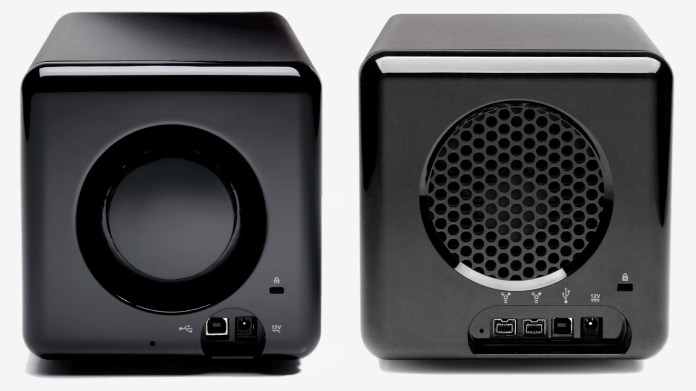
Comparison of the backs of Drobo USB and Drobo Firewire

Faster read/write performance

The official specs from Data Robotics quote the transfer speeds as follows:

  • FireWire 800: Up to 52MB/s reads and 34MB/s writes
  • USB 2.0: Up to 30MB/s reads and 24MB/s writes
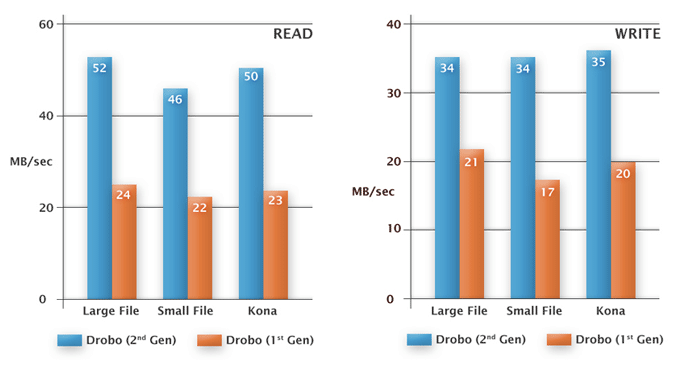
I can vouch for the faster read/write performance myself. As a matter of fact, I can safely say that the performance approaches that of my WD My Book Studio Edition II, which is also a Firewire 800 device, that I have used in both RAID 0 and RAID 1 configurations. In layman’s terms, I can copy about 800 MB – 1 GB per minute to my Drobo, while I can copy about 1 GB – 1.2 GB per minute to my WD My Book Studio Edition II drive in RAID 1 config. These are large files I’m copying, ranging in size from 1-4 GB.

If we do some quick math with the official figures, we can see that you could get up 2040 MB or about 2 GB per minute written to the Drobo over a Firewire 800 connection per the specs. In my real world experience, I was able to get about half that, as you can see above. I don’t think that’s a bad thing. Again, you have to compare the Drobo with another Firewire 800 device, and I did. If I can get about the same performance from my Drobo, which has to write the data across four drives, as I can get from my WD Studio Edition II, which only has two drives to worry about, then I’m pretty happy.

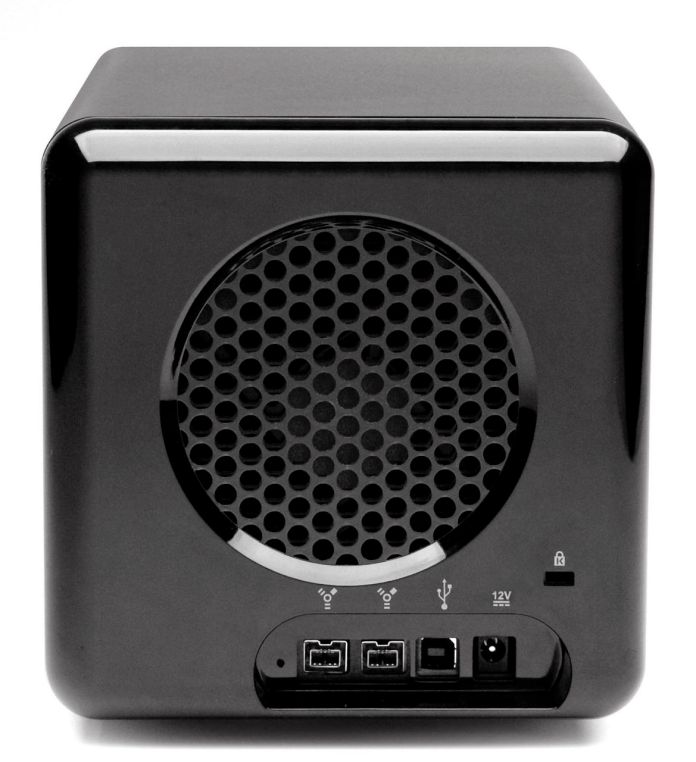
Two Firewire 800 connectors and different cooling grille

Have a look at this photo to get a better look at the different back design for the new Drobo. You can see the two Firewire 800 connectors, the USB 2.0 and DC connectors and the different grille design below.
Miscellaneous notes

In the other-things-that-are-different department, I noticed that Drobo now allows people to format its volumes in the EXT3 file system (Linux), in addition to NTFS, FAT32 and HFS+, although they do say that Linux support is in beta on their website. It has nothing to do with the new Drobo 2.0 hardware, as this involved a firmware upgrade and a Drobo Dashboard upgrade, not a parts upgrade, but it’s a pretty cool move on Data Robotics’ part.

Another thing that looks a bit different is the power supply. The original one was a simple plastic brick, but the new one has a line motif going across it, parallel to its long axis. This newer power supply was also shipped with some of the late builds of the previous-generation USB Drobo.

New Drobo power supply brick

If you look at one of the photos I posted above, the one of the new Drobo’s back, you’ll see a Reset slot. Can you see it, to the left of the FW800 connectors? It was present on the back of the original USB Drobo as well, to the left of its main (and only) USB connector. Sure enough, there’s even a tech note about it, which explains how to wipe the Drobo clean. This means it’s a dangerous little slot, so don’t use it unless you really mean it.

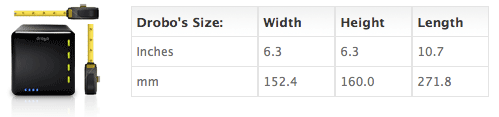
I never got around to posting the Drobo’s dimensions in my original review, so here they are. They haven’t changed with the new Drobo. I like the form factor, I hope it keeps staying the same. In all likelihood, it will stay the same for this four-drive version of the Drobo. I know, thanks to a product survey sent out to selected Drobo customers, that Data Robotics is thinking about or working on an 8-drive and possibly a 16-drive version of the Drobo, one of which (or both) is rack-mountable. Those should be some very interesting products for the enterprise or for those with larger storage needs than what the four-drive Drobo can provide. I understand that Data Robotics is also working on the capability to safeguard against two drive failures in those larger Drobo models, which should be a very cool feature indeed.
In terms of storage flexibility and the safety of one’s data, I believe the Drobo is unmatched. There is no other product like it on the market. The only thing that’s holding it back at the moment, storage-wise, is the capability of the hard drives themselves. Only recently have the problems present in the 1.5TB drives from Seagate been worked out, and only in recent weeks have I seen 1.5TB and 2TB drives from other manufacturers like Samsung and WD. This means, according to the Drobolator, that you can get up to 5.5TB of disk space on a single Drobo unit, which is pretty amazing, but still far from the 16TB limit. I think 16TB is a lot of space to get from a single device, and it should suffice for the needs of most people for the next few years.
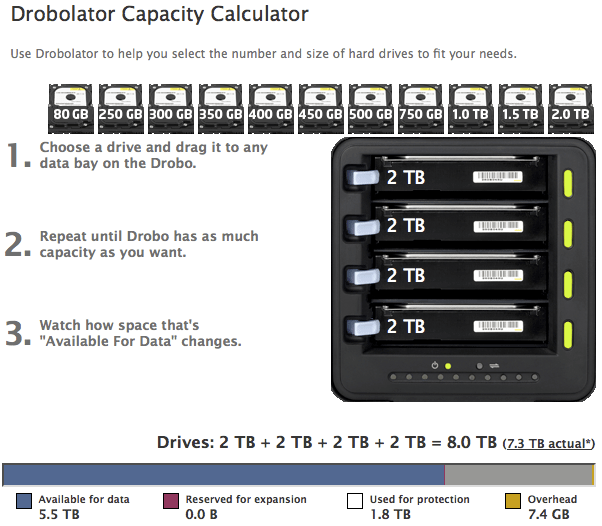
Drobo with four 2TB drives

Cheers to the new and improved Firewire Drobo!

The Drobo is available for purchase from Amazon or B&H Photo.

Images used courtesy of Data Robotics.

Standard
Reviews

A Canon repair experience

As I mentioned previously, my Canon 580EX II speedlite hadn’t been working properly with my Canon EOS 5D DSLR since March of 2008. I’d set it in the hot shoe on top of the 5D, as usual, but it would cause the camera not to work at all. The 5D would give me a strange error message where it would display some random settings for the aperture and shutter speed, and the shutter button would not fire.

canon-580exii-speedlite

I tried turning the camera and speedlite on and off. I tried disconnecting and reconnecting the battery. I tried resetting the speedlite in the hot shoe, which sometimes did the trick. Finally, I gave in and sent it into Canon for repairs. That repair ended up costing me a little over $100 plus shipping. The Canon technicians wrote back on the receipt that they’d replaced some cracked part inside the speedlite. Since I never dropped the speedlite or banged it against anything, perhaps that part had been cracked from the get-go, who knows…

Once I got the speedlite back and tried it out, I realized the problem not only hadn’t gone away, but had gotten worse. Now my 5D refused to fire with the speedlite in the hot shoe no matter what lens I used. This was not good, but what puzzled me is that the 5D and 580EX II worked just fine when I used them with the Canon STE-2 wireless transmitter, which sits on the hot shoe and sends a radio signal directly to the speedlite. In other words, the speedlite and camera didn’t work when connected directly, but worked if connected through the wireless transmitter.

I contacted Canon a second time, and was transferred through to advanced support on that call. Once the tech asked me a few questions to pinpoint the problem, he told me this was a fairly common occurrence with the 5D and 580EX II. Apparently, the hot shoe insert for the 580EX II was made just a wee bit thinner than normal, and after normal use of the hot shoe on the 5D, the 580EX II will sometimes not make proper contact with the camera, and will cause it not to fire. That’s why the camera worked with the wireless transmitter, which has a thicker hot shoe insert.

He offered to send me a pre-paid shipping label so I could send both the camera and the speedlite in for repairs, which would now be covered under the previous charge for the repair of the speedlite, as a recurring issue. I sent them in, and when they came back, they both worked as they should, thank goodness. My 5D hot shoe wasn’t replaced though — it was likely just taken off the camera and tightened a bit, which means the problem could re-occur at some point in the future.

I have three bones to pick with Canon about this whole thing:

  1. Why didn’t they make the hot shoe insert for the 580EX II speedlite the right size from the get-go? Why do we, as Canon customers, have to go through this whole thing where we send them in for repairs when it’s not really our fault? I don’t think I’m the only one who’s had this problem. Why not issue a recall where either the hot shoe of the 5D is replaced or tightened, or the hot shoe insert of the 580EX II is replaced?
  2. Related to #1 above, why do we have to pay for this? If it’s a known issue, caused by faulty design, and it happens quite often through normal use of the camera and speedlite, why pay at all? I might be willing to put up with a token fee that covers shipping and handling, but I should not have to pay the regular repair fee for something that was designed to go wrong, so to speak.
  3. Why did my 580 EX II come back from the repairs with what looks like Coke stains on the catchlight panel (see photograph below)? I can only assume the tech that worked on it opened his soda can right next to my speedlite, stained it, and didn’t bother to clean it. I thought the conditions were supposed to be kept sterile in the labs. What’s up with that?

580EX II Speedlite with stains on catchlight

Keep this in mind if you have the same issue with your Canon DSLR. It may not be that the speedlite is defective, it could simply be that it’s not making proper contact with the hot shoe, in which case your options are as laid out above.

Standard
Reviews

PictureSurf, a new gallery plugin for WordPress

PictureSurf Plugin

PictureSurf is a new WordPress plugin that launches today (February 10, 2009). It aims to make it easier for bloggers to upload galleries to their WordPress sites.

I spoke with PictureSurf’s founder, Alan Rutledge, via chat this morning, and I wanted to find out what makes his plugin different from the standard WordPress functionality. You may or may not be aware of the fact that WordPress offers an Image Gallery feature that’s built into the core WP install.

From Alan’s perspective, the PictureSurf plugin differentiates itself by offering:

  1. An enhanced user interface, because it lets you drag and drop photos to rearrange them, label multiple photos at once and,
  2. A little more SEO juice, because of better permalinks and conditional nofollow tags on the thumbnail links. The nofollow tags are activated when there’s too little content on the photo page — for example, your description of the photo is too short, etc.

As I told Alan, I don’t see enough of a difference between this plugin and what WordPress already offers to convince me to use it myself. The PictureSurf website claims that it’s faster to build a gallery with their plugin than with WP, but I ran into a glitch when I tried to use it. I couldn’t upload any photos. The upload engine froze and even though I hit Cancel and tried to re-upload the photos a few more times, I wasn’t able to do it. Still, that’s not too important. I’m sure that if I had more time, I could have gotten it working properly.

The thing is, I built a WordPress Image Gallery for this review in under 30 seconds. Each thumbnail links to its own photo page, very much like PictureSurf does it. I was able to choose how many images I wanted in each row. And I was also able to drag and drop the images to change the order in which they appear in the gallery. You can see the gallery below.

Another claim made by the PictureSurf plugin is that you can monetize your blog much better when an image sits on its own page instead of displaying on a blank page. I’ll agree with that, but I’ll also add that WordPress lets you do the very same thing. In WP’s Image Gallery options page, you get to choose where the thumbnail links go: they can go to the images themselves, or to something called attachment pages, which are pages that WP generates dynamically for each photo, using your blog’s own theme. So I ask again, what is it that differentiates PictureSurf from WP’s built-in functionality?

As much as I love WordPress plugins, I’m a big believer in built-in functionality. I don’t want to be stuck in a situation where I need to stop using a plugin, for whatever reason, and have my post archives become unusable because the plugin is no longer there. I ran into that issue with a video plugin I used in the past. It stopped being supported, and then I had to modify all of my old posts where I embedded videos, in order to make them playable again. If the long-term survival of your content is not a concern for you, then don’t worry about it. It is a concern for me though.

Last, but not least, I found PictureSurf’s design somewhat rough. It just doesn’t integrate as well as it should into the WordPress Editor. Furthemore, if it aims to take over the image gallery role, then it should fully take over that role. If I install PictureSurf, once I click on the Image Upload button in the WordPress Editor toolbar, it’s the PictureSurf AJAX window that should open up, not the WordPress Image Uploader. And when I access an old post that uses an image gallery, written before I installed PictureSurf, it should automatically take over that gallery and display the images using the PictureSurf gallery settings. But none of this happens. Old posts remain the same. I’d have to modify each and every one, manually, in order to get PictureSurf working there. As a publisher and writer, that’s a labor I’m not willing to undergo.

For me, the PictureSurf plugin does not differentiate itself enough from the standard WordPress functionality and does not offer enough added value in order to make it to my roster of active plugins. I find the WordPress Image Gallery feature quite adequate and necessary, and therefore, using the PictureSurf plugin becomes a matter of preference, not need. I myself do not need it, therefore I won’t use it. Your situation may differ. Feel free to try it out and see what you think.

Standard
Reviews

A look at the Samsung T260HD HDTV widescreen monitor

I tried, unsuccessfully, to use an HDTV as my main computer display in the past. Although the specs of that Sony HDTV were superb, its brightness and contrast levels were made for a TV, not a computer display, and it gave me headaches when I stood close to it, as I would when I’d work at my computer. Things have a way of working out though. One of the commenters on my HDTV post, Adam Juntunen, pointed me to something that might just work for my needs.

Samsung has come up with a product that is made to work as both a display and an HDTV. It’s the first such product that I’ve heard of: the T260HD, a 26″ widescreen computer display and HDTV. The T260HD is part of a line-up of four monitors which includes the T200HD (20″), T220HD (22″) and the T240HD (24″).

What sets the T260HD apart for me is the fact that it was made to fulfill both functions from the factory. Although I haven’t used it (yet), my hope is that the Samsung engineers accounted for the difference in display characteristics that is needed when one uses it as a computer display vs. a TV. What is heartening for me is that it’s listed among the computer displays, not the HDTVs, on the Samsung website, which means it’s really more of a computer display than an HDTV, which is just what I need.

The design makes this display stand out. The enclosure is made of glossy black plastic, and it looks as if there’s a clear panel of glass set over the front of the display, which should make it easy to clean. A hint of maroon color marks the bottom of the enclosure, right below the logo, giving it a distinctive look. I do hope though that the glossy black plastic doesn’t scuff easily. Other Samsung TVs do scuff over time, which means that as you dust them, small hair-width scratches appear on the plastic, marring its glow.

Promotional: Don’t spend too much on flat screen TVs; there are flat panel TV deals you can take advantage of. LCD TV deals are available for consumers to buy at discounted prices.

The specs listed on the Samsung website are thin on the details, and I can’t make out whether its color depth is 8-bit, 10-bit or 12-bit. My guess, given its price, is that it’s 8-bit or 10-bit — probably the former, not the latter. Color depth in a display is a very important specification, because if you work with photos, like I do, and your DSLR captures 12-bit or 14-bit color images, you won’t be able to edit them competently on a display whose color depth capabilities are much lower. A 6-bit display, for example, like many laptops have, would be fairly useless to you, because it just won’t reproduce the color tones faithfully.

Let’s have a look at some of the salient features of this display:

  • Full HDTV monitor: that’s good, and also to be expected since it’s a computer display as well, and its resolution is 1900 x 1200 pixels.
  • Dolby Digital Surround sound: it has invisible speakers built in, and they’re rated at 3 W each; I’ve heard these types of speakers on other Samsung products, and they’re pretty good — certainly a lot better than most monitor speakers.
  • Dual HDMI, DVI and VGA inputs: that’s impressive for a 26″ display. I see that Samsung didn’t skimp and even included a SCART connector for the European countries. I love that.
  • Low power consumption: one spec says it uses 0.3W in Standby mode, yet another says it uses < 2W in that same mode. At any rate, it only uses 70 W max, and that’s great for a 26″ display.
  • 10,000:1 dynamic contrast ratio: I think this spec is trumped up, as I see it on a lot of other, cheaper displays and TVs. I have no idea what it means. Supposedly, the increased contrast between light and dark helps you see things better. I’ll be the judge of that when I try it in person. I see that the Apple Cinema Displays are listed at a 700:1 contrast ratio, which I think is a much more reasonable figure.
  • 5 ms response time: this is a little sluggish given that most displays in that size are at 3 ms. Still, it’s better than the Apple Cinema Displays, which are still listed at 14 ms. I think 5 ms is sufficient for most movies and video games, but then I’m not into the violent, fast-paced video games.
  • 300 cd/m² brightness: this isn’t as bright as other displays in the same sizes, which are at 400-700 cd/m², but you know what, I’d rather not have headaches caused by too much brightness, so this should be fine for me.

What I’ve seen so far of this monitor has certainly whet my appetite, and I’d love to try it out for myself. If and when I do, I’ll let you know how it works out.

The Samsung T260HD is available from Amazon and B&H Photo.

Photos used courtesy of Samsung.

Standard