Lists

Condensed Knowledge – January 19, 2009

Shared from among my feed subscriptions:

Standard
How To

The fastest way to back up with Time Machine

I wrote about backing up your Mac and PC in January of 2008, and I said Time Machine was a great way to back up your Mac. A year later, I still think so, though I have some reservations.

There are three ways to back up your Mac with Time Machine. There used to be only two, but thanks to Drobo Apps, we now have three. I’ll list them in descending order, sorted by backup speed. Here they are:

To External Hard Drive (USB, Firewire, eSATA)

This one’s easy, and it’s the fastest way. You get a dedicated external hard drive, you connect it to your Mac, and you let Time Machine do its thing. You can leave it connected all the time, or you can disconnect the hard drive and only back up when you want to. Time Machine won’t complain unless you haven’t backed up for a few days.

This is the backup strategy I’ve come to use, and believe me, it’s the one that gives me the least amount of headaches. I have a 500GB LaCie Mini hard drive that connects over USB. I plug it into my laptop, and within minutes, my backup is done.

Keep in mind that I’m a photographer, and I also shoot short videos every once in a while, so it’s pretty much a given that I’m backing up gigabytes of data every time. When the backup’s done, I eject the drive and put it away. This way I’m not bothered by hourly backups, which I don’t need.

To External Hard Drive via Time Tamer

Time Tamer

Go download Time Tamer, a very handy little app created by the folks that make the Drobo, and you can create an image file on your Drobo that is limited to twice the size of your Mac’s hard drive. This is useful because there is no other way to control the size of the Time Machine backup sets. There’s is no way to set a quota via its System Preferences panel, and so it’ll keep balooning until it fills the backup drive. Obviously, when you have a Drobo or another larger drive, that’s a problem.

I for one don’t want to fill up my Drobo with Time Machine backups — I have other more important uses for it. I did, however, want to limit the amount of external drives that sat on my desk, and thought I could eliminate one of them by using Time Tamer with my Firewire Drobo. Did that for a few months, but I can tell you it’s not optimal, at least not for me. It boils down to the amount of data one has to back up, really.

As it turns out, the throughput when writing to the image file just isn’t fast enough when you work with several hundred megabytes or more. Even though writing to the Drobo is usually a fairly fast operation, somehow writing inside the image file isn’t. From my own experience, it would sometimes take a whole hour to do an hourly backup, which meant that as soon as one backup finished, another would start.

To make things more annoying, the throughput to the Drobo itself, and my Mac’s general peppiness, were also affected negatively during backups. Everything churned at a slower pace. Getting at my photos or other files stored on the Drobo was a pain. If I happened to be playing a movie and a backup started, playback would stutter or stop for a few seconds. It just wasn’t a feasible way for me to work, so I stopped doing this and returned to doing my backups directly to a dedicated external hard drive.

To wireless or networked hard drive (such as Time Capsule)
This will usually be the slowest way to back up your Mac via Time Machine. Think about it: you’re going to be pushing your bits via WiFi, and even though your hardware may be “n” specs instead of “b” or “g”, you’re still not going to get above 50 Mbps at best. Realistically, you’re looking at speeds somewhere between 15-45 Mbps, which is less than Fast Ethernet (100 Mbps) and nowhere near Gigabit Ethernet (1000 Mbps).

For comparison purposes, I have observed transfer speeds which approached USB 2.0 speeds when using a direct, wired, Gigabit Ethernet connection between two Macs (MacBook Pro and iMac G5). If you have a wired Gigabit network at home, this might be the only way to actually get decent backup speeds with Time Machine without needing to use USB or Firewire hard drives. But if you’re using WiFi, your transfer speeds are going to be anywhere between 15-20 times slower than Gigabit speeds, which means you’ll be sitting there a long time waiting for your backups to finish, should your backup set be anything over 100-200 MB.

When Time Capsule came out, I was tempted to buy it, just like I bought the Apple TV, only to regret that later. I’m glad I didn’t end up spending my money on Time Capsule, because it just isn’t suitable for me, or for anyone with larger backup sets. It certainly looks good, but that’s about all it does and all it’ll do until WiFi speeds approach Gigabit speeds.

Takeaway message

When one of my friends shared an article from Louis Gray via Google Reader, where he complains about how slow it is to back up to Time Capsule, was I surprised? Given all I’ve written above, do you see why I wasn’t?

Do the smart thing: if you’re using Time Machine, get a little portable drive like I did and run your backups that way. They’ll be fast, and you’ll be the one deciding when to back up, not Time Machine. I don’t know when Apple will decide to give us more configuration options for Time Machine, but until they do, those who care about their time should back up directly to an external drive.

Standard
Places

New Year's Day at Amsterdam Airport

KLM Royal Dutch Airlines

We flew with KLM from IAD (Washington-Dulles airport in the US) to OTP (Otopeni-Bucharest airport in Romania) during this past New Year’s Eve and Day. I highly recommend KLM, we’ve had the best flying experience with them of all the airlines we’ve used so far.

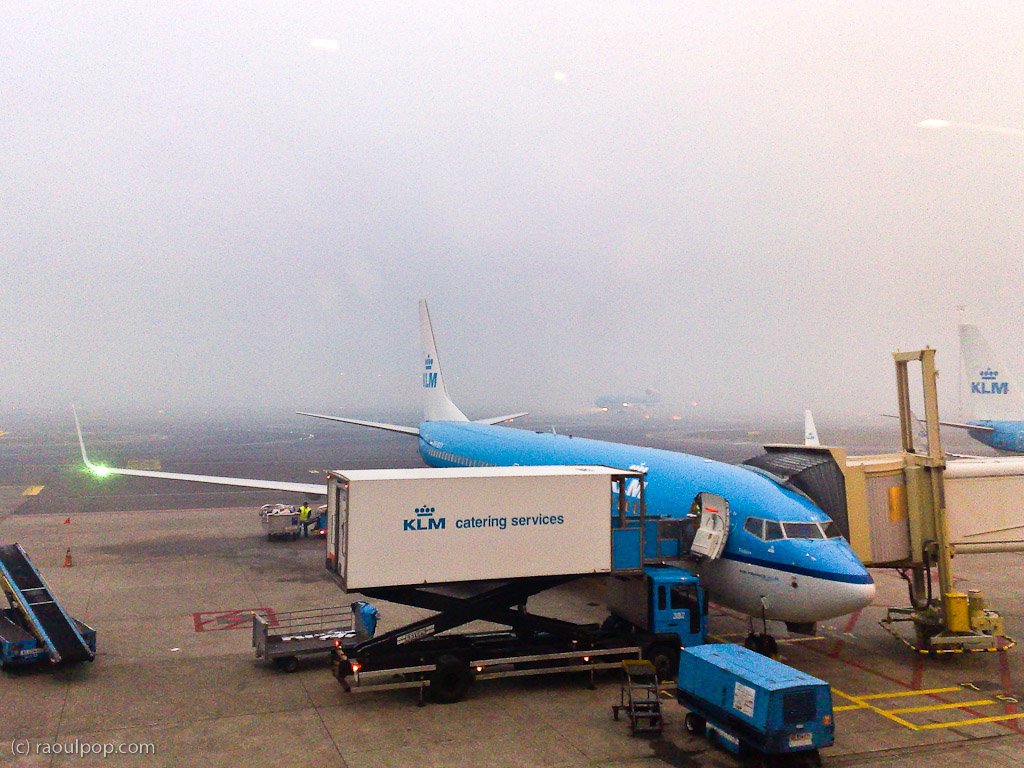
Foggy day at Amsterdam Airport

I should warn you that Delta handles the ticketing and check-in for KLM at American airports — this means rude and borderline-incompetent service. At least that was our experience at Dulles Airport in DC. KLM can’t help it I suppose. At least once you step onto their planes, it’s a different world altogether. It’s clean, well-lit, well-ventilated, they’re friendly, accommodating, their in-flight video service is amazing, and their food is great.

How is KLM different from other airlines? Well, they’re not evil, like United Airlines, and they’re not clueless, like Alitalia, and they’re not mean, like Spirit.

We picked New Year’s for our flight out of Washington because we thought most people would stay at home. We were wrong. The flight to Amsterdam was fully booked. Who flies on New Years Eve anyway?! Apparently, young people, Muslims and Indians. I understand the latter two groups, because they don’t celebrate New Year’s on the same day as the Western world, but since when have young folks decided to give up partying on New Year’s Eve?

It was a foggy, somewhat snowy New Year’s morning when we arrived in Amsterdam. You couldn’t see a thing on the runway as the plane landed. Thank goodness the pilots knew what they were doing. By the time we cleared through customs and security, the fog cleared a bit as well, or at least as much as the photos show.

Our plane getting loaded for departure

The flight from Amsterdam to Bucharest was empty, which figures. Most Romanians stay home on New Year’s. They prefer to have their traditional parties, then start the new year with some time off. I think there were at most 12 people on the entire plane. I felt bad for KLM, having to fly that big jet with so few people on board, but I suppose things average out in the long run.

Oh, and yes, KLM did wish us a Happy New Year while we were over the Atlantic Ocean, and gave us a choice of champagne or orange juice to toast in the new year. Quite nice of them!

Why don’t I have any photos from the Bucharest airport? Because photography still isn’t allowed there, which is dumb, but then that’s par for the course in Romania.

Standard
Thoughts

Gmail, please stop messing with my contacts

When I sync my Gmail Contacts with my Mac’s Address Book, I always discover “uninvited guests” — occasional people with whom I converse but who don’t need to be in my Address Book. What happens is that Gmail will identify people to whom I reply and insert them in my Contacts automatically.

It used to be that it couldn’t be helped, and it was called a “feature”… Now these contacts are grouped together in a separate section called “Suggested Contacts”. Unfortunately, when I run a sync operation, these suggested contacts appear in my Address Book. I don’t want them there. I believe one’s Address Book ought to involve positive effort — effort put toward adding in contacts as they’re needed — not negative effort — effort put toward removing unneeded contacts because software can’t leave things well enough alone.

Gmail's Suggested Contacts

I run the sync operation via my iPod Touch. The sync option is otherwise unavailable to Mac owners, which is unfortunate. There’s something I call the entry tax for being able to run this sync: either you buy an iPod Touch or an iPhone, or you pay for Mobile Me. I don’t like it, but there it is, that’s Apple for you.

There is a company called Soocial which will also let you do this, as well as letting you sync your phone’s contacts with the Address Book. They were in Beta when I looked at them. By now they’ve opened their website to the general public.

At any rate, the problem with Suggested Contacts lies with Gmail, which presents those contacts as part of the normal set of Contacts to the sync software. It should store them separately, aside from the normal contacts, so that the sync software never sees them.

Standard
Thoughts

Say hello to my photography catalog

I’ve been working to keep my promise of sharing my photos in HD, and have been slowly but surely uploading photos to my photography website ever since. I also re-designed my photography catalog in a way that should make it easier to navigate and browse the content there.

I’ve even put feeds in place that will make it easy for you to keep up with every update to the catalog and to download whichever photos you like for personal use — just visit the catalog and scroll down to the bottom of the page, where you’ll find the list of feeds.

In the grander scheme of things

For the benefit of some of you who aren’t aware of this, I put together a short screencast that demonstrates how easy it is to set one of the photos from the catalog as your desktop background.

http://blip.tv/file/3130154
See this video on blip.tv

As I wrote before, one of the main reasons of uploading my photos in full HD (1920px on the wide side) was to allow my readers to use them as backgrounds on their computers without experiencing any loss in quality as the photos filled their screens. I am therefore carefully cropping each of my photos at an aspect ratio of 16×10, which will allow them to fit perfectly onto most widescreen displays, be they laptops or standalone monitors.

I will soon make it easier to order prints and arrange for the licensing of my photos as well. Stay tuned for that.

Standard