How To

Automatic redirect from HTTP to HTTPS

IIS (Internet Information Server) doesn’t have a way to automatically redirect HTTP traffic to HTTPS if SSL encryption is enabled for a site. So if you’ve got a site that users are supposed to access by typing in https://www.example.com, but they type in http://www.example.com or http://www.example.com or just example.com, they’re going to get a pretty ugly error message that looks like this:

What can you do? Well, there are two ways of going about it, and both of them are hacks, but they do the job just fine. I prefer method 2 myself.

Method 1:

Make sure the original site (the one with SSL encryption) is listening only on port 443 for the IP address you’ve assigned to it. Now create a separate site using that same IP address, and make sure it only listens on port 80. Create a single file at the root level and call it default.htm or default.asp. If you want to use HTML, then use a meta refresh tag. If you want to use ASP, use a redirect. I’ll give you examples for both below.

<meta http-equiv="Refresh" content="0;URL=https://www.example.com" /> 

or

<% Response.Redirect("https://www.example.com") %>

Don’t forget to enclose each line in its proper brackets. This method works great, but it has one shortcoming. If the site visitor chooses to go to http://www.example.com/somepage.htm, they’re going to get forwarded to the root-level of the HTTPS site, because that’s the nature of the script. It doesn’t differentiate between the page addresses. So you may ask yourself, isn’t there some other way of doing this? Yes, there is.

Method 2:

This method doesn’t require the creation of an additional site. All that you need to do for this is to create an HTML file — I call mine SSLredirect.htm — then point IIS to it using a custom error capture. First, here’s the code that you need to paste in that HTML file:


<script language="JavaScript">
<!-- begin hide

function goElseWhere()
{
var oldURL = window.location.hostname + window.location.pathname;
var newURL = "https://" + oldURL;
window.location = newURL;
}
goElseWhere();

// end hide -->
</script>

Once you’re done editing the file, save it to the root level of your site, or to the root level of IIS (c:\inetpub\wwwroot\). Saving it to that general location lets you use that same file to fix the HTTPS redirection problem for all of the sites you host on a single server.

Now, in IIS 6, right-click on the site in question, go to Properties >> Custom Errors, and double-click on 403;4. Select File for Message Type, then browse for the file you’ve just created and click on OK. In IIS 7, click on your site, then double-click on Custom Errors, locate the Add link in the top right-corner, and add an error for 403;4, as shown in the image below.

IIS 7 Error Configuration

Once you’ve done this, your sites should automatically transfer HTTP traffic to HTTPS when it’s required, and the visitors won’t be forwarded to the root-level of the site. Instead, the URL will be remembered, and the page will simply be re-loaded using the HTTPS protocol. Come to think of it, you could write this in ASP as well, and avoid potential problems caused by browsers that have JavaScript turned off, but this code should work just fine for a lot of people.

Standard
Reviews

Camera preview: Olympus Stylus 770 SW

At the same Olympus PR event I attended last week, Michael Bourne from Mullen demonstrated the new Olympus Stylus 770 SW (Shock and Waterproof camera). It’s a very sturdy camera, enclosed in an all-metal housing that can not only withstand drops from up to 5 feet and water pressure up to 33 feet, but can also take up to 220 lbs. of physical/mechanical pressure. Ligia and I have been looking for a new point-and-shoot, and this looks like it might be the camera we want.

While were were talking, Michael casually raised and dropped the camera right onto a concrete ledge, leaving me with a case of drop-jaw. Then he picked it up as if nothing happened, and took some photos with it. Wow! Then, to drive the point home, he dropped it to the ground again, and stood on it with one foot, putting his entire body weight on top of the camera. Again, he picked it up and it was just fine! Here’s a triptych showing that little sequence of events:

Standing on an Olympus Stylus 770 SW

I got to use it a bit as well, and it’s got just the right weight for its size. It doesn’t feel flimsy at all. When you grip it, you know you’re gripping something well-made. The all-metal housing looks really nice, and the shutter lag isn’t bad considering that it’s a point-and-shoot. I got to handle it inside a dimly lit store as well, and when I bumped up the ISO to 1600, the photos still looked decent on screen, even when zoomed in. It’s certainly a whole lot better than our current point-and-shoot camera, the Kodak EasyShare v610, which was all the rage in July of last year (2006) due to its dual lenses and in-camera photo stitching capabilities.

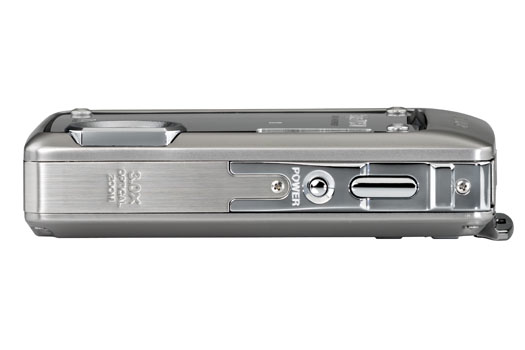
Here are a few more photos of the camera (these ones are courtesy of Olympus USA). Notice the sleek lines. If you read my blog regularly, you know I’m a sucker for good design, and I think Olympus did a great job here.

Olympus Stylus 770 SW -- Front

Olympus Stylus 770 SW -- Top

Notice how nicely laid out the buttons are. There’s no confusion about their function, like on some cameras (Samsung, I’m talking about you here). The on-screen menus are also easy to navigate. I had no problem finding my way around the menus as soon as I went in.

Olympus Stylus 770 SW -- Back

All in all, this little camera’s one hot contender in the point-and-shoot market, and a virtual shoe-in for our next ultra-portable digital camera.

More information:

Standard
Thoughts

Technorati’s new photo message

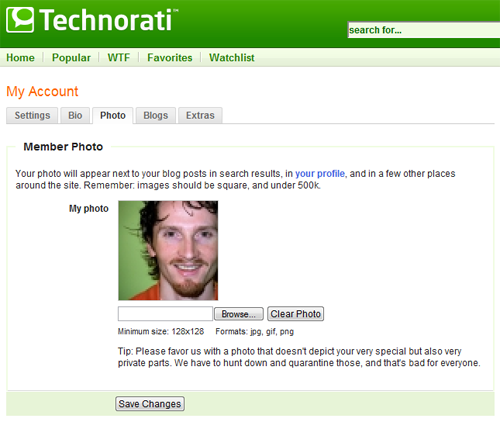
Logged into my Technorati account late last week to check my profile settings, and guess what I saw on my photo page? Granted, the message wasn’t for me, it was for every Technorati user, but I thought it was hilarious nonetheless:

For the benefit of those of you that can’t see the image above, let me quote the text:

“Tip: Please favor us with a photo that doesn’t depict your very special but also very private parts. We have to hunt down and quarantine those, and that’s bad for everyone.”

I guess they’re having problems with nasty people posting nasty pics of themselves, or else they wouldn’t have gone to the trouble of warning users. That’s pretty sad — to know there are people out there with absolutely no sense of decency and self-control. Zooomr had a huge problem with this last year, in Mark II. You could browse its full photo stream — all public photos posted by users, as they posted them, and I did that a lot to discover great photographs. While I found plenty of great photographs that I faved, I also found plenty of pornographic images.

At any rate, that stuff was pretty nasty, and I spent plenty of time emailing Kris and Tom with specific links, and they would dutifully either make those photos private or remove them altogether. Flickr has the same problem, and that’s why they’re rating accounts as Safe, Moderate or Unsafe, which I think is a better approach than Zooomr’s — Kris and Tom are still stuck doing manual removals, even though they promised they’d introduce a feature to allow users to flag questionable photos.

My rantings aside, I thought Technorati’s approach was pretty funny, and I’m glad to see more companies do their part to make sure the nasties don’t get to poison everyone’s good time on the web with their filth.

Standard
How To

The best tomatoes are homegrown

You can go to Whole Foods, Trader Joe’s, MOM’s, Safeway, Giant, Publix — you name it — and buy the most expensive tomatoes, but they’ll still taste just as flat as the cheapest ones you’ll find. I don’t care if they’re organic, hydroponic, vine-ripened or whatever — they still have no taste.

It’s a fact of life in America. I don’t know what our farmers do to their fruits and vegetables, but nothing tastes good when you buy it from the store. Most stuff tastes like cardboard, and if you’re lucky, it might have a semblance, a sad little ghost of the taste of the real thing. I call it the great American taste theft. It doesn’t matter if the stuff is cheap or expensive, it still tastes like crap. While I expect the cheap stuff to taste like that, I find it offensive and downright thieving to charge $3-7 dollars for a pound of tomatoes that tastes just like the ones that cost $1-2 dollars. If you don’t know what I’m talking about, then you haven’t gotten around much.

Our families have always grown their own vegetables, even when they lived in cities. Now that Ligia and I are on our own, and we’ve only got a terrace, we still grow a few vegetables, mostly tomatoes, every year. Let me tell you that there’s a world of difference between the tomatoes you grow at home and the ones you buy at the store. The ones over there might look better, cosmetically-speaking, but the ones you grow with your own love and care, without pesticides or fertilizers, are the ones that will blow you away every time you taste them. They may have a few blemishes, they may not be as big or pretty as the ones in the store (you know, the ones full of hormones and all sorts of crap that’s not good for you) but when you bite into one, that fragrance and taste explosion you’ll feel is proof of their pedigree.

Homegrown cherry tomatoes

Trust me, there’s no substitute. You don’t know what you’re missing if you don’t try it out. You may lose a few tomatoes to disease, but if you let them fend for themselves, and only feed them water, till the ground once in a while and prune them carefully, you’ll come to find out what I mean.

Homegrown tomatoes
Standard
How To

How to rename a WSS 3.0 server

Say you’ve got a Windows SharePoint Services 3.0 server, and you’ve got to rename it — as in change the actual computer name. I found myself twice in that situation recently. How do you go about renaming it? It’s a three-step process, as outlined below. Plan for a half-hour outage, just to be on the safe side.

Step one:

Change the machine name. I hope no directions are needed for this. If you need them, you should abort the operation, and get someone more qualified to help.

Step two:

This only applies if your server is self-contained (it has IIS, SQL Server and SharePoint installed on the same machine). Change the name of the SQL Server install by following the excellent directions written by Tibor Karaszi. Like him, I prefer to go directly into the sysjobs table and edit the server names. When you’re done, don’t forget to either restart the machine or the SQL Server services.

Step three:

Per MS Tech Support, open the command prompt and type the following:

  • cd c:\program files\common files\microsoft shared\web server extensions\12\bin
  • stsadm -o renameserver -oldservername [type in the name] -newservername [type in the name] (remove the brackets, just type the names by themselves)

Now open the SP Admin interface, go to Operations >> Alternate access mappings and modify the server names to reflect the new name. Modify all appropriate entries there. When you’re done, don’t forget to either restart the machine, or the SharePoint services.

Test the SP sites and make sure things are working as they should be. Remember, if you posted any images on your sites, and you used the machine name instead of the site URL for the image paths, the paths will now be broken, and you’ll need to go through each link and re-map it. MS Support didn’t know of any automated way of doing this. Of course, if you feel adventurous, you can back up the SP DB, then go through the SQL file with a text editor looking for instances of the name and replacing it with the new one. Then you can restore the DB from the modified backup file and see how things turn out. I don’t advise this though. You may mess up the text encoding, and may end up with weird characters in your content, not to mention you could also corrupt the DB.

That’s it, you’re done now. If you’d like to read up on the stsadm command-line tool, you can check out this article at the TechNet site.

Standard