Thoughts

File corruption rears its ugly head

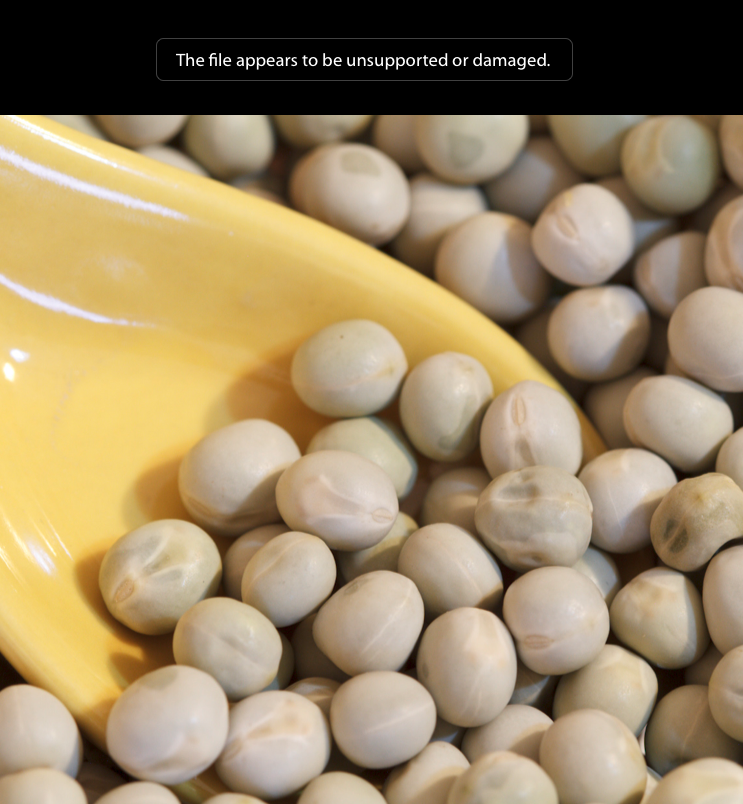
During the last few weeks, I’ve seen the following error in Adobe Lightroom 3.

There I am, editing photos, minding my own business, and when I try to view a photo for editing, I get the error message you see above: “The file appears to be unsupported or damaged.”

When I try to view the file in the finder, I get the same error message, this time directly from the OS: “The file […] could not be opened. It may be damaged…”

Here’s my workflow:

  1. Shoot RAW
  2. Import RAW files as DNG into Lightroom (LR converts them on the fly)
  3. Process in LR
  4. Export as JPG or as needed
  5. Back up the catalog and check its integrity weekly

It’s pretty straightforward, and that’s the way I like it. I currently have about 85,000 photos in my LR library, whose catalog is stored locally on my MBP, with the files (DNG, RAW, JPG and TIF) residing on a Firewire Drobo.

Fortunately, the file corruption is only temporary, meaning there’s an error somewhere along the way:

  • It could be Lightroom
  • It could be the DNG file format (because I haven’t gotten the error with RAW or JPG files)
  • It could be OS X: I wonder how much testing Apple did for 10.6.5 with volumes greater than 4TB
  • It could be the Drobo: it’s a big volume (4.4TB) with lots of data that’s constantly being updated, lots of I/O traffic

I don’t know, and I hope someone reading this has an answer.

What fixes the error every time is quitting LR, ejecting the Drobo, cycling its power, mounting it, and starting LR. I’ve also tried just restarting LR, or just ejecting the Drobo, but those methods didn’t work.

Standard
Events

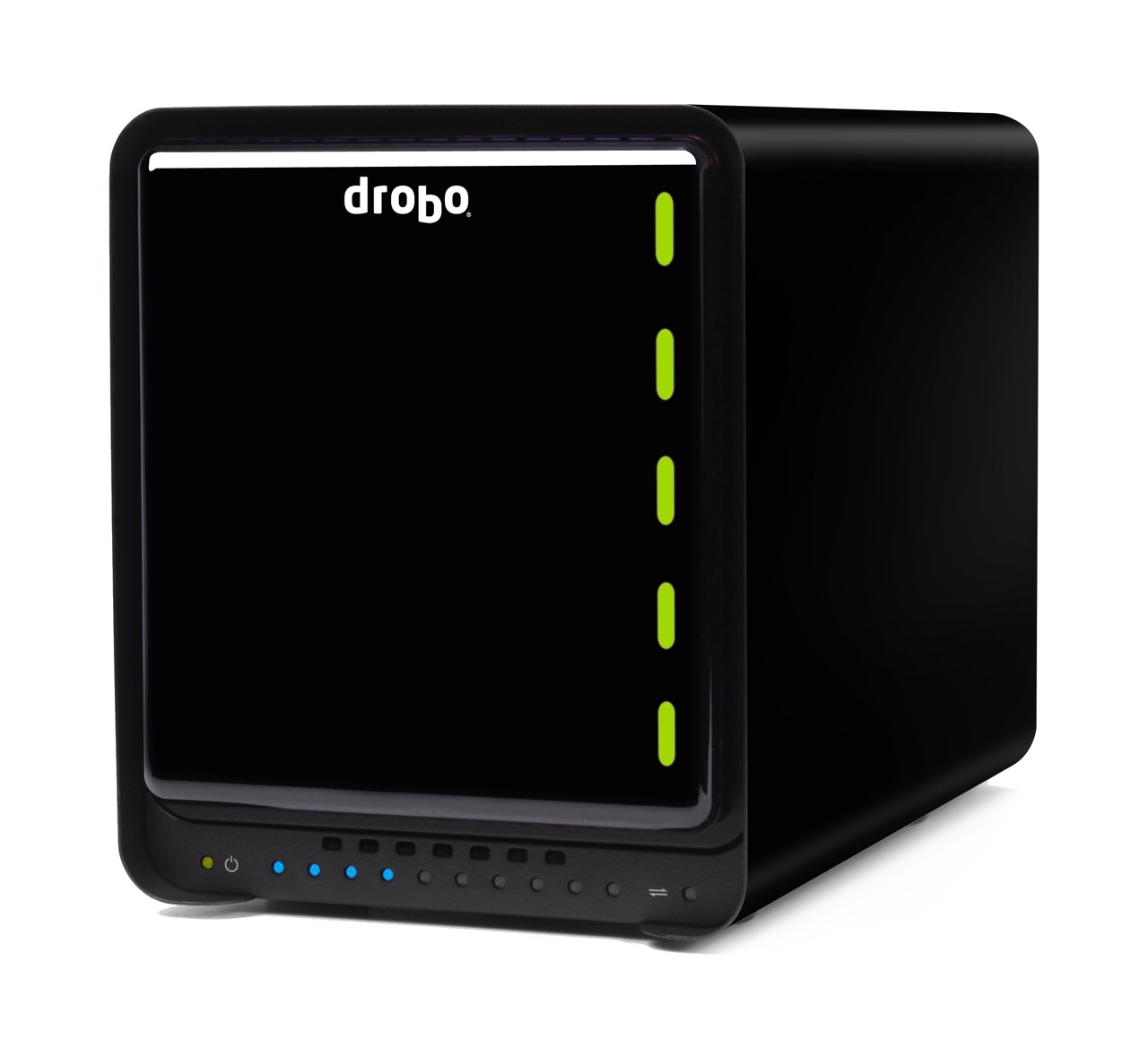
Win your choice of a Drobo S or Drobo FS – enter now!

Updated 9/24/10: The winner of the drawing is Keith LaBarre! He’ll soon get to pick between a Drobo S ($799) or a Drobo FS ($699). Congratulations, you lucky guy! 🙂

My thanks go out to Data Robotics for their generous offer, and to all for your participation! Data Robotics will be in touch with each of you to provide you with a discount coupon good toward a shiny new Drobo. Have a wonderful weekend everyone!

I’m happy to announce an awesome contest where you can win your choice of a Drobo S or Drobo FS. It starts today, Tuesday, 9/21/10, at 12:01 AM Pacific Time, and it runs until Friday, 9/24/10, at 9:00 AM Pacific Time. That’s not a lot of time, so enter now!

All you have to do is to fill in your info right here. The winner will be picked at random and announced here on my website, on my Twitter account, and on the @Drobo Twitter account.

Although there can be only one winner, everyone who enters will get a nifty discount good toward the purchase of a new Drobo. So go ahead, enter now!

Standard
How To

Switch drive packs between two Drobos while keeping your data safe

Updated 1/14/19: I have revised my opinion of Drobo devices. After experiencing multiple, serious data loss events on multiple Drobo models, even recent ones, I no longer consider them safe for my data.

Sometimes you’ll need to switch your drive packs (the set of drives that sits in a Drobo) between two Drobos. Or say you’re using two drive packs on the same Drobo. How do you switch the two packs safely, to ensure you lose none of your precious data?

That’s the question I asked myself a couple of days ago, when I found that I needed to interchange the drive packs between my 2nd Generation (FW800) Drobo and my 1st Generation (USB 2.0 Drobo). I’d expected this move for a while, as I hinted to it in a recent post entitled “What’s on your Drobo“. It has to do with my photography workflow, and if you’d like to read through the rationale, you’re welcome to check out that post.

So, what’s involved?

  1. Safely shut down the Drobo(s)
  2. Disconnect power and FW/USB cables
  3. Take out disk pack as a whole from one Drobo
  4. Insert disk pack as a whole into another Drobo (or same Drobo, as the case may be)
  5. Connect FW/USB cables
  6. Connect power cables
  7. Boot up the Drobo(s)

I’ve put together a video demonstration of the process, which you can watch below or on YouTube. This was unrehearsed, and it’s not something I did before, so there was a fair bit of related anxiety. I rely very heavily on my Drobo units for data archival, and I don’t ever want to lose any of my data. Thankfully, everything went smoothly, and things are working great!

The detailed steps involved in the process are listed in two tech notes on the Data Robotics website:

  1. How do I safely shut down my Drobo?
  2. Can I move my disk pack from one Drobo storage device to another?

I need to add here that drive packs aren’t interchangeable between all Drobo models. You’ll need to read carefully through that second tech note listed above to make sure you don’t unintentionally corrupt your Drobo volume by putting the pack in an incompatible Drobo device.

If you’re wondering why one ought to bother to switch data packs, the decision needs to be made on a case-by-case basis. In my situation, the alternative would have been a manual copy of the data, which would have taken days, since I work with terabytes. Switching the drive packs took 15-20 minutes altogether (reading through the tech notes, emailing Drobo Support to ask them a question, and actually doing it). The trade-off, if I hadn’t done things correctly, would have been costly and possibly irreversible data loss. Fortunately, things went according to plan!

Standard
How To

What’s on your Drobo?

Updated 1/14/19: I have revised my opinion of Drobo devices. After experiencing multiple, serious data loss events on multiple Drobo models, even recent ones, I no longer consider them safe for my data.

The folks at Data Robotics put together a short video that showcases Drobo owners talking about what they store on their Drobos, and asked their Twitter followers what’s on their units.

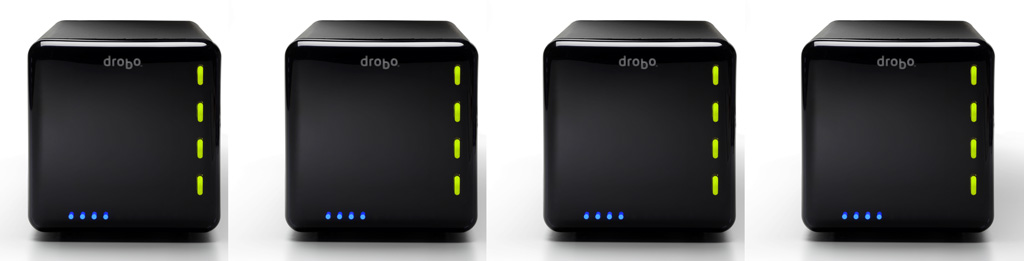
That got me thinking about what I store on my Drobos. I have four Drobos in total: three 1st Gen Drobo units (USB 2.0 only) and one 2nd Gen Drobo (Firewire 800 + USB 2.0). Perhaps that makes me a bit unusual. Most people have one or two units, not four. But there’s reason to the seeming excess.

For one thing, I have a huge photo library. (You can find the photos I edited and published here.) For another, my wife and I have a huge video library. These are movies and cartoons we had on VHS tapes, which we digitized, or on DVDs, which we archived for easy viewing, or TV shows and movies that we recorded from TV. We’re big fans of classic movies and cartoons from the 1920s, 30s and 40s, and we collect all the ones we like. We also digitized most of our old paperwork. My medical records are all digital. So are my dental records. So are a bunch of our other documents. I scanned all the stuff I could scan, and now when I need to look something up, it’s right there at my fingertips. I’ve also started shooting video more intensively this past year, in SD and HD. (You can find my published videos here or here.) All that stuff takes a fair amount of space — terabytes to be more precise. And to top off this whole list, we live our life on two continents (North America and Europe).

Here’s what I do to make sure I don’t lose my data:

  1. I keep a Drobo with my parents, at their place. On it, I store a backup of my photo library and our video library, along with their files. I back up my live photo library to it using CrashPlan, a piece of software that will let you back up your data to a friend’s machine. I’ve actually just started using it, and while I’ve been able to back up just fine with both machines on the same network, being able to do it from thousands of miles away will be a litmus test of the software’s capabilities. I’ll be sure to write about it if it proves workable. The video library gets backed up every once in a while in a pretty simple manner: I carry movies and videos to them on a hard drive and copy them onto the Drobo. Updated 4/21/10: CrashPlan does indeed work as advertised!
  2. I keep two Drobo units at our home. On one of them, I keep our video library, and an extensive, historical file archive. On another, I keep a mirror copy of my live photo library, which is currently stored on a WD Studio drive, because it’s smaller and easier to transport than a Drobo, and I do a fair bit of traveling. I mirror my photo library with an app called Synkron, which works great. I switched to the WD Studio when I started traveling extensively and realized the Drobo couldn’t always fit safely into my luggage. (Where oh where is that Drobo carrying case I wrote about last year?)
  3. I gave the fourth Drobo to my brother, who needed a solid data storage device to begin to archive his ever-growing library of ethnological videos. He’s a documentary filmmaker who travels around Romania studying and recording religious and secular customs, which are being forgotten and buried along with the old folks. He wants to preserve these things for posterity. You can learn more about what he does at his website, called ORMA.

So that’s how I use my Drobos. However, I’ll have another logistical issue to deal with in the near future. I’m running out of space on the WD Studio drive, which has 2 x 1 TB drives in it. I run it in RAID 1, and in another month or two, it’ll be completely full. I’ll need to start using one of my Drobo units as my primary photo editing/storage device again. This means I’ll shuffle all my data around once more. A possible new arrangement will see me using the 2nd Gen Drobo for the storage and editing of my photos and videos, and the other for the storage and retrieval of our video library and historical file archive, while the WD Studio drive will see some backup duty or be relegated for travel-only purposes.

The current drive distribution among the three Drobos I use actively is as follows:

  • 2 x 2 TB drives + 2 x 1 TB drives in the Drobo that stays with my parents
  • 4 x 1 TB drives and 4 x 500 GB drives, respectively, in the two Drobos that are with us
  • I can’t speak for my brother, but I believe he’s using 4 x 1 TB drives in his Drobo

I’d love to hear how you are using your Drobo. Perhaps you have some ideas for me?

Image and video used courtesy of Data Robotics. The 2nd Gen Drobo is available for purchase from Amazon or B&H Photo. The 1st Gen Drobo has been discontinued as of 2009. Be sure to also check out my reviews of the Drobo S, DroboPro and DroboElite.

Standard
Reviews

Hardware preview: DroboElite

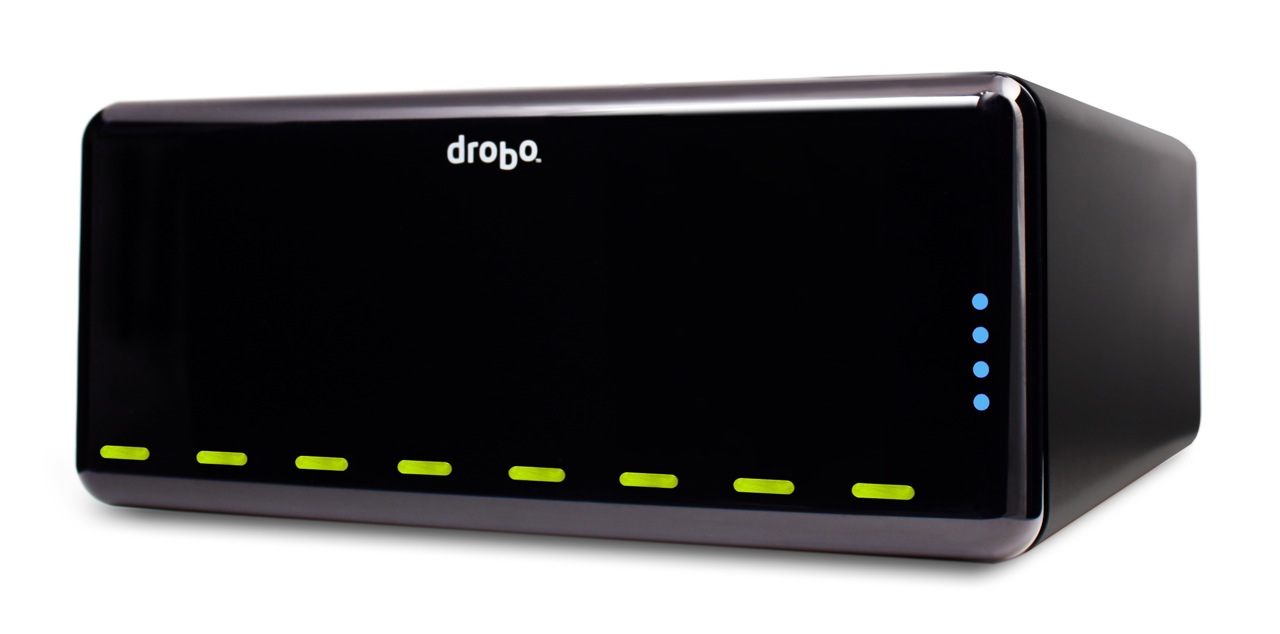
Drobo Pro side

Updated 1/14/19: I have revised my opinion of Drobo devices. After experiencing multiple, serious data loss events on multiple Drobo models, even recent ones, I no longer consider them safe for my data.

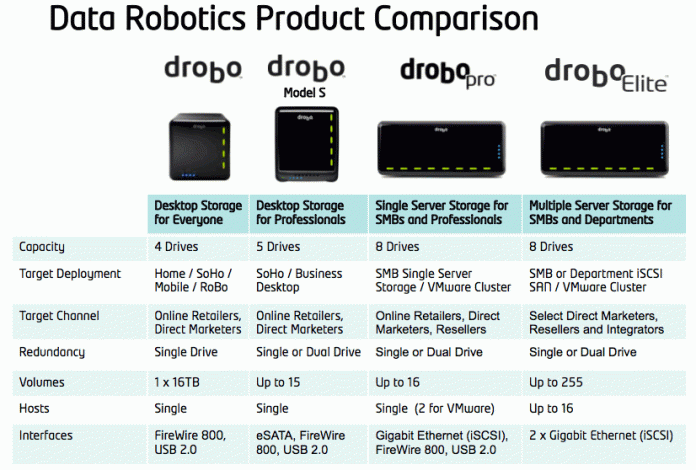
Today, November 23, 2009, the new DroboElite becomes available from Data Robotics. It’s the top of the ladder when it comes to their product line: it’s the fastest, biggest, most configurable SAN they’ve got, and it eats terabytes for breakfast. It’s got multi-host support, dual Gigabit Ethernet ports, and it can have up to 255 Smart Volumes.

Background

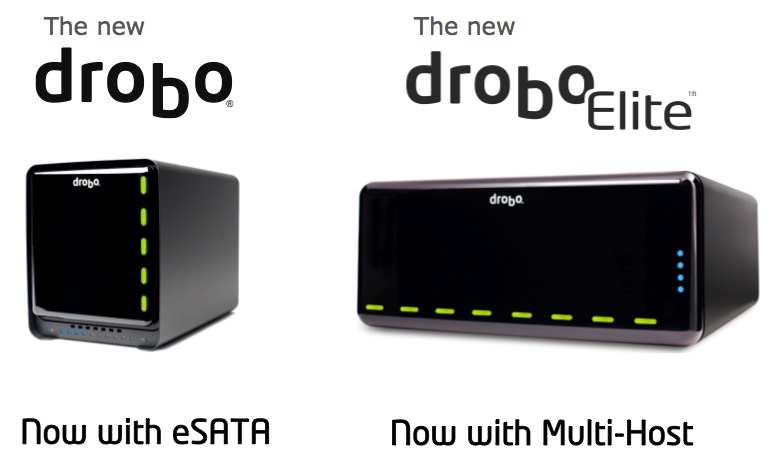
Data Robotics launched the original Drobo in mid-2007, then upgraded that to what we call the Firewire Drobo toward the end of 2008, introduced the DroboPro in April 2009, and now they’re launching the DroboElite, which you can see here, and the Drobo S, addressed in a separate post, also published today.
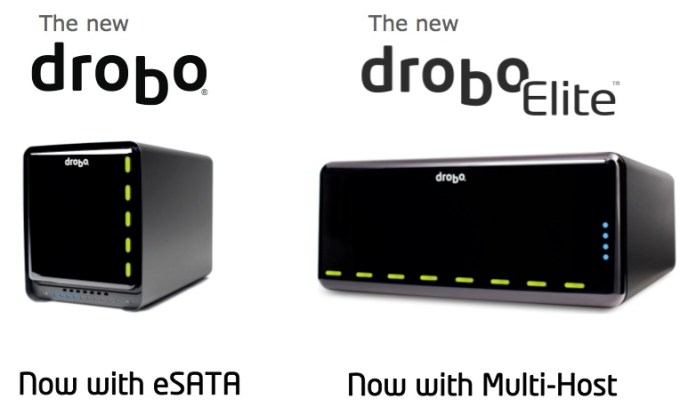
drobo-s-and-droboelite

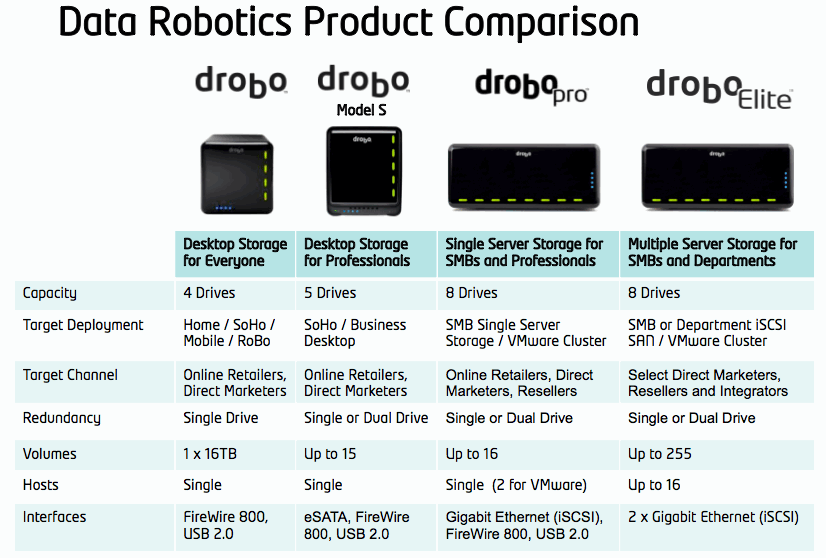
This means the company now has four great pieces of hardware in their product line, geared toward different groups of consumers, starting with the desktop storage needs of the media-heavy consumer and going all the way to companies’ server rooms:

  1. Drobo,
  2. Drobo S,
  3. DroboPro and
  4. DroboElite

Design

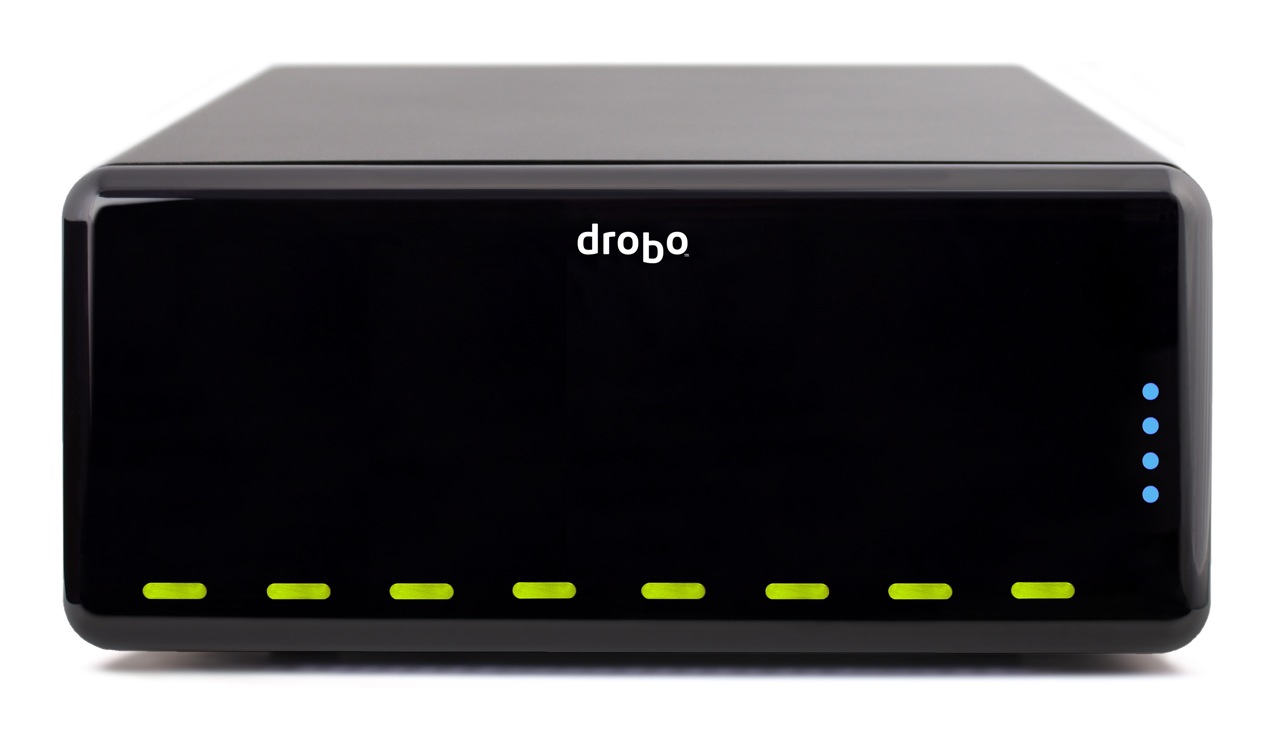
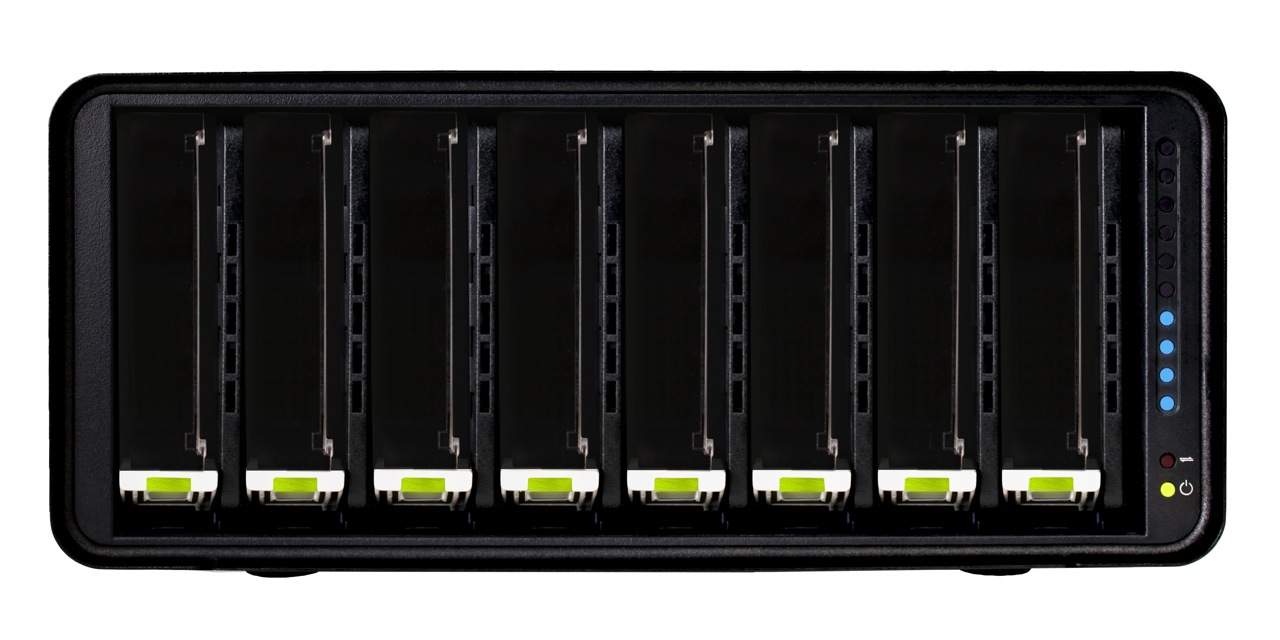
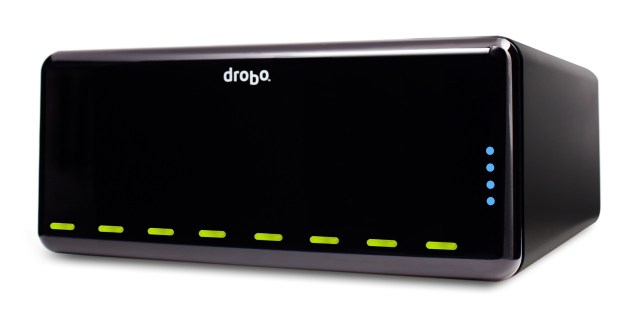
The front of the DroboElite is identical to that of the DroboPro. The dimensions are the same — and they’d have to be, since it needs to fit into a 3U rack space and take the same rack mounting kit as the DroboPro. The weight is also the same: 16 lbs. 3 oz.

Drobo Pro top

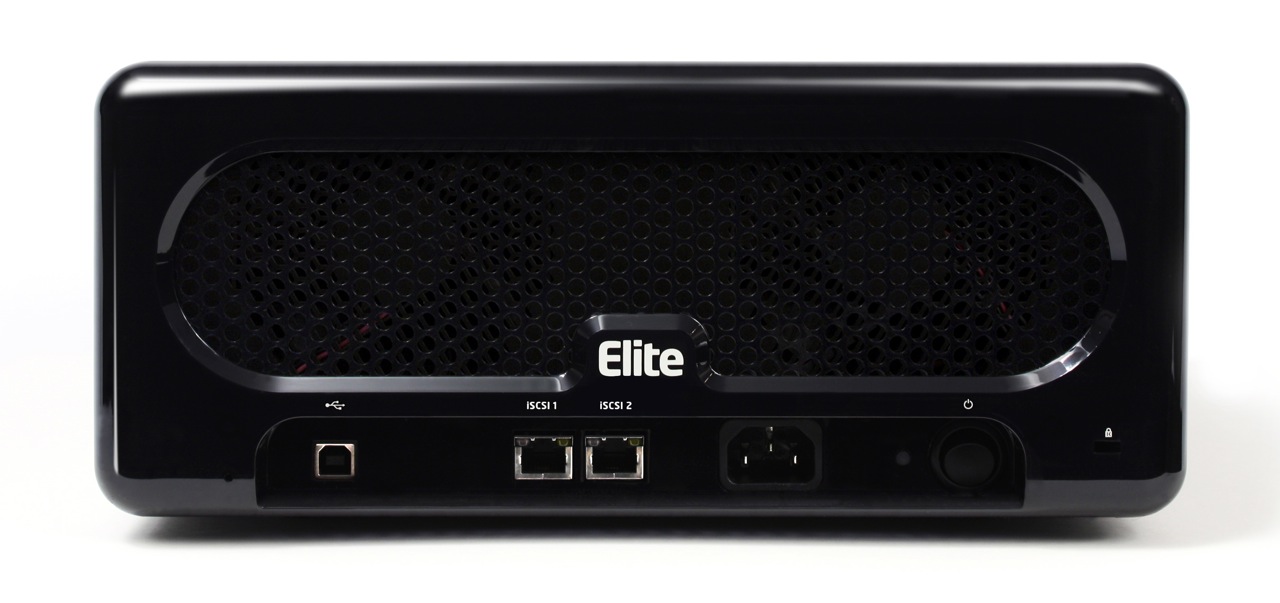
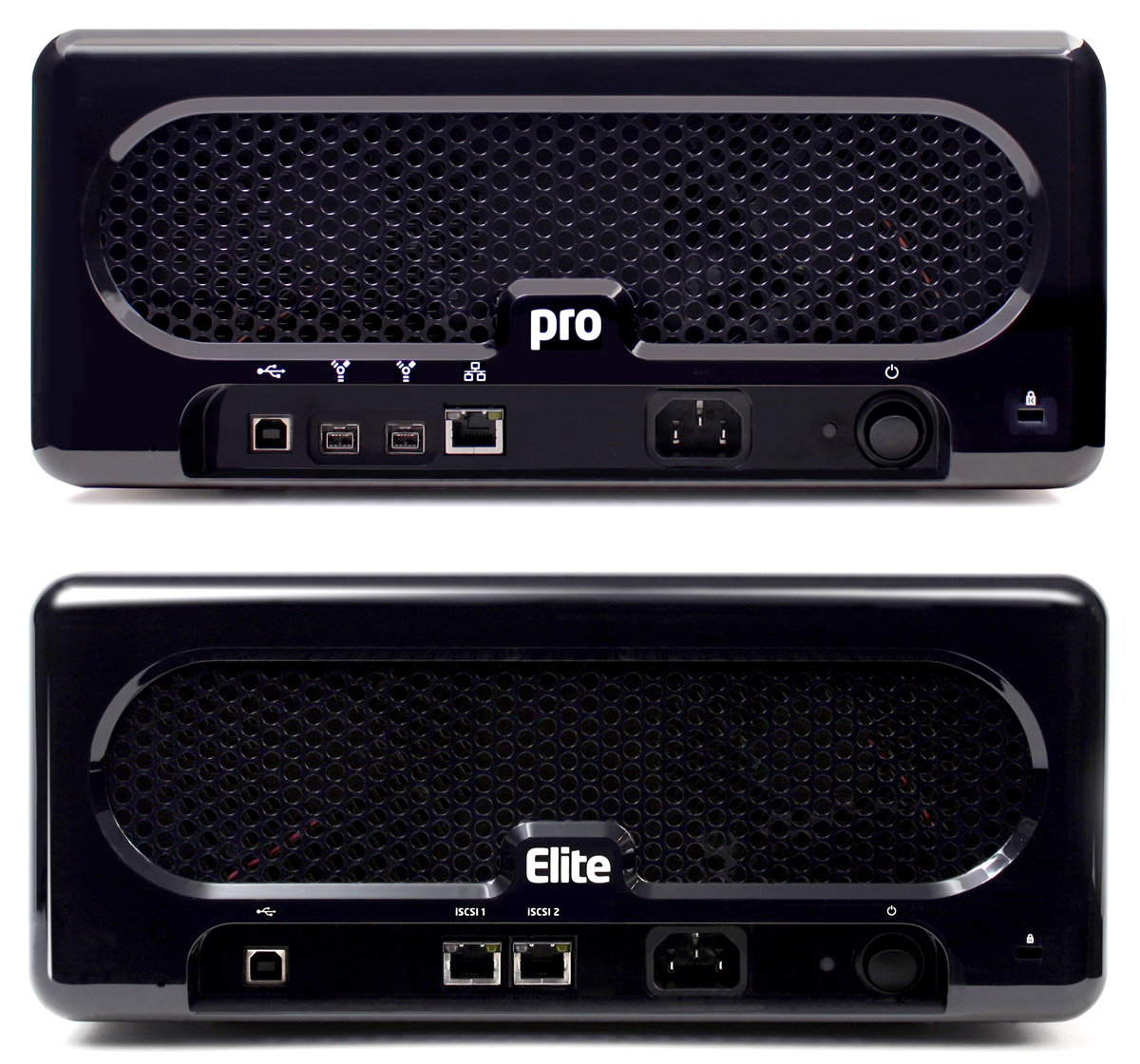
Things are different in the back though. What you’ll see there is a lack of Firewire and the addition of a second Gigabit Ethernet port. The USB port has also been downgraded to the role of diagnostics. As you’ll see in a bit, there’s a reason for this change.
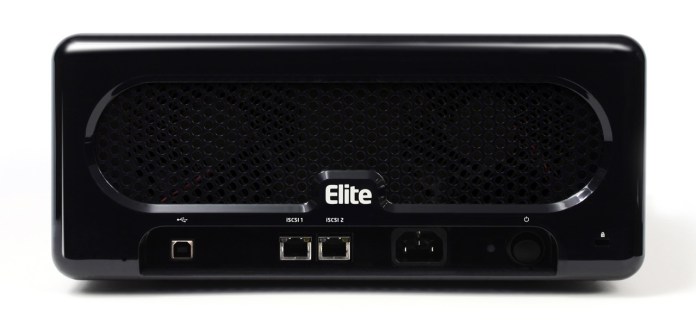
A side-by-side comparison of the backs of the DroboPro and the DroboElite makes the changes even clearer.
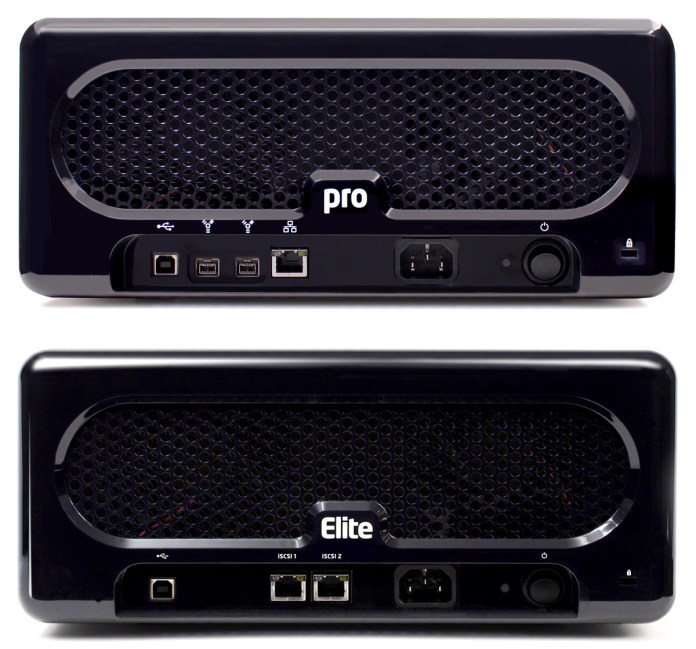
drobo-pro-and-drobo-elite

The inside of the DroboElite is once again identical to that of the DroboPro. There are eight drive slots, arranged vertically, plus the usual power, activity and action indicator lights.

Drobo Pro cover off

Performance

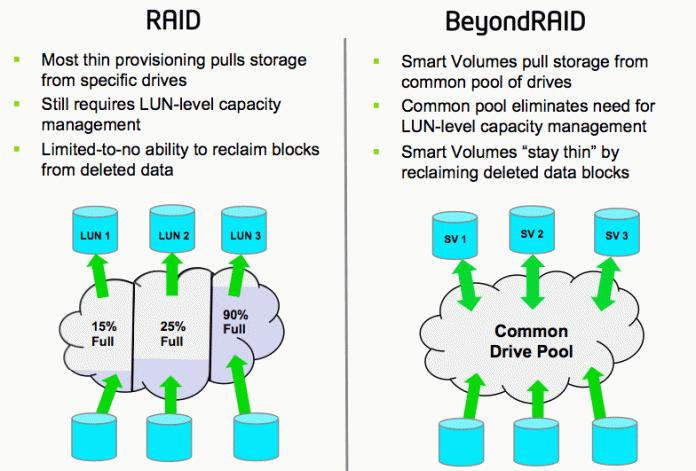
The DroboElite, like the DroboPro, is aimed toward SMBs, who are facing increasing data storage and virtualization needs, increasingly complex systems and limited budges. Also like the DroboPro, the DroboElite aims to make reliable storage dead simple. The eight-drive array in these two devices is self-managing and self-healing, and can be configured in single or dual-drive redundancy. It’s scalable, and with Smart Volumes, incredibly flexible. There’s no need for partitioning or file system expansion — a serious problem with traditional SANs.
droboelite-thin-provisioning

Having dealt with the problem of rigid LUN configurations, which lead to frequent and cumbersome free space issues, the Drobo’s ability to use a common drive pool for its Smart Volumes, and to reclaim deleted data blocks without any intervention from system admins is a Godsend.

For those of us familiar with the Drobo, it’s easy to overlook its amazingly easy upgrade path, where SATA drives of any capacity and brand can be added at any time, resulting in lower costs and no time and effort lost for needless data migrations.

If you’ve looked at the DroboPro, and now you wonder what the DroboElite brings to the table, there are three significant advantages to the latter:

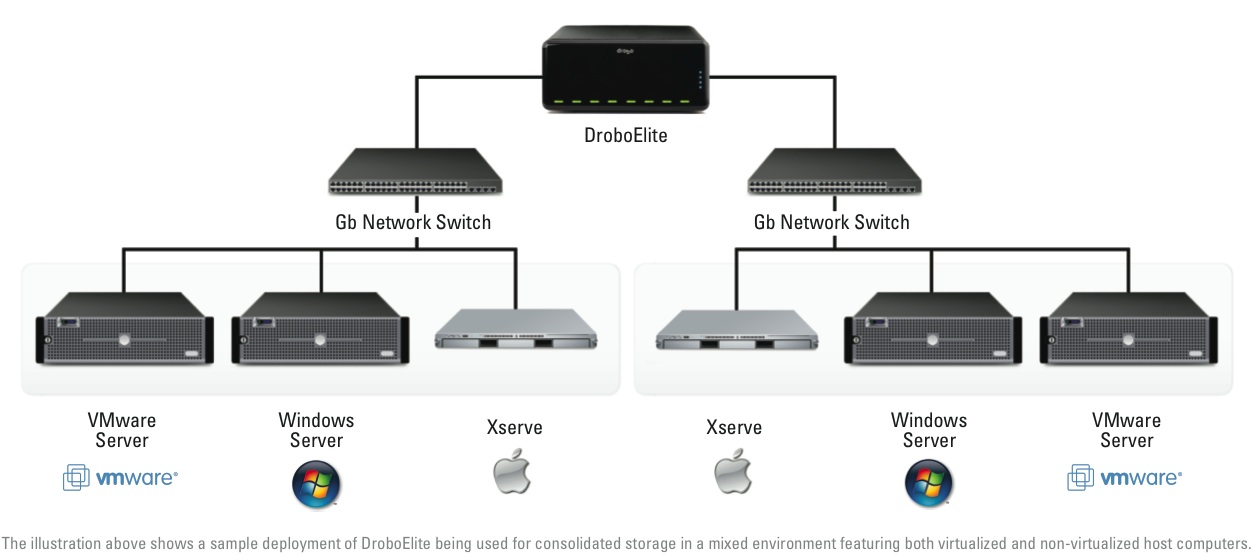
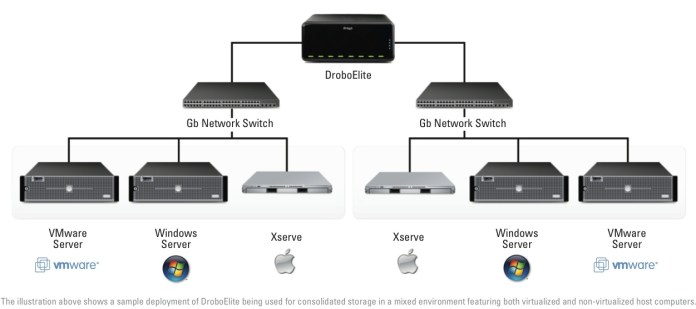
  1. Multi-host connectivity: whereas the DroboPro could only be connected to a single host (two if using VMware), the DroboElite can connect to 16 different hosts.
  2. Higher performance: thanks to its dual Gigabit Ethernet ports, a host of advanced capabilities were put in for the express purpose of speeding up its bandwidth. The DroboElite offers up to 50% faster throughput than the DroboPro. That’s also the reason the FireWire interface was dropped, and the USB interface was downgraded to diagnostics-only. This machine was built to run on a fast Gigabit network and to give you the most speed possible through it, up to 200 MB/sec, as a matter of fact, which trumps any other sort of current interface, by far.
  3. More Smart Volumes: the Drobo Pro can only accommodate up to 16 SVs, but the DroboElite will let you configure up to 255 SVs, all of them using a common drive pool and automatically reclaiming deleted disk space.
droboelite-consolidated-storage

If we look toward the future and other possible improvements to the DroboElite, perhaps Light Peak might play a role in that (see my Drobo S review for more on Light Peak and the Drobo). Still, since this is a network device, and networks are still Gigabit at best, even if direct DroboElite-to-host connections are made with Light Peak, there’s still the Ethernet bottleneck. It’ll be interesting to see how this gets resolved over time, and I’m sure plenty of people are already at work on this problem already.

Pricing and Availability

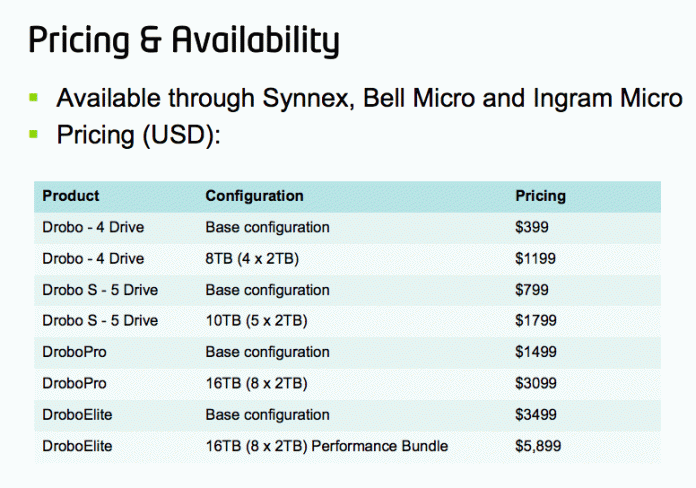
The DroboElite has a suggested price of $3,499 by itself, or $5,899 with an 8×2 TB drive bundle, for a total capacity of 16 TB. Because it’s a more specialized product, it will only be sold through select direct marketers, resellers and integrators such as Synnex, Bell Micro and Ingram Micro. It is available for purchase immediately, provided initial stocks aren’t sold out.

The DroboElite is also available with a rackmount kit, just like the DroboPro. The whole assembly will take up 3Us in a standard 19″ server rack.

Drobo Pro rackmount kit

drobo-pricing-and-availability

The DroboElite is available for purchase from Amazon or B&H Photo and other retailers.

Images used courtesy of Data Robotics. Side-by-side comparison shots were created by me, using press images from Data Robotics, so please obtain my permission if you’d like to use them elsewhere.

Standard