Reviews

Hardware preview: DroboPro

Updated 1/14/19: I have revised my opinion of Drobo devices. After experiencing multiple, serious data loss events on multiple Drobo models, even recent ones, I no longer consider them safe for my data.

Updated 11/23/09: The new DroboElite is now available. It differs from the DroboPro because it offers two Gigabit Ethernet ports instead of one, multi-host support, and up to 255 Smart Volumes.

Today, April 7, 2009, Data Robotics launches a new product aimed at professionals and SMBs: the DroboPro. I got a preview of it yesterday. Let me share what I learned with you.
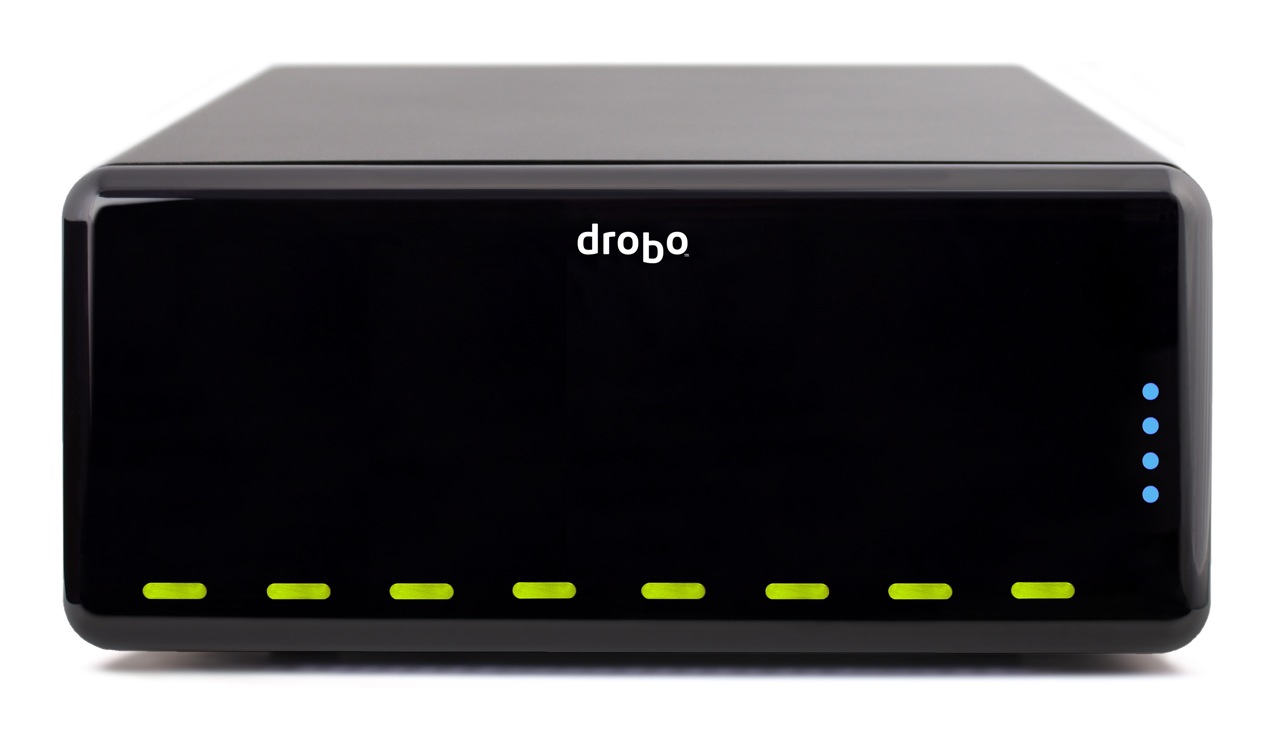
Drobo Pro top

The DroboPro has some really cool features, some of which I, along with others, anticipated and looked forward to seeing. As I wrote in my review of the Firewire Drobo, Data Robotics was looking at making an 8-drive Drobo, possibly rack-mounted. I also thought they might introduce the capability to safeguard against two drive failures. And, as I wrote in this comment on that same review, in response to a reader’s wishlist for the Drobo, I thought they might at some point build networking capabilities right inside the Drobo.

Well, the new DroboPro does all those things and more!

  • 8 (eight) drives
  • 2 form factors: desktop and rackmount
  • Dual drive redundancy
  • Gigabit ethernet
  • iSCSI
  • Smart volumes: create up to 16 different virtual volumes, each of which can grow to 16TB
  • Price is $1,299 for entry level DroboPro or $3,999 for a loaded model with eight 2TB drives
  • Instant $200 rebate with customer loyalty program

Let’s dive into those new features a bit. Keep in mind my knowledge is as yet limited, since I haven’t seen the full specs; I only had a phone briefing.

8 drives

You know how the drives are arranged horizontally in the regular Drobo? They’re arranged vertically in the new DroboPro, which is about the same height, and a little less than twice the width of the original.
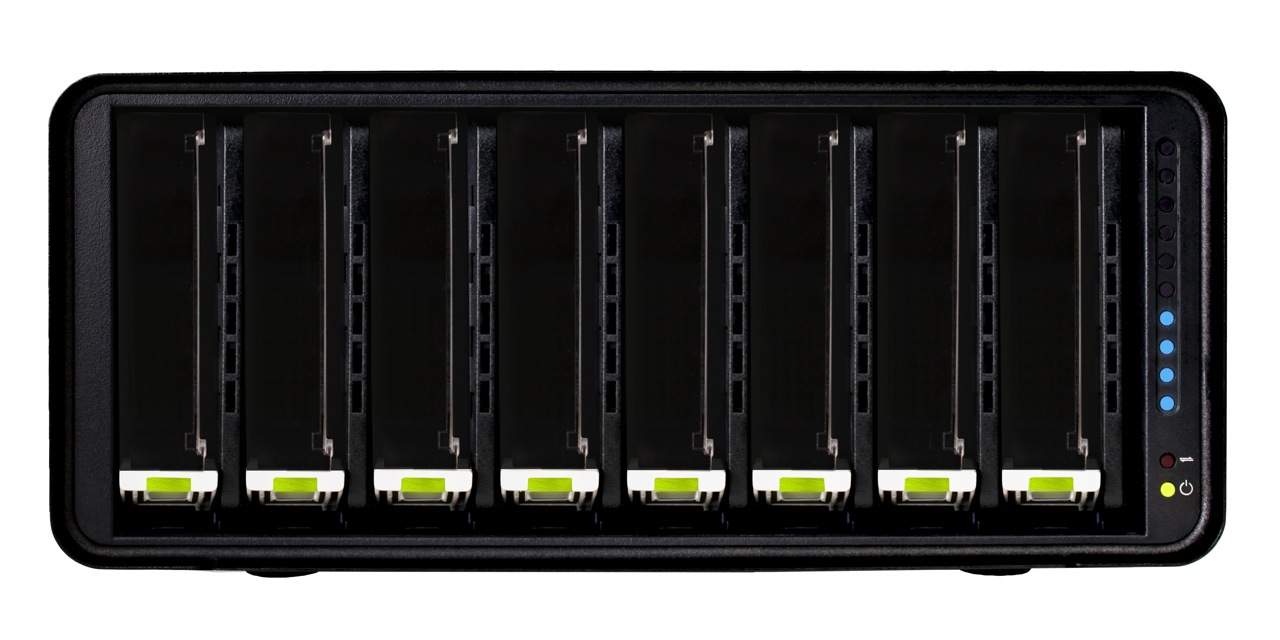
Drobo Pro cover off

Two form factors

The DroboPro comes in a desktop form factor which is 12.17″ wide, 5.46″ high and 14.1″ long. The length is about 3″ more than that of the original Drobo. I think the extra space houses the additional circuitry for the network, power supply and other features.

The other form factor is a rackmount with a 3U height. If I understood correctly, the rackmount kit can be attached and detached as needed, so you can interconvert between the two form factors if you like.

DroboPro dimensions

Drobo Pro rackmount kit

Built-in power supply

One thing that’s easy to miss if you look at the back of the DroboPro is that it no longer has a DC adaptor port, but a regular 120-240V connector. Have a look and see. This means the power brick which converts 120-240V AC to 12V DC has been eliminated. You’ll also notice a power switch on the back. That’s new too.

Drobo Pro back

Dual drive redundancy

As it was explained to me, the DroboPro comes standard with single drive redundancy, and the dual drive redundancy is an option that can be turned on at any time. In case you’re not familiar with the concept, this means two of the drives inside the Drobo can fail, and your data will still be safe.

Gigabit ethernet

Business-class networking is now built right into the DroboPro, along with enterprise-class features, like iSCSI with automatic configuration. The ethernet port on the DroboPro does not replicate the functionality of the DroboShare, as I initially thought. It only works through the iSCSI protocol, which means it needs to be mapped directly to a host, like a server or workstation, which can then share it among multiple servers or workstations. In that sense the DroboPro is not a NAS (Network Attached Storage), but a SAN (Storage Area Network).

iSCSI

If you’ve set up iSCSI volumes in the past, then you know how much of a headache they can be, and how bad the performance can be if it’s not set up correctly or if the hardware isn’t working as it should. I know firsthand about this. With the new DroboPro, the iSCSI setup is automatic. It’s as easy as plugging it into the network. The Drobo Dashboard software then finds it and mounts it as a volume on your machine via iSCSI. The work is done behind the scenes so you don’t have to worry.

For Windows, the DroboPro uses the Microsoft iSCSI initiator, and for the Mac, the folks at Data Robotics wrote their own iSCSI initiator. Those of you who work with Xserve and Xsan use Fibre Channel technology to connect to the network volumes, and you may wonder why Data Robotics went with iSCSI. It’s because iSCSI is more utilitarian. It doesn’t require special network hardware to work; it can use the existing ethernet network infrastructure, so there’s a lower cost of entry and maintenance.

I was assured that iSCSI throughput on the DroboPro is very fast. I guess it’s up to us to do some testing once the DroboPro starts to ship, so we can see just how fast it is. See the iSCSI guide on Drobo’s website for more details.

Smart Volumes

With the DroboPro, you can create up to 16 different virtual volumes, each of which can grow to 16TB. This is very important for the enterprise market, where companies want to be able to separate the data onto separate volumes and assign separate access privileges to each. Those of you who are network admins can readily appreciate how useful this is. Those of you who are creatives can also appreciate being able to assign a volume for Time Machine backups, one for videos, one for photos, and so on. Furthermore, each volume can be resized as needed, which is a huge leap forward compared to the difficulty of resizing LUNs set up over RAID volumes.

Price

The entry level DroboPro (enclosure-only) costs $1,299. The high end DroboPro, which includes the rackmount kit, two drive redundancy and is pre-loaded with eight 2TB hard drives for a total of 16TB of space, costs $3,999. There’s also a handy customer loyalty program which will give you an instant $200 rebate if you’ve purchased a Drobo in the past.

Those of you who might balk at the price should compare the features and ease of use of the DroboPro with other comparable products on the market. I’m going to walk you through a different kind of comparison, one that looks at the cost of the original Drobo and the cost of the new DroboPro.

Think of the DroboPro as two regular Drobos in one. The original Drobo is $499 for the enclosure, so that brings the price to $998. The difference between $998 and $1,299 is made up by the additional networking features and the complexity of the circuitry and auto-management algorithms of an 8-drive array. Keep in mind the DroboPro has enterprise-class features like dual drive redundancy, iSCSI and smart virtual volumes. Those features alone warrant charging several hundred dollars to thousands more for it, as other companies who make similar products have already been doing.
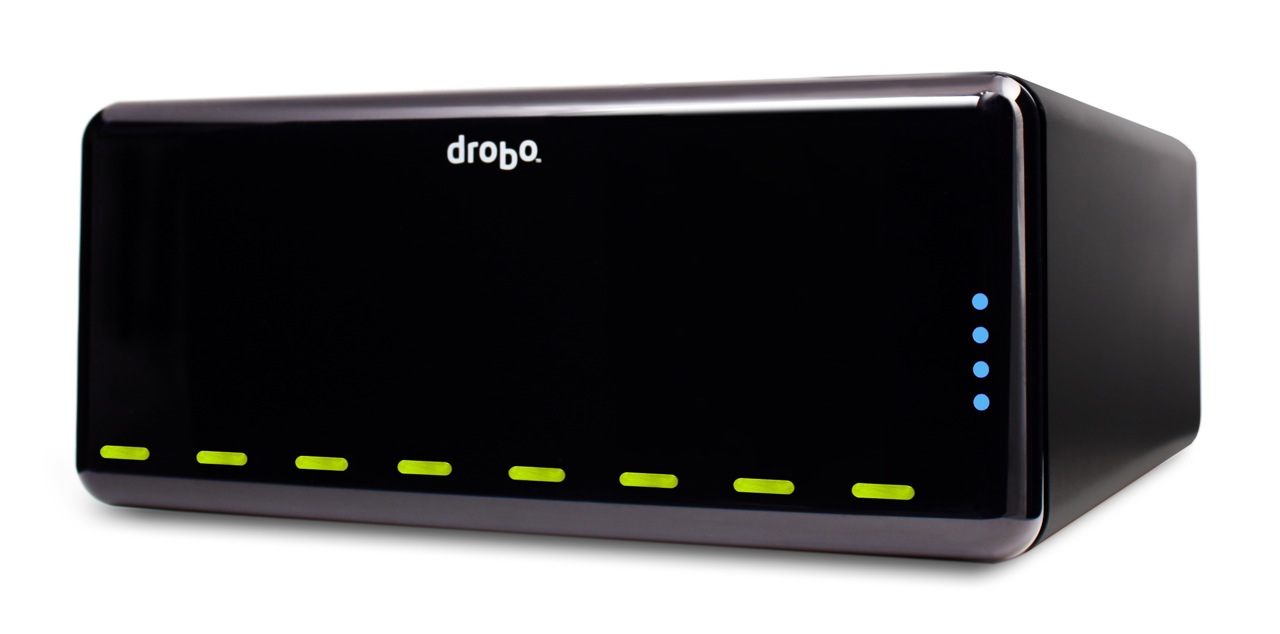
Drobo Pro side

Summary

The DroboPro is a fantastic addition to the Drobo line. Its enterprise-class features, its incredible ease of use, and its unmatched storage flexibility make it the perfect external storage solution for busy professionals with serious storage needs or business server rooms. Users will appreciate all of the space it makes available for their work, and system admins will appreciate how easy it is to set up and maintain. From a design point of view, it’s a drool-worthy beauty. Having been a Drobo user for almost 1½ years, I can tell you it is my storage solution of choice, and I look forward to upgrading to a DroboPro some day.

Images used courtesy of Data Robotics.
Standard
How To

How to travel with the Drobo

You might think this is a banal topic, but I don’t. I’ve had to take three of my Drobos with me on a recent overseas trip, and I had to make some clear decisions about how I was going to transport each of them.

The first thing I wondered about is whether there’s a carrying case or bag for the Drobo. I’ll talk about this first, then I’ll give you some practical travel advice.

Right, the carrying case — there isn’t any. There’s a grainy pic on TwitPic of some sort of a large plastic case with foam where you could place the Drobo and its hard drives, but that’s too big to take with you most places, particularly when you have lots of other luggage. It won’t work. We need something slim, something that fits right around the Drobo’s rectangular shape, has handles, sort of like a bowling bag, and yet is well-padded to protect the Drobo. Alas, there isn’t any such thing…

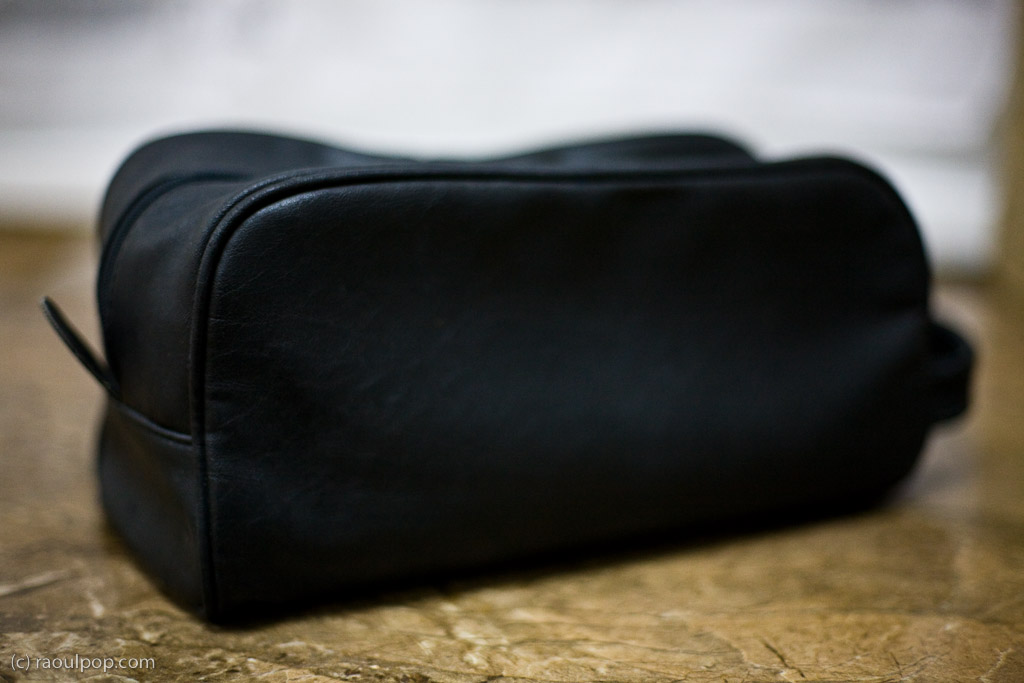
Let me show you a potential design that could work. It’s not something I invented — it’s my travel toiletry bag. Notice its handle is on the front, but I think there ought to be two handles at the top, one on each side, since the Drobo can be fairly heavy with the hard drives inside. The zipper ought to be down the middle of the case, at the top, and the bag ought to have two compartments on each side, or one below, where you can stick the power brick and the USB and Firewire cables.

Potential design for a Drobo carrying case

If Data Robotics or some other company made this sort of a carrying case, we would simply take the Drobo, with its hard drives inside, put it in the bag, and stick the bag in our carry-on luggage. I wouldn’t trust airport personnel enough to check the bag containing the Drobo. Given the way they throw baggage around like it’s bales of hay, they’d likely damage the Drobo and our data.

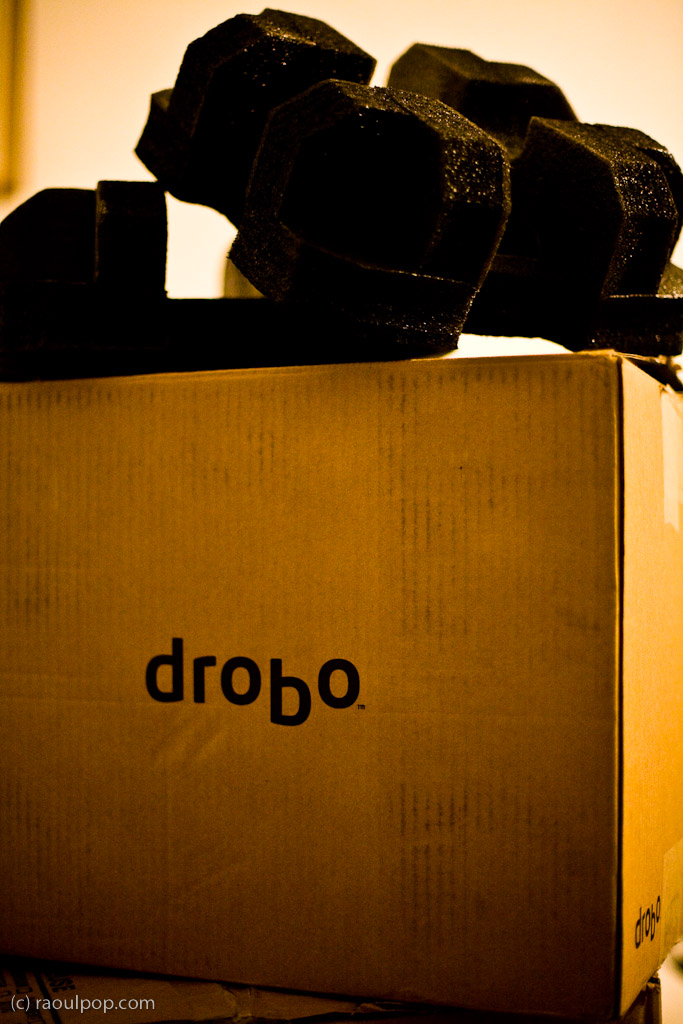
Now let’s get back to reality. There isn’t any carrying case yet. What do we do? What did I do? I was able to send two of my Drobos separately, by ship, and I placed them in their original boxes, which I packed into larger cardboard boxes with other items. They arrived safely, thank goodness. I love those Drobo boxes, they hold up so well! I kept all of them and used them often for storage or transport.

Original Drobo box

As for my third Drobo, the Firewire Drobo, my current primary storage unit, that had to come with me on the plane. I kept the hard drives inside it, packed it in woolen sweaters and other soft clothes, and put it in one of the carry-on bags. Yes, in case you’re wondering, I had to pull it out of the bag for airport security and show it to them. They kept wondering what it was and what it does, and couldn’t believe it was basically an external hard drive. Expect the same treatment from them, at least until they see more Drobos. As for the Drobo’s original box, I didn’t want to lose that, so I flattened it and placed it in one of the checked pieces of luggage along with the foam holders and the box that contains the wires, power brick and software CD. I’m glad to tell you that it arrived safely with me, and it’s connected to my MacBook Pro as I write this.

One last bit of advice. If you travel by car, and there isn’t yet any Drobo carrying case/bag, make room in your trunk for the Drobo’s original box. Pack it inside, and you’ll know that short of an accident, your Drobo will be well protected.

Standard
How To

How to use a Drobo with the WD TV

The WD TV is my favorite media player (I think it’s better than the Apple TV), and since I also love the Drobo, I wanted to combine the two and have the ultimate media entertainment center: a Drobo packed full of videos, photos and music, connected to a WD TV, which is connected to a large-screen HDTV. I did just that for my parents in December. It was my Christmas gift to them.

Here’s what you need to keep in mind if you want to do the same thing. As you might guess, several complications arise when you attempt to get a device with huge storage capability connected to a media player. The complications have to do mainly with the file systems that the media player can read and use properly, and with the ability of the on-screen menus to navigate an abundance of content efficiently.

The WD TV can only work fully with NTFS, HFS and FAT32 file systems. By “fully”, I mean will build its own catalog of the media present on those devices, store it at the root level of those drives as a hidden directory, and will let you browse using its on-screen menus, by date or by file name. It will also read the HFS+ file system, which is native to the modern Macs, but it will not be able to write to it and build its own catalog; this means you’ll only be able to navigate the media on that device by folder.

The Drobo can be formatted as an NTFS or FAT32 volume when using a PC, or as an HFS+ or FAT32 volume when using a Mac, if you happen to use the Drobo Dashboard to do it. If you use the Disk Utility app on a Mac, and you also happen to have the 3G NTFS drivers installed, you can also format the Drobo as a 3G NTFS or as an HFS volume.

I ended up formatting my parents’ Drobo as an HFS+ volume. I’ll tell you why below. If you’re not interested in the minutiae, skip ahead to the next paragraph.

  • First, I tried formatting it as a 3G NTFS volume. For some reason, the formatting process either froze or took unusually long to complete, and the resulting volume wasn’t readable on the Mac or on the WD TV. I have a feeling that had to do with the fact that the volume was over 2TB in size, and 2TB is the upper limit for NTFS volumes, but I’m not sure.
  • I tried splitting the Drobo into two HFS+ volumes, one 2TB and the other 400GB (2.4 TB was the total available space on the Drobo), then formatting those volumes as 3G NTFS volumes, but that didn’t work either. The formatting process kept hanging up in Disk Utility.
  • I tried formatting the Drobo as a straight NTFS volume using a Parallels VM running Windows XP (I installed the Drobo Dashboard inside the VM), but that kept hanging up as well. Not sure why. Perhaps I should have used a physical Windows machine, but I didn’t have one available to me.
  • I then formatted the Drobo as a FAT32 volume. The upper limit on that was once again 2TB, and I had 2.4TB available. I thought I’d forget about the extra 400GB for a while and just focus on getting the 2TB volume working. Predictably enough, after copying some media over and testing it, it worked fine, but I noticed two things:
    • The WD TV took longer and longer to read the device and build its catalog once I connected the Drobo. The more movies I had on the Drobo, the longer it took the WD TV to catalog each of them. That meant waiting up to 20 minutes for the WD TV to get done with its work before I could use it. I didn’t like that.
    • I had several movies that were over 4GB in size, and since that’s the upper limit for a single file in the FAT32 system, I couldn’t get them copied over to the Drobo. I didn’t like that either.
  • I thought I’d try another route, so I formatted the Drobo as an HFS volume. While this was fully readable and writable on a Mac and also on the WD TV, unfortunately, the maximum file size on HFS is 2GB, and the maximum volume size is also 2TB, same as FAT32 and NTFS. Not much help there.
  • The only choice left to me was HFS+. In spite of the fact that the WD TV can only read it, not write to it, this was and still is, I think, the best choice for formatting a Drobo and for working with the WD TV, from the entire group (NTFS, FAT32, HFS and HFS+). The upper limit on an HFS+ volume is 16 EB (exbibytes), which is equal to 1024 pebibytes — basically, an incredible amount of space. One pebibyte is equal to 1024 terabytes, and the upper limit one can get with a Drobo at the moment is 5.5 terabytes, so it’s nowhere near the technical capability of the file system. Furthermore, the upper limit on a single file in HFS+ is 8 exbibytes, which, as shown above, is just plain huge. In plain English, this mean I could format the Drobo as a single HFS+ volume and not worry about any of my movie files exceeding 4GB or more in size.

Great! Now that I’ve put you to sleep, let’s move on. Next on the agenda came the transfer of all the data to the Drobo. You see, I’m also using my parents’ Drobo as an offsite storage device. You know what they say, give and ye shall receive, right? I made them happy by setting up their media center and also got to back up most of my data, media, and photographs. The transfer of the information took a while, as you might imagine. I didn’t time it, but I think it was somewhere between 24-36 hours to copy about 2TB of data from my Drobo to their Drobo. I’m happy to say that the copy operation did not crash, and completed successfully. That’s a testament to the stability of the Drobo as a storage device.

After the data transfer was complete, I was done. It was time to sit back on the sofa and enjoy my hard work. Even though the WD TV couldn’t aggregate the media on the Drobo and build its catalog, which would have let me browse the media by type (video, photo or music), date or title, I was able to browse the Drobo by folder. Since I’d already organized the media that way, I didn’t mind it at all. I had my videos broken down into separate folders for Cartoons (I love classic cartoons), Movies, Documentaries and TV Shows (I love Mister Ed), and I was able to watch most of my stuff.

As a side note, even though the WD TV manual says it’ll play WMV9 files, and my Mister Ed episodes were encoded (I believe) with WMV9 technology, I can’t play them on the WD TV. I’m sad about that, but at least I can watch them on my MacBook and iMac. Perhaps I’ll re-encode them into MP4 files at some point.

I mentioned something at the start of the article about the on-screen menus and their ability to navigate the content efficiently. The WD TV lists the media in thumbnail mode by default, which means you’ll have a little icon next to each media file. When you have a ton of files to look through, that’s not very efficient. Fortunately, you can go into the WD TV settings and change it to List mode. This will list each piece of content on a single line, and will let you see more titles per screen. To scroll up and down the file lists faster, simply hold down the up or down arrows on the WD TV remote, and it’ll accelerate, speeding through the titles.

I’ll concede that the on-screen menus for the WD TV aren’t as slick as those you see on the Apple TV — and by that I mean how easy and quick it is to navigate to a particular title, not the glitz and glamour of a fancier UI skin — so there’s some work to be done there, but the WD TV is much more practical than the Apple TV when it comes to playing your media. You simply plug in a USB drive loaded to the gills with movies and photos, and it’ll play them right away, which is something that the Apple TV just doesn’t do out of the box.

That’s it, folks! Let me summarize things to make it easy for you:

  1. Format your Drobo in HFS+ if you have a Mac, or NTFS if you have a PC. Keep in mind there’s a 2TB per volume limit under NTFS, and that WD TV will only recognize one volume at a time (at least currently). Stay away from FAT32 and HFS because of the file-size limitations (4GB for FAT32 and 2GB for HFS).
  2. Transfer your media to the Drobo.
  3. Enjoy!

Buy a WD TV or a Drobo.

Standard
Reviews

Hardware review: Second-Generation Drobo

Updated 1/14/19: I have revised my opinion of Drobo devices. After experiencing multiple, serious data loss events on multiple Drobo models, even recent ones, I no longer consider them safe for my data.

Updated 11/23/09: The new Drobo S is now available. It has five drive slots, single or dual-drive redundancy, and triple interfaces (eSATA, FW800 and USB 2.0).

My review of the new Firewire Drobo is somewhat overdue, but I wanted to spend a few good months with it before I wrote it. I have now spent that time, and am happy to say this new Drobo can be an avid computer user’s single storage device. Whatever reservations I had about the first-generation Drobo were eliminated by this new version, and I can now wholeheartedly recommend it to anyone who needs to store a large amount of data and safeguard against a hard drive failure.

Background

You may or may not know that I also reviewed the original Drobo. I published that review in December of 2007, after spending about a month with a USB Drobo, and updated it frequently since then, outlining the various good or bad points I found during my heavy-duty use of the device. Since that time, I became the owner of four Drobos (three USB Drobos and one Firewire Drobo) and found a couple of firmware bugs — I’m not claiming to be the first one to have found them, just saying I also found them — which were later addressed by firmware upgrades. The bugs were an overestimation of used space, and a significant drop in transfer speeds after the Drobo’s used space reached 80% or greater of the total available space. I had a number of different issues with my Drobos, all of which were detailed in my original review, and are now resolved.

I also wrote about the Drobo from the perspective of product design for the consumer and corporate markets. Tom Loverro, one of the execs from Data Robotics, responded at length to my article with some very interesting insights about the inception and introduction of the product to those markets.

What’s new

What is it that differentiates the new Firewire Drobo from its predecessor? I’ll summarize it:

  • Faster read/write performance thanks to an upgraded core processor and faster transfer method (Firewire vs. USB); slower read/write performance was a big point of contention with the first-generation Drobo
  • Two Firewire 800 connectors in addition to the USB 2.0 connector, so you can daisy-chain other Firewire devices to the Drobo
  • Different design for the cooling grille and a bigger cooling fan (the fan, without the cooling grille, was a silent upgrade that was also applied to some late builds of the first-generation Drobo)

Comparison of the backs of Drobo USB and Drobo Firewire

Faster read/write performance

The official specs from Data Robotics quote the transfer speeds as follows:

  • FireWire 800: Up to 52MB/s reads and 34MB/s writes
  • USB 2.0: Up to 30MB/s reads and 24MB/s writes

I can vouch for the faster read/write performance myself. As a matter of fact, I can safely say that the performance approaches that of my WD My Book Studio Edition II, which is also a Firewire 800 device, that I have used in both RAID 0 and RAID 1 configurations. In layman’s terms, I can copy about 800 MB – 1 GB per minute to my Drobo, while I can copy about 1 GB – 1.2 GB per minute to my WD My Book Studio Edition II drive in RAID 1 config. These are large files I’m copying, ranging in size from 1-4 GB.

If we do some quick math with the official figures, we can see that you could get up 2040 MB or about 2 GB per minute written to the Drobo over a Firewire 800 connection per the specs. In my real world experience, I was able to get about half that, as you can see above. I don’t think that’s a bad thing. Again, you have to compare the Drobo with another Firewire 800 device, and I did. If I can get about the same performance from my Drobo, which has to write the data across four drives, as I can get from my WD Studio Edition II, which only has two drives to worry about, then I’m pretty happy.

Two Firewire 800 connectors and different cooling grille

Have a look at this photo to get a better look at the different back design for the new Drobo. You can see the two Firewire 800 connectors, the USB 2.0 and DC connectors and the different grille design below.

Miscellaneous notes

In the other-things-that-are-different department, I noticed that Drobo now allows people to format its volumes in the EXT3 file system (Linux), in addition to NTFS, FAT32 and HFS+, although they do say that Linux support is in beta on their website. It has nothing to do with the new Drobo 2.0 hardware, as this involved a firmware upgrade and a Drobo Dashboard upgrade, not a parts upgrade, but it’s a pretty cool move on Data Robotics’ part.

Another thing that looks a bit different is the power supply. The original one was a simple plastic brick, but the new one has a line motif going across it, parallel to its long axis. This newer power supply was also shipped with some of the late builds of the previous-generation USB Drobo.

New Drobo power supply brick

If you look at one of the photos I posted above, the one of the new Drobo’s back, you’ll see a Reset slot. Can you see it, to the left of the FW800 connectors? It was present on the back of the original USB Drobo as well, to the left of its main (and only) USB connector. Sure enough, there’s even a tech note about it, which explains how to wipe the Drobo clean. This means it’s a dangerous little slot, so don’t use it unless you really mean it.

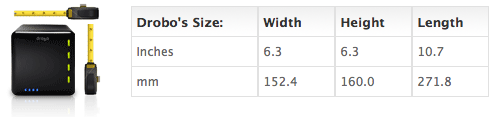
I never got around to posting the Drobo’s dimensions in my original review, so here they are. They haven’t changed with the new Drobo. I like the form factor, I hope it keeps staying the same. In all likelihood, it will stay the same for this four-drive version of the Drobo. I know, thanks to a product survey sent out to selected Drobo customers, that Data Robotics is thinking about or working on an 8-drive and possibly a 16-drive version of the Drobo, one of which (or both) is rack-mountable. Those should be some very interesting products for the enterprise or for those with larger storage needs than what the four-drive Drobo can provide. I understand that Data Robotics is also working on the capability to safeguard against two drive failures in those larger Drobo models, which should be a very cool feature indeed.

In terms of storage flexibility and the safety of one’s data, I believe the Drobo is unmatched. There is no other product like it on the market. The only thing that’s holding it back at the moment, storage-wise, is the capability of the hard drives themselves. Only recently have the problems present in the 1.5TB drives from Seagate been worked out, and only in recent weeks have I seen 1.5TB and 2TB drives from other manufacturers like Samsung and WD. This means, according to the Drobolator, that you can get up to 5.5TB of disk space on a single Drobo unit, which is pretty amazing, but still far from the 16TB limit. I think 16TB is a lot of space to get from a single device, and it should suffice for the needs of most people for the next few years.

Drobo with four 2TB drives

Cheers to the new and improved Firewire Drobo!

The Drobo is available for purchase from Amazon or B&H Photo.

Images used courtesy of Data Robotics.
Standard
How To

The fastest way to back up with Time Machine

I wrote about backing up your Mac and PC in January of 2008, and I said Time Machine was a great way to back up your Mac. A year later, I still think so, though I have some reservations.

There are three ways to back up your Mac with Time Machine. There used to be only two, but thanks to Drobo Apps, we now have three. I’ll list them in descending order, sorted by backup speed. Here they are:

To External Hard Drive (USB, Firewire, eSATA)

This one’s easy, and it’s the fastest way. You get a dedicated external hard drive, you connect it to your Mac, and you let Time Machine do its thing. You can leave it connected all the time, or you can disconnect the hard drive and only back up when you want to. Time Machine won’t complain unless you haven’t backed up for a few days.

This is the backup strategy I’ve come to use, and believe me, it’s the one that gives me the least amount of headaches. I have a 500GB LaCie Mini hard drive that connects over USB. I plug it into my laptop, and within minutes, my backup is done.

Keep in mind that I’m a photographer, and I also shoot short videos every once in a while, so it’s pretty much a given that I’m backing up gigabytes of data every time. When the backup’s done, I eject the drive and put it away. This way I’m not bothered by hourly backups, which I don’t need.

To External Hard Drive via Time Tamer

Time Tamer

Go download Time Tamer, a very handy little app created by the folks that make the Drobo, and you can create an image file on your Drobo that is limited to twice the size of your Mac’s hard drive. This is useful because there is no other way to control the size of the Time Machine backup sets. There’s is no way to set a quota via its System Preferences panel, and so it’ll keep balooning until it fills the backup drive. Obviously, when you have a Drobo or another larger drive, that’s a problem.

I for one don’t want to fill up my Drobo with Time Machine backups — I have other more important uses for it. I did, however, want to limit the amount of external drives that sat on my desk, and thought I could eliminate one of them by using Time Tamer with my Firewire Drobo. Did that for a few months, but I can tell you it’s not optimal, at least not for me. It boils down to the amount of data one has to back up, really.

As it turns out, the throughput when writing to the image file just isn’t fast enough when you work with several hundred megabytes or more. Even though writing to the Drobo is usually a fairly fast operation, somehow writing inside the image file isn’t. From my own experience, it would sometimes take a whole hour to do an hourly backup, which meant that as soon as one backup finished, another would start.

To make things more annoying, the throughput to the Drobo itself, and my Mac’s general peppiness, were also affected negatively during backups. Everything churned at a slower pace. Getting at my photos or other files stored on the Drobo was a pain. If I happened to be playing a movie and a backup started, playback would stutter or stop for a few seconds. It just wasn’t a feasible way for me to work, so I stopped doing this and returned to doing my backups directly to a dedicated external hard drive.

To wireless or networked hard drive (such as Time Capsule)

This will usually be the slowest way to back up your Mac via Time Machine. Think about it: you’re going to be pushing your bits via WiFi, and even though your hardware may be “n” specs instead of “b” or “g”, you’re still not going to get above 50 Mbps at best. Realistically, you’re looking at speeds somewhere between 15-45 Mbps, which is less than Fast Ethernet (100 Mbps) and nowhere near Gigabit Ethernet (1000 Mbps).

For comparison purposes, I have observed transfer speeds which approached USB 2.0 speeds when using a direct, wired, Gigabit Ethernet connection between two Macs (MacBook Pro and iMac G5). If you have a wired Gigabit network at home, this might be the only way to actually get decent backup speeds with Time Machine without needing to use USB or Firewire hard drives. But if you’re using WiFi, your transfer speeds are going to be anywhere between 15-20 times slower than Gigabit speeds, which means you’ll be sitting there a long time waiting for your backups to finish, should your backup set be anything over 100-200 MB.

When Time Capsule came out, I was tempted to buy it, just like I bought the Apple TV, only to regret that later. I’m glad I didn’t end up spending my money on Time Capsule, because it just isn’t suitable for me, or for anyone with larger backup sets. It certainly looks good, but that’s about all it does and all it’ll do until WiFi speeds approach Gigabit speeds.

Takeaway message

When one of my friends shared an article from Louis Gray via Google Reader, where he complains about how slow it is to back up to Time Capsule, was I surprised? Given all I’ve written above, do you see why I wasn’t?

Do the smart thing: if you’re using Time Machine, get a little portable drive like I did and run your backups that way. They’ll be fast, and you’ll be the one deciding when to back up, not Time Machine. I don’t know when Apple will decide to give us more configuration options for Time Machine, but until they do, those who care about their time should back up directly to an external drive.

Standard