Reviews

CableJive SoundDock and iStubz cables

Back in 2008, I bought a SoundDock cable from CableJive, which allowed me to connect my 1st gen Bose SoundDock to my Mac. Since we bought our SoundDock, Bose has come out with a 2nd gen SoundDock, which has a built-in auxiliary input, making the cable unnecessary. Still, we weren’t about to buy a new SoundDock when ours was working perfectly well, and with the addition of a cable, we could make it work with our Mac, allowing us to have nice, premium sound.

cablejive-sounddock-cable1

I remember looking around for months for a cable that could do the trick. I knew it was technically possible, but no company I knew of made such a cable. Finally, I discovered CableJive. Back then, they were just going into business, judging by their website and lack of customer service. After placing my order, I got no confirmation whatsoever. I had no idea whether they received my order or not. The phone number they listed on the website wasn’t working, and nobody answered my emails. Thankfully, the cable arrived in the mail a few days later, and has been working ever since.

The build quality of the SoundDock cable leaves something to be desired though. The sleeve that fits around the cable at the end that has the thick, iPod-style adaptor is loose, and the plastic that contains the circuits that make the connection with the Bose SoundDock isn’t anchored well into the sides of the adaptor, making it flop around in there. Overall, I’d call the cable flimsy, and considering the price we paid for it at the time ($48), overpriced.

I can only hope their build quality has improved since then, and I’m glad to see that at least they’ve lowered the price to $40. It’s still a hefty price to pay for a flimsy little cable, but like I said, no one else makes them, and if you’ve got to have it, you’ll pay the price or go without.

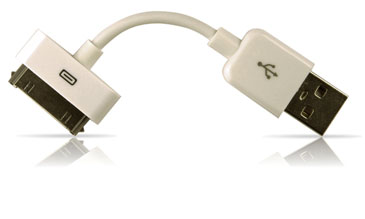
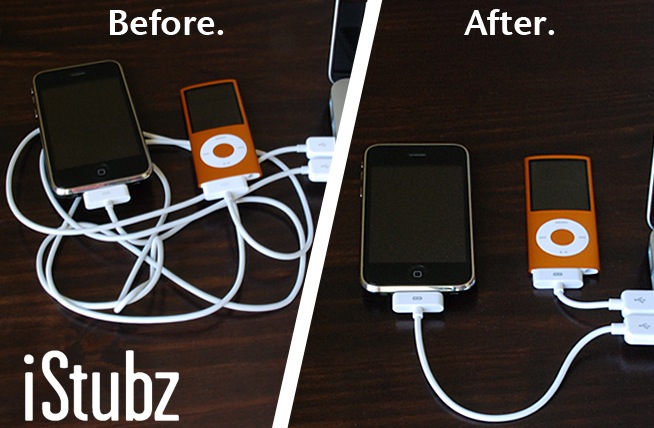
Now I see they make these iStubz cables, which are basically short sync cables for the iPod and iPhone. The ones that ship with the phone are too long for most people’s needs, cluttering up one’s desk. I like the idea, and I also like the price ($8).

cablejive_istubz2

cablejive_istubz

Now here’s my question: why is the iStubz cable, which is more complicated to make (I assume) than the Bose SoundDock cable, only $8, and the SoundDock cable $40?

Images used courtesy of CableJive.

Standard
Thoughts

Gmail, please stop messing with my contacts

When I sync my Gmail Contacts with my Mac’s Address Book, I always discover “uninvited guests” — occasional people with whom I converse but who don’t need to be in my Address Book. What happens is that Gmail will identify people to whom I reply and insert them in my Contacts automatically.

It used to be that it couldn’t be helped, and it was called a “feature”… Now these contacts are grouped together in a separate section called “Suggested Contacts”. Unfortunately, when I run a sync operation, these suggested contacts appear in my Address Book. I don’t want them there. I believe one’s Address Book ought to involve positive effort — effort put toward adding in contacts as they’re needed — not negative effort — effort put toward removing unneeded contacts because software can’t leave things well enough alone.

Gmail's Suggested Contacts

I run the sync operation via my iPod Touch. The sync option is otherwise unavailable to Mac owners, which is unfortunate. There’s something I call the entry tax for being able to run this sync: either you buy an iPod Touch or an iPhone, or you pay for Mobile Me. I don’t like it, but there it is, that’s Apple for you.

There is a company called Soocial which will also let you do this, as well as letting you sync your phone’s contacts with the Address Book. They were in Beta when I looked at them. By now they’ve opened their website to the general public.

At any rate, the problem with Suggested Contacts lies with Gmail, which presents those contacts as part of the normal set of Contacts to the sync software. It should store them separately, aside from the normal contacts, so that the sync software never sees them.

Standard
Reviews

Hardware review: Elgato Turbo.264

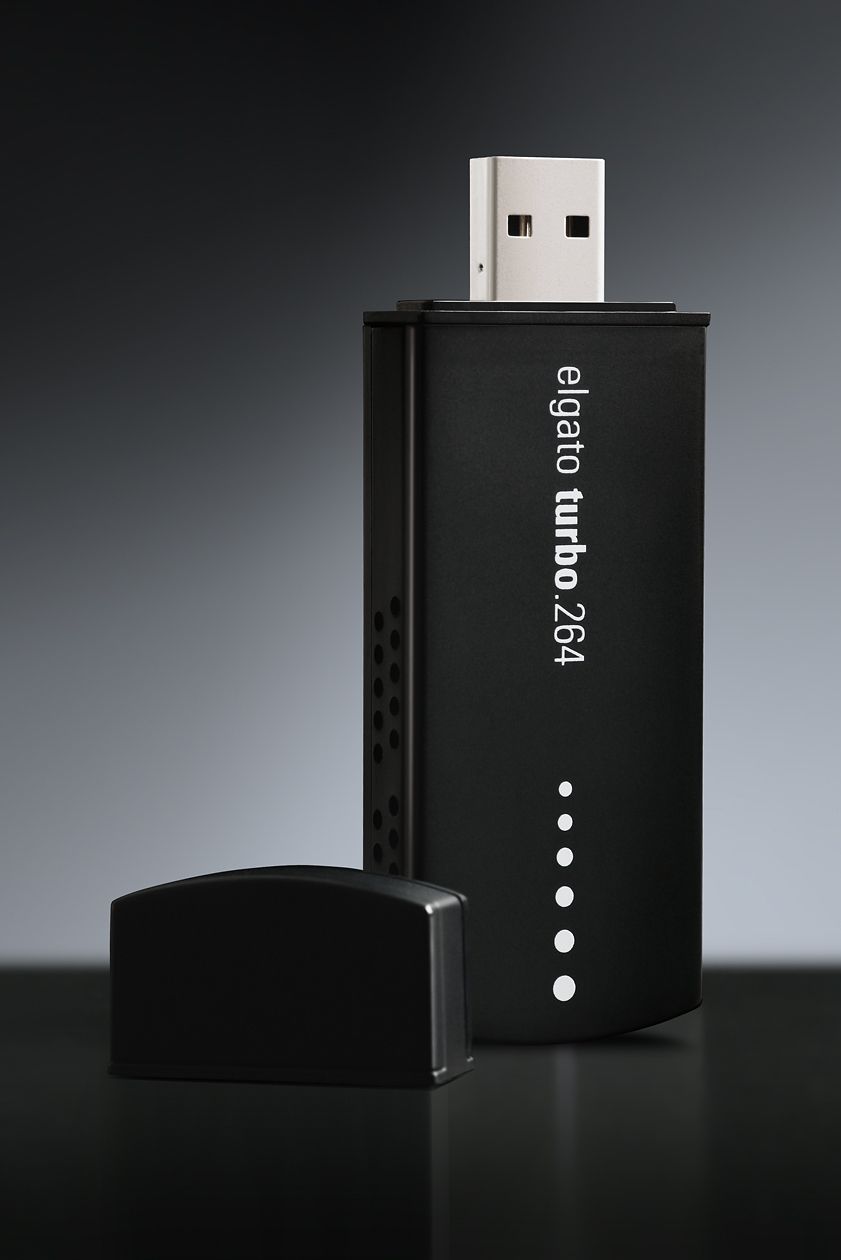
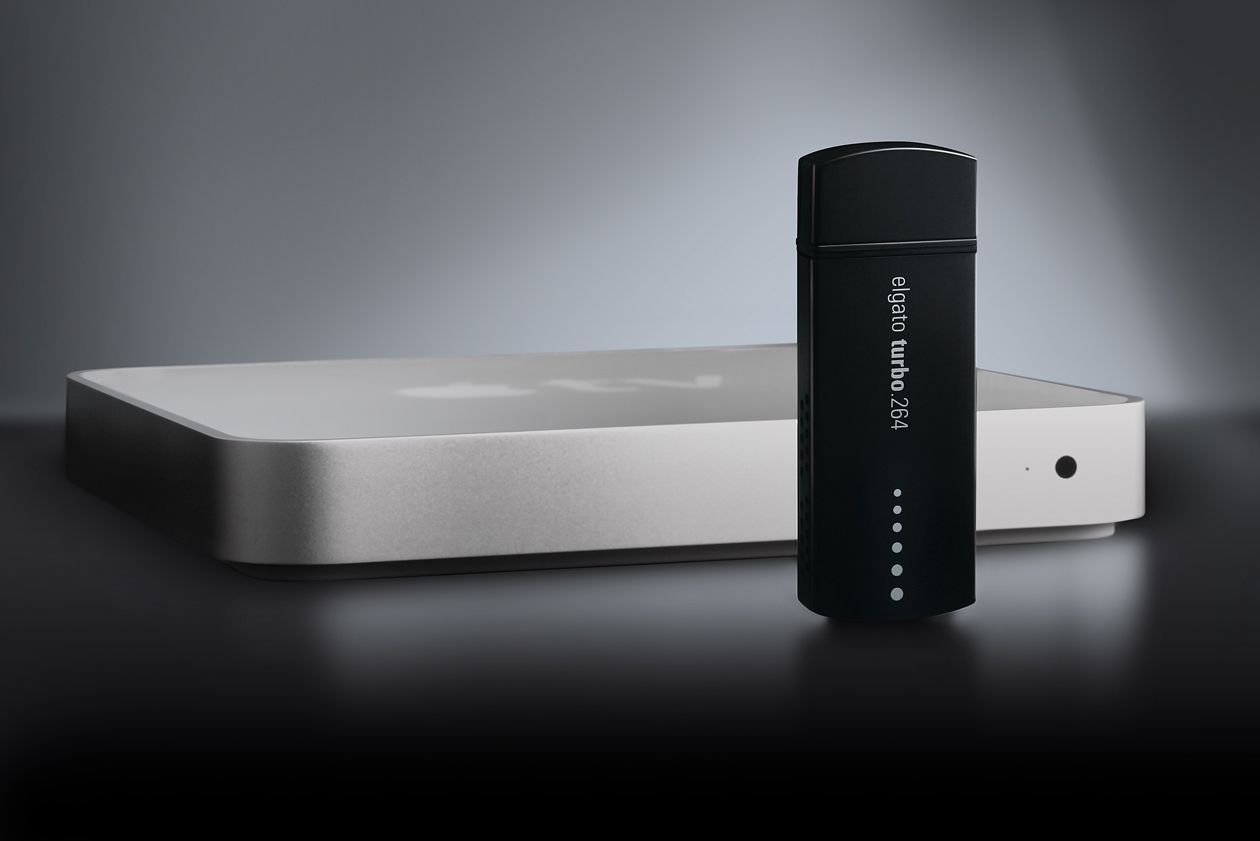
I’ve been using the Elgato Turbo.264 hardware encoder since February of 2008 (see item 5 here) and am happy with it. When I first saw it on the Elgato website, I thought it was a gimmick. After all, what could a little USB stick do that my iMac’s or my MacBook Pro’s CPU and GPU couldn’t do? I was in for a pleasant surprise.
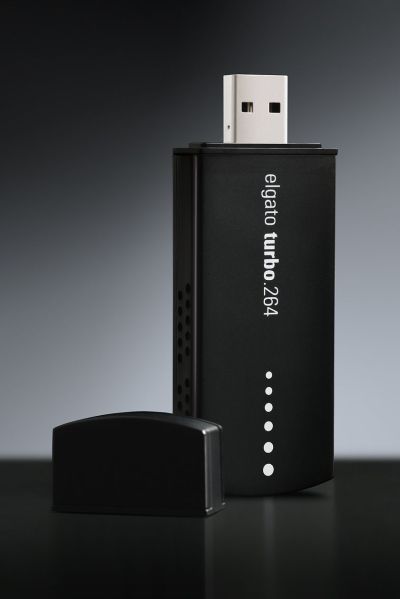
Elgato Turbo.264

The Turbo.264 was launched on May 16, 2007. The original press release claimed that it would not only speed up encodings to the MP4 format using its own software, but that it would also speed up exports from iMovie, Quicktime Pro and other Mac software. I haven’t been able to figure out how to do the latter, but can definitely vouch for the former. I’ve converted virtually all of my DVDs to electronic format with the Turbo.264, and yes, it has sped up that process significantly.

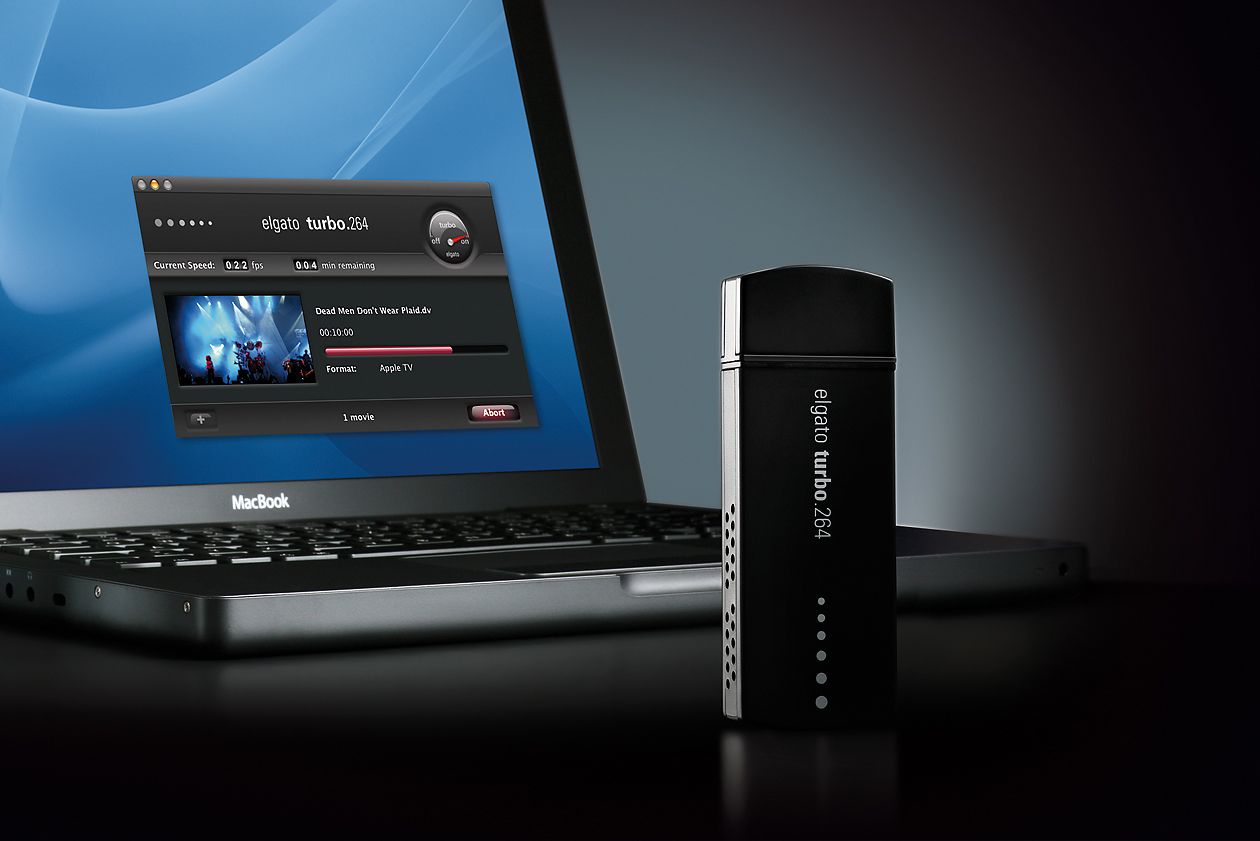
Encoding speeds will vary depending on what your computer is doing at that time, and on the export quality (Apple TV, iPod, etc). You can easily select the type of output for your exports from a drop-down menu when you drag a movie onto the Turbo.264 app — yes, the UI is that easy to use. The encoding speeds I’m quoting below refer to exports for Apple TV, which are the highest quality in terms of resolution and bit rate.

I should mention that while the Turbo H.264 takes most of the processing load off your CPU, it doesn’t handle all of the computing tasks by itself. From my experience, encoding movies without the Turbo.264 meant the CPU usage stayed somewhere between 90-100%. Encoding movies with the Turbo.264 meant the CPU usage stayed somewhere between 25-35%, allowing me to use my machine for other tasks such as processing photos in Lightroom or working in Dreamweaver.
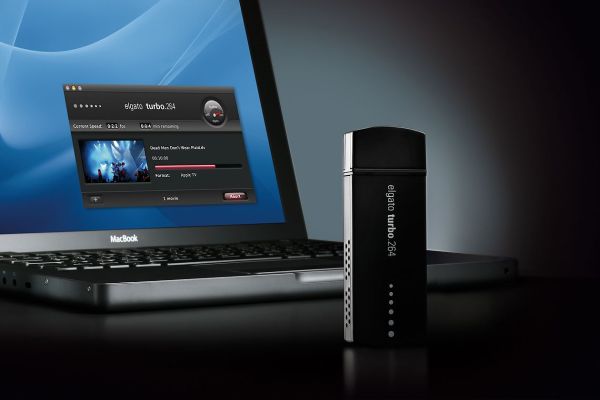
Elgato Turbo.264

From my own experience, I’ve seen the Turbo.264 take a mere 2-3 hours to encode a movie on my iMac G5 (2GHz PowerPC CPU, 2GB RAM) when it would have taken me somewhere between 24-48 hours to do it with Quicktime Pro. This usually meant encoding speeds were somewhere between 20-24 fps. On my MacBook Pro (2.5GHz Intel Core 2 Duo CPU, 4GB RAM), encoding speeds approach and sometimes excel 30 fps, which means movies are encoded at normal playing speeds.

Speeds will also vary given the type of storage you’re using for the original movies and exported movies. I’ve seen slightly faster encoding speeds on Firewire 400 drives vs. USB 2.0 drives, and I’ve gotten my fastest encoding speed to date, 35-36 fps, when I used a FW 800 drive. In other words, the movie to be encoded should be stored on the FW drive, and you should also be exporting to that same FW drive. If you’re storing and exporting movies to your local drive, encoding speeds will be slower, and you’ll be slowed down even more by Time Machine, because it’ll kick in every hour and try to copy the changed files to the backup drive.

When I encoded movies, I usually had no other apps open, or if I did, it was usually only Firefox or Safari or Mail or some other lightweight app. As a matter of fact, I’m encoding a movie from a portable USB 2.0 drive (see item 4 here) as I write this, and I’m getting 31 fps, which seems to be the usual encoding speed on my MBP.

Encoding speeds were fastest when exporting for my iPod Touch (it’s the iPhone setting in the Turbo.264 app). It took as little as a half hour to encode a full movie for my iPod, which meant I could be done preparing movies for a long plane ride in about 2 hours.

Nothing’s perfect, and I do have a few complaints about the Turbo.264. While the encoding software is intuitive and easy to use, sometimes it’s too easy, and there’s no option that lets me separate chapters from titles. What happens then is for DVDs that aren’t built right — the main feature isn’t a separate title from the ads, previews and other features on the DVD — the Turbo.264 won’t know the difference and it will encode all of those things together with the main feature, which means I have to do extra work afterward cleaning up the file.
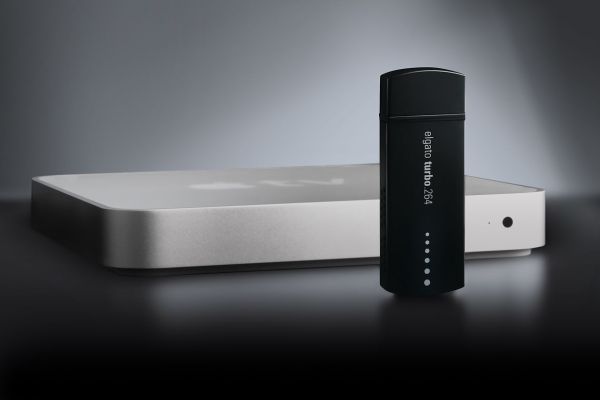
Elgato Turbo.264

For example, I’ll sometimes get those annoying and tacky copyright warnings at the start of my encoded movies. I couldn’t care less about them and I don’t want to see them. These are my movies and I’m not doing anything illegal. Or, I’ll get the second title on a DVD appended onto the end of the first title, and then I have to split the file, making me do extra work.

If you’re looking for a product that will let you speed up the encoding of HD videos (720p and 1080p), the Turbo.264 can’t help you there; it can only encode videos up to 800x600p in resolution. On the plus side, it will encode both NTSC and PAL videos, which is to be expected given that Elgato is a German company.

Sometimes, and only for some movies, the Turbo.264 won’t properly mux the audio with the video. The sound will be off by a fraction of a second (or more), which is really annoying. I discussed the muxing issue in more detail in the past. The thing to do is to always check the encoded files carefully. Sometimes you may need to re-encode some files, or use an alternative encoding app, such as Handbrake.

This leads me into a discussion of the Turbo.264 alternatives. There are two that I’ve used and liked: Handbrake, mentioned above, and ffmpegx. They are both faster than using Quicktime Pro, naturally, but both are slower than Turbo.264. Of the two, only Handbrake can encode with the H.264 codec, which is the preferred way to encode MP4 files these days, and it’s much slower than Turbo.264 at that. However, if you use the ffmpeg codec in Handbrake, it is significantly faster than Turbo.264, about 2-3 times faster when exporting for Apple TV, at a similar bit rate (cca 2500 kbps). Of course, then you can get into a discussion of the quality issues between the two codecs, and that’s beyond the scope of this review. The important thing is that the alternative is there if you want it.

Elgato Turbo.264

The question you’ve got to ask yourselves is this: is your time more precious than $100? If you find yourselves with a big library of movies that you want to encode for Apple TV or for WD TV, and you want to encode them using the H.264 codec, then the answer is yes — at least it was in my case. For a few days at least, Elgato is making that decision easier: if you’re in the US, they’re running a special MacWorld deal for this week only (until 1/10/09), and they’re selling the Turbo.264 for $69.95.

Reference: official specs for Turbo.264. Buy it from: Amazon, B&H Photo. Photos used courtesy of Elgato.


Standard
Reviews

Join MP4 files with Front End Digital Media Workshop

Want an easy way to join MP4 clips together? Front End Media Workshop, a nifty piece of Mac software published by the now defunct K-werkx, can definitely help you out. While the folks that put it together aren’t online any longer, the app is still available for download from CNET.

FE_DMW makes it really easy to join video clips

FE_DMW makes it really easy to join video clips

The app (it shows up as FE_DigitalMediaWorkshop in the Apps folder by the way) is meant to do a bunch of other things, but I found it most useful to join together several MP4 clips from my video collection.

For example, I’d purchased a DVD of “The Curious Adventures of Mr. Wonderbird“, a re-titled version of the 1952 original, La Bergère et Le Ramoneur. The film is little known, and features the dramatic escape of a pair of lovers from the claws of a despotic ruler. A curious bird helps them escape and orchestrates the toppling of the ruler’s oppressive regime, which mirrored, at the time, what was going on behind the iron curtain of Eastern Europe. Peter Ustinov voices the bird and also narrates the story.

At any rate, I’d copied the DVD to my computer only to later realize that I’d done it by chapters instead of copying the entire movie as a single file. Front End Digital Media Workshop allowed me to drag the five or six clips for each chapter onto its main window, drag and drop to arrange them in order, then, within minutes, join them together as a single file. The output was saved to the desktop in a folder (one for each join operation), where I could review, rename and archive it.

Sure, if you have Quicktime Pro, you can join video files there, or you can also import them into iMovie, but a small, single purpose app that does it faster and without a lot of fuss scores higher in my book. I may even use it later to snip clips from the beginning and end of some of my other video files, since I see that it has that feature built in as well.

Standard
Thoughts

Hooray for Netflix Watch Instantly abroad

Updated 8/11/11: The loophole detailed in this post has been closed off by Netflix, but there’s a simple way to bypass their new rules, provided you have a US credit card and mailing address. I’ve written a new how-to article that details how I’ve been watching Netflix from outside the US for the past year. ➡ Click here to read it

My wife and I are avid Netflix users, and we had a problem. We knew we’d be going abroad for an extended stay in Romania, and we didn’t know how we could get Netflix service there. Of course we realized DVD shipments wouldn’t work, but we thought the Watch Instantly feature would at least be available to us. I love streaming movies to our laptops, and was excited by the availability of Watch Instantly on our Macs when it became available in November of 2008.

The official word from Netflix is that Watch Instantly is not available outside of the US, due to licensing agreements.

Netflix Watch Instantly not available outside of the US

Fortunately, there’s a loophole. If you go to your queue, you can select movies from the queue and stream them to your computer by clicking on the Play button there. It’ll take a while to buffer them — I think it’s because a connection from Romania to Netflix isn’t as reliable for streaming movies as a connection from inside the US. The Netflix player insists on buffering the stream all the way to 100%, but in a few minutes or a little more time, depending on the speed of your connection, you could be watching a Netflix movie on your computer, as if you were back in the US.

Netflix Watch Instantly buffering outside the US

Netflix Watch Instantly playing outside the US

I hope Netflix doesn’t close this loophole. Their restriction doesn’t make sense to me in the first place. After all, non-US residents can’t get Netflix accounts. You have to have a US address and live in the US in order to get a Netflix account. And if you, a US citizen or resident, happen to be traveling abroad and you have an active Netflix account, you should be able to log on and watch movies. You’re paying for the service, so it’s your right.

Standard