Reviews

Lens comparison: EF 24-70mm f/2.8L Zoom vs EF 24-105mm f/4L IS Zoom

Have you ever wondered how the EF 24-70mm f/2.8L and EF 24-105mm f/4L zoom lenses would do if compared side by side? Which one would come out as the winner in real-world use? Here’s my answer to that question.

First, some recommended reading:

Those two reviews of mine should give you a good idea of what each lens can do. Now let’s talk about how they do when they’re together. 🙂 Here’s a photo of the two lenses. As you can see right away, the 24-105mm is smaller in both height and girth — it’s shorter and a little narrower than the 24-70mm.

When we look at the rear lens elements, we can see some differences there as well. The 24-105mm lens is on the left. If you look carefully, you can see a baffle in place. The 24-70mm lens has no baffle.

It’s possible that the baffle is there in order to reduce possible flare effects, since the focal range is longer. It could also be there to baffle us — after all, it is a baffle. 🙂 It’s also possible that the optics aren’t as high quality as those in the 24-70mm lens — they’re both priced the same, but the 24-105mm has image stabilization and an extra 35mm of range. On the other hand, I’ve seen a very similar baffle on the EF 14mm f/2.8L prime lens, and no one can say that the 14mm lens is made with cheap glass. So the more likely explanation is that it’s there to reduce lens flare due to the increased focal range.

(By the way, the baffle can be seen even more clearly in this product advisory from Canon warning about unacceptable levels of lens flare in early builds (2005) of the 24-105mm lens.)

Here’s another look at the lenses side by side, this time with the lens controls visible. As you can see, the only thing that’s different on the 24-105mm lens is that it’s got the IS switch. The controls seemed a little thicker on the 24-70mm lens. As for their durability, I assume they’re both long-lasting since these are L series lenses.

Chances are you can already know that the 24-105mm lens is lighter than the 24-70mm lens. It’s no small difference, by the way. The 24-105mm lens is 670g, while the 24-70mm lens is 950g — that’s 280g of difference! While both lenses extend outward as you zoom, the 24-70mm lens is more top-heavy than the 24-105mm lens, and that makes a big difference in wrist fatigue — the 24-105mm lens is less punishing and can be held comfortably for longer periods of time.

The weight difference is remarkable to me because the 24-105mm lens has 18 elements, while the 24-70mm lens has 16 elements. Canon managed to keep the weight down even though they placed extra glass in there and added image stabilization.

There are some limitations to being lighter and smaller though. The 24-105mm lens’ closest focusing distance is 1.48ft or 0.45m, while the 24-70mm lens’ closest focusing distance is 1.25ft or 0.38m. It also looks like the general consensus is that images obtained with the 24-105mm lens are somewhat softer than those obtained with the 24-70mm lens.

Other than the difference in focal lengths, another obvious difference between them is the maximum aperture. The 24-70mm lens opens up to f/2.8, while the 24-105mm lens only opens up to f/4. That’s a full f-stop difference, or a 2x reduction in the amount of light that can enter the lens. This is where the baffle comes in again. Since the baffle itself limits the amount of light that can hit the sensor in order to reduce glare, it stands to reason that the aperture can’t open up any wider. Even if it did, we’d end up seeing the baffle contours in our photos.

What the 24-105mm lens has going for it is the built-in image stabilization, which, in my experience, more than compensates for the reduced maximum aperture. See the photo below. I took it completely handheld (I didn’t prop myself up against anything) at a shutter speed of 1/15th seconds.

I tried to get similar photos with the 24-70mm lens, and I couldn’t, not without leaning against something to stabilize the lens. The slowest shutter speed I could use was 1/30th seconds with that lens. As I concluded in my previous review of the 24-105mm lens, the image stabilization counts for a lot and makes the lens truly versatile and useful.

While I’m talking about versatility, let’s not forget that extra 35mm of focal range. At close distances (6-15 feet), you don’t notice how much it matters, but when you start focusing on things farther away (30-100 feet or more), you realize how valuable those extra millimeters really are!

Let’s not forget bokeh. Both lenses have gorgeous bokeh, but the 24-70mm produces a creamier bokeh. That’s because it opens up all the way to f/2.8, while the other only opens up to f/4. If you do a lot of close-range photography, in tighter spaces, and you really need that bokeh (portraits, etc.), the 24-70mm would probably be a better candidate. This next photo was taken with the 24-70mm lens.

If you’ve got a little wiggle room and can position your subjects further away from things (walls, trees, background), don’t discount the 24-105mm lens. Its bokeh is right up there with the best of them. Have a look below.

In the end, it really comes down to your own, precise needs. I’ve heard of some people who only carry two lenses in their bag: the 24-70mm and the 70-200mm (both of which I reviewed here). They’re both professional-grade, L series lenses. They’re heavy, but they deliver the goods, and they’re versatile.

For my needs, I’d go with the 24-105mm lens. It’s lighter, has extra range, and has built-in image stabilization. I really enjoyed using it, and I seemed to get better photos with it than with the 24-70mm zoom. While it may not be as sharp, I didn’t notice anything that would turn me away from using it. I thought it was a superb lens and couldn’t believe the quality of the optics when I looked at the photos I got with it.

At least one commenter here asked how these two lenses compare, and I hope that I’ve answered that question in as much detail as I could give. If you have any other questions, pose them in the comments on this post, and I’ll try to answer them.

More information:

Standard
Reviews

Bugs in Lightroom 1.2

The latest version of Adobe’s Lightroom, 1.2, introduced corrections for several issues such as XMP auto-write performance, Vista grid display errors, and noise reduction for Bayer-patterned sensors (the majority of digital sensors on the market user Bayer patterns in their color pixel distributions). It also introduced support for new cameras such as the Canon EOS 40D and the Olympus EVOLT E-510. The upgrade was a marked improvement upon 1.1 and 1.0, but I’ve noticed a few bugs:

  1. Time-shifted capture times don’t transfer properly on import from catalog to catalog. While on a recent trip in Romania, I took along my laptop but didn’t take my WD My Book Pro Edition II, since I wanted it to stay safely at home. (That’s where I keep my photo library.) I thought, no problem, I’ll just start a new catalog directly on my laptop, work with my photos there, and do a catalog to catalog import when I get home. In theory, that should have worked just fine — in practice, it was somewhat different. You see, I’d forgotten to set my 5D to Romania’s local time, and that meant that all of the photos I’d taken for the first few days lagged behind local time by 7 hours. I corrected those times by selecting those photos in Lightroom and choosing Metadata >> Edit Capture Time >> Shift by set numbers of hours. That fixed those times in the catalog on my laptop, but when I imported those same photos, I found out that very few of those corrected times transferred during the catalog import operation. What’s worse, the capture time for others was somehow shifted by seemingly random values to something else altogether, so I had to fix that as well.
  2. There’s an annoying and somewhat destructive color shift that takes place when I import photos into Lightroom. For a few moments after I open a photo, it’ll look just like it looked on my 5D’s LCD screen, but then Lightroom will shift the colors slightly as it loads and develops the RAW file. It seems to do less of it now than in version 1.0, but it’s still happening, and then it’s really difficult, if not impossible, to get my photos to look like they’re supposed to look. Canon’s own RAW viewer doesn’t do this, and neither does Microsoft’s RAW viewer.
  3. Batch-editing photos selected from the filmstrip (instead of the grid view) does not apply the actions to all of the photos, only to the first photo selected from that bunch. In other words, if I were to select the same group of photos in grid view and apply a set of modifications to all of them (keywords, etc.), these modifications would be applied to all of the photos selected. When the same group of photos is selected in the filmstrip, the modifications are not applied to all of them, only to the first selected photo. By the same token, if I select multiple photos from the filmstrip in develop view and apply a sharpening change to all of them, it doesn’t take. It only gets applied to the first selected photo.
  4. Changes to ITPC meta data are often not written to the files until Lightroom is restarted. For example, if I select a group of photos, and specify location information for them, Lightroom will not write that data to the XMP files right away. Instead, it’ll wait until I exit, then start Lightroom again. Only then will it start to write those changes to each photo’s meta data. I’m not sure why it’s like this, but it’s confusing to the user.

As frustrating as these bugs are — especially #3 — I can’t imagine working on my photographs without Lightroom. It’s made my life a whole lot easier, and it’s streamlined my photographic workflow tremendously. I can locate all of my photos very easily, and I can organize them in ways I could only dream about before. It’s really a wonderful product, and I look forward to future versions with rapt attention. I hope Adobe continues to dedicate proper focus to Lightroom as it goes forward with its market strategy.

More information:

Standard
Reviews

Lens review: Canon EF 24-70mm f/2.8L USM Zoom Lens

The EF 24-70mm f/2.8L USM lens is the professional standard zoom from Canon, and so far the golden standard for sharpness, contrast and bokeh in a zoom lens. Photographers drool over it and swear by it. Its focal range on a full frame sensor makes it very appealing for event photography. It goes from a wide 24mm to an almost portrait-length 70mm to allow for close-ups. It’s also plenty fast for a zoom — f/2.8 — just about the fastest a zoom lens can get these days. (I’d like to see an f/2.0 standard zoom, but I don’t know when that’ll happen, and the cost will probably be fairly high.)

I’m going to talk exclusively about the 24-70mm lens in this review, but if you’re interested, I also wrote a comparison of this lens and the 24-105mm f/4L zoom. You may want to read that as well, in order to get a better idea of how this lens performs.

As you know if you’re a regular reader, I write about how products feel and the results they give me. My reviews aren’t spec-heavy. I give you my honest opinion about a product, and tell you what results I got with it.

With that in mind, the 24-70mm zoom is a good lens. It’s plenty sharp, has plenty of contrast, and the bokeh is great. I liked it. But it’s heavy — really heavy. When you hold it in your hand, it doesn’t feel that heavy, but when it goes on your camera, your wrist really takes a beating, and it feels as if the camera’s body is going to give. This lens is incredibly front-heavy. That means there’s no chance of holding the camera with one hand for long when you use it. On my 5D, it’s really hard to use the lens without a vertical grip, which gives me more finger room. Without the grip, you have to support the lens itself when you take the shots, and then you have to be careful that you don’t grip the focus ring and impede the auto focus from rotating when you press the shutter button. I use a keyboard and mouse all day long, so I realize I may not be the strongest guy around, but I lift weights once or twice a week. Still, I tell you, this lens really took its toll on my wrist joint and finger muscles. It was a real workout. I didn’t expect this kind of weight from a standard zoom. I did expect it from the EF 70-200mm f/2.8L IS USM zoom. If you’re so results-oriented that you’re willing to overlook the weight, great, get it, you’ll love the results.

I mentioned the useful focal range above. Let me illustrate it with a few examples below. At the wide end, you can capture beautiful landscapes… or nice wide angle shots of buildings. At medium range (30-60mm), you can get photos like these. The lens also has a very useful close-focusing range (0.38m), which allows you to get close-ups like you see below.

Let’s talk about low light. This lens has no image stabilization (like the 24-105mm zoom) and that means the maximum aperture of f/2.8 starts to show signs of strain in low light. It means we have to bump up the ISO and make sure the shutter speed stays at or above the focal length, stabilize the camera, and/or use a flash. Like I said in the opening paragraph, this isn’t a fault of the lens — f/2.8 is the fastest aperture for a zoom lens on the market, so that’s just how things are.

I enclosed a few photos taken in low light above. The first was taken inside a piano store, and although there was plenty of fluorescent lighting, I found that it wasn’t quite enough to shoot freely, like I would have done with a faster prime lens. I can’t argue with the sharpness and bokeh though. It’s beautiful.

There’s a second interior photo, where I had to use a speedlite. I used the 580EX II, also from Canon, and bounced it off the white ceiling. The lens does fine with a good speedlite, so that’s no problem.

The last two low light photos were taken in downtown Bethesda at night. For the first, I stabilized the camera with both hands on a balustrade in order to take it. The second photo of a VW Bug was taken handheld from a lower angle.

A lot of photographers use this lens for portraits, so I thought I’d show you a portrait I took with it as well. It’s on my wife’s website, Fun Piano Lessons. The tele end of the focal range is just right for portraits, and the sharpness, contrast and bokeh are great, especially with a wider aperture like the f/4 used in that photo.

All in all, this is a lens that does not disappoint. I expected professional results when I used it, and got them, without a doubt. The only two things that I minded were the weight — in particular its front-heavy distribution — and the lack of image stabilization. But if you were to get this lens and the EF 70-200 mm zoom, you’ll have covered most of the useful focal range you’ll need with just two very versatile lenses. Some food for thought there.

More information:

Standard
Reviews

Hardware review: WD My Book World Edition II

After looking around for a storage solution to house my growing collection of photographs, I found the Western Digital My Book World Edition II. I’ve been storing my photos on single external hard drives so far, but data loss has always been a concern with that approach. All it takes is a hard drive failure, and I’m going to lose a good portion of my hard work. Naturally, I’ve been looking into various RAID or other failsafe solutions, since they’ve gotten to be fairly affordable.

Great design

I was immediately drawn to the new WD My Book line because of their beautiful design, 1 TB capacity, and the ability to configure the device in RAID 1 format, which would mean my data would be mirrored across the two hard drives inside it. (This would also halve the amount of space available, but that was okay with me — I wanted data redundancy.)

WD My Book World Edition II (front)

For those of you not familiar with WD’s external drives, they have done a beautiful job with their enclosure design, and I raved about their Passport line several months ago. It turns out I now own one of them, a sleek black 160 GB 2.5″ drive just like the one pictured in that post. It’s perfect for data portability, and for a while, I even stored some of my photos on it. But it is just a single drive, and as I said, I’m worried about data loss.

Choosing the product

Back to the My Book line. There were two models I really liked: the My Book Pro and the My Book World. Because I have a mixed OS environment (both PC and Mac), I thought a NAS solution like the My Book World would work best for me, even though its specs said it would only work for Windows. I had a pretty good hunch that I would also be able to access it with my iMac. It runs on Java, it has Samba shares, and those are readily accessible from any Mac. But, this isn’t advertised, and that’s a pity.

By the way, if you’re thinking about getting the My Book Pro drive, make sure to read my review of that model. The takeaway message is to stay away from it, and I explained why in that article.

How it works

The drive itself is beautiful and fairly quiet, except when it boots up. WD has also made firmware upgrades available that make the drives even quieter, so that’s a good thing. I can tell you this right away. If you only plan to use the drive in a Windows environment, it’ll work great. Feel free to buy it, you’ll be happy. But, if you plan to use it in a mixed OS environment, and are looking to access it in more flexible ways, such as with custom drive mappings, and not through the software provided with the drive, you might be very frustrated.

Let me explain. The drive comes with a custom version of something called Mionet. I’ve never heard of it, but it’s software that installs on your machine and makes your files and computer remotely accessible from anywhere. When you run the installer, it’ll prompt you to create an account on the Mionet website, and it’ll register the WD drive, along with your computer, as devices that you can then access remotely. (There’s a monthly fee involved if you want to control your own PC remotely with the software, but you don’t need to pay it to use the WD drive fully.)

Once you install the software, you start up Mionet, and the WD My Book World drive gets mapped automatically to your machine. You also have the option to manage the drive through a browser interface. That’s actually where you configure its volumes (1 TB single volume, or RAID 1, still single volume, but mirrored data and only 500 GB) and other options. Basically, you have to remember that the only proper way to access the drive, whether you’re at home or you’re away, is to start up Mionet and get it mapped to your “My Computer”. If you do that, you’re good to go.

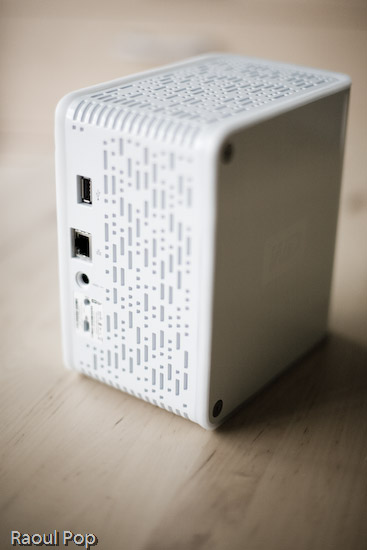
WD My Book World Edition II (back)

Potential problems

The problem with this approach (and this tends to be a problem only for geeks like me) is that the drive is readily accessible over the network without Mionet. I can simply browse my workgroup and find it, then log in with separate accounts I can set up by using the WD drive manager, which is accessible through my browser. So here’s where the frustrating part comes in. I can browse to my drive over the network, without Mionet, from any PC or Mac in my home, administer its options, add users and shares, etc. Then I can use Tools >> Map Drive on my PC or Command + K on my Mac to connect to the share name, and log in using those user accounts I’ve just set up. But, I can only read from those shares. I can’t write to them. The drive operating system assigns weird UNIX privileges to those shares, and they don’t correspond to the accounts I’ve just set up. It makes no sense to me and you’ll only fully know what I mean if you do this yourself. Suffice it to say that it’s really frustrating, and it’s not what I expected.

It would have been alright if Mionet made a version of their software for the Mac, but they don’t, and they don’t seem to have any plans to make any. It would have still been alright if the drive hadn’t been accessible through any Mac whatsoever. But the fact that they are accessible, and that I can log onto the drive with usernames and passwords that I can set up through the admin interface, yet I can only gain read-only access to those shares even though I’m supposed to have full access really gets me. Sometimes it’s a real pain to be a geek…

So, my verdict is that I really like the design and the RAID 1 capability, but I do not like the implementation. I ended up returning this and getting the My Book Pro Edition, which I love, and will review very soon. But remember, if you don’t have a mixed OS environment, and have no problems with starting up Mionet when you want the drive to appear in “My Computer”, My Book World will work great for you, and the remote access capability is a really nice feature.

Updates

Updated 7/19/07: I purchased and reviewed the My Book Pro as well. You can read my review right here.

Updated 8/3/07: Multiple commenters have pointed out (see this, this, this, this, this and this) that you can use the drive just fine with both Macs and PCs, over the network, if you skip the install of the Mionet software altogether. It looks like the clincher is the Mionet install itself. Just forgo it, and you’ll be able to map the drive to both PCs and Macs, and read/write as much as you want. I didn’t realize that I had to uninstall Mionet entirely in order for the read/write to work properly.

But keep in mind, if you don’t use the Mionet software, you won’t be able to access the drive remotely. Well, you might be able to arrange some access, but you’ll need to custom-configure your firewall settings to allow traffic on certain ports, and you’ll need a static external IP or dynamic DNS so you can get at your firewall from the outside. And then you’ll need to worry about data encryption as well, unless you don’t care that your data will travel unencrypted over open networks. If you’re a hardcore geek, feel free to try this last bit out, but if you aren’t, beware, it’s a weekend project, and I can’t help you.

Updated 8/9/07: I’ve had several people comment on how they bought the drive based on this post and the comments made on it by others, believing they could get it working over the network with their Mac. The kicker is that they thought they could connect it directly to their machine and get it working that way. 😐 I don’t know how they got that idea, but let me set the record straight. This is a NETWORK drive. It needs a network in order to work. There’s a chance you might get it working by using a crossed ethernet cable or connecting it directly to your machine, but it probably has to be a crossed ethernet cable.

The best way to get it working is to use a hub or a switch, or best of all, your home router, which can assign IP addresses. The drive ships configured for DHCP. That means it has no IP address to start with, and it’s looking for a place to get them. If you don’t have such a place, you’re going to have a lot of headaches. Get such a place (router) or go buy a USB/Firewire drive. Most people who’ve commented already made it plainly clear that’s what they needed, but they still insisted on using this drive. I don’t know why they enjoy the stress of doing that. I didn’t. As I already said in my post, I returned it and got a WD My Book Pro Edition II.

Last but not least, please do me a big favor. Read through the existing comments before you write one. There are so many already, and there’s a very good chance someone’s already asked your question, and I or someone else has already answered it. Thanks!

Updated 12/11/07: I found out today that Western Digital is going to disallow the sharing of all media files through the Mionet software. In other words, if you’re going to use Mionet to share the files on your drive and make them accessible remotely, you will not be able to see or use any of your media files. I think this is a pretty stupid move on WD’s part, and it’s going to come back to bite them. Until they decide to do away with this boneheaded downgrade, keep it in mind if you’re looking to purchase a My Book World Edition. Do NOT use Mionet. Install the drive without it, and if you’ve got to make the files accessible remotely, find other ways to do it, like through a custom config of your firewall.

Updated 12/18/07: Christian, one of the commenters, has left two very useful comments that are worth mentioning here in the post. The first shows you how to access the drive remotely (when you’re away from home) without using the Mionet software. The second tells you why you don’t need to worry about defragging the drive, and how to troubleshoot its performance if you think it’s not as fast as it should be. Thanks Christian!

Updated 4/5/10: Andrew Bindon has posted an easy-to-follow tutorial on how to remove Mionet completely from your computer and the My Book World Edition drive. If you, like me and many others, think Mionet is an annoyance that would best be removed, then follow his advice.

More information

Standard
Events

The first DC TECH cocktail

Ligia and I attended the first ever DC TECH cocktail last night. We had a great time, and I brought my 5D along, of course. I took lots of photos, and posted them to Flickr. Everyone in attendance had a good time. They were all so busy networking or listening to demos that most didn’t even notice me taking photos, which made for some nice candid shots. I honestly don’t know how they could concentrate or hear each other with all that loud music the club had put on, but I guess they got the job done. The event was organized by Frank Gruber and Eric Olson. Nick O’Neill helped with the event. If you know any of the people in the photos, please let me know so I can properly identify them.

Jonathan George and Eric Olson

Clarence Wooten, Frank Gruber and Nick O’Neill

Blair, Jen Consalvo and Frank Gruber

There were a lot of people in attendance. I’m glad things worked out well for Eric and Frank. The cool thing about TECH cocktails is that they give companies a chance to demo their products to interested folks without having to pay to attend. The people who attend also don’t pay. The entire thing is sponsored by helpful companies, and that’s pretty nice.

Tech Cocktail DC

Stephen Walk

Greg Cangialosi

Blue epiphany

Tech Cocktail DC

Tech Cocktail DC

Tech Cocktail DC

Tech Cocktail DC

Gary Vaynerchuk

Gabe Rivera

Tech Cocktail DC

Tech Cocktail DC

Red rain

Tech Cocktail DC

MCCXXIII

Standard