Reviews

Upgraded to Leopard

Mac OS X LeopardAlmost two weeks ago, on 11/16/07, I upgraded to Leopard, the new version of Mac OS X. In spite of some negative experiences I’d read about, my upgrade went smoothly and I didn’t lose any data. All of my applications worked afterwards. A couple of them, like 3D Home Architect, required Leopard updates to make them stable again. My version of EyeTV needed to have its most recent upgrade re-applied.

There were a couple of hiccups that I wanted to mention. One occurred during the upgrade process itself, and the other afterwards.

  1. I started the upgrade process and booted from the DVD. Went through the various steps, but when it came time for the Leopard installer to find our iMac’s boot disk, it couldn’t see it. I waited for about 5 minutes, then I clicked the Back button a couple of times, went through those screens again, and after I waited for about 2 minutes, it finally saw the boot disk and allowed me to go on to the next step. I have a feeling this might not have been a hiccup, but that the installer was busy calculating the free disk space on the drive. I thought I’d mention this just case some of you have the same problem.
  2. After the upgrade completed, I configured Time Machine to back up to one of my external drives, and it started the initial backup. It kept going through the evening and overnight, then it crashed in the morning, and the iMac required a hard reboot. In other words, everything was frozen and I had to power it off manually. After I started it back up and restarted Time Machine, it finished the initial backup and it picked things up exactly at the point where it crashed. In other words, it didn’t start backing up the entire drive once more, which I thought was a nice touch.

One thing I did before starting to upgrade was to disconnect ALL peripherals. I figured there was no reason to complicate the upgrade process by having extra USB and Firewire drives, printers and other gadgets connected during that time. When the upgrade process completed, I re-connected them, and found, to my delight, that a new driver for my printer had been packaged with the OS. I didn’t have to run HP’s crummy, old drivers from 2005. Very nice!

I’m very happy with Leopard since we installed it. Our iMac runs a little faster now, thanks to the better memory management and pre-fetching features in Leopard. I love Time Machine and the Remote Desktop features included with the new iChat. These two features were my reasons to upgrade to Leopard, and I’m very glad to see that Apple delivered the goods.

Another feature I love is Spaces. I love being able to separate my applications so easily, and I love being able to assign them to different screens. I know that when I start up a certain app, it’ll run in a certain space and won’t clutter up my primary space. That’s awesome.

One thing I didn’t like about the previous version of OS X (Tiger), was the fact that when I used a key shortcut to access my home folder (Command + Shift + H) or the apps folder (Command + Shift + A), it would commandeer any existing open window and go to that location. I wanted to keep the existing location and open a new window, but Tiger wouldn’t let me do it. The same thing still happens in Leopard, and what’s more, when I use Spaces and I’m in screen 2, for example, pressing a key shortcut to access the apps folder will open it up in Screen 1, defeating the purpose of using separate screens. This is one piece of interaction that should be changed.

Mac OS X Leopard Guided Tour I’m otherwise a very happy customer, and I think Leopard is a worthwhile upgrade from Tiger. The new features are awesome.

If you’re thinking about upgrading, I would highly recommend watching the guided tour so you know what to expect. If you can’t watch the video, the booklet included with the Leopard DVD disc is another great resource.

More information

Standard
How To

Block anonymous calls with SkypeIn

You may or may not know that Skype offers a service called SkypeIn, which lets you get a local number that people can call to reach you anywhere in the world, provided you’re logged into Skype. I’ve had a SkypeIn number for the past couple of years, and I love it. Want the number? It’s +1 (301) 637-6885.

Do you know why I can give it out so freely? First, because all my calls go right to voicemail. I get that bundled with SkypeIn. I screen all my calls that way and delete all of the annoying telemarketing calls. Second, because of a great feature that I’ve discovered yesterday. It’s hidden away in the Advanced settings for Calls, and it blocks most telemarketing calls automatically.

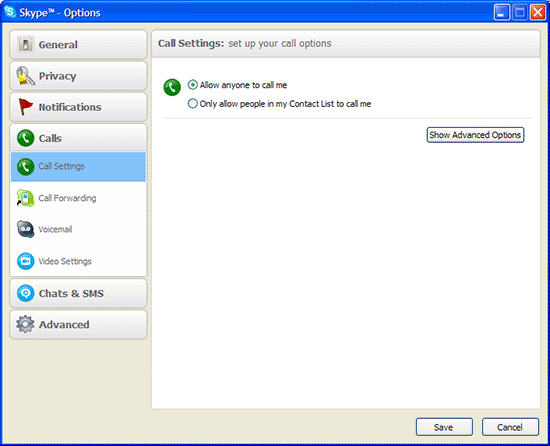
Here’s how it works. Open Skype and go to Tools >> Options. Then click on the Calls icon, located in the sidebar of the Options dialog box. You’ll get the following screen:

Basic call settings in Skype

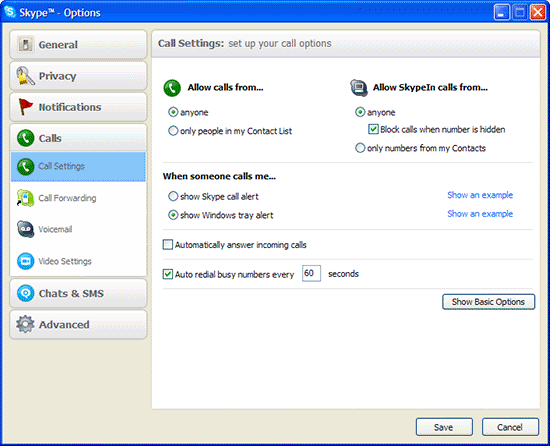
Now click on the “Show Advanced Options” button. You’ll get this screen:

Advanced call settings in Skype

Now look for the option that says “Allow SkypeIn calls from…” and select “anyone”, then make sure to check the option called “Block calls when number is hidden”.

Doing this will block most telemarketing calls, since they usually hide their numbers. Isn’t that beautiful?

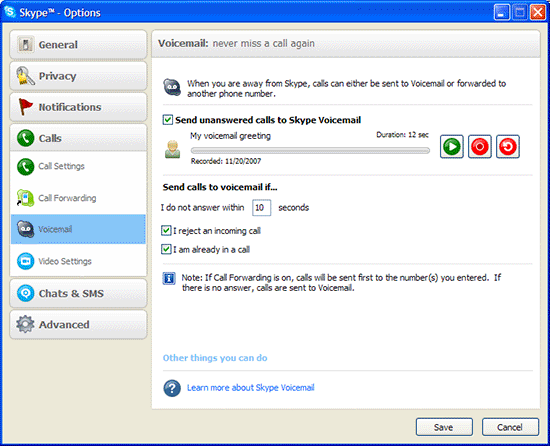
If you want to make sure none of them get through to you, just go to the Voicemail section and look for the “Send calls to voicemail if…” option, then change the number of seconds to 1 or something really small. That way everything that makes it past the initial call filter goes right to voicemail. This allows you to listen to the messages later and hit delete without wasting your time. I have my threshold set to 10 seconds. If I’m logged into Skype, that usually gives me enough time to see who’s calling and decide if I want to take the call or not. If I’m not logged in, then all the calls go directly to voicemail anyway.

Voicemail settings in Skype

Hope this helps!

Standard
Reviews

Windows Family Safety

Windows Family SafetyWindows Family Safety (WFS) is a new offering from Microsoft that aims to offer protection from questionable or indecent websites to families or individuals. I tried it out for a couple of weeks, and found it to work fairly well, except for a few hiccups here and there.

It is a software-based internet filtering mechanism. The difference between a software-based internet filter and a hardware-based one is that the software needs to be installed on every computer where filtering is desired. A hardware-based internet filter is usually self-contained in a box or appliance that gets placed between the user’s internet connection and the internet. The benefit of such an appliance is readily seen. There’s nothing to install on client computers. Unfortunately, hardware-based solutions have been fairly expensive, historically speaking.

Software-based internet filtering has also cost money, until now. As a matter of fact, Microsoft used to offer one such software-based solution with its premium MSN service. Windows Family Safety may be that same offering, repackaged as a free service.

Having used other software-based internet filters, I can tell you Windows Family Safety is a lot easier to use, and much less annoying than paid products. Those other services, who don’t even deserve to be called by their names, were just plain awful. I had to authenticate every time I tried to access a website, and logins didn’t even take at times. What’s worse, if a single website called out to other websites to display information, as is so common these days, I had to authenticate for every single request. They were a nightmare, and I quickly uninstalled them.

Windows Family Safety requires a simple install, and the selection of a master account which can set the level of access for that computer. It uses Microsoft Passport sign-ons, which means I was able to use my Hotmail account to log in. After that, it was a matter of logging in every time I turned on my computer or came back from standby. This was one area where I encountered a hiccup though. The software had an option to allow me to save my username and password, so I wouldn’t have to enter them so often, but that option didn’t seem to work. I was stuck logging in much more than I cared to do, but still, this was nothing compared to the torture I went through with other software-based filters — as already mentioned in the paragraph above.

Just how does WFS work? It turns out that it uses a proxy to filter the traffic. It means that every time you make a call to a website, that call first goes through the WFS servers, where it gets matched to their content database and the website deemed to be appropriate for the level of safety that you’ve chosen. Here’s where I encountered two hiccups.

The first was that at peak times, the speed of my internet connection was slowed down to a crawl until it could pass through the fairly busy proxy servers and be filtered. That was really annoying, but I assume that’s going to get better as MS dedicates more proxy servers to the service. Perhaps it might be better to download content filters directly to each computer and filter the traffic locally, so the chance of a bottleneck is reduced or eliminated.

The second was the seemingly arbitrary designation of some sites as inappropriate. I chose to filter out adult, gambling and violent websites. Somehow, both of my blogs (ComeAcross and Dignoscentia) didn’t meet that standard, which was very surprising to me. Neither of those sites can even remotely be classified under those questionable categories. Fortunately, there’s a fairly simple process for requesting that a site be reconsidered for proper classification, and it’s built into the Windows Family Safety website. I followed the procedure, and within days, my sites were properly classified. But the fact that I had to go through all of that makes me wonder how they’re classified in the first place.

Overall, I found that WFS still hasn’t gotten proper branding. What I mean by that is that it’s not clearly identified as a product by Microsoft. The Windows Live OneCare Family Safety website is part of the Live Family of sites, true, but it’s not even identified on most of the other sites in that family (Hotmail, SkyDrive, etc.) I also found that configuring one’s WFS account can be pretty unintuitive, as the navigation on the WFS site is cumbersome and lacking focus (much like the Windows Live OneCare site, come to think of it.) I even got code errors when I tried to surf through it recently, which is not what I expected from a public MS site.

On a general note, Microsoft really needs to do some work in associating each MS product with the Windows Live account that uses it, and making it easy for each user to access the online/offline settings for each product. Google does a great job with this, and MS could stand to learn from them here.

Windows Family Safety is a good solution, and it works well considering that it’s free. If you’re looking to set up some easy internet filtering at your home, it could turn out to work great for you. Give it a try and see!

Standard
Reviews

Bugs in Lightroom 1.2

The latest version of Adobe’s Lightroom, 1.2, introduced corrections for several issues such as XMP auto-write performance, Vista grid display errors, and noise reduction for Bayer-patterned sensors (the majority of digital sensors on the market user Bayer patterns in their color pixel distributions). It also introduced support for new cameras such as the Canon EOS 40D and the Olympus EVOLT E-510. The upgrade was a marked improvement upon 1.1 and 1.0, but I’ve noticed a few bugs:

  1. Time-shifted capture times don’t transfer properly on import from catalog to catalog. While on a recent trip in Romania, I took along my laptop but didn’t take my WD My Book Pro Edition II, since I wanted it to stay safely at home. (That’s where I keep my photo library.) I thought, no problem, I’ll just start a new catalog directly on my laptop, work with my photos there, and do a catalog to catalog import when I get home. In theory, that should have worked just fine — in practice, it was somewhat different. You see, I’d forgotten to set my 5D to Romania’s local time, and that meant that all of the photos I’d taken for the first few days lagged behind local time by 7 hours. I corrected those times by selecting those photos in Lightroom and choosing Metadata >> Edit Capture Time >> Shift by set numbers of hours. That fixed those times in the catalog on my laptop, but when I imported those same photos, I found out that very few of those corrected times transferred during the catalog import operation. What’s worse, the capture time for others was somehow shifted by seemingly random values to something else altogether, so I had to fix that as well.
  2. There’s an annoying and somewhat destructive color shift that takes place when I import photos into Lightroom. For a few moments after I open a photo, it’ll look just like it looked on my 5D’s LCD screen, but then Lightroom will shift the colors slightly as it loads and develops the RAW file. It seems to do less of it now than in version 1.0, but it’s still happening, and then it’s really difficult, if not impossible, to get my photos to look like they’re supposed to look. Canon’s own RAW viewer doesn’t do this, and neither does Microsoft’s RAW viewer.
  3. Batch-editing photos selected from the filmstrip (instead of the grid view) does not apply the actions to all of the photos, only to the first photo selected from that bunch. In other words, if I were to select the same group of photos in grid view and apply a set of modifications to all of them (keywords, etc.), these modifications would be applied to all of the photos selected. When the same group of photos is selected in the filmstrip, the modifications are not applied to all of them, only to the first selected photo. By the same token, if I select multiple photos from the filmstrip in develop view and apply a sharpening change to all of them, it doesn’t take. It only gets applied to the first selected photo.
  4. Changes to ITPC meta data are often not written to the files until Lightroom is restarted. For example, if I select a group of photos, and specify location information for them, Lightroom will not write that data to the XMP files right away. Instead, it’ll wait until I exit, then start Lightroom again. Only then will it start to write those changes to each photo’s meta data. I’m not sure why it’s like this, but it’s confusing to the user.

As frustrating as these bugs are — especially #3 — I can’t imagine working on my photographs without Lightroom. It’s made my life a whole lot easier, and it’s streamlined my photographic workflow tremendously. I can locate all of my photos very easily, and I can organize them in ways I could only dream about before. It’s really a wonderful product, and I look forward to future versions with rapt attention. I hope Adobe continues to dedicate proper focus to Lightroom as it goes forward with its market strategy.

More information:

Standard
Reviews

The future of image resizing is here

If you think you’ve got it pretty good with Photoshop and Genuine Fractals when it comes to image resizing, think again. Here comes a new technology, developed by Dr. Ariel Shamir, called Content-Aware Image Sizing, that will literally blow away our current concepts of image sizing and cropping. Yeah, it’s that good! I don’t often gush about products, but I would absolutely LOVE to see this software integrated into Photoshop.

You can see the original video here, but know that it’s really slow to load, at least today. It’s also been uploaded to YouTube.

Adobe, are you listening? Please buy this and integrate the functionality into Photoshop.

Standard