
After looking around for a storage solution to house my growing collection of photographs, I found the Western Digital My Book World Edition II. I’ve been storing my photos on single external hard drives so far, but data loss has always been a concern with that approach. All it takes is a hard drive failure, and I’m going to lose a good portion of my hard work. Naturally, I’ve been looking into various RAID or other failsafe solutions, since they’ve gotten to be fairly affordable.
Great design
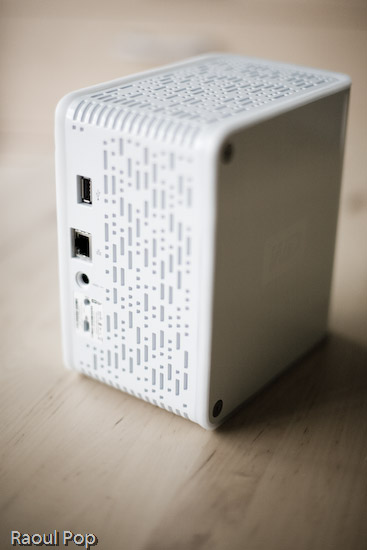
I was immediately drawn to the new WD My Book line because of their beautiful design, 1 TB capacity, and the ability to configure the device in RAID 1 format, which would mean my data would be mirrored across the two hard drives inside it. (This would also halve the amount of space available, but that was okay with me — I wanted data redundancy.)

For those of you not familiar with WD’s external drives, they have done a beautiful job with their enclosure design, and I raved about their Passport line several months ago. It turns out I now own one of them, a sleek black 160 GB 2.5″ drive just like the one pictured in that post. It’s perfect for data portability, and for a while, I even stored some of my photos on it. But it is just a single drive, and as I said, I’m worried about data loss.
Choosing the product
Back to the My Book line. There were two models I really liked: the My Book Pro and the My Book World. Because I have a mixed OS environment (both PC and Mac), I thought a NAS solution like the My Book World would work best for me, even though its specs said it would only work for Windows. I had a pretty good hunch that I would also be able to access it with my iMac. It runs on Java, it has Samba shares, and those are readily accessible from any Mac. But, this isn’t advertised, and that’s a pity.
By the way, if you’re thinking about getting the My Book Pro drive, make sure to read my review of that model. The takeaway message is to stay away from it, and I explained why in that article.
How it works
The drive itself is beautiful and fairly quiet, except when it boots up. WD has also made firmware upgrades available that make the drives even quieter, so that’s a good thing. I can tell you this right away. If you only plan to use the drive in a Windows environment, it’ll work great. Feel free to buy it, you’ll be happy. But, if you plan to use it in a mixed OS environment, and are looking to access it in more flexible ways, such as with custom drive mappings, and not through the software provided with the drive, you might be very frustrated.
Let me explain. The drive comes with a custom version of something called Mionet. I’ve never heard of it, but it’s software that installs on your machine and makes your files and computer remotely accessible from anywhere. When you run the installer, it’ll prompt you to create an account on the Mionet website, and it’ll register the WD drive, along with your computer, as devices that you can then access remotely. (There’s a monthly fee involved if you want to control your own PC remotely with the software, but you don’t need to pay it to use the WD drive fully.)
Once you install the software, you start up Mionet, and the WD My Book World drive gets mapped automatically to your machine. You also have the option to manage the drive through a browser interface. That’s actually where you configure its volumes (1 TB single volume, or RAID 1, still single volume, but mirrored data and only 500 GB) and other options. Basically, you have to remember that the only proper way to access the drive, whether you’re at home or you’re away, is to start up Mionet and get it mapped to your “My Computer”. If you do that, you’re good to go.
Potential problems
The problem with this approach (and this tends to be a problem only for geeks like me) is that the drive is readily accessible over the network without Mionet. I can simply browse my workgroup and find it, then log in with separate accounts I can set up by using the WD drive manager, which is accessible through my browser. So here’s where the frustrating part comes in. I can browse to my drive over the network, without Mionet, from any PC or Mac in my home, administer its options, add users and shares, etc. Then I can use Tools >> Map Drive on my PC or Command + K on my Mac to connect to the share name, and log in using those user accounts I’ve just set up. But, I can only read from those shares. I can’t write to them. The drive operating system assigns weird UNIX privileges to those shares, and they don’t correspond to the accounts I’ve just set up. It makes no sense to me and you’ll only fully know what I mean if you do this yourself. Suffice it to say that it’s really frustrating, and it’s not what I expected.
It would have been alright if Mionet made a version of their software for the Mac, but they don’t, and they don’t seem to have any plans to make any. It would have still been alright if the drive hadn’t been accessible through any Mac whatsoever. But the fact that they are accessible, and that I can log onto the drive with usernames and passwords that I can set up through the admin interface, yet I can only gain read-only access to those shares even though I’m supposed to have full access really gets me. Sometimes it’s a real pain to be a geek…
So, my verdict is that I really like the design and the RAID 1 capability, but I do not like the implementation. I ended up returning this and getting the My Book Pro Edition, which I will review very soon. But remember, if you don’t have a mixed OS environment, and have no problems with starting up Mionet when you want the drive to appear in “My Computer”, My Book World will work great for you, and the remote access capability is a really nice feature.
Updates
❗ Updated 7/19/07: I purchased and reviewed the My Book Pro as well. You can read my review right here.
❗ Updated 8/3/07: Multiple commenters have pointed out (see this, this, this, this, this and this) that you can use the drive just fine with both Macs and PCs, over the network, if you skip the install of the Mionet software altogether. It looks like the clincher is the Mionet install itself. Just forgo it, and you’ll be able to map the drive to both PCs and Macs, and read/write as much as you want. I didn’t realize that I had to uninstall Mionet entirely in order for the read/write to work properly.
But keep in mind, if you don’t use the Mionet software, you won’t be able to access the drive remotely. Well, you might be able to arrange some access, but you’ll need to custom-configure your firewall settings to allow traffic on certain ports, and you’ll need a static external IP or dynamic DNS so you can get at your firewall from the outside. And then you’ll need to worry about data encryption as well, unless you don’t care that your data will travel unencrypted over open networks. If you’re a hardcore geek, feel free to try this last bit out, but if you aren’t, beware, it’s a weekend project, and I can’t help you.
❗ Updated 8/9/07: I’ve had several people comment on how they bought the drive based on this post and the comments made on it by others, believing they could get it working over the network with their Mac. The kicker is that they thought they could connect it directly to their machine and get it working that way. 😐 I don’t know how they got that idea, but let me set the record straight. This is a NETWORK drive. It needs a network in order to work. There’s a chance you might get it working by using a crossed ethernet cable or connecting it directly to your machine, but it probably has to be a crossed ethernet cable.
The best way to get it working is to use a hub or a switch, or best of all, your home router, which can assign IP addresses. The drive ships configured for DHCP. That means it has no IP address to start with, and it’s looking for a place to get them. If you don’t have such a place, you’re going to have a lot of headaches. Get such a place (router) or go buy a USB/Firewire drive. Most people who’ve commented already made it plainly clear that’s what they needed, but they still insisted on using this drive. I don’t know why they enjoy the stress of doing that. I didn’t. As I already said in my post, I returned it and got a WD My Book Pro Edition II.
Last but not least, please do me a big favor. Read through the existing comments before you write one. There are so many already, and there’s a very good chance someone’s already asked your question, and I or someone else has already answered it. Thanks!
❗ Updated 12/11/07: I found out today that Western Digital is going to disallow the sharing of all media files through the Mionet software. In other words, if you’re going to use Mionet to share the files on your drive and make them accessible remotely, you will not be able to see or use any of your media files. I think this is a pretty stupid move on WD’s part, and it’s going to come back to bite them. Until they decide to do away with this boneheaded downgrade, keep it in mind if you’re looking to purchase a My Book World Edition. Do NOT use Mionet. Install the drive without it, and if you’ve got to make the files accessible remotely, find other ways to do it, like through a custom config of your firewall.
❗ Updated 12/18/07: Christian, one of the commenters, has left two very useful comments that are worth mentioning here in the post. The first shows you how to access the drive remotely (when you’re away from home) without using the Mionet software. The second tells you why you don’t need to worry about defragging the drive, and how to troubleshoot its performance if you think it’s not as fast as it should be. Thanks Christian!
❗ Updated 4/5/10: Andrew Bindon has posted an easy-to-follow tutorial on how to remove Mionet completely from your computer and the My Book World Edition drive. If you, like me and many others, think Mionet is an annoyance that would best be removed, then follow his advice.
More information
- Western Digital 1 TB My Book World Edition II External Hard Drive listing at Amazon
- Western Digital 1 TB My Book Pro II External Hard Drive with Triple Interface listing at Amazon


 Raoul Pop