Reviews

Dictionary of Information Security by Robert Slade

Dictionary of Information SecurityHave you ever wondered just what the jargon of information security specialists really means? What are all those arcane words they throw around to scare us into submission as they lock down our computers even tighter? “What do you mean, we can’t even install a screensaver now?! Can I at least use the bathroom without your permission?”

Unfortunately, there are a lot of dumb Information System Security Officers (ISSOs) at corporations and organizations. I’ve known a few myself. These are the folks that barely know what they’re talking about, and go by the latest article they read. Their reaction to a new piece of software is to lock down the system and disallow it even before they research it properly. Case in point: was Skype shut down at your place of business or at a friend’s workplace? That was a dumb ISSO in action. They also know so little that they simply throw words around, and anyone with a little knowledge of computers can tell when they mess up. “No, ROM is not RAM, and no, it’s not a 300 Gigabit hard drive, it’s a 300 Gigabyte hard drive.”

That’s why books like this Dictionary of Information Security really help. We can educate ourselves, and know when they’re wrong. We can tell when they’re BS-ing, and when they’re telling the truth. My experience has been that they BS for 80 percent of the time, and don’t know what they’re talking about for the other 20 percent. “No, RSS doesn’t stand for Really Scary Stuff, it stands for Really Simple Syndication. And yes, it’s okay for us to subscribe to RSS feeds. Really.” Or, “No, this is a perfectly harmless screensaver. It’s not a RAT (Remote Access Trojan). You’re a rat, for all I care.” I could go on and on…

I love this book. Robert Slade did a great job putting it together, and the terms are explained in language that anyone possessing a cursory knowledge of computers can understand. I’m amused by the forewords, acknowledgments and preface. They’re abnormally long for a book this small, but that’s to be expected. This is, after all, the first Dictionary of Information Security, and a precedent has to be established, so to speak. But once you get down to the terms, you forget about all of the beginning sections, because if knowledge is power, this book packs a wallop.

Get it, and read it. I know it’s hard to believe, after all, who’d read a dictionary, but I’d read this one. And keep it around for reference. And when your ISSO gets on your nerves, start encrypting all your emails with PGP if he doesn’t stop scanning them. Or, if he doesn’t stop blocking access to your webmail account, set up a VPN connection to your home network and do all your web surfing through that. That’ll knock his SOCKS off! Let the fun begin!

Standard
Reviews

Zoom Search Engine: a powerful and inexpensive search engine for your website

Zoom Search EngineI’ve been using the Zoom Search Engine for over a year, and I’ve been very happy with it. But today I realized I hadn’t told many people about it, so I had to fix that.

So what’s the Zoom Search Engine? It’s a beautiful piece of software written by WrenSoft, an Australian web software company. Here’s what I think is amazing about it:

  • It’s inexpensive: the Standard edition is $49, and the Professional edition is $99. (I have the Pro edition.) There’s also a free edition for smaller sites. A side-by-side comparison of the different editions is available on the WrenSoft website.
  • It’s small in size, but feature-packed. The executable is 1.65 MB. Bloatware this is NOT. It is small and it packs a powerful punch. If you don’t believe me, install it, then run through the various options. There are a LOT of them!
  • It does the job — no crashing, no malfunctions. In over a year of serious use, with it running daily to index a lot of files for most of that time, it didn’t crash once. It just did its job.
  • Tech support is great, and included in the price of the software. I needed to contact them twice to ask them about some advanced configs for the app, and they responded within 12 hours. What’s more, they actually solved my problem. There were no excuses and no passing the buck.
  • It’s a scalable piece of software. Not only will it index small, simple sites, but its indexing engine can use ASP, PHP, JavaScript or CGI. The CGI engine can be used for enterprise sites – we’re talking hundreds of thousands of pages here! Not only will it index sites hosted on web servers, but it will also let you put a search engine on a site that runs off a CD or DVD.
  • It spiders and indexes most document file types with the aid of free plugins that work with the paid editions of the software. They’ve got plugins for Word, WordPerfect, Excel, PowerPoint, PDF, Flash and FlashPaper, and Rich Text formats. Having used all of these plugins over the last year, I can tell you they work a treat. They certainly do the job, and there’s no false advertising involved.
  • It’s a customizable and flexible piece of software. You possess the search index. You have access to the actual files used by the search engine, and you can tweak the engine and the index as you please. You can adjust everything. I can’t think of any other solution on the market that will let you do that. When it comes to this, it beats Atom and Google and any other solution, hands-down. Google’s search appliances are a black box. You can play with the options, but you don’t have access to the search technology. You can’t pop the hood and have a look at what makes their searches tick.

So how exactly have I been using the Zoom Search Engine? It’s been powering the site searches on Exprimare and the Road Management Catalog, among a few others. While Exprimare is a fairly small site (it’s my consulting/portfolio site), the Road Management Catalog is a big site in terms of the content, file types and number of pages. It belongs to the World Bank, and vendors of various road construction, measuring and testing equipment have accounts where they submit company information and upload brochures in various file formats. The Zoom Search Engine’s job on that site is to index all of the uploaded files, all of the various companies’ info, the regular site pages, and to make them all available in the search index. It’s been doing a wonderful job over the past year, and I love it. I’ve scheduled it to run every day, and to index all of the files. When it’s time for it to start, it does so automatically. It spiders the site, builds the index, uploads it to the site through FTP, then closes automatically. I don’t have to do anything other than adjust search parameters here and there as the need arises.

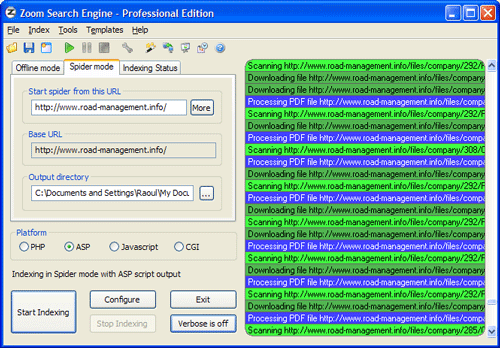
Here is a screenshot of the main app window, just as it’s indexing the Road Management Catalog. Once it’s configured, it spiders the site (you can set it to start multiple threads so the indexing goes faster) and then it goes about its business.

Zoom Search Engine

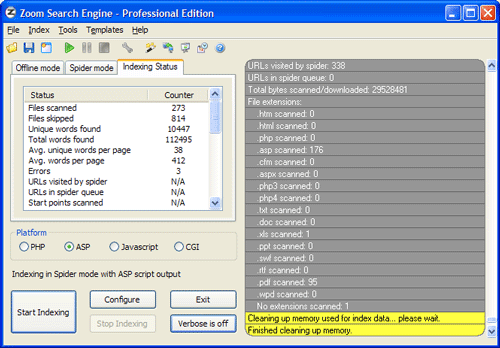
When it’s done, it gives you an index status report, to let you know what it found. It also outlines in red any indexing errors, such as files or pages it couldn’t download or index.

Zoom Search Engine

If I had to talk about the many configuration tabs, I’d have to reproduce their user manual. Instead, let me just show you a screenshot of one of them, the Indexing options. How cool is this! I get to decide what gets indexed, what gets boosted, and how words get joined. And this is just a small sample of what the app can do.

Zoom Search Engine

A lot more screenshots are available on the WrenSoft site. Their support section is extensive, a forum is also available, and their tech support is only an email away.

The Zoom Search Engine is an amazing product, and well worth its price. As a matter of fact, I’d call it underpriced. It’s a tremendous value given its functionality. So if you own a site and have been looking around for a suitable search engine, don’t settle for something that’s overpriced or inflexible. Get something that’s been tried and tested, something that’ll work, something you can use on a daily basis and tweak until you get just what you want.

Standard
Reviews

ffmpegx, the best video encoding and compression on the Mac

A little while ago, I wrote a post outlining the things I didn’t like about my Mac, and while most of the issues I pointed out are still affecting my iMac, I have to really thank one of the people who left a comment, by the name of Howard Dratch. He pointed me to a great app for video encoding and compression on the Mac, called ffmpegx. I was a little skeptical, but hey, it was free, so I gave it a shot. After the first compression, I was amazed! The compression is fast, clean and very, very good. I can barely notice the difference between the original and the compressed copy. I highly recommend it. It’s one of the best applications I’ve ever used, and I don’t think I exaggerate when I say that it’s probably the best video encoding/compression tool on both the Mac and the PC platforms. Granted, there is no Windows version, but still, I’m hard pressed to find its equivalent there.

What sets it apart is not only the ease of use (though there are tons of options to choose from) or the speed of encoding (although it’s among the fastest I’ve used) or the fact that it’s free (because it is — well, shareware anyway), but it’s all of these things together. It’s a great, all-in-one, wonderful package.

Now, before you think I use it for illegal purposes, I don’t. I’ve never downloaded illegal moves from BitTorrent or anywhere else on the Internet. I’ve never shared movies illegally, and I don’t intend to. I use ffmpegx or any other of my video tools for legitimate purposes, and I encourage you to do the same. When I use tools like these, I use them so I can edit and compress my movies, and fit more of them on my hard drive.

One of things I like to do is to use a PVR (a Tivo-like device for the Mac), and schedule it to record my favorite shows and movies. I happen to like shows like Cartoon Alley on TCM, and I like old movies (made from the 20s through the 60s). So in order to help you learn how to use ffmpegx, I took a few screenshots of a typical movie encoding that I do.

First the main screen. I love its simplicity. You have the original movie on one side, and the compressed movie on the other.

ffmpegx main screen

I prefer to encode with the H.264 codec, but I use the mencoder H.264 flavor. The Apple H.264 codec, also available through ffmpegx, is much slower and the resulting file isn’t as small. As you can see, the basic properties of each file are summarized in the columns. Now let’s have a look at the next screen, listing the Video options:

ffmpegx video screen

Here you can adjust the bitrate, fit the movie size to a particular archival disc (if you’re so inclined), and adjust its size. If you’re encoding a DVD, you can select which title, chapters and angle you want to encode. What I really like is using the Best button to let it select the best bitrate for the video size. Now let’s have a look at the Audio options:

ffmpegx audio screen

Here you can select the codec, and the audio parameters. If the movie you’re encoding has more than one audio track, you can select the one you want here, and you can even amplify it if so desired. If this is a silent movie, you can add your own track, or if you’re doing a mash-up video, you can add your own voice-overs or soundtrack.

The Filters screen is where things get really, really interesting. Can you see why?

ffmpegx filters screen

Forget all the other cool options, what I really like is the Crop option! Although the Autocrop only works sometimes, because the opening credits or sequences may confuse it, it’s a really cool button. If there are extra portions of screen estate taken up by nothing but fuzz or black space, you can take them out through a crop. Remember how wide-screen movies were letterboxed when shown on TV? Well, you can cut away the letterbox and be left with only a nice, widescreen movie! It’s a fantastic option! Oh, and in case the Autocrop button doesn’t work, you can also specify your own crop settings, and preview them by clicking on the Preview button. A white border will indicate the crop settings.

The Options screen lets you adjust the encoder parameters even further, and of course, lets you specify 2-pass encoding if you want extra quality.

ffmpegx options screen

The Tools screen has a bunch of sub screens that let you play with the video options even more. There are a lot of features squeezed in there!

ffmpegx tools screen

Oh, let’s not forget the Progress window:

ffmpegx progress screen

Finally, if you should need more instructions on how to use ffmpegx, there’s a great how-to section right on their site.

In case you’ve been wondering just what I’ve encoded as I took the screenshots, it’s a lovable and joyous little movie called Luxury Liner (1948). It stars Jane Powell, one of my favorite actresses, Lauritz Melchior, the famous tenor of that time, and George Brent, one of my favorite actors, who also starred in Honeymoon for Three (1941). Incidentally, he was married to Ann Sheridan (his co-star in that movie and another of my favorite actresses) when Honeymoon for Three was filmed. See, now aren’t you glad you read this post to the end? You just learned something new! 🙂

Standard
How To

Do you want to know how long your hard drive will last?

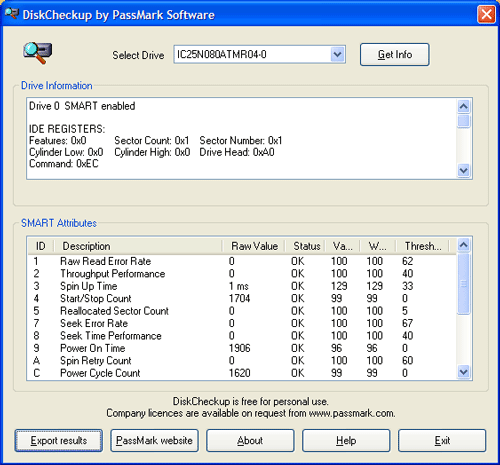
If you do, then use the DiskCheckup software from PassMark. This software is free for personal use and $15 for business licenses. Just download it, unzip it and run the DiskCheckup executable to get an instant report on the health of your drive. The software reads the data put out by the S.M.A.R.T. feature standard on most hard drives nowadays and can tell you through a simple to read report if it’s time to really back up the files on the drive and get ready for its demise. I ran a report on my laptop’s drive, and it passed with flying colors. I’m alright for now!

DiskCheckup Test Results

Standard
Reviews

Boot Camp 1.1 Beta just released by Apple

Apple Boot Camp 1.1 BetaI complained in a previous post about how I wanted to buy a Mac laptop that I’d use for both work on pleasure, but couldn’t, because I was shackled to Windows OS for most of my development work, and there were certain things that just didn’t work on the Mac, with either Boot Camp or with virtualization software.

Well, I can’t have been the only one with gripes, because Apple just released Boot Camp 1.1, addressing some of the very concerns I voiced, both here and at BlogCritics. Here’s what the new version includes:

  • Support for “the latest Intel-based Macs”: this means the Core 2 Duo chips, code-named Merom, coming out at the end of this month. It could also be referring to the new Quad Xeon chips installed in the Power Macs, but I have a feeling 1.1 covers the Merom line as well.
  • Easier partitioning: version 1.0 was somewhat limited (let’s say minimalistic and be nice about it) in the choice of partition sizes.
  • Ability to install Windows XP on any internal disk. It still stinks that we can’t install it on a USB/Firewire drive, but I assume that’s coming down the line.
  • Support for built-in iSight cameras: this was one of my biggest gripes. Trying to use the iSight camera would give the dreaded BSOD.
  • Suppor for built-in microphones: about time! This was a pretty basic requirement.
  • Right-click when pressing the right hand Apple key on Apple keyboards. Interesting, although I’ll probably still use Ctrl + Click.
  • Improved Apple keyboard support: again, about time! Keys like Delete, PrintScreen and NumLock are used by most users on a regular basis.

So what still doesn’t work? The Apple Remote doesn’t. And neither do the Bluetooth Wireless Apple Keyboard and Mouse. Now, while it’d be nice for me to control iTunes while in Windows with the Apple Remote, I can live without that, but why wouldn’t the keyboard and mouse work? So okay, they don’t – fine. But what bothers me is that the sudden motion sensor and the ambient light sensor don’t work either. Those are not only cool, they’re very practical technologies. The sudden motion sensor in particular should be a must have feature.

I can just imagine Apple Tech Support when an unfortunate fellow calls them (hopefully not me):

  • User: “My laptop was resting on its laptop stand, and when I picked it up, it slipped out of my hand and dropped on the table. Now it won’t boot up!”
  • Support: “How high was the drop?”
  • User: “Only 4-6 inches! What’s going on?”
  • Support: “Were you using Windows at the time?”
  • User: “Uh, yes?!”
  • Support: “Well, you’re out of luck. If you were using Mac OS, the sudden motion sensor would have protected the hard drive, but since you used Windows, that hard drive is kaput. Plus, we don’t support Windows. You’ll need to get a new hard drive.”

In a related note, most of the new Lithium Ion batteries are subject to meltdowns and explosions when shaken, overheated or dropped. Something to think about as you hold that laptop in your lap…

Standard