How To

How to hack Windows Desktop Search and turn it into a dictionary

If there are some of you out there using the beta version of Windows Desktop Search – you know, the one that imitates both Spotlight and Google Desktop Search – then you probably know it’s alright.

I’m amazed that Microsoft has actually turned out a usable piece of software that doesn’t crash. I like it because it starts finding documents as soon as you start typing (like Spotlight), and the search index is live, unlike the Google Desktop Search, which is time-delayed, and also contains bad entries for files you’ve moved or deleted.

When you search with WDS, you get the option to search your Desktop, or the Web. Well, there’s one huge caveat: don’t bother searching the web with the Microsoft Live Web Search, or MSN Web Search, or whatever the heck they call it these days. It’s downright pathetic, and if you’re using IE 7 Beta, it may even crash the browser. Fortunately, Google has come up with a solution. Just surf over to their main site, and within IE 7, you’ll get a JavaScript note (not window) in the top right corner of the web page, that will invite you to set your IE search engine to Google’s. Run the tool, and do that.

Now, for the fun dictionary hack. In the Windows Desktop Search bar (located in the taskbar), type the usual Google shortcut for searching definitions: “define:word”, then click on the Web button. Bingo! Now you’ve got your very own dictionary, neatly accessible right from the taskbar. Enjoy!
Standard
Reviews

New Skype for Windows 2.5

Skype has just released version 2.5 for Windows 2000 and XP. This new version includes the following cool features (on top of existing ones):

  • Send SMS messages directly from Skype to contacts’ cellphones.
  • View and call your Outlook contacts directly from Skype. This is really cool!
  • Auto updates: Skype will automatically update itself – no more downloads and installs.
  • Purchase SkypeOut credit directly from Skype – users won’t have to log onto the site and do it there. Nice!
  • Quick and easy overseas calling: pick the country and dial the number.

Those were the advertised features. Here are the unadvertised ones:

  • In their bid to get more profits, I see they’ve made it much easier for people to purchase ringtones right within Skype. Go to Tools > Rington > Get Latest Ringtones.
  • Similarly, they’ve made it easier for people to purchase accessories. Go to Help > Get Headset.
  • They’ve introduced Contact Groups, which allow you to place your contacts in pre-defined or custom groups – this means less clutter on the Contacts List.
  • The changes made to country codes have also spread to the Edit My Profile window, where the country of your phone number for home, office and mobile is now selected by clicking on the little flag next to the number, and choosing your country from the drop-down menu. This is pretty cool after all.

Now for some problems:

  • My existing list of Skype contacts disappeared after the upgrade. Suddenly, I had no contacts! Where did they go? I really don’t feel like entering them in there again. Five minutes later: decided to sign out of Skype and come back in. Bingo! My contacts re-appeared out of thin air… Strange!
  • The “view your Outlook contacts” feature didn’t work as expected. First, it’s not automatic, you have to import contacts. When I tried it, I had to allow Skype access to Outlook through the dialog box that came up during the Import operation. Then, the contacts didn’t display in Skype. I had to select the View > View Outlook Contacts feature in order to view them.

And some things that worked as advertised:

  • Tried the international calling with the keypad. Sure enough, they placed a drop-down menu listing the country codes right there. It’s helpful for those folks who don’t know how to dial international codes. I’m not sure how helpful it is for me, but I guess they’ve made it foolproof.
  • Sent an SMS to a cellphone in Romania, and it worked. Cost near 13 cents for the message, and when I pressed Send, the status changed to Pending, then after 15-20 seconds, changed to a checkmark, indicating it was sent.

And some things that worked but weren’t advertised:

  • My photo always disappeared after I upgraded to a new version of Skype. I’m relieved to see they’ve finally managed to fix that problem. My profile’s photo was still there when I checked my profile.
  • I see the Video feature is still in Beta. I wish they’d take it out of Beta already and make it available on the Mac as well. The video quality is really good when compared to any other messaging app out there (other than iChat).

Overall, this is a solid upgrade. I like this new version. But then I guess I’m biased toward Skype, and I’ll tell you why. The benefits are clear when one uses the application: great audio, great video, reliable connections, and, my biggest pet peeve, NO ADS, thank God!

I abhor the MSN, Yahoo and AOL Messengers for that very reason: I can’t stand their ads. They stick little banner ads everywhere, bombarding me with them. They flash, they pop up, and they’re completely annoying and distracting. I am truly grateful that Skype hasn’t succumbed to that disgusting practice, and I hope they never do!

Standard
How To

Do you like Remote Desktop Connection?

If you use the Microsoft Remote Desktop Connection tool to connect to other Windows computers, you’ll appreciate their Remote Desktop Client for the Mac. That’s right, with this tool you’ll be able to connect to and manage Windows computers from your Mac! I’ve used it, and it works great!

Did you also know you can set up your Pocket PC with a Remote Desktop Client, and manage your main PC with it?

Finally, if you’ve ever lost the shortcut for Remote Desktop Connection from the Start > Accessories menu, you know how annoying that is. You can’t reinstall the software, because it’s built in. What can you do? There are two things you can do:

  • Run the program directly by using Start > Run, then typing “mstsc”.
  • Put a shortcut to it back on the Start Menu, perhaps even pin it there, by going to “C:\Windows\System 32” and browsing for the “mstsc” executable. Once it’s back on the Start menu, if you don’t like its name, just right-click on it and rename it to “Remote Desktop Connection”.
Standard
How To

How to open Office 2007 documents in Office 2003

I recently installed the Office 2007 (also known as Office 12) Beta on my PC, and I love it. I ran into a problem though: the documents I saved in it weren’t accessible from Office 2003. That’s because Microsoft made a slew of changes to the document formats, both inside and out. The most conspicuous change is the addition of an “x” to the end of the document extension. For example, an Excel spreadsheet is now saved as a “.xlsx” file instead of an “.xls”. Similarly, a Word document is now “.docx” instead of “.doc”.

So what can we do to open these new formats if we’ve only got Office 2003? Microsoft provides an easy fix. Just go to their Office 2007 Compatibility Pack webpage, and download the Office 2007 File Format Awareness Update for Microsoft Office 2003, then download the English Microsoft Office Compatibility Pack for Word, Excel and PowerPoint 2007 File Formats.

A similar update is available for Office XP (also known as Office 10), so make sure you’re downloading the right compatibility pack for your needs.

Standard
Reviews

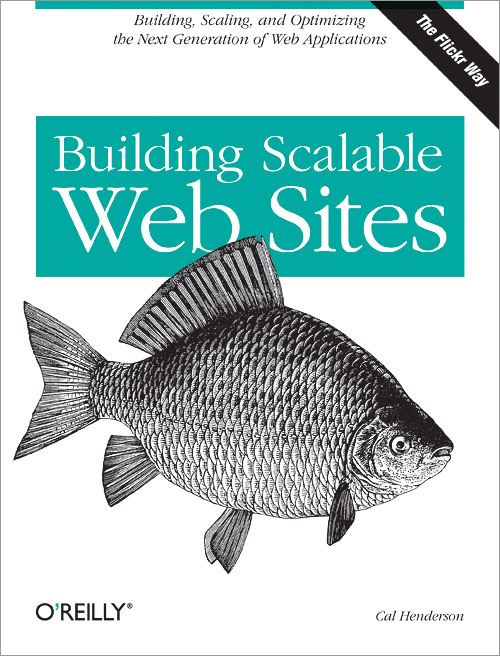
Building Scalable Web Sites, by Cal Henderson

I love this book! There, I’ve given away the clincher already.

Truth is, the writing is addictive. Once I picked it up, it was hard to tear myself away. Perhaps it’s because I’m fascinated with the subject matter, but boy, the writing style ain’t too shabby either. It’s easy on the eyes, and easy on the brain. You just start reading, and go on reading. There are no stumbling blocks, just nice, smooth writing that encourages you to keep moving on as you’re reading.

Let’s face it, which web developer out there doesn’t want to find out how to build scalable websites? Don’t we all dream that our sites or web apps will hit it big, and we’ll have to start planning how to expand? Well, this book will show you how. No, this book won’t show you how to code such sites. There are so many languages out there, it’d be impossible to do that in a book. And besides, code and its structure varies wildly based on the application you’re building. The load imposed on the server varies as well, based on the nature of your application. Some require more RAM, others crave more disk space, others are cuckoo for I/O… you get the point.

What this book will do is to set you straight: what is scalability, and how it’s done, from scratch to finished product, from hardware planning to software planning. It’s all laid out, and it’s easy to understand. Oh heck, Cal even explains what a web application is. And he’ll shatter a few myths, such as this: scalability and performance aren’t the same thing. And, PHP can be used in scalable applications. What?! The heresy! Only Java is scalable, right? Nope.

You’ll also learn things such as… Which scaling (vertical or horizontal) is more cost and resource-effective? How do you load balance with both software and hardware? What in the world is involved when exposing web services? Well, it’s not about nerds flashing in the server room, that’s for sure. How should you react when someone pulls an RPC on your XML? Should you wash it with SOAP, or should you cry API Abuse? Is a data cache a good thing? Should you worry about your database slaves? Should you buy cheap machines like Google, or should you spend your cash on real servers? Read the book, and find out the answers to all these captivating questions.

By my estimate, most people interested in the subject will manage to read the book in less than a week, and that’s with leisurely reading in the evenings. That’s more than I can say about many tech books, where you get bogged down trying to understand the code and what it’s doing. This book is instructive, entertaining, and intellectually enriching. Cal has a lot of knowledge in building scalable websites, and there’ll be no mistaking that when you pick up the book. This fellow speaks from personal experience. Do yourself a favor, and don’t build a hamstrung site. Read this book first!

Standard