How To

Stop the headache – generate 1:1 previews before editing

One of my gripes with Lightroom ever since I started using it was the image blurring that took place as it generated image previews or re-rendered images while in Develop mode. (I started using LR in February 2007.)

It looks like Adobe listened, and the image preview rendering that takes place as I develop photos isn’t noticeable anymore — that, or my faster laptop has something to do with it, too. However, the very noticeable lag in generating either standard or 1:1 previews still occurs as I browse through images in my catalog, and that can’t be helped even by my zippy MacBook Pro. As you move through images, Lightroom will blur them until it generates a standard preview, then blur them some more you zoom in, until it generates the 1:1 preview.

Fortunately, there’s a solution for it. I’m not sure if this existed from the start, or if it was introduced in later versions of the software, but you can choose to generate 1:1 previews for a set of photos before you begin working with them. (I found this out thanks to this article from Steve Paxton at O’Reilly.) Just select the images you plan to work with on a given day, and go to Library >> Previews >> Render 1:1 Previews.
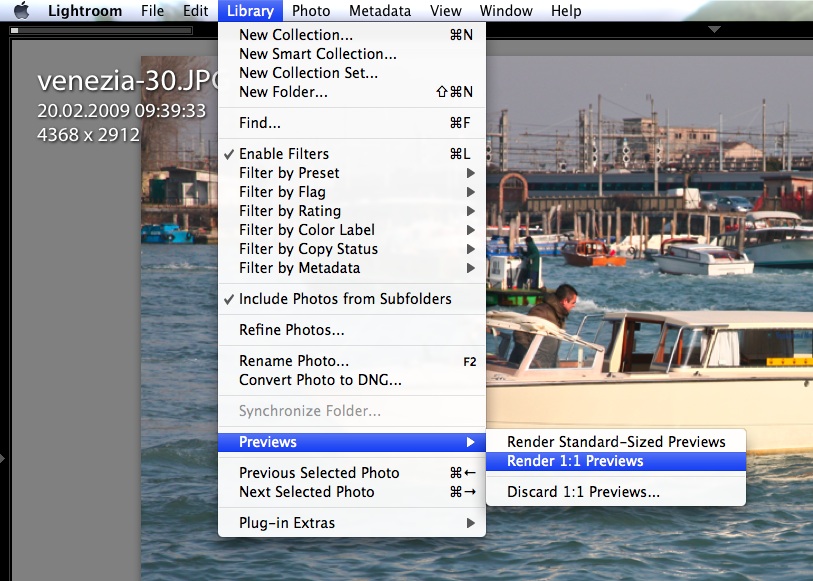
lightroom-generate-previews

If you choose that option, Lightroom will also render Standard-Sized Previews in addition to the full ones, allowing you to work with the photos right away, in standard or loupe view, with no lag or blurring (well, your computer’s specs might also have something to do with it). Still, if you’re sorting through a large set of images (hundreds or thousands), this pays off handsomely, in ways that you cannot even appreciate until you start popping aspirins to deal with the tension headache caused by all that screen blurring you could have avoided if you planned ahead.

If you’ve been a long-time subscriber to my site, then you may know about an article of mine written in January ’08, entitled “The next stage for Lightroom“. In it, I described the need for Lightroom to:

  1. Allow the storage of photos from its catalog on multiple volumes
  2. Allow people to work with photos from the catalog even when external volumes were disconnected
  3. Allow for the storage of the previews database (which can be very sizable) on an external volume, or for its splitting into two parts

Guess what? Most readers just couldn’t get what I was saying. But Adobe listened. Points one and two have already been implemented in later versions. Now I can store my photos on multiple volumes, and I can work with their meta-data even when I can’t access the image files because I’ve disconnected the external drives. As for the the storage of the previews, that’s now easily solved, too.

Because I’m now storing my Lightroom catalog on my laptop, where hard drive space is an issue, this means I have to limit the size of the previews database. I do this by giving it very little play. I tell LR to generate medium-quality 1024 px standard previews, and to delete 1:1 previews after a day. The previews database is no joking matter. Just a short while back, LR was set to discard 1:1 previews after a month, and my previews database had ballooned to over 60 GB!

lightroom-previews-settings

So, even though I allow myself the luxury of generating 1:1 previews for hundreds of photos, as you’ve seen above, the size of my previews folder stays manageable, and the free space on my hard drive stays where it needs to stay, because Lightroom cleans up after itself. Instead of worrying about free space, I allow my MacBook Pro to flex its processing muscle for 15-30 minutes before I dig into a large set of photos from a particular location, and then I can work undisturbed and headache-free for that day.

Standard
Reviews

Drobo Dashboard 1.5.1 sends alerts via Growl

Drobo owners who are also Mac users are in for a nice surprise when they upgrade to the new version of the Drobo Dashboard software (1.5.1). They now have the option to see Drobo alerts via Growl.

drobo-dashboard-advanced-controls

Another neat option is the ability to rename the Drobo and its volumes from within the Dashboard software, as you can see above. The interface itself has also been made cleaner. I like it.

drobo-dashboard-151

Standard
How To

Get the tiltshift look right from Adobe Lightroom

If you use Adobe Lightroom and want to apply a tiltshift effect to your photos, you can spend hundreds of dollars on expensive Photoshop plugins, or you can do it for free, with an Adobe AIR app called TiltShift.

If you’ve used TiltShift before, you know you can open any photo in it and apply tiltshift effects to it, but did you know you can do this right from Lightroom? Here’s how.

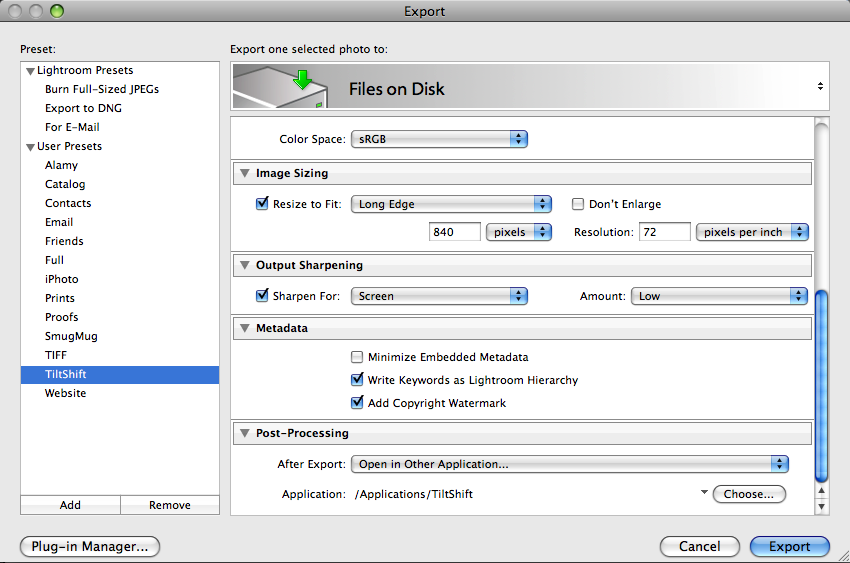
In Lightroom, open up the Export window and add a new Export Preset. See the screenshot below. I called mine TiltShift, so I can easily remember it. Adjust any of the settings, like color space, sizing, sharpening, etc. They don’t really matter, although it’s better to keep the image smaller so TiltShift can work faster with it.

The really important option is in the post-processing section — the very last one in the Export window. There, you’ve got to make sure you tell Lightroom to “Open [your photo] in Other Application…”, then click on the Choose button and browse to find the TiltShift app. This is pretty much it.

lightroom-tiltshift-setup

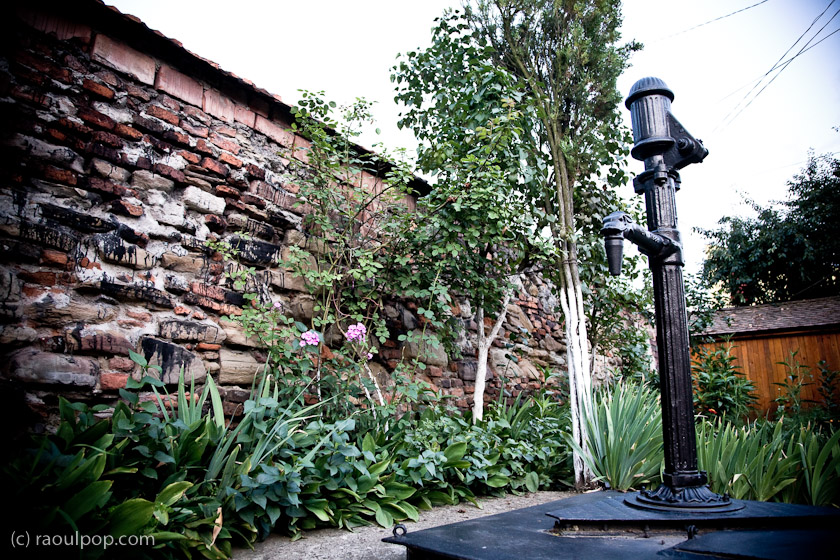
Lightroom will automatically pass your image to TiltShift, which will open it and allow you add tiltshift effects to it, to your liking. For example, I initially processed this image of a medieval water pump found on the streets of Medias, Romania, in Lightroom.

The old water fountain

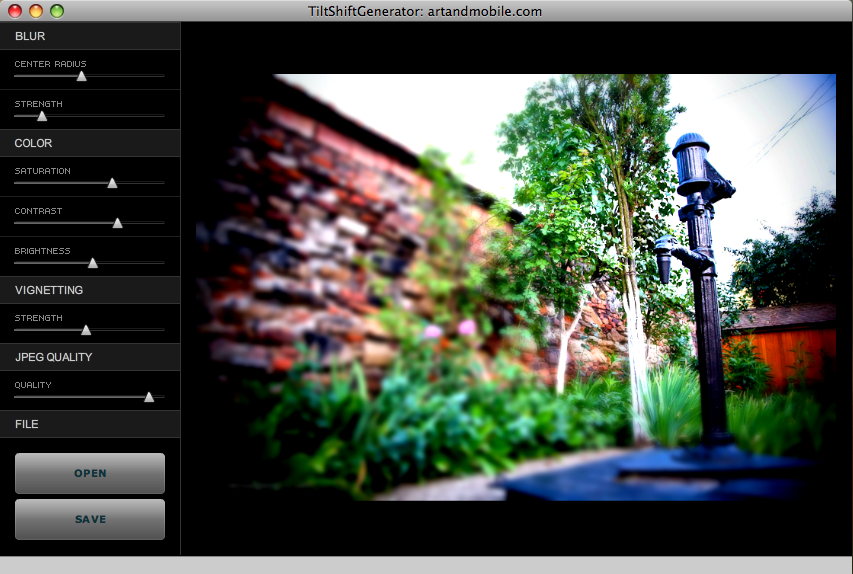
Then I exported it into TiltShift using the export preset set up as described above, and adjusted the settings there to get the effect I wanted. This is how the controls and the image looked inside TiltShift.

tiltshift-screenshot

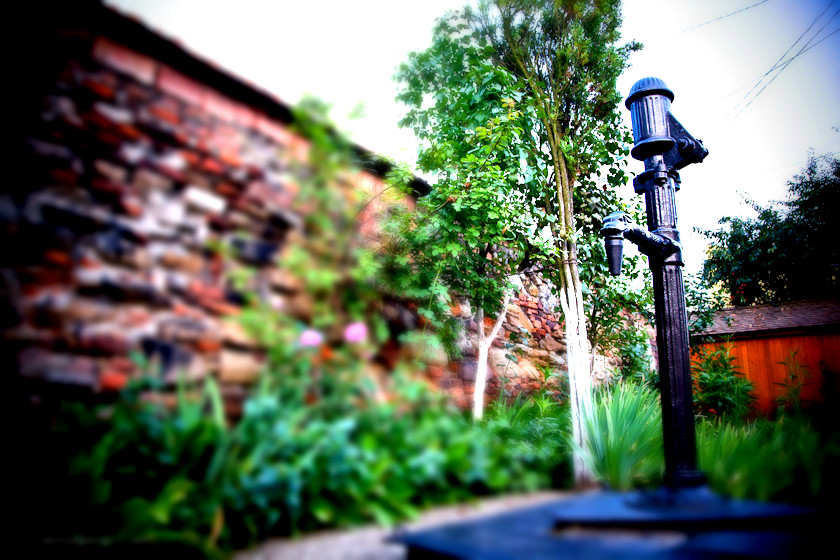
Once I did that, I saved the photo and uploaded it here. This is how the final image looks.

water-fountain-tiltshift

It couldn’t be easier, and again, let me remind you TiltShift is a free app.

[TiltShift home page] [Download TiltShift]

Standard
Reviews

Create tiltshift photographs on Mac, Windows and Linux, for free

Takayuki Fukatsu has created a free Adobe AIR app called TiltShift, which runs on any OS that supports AIR (namely Mac, Windows and Linux). It will allow you to easily apply tilt-shift effects to any photograph. Best of all, the price is right: it’s free. Even if this app cost $10 or $20, I’d still rather buy it than some Photoshop plugins that cost hundreds of dollars and do pretty much the same thing.

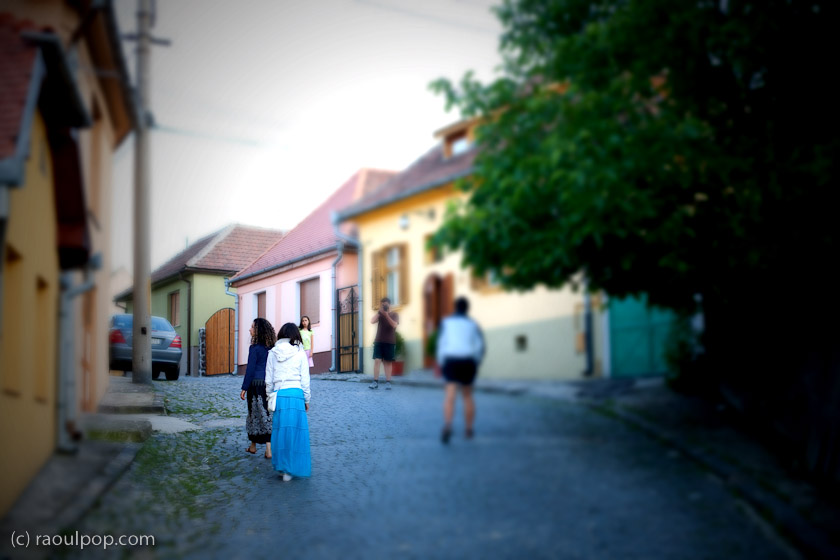
In less than a couple of minutes, I was able to open a photograph of my wife and niece, walking on the streets of Medias, Romania, and add tilt-shift effects to it. Here’s what it looks like now.

Ligia and Laura

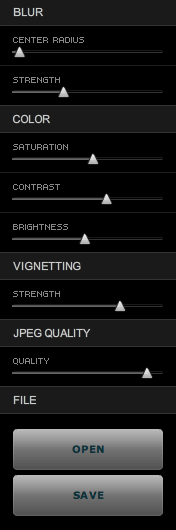
Sure, the tiltshift effect isn’t what you’d get with a LensBaby or with a real tilt-shift lens like the Canon TS-E 24mm f/3.5L (or any of the other professional tilt-shift lenses made by camera manufacturers), but still, it’s better than no effect at all, and it’s free. TiltShift’s controls are really slider-based and really easy to use. You’ll be making tiltshift photos in no time flat. Give it a go and see how you like it.

tiltshift-controls

I mentioned TiltShift initially in one of my Condensed Knowledge posts, back in May.

[Download TiltShift]

Standard
How To

Finally, an update for Apple's Bluetooth problems

Updated 8/26/09: It turns out the firmware update didn’t fix the Bluetooth issues. But OS X 10.5.8, which also came out recently, seems to have mostly fixed the problems. I still get the occasional Bluetooth connection error, but it’s nowhere near as often as before.

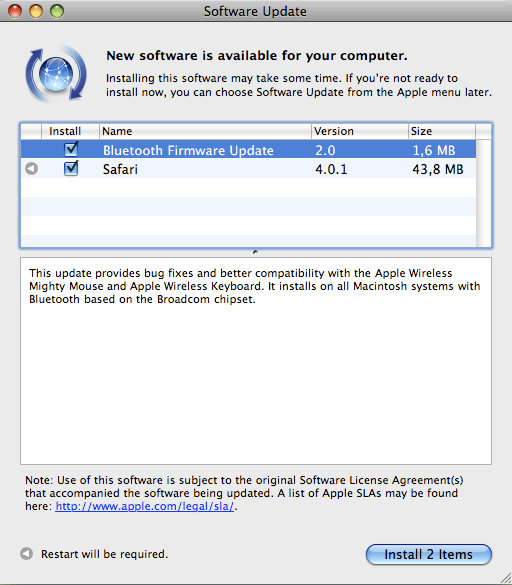
A software update noticed popped up on my MBP today, telling me Bluetooth Firmware Update 2.0 was available for download and install.

bluetooth-update-1

The update explanation says the following:

“This update provides bug fixes and better compatibility with the Apple Wireless Mighty Mouse and Apple Wireless Keyboard. It installs on all Macintosh systems with Bluetooth based on the Broadcom chipset.”

Finally! If you’re unfamiliar with the Bluetooth crashing problems on Mac computers, then you’re one of the few lucky ones. But the rest of us with late generation laptops like the MacBook Pro have had this issue for at least a few months now. This, for example, is just one of the many threads in the Apple Forums dealing with this persistent Bluetooth issue. On June 9, I’d had enough and vented on FriendFeed about it.

Basically, Bluetooth communications stopped working after a Mac was woken up from sleep mode, necessitating either a turn off/on cycle of the Bluetooth hardware, or another quick sleep/wake cycle. I for one didn’t have too many problems with the keyboard and mouse not working, but I did have a serious issue maintaining connectivity with my Nokia N95 via Bluetooth. My MBP kept refusing to connect to it, and I can’t remember how many times I removed and re-added it from my preferred Bluetooth devices. I even thought my N95 was to blame, until I tried turning Bluetooth off/on and realized my MBP could connect to it just fine after that.

From the looks of things, Apple’s been at work on a fix for the problem, and it’s now available for general install. So, by all means, download away and see if it helps you. I for one will be on the lookout for any more Bluetooth issues, to see if this firmware update has truly fixed the bug.

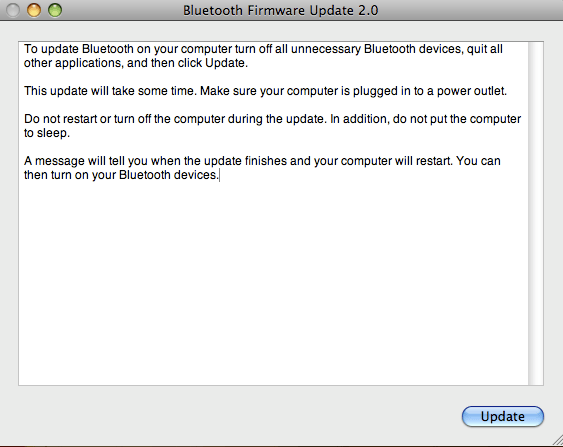
Before I close, I’d like to point out that even though a restart is not announced for the firmware update, you will most certainly need to restart your Mac. Once the Safari update installs, and your Mac restarts, the following dialog box pops up on the screen, informing you that the Bluetooth update will now begin, and your machine will restart once it’s finished. Just FYI.

bluetooth-update-2

Standard