How To

Connect two Drobo units to your computer at the same time?

➡ Updated 1/14/19: I have revised my opinion of Drobo devices. After experiencing multiple, serious data loss events on multiple Drobo models, even recent ones, I no longer consider them safe for my data.

One of my readers asked me a little more than a month ago if I could post some screenshots of the Drobo Dashboard with two Drobos connected at the same time. Sure, no problem. It’s easily doable, and the Dashboard software automatically differentiates between each of them and displays the proper stats for each, even if they’re name the same. I haven’t tried it yet, but you could probably connect three Drobos at the same time if you wanted to.

Here’s what the drive icons look like on my MBP’s desktop.
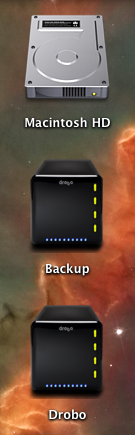
mbp-drive-icons

The main screen inside the Drobo Dashboard software will display buttons for each connected Drobo, allowing you to switch between them as needed.
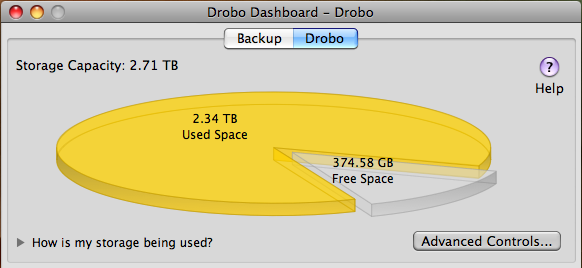
drobo-dashboard-drobo

drobo-dashboard-backup

As you can see, I need to either free up some space on my main Drobo or get some new drives. Using the Drobolator, it turns out I’d need to get two new drives (either 1.5TB or 2TB each) in order to see any increase in the available space.

The Advanced Controls screens inside the Drobo Dashboard show the drive layouts inside each Drobo.

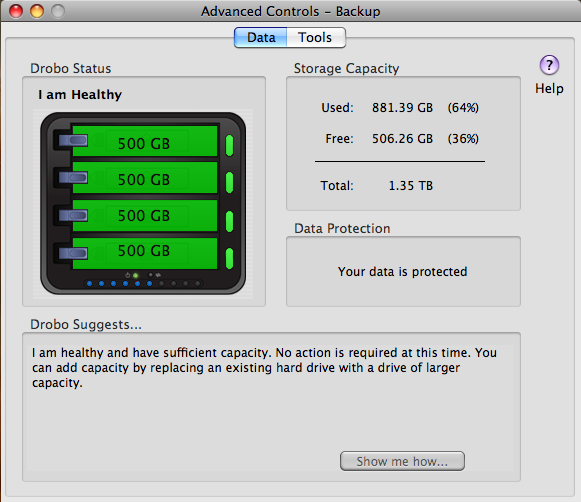
advanced-controls-drobo

advanced-controls-backup

I’d like to point out a possible bug in the Drobo Dashboard software while I’m at this. As you can see on the following screenshot, when I click on the Check for Updates button to see if there’s a firmware upgrade for my Backup Drobo, which is a USB-only unit, I get a message which tells me both the Dashboard and the firmware are up to date, when I know that the firmware is out of date, as you can see from the firmware version itself. I’ve often had to perform manual firmware upgrades to my Drobos, because I keep getting this message in error. I hope this bug can be resolved at some point.
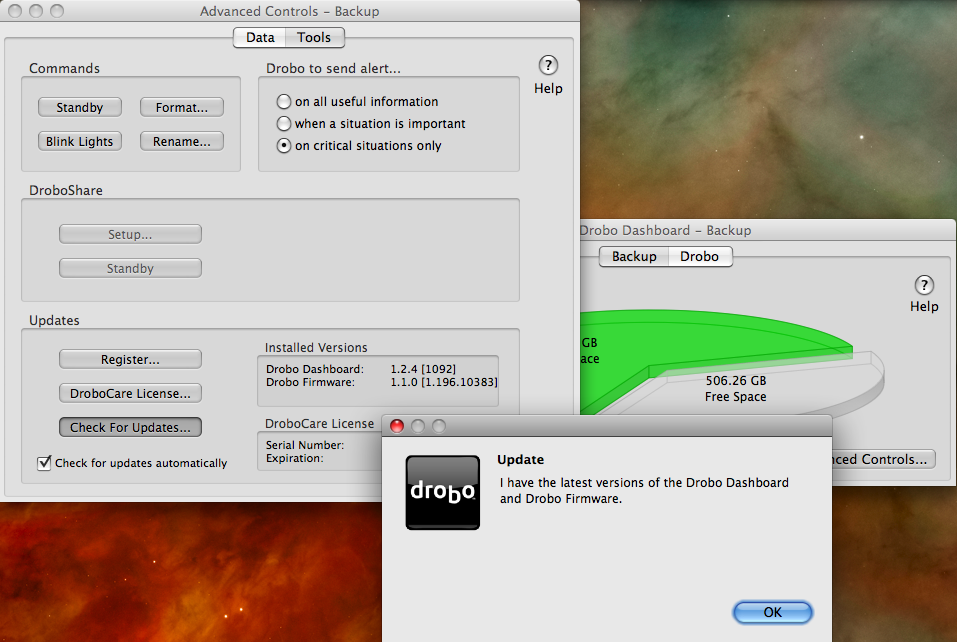
drobo-dashboard-check-for-updates-error

Other than that, the Drobo Dashboard software works as expected, and can work with multiple Drobo units as well. No problems there.

Update: After doing a manual upgrade to firmware version 1.2.4, the automatic check for updates from within the Drobo Dashboard worked, and when my Drobo rebooted, I was prompted to upgrade to 1.3.0. After an initial unsuccesful attempt, I was able to upgrade just fine. One less item on my to-do list. Good.

drobo-dashboard-new-firmware-notice

Standard
Reviews

Google Reader translates posts?

Yesterday morning, I added a new feed to my subscriptions in Google Reader, and noticed what I thought was a new feature: the ability to translate posts automatically, within GR. The feature was actually launched in November of last year, and it works through the normal drop-down menu. A new option was added there, and it looks like this:

Google Reader automatic post translation

Isn’t that cool? The translation technology used is the same one found in Google Translate. What’s also cool is how the languages are detected. I assume the translate option with GR uses the language setting saved in the GR settings or in the Google Account settings, and then it either uses the auto-detect capabilities built into Google Translate to figure out the language, or it looks at the language setting encoded within the feed itself.

Google Translate

It’s an incredibly useful feature, because it allows people to read blogs in other languages without worrying about copying and pasting the text into a separate translation tool. Just think, if I write a post in Romanian and publish it on my site, the auto-translation tool within GR will allow you to read it as if I’d written it in English! Granted, the translation is machine-generated so it won’t read fluently and might even miss a few meanings here and there, but it’s certainly better than nothing, which is what we had before.

I’d also like point out that if you’re reading articles on my site instead of the feed, I’ve recently added auto-translation capabilities to each post via the same Google Translate technology. You’ll have the option to translate any of my articles into several languages, by clicking on a particular language, right under any post title, as shown below. I hope this will prove useful to my readers from other countries.

Post header showing auto-translation capabilities

Standard
Reviews

Gmail offers another pleasant surprise

The Gmail team has done it again, and they’ve given Gmail users a whole slew of cool new features.

New Gmail features

We’ve now got YouTube, Picasa and Flickr previews, built right into each email message. All we have to do is to put a link to a YouTube movie, or a Picasa or Flickr photo, and its thumbnail shows directly in the message. This feature can be enabled by service from the Labs settings in our Gmail accounts.

I love the “Undo send” feature and have already enabled it. My wife is already using the Offline version of email. It took a bit to sync all her messages, but it’s doing alright now.

Other Gmail features I love are as follows:

  • Superstars, which adds additional stars icons. I organize emails that I need to act on that way.
  • Signature tweaks, which places the signature above quoted text
  • Right-side labels
  • Navbar drag-and-drop, which allows me to re-organize the various items on the Gmail screen
  • Forgotten attachment detector
  • Vacation Time, which lets me specify beginning and ending dates for those times when I can’t get to my email
  • Create a Document, which allows me to create a Google Document right from my Gmail inbox (this is new)
  • Send & Archive, which allows me to reply and archive that message at the same time (this is new)
  • Title Tweaks, which changes the order of the text in the Gmail page title, allowing me to see right away how many unread messages there are (this is new)
  • Google Docs gadget, which displays my most recent Google Documents on my Gmail inbox screen

There’s more information about the new features on the Gmail Blog, here and here.

Standard
How To

Firmware update available for WD TV

There’s a firmware update available for the WD TV. It’s version 1.01, and you can download it and install it right now from the WD website. A lot of issues were resolved. The complete list is available in the release notes.

Here’s a summary of the salient points:

  • Now you can update the firmware when using a drive larger than 500GB. You may think this is an unlikely scenario until you try to use a large storage device like the Drobo with the WD TV.
  • Better subtitle support (SMI, SUB, ASS, SSA, MKV) with user-selectable font size for subtitles
  • Disk volume name display in folder navigation; this was an annoying bug, as you couldn’t tell which drive you were browsing if you had two of them connected to the WD TV
  • Jump feature: while fast forwarding or rewinding, if next of previous buttons are pressed, the WD TV will jump 10 minutes forward or backward
  • EXIF orientation flag functionality for auto picture rotate. Thank goodness! It was really annoying to have to turn my head sideways or bother with the rotate feature every time a photo taken in portrait mode was displayed.
  • Display sizing menu for photo playback: fit to screen, full screen, keep as original
  • Resolved issue where WD TV would not turn back on with remote after extended period of inactivity; previously WD TV had to be unplugged and was unrecoverable with the remote
  • Added 1080p 24hz support
  • Resolved info bar display issues in PAL (European display standard) mode

It’s important to note that there’s still a known and unresolved issue, namely this: if the user unsafely removes an HFS+ formatted drive from the media player without using the Eject button, the drive will become read only media. I’m not sure when this will be resolved.

The installation instructions for the firmware are what one would expect them to be and fairly simple to follow. I’ll reproduce them for you here from the WD release notes for firmware version 1.01:

  1. Go to http://support.wdc.com and download the latest firmware update compressed file for your Media Player. (Here’s the direct download link for version 1.01.)
  2. Click “Downloads” then the product name (or photo).
  3. Extract the two files (.BIN and .VER files) to the root folder of a portable USB drive.
  4. Connect the USB drive to the HD media player’s USB port.
  5. Press HOME, and then select the Settings bar.
  6. Select the firmware upgrade icon, and then press ENTER.
  7. You are prompted to perform the firmware upgrade.
  8. Select OK on the firmware update prompt, and then press ENTER.  This will restart the system.
  9. After restarting, the system automatically enters firmware upgrade mode.
  10. Once the update process is completed, the HD media player will restart again.
  11. Once the HD media player restarts, the new firmware is automatically loaded.
Standard
Thoughts

The future is the past is the future

Back in late 2008, I heard of a technology that was touted as new: instant price matches, made available by scanning the barcode of a product in a store, through an iPhone app called Checkout SmartShop. I chuckled. This idea wasn’t new at all.

BarPoint

I worked for a company called BarPoint for a few months in 2000 or 2001, I can’t recall exactly. As you can see if you visit their domain name, it’s up for sale now. Back then, it was working just fine, and they were working hard to put together an online directory of products whose prices could be instantly matched from many stores. They even had gizmos with little barcode scanners you coud buy and carry with you to a store; they were little Palm PDAs outfitted with small add-on barcode scanners. These gizmos would connect back to the BarPoint servers via built-in dial-up modems, and would quote you prices from other stores.

BarPoint Wireless Devices

They had investors lined up, had cleared about two rounds of investing, had bonafide employees, etc. Unfortunately for them, it was the end of the dotcom boom. They were still burning through the cash and not generating any profits, because they didn’t get off the ground fast enough. I left as they started to cut employees. Other co-workers hung on through a company move from nice offices in downtown Ft. Lauderdale to a warehouse in Deerfield Beach (both in South Florida), and many efforts to revive the company. Things didn’t work out for them. You’re welcome to follow the site’s progress and slow death on the Internet Archive’s Wayback Machine.

What is obvious now is that they had two things going against them: the idea was ahead of its time, and the market crashed. Back then, this wasn’t so obvious. People thought the idea was cool and wanted to make it work. I thought it was cool and even thought they might somehow pull it together and start making profits, even after I left. I bought some stock in the company, only to watch its price sink to very near $0 over time.

The interesting thing about the iPhone is that it’s truly a game-changer. It penetrated the market quickly, and app development for it is so easy that you don’t need an army of people, like BarPoint did. You also don’t need to sell the devices, or worry that device adoption is reserved for a very small segment of the market. The iPhone is practically everywhere. I don’t even know if Kigi Software, the makers of the Checkout SmartShop, is a real company, or a dba name for one or two smart developers working from home. But that’s what’s cool about these times. The price for bringing an interesting product to the market is no longer prohibitive, like it was for BarPoint. Almost anyone can do it if they want to, nowadays. And the end product is something that kicks BarPoint in the rear quite effectively.

You simply enter the barcode into the iPhone using the numeric keypad, and you get instant price matches. Voila.

Enter UPCGet online price quotes

You can even find out where the product is being sold in other local stores, or read online reviews. It does everything the BarPoint product would have done if it could have gotten off the ground.

Get local storesGet reviews

Very nice indeed.

Standard