Reviews

Blackmagic Design Cinema Camera

When it launched a little more than a year ago, the Blackmagic Design Cinema Camera took the industry by storm. It is the first (and quite possibly still the only) 2.5K video camera under $5,000 able to use EF, ZE and MFT-mount lenses. It stores the video on SSDs, in 12-bit RAW format with 13 stops of dynamic range (unheard of in virtually all video cameras). It has both SDI video output and Thunderbolt, for super-fast video downloads to your editing station.

The Blackmagic Cinema Camera with EF Mount from Blackmagic Design brings to film makers a tool that many have waited for. Recording to a 2.5K image sensor, the camera is capable of recording 12-bit RAW DNG files, as well as ProRes and DNxHD formats to built-in removable SSD drives, while delivering 13 stops of dynamic range. And it does so at a previously unheard of price point.

The camera is housed in an elegant, minimalist enclosure, crafted from a single block of aluminum. It can be used hand held or mounted on industry standard hardware. The lens mount accepts Canon EF and Zeiss ZE lenses, and the LCD touchscreen provides monitoring, plus the ability for the user to add metadata such as shot number, filenames and keywords.

To handle the high data video output, the company includes a full version of DaVinci Resolve, its premier color correcting software for Mac and Windows. Also included is a copy of UltraScope. When connected to a computer via Thunderbolt, the software provides technically accurate waveform monitoring, displaying six live scope views on a single monitor.

Since everything has been designed to provide high quality acquisition, the camera is perfect for independent film, television commercials and episodic television production, all places where image quality is paramount. And being affordable, it will also find its way into wedding, sporting event and music video capture.

Dynamic Range

  • Captures a super wide dynamic range of 13 stops into 12-bit DNG files for a true “filmic” look
  • Preserves detail in both shadows and highlights, and even handles indoor shots while keeping the details of any images captured through windows
  • Allows for keeping all sensor data and enhancing the creative decisions during DaVinci Resolve color grading

EF Compatible Lens Mount

  • Supports optics from leading lens crafters such as Canon, Zeiss and many more
  • Compatible with EF, ZE and MFT-mount lenses
  • Allows full electronic control of the lens – simply point, set iris and focus on command

Capacitive Touchscreen Display

  • Five inch touchscreen allows for setting up a shot, as well as playback from the SSD using the transport control buttons below the screen
  • Enter shot data and update the camera’s settings using the capacitive touchscreen display
  • Double tap to zoom the image for fast and accurate focus
  • Data strip displays information including record status, shutter angle, ISO, battery level, record time and more

Metadata Entry

  • Features built-in metadata entry so that files include information compatible with popular editing software
  • Dramatically speeds up the whole post production process
  • Entering metadata is easy – simply tap the capacitive LCD touchscreen to display the slate where information can be entered including shot number, search tags, scene number, Timecode, and more
  • Set shot number and other data to increment automatically
  • Metadata is compatible with leading editing software and is fully searchable, bypassing the time consuming task of searching for specific shots when editing a project

SSD Recorder

  • Built-in SSD recorder uses low cost 2.5″ SSDs
  • Allows for 2.5K uncompressed CinemaDNG RAW 12-bit capture, as well as Apple ProRes and Avid DNxHD compressed video formats
  • Play back directly from the camera, mount the disk to any computer, or use Blackmagic Design’s HyperDeck Studio deck
  • With Apple ProRes and Avid DNxHD video formats, record for more than five hours on a single 480 GB SSD
  • All file formats conform to open standards used by most professional NLE software
  • When finished shooting, simply connect the SSD to a computer and edit or color shots straight from the disc

Connectors

  • Uses only standard connections, no custom cable required
  • Dual balanced microphone/line audio inputs for recording high quality uncompressed audio
  • 3 Gb/s SDI out for on set monitoring or for sending to live production switchers
  • Includes 12 to 30 VDC input for power and battery charging
  • Stereo mini (3.5 mm) headphone output
  • LANC remote control and high speed Thunderbolt port for computer capture

Open File Formats

  • Camera uses standard file formats
  • Recording native 2.5K resolution uses the open CinemaDNG format, delivering full 12-bit RAW recording quality
  • Choose 1080HD recording into ProRes and DNxHD compressed video formats for even greater compatibility

Included Software

  • Full DaVinci Resolve 9.0 software including Resolve USB dongle for Mac and Windows
  • Shoot wide dynamic range images and then make color correction decisions in post production
  • Media Express software for video capture from the camera’s Thunderbolt port
  • UltraScope provides technically accurate waveform monitoring
  • Connect the camera to any computer using Thunderbolt to display six live scope views on a single monitor
  • Use UltraScope on set or in any location for parade, waveform, vectorscope and histogram signal measurement
  • Includes picture view, audio level and phase monitoring

Buy it here: Blackmagic Design Cinema Camera with EF Mount

Or here: Blackmagic Design Cinema Camera with EF Mount

Standard
How To

How to create a Fusion Drive on a mid-2011 iMac

Yes, you can enable Fusion Drive on older Macs. I’m not sure how this method will work with Macs older than 2011, but I know for sure that it works on mid-2011 iMacs, and quite possibly on other Macs made since then. I have just completed this process for my iMac and I thought it would help you if I detailed it here.

I like Fusion Drive because it’s simple and automated, like Time Machine. Some geekier Mac users will likely prefer to install an SSD and manually separate the system and app files from the user files which take up the most space, which is something that gives them more control over what works faster and what doesn’t, but that’s a more involved process. Fusion Drive works automatically once you set it up, moving the files that are used more often onto the SSD and keeping the ones that are accessed less often on the hard drive. This results in a big performance increase without having to fiddle with bash commands too much.

The hardware

My machine is a 27″ mid-2011 iMac with a 3.4 GHz processor and 16GB of RAM. I bought it with a 1TB hard drive, which I recently considered upgrading to a 3TB hard drive but decided against, given the fan control issues with the temperature sensor and the special connector used on the factory drive.

imac-basic-specs

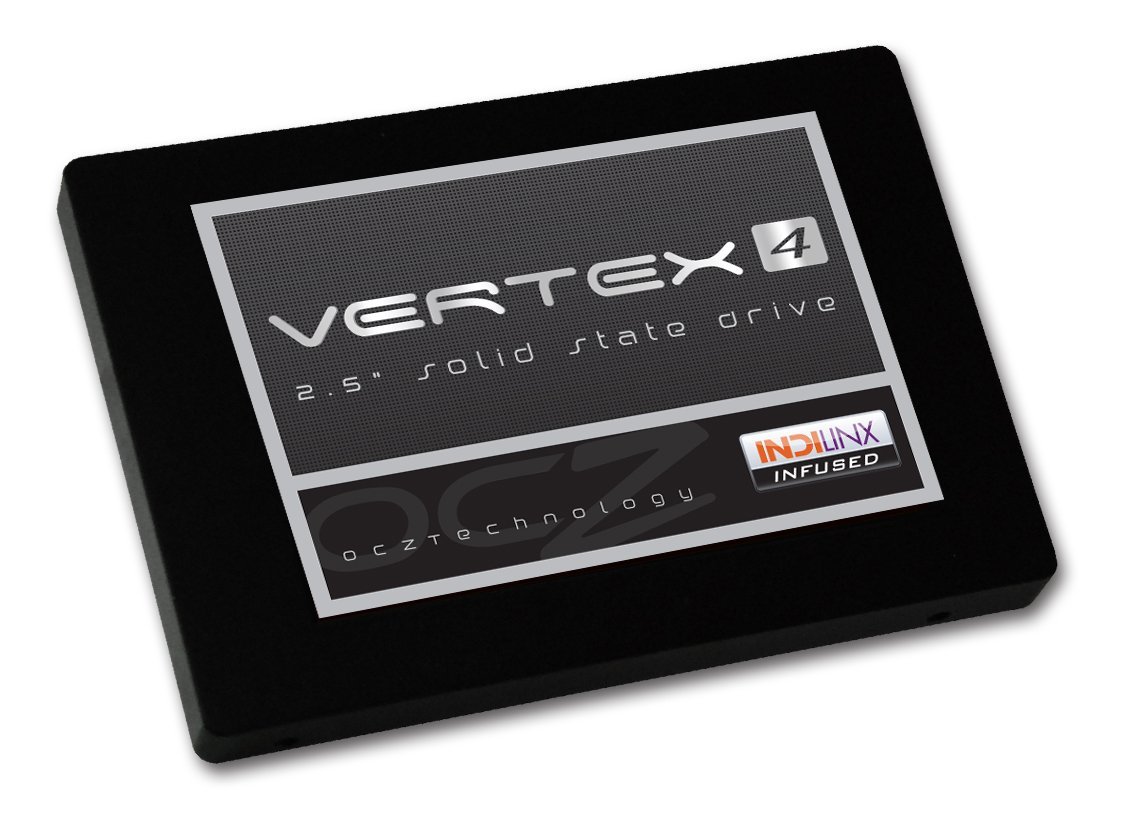
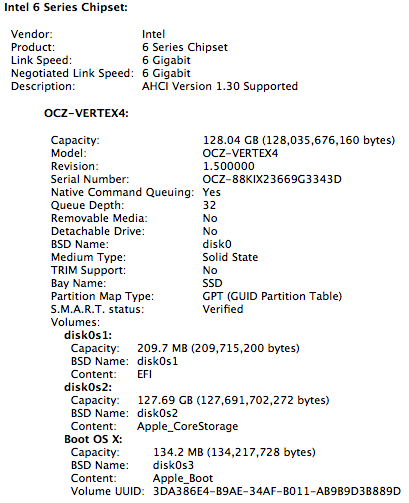
I purchased a 128GB Vertex4 SSD from OCZ. It’s a SATA III (6 Gbps) drive and when I look in System Info, my iMac sees it as such and is able to communicate with it at 6 Gbps, which is really nice.

ocz-vertex4-ssd-128gb

ssd-specs

The hardware installation is somewhat involved, as you will need to not only open the iMac but also remove most of the connections and also unseat the motherboard so you can get at the SATA III connector on its back. You will also need a special SATA wire, which is sold as a kit from both OWC and iFixit. The kit includes the suction cups used to remove the screen (held into place with magnets) and a screwdriver set.

2nd-drive-ssd-kit

You can choose to do the installation yourself if you are so inclined, but realize that you may void the warranty on the original hard drive if something goes wrong, and this is according to Apple Tech Support, with whom I checked prior to ordering the kit. Here are a couple of videos that show you how to do this:

http://www.youtube.com/watch?v=03Lg4IgJd04

In my case, it just so happened that my iMac needed to go in for service (the video card, SuperDrive and display went bad) and while I had it in there, I asked the technicians to install the SSD behind the optical drive for me. This way, my warranty stayed intact. When I got my iMac back home, all I had to do was to format both the original hard drive and the SSD and proceed with enabling the Fusion Drive (make sure to back up thoroughly first). You can opt to do the same, or you can send your computer into OWC for their Turnkey Program, where you can elect to soup it up even more.

The software

Once I had backed up everything thoroughly through Time Machine, I used the instructions in this Macworld article to proceed. There are other articles that describe the same method, and the first man to realize this was doable and blog about it was Patrick Stein, so he definitely deserves a hat tip. I’ll reproduce the steps I used here; feel free to also consult the original articles.

1. Create a Mountain Lion (10.8.2) bootup disk. Use an 8GB or 16GB stick for this, it will allow you to reformat everything on the computer, just to clean things up. Otherwise you may end up with two recovery partitions when you’re done. I used the instructions in this Cult of Mac post to do so. The process involves re-downloading 10.8.2 from the Apple Store (if you haven’t bought it yet, now is the time to do so) and an app called Lion Diskmaker.

2. Format both the original HD and the SSD, just to make sure they’re clean and ready to go. Use Disk Utility to do this, or if you’re more comfortable with the command line, you can also do that (just be aware you can blow away active partitions with it if you’re not careful).

2. List the drives so you can get their correct names. In my case, they were /dev/disk1 and /dev/disk2.

diskutil list

3. Create the Fusion Drive logical volume group. When this completes, you’ll get something called a Core Storage LGV UUID. Copy that number, you’ll need it for the following step.

diskutil coreStorage create myFusionDrive /dev/disk1 /dev/disk2

4. Create the Fusion Drive logical volume. I used the following command:

diskutil coreStorage createVolume paste-lgv-uuid-here jhfs+ "Macintosh HD" 100%

5. Quit Terminal and begin a fresh install of Mountain Lion onto the new disk called “Macintosh HD”.

6. Restore your apps, files and system settings from the Time Machine backup using the Migration Assistant once you’ve booted up. Here’s an article that shows you how to do that. When that completes, you’re done!

The result

Was it worth it? Yes. The boot-up time went from 45-60 seconds to 15 seconds, right away. And over time, the apps and files I use most often will be moved onto the SSD, thus decreasing the amount of time it’ll take to open and save them.

At some point, I expect Apple to issue a utility, like Boot Camp, that will allow us to do this more easily and automatically. Until then, that’s how I set up Fusion Drive on my iMac, and I hope it’s been helpful to you!

Standard
Reviews

Hardware preview: ioSafe SSD – fireproof, waterproof, crushproof and shockproof

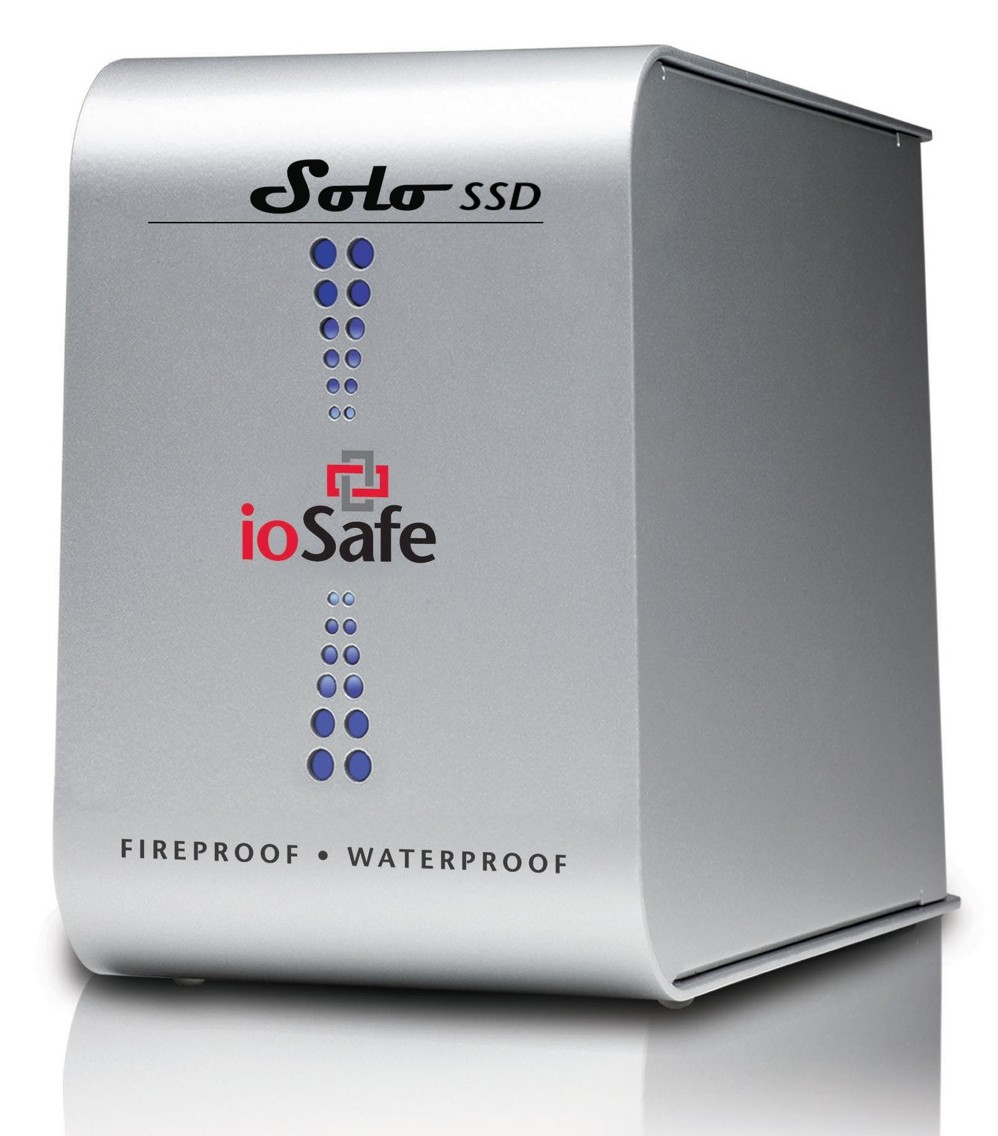
Back in September 2009, I wrote about the ioSafe Solo, a fireproof and waterproof drive. In January 2010, at CES in Las Vegas, ioSafe, the company behind these disaster-proof drives, launched a new product, the ioSafe Solo SSD.

It’s the same size as the ioSafe Solo, it looks the same outside, except for the branding, which now adds “SSD”, but inside, it’s a whole new ballgame. Instead of using a regular 3.5″ SATA drive, they’re using a 2.5″ Solid State Drive. This means they have even more spare space to play with when it comes to disaster-proofing the device — which they certainly did!

The ioSafe SSD isn’t only fireproof (same serious specs as ioSafe Solo), and waterproof (better specs than ioSafe Solo, now with full immersion up to 30 ft for 30 days with no data loss), but it’s also crushproof (5000 lbs, any axis with no data loss) and shockproof (20 ft drop into rubble, 1000g shock for 1ms with no data loss).

Here’s a video from CES where Rob Moore, the company’s CEO, burns the drive, then floods it with a firehose, then has it dropped from about 20 feet, then has it run over with a bulldozer. In the end, even though the enclosure gets destroyed, the data stored onto it remains perfectly safe.

Quoting from the press release:

“Combining ioSafe’s new proprietary ArmorPlate, a military grade steel outer casing with SSD technology, the new ioSafe Solo SSD adds unprecedented shock, drop and crush protection to the existing fire and water protection.

The ioSafe Solo SSD combined with ArmorPlate helps to protect data in a two story building collapse, 5000 lb. crush forces, 20’ drop into rubble and up to a 1000g shock. In addition the original HydroSafe™, FloSafe™ and DataCast™ work to keep the drive cool during normal operation and protect the data from fires up to 1550°F for 1/2 hour and complete water submersion of 30’ for 30 days in fresh or salt water. Like all ioSafe products, the ioSafe Solo SSD comes with ioSafe’s Data Recovery Service, a “no questions asked” policy to help customers recover from any data disaster including accidental deletion, virus or physical disaster.”

The specs say the ArmorPlate military-grade steel is 1/4″ thick. That’s mighty thick. It also makes the ioSafe SSD about 5 lbs heavier than the ioSafe Solo. It now weighs in at 20 lbs.

I wonder if the whole device could withstand bullets, because then it would make a perfect military storage device for use in conflict zones. For example, it could be placed in tanks, humvees and helicopters to store video, audio and coordinate information during patrols. And at 256GB for the largest size drive, it could store plenty of HD video, if the military should want to go in that direction.

But let’s not go into hypothetical situations. The ioSafe SSD can work for disaster recovery right now. Should your place of business burn down or fall down or be flooded, any data stored on the ioSafe SSD will be available to you immediately, as soon as you dig it out of the rubble. That’s a tangible advantage. You can simply add this drive to your server room, or put it in the CEO’s or CFO’s office, and let him or her back up important documents to it, knowing they’ll be there in case of a disaster.

The thought just occurred to me — do you know how they could make it better? If it’s meant to survive disasters and be buried in rubble, it needs a geo chip of some sort, so you can locate it with a proximity device. It could be something simple that beeps faster the closer you are to the drive, so you don’t have to dig through all the rubble to find it, should it come to that.

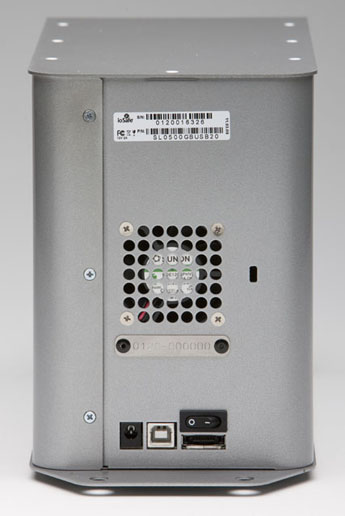
And there’s another goodie packed into the drive: an eSATA interface. This, coupled with an SSD, means you’ll get blazing fast write and read speeds. You can see the eSATA connector on the back, next to the USB and power connectors.

Pricing for the three different Solo SSD models starts at $499 for 64GB, $749 for 128GB, and $1250 for 256GB. It’s a bit steep, but then, SSDs are still expensive, and no other drive on the market (that I know of) offers this level of physical protection for your data.

Images used courtesy of ioSafe. You can see photos, videos, specs and more information about the Solo SSD on their website.

Standard
Thoughts

Predictions about computer drives in the future

72GB SanDisk SSD SATA 1.8"

On 1/16/09, Computer World published an article where the author paints a future full of SSDs. He puts forth the idea that drives will not only be replaced by memory chips, but that these memory chips will be integrated into the motherboard, doing away with the SATA interface. There are a number of things I don’t agree with in that article, and I’m not the only one who’s annoyed. Others have called out the author for his statements as well.

For one thing, let’s remember that computer memory once relied on chips integrated into the central circuits. Going back to that sort of approach would be like going back in time. Weren’t we supposed to progress, not regress? The advantages have to be truly worthwhile, and I’m not convinced.

A claim made in the article is that of increased speed: “By making the drive part of a system’s core architecture — instead of a peripheral device — data I/O performance could initially double, quadruple or more.” I love these nebulous claims, don’t you? It could double, quadruple or more. Hey, why not 8x faster? Maybe 16x faster? Let’s just inflate the numbers, it looks great on paper…

From my experience, I noticed that transfer speeds to flash memory vary tremendously — based on how much used space there is on the memory itself, or the file size. Larger files transfer much faster than smaller ones. Sure, in my experience, there was a SATA or USB interface in the way, but that doesn’t change what happens with the flash memory itself.

We should also keep in mind that flash memory is limited in the number of write operations it can take before it expires. On the other hand, regular hard drives have a much longer life span. I for one don’t want to be in a situation where I have to replace an expensive SSD on my laptop because I’ve saved one too many files and it has just gone belly up.

That brings to mind another issue: will these SSDs be soldered onto the motherboard, or can I pull them out and replace them as needed, like I do with RAM modules? I think you can readily imagine how inconvenient it would be to have to service your computer if its SSD is soldered onto the motherboard.

How about space on the SSD? What do I do if I want to increase the space on my drive? Do I have to buy another full SSD? I’d much prefer we had SSD bays, like RAM bays, where I could stick additional SSD modules to automatically increase the space, just like it works with RAM. A partitioning tool integrated within the OS should then allow me to resize my existing partitions and spread them over the newly available space, or to create another partition out of that space.

I keep hearing people say that 250GB or 160GB is plenty of space for your laptop. That’s nonsense. I’m always maxing out my laptop’s hard drive when I go on trips, because I fill it with photographs and videos which I then unload to my external storage when I get home.

I find that for my needs, a 500GB or 1TB laptop hard drive is what I need right now. At some point in the future, I may need more. I haven’t started working with HD video for example. I know that’s a tremendous space hog. I think a 1TB drive would be the minimum I would need if I started to work in that arena.

With SSDs, price is still an issue, and so is space, at least for now. I just don’t find it practical to spend money on SSDs at the moment, and I don’t think my opinion will change unless their prices and storage specs start to match those of regular hard drives.While we’re on the subject of price, where in the world did Gartner get their figure of 38 cents per gigabyte? That’s the figure quoted in the article. I’m sorry, Gartner, but you folks need to check your math. I came up with 9 cents per gigabyte recently.

On the other hand, I do understand that the additional interface between the motherboard and the hard drive is a bottleneck. If we can do something to speed that up, I’m all for it. But you’ve got to prove to me (and to other consumers out there) that your technology is affordable and reliable and offers tangible benefits other than tech media hype.

I’m also excited about the possibility of increasing drive space on a modular basis, where I simply put in more SSD modules in expansion bays on the motherboard, like I do with RAM. But there’s no indication that we’re heading in that direction from the article itself. Until we get to that point, I’ll still continue to think that SSDs are aimed at the wrong market segment. Not everyone is a MacBook Air-toting management type. The bulk of computer users out there need affordable technology with plenty of storage, well made, and reliable over 3-4 years or more. SSDs just aren’t there yet.

Image used courtesy of SanDisk Corporation.

Standard
Thoughts

Solid State Disks aimed at wrong market segment

People are making a big to-do about Solid State Disks (SSDs) like this one. While I agree a 128GB size is impressive for SATA-connected flash memory, they shouldn’t be marketed as replacements for regular laptop hard drives. Yes, I think HD damage due to drops is a valid reason to try and use SSDs, but they’re still flash memory: they have an inherently limited number of uses before they die. Hard drives last longer, especially ones made nowadays. They can handle more read/write cycles. And, the biggest thing of all, they more capacity, especially with perpendicular bit storage.

You know where I think SSDs would work great? As secondary storage in addition to a regular hard drive. They could figure as a secondary drive on laptops or desktops, and be used for storage of all sorts of things that don’t need to be stored on the drive itself or that get fragmented quickly, like the page file, or the scratch disk in Photoshop. They could also be used to hold all of the temp files that the operating system generates. While you’re working on a file, say a Word document, the OS should store it automatically on the SSD, then transfer the saved document to the hard drive when you hit Save. Things like this could really help cut down on the HD fragmentation.

The SSDs could also be used to store vital OS files that are needed for boot-up (as was suggested a couple of years back, when flash storage was still too expensive and small). That way, computers could potentially start up instantly. The regular files would be stored on the HD, of course. But to say SSDs are hard drive replacements is a stretch. Their application as such, while suited for certain environments and laptops like the Panasonic Toughbooks, military equipment, or media players like the iPod, is ill-suited for regular laptops and computers, where storage needs are growing exponentially.

We should really focus our efforts on developing bigger, quieter hard drives for laptops and desktops, not on replacing them with expensive flash memory of unproven long-term reliability.

Standard