How To

Switch drive packs between two Drobos while keeping your data safe

Updated 1/14/19: I have revised my opinion of Drobo devices. After experiencing multiple, serious data loss events on multiple Drobo models, even recent ones, I no longer consider them safe for my data.

Sometimes you’ll need to switch your drive packs (the set of drives that sits in a Drobo) between two Drobos. Or say you’re using two drive packs on the same Drobo. How do you switch the two packs safely, to ensure you lose none of your precious data?

That’s the question I asked myself a couple of days ago, when I found that I needed to interchange the drive packs between my 2nd Generation (FW800) Drobo and my 1st Generation (USB 2.0 Drobo). I’d expected this move for a while, as I hinted to it in a recent post entitled “What’s on your Drobo“. It has to do with my photography workflow, and if you’d like to read through the rationale, you’re welcome to check out that post.

So, what’s involved?

  1. Safely shut down the Drobo(s)
  2. Disconnect power and FW/USB cables
  3. Take out disk pack as a whole from one Drobo
  4. Insert disk pack as a whole into another Drobo (or same Drobo, as the case may be)
  5. Connect FW/USB cables
  6. Connect power cables
  7. Boot up the Drobo(s)

I’ve put together a video demonstration of the process, which you can watch below or on YouTube. This was unrehearsed, and it’s not something I did before, so there was a fair bit of related anxiety. I rely very heavily on my Drobo units for data archival, and I don’t ever want to lose any of my data. Thankfully, everything went smoothly, and things are working great!

The detailed steps involved in the process are listed in two tech notes on the Data Robotics website:

  1. How do I safely shut down my Drobo?
  2. Can I move my disk pack from one Drobo storage device to another?

I need to add here that drive packs aren’t interchangeable between all Drobo models. You’ll need to read carefully through that second tech note listed above to make sure you don’t unintentionally corrupt your Drobo volume by putting the pack in an incompatible Drobo device.

If you’re wondering why one ought to bother to switch data packs, the decision needs to be made on a case-by-case basis. In my situation, the alternative would have been a manual copy of the data, which would have taken days, since I work with terabytes. Switching the drive packs took 15-20 minutes altogether (reading through the tech notes, emailing Drobo Support to ask them a question, and actually doing it). The trade-off, if I hadn’t done things correctly, would have been costly and possibly irreversible data loss. Fortunately, things went according to plan!

Standard
Reviews

Hardware preview: Drobo FS

Updated 1/14/19: I have revised my opinion of Drobo devices. After experiencing multiple, serious data loss events on multiple Drobo models, even recent ones, I no longer consider them safe for my data.

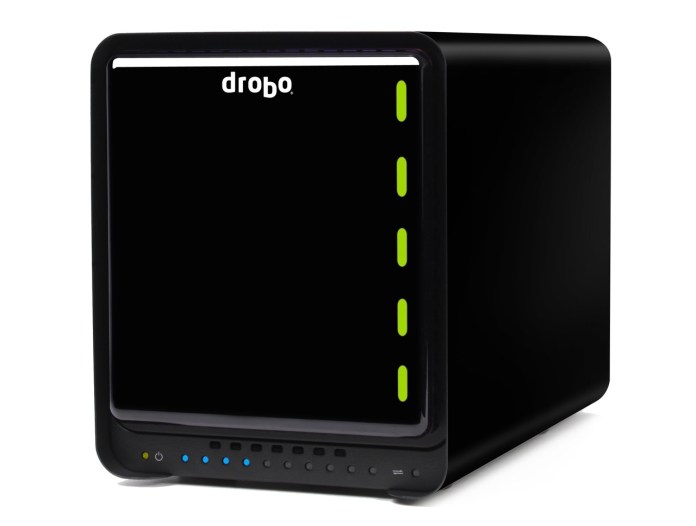
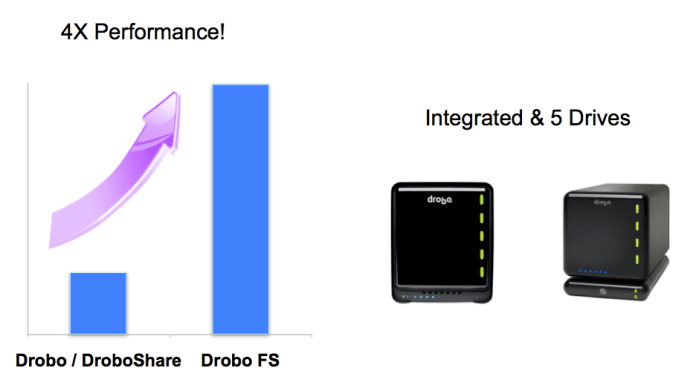
As of today, the Drobo product lineup has a shiny new device: a network version of the Drobo S, called Drobo FS — a NAS device. Its performance is up to 4x greater than that of a DroboShare, which is going to be discontinued. The Drobo FS is a natural at shared file storage, network backup and private cloud applications. You’ll be able to manage it through the Drobo Dashboard application, which will detect it automatically once it’s plugged into your network.

New Drobo Line-up

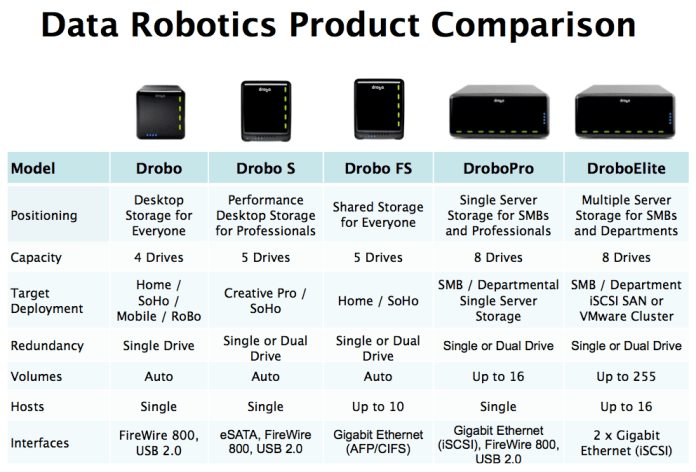
Here’s how the Drobo product line-up is going to look from now on, sorted in ascending order by US list price (at time of writing):

  1. Drobo, 2nd Gen (2 x FW800, 1 x USB 2.0) $399
  2. Drobo FS (1 x Gigabit Ethernet, AFP/CIFS/SMB) $699
  3. Drobo S (1 x eSATA, 2 x FW800, 1 x USB 2.0) $799
  4. DroboPro (1 x Gigabit iSCSI, 2 x FW800, 1 x USB 2.0) $1,499
  5. DroboElite (2 x Gigabit iSCSI, 1 x diagnostics-only USB 2.0) $3,499

If know which model to get and are looking for a great deal, you can find the Drobo for $335, the Drobo S for $699, the DroboPro for $1,199 and the DroboElite for $3,495. The Drobo FS isn’t listed for sale yet at online retailers.
Details and Thoughts

The Drobo FS is an all-in-one file serving solution — hence the FS moniker. It’s a plug-and-play file sharing system that gives you the performance and self-healing data safety of the Drobo S, in a NAS package. It’s a 5-drive unit with a single Gigabit Ethernet port that supports Jumbo Frames, AFP, and CIFS/SMB, so it’s compatible with OS X, Windows and Linux. It runs on a dual-core processor — the same processor used in the DroboPro. In the Drobo FS, one core does the Drobo BeyondRAID stuff and the second core runs Linux and — this is the neat part — whatever DroboApps you decide to install on it.

It’s simple and safe data sharing, because, just like the Drobo S, it protects against two hard drive failures, not just one. It can also be customized through third-party DroboApps, which can turn it into a remote file sharing solution, a cloud storage solution, a media server or pretty much anything you’d want a NAS device to do.

DroboApps available at launch are:

  • Wake-on-LAN
  • NFS
  • iTunes compatible media server
  • UPnP/DLNA media server
  • BitTorrent client
  • Web/HTTP server
  • FTP server
  • rsync server
  • SSH client
  • DroboApps Admin Utility
  • and more, including this next app…

Data Robotics has partnered with a company called Oxygen Cloud, which has written an app that turns the Drobo FS into a “personal cloud”. No matter where you are in the world, you can map your Drobo FS to your laptop and access the files you’ve placed on it over a WAN connection between you and the Drobo, handled by the OxygenCloud app. You can set varying levels of access and give multiple users the ability to access various file sets. The app promises to be intuitive, easy-to-use, and to provide fine-grained controls for data access. It also provides a gateway for cloud backup to either a second Drobo FS or a cloud storage provider like Amazon, Mozy or RackSpace. The app is still in beta, will be released in May, is going to be free for a single user and will have a licensing cost for multiple users.

Keep in mind though that the quality of the WAN connection depends entirely on the quality of the broadband connection you’re using to connect to the Drobo. If, like me, you’re on a 30 Mbps fiber optic connection, you should have very little latency, but if you’re sitting at a crowded hotspot somewhere, tied into a 2 or 3 Mbps asymmetric connection that only gives you 512-768 Kbps upstream, then you’ll experience a fair share of latency. In other words, you’ll double-click on a file that sits on your remote Drobo, which is on another continent, and it’ll take a bit of time until it’s read and opened by your laptop. Just FYI, so plan accordingly.
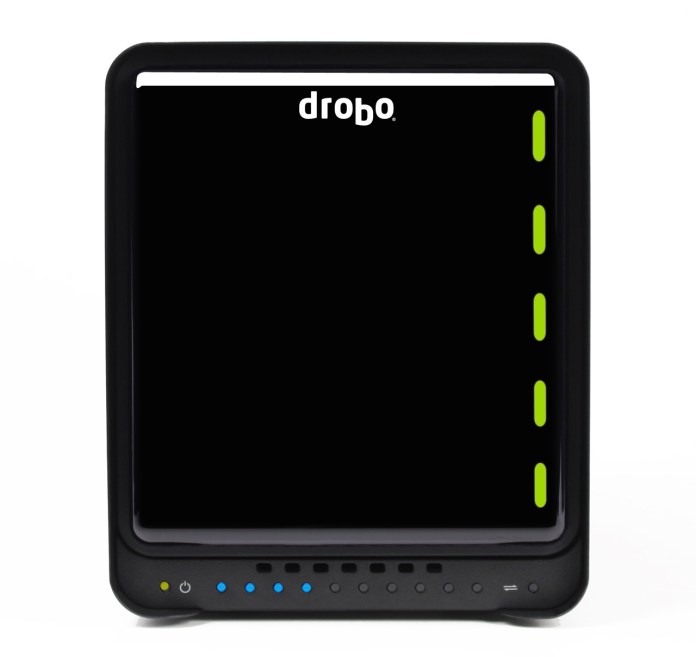
On the front and sides, the device is identical to the Drobo S. Of course, I think it’s beautiful. Gorgeous, actually. On the inside, it’s got 5 drive bays, once again, same as the Drobo S.
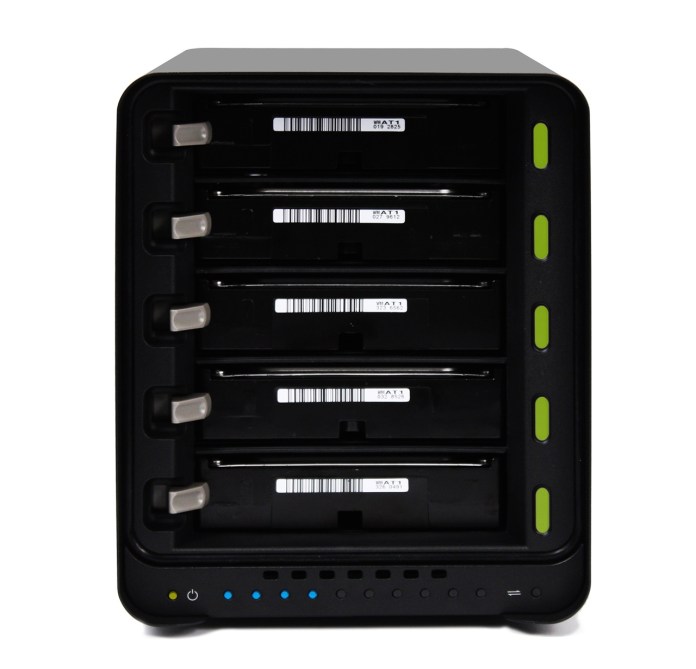
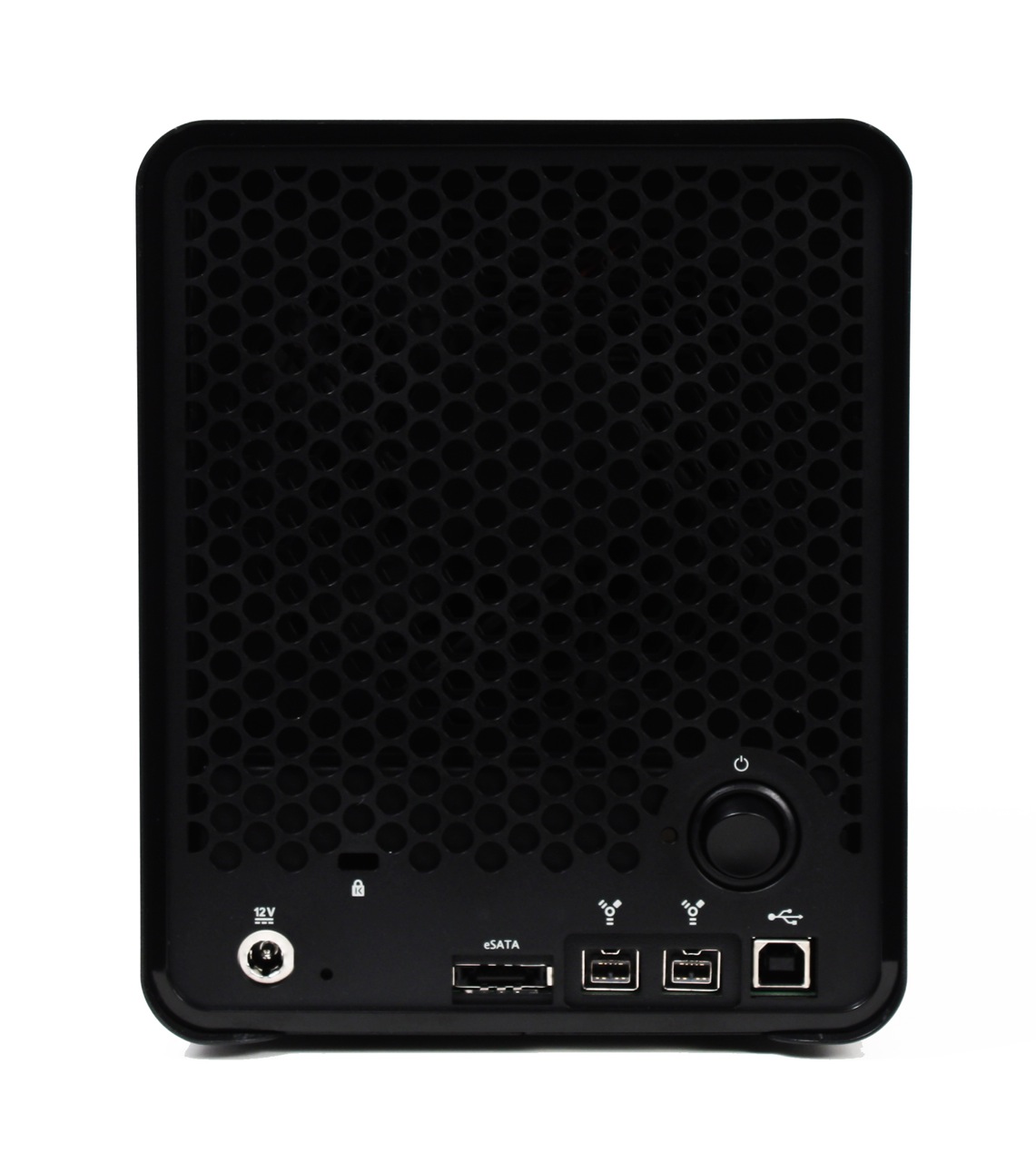
Only the back is different. Whereas the Drobo S has four interface ports on the back (1 x USB 2.0, 2 x FW 800, 1 x eSATA), plus the power supply connection, the Drobo FS has a single Gigabit Ethernet port and the power supply connection.
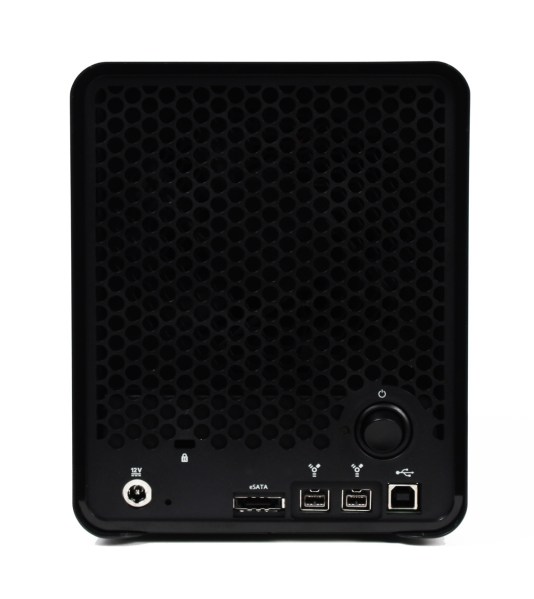
I am very glad to see that it has a power switch. I would have liked to see one on the regular Drobo as well. Who knows, perhaps at some point in the future, it’ll happen. I do think it’s important to have a less expensive, entry-level Drobo, so I hope the base model stays in the lineup for some time to come. I’m also glad that, as I predicted when I reviewed the Drobo S, the same design language was used for the Drobo FS. I like this maturation of the original language, and I look forward to seeing it translated in the enclosures for the DroboPro and DroboElite in the future.

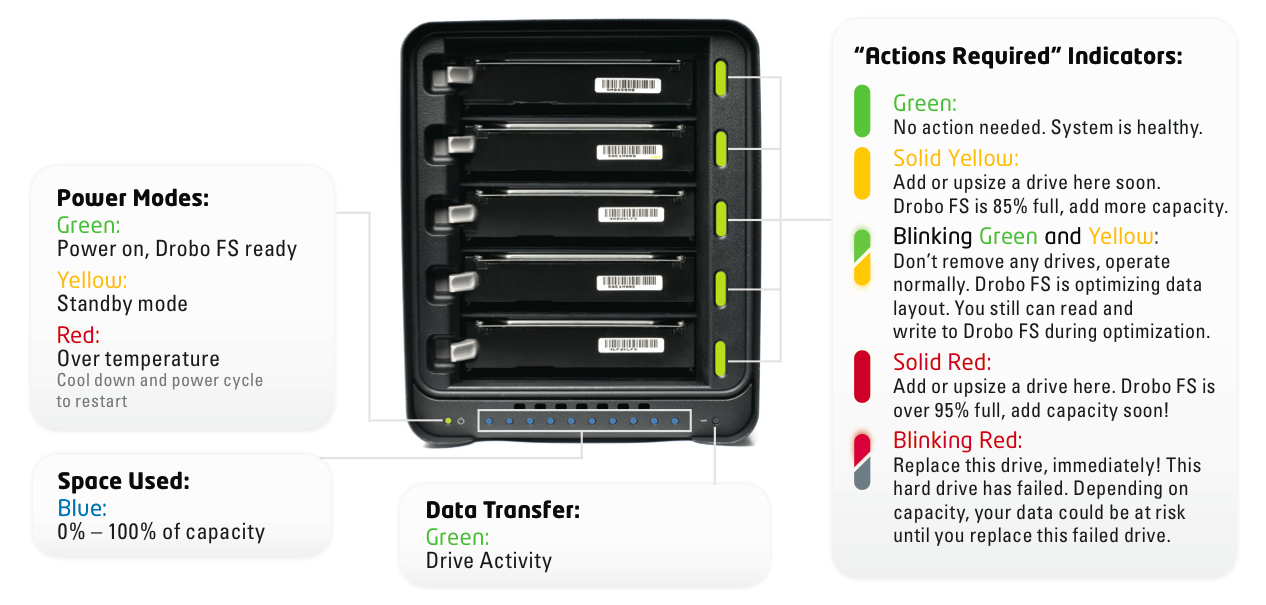
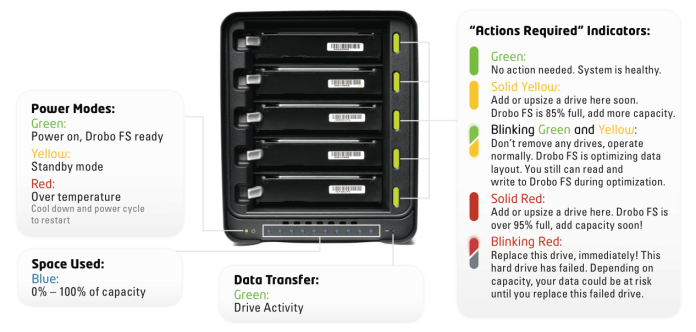
For reference purposes, I’m including the indicator chart for the Drobo FS here. It’s also available in the Drobo FS Data Sheet. It’s standard stuff if you’re already used to the Drobo S, but it differs a bit from the regular Drobo, as that model only has single-light indicators which don’t light up in half-half colors.
The Drobo FS formats the drives using the EXT3 file system, but you won’t need to worry about that. You won’t be asked to format the drives or to choose what file system you want for it, because it’s a NAS device, and it can talk to your Mac, PC or Linux box without any problems. You simply put drives into it, it’ll format them by itself, and share the volume onto your network. Easy as pie.

You can have up to 16 shares on the Drobo FS, and up to 32 users connected to it at any one time, though Drobo recommends up to 16 users as the optimal number for proper performance. This should be plenty for busy professionals or small businesses and workgroups, which together with consumers are its intended target users.

Since it’ll work over both wired and wireless networks (once you plug it into a router, naturally), I asked Data Robotics what sort of typical uses people can expect out of it. File sharing, such as documents, presentations, spreadsheets would be no problems at all, and that goes without saying. I asked, for example, if movie playback would be a problem. Not at all, they said, with one disclaimer: if you’re on a WiFi network, make sure it’s a WiFi-N network. This is not a limitation of the Drobo FS, which can offer maximum read performance of around 50-55 MB/sec (with Jumbo Frames), but a limitation of the bandwidth of a WiFi-G network. So that’s really neat!

There is one use they don’t recommend for it though: editing movies. Because it’s a network device, and certain video codecs have very particular performance requirements, official word from them is that people should get a Drobo S or a DroboPro for that. They say, and I quote, “unless a person is very, very familiar with video codecs and their performance requirements, they should not use the Drobo FS for video editing”. Furthermore, and this is very important, “if you want to use Apple’s ProRes (any of their family of 5 codecs), DO NOT try to edit video on a Drobo FS”. So please keep that in mind.

Performance-wise, it’s much faster than a Drobo + DroboShare combo (about 4 times faster), with sustained throughput of 30-40 MB/s. Data Robotics recommends that new buyers check for firmware updates, as they’ve made a number of improvements to the Drobo FS firmware since preparing the units for the first shipments. For comparison purposes, the sustained throughput you get from a Drobo S is 70-90 MB/s when using the eSATA connection.

The Drobo FS gives you about 75% of the performance of a DroboPro, which uses iSCSI. The extra 25% performance is eaten up by the overhead of translating everything for the file sharing protocols (AFP and CIFS/SMB). That’s not a Drobo-only limitation. That’s what happens on any device that has to deal with typical file sharing protocols — they slow things down.
Another neat feature of the Drobo FS is that it will give people the chance to choose a range of time after which the drives will spin down. Those who are concerned with energy use can opt for something like 5-10 minutes, while those who need performance can opt to only spin them down after 30 minutes or 1 hour of inactivity, or more. With the DroboShare, this option wasn’t available, but there was a DroboApp you could install that would periodically write and erase a few bits of data to the drives in order to keep them from spinning down.

Specifications

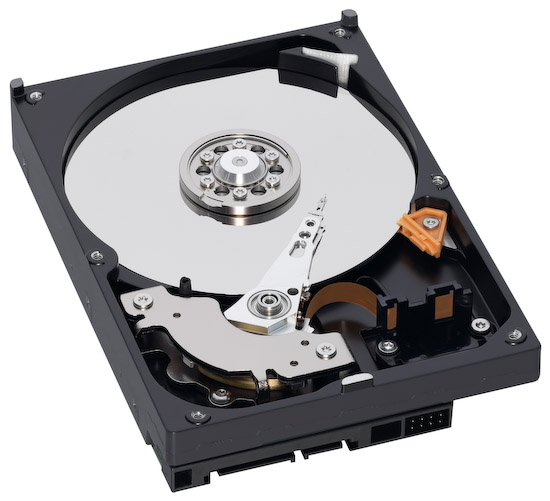
  • Drives: Accommodates from one to five 3.5” SATA I / SATA II hard drives of any manufacturer, capacity, spindle speed, and/or cache. No carriers or tools required.
  • Interface: 10/100/1000 Ethernet Port
  • Supported data transfer protocols: AFP and CIFS/SMB
  • Dimensions: 5.9” wide x 7.3” tall x 10.3” long
  • Weight: 8 lbs. (without power supply, hard drives or packaging)
  • Includes: Drobo FS, CAT 6 Ethernet cable, external power supply (100v-240v) with U.S. 110v power cord, User Guide and Quick Start Card (printed), Drobo Resource CD with Drobo Dashboard application, help files, and electronic documentation.
  • System Requirements: Apple Mac OS X 10.5.6 or greater; Microsoft Windows 2003, 2008, XP, Vista, Windows 7; Unix/Linux client that can connect via CIFS/SMB

Pricing

Suggested retail prices for the Drobo FS are as follows:

  • Drobo FS, base configuration: $699
  • Drobo FS + 4.5 TB bundle (3 x 1.5 TB drives): $999
  • Drobo FS + 7.5 TB bundle (5 x 1.5 TB drives): $1,149
  • Drobo FS + 10 TB bundle (5 x 2 TB drives): $1,449

Images used courtesy of Data Robotics. The Drobo FS will be available from major retailers such as Amazon, B&H Photo, NewEgg, CDW, Synnex, Bell Micro, Ingram Micro and datarobotics.com.

Standard
Thoughts

Storage drops below 7 cents per gigabyte

In January of 2009, I mentioned the price of storage had just dropped below 9 cents per gigabyte. I see now that 2 TB drives are selling below $150 (they’re $140), so it’s time to update my figures. At $139.99 for a 2 TB (2,000 GB) SATA hard drive, that comes out to less than 7 cents per GB. That’s a great deal, and it goes without saying that it’s the lowest price for data storage consumers have ever seen.

Updated 4/19/10: Micro Center is selling 2 TB Seagate SATA drives for $119.99. It’s an in-store special, with a one drive per household limit, but still, that makes it 6 cents per gigabyte. What can I say — expect the price to keep dropping…

On the downside, it seems hard drive manufacturers have hit a ceiling with 2 TB drives. I haven’t heard talk of 3 or 4 TB drives, or anything larger than that. Perhaps I haven’t been keeping up with storage news properly, so if you’ve heard some good news, do let me know!

Standard
Reviews

CrashPlan works for transatlantic backups

Updated 11/01/16: I’ve revised my opinion of CrashPlan. See here for the details.

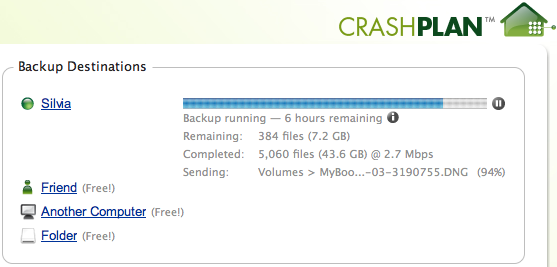
Last week, I wrote an article called “What’s On Your Drobo“, and in it, I mentioned that I was going to try to use an app called CrashPlan to do backups from my photo library in Romania to my backup location in the US. I’m happy to say that it works as expected, and no, this isn’t an April Fool’s joke. Here’s a screenshot of an active backup. At the time, I was getting 2.7 Mbps throughput.

There is a bandwidth bottleneck somewhere, though I’m not sure where it is. My broadband connection in Romania sits at 30 Mbps up and down, as I mentioned here, and my parents’ broadband connection clocks in around 16 Mbps down and 4 Mbps up. Theoretically, since I’m uploading and they’re downloading, I should be getting at least 15 Mbps, but I’m not. So it looks like there’s either a bottleneck as my data exits Romania, or as it goes through the transatlantic fiber optic cables. If someone can chime in on this, I’d love to find out more. I do know that I hit that same 2.5 Mbps ceiling as I upload to SmugMug, YouTube and blip.tv.

Bottlenecks aside, I’m just happy I can do off-site backups, and at least given my current setup, it’s free! CrashPlan works as advertised! I have to admit I was a skeptic when I downloaded it and installed it. I figured it would work on the local network, which is where I did the initial backups, but it would surely run into some firewall issues when I tried it from another location. Nightmares of re-configuring my parents’ firewall remotely flashed before my eyes… Amazingly enough, I didn’t have to do any of that! It just works!

So, if you’re interested in doing this sort of thing, download CrashPlan (it’s multi-platform), install it on both computers where you want to use it, configure it (use the help section), test it, then let it do its thing!

One thing I need to mention is that if one of the computers falls asleep, the backup will be paused until it wakes up. Even though I set my parents’ iMac to wake up for network traffic, CrashPlan doesn’t seem to be able to wake it up when I try to start the backup from my end. Keep that in mind and plan your backups accordingly.

Standard
How To

What’s on your Drobo?

Updated 1/14/19: I have revised my opinion of Drobo devices. After experiencing multiple, serious data loss events on multiple Drobo models, even recent ones, I no longer consider them safe for my data.

The folks at Data Robotics put together a short video that showcases Drobo owners talking about what they store on their Drobos, and asked their Twitter followers what’s on their units.

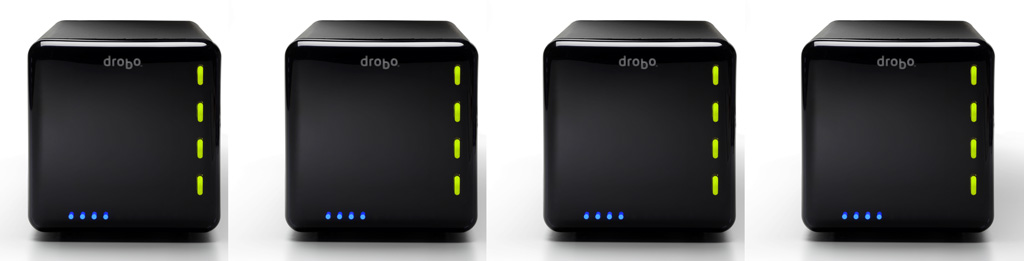
That got me thinking about what I store on my Drobos. I have four Drobos in total: three 1st Gen Drobo units (USB 2.0 only) and one 2nd Gen Drobo (Firewire 800 + USB 2.0). Perhaps that makes me a bit unusual. Most people have one or two units, not four. But there’s reason to the seeming excess.

For one thing, I have a huge photo library. (You can find the photos I edited and published here.) For another, my wife and I have a huge video library. These are movies and cartoons we had on VHS tapes, which we digitized, or on DVDs, which we archived for easy viewing, or TV shows and movies that we recorded from TV. We’re big fans of classic movies and cartoons from the 1920s, 30s and 40s, and we collect all the ones we like. We also digitized most of our old paperwork. My medical records are all digital. So are my dental records. So are a bunch of our other documents. I scanned all the stuff I could scan, and now when I need to look something up, it’s right there at my fingertips. I’ve also started shooting video more intensively this past year, in SD and HD. (You can find my published videos here or here.) All that stuff takes a fair amount of space — terabytes to be more precise. And to top off this whole list, we live our life on two continents (North America and Europe).

Here’s what I do to make sure I don’t lose my data:

  1. I keep a Drobo with my parents, at their place. On it, I store a backup of my photo library and our video library, along with their files. I back up my live photo library to it using CrashPlan, a piece of software that will let you back up your data to a friend’s machine. I’ve actually just started using it, and while I’ve been able to back up just fine with both machines on the same network, being able to do it from thousands of miles away will be a litmus test of the software’s capabilities. I’ll be sure to write about it if it proves workable. The video library gets backed up every once in a while in a pretty simple manner: I carry movies and videos to them on a hard drive and copy them onto the Drobo. Updated 4/21/10: CrashPlan does indeed work as advertised!
  2. I keep two Drobo units at our home. On one of them, I keep our video library, and an extensive, historical file archive. On another, I keep a mirror copy of my live photo library, which is currently stored on a WD Studio drive, because it’s smaller and easier to transport than a Drobo, and I do a fair bit of traveling. I mirror my photo library with an app called Synkron, which works great. I switched to the WD Studio when I started traveling extensively and realized the Drobo couldn’t always fit safely into my luggage. (Where oh where is that Drobo carrying case I wrote about last year?)
  3. I gave the fourth Drobo to my brother, who needed a solid data storage device to begin to archive his ever-growing library of ethnological videos. He’s a documentary filmmaker who travels around Romania studying and recording religious and secular customs, which are being forgotten and buried along with the old folks. He wants to preserve these things for posterity. You can learn more about what he does at his website, called ORMA.

So that’s how I use my Drobos. However, I’ll have another logistical issue to deal with in the near future. I’m running out of space on the WD Studio drive, which has 2 x 1 TB drives in it. I run it in RAID 1, and in another month or two, it’ll be completely full. I’ll need to start using one of my Drobo units as my primary photo editing/storage device again. This means I’ll shuffle all my data around once more. A possible new arrangement will see me using the 2nd Gen Drobo for the storage and editing of my photos and videos, and the other for the storage and retrieval of our video library and historical file archive, while the WD Studio drive will see some backup duty or be relegated for travel-only purposes.

The current drive distribution among the three Drobos I use actively is as follows:

  • 2 x 2 TB drives + 2 x 1 TB drives in the Drobo that stays with my parents
  • 4 x 1 TB drives and 4 x 500 GB drives, respectively, in the two Drobos that are with us
  • I can’t speak for my brother, but I believe he’s using 4 x 1 TB drives in his Drobo

I’d love to hear how you are using your Drobo. Perhaps you have some ideas for me?

Image and video used courtesy of Data Robotics. The 2nd Gen Drobo is available for purchase from Amazon or B&H Photo. The 1st Gen Drobo has been discontinued as of 2009. Be sure to also check out my reviews of the Drobo S, DroboPro and DroboElite.

Standard