The show is in Romanian, but we’ve got English subtitles for all you wonderful English speakers out there. And of course we’re filming in HD, so you can see all the little intricacies of the art, as my wife demonstrates them for you.
This won’t be a weekly show — we’re thinking something along the lines of monthly or sometimes twice a month — but we’ll do our best to make it a more or less regular show.
Stay tuned, I plan to launch a show of my own as soon as I can dig myself out from under all this work I’ve made for myself…
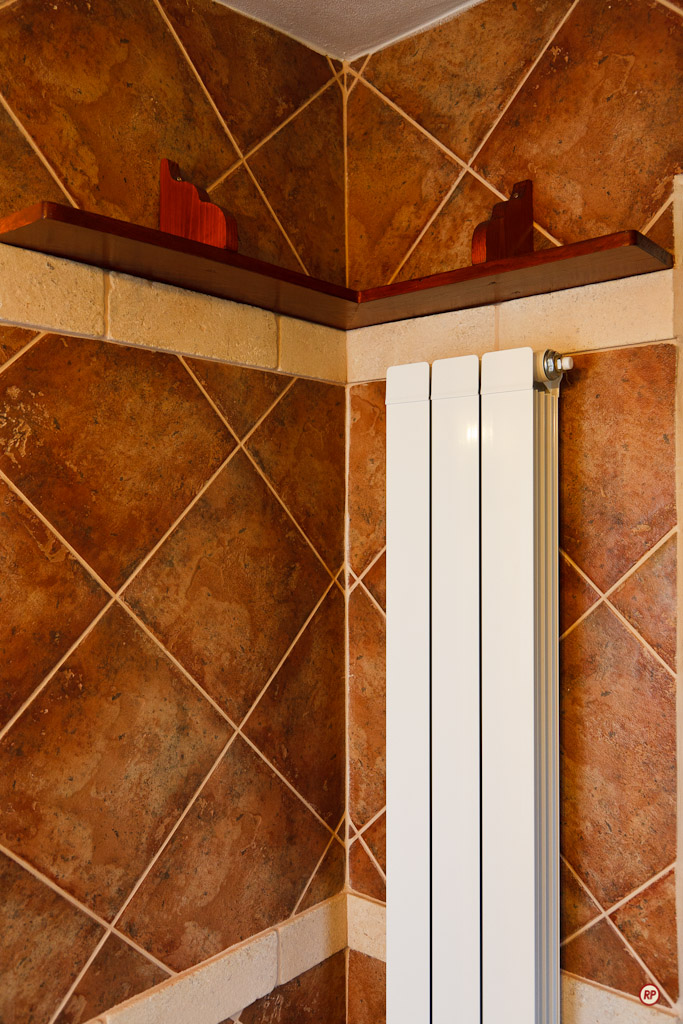
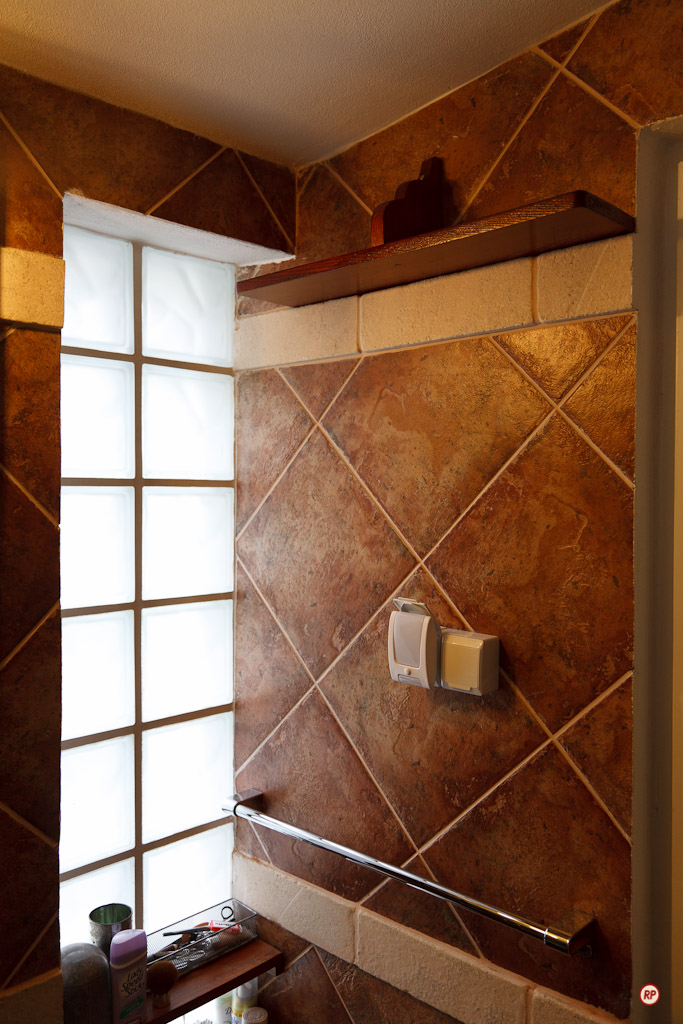
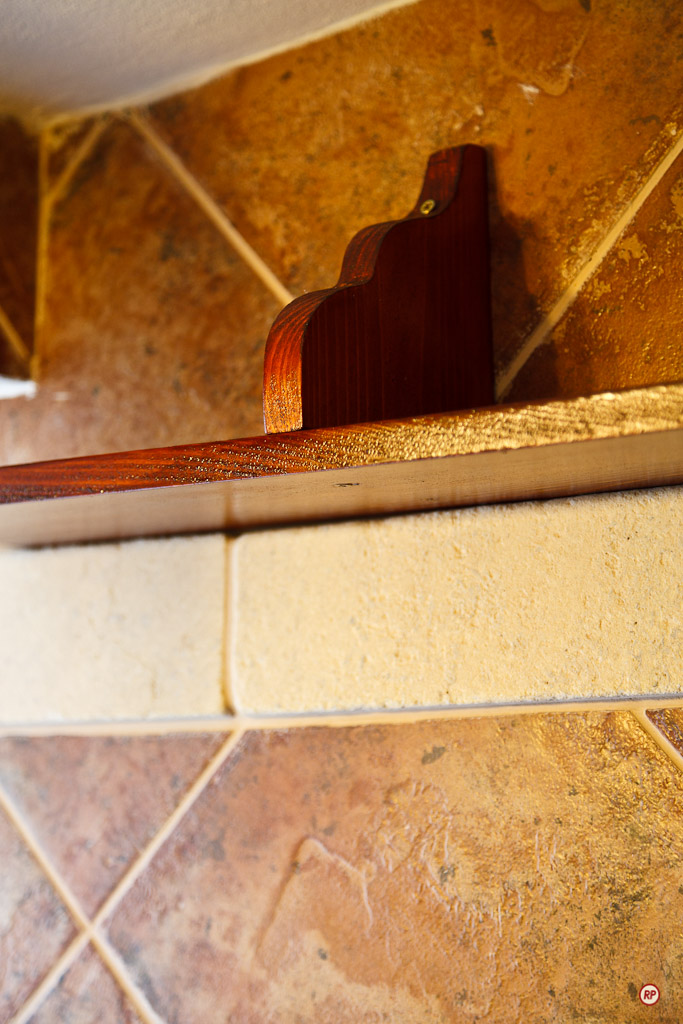
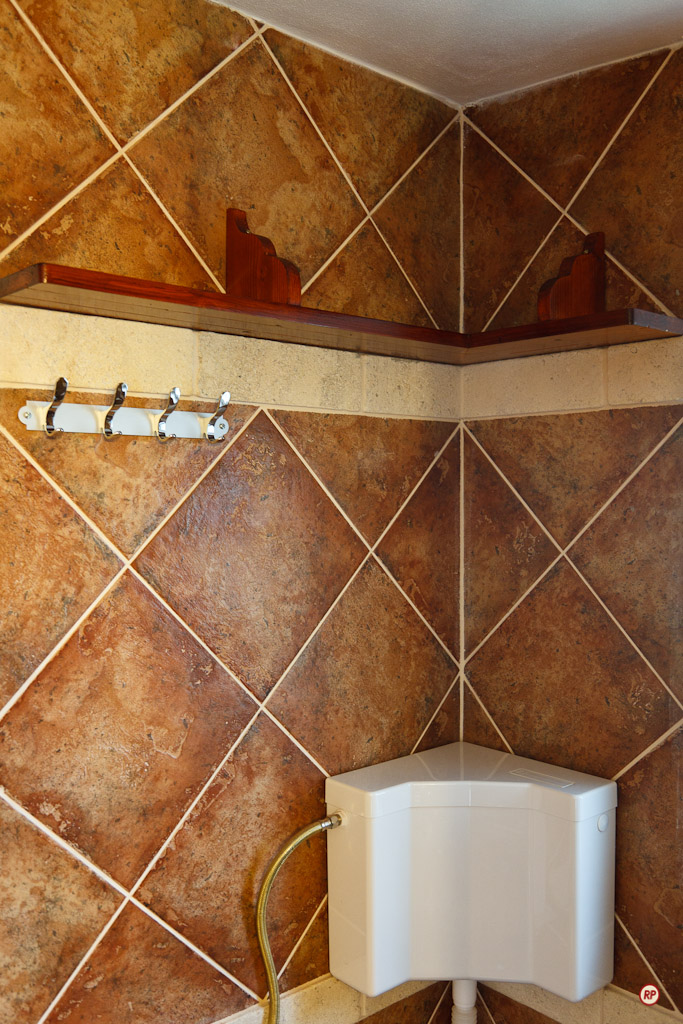
This summer, I built a few custom shelves for our bathroom, and only now got around to writing about them.
There’s a certain quality, a character, to objects made by hand, that you just won’t find in mass-produced items. There’s also the fact that if you make something yourself, to the exact measurements of the place where you want to put it, you won’t be able to find a better fit anywhere else, no matter how many stores you visit. And there’s also the little matter of money — chances are, it’ll cost more to buy it than it will to make it yourself.
In my case, I already had the wood lying around from other projects, and I had the tools and other materials as well, so all I needed was some time. I’d estimate the total time used up for this project at around 10-12 hours, spread over several days.
There’s a quick video you can watch, where I talk about how I made the shelves. It’s going to be useful if you want to undertake this project yourself.
I hope this (along with some of my otherprojects) helps inspire you to create something instead of buying it. There’s nothing wrong with buying something that’s well-made, but most of the stuff you find in stores today is made in a third-world country, with third-world standards, out of cheap materials, and will likely break in a few months. That’s not good enough for me, and I hope it’s not good enough for you, either.
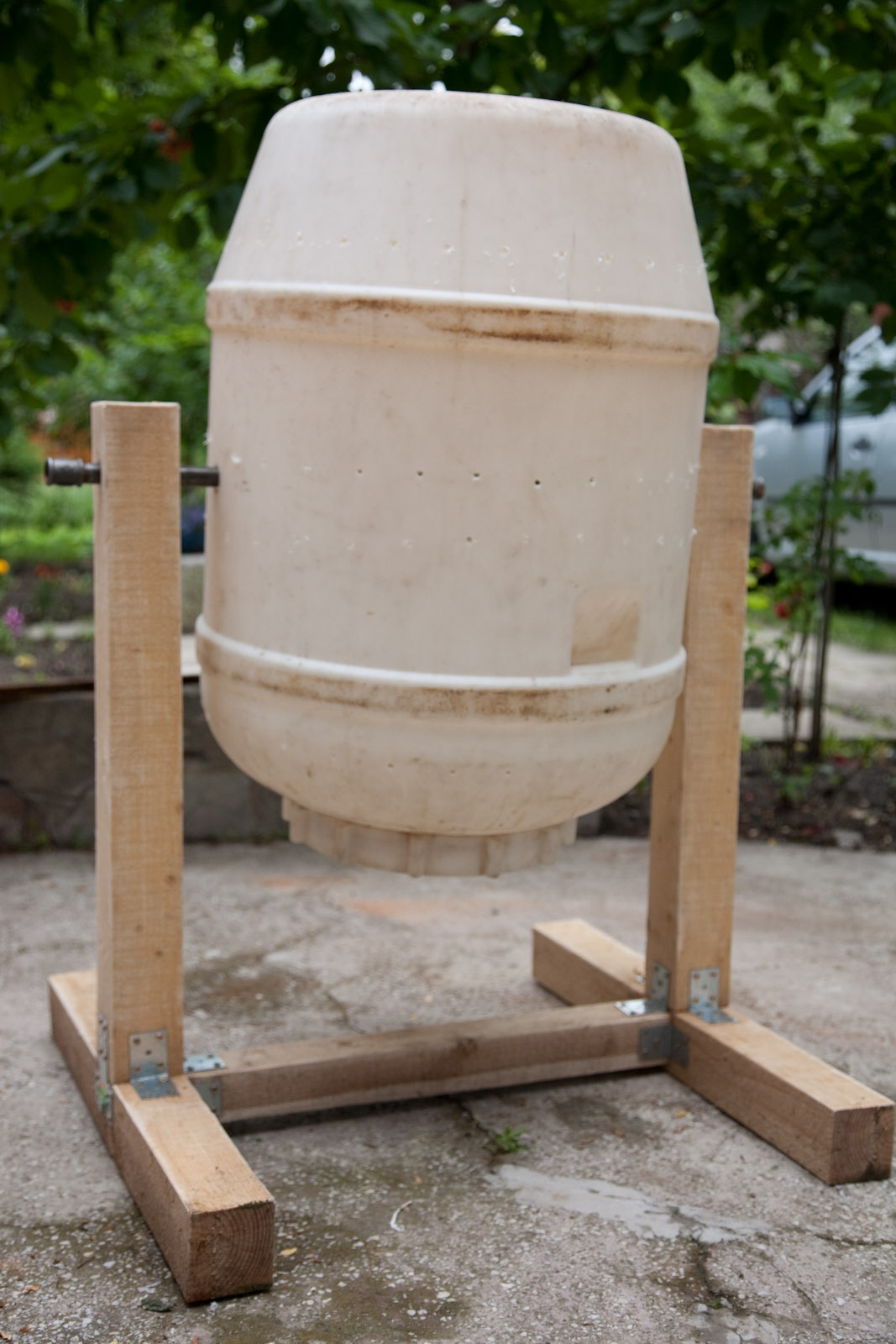
Last year, I made a composter using this plan from Boys’ Life Magazine. I modified the wooden frame somewhat, in order to use more wood screws and brackets — not bolts, nuts and washers — because that’s what I had to work with.
Before I recommended the design to others, I wanted to see how well it would hold up over a winter, and after proper use. It’s a year later, and I can tell you it’s held up just fine, so feel free to build your own if interested.
There are a few things to know that might help as you put your composter together:
Make the legs as wide as possible. There is a lot of torque generated by the tumbler as you rotate it to mix the compost. If the legs are too short, your composter is liable to tumble over.
Don’t drill the holes for the center axis (the pipe) at the middle of the barrel. Do it more toward the bottom of the barrel. This is because you can’t load the barrel completely with compost — it’ll become impossible to turn it, and the weight may also tear its sides, as you’re using them for support. You’ll likely load it a quarter-full or half-way full, and this means its center of gravity will be lower than the middle of the barrel. If the axis of rotation is at its middle, but the center of gravity is lower, you’ll be struggling to rotate it as you bring its bottom up. So make the axis lower, and it should make it easier for you to tumble it.
The pipe running through the barrel may be a nice and simple way to get the barrel to rotate, but it makes it difficult to unload the compost with a shovel. It doesn’t all come out by simply turning it upside down, so be prepared to reach in there with a scoop or something smaller than a shovel and dig out the compost. It’s not going to be pretty, I’ll tell you that right now.
Be prepared to drill more aeration holes into the side of the barrel than you think are necessary. Drill as many holes as you think are needed at first, but if your compost starts to smell bad even though you’re tumbling it, that means it’s not getting enough air, so drill more holes.
I made a quick video that shows you why it’s always important to check a SATA drive’s jumper settings. Many of us assume that since we’re dealing with SATA, not PATA/IDE drives, the jumper settings are no longer important. After all, the Master/Slave relationship no longer applies to the SATA model. Not so. The jumper settings on SATA drives control other important drive settings, such as their speed of operation.
Have a look at this Seagate 500GB SATA drive, the one in my video. I assumed (wrong) that it was operating at 3.0 Gb/sec all along. It wasn’t. For over 2 years, I had three of these drives in one of my Drobo units, and I thought I was getting 3.0 Gb/sec from them, when in fact I was only getting 1.5 Gb/sec. That’s because they shipped with a jumper set to limit their speed of operation at 1.5 Gb/sec from the factory, and I didn’t check it before sticking them in my Drobo and forgetting about them.
I can understand why Seagate would want to ship the drives set to 1.5 Gb/sec. After all, some older computers might not be capable of 3.0 Gb/sec, and you’d run into compatibility issues. They assume IT geeks would know what to do, and they’re right, they would, if they’d only bother to look…
Sometimes you’ll need to switch your drive packs (the set of drives that sits in a Drobo) between two Drobos. Or say you’re using two drive packs on the same Drobo. How do you switch the two packs safely, to ensure you lose none of your precious data?
That’s the question I asked myself a couple of days ago, when I found that I needed to interchange the drive packs between my 2nd Generation (FW800) Drobo and my 1st Generation (USB 2.0 Drobo). I’d expected this move for a while, as I hinted to it in a recent post entitled “What’s on your Drobo“. It has to do with my photography workflow, and if you’d like to read through the rationale, you’re welcome to check out that post.
So, what’s involved?
Safely shut down the Drobo(s)
Disconnect power and FW/USB cables
Take out disk pack as a whole from one Drobo
Insert disk pack as a whole into another Drobo (or same Drobo, as the case may be)
Connect FW/USB cables
Connect power cables
Boot up the Drobo(s)
I’ve put together a video demonstration of the process, which you can watch below or on YouTube. This was unrehearsed, and it’s not something I did before, so there was a fair bit of related anxiety. I rely very heavily on my Drobo units for data archival, and I don’t ever want to lose any of my data. Thankfully, everything went smoothly, and things are working great!
The detailed steps involved in the process are listed in two tech notes on the Data Robotics website:
I need to add here that drive packs aren’t interchangeable between all Drobo models. You’ll need to read carefully through that second tech note listed above to make sure you don’t unintentionally corrupt your Drobo volume by putting the pack in an incompatible Drobo device.
If you’re wondering why one ought to bother to switch data packs, the decision needs to be made on a case-by-case basis. In my situation, the alternative would have been a manual copy of the data, which would have taken days, since I work with terabytes. Switching the drive packs took 15-20 minutes altogether (reading through the tech notes, emailing Drobo Support to ask them a question, and actually doing it). The trade-off, if I hadn’t done things correctly, would have been costly and possibly irreversible data loss. Fortunately, things went according to plan!



 Raoul Pop