Reviews

Data loss on the Drobo 5D

I bought a Drobo 5D on the 29th of December, 2012, after experiencing catastrophic data loss with the 1st Gen and 2nd Gen Drobo. During multiple phone conversations with Data Robotics’ CEO at the time, Tom Buiocchi, he convinced me that they were much better-engineered than previous-generation Drobos and they had built-in batteries and circuits that would automatically shut them down safely in case of power loss. I was also told the new firmware running inside them would be checking the data constantly to guard against file corruption or data loss. All of these were problems that I’d experienced with my existing Drobos, so even though I was exhausted after my ordeal and so weary of storage technology, I went ahead and purchased the new model and also agreed not to publish an account of what the Drobos had done to my data at the time. I want to make it clear that I paid for my Drobos, so I didn’t feel that I owed him anything, but I did want their company to do well, because back then they were new and deserved a second chance. Now though, there is no excuse for the multiple times their Drobos have lost my precious data. They’ve been around for 13 years and they’ve had plenty of time to make their technology stable.

What’s probably kept them on the market is the willingness of paying customers like me to take a chance on the uniqueness of their proprietary RAID: as far as I know, they are (unfortunately) the only RAID array that lets you store a large amount of data on a single volume that grows automatically as you add drives and also protects (except when it doesn’t) against hard drive failures.

However, after five years of using my Drobo 5D on a daily basis, I can tell you without any doubt that the Drobo 5D does not keep your data safe. Look elsewhere for safe data storage devices. I certainly cannot trust it with my data anymore, so I’ve elected to publish my account of data loss from 2012, as well as an account of my present data loss. Caveat emptor, lest you also lose your data. I’ve also had multiple problems with my two Drobo 5Ns. Because of these problems, some of which have led to significant data loss and to significant time and effort expended in order to restore my data from on-site and off-site backups, I cannot place my trust the new Drobo models that are available, either: I’m talking about the 5D3, 5N2 and the 8D. I see no reason at all to spend more money on more empty promises from Data Robotics.

I can’t say exactly what happened with my Drobo 5D. Drobo Support could not or did not choose to tell me, even though I sent them multiple diagnostic logs from the Drobo and I asked them to tell me what happened. My best guess is that the 5D kept “healing” a 6TB WD drive with bad sectors instead of asking me to replace it. Then a different drive from the array failed. Once the Drobo told me to replace that drive, I did. But during the process of rebuilding the data set, the Drobo 5D decided it didn’t like the 6TB WD drive it had been healing, and chose to tell me that I needed to replace it now. When I did, it would tell me I shouldn’t have taken it out and I should put it back in. I’d put it back in, and then it’d go through its internal processes, only to find out that it wouldn’t like that drive again, but it didn’t stop there. It’d reboot. At first this reboot cycle would take 10-15 minutes, allowing me to copy some data off it, but then it began doing it every 5 minutes. Since it takes a good 3-4 minutes to boot up, this meant I’d have only 1-2 minutes to copy data off before it’d reboot again. This was not workable. After opening a case with Drobo Support, they told me to put it in Read Only mode. You press Ctrl+Opt+Shift+R while you’re in Drobo Dashboard and this reboots it in that mode, which means it’s not going to try and rebuild any data internally, it’s simply going to present the volume to you as it is. This also turned sour quickly, because after allowing me to copy a small amount of data for a few hours, it began that same 5-minute reboot cycle. So I had no way of getting the data off the damned thing unless I mounted it through Disk Warrior and used the Preview app built into that software, which meant having to put up with USB 1.1 transfer speeds. More on the reduced transfer speeds below.

My take on the situation is that it’s a failure in Drobo’s firmware design. It should have asked me to replace the 6TB WD drive instead of working around its bad sectors. Because it didn’t ask me to replace it in time, it then failed when rebuilding its data set after the second drive went bad. That’s not two drives going bad at the same time, that’s a drive going bad and a few weeks later another drive going bad. The Drobo had plenty of time to fix the ongoing situation if its internals had been programmed correctly, but it didn’t, because of inadequate firmware running the device. That’s bad technology at work, causing me repeated data losses.
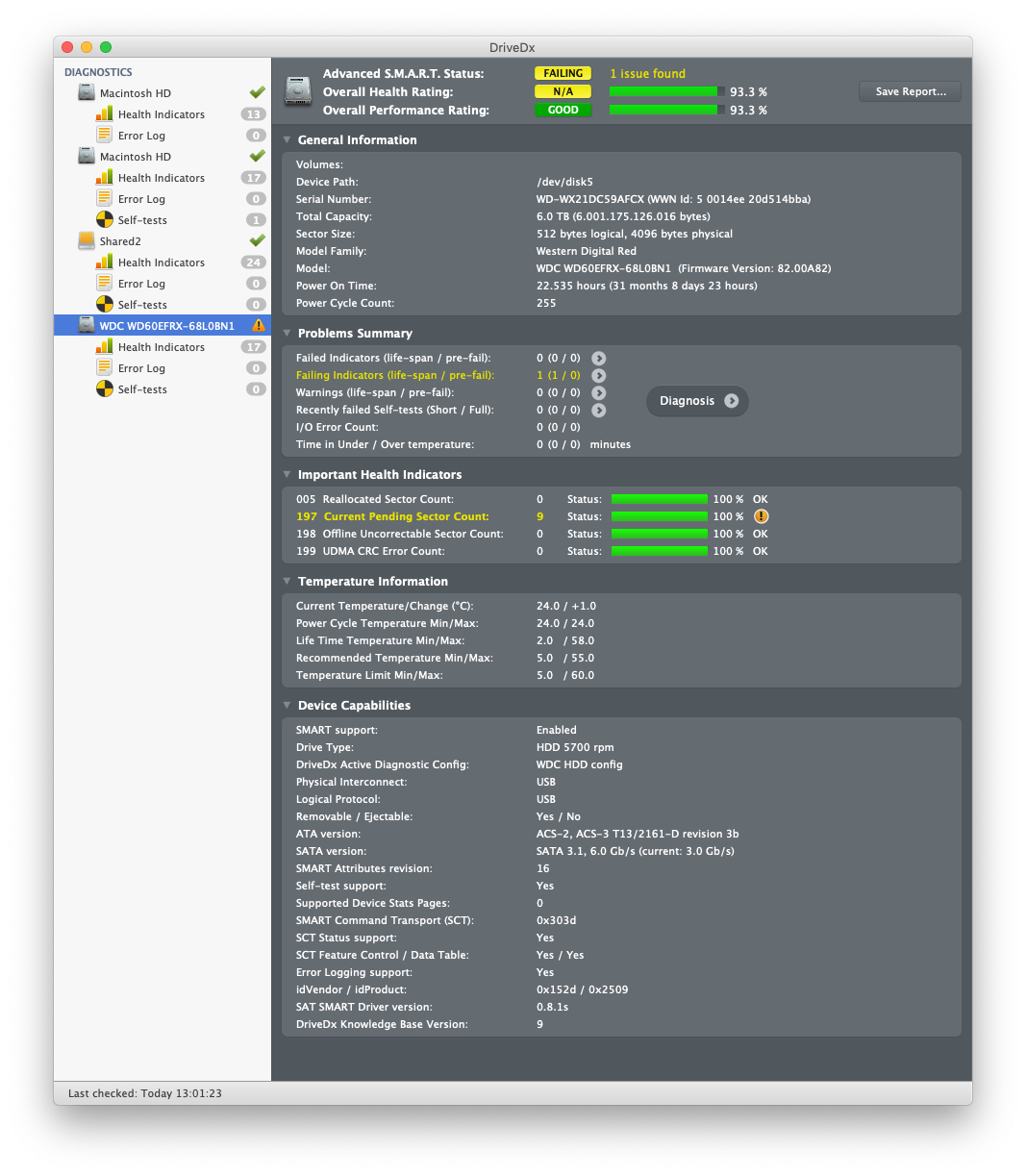
The 6TB WD drive had 9 bad sectors, but the Drobo 5D kept insisting on healing it until it was too late.

Here’s another example of Drobo’s crappy firmware: for the past three years, I have had to force my iMac not to go to sleep, because every single time I’d wake it up, the Drobo 5D would refuse to mount, forcing me to reboot the iMac and/or the Drobo and also disconnect/connect the Thunderbolt cable from my iMac in order to get the computer to see it. Data Robotics tried to fix this horribly annoying problem (which can also cause data loss) through multiple firmware fixes, but I can safely tell you that they still haven’t fixed it. Before I stopped using my Drobo 5D, I was on Drobo Dashboard 3.3.0 and Drobo 5D firmware 4.1.2, while my iMac is on MacOS Mojave 10.14.2, and this problem still very much occurred. Well, it definitely occurred before my 5D crapped itself. Oh, how I’d like to be back to those simpler times when all I had to deal with was keeping my iMac from going to sleep! But no, now I have to deal with massive data loss, once again. For the goddamned umpteenth time, Drobo!
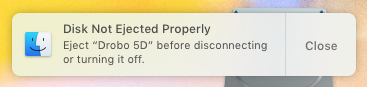
Except I didn’t cause the disconnect, Drobo’s crappy firmware would cause it to happen, over and over and over…

What do you think would happen after enough improper disconnects? That’s right, volume corruption!
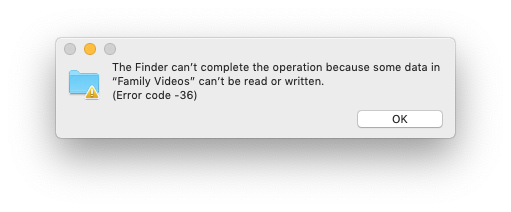
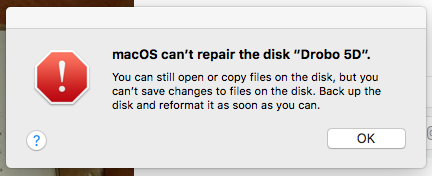
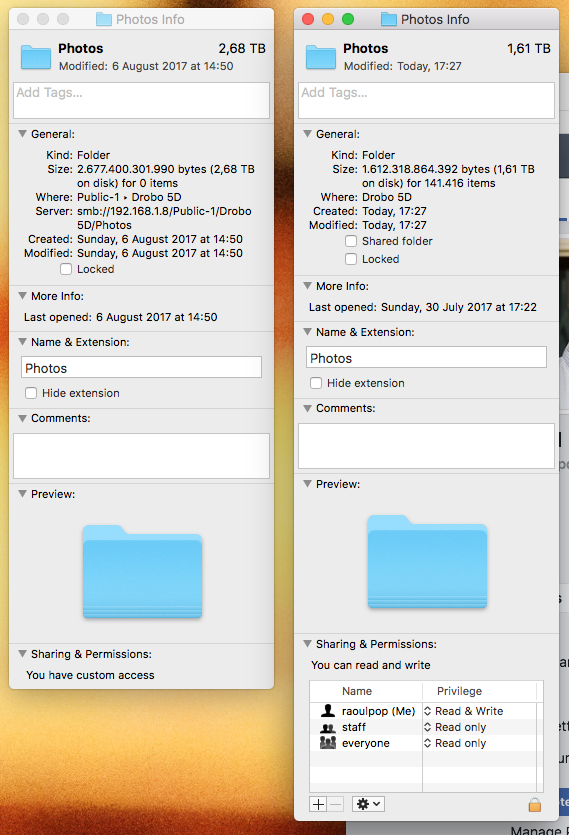
Look at the difference in size between the two directories. The first is a backup, the second is supposed to be the working directory. That’s the Drobo 5D, actively losing your data…
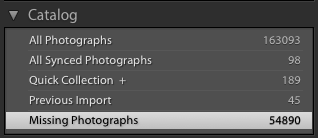
Only 54,890 missing photographs? Thanks, Data Robotics! (This was in 2017.)

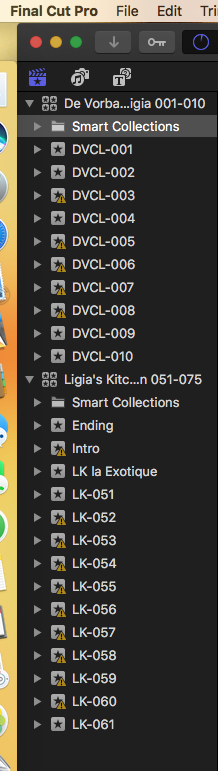
Here’s more proof of data loss from 2017. Those yellow triangles are indications of missing video clips.
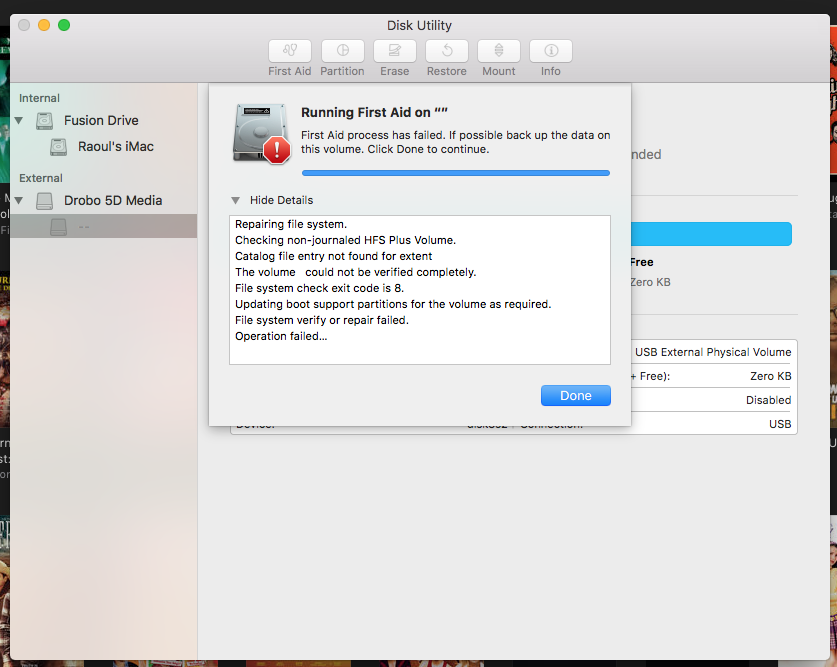
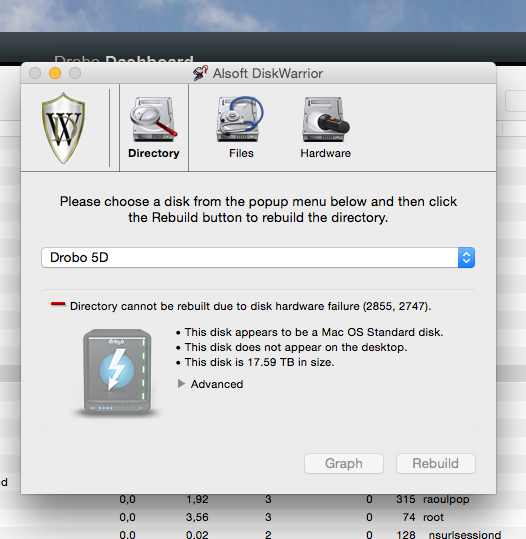
Here’s proof of more data loss from 2015, when even Disk Warrior couldn’t get my data back.

Data Robotics marketing speak tells you of super-fast transfer speeds and protection against data loss when you buy their devices. The things you most need to remember are that you will experience data loss (that’s a given) and you won’t be recovering your data at super-fast transfer speeds such as USB 3.0/USB-C or Thunderbolt 1/2/3. You will instead be forced to use Disk Warrior’s Preview application (if you’re on a Mac) and you will be recovering your data at USB 1.1 speeds. That’s right, take a moment to think about that! In order to recover data from my Drobo 5D, I have to use Disk Warrior (a Mac app known for its ability to recover failed volumes), because it won’t mount any other way. It certainly doesn’t mount through the Finder or through Disk Utility.
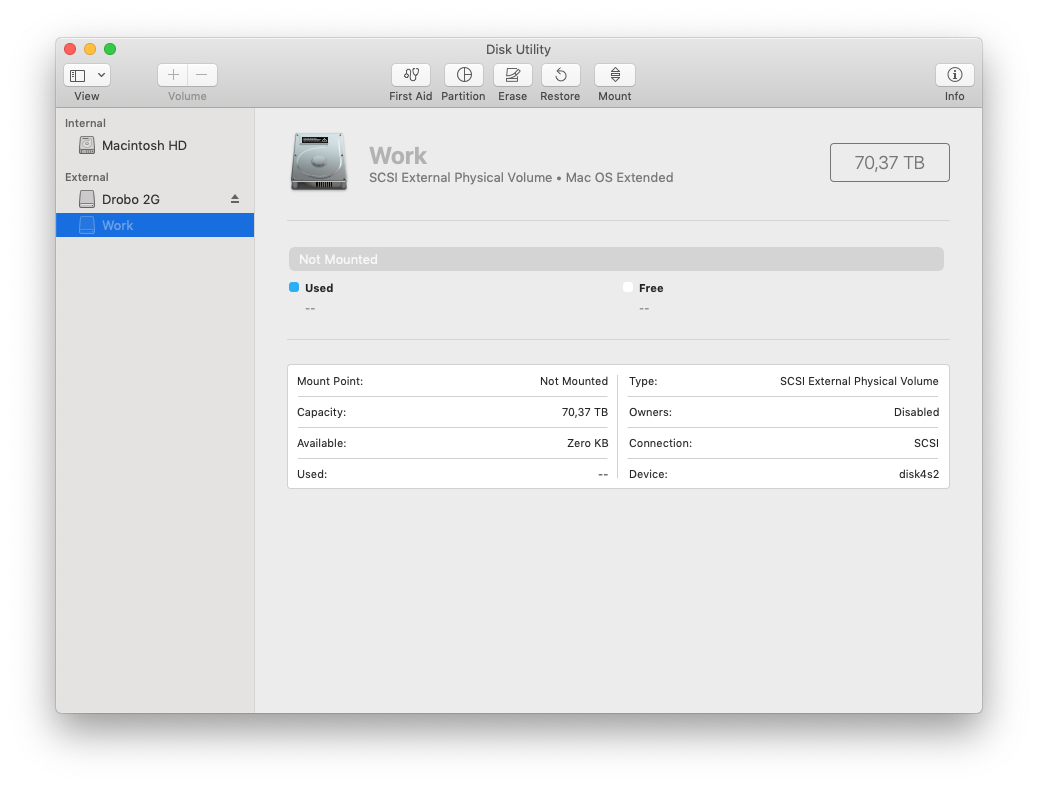
“Work” is the Drobo 5D volume that refuses to mount

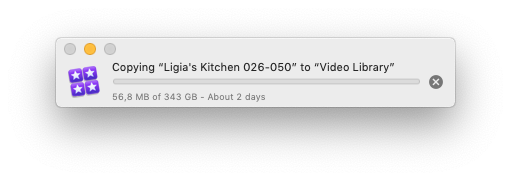
The size of my Drobo volume is about 12 TB. Thank God some of it was backed up locally with Resilio Sync and some of it I recovered from online backups with Backblaze, so I only needed to recover part of my data from the Drobo 5D itself, but for a single 3 TB Final Cut Pro library, it took roughly 300 hours to transfer it to another drive! 300 HOURS! It might be somewhat tolerable (in some masochistic sort of way) if I knew the damned thing would stay on for all that time, allowing me to copy the data in one go, but you never know when it’s going to restart. It can go at any time.

I’ve posted illustrative screenshots below. Feel free to do the math yourselves as well. Also think about how much worse this problem gets when your Drobo volume is much, much bigger. The Drobo 5D and 5D3 can go to 64 TB, while the Drobo 8D can go to 128 TB. Do you really want to be stuck copying 50-60 TB of data at USB 1.1 speeds? How about 100 TB of data? Think about that before you click on the Buy button and get one of those shiny black boxes.

The hard truth is that you can’t put all your eggs in one basket. Having all your important data on a single volume, which is what the Drobo lets you do, is a dumb idea. If that volume goes, all your data goes along with it, and it can take MONTHS to recover it from backups.
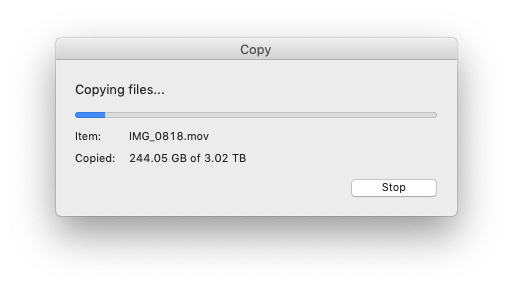
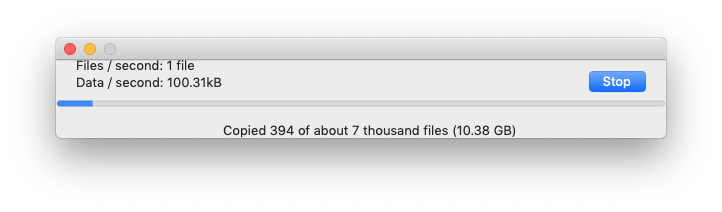
After more than 12 hours…
Transfer speeds vary between 100 kB/s – 4 MB/s but mostly stay around 100 kB-200 kB/s
Two days for 350 GB… Great…

I don’t know about you, but I don’t want to spend anywhere between $5,000-$10,000 with a data recovery firm every few years, when a Drobo unit decides to fail and lose my data. But that’s what Drobo Support advises you to do from the very beginning. They advise against trying to recover the data yourselves, even while working with them, and instead try to convince you to send your Drobo into a drive recovery firm. For a device that’s supposed to protect your data and a company that brags about “protecting what matters”, that’s disgusting. How exactly are they protecting your data when their devices fail miserably every few years? I guess “protecting what matters” really means “protecting their bottom line” by ensuring suckers keep buying their product.

Do you want to know what happens when I try to open a ticket on the Drobo Support website? This:

For months now, all I get is this grey page with a rotating status ball when I visit Drobo Support

If a company can’t even fix its support page so that it loads up for its customers, that’s cause for worry. I tried explaining the issue to them, I even sent them screenshots, but the techs I spoke with seemed unable to comprehend why the website wouldn’t load. My guess is they’ve got a geofence that stops visits from Romanian IP addresses.

When it comes to their marketing people, I cannot describe them as anything but a bunch of slime buckets. Twice now they’ve ignored me in dire situations when I reached out to them for help, hoping they would redirect my messages internally and get someone to pay proper attention to my case. Back in 2012, back when my two DAS Drobo units lost over 30,000 files, they began ignoring me after I told them what had happened. Now, in 2018, they pretended to help, just so it looked good at first glance on social media, but they didn’t follow through on their promise and ignored me afterward. See my comments on their tweet here. I also wrote a message to some guy who calls himself the Drobo CTO but gives no real name, asking him to have a look at my case, but he ignored me. If it’s a fictitious account then it’s understandable, but if it isn’t, then he’s a turd as well for ignoring a legitimate and polite request for help from a customer.

I also reached out to Data Robotics’ current CEO, Mihir Shah, to ask for his help, and after an initial reply that said, “I am looking into this case for you. We will get back to you. Thanks.” — his line went dead. I am left to conclude that he’s of the same breed as his marketing people, who did the same thing when I reached out to them.

You might be asking yourselves why I chose to reach out to these people when I had already opened a case with Drobo Support? Because I felt the technician handling my case wasn’t doing a good job. This case wasn’t a freebie, I paid for it, and I wanted to get real help, not bullshit. Here are a few examples of the kind of “support” I received:

  • He told me to clone a drive using Data Rescue (a Mac app). This was supposed to fix the situation, but it didn’t, because he told me to clone the wrong drive. That’s right, he had me waste an entire day cloning the wrong drive, before I pointed it out and he came back with sheepish excuses, asking me to clone another.
  • He let me buy two new 8 TB hard drives in order to go through the data recovery process, without saying a damned thing, before another tech stepped in to tell me I should have bought a 6 TB hard drive instead, because the cloning process needed for my scenario requires a drive of the exact same size as the 6 TB WD drive that the Drobo 5D refused to use anymore. Why couldn’t he tell me that from the start? Besides, isn’t the whole point of BeyondRAID, which is Drobo’s proprietary technology, to let people use drives of varying sizes? There goes that advantage when you need it…
  • Having worked in IT for a long time, and having worked my way up from the help desk, I could tell the technician didn’t give a crap about the case. It was clear to me that he wasn’t interested in helping me or solving the case, he was simply posting daily case updates of 1-2 sentences with incomplete and unclear replies to my questions on how to proceed and dragging the case on, probably hoping I’d give up.

This time around, I’m faring better when it comes to data recovery than I fared in 2012. Unfortunately, I don’t have a full local backup of my data, even though the Resilio Sync software was supposed to mirror it from my Drobo 5D to my Drobo 5N. I do have a full online backup with Backblaze, but getting back about 12 TB of data through online downloads will prove to be a cumbersome and slow affair. They only let you download up to 500 GB at a time, which means that if I want to download all of it, I’d have to create at least 24 restore jobs on their servers, each of which would generate a ZIP file that would need to be downloaded and then unzipped locally. I could also choose their HDD recovery option which ships your data to you on 3.5TB drives, but I’d need 4 of them, which means it would cost $189*4 or $756. It would probably work out to something like $850-1,000 for me in the end, because I would incur a high shipping cost from the US to Romania and I would also be responsible for customs fees. Theoretically, Backblaze offers a money back guarantee if the drives are returned within 30 days, but I doubt I could return them in that time span, given they’d have to make it to Romania and back. They’re supposed to be working on a European data center and it might open this year, and while that’s going to be nice in the future, it’s not going to work for my situation at this time. No, the much more workable solution would have been for me to have a full local backup of the files on the Drobo 5D. But thanks to Data Robotics, that option got shot down and I didn’t even find out until it was too late…

You see, the Resilio Sync software was set to mirror my data from the Drobo 5D to a Drobo 5N. On my gigabit network, that would have worked just fine. The app was running on my iMac and it was also running on the 5N through the DroboApps platform. The software had a few months to do a proper job syncing my data between the two devices and it indicated to me that it had done it. Unfortunately, after my Drobo crashed, I found out that it hadn’t. The reasons offered by Resilio Support were the following:

  • The Drobo 5N’s processor wasn’t powerful enough
  • The Drobo 5N’s RAM wasn’t enough
  • The Drobo 5N ended up using swap memory and somehow it messed up the sync logs, which caused it to think it had finished the sync when it hadn’t

If I’m to take them at their word, the Drobo 5N is too underpowered to handle Resilio Sync. That’s not to say there isn’t plenty of blame to be assigned to the Resilio Sync software as well. After all, it should have kept track of the data sync accurately. What good are they if they can’t perform at their main advertised task?

If I am to look at what Drobo is saying about the successor to the 5N, the 5N2, namely that it “provides up to 2x performance boost with an upgraded processor and port bonding option”, that would certainly mean the 1st gen 5N is underpowered. Finally, who do you think recommended Resilio Sync to me? It was none other than Data Robotics, whom I called to ask for details on DroboDR, their own data sync application. They said it was too barebones of an app for my needs and suggested I look into Resilio Sync, which was much more robust and full-featured. Thanks once again to my trust in the Drobo, my backup plans got sabotaged, forcing me to waste weeks of my time recovering data from a failed Drobo volume.

But enough about the Drobo 5N, I’ll have a separate post where I’ll talk about how that device has also lost all of my data recently… Back to the Drobo 5D.

To recap, the Drobo 5D lost my data in 2015, 2017 and 2018. That’s three separate, significant, data loss events, the last of which wasted more than a month of time till I was back on my feet.

I am back on my feet now. It’s the 26th of January 2019 and I finally got the last of my data recovered. I’ve been down, unable to do my work, since the beginning of December 2018. I can’t even remember what day it was the Drobo 5D failed. It’s a blur now.

I ended up buying a third new hard drive, specifically a 6TB hard drive, to match the size of the drive that the Drobo didn’t want to use any more, and I cloned that drive, which turned out to have 5 clusters of bad sectors, onto the new drive, using Data Rescue software for the Mac. I had to use its “segment” cloning mode, which attempts to get around the bad sectors, and this meant the cloning operation took more than 120 hours!
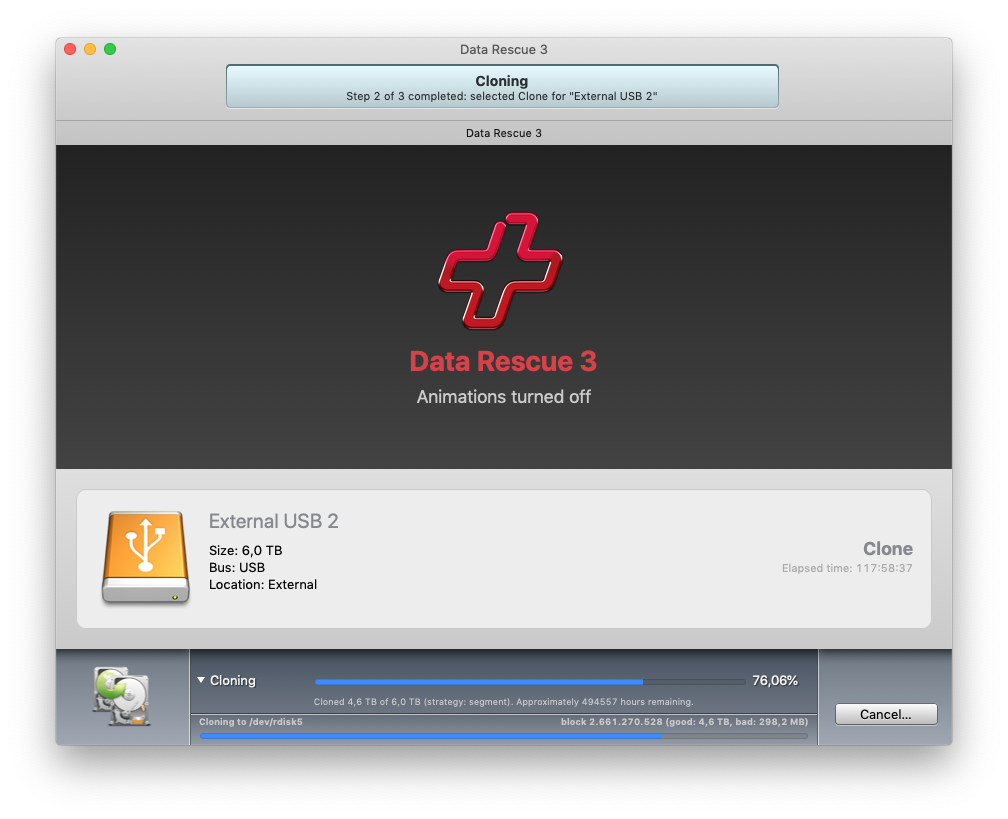
A screenshot taken after 117 hours…

Around hour 122, my iMac crashed and I had to reboot it, so I don’t know if the cloning operation was completed or not. My screen went black and stayed that way. It could be that the cloning ended and then my iMac crashed, or simply that my iMac had had enough of staying up to work through a lengthy cloning process and went poof. I don’t know, and I wasn’t about to start cloning the damn drive again. I took my Drobo 5D out of Read-Only Mode, stuck the cloned drive into the Drobo 5D and booted it up, expecting some data loss. Besides, even if the cloning operation had completed successfully, I’d have still lost some data. If you look above, you’ll see that there were 298,2 MB of bad, unrecovered data. That wasn’t from one portion of the drive, that was from five different portions, because there were five significant slow-downs in the cloning process.
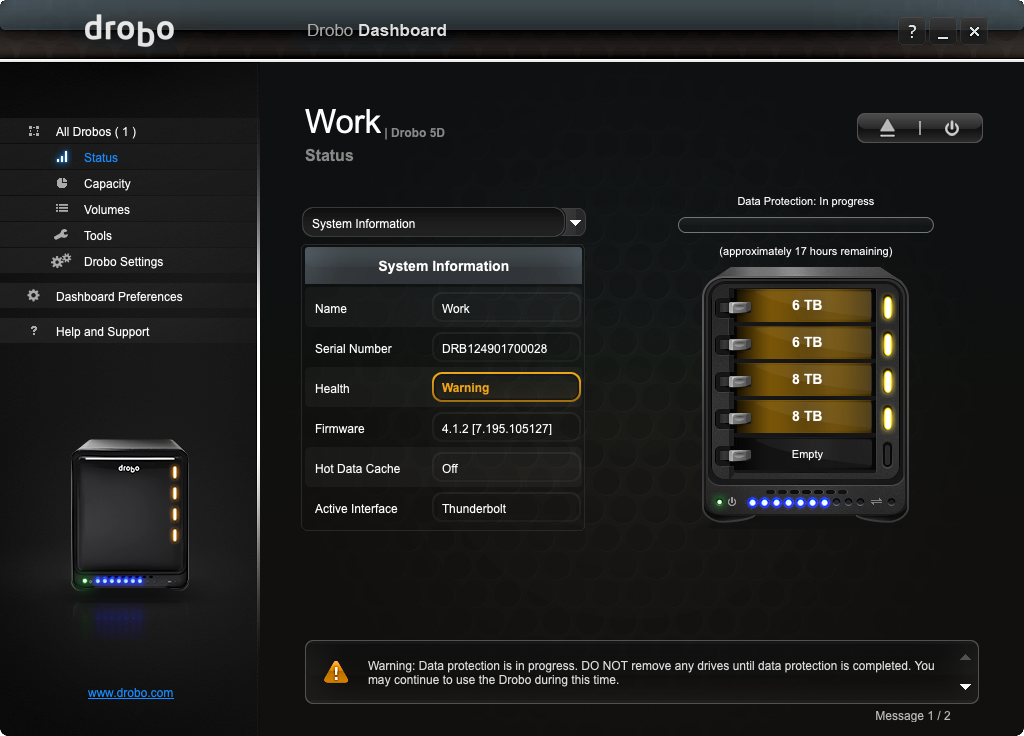
The 5D booted up and started its data protection protocol

Once it booted up, I started copying my data off it, not knowing how long it might stay on. For all I knew, it could go into a vicious reboot cycle at any moment. I’d already recovered all I could from Backblaze and from my local backups, and I needed about 6-7 TB of data from the 5D before I was back up to normal… “normal” being a loose term given how unreliable the Drobo is and how much data I’d already lost.

Sure enough, data loss soon reared its ugly head. Thanks, Drobo, you bunch of slime buckets!
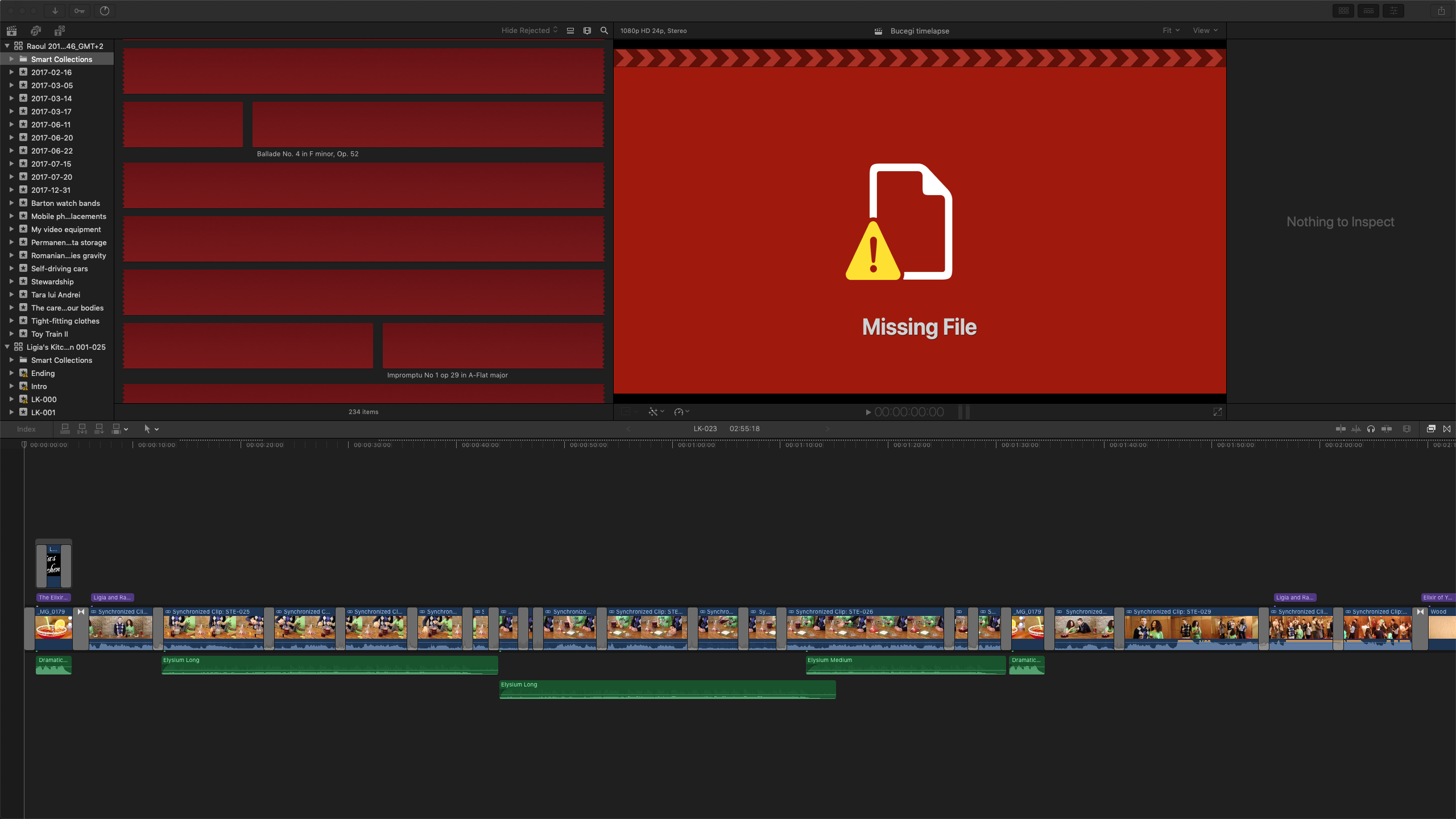
One of the damaged FCPX libraries with lots of missing video clips

So far, two FCPX libraries containing the videos I’d made in 2017 and 2018, are damaged. I don’t know if I’ll be able to get those videos back.
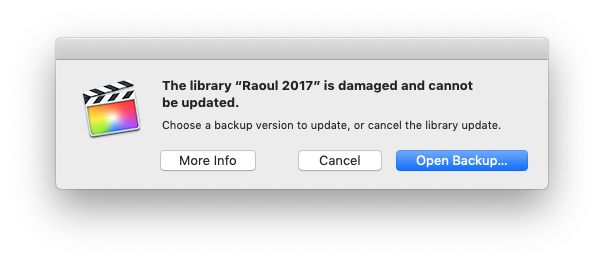
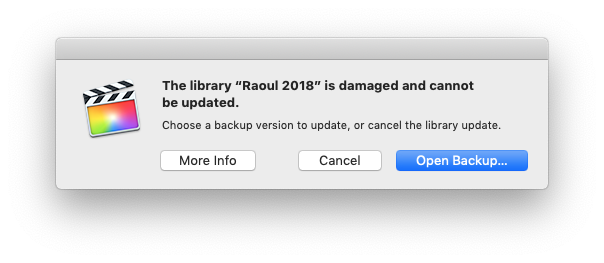
I consoled myself with the idea that at least I was able to recover most of my data at Thunderbolt speeds, not at USB 1.1 speeds, so that saved me about 2-3 more weeks of painful waiting.

All of my data is now off the Drobo 5D, and I don’t plan on using it again. I’ve put it in a storage closet. I’m done with it, and I recommend you also stop using your Drobos, if you are using one, because it’s only a matter of time before they will lose your data. In my opinion, they offer no more protection than using individual drives. They just cost more, force you to buy more hard drives and they make more noise. My office is so much quieter now that the Drobo 5D is gone. I’m using individual drives which I plan on cloning locally. I will continue to use Backblaze for cloud backups, and I may also do some periodic local backups to a NAS of some sort. I have found out during these past few months that I also cannot rely on the Drobo 5N NAS to store my data, because one of my Drobo 5N units has just lost all of the data I’d entrusted to it. I am now in the process of recovering that… It’s non-stop torture, time and data loss with a Drobo!

I have been a Drobo customer since December 2007, when I bought my first Drobo. I was also among the first Drobo “Evangelists”, as they called their enthusiastic customers back then. It’s now January 2019, and I am done with Drobo. I was a loyal customer for 12 years and I stuck with them through an incredibly disheartening amount of data loss, problematic units and buggy firmware. That’s enough of that. Caveat emptor. Drobo no more.

Standard
Reviews

A follow-up to my review of Google’s Backup and Sync

I reviewed Google’s Backup and Sync service back in December. There were several issues with the service that I outlined in there, such as the app backing up files that it was not supposed to back up, the service counting files toward the quota even though it was supposed to compress them and allow unlimited free storage, etc. I thought I’d do a follow-up because, as you may have guessed already, there are more issues I want to point out and also a few pieces of advice that might help you in your use of the app.

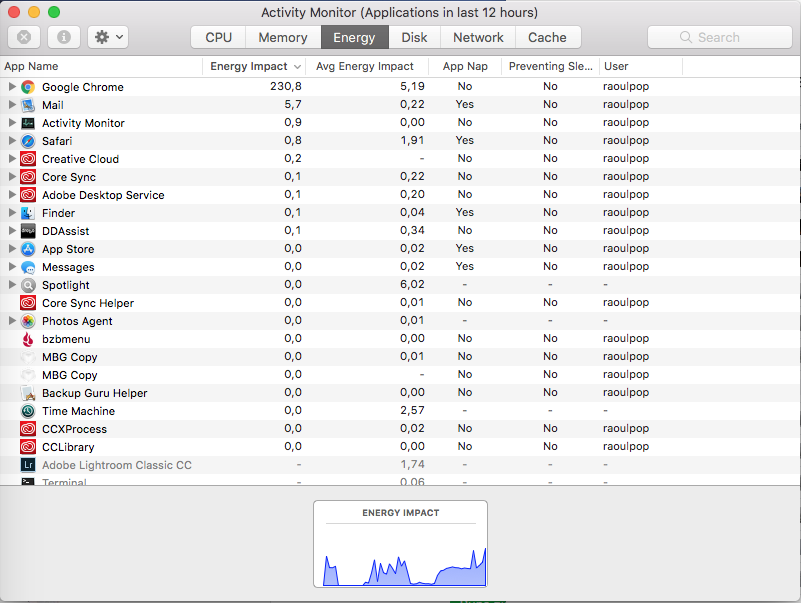
One issue that occurs over and over is that the app crashes. It gives an error message popup and says it needs to quit. Which is somewhat okay, but when you start it back up, it does a re-check of all the files it’s supposed to back up, and that is an energy-hungry process. You can see it at the top of the active apps in Activity Monitor (on the Mac), eating up all the processor cycles as it iterates through its list of files. And even when it does its regular backup in the background, it’s still climbing toward the top of the active apps. To be fair, Flickr’s own Uploadr is also an energy-hungry app. Neither of the apps allow you to make them use less energy (to work slower, etc.), so they churn away at your computer’s resources even though they’re supposed to work quietly in the background.

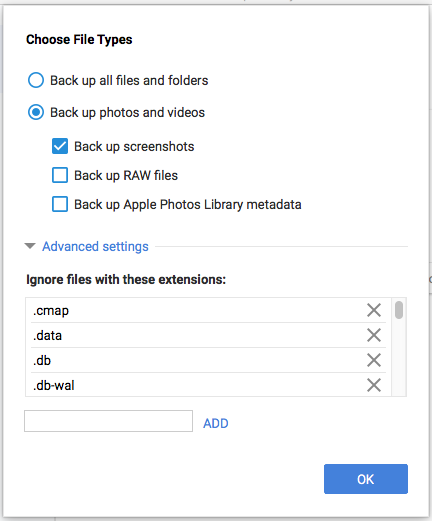
Another issue that still occurs is that the app backs up files that it’s not supposed to back up. I have it set to back up only photos and videos and yet it backs up a lot of files with strange extensions that end up counting toward my storage quota on Google Drive. Have a look at the screenshots taken from my settings for the app below.

I had it set on backing up RAW files too, but it wasn’t backing up anything but CR2 (Canon RAW files) and DNG (Adobe RAW files, or digital negatives). And it had problems backing those up as well, because when the size of a DNG file was over a certain limit (it’s somewhere around 50 MB I think), it backed it up but it didn’t compress it, so it counted toward the storage quota.

It wasn’t compressing ORF (Olympus Raw files) while backing them up, so they counted toward my quota. Since I shoot only with Olympus gear these days, that was no good to me. So what I did is I chose not to let it back up any RAW files and I set my camera to shoot in ORF + JPG format. I work with the ORF files in Lightroom and the unedited JPG files get backed up with the app.

Here’s a list of files whose extensions it might be helpful for you to add to its settings, so the app won’t put them on your Google Drive. Of course, as mentioned above, the app backs up all sorts of files it’s not set to back up. It’s like it ignores the settings and just does what it wants, so ymmv.

  • cmap
  • data
  • db
  • db-wal
  • graphdb
  • graphdb-shm
  • graphdb-wal
  • heic
  • heif
  • ithmb
  • lij
  • lisj
  • orf
  • plist
  • psd
  • skindex
  • tif
  • tmp
  • xmp
  • zip

You may have noticed HEIF and HEIC in the list above. Those are the new image and video standards used by Apple because they offer much higher quality and compression than JPG and H.264. And even though it’s not logical that Google wouldn’t know or want to compress them and back them up properly, they don’t. The app will simply copy them to Google Drive, uncompressed, and they’ll count toward your quota. So all of you who have iPhones and iPads and use the Backup and Sync app or the Google Photos app, you are currently backing up the photos taken with your devices on Google Drive, but they count toward your storage quota even if you don’t want them to. Keep in mind that this may be a temporary thing and Google may choose to rectify this issue in the coming months.

The storage options on Google Drive are another issue I want to talk about. I had to upgrade my storage to 1 TB because of all these issues. At one point, I had over 400GB of unexplained files taking up space in there and I had to upgrade to the 1 TB plan, which costs $10/month. Now I don’t know about you, but that pisses me off. It’s one thing if I choose to upgrade my storage plan because I want to do it, and it’s another thing altogether to be forcibly upsold because the Backup and Sync app might be used as a funnel to generate gullible leads for Google Drive’s storage plans. Notice I said “might be”; I have no proof of this. It could be that the app is just full of bugs and not well-maintained.

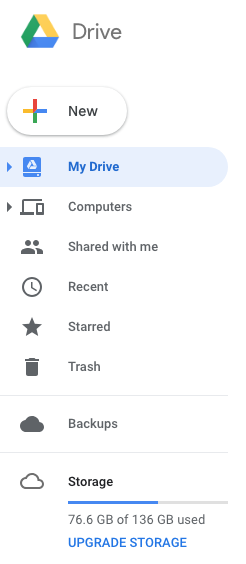
So I did two things: one was to downgrade my storage plan to the minimum of 100 GB at $2/month, and the second was to start looking through my Google Drive in order to see what files were taking up space. I found them but let me tell you, getting rid of them is like pulling teeth. It’s like Google doesn’t want you to get rid of them, so they keep on taking space there and you keep on paying. It’s not right. Let me show you: first you go to Google Drive, and at the bottom of the sidebar on the left, you’ll see how much space you’ve got. My storage quota is under control now, but this is my second day of working on this. Can you believe it? Google has made me waste almost two work days in order to correct a problem that it created.

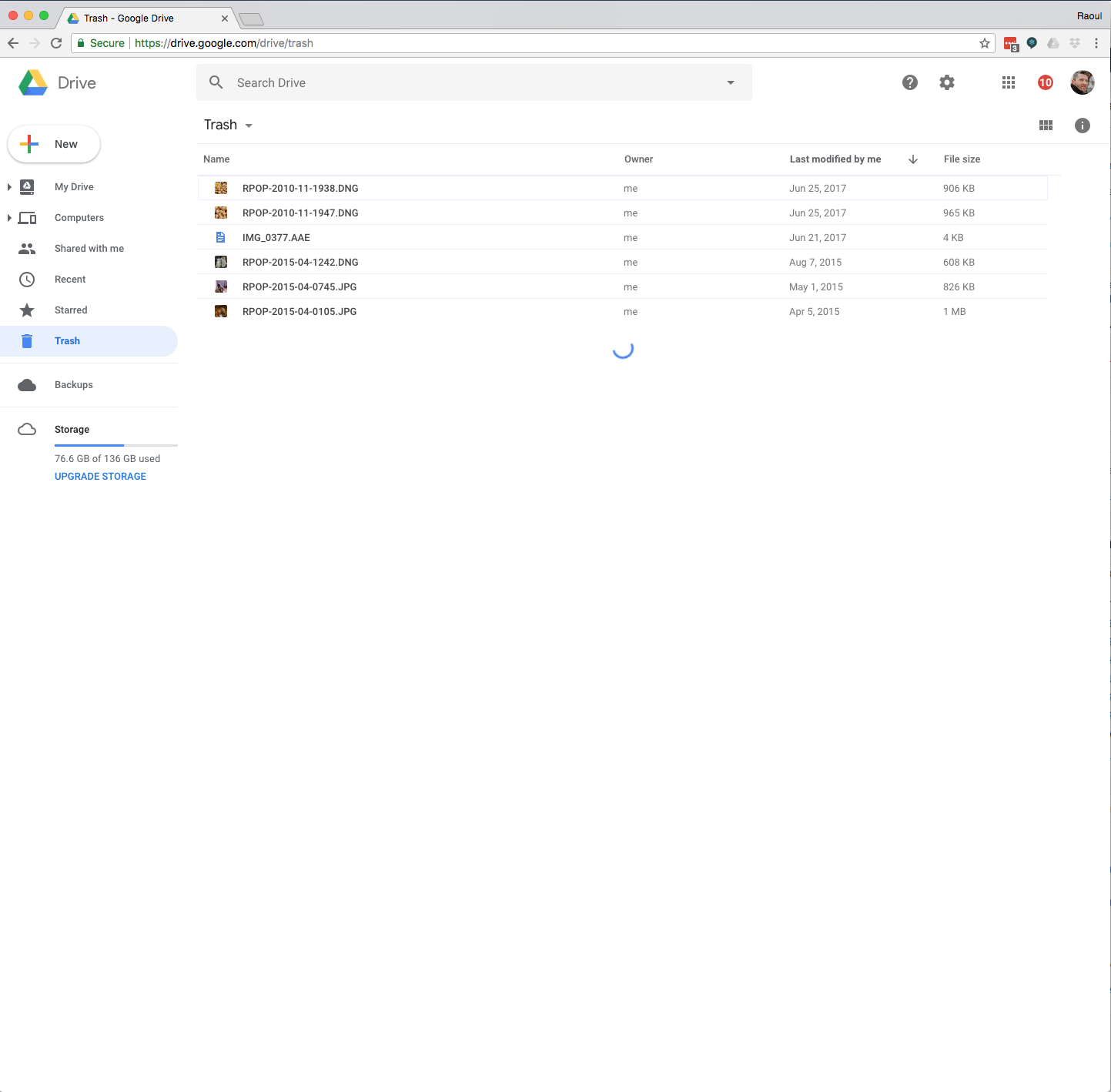
If you click right on the space used, in my case the 76.6 GB, it’ll take you to a page where it begins to list all of the files that are taking up space on your Google Drive, in descending order based on file size. Here’s where it might be confusing for some: the files that are compressed and don’t count toward your quote are listed with a file size of 0 bytes. This is not an error, those files aren’t really 0 bytes, but they’ve been compressed and as far as your quota is concerned, they’re okay. The files that do count toward your quota will be listed at the top. That’s how I found out that Google doesn’t compress PSD files or TIF files or large DNG files. I had images that were over 100 MB in size, some close to 1 GB in size, that it wasn’t compressing, so I had to delete those. If you want to bring down your storage requirements on Google Drive, you’ll have to do the same. Here’s a screenshot of the page I’m talking about, but keep in mind that I’ve already done the work, so I have no more uncompressed files taking up space. Whatever’s left, it’s in the Trash.

So this part is like pulling teeth. Even though I was using Google’s own browser, Google Chrome, and working on Google’s own service, Google Drive, it was excruciatingly slow to list the files I needed to delete. The page would only pull something like 50 files to display, and if you wanted to see more, you had to scroll down and wait for it to pull up more… and then the browser would almost freeze and give you a warning to let you know the page was eating up too many resources… ugh… what a nasty thing to do to your customers, Google!

Have a look at the resources Chrome was eating up during this whole thing:

This “fun activity” took up most of my two days. Not only did it work like this when I needed to identify the files that I needed to delete, but once they were in the Trash, that page also worked the same way. In the web browser, it would only pull up about 50 files or so for me to delete at once. Even though the “Empty Trash” option was supposed to clear the Trash of all of the files in it, it would only delete the 50 or so files that it pulled up. Sure, you can scroll down, wait for it to pull up 50 more files, scroll down again, etc. until Chrome gives you a warning that the page isn’t working properly anymore, then you can empty the trash, deleting a few hundred files, then go again and again and again. I tell you, I suspect that Google is doing this on purpose so you don’t clean up your Drive and are forced to upgrade your storage plan…

I looked this thing up, and some people had more luck emptying the trash by using the mobile app (for iOS or Android). I tried it on my iPhone and it hung, then crashed. I tried it on my iPad and it would hang, the little Googley kaleidoscope wheel going on and on for hours, and then it would either crash or keep on twirling. I left my iPad with the app open all night after issuing the Empty Trash command and when I came back to it in the morning, it was still twirling away and the files hadn’t been deleted.

So now it’s back to the browser interface for me until I clean up all the files. See the screenshot below with the twirly blue thing in the middle? That’s me waiting on Google to list those files in the Trash… By the way, I bought a 2 TB storage plan on Apple’s iCloud to back up my phones, tablets and computers, and I can share that plan with my family. It costs the same as Google’s 1 TB plan: $10/month.

Will I keep using the Backup and Sync app? Yes, at least for now. The promise of unlimited storage of all my compressed images is a tempting thing. I realize there’s a loss in resolution and quality but God forbid something happen to my files and my backups, at least I have them stored somewhere else and I can recover them; they might not be their former selves, but I’ll have something.

Just FYI, I back up locally and remotely. For local backups I use Mac Backup Guru and for the remote backups I use Backblaze, which I love and recommend. Their app is amazing: blazing fast, low energy footprint, works quietly in the background and has backed up terabytes of data in a matter of 1-2 weeks for me. And as for my hardware, I still use Drobos and I love and recommend them as well. I’ve been using them since 2007 and while I’ve had some issues, I still think they’re the best and most economical expandable redundant storage on the market. I use a Drobo 5D next to my iMac and two Drobo 5N units on the network.

I hope this was helpful to you!

Standard
Reviews

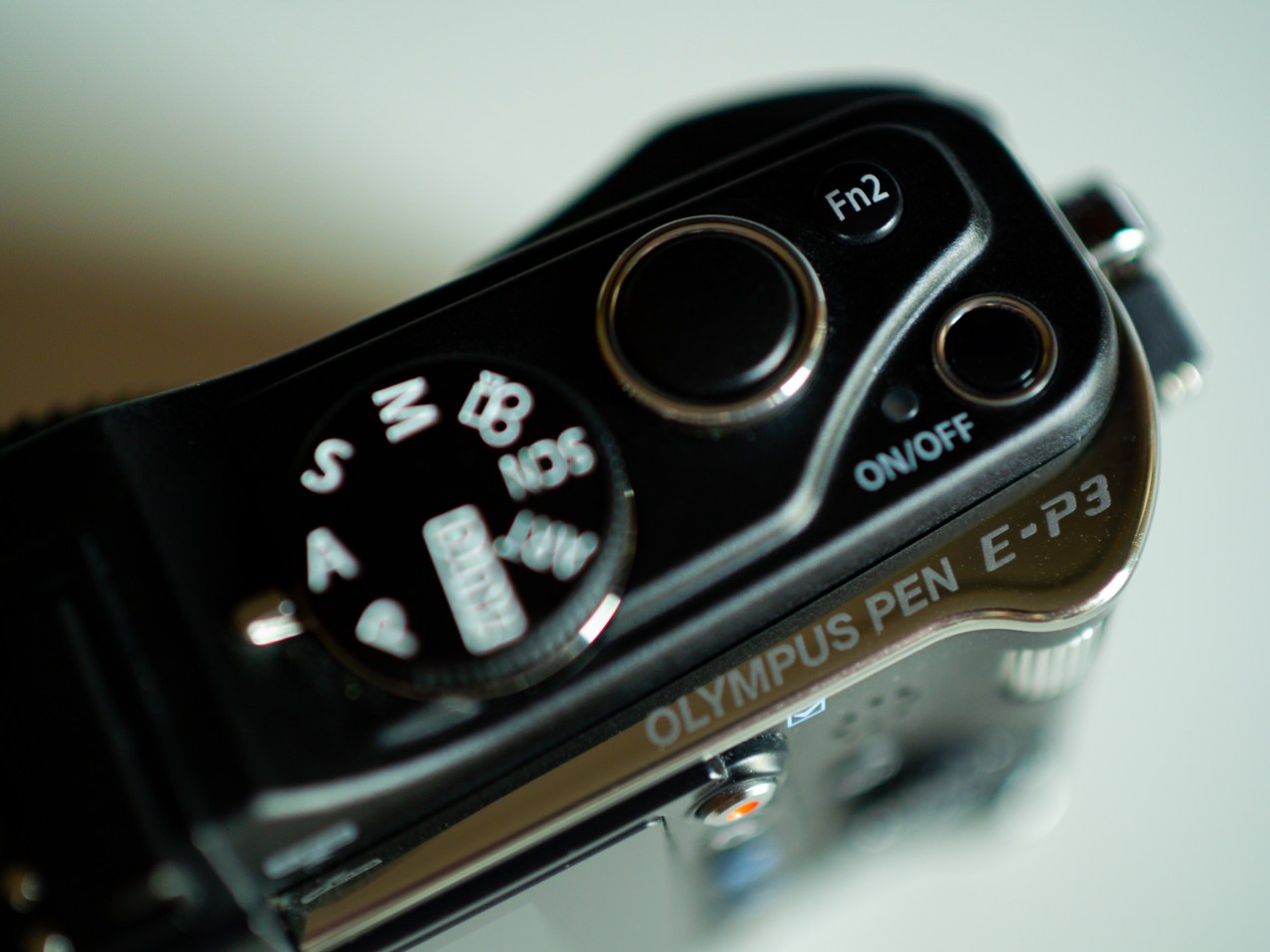
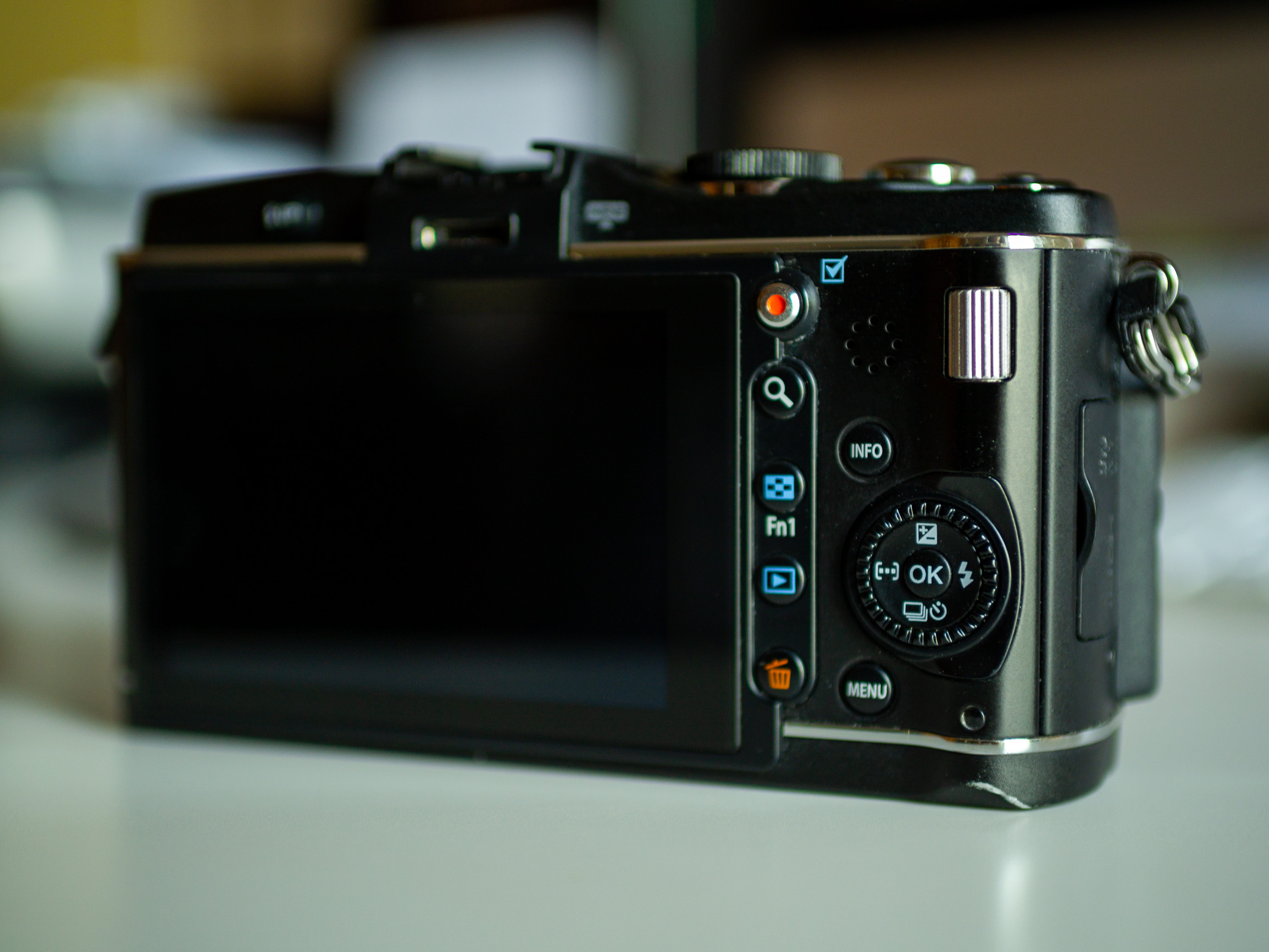
My Olympus PEN E-P3

I purchased this PEN E-P3 just a few days ago, to add it to my collection of Olympus PEN cameras. As I mentioned in my previous post, I now have all the PEN models except the PEN-F.

I love PEN cameras because they are the smallest full-featured cameras out there. Yes, there are smaller cameras, but they have smaller sensors. And there are small cameras with bigger sensors, but they’re not as small as these cameras, and you have to deal with big, heavy lenses. The PEN cameras are just perfect. The sensor is big enough to allow for great resolution without squeezing pixels too close together and small enough to allow for small, lightweight lenses.

PENs are almost as full-featured as the bigger OM-D cameras (which I also love and which have their own charm, purpose and amazing capabilities), but the PENs are small and light and easy to carry, so they’re perfect for traveling light or for an all-day photo shoot in the studio, when you have to move around and hold the camera at all sorts of angles in order to get that perfect photo. That was and is the Olympus MFT promise: small, lightweight gear and superb image quality. This is why my PEN E-P5 has become my main camera, by the way. I love using it in my studio and I use it everywhere else as well. This is also why I wanted to collect all of the PEN models. I wanted to see their evolution firsthand, from the standard-setting E-P1 to the E-P5 and the PEN-F.

I bought my E-P3 second-hand and there were some scratches to the underside of the camera. I also discovered after the purchase that the IBIS wasn’t working. I talked with the seller about it and it wasn’t malice. The fellow was a beginner and didn’t even know how to adjust the IBIS, much less that it wasn’t working. I guess at some point, the mechanism either broke or got stuck, so I packed it up yesterday and sent it in to one of the Olympus Service Centers in Eastern Europe to have it fixed. I look forward to getting it back in full working order and using from time to time, as I also use my other PEN cameras. They’re not just collectibles to me. They’re also working cameras and it’s important to me that each and every one of them is fully operational.
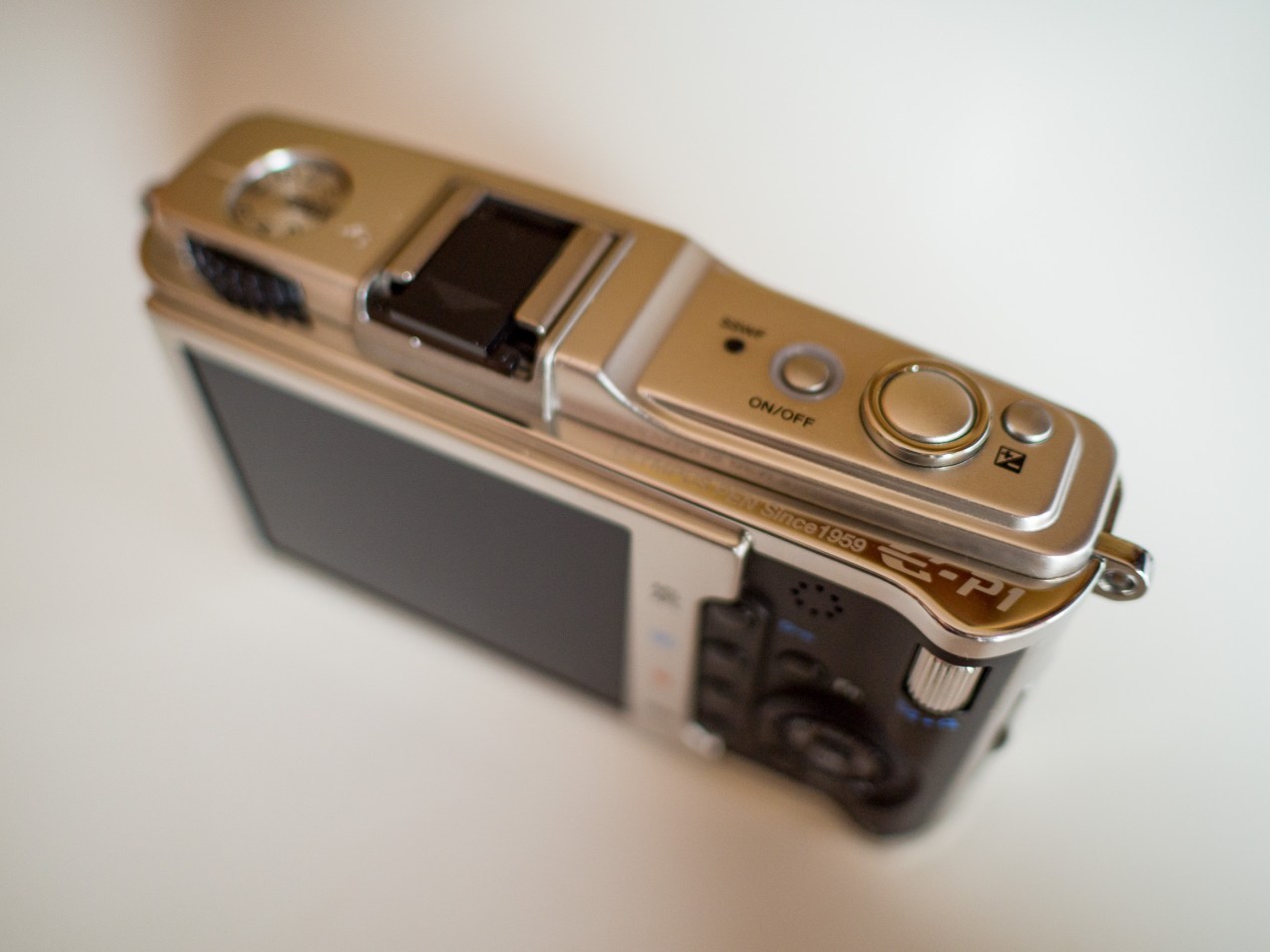
Before I sent this camera in for service, I mounted the 25mm f1.8 lens on it, plus my newly-arrived MCON-P02 Macro Converter (which I definitely recommend) and went into our garden to take photographs. I wanted to see how the E-P3 had improved upon the E-P2 in image quality. And it definitely has! The color gradation is better and so are the details. It has the same resolution as the E-P2 (12.2 megapixels) but the images are better and there’s less noise.

I do wish I had adopted the PEN system earlier, back in 2010 when I reviewed the E-P2. I think I’d have been pretty happy working with PEN cameras all these years and maybe also getting an OM-D camera. While I can’t change the past, I am working with Olympus gear now and I am very happy with it.

Enjoy the photographs!

Standard
Reviews

My Olympus PEN E-P1

Several days ago, I purchased a PEN E-P1. I’ve been thinking about a number of years of collecting all the digital PEN cameras that Olympus has made. I’m not referring to the PL (Pen Lite) or PM (Pen Mini) camera lines, which were launched alongside the regular PEN cameras in an effort to provide lower-cost alternatives for consumers with lower budgets. I’ve wanted to own all of the regular, full-featured PEN cameras, of which there are five models: E-P1, E-P2, E-P3, E-P5 and PEN-F. So when did my love of PEN cameras start? It was when I reviewed the PEN E-P2 back in 2010. I loved that camera and I wanted to have it right there and then, but I was heavily invested in Canon gear at the time. Fast forward to 2018. When I bought the E-P1, I already had the E-P2 and the E-P5 (I also have the first PL model, the E-PL1). Since then, I’ve also purchased the E-P3, so now the only camera left to get for my collection is the PEN-F.

The E-P1 is an important camera. Launched on June 16, 2009, it was the first digital PEN. Fifty years before it came the original PEN, in 1959. Both cameras were revolutionary in their design and their compact size. What Olympus managed to do with the digital PEN was amazing: they managed to give us the features and quality that only came with larger, heavier cameras, in a tiny and light camera body that could be carried in a pocket or a purse. In its time, the E-P1 was the lightest, smallest and most capable camera on the market. It may not have been the best at everything, but it offered image quality that was higher than or comparable to much larger and more expensive cameras with larger sensors. Even today, almost nine years later, when the E-P1 is coupled with a great lens, such as the M.Zuiko 25mm f1.8, it can produce truly beautiful photographs that match quite well the quality of images made with cameras that have full-frame sensors. You’ll see this in the gallery below, which contains photos I’ve taken in our garden with the E-P1 and the 25mm f1.8.

I am fortunate and happy that I was able to build my PEN collection, and that I get to work every day with such great cameras. The PEN E-P5 is my primary camera now, both in the studio and outdoors. I love it. Enjoy the photographs!

Standard
Reviews

A review of the Stellar Phoenix Photo Recovery software

Having lost photos and videos in the past, I am fairly cautious about my media these days. I keep local and remote backups and I use hardware that writes my data redundantly onto sets of drives, so that I don’t lose anything if one of the drives goes down. I have also purchased data recovery software, just in case something goes bad: I own both Disk Warrior and Data Rescue.

When someone from Stellar Phoenix contacted me to see if I’d be interested in looking at their Photo Recovery software, I agreed. I wanted to see how it compared with what I have. In the interest of full disclosure, you should know they gave me a license key for their paid version of the software.

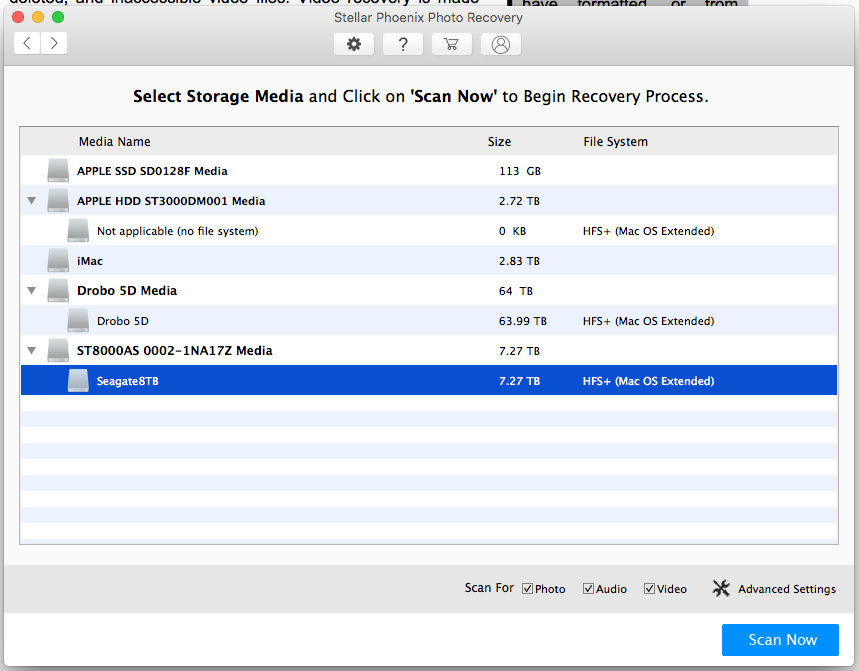
I put it to a test right away, on what I deemed the hardest task for data recovery software: seeing if it could get anything at all from one of the drives I pulled out of one of my Drobo units.

As you may (or may not) know, Data Robotics, the company that makes the Drobo, uses their own, proprietary version of RAID called BeyondRAID. While this is fine for the Drobo and simple to use for Drobo owners, it also means that data recovery software typically can’t get anything off a drive from a Drobo drive set. Indeed, after several hours of checking, Stellar Phoenix’s software couldn’t find any recoverable files on the drive. I expected as much, because I know specialized, professional-grade software is needed for this, but I gave it a shot because who knows, someday we may be able to buy affordable software that can do this.

Screen Shot 2018-02-24 at 16.30.13

The Seagate 8TB drive is the one I pulled out of the Drobo

Screen Shot 2018-02-24 at 18.29.31.png

What the software found is data gibberish; there were no MP3 or GIF files on that drive

Now onto the bread and butter of this software: recovering photos and videos from SD cards. I made things harder for it again, because I wanted to see what I’d get. I put a single SD card through several write/format cycles by using it in one of my cameras. I took photos until I filled a portion of the card, downloaded them to my computer, put the card back in the camera, formatted it and repeated the cycle. After I did this, I put the software to work on the card.

Before I tell you what happened, I need to be clear about something: because no camera that I know of and no SD card that I know of has any hard and fast rules about where (more precisely what sector) to write new data after you’ve formatted the card, the camera may very well write the bits for new photos/videos right over the bits of the photos/videos you’ve just taken before formatting the card. This makes the recovery of those specific photos that have been written over virtually impossible. What I’m trying to tell you is that what I did results in a file recovery crapshoot: you don’t know what you’re going to get until you run the software on the card.

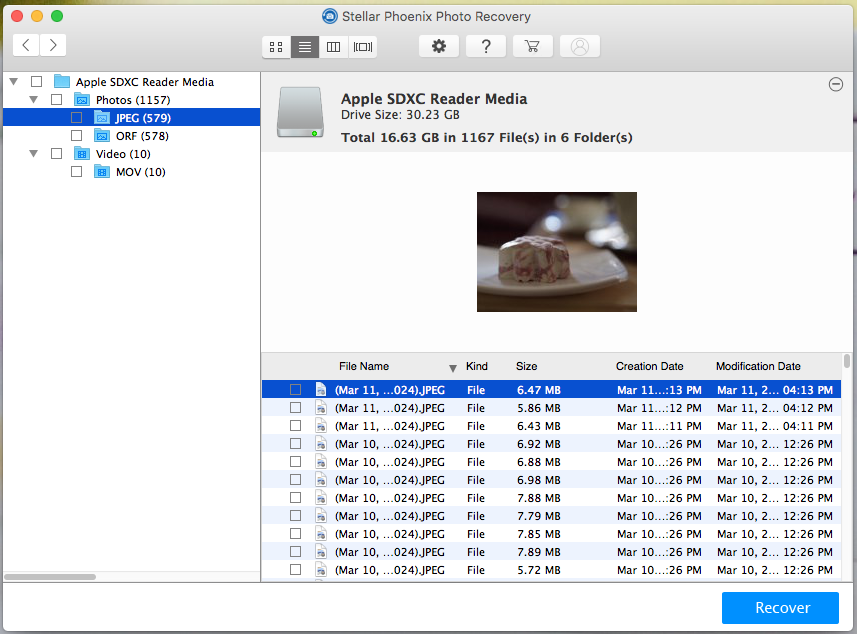
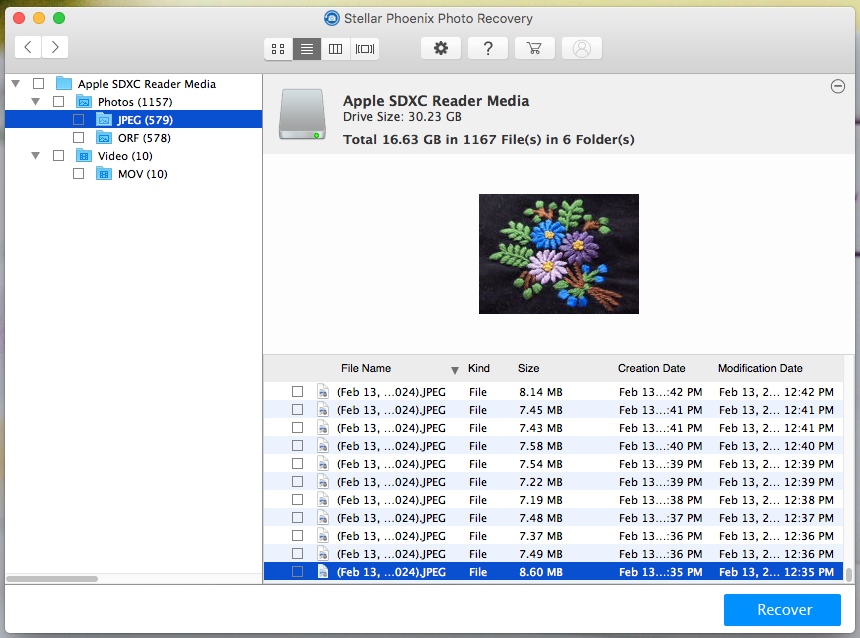
When I did run it, it took about 40 minutes to check the card and it found 578 RAW files, 579 JPG files and 10 MOV files. Since I write RAW+JPG to the card (I have my camera set to record each photo in both RAW and JPG format simultaneously), I knew those files should be the same images, and they were.

Screen Shot 2018-03-12 at 18.05.31

The software found photos and videos from several sessions and dates

Screen Shot 2018-03-12 at 18.05.54.png

As you can see from the dates, they ranged from March 11 to February 13

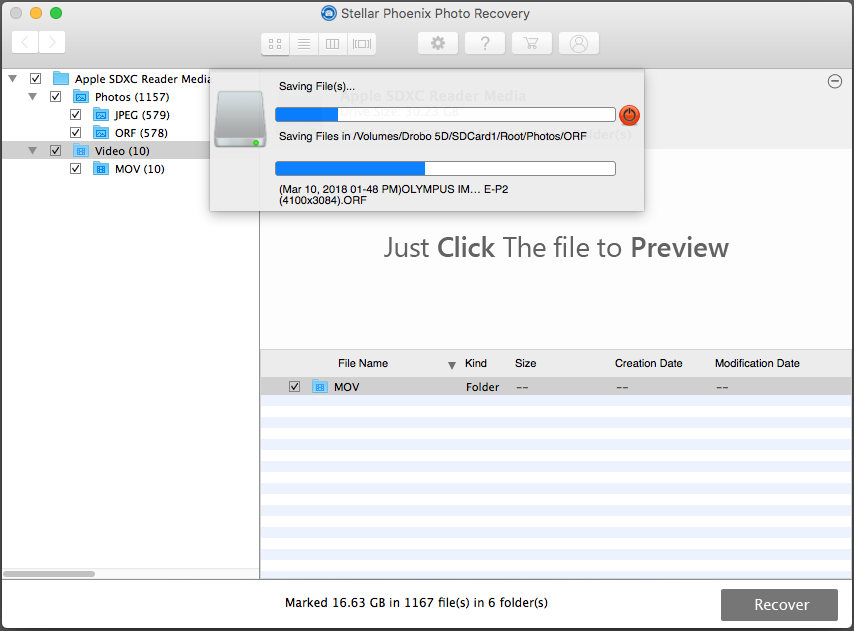
I then told the software to save the media onto an external drive, so I could check what it found.

Screen Shot 2018-03-12 at 18.37.08.png

It took about 30-40 minutes to recover the data

When I checked the files, I saw that it recovered two sets of JPG files: each one contained 579 files, but one of the sets began its file names with “T1-…”; they were the thumbnails of the images. All of the JPG files were readable on my Mac. It was a different story with the RAW files. It recovered three sets of RAW files, each containing 578 files. The first set was readable by my Mac. The second set, marked with “T1-…” wasn’t readable at all and the file sizes were tiny, around 10KB in size; they were the thumbnails of the RAW files. The third set, marked with “T2-…” was readable, but the file sizes were around 1MB a piece; they were the mRAW files written automatically by the camera, at a resolution of 3200×2400 pixels. A typical RAW file from the camera I used for my testing ranges in size from 12-14MB and its resolution is 4032×3024 pixels. It’s kind of neat that the mRAW (or sRAW) files were recovered as well.

Now I took 3,328 photos with that camera from February 13th – March 11th. It recovered 578 photos, so that’s a 17% recovery rate. Granted, I made it very hard for it by writing to the card in several cycles and reformatting after each cycle. When I only look at the last set of photos recorded to the card, before the last reformat, I see that I took 523 photos on March 10th and 3 photos on March 11th. The software recovered 525 photos on March 10th (so there’s some doubling up of images somewhere) and 2 photos on March 11th. However, don’t forget about the JPG files, which contained the missing image. So that’s a 100% recovery rate.

In all fairness, there is free software out there that can do basic recovery of images from SD cards and other media, so the quality of a piece of software of this nature is determined by how much media it recovers when the free stuff doesn’t work. I believe I made things hard enough for it,and it still recovered quite a bit of data. That’s a good thing.

Let’s not forget about the video files. Those were written to the card with another camera and they ranged in dates from November 3-6, 2017. I’m surprised it recovered any at all. It gave me 10 video files, out of which 5 were readable, so that’s a 50% recovery rate.

Just for kicks, I decided to run Data Rescue on the SD card as well. It also found 579 JPG files and 578 RAW files. All were readable by my Mac. It also found 10 video files, but none were readable. However, I have Data Rescue 3, which is quite a bit old. Data Rescue 5 is now out, but I haven’t upgraded yet. It’s possible this new version might have found some more files.

Price-wise, Stellar Phoenix Photo Recovery comes in three flavors: $49 for the standard version (this is the one I got), $59 for the professional version (it repairs corrupt JPG files) and $99 for the premium version (it repairs corrupt video files in addition to the rest).

The one thing I didn’t like is that the Buy button didn’t go away from the software even after I entered the license key they gave me. As for the rest, it’s fine. I think it crashed once during testing and it didn’t happen while actually recovering data. The design is intuitive and at $49, this is software you should definitely have around in case something bad happens to your photos or videos. It may not recover all of what you lost, but whatever you get back, it’s much better than nothing, which is what you will definitely get if you don’t have it. It’s also a good idea to have multiple brands of this kind of software if you can afford them, because you never know which one will help you more until you try them all. And believe me, when you’re desperate to get your data back, you’ll try almost anything…

Remember, back up your data and have at least one brand of data recovery software in your virtual toolbelt. Stay safe!

Standard