Reviews

ffmpegx, the best video encoding and compression on the Mac

A little while ago, I wrote a post outlining the things I didn’t like about my Mac, and while most of the issues I pointed out are still affecting my iMac, I have to really thank one of the people who left a comment, by the name of Howard Dratch. He pointed me to a great app for video encoding and compression on the Mac, called ffmpegx. I was a little skeptical, but hey, it was free, so I gave it a shot. After the first compression, I was amazed! The compression is fast, clean and very, very good. I can barely notice the difference between the original and the compressed copy. I highly recommend it. It’s one of the best applications I’ve ever used, and I don’t think I exaggerate when I say that it’s probably the best video encoding/compression tool on both the Mac and the PC platforms. Granted, there is no Windows version, but still, I’m hard pressed to find its equivalent there.

What sets it apart is not only the ease of use (though there are tons of options to choose from) or the speed of encoding (although it’s among the fastest I’ve used) or the fact that it’s free (because it is — well, shareware anyway), but it’s all of these things together. It’s a great, all-in-one, wonderful package.

Now, before you think I use it for illegal purposes, I don’t. I’ve never downloaded illegal moves from BitTorrent or anywhere else on the Internet. I’ve never shared movies illegally, and I don’t intend to. I use ffmpegx or any other of my video tools for legitimate purposes, and I encourage you to do the same. When I use tools like these, I use them so I can edit and compress my movies, and fit more of them on my hard drive.

One of things I like to do is to use a PVR (a Tivo-like device for the Mac), and schedule it to record my favorite shows and movies. I happen to like shows like Cartoon Alley on TCM, and I like old movies (made from the 20s through the 60s). So in order to help you learn how to use ffmpegx, I took a few screenshots of a typical movie encoding that I do.

First the main screen. I love its simplicity. You have the original movie on one side, and the compressed movie on the other.

ffmpegx main screen

I prefer to encode with the H.264 codec, but I use the mencoder H.264 flavor. The Apple H.264 codec, also available through ffmpegx, is much slower and the resulting file isn’t as small. As you can see, the basic properties of each file are summarized in the columns. Now let’s have a look at the next screen, listing the Video options:

ffmpegx video screen

Here you can adjust the bitrate, fit the movie size to a particular archival disc (if you’re so inclined), and adjust its size. If you’re encoding a DVD, you can select which title, chapters and angle you want to encode. What I really like is using the Best button to let it select the best bitrate for the video size. Now let’s have a look at the Audio options:

ffmpegx audio screen

Here you can select the codec, and the audio parameters. If the movie you’re encoding has more than one audio track, you can select the one you want here, and you can even amplify it if so desired. If this is a silent movie, you can add your own track, or if you’re doing a mash-up video, you can add your own voice-overs or soundtrack.

The Filters screen is where things get really, really interesting. Can you see why?

ffmpegx filters screen

Forget all the other cool options, what I really like is the Crop option! Although the Autocrop only works sometimes, because the opening credits or sequences may confuse it, it’s a really cool button. If there are extra portions of screen estate taken up by nothing but fuzz or black space, you can take them out through a crop. Remember how wide-screen movies were letterboxed when shown on TV? Well, you can cut away the letterbox and be left with only a nice, widescreen movie! It’s a fantastic option! Oh, and in case the Autocrop button doesn’t work, you can also specify your own crop settings, and preview them by clicking on the Preview button. A white border will indicate the crop settings.

The Options screen lets you adjust the encoder parameters even further, and of course, lets you specify 2-pass encoding if you want extra quality.

ffmpegx options screen

The Tools screen has a bunch of sub screens that let you play with the video options even more. There are a lot of features squeezed in there!

ffmpegx tools screen

Oh, let’s not forget the Progress window:

ffmpegx progress screen

Finally, if you should need more instructions on how to use ffmpegx, there’s a great how-to section right on their site.

In case you’ve been wondering just what I’ve encoded as I took the screenshots, it’s a lovable and joyous little movie called Luxury Liner (1948). It stars Jane Powell, one of my favorite actresses, Lauritz Melchior, the famous tenor of that time, and George Brent, one of my favorite actors, who also starred in Honeymoon for Three (1941). Incidentally, he was married to Ann Sheridan (his co-star in that movie and another of my favorite actresses) when Honeymoon for Three was filmed. See, now aren’t you glad you read this post to the end? You just learned something new! 🙂

Standard
Thoughts

The sky at sunset

The evening sky, in particular during those moments when the sun is just about to go down below the horizon, gets me every time. I took a series of photos last evening, and wanted to share the more notable ones with you. Photos are from North Bethesda, MD.

Chasers

Strewn

Serene

Silky

Revolution

Frozen

Toward that goal

Bend in the fabric

Crossroads

Burning embers

Rising

Toward night

Last struggle

Peace

Standard
How To

A quick maintenance operation that will prolong the life of your laptop

I upgraded the RAM in my laptop yesterday, and stumbled onto a really easy maintenance job that will most certainly prolong the life your laptop, and help it run faster, cooler and quieter. It sounds impossible to do all that in one fell swoop, but it’s really easy to do, and it works. I’ll give you a hint: it has to do with your laptop’s cooling.

I realize your laptop is going to be different than mine, so my photos may not help you much when it comes to doing this on your own laptop, but bear with me, the principle is the same, and this simple clean-up job will really help.

What I’m talking about is the laptop’s cooling fan assembly. It’s the fan that cools the processor’s heatsink, and is responsible for keeping the processor below the upper temperature threshold. It’s like your car’s radiator. If it wasn’t working, your car would overheat very fast, wouldn’t it? Same thing here, except your laptop’s “radiator” is prone to getting clogged up with dust – lots of it, too.

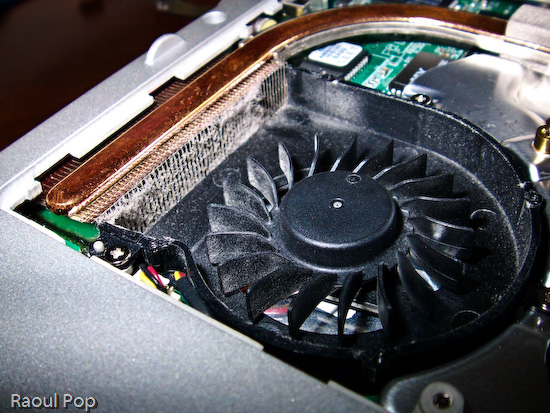
After about a year and half of using my laptop mostly on clean tables — not on carpets, or my lap, or on tablecloths, as some of us do [!] — I was very, very surprised to find out how much dust had accumulated on my laptop’s cooling grill. I didn’t even open my laptop in order to inspect it. I just wanted to install some extra RAM, but saw the cooling fan and figured, hey, let me open it up even though it looks clean enough from the outside. Boy, was I in for a shocker! Have a look at this photo to see for yourselves.

Cleaning an Averatec 6240 series laptop

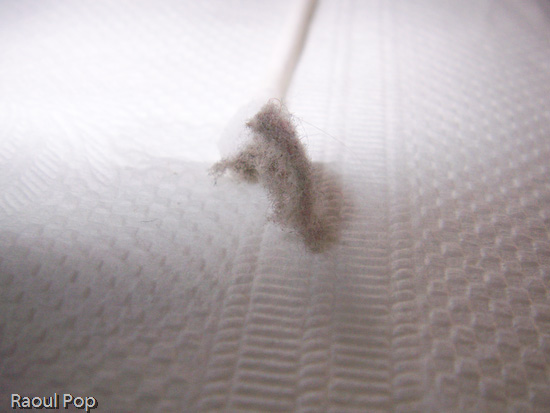
You may not think that layer of dust is much, but have a look at a macro photo I took of a piece of it. I used a moist cotton swab to pull off the dust from the grill. Can you see how thick it was? It’s a wonder any air managed to get through!

Cleaning an Averatec 6240 series laptop

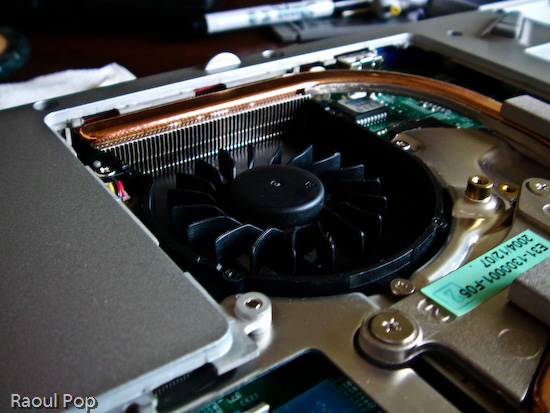
In case you’re wondering how I removed the cover from the cooling fan, it’s simple. There were four small screws holding it in place. They were each about the size of those screws you find in the frames of your eyeglasses, so you can use the small screwdriver from a frame repair kit. (If you’re a geek like me, you probably have your own mini-screwdriver set.) After using moist cotton swabs to thoroughly clean the grill, I blew through the grill from both sides of the laptop to make sure no dust was stuck inside. I was out of air spray, so I just used my lungs — if you do the same, be careful, don’t inhale the dust, it doesn’t taste good… Then I also wiped the fan blades clean with more moist cotton swabs, after which I used a couple of dry ones to wipe the entire assembly. Have a look at the finished product. Looks pretty good, doesn’t it?

Cleaning an Averatec 6240 series laptop

The important thing to remember is that most people can do this at home, and it’s a completely user-serviceable operation. I didn’t have to remove any warranty stickers (although my laptop’s out of warranty anyway). As a matter of fact, I only removed the panel that’s supposed to give me access to the RAM. It’s a big panel, so it really gives me access to a lot more stuff.

Cleaning an Averatec 6240 series laptop

If my laptop managed to get that much dust inside after only a year and a half of normal use (on tables and desks), I can’t imagine how much dust there is in other laptops that get used everywhere, and never get cleaned! To me, it’s a miracle that most survive through their projected 3-year lifetimes, and even last beyond that. I have to wonder how much better they’d run if their owners would take the time to clean them out once in a while. My suggestion is that you schedule time to do this cleaning once a year.After I finished, I noticed a difference right away. My laptop is cooler now, and runs much quieter. Before, the fan ran in overdrive most of the time. Now, it only runs at higher speeds when the processor is crunching through difficult operations, which is the way it should be. It also runs a little faster, and it’s more responsive. This also makes sense, because a cooler processor works better. It’s the same principle behind water-cooled processors, which can be overclocked because their temperatures are kept low.

At any rate, I encourage you to open up your laptops and try this for yourselves. But please, make sure they’re turned off, unplugged from any power source, and the batteries are removed before you even think of opening them up. Also, ground yourselves before you touch the circuits. You don’t want to short anything inside with any static electricity you might generate.

Standard
How To

Do you want to know how long your hard drive will last?

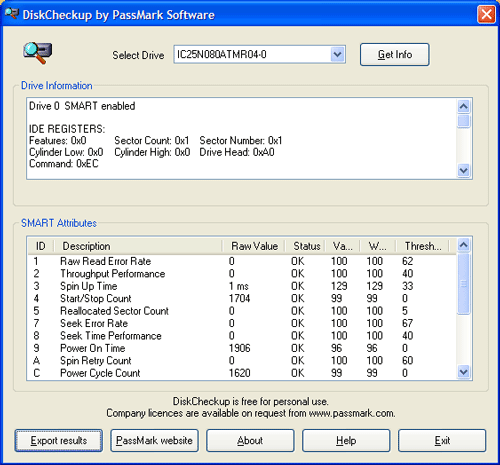
If you do, then use the DiskCheckup software from PassMark. This software is free for personal use and $15 for business licenses. Just download it, unzip it and run the DiskCheckup executable to get an instant report on the health of your drive. The software reads the data put out by the S.M.A.R.T. feature standard on most hard drives nowadays and can tell you through a simple to read report if it’s time to really back up the files on the drive and get ready for its demise. I ran a report on my laptop’s drive, and it passed with flying colors. I’m alright for now!

DiskCheckup Test Results

Standard
Reviews

Hardware review: HP Pavilion m7480n desktop

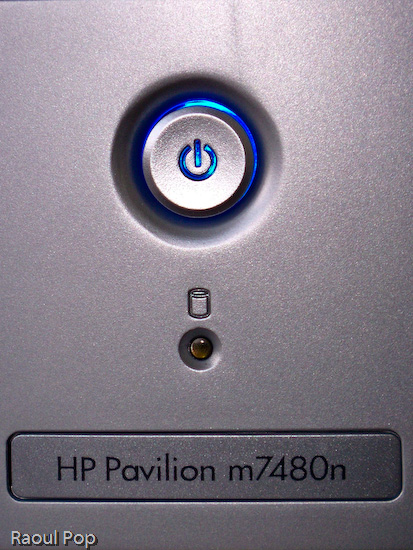
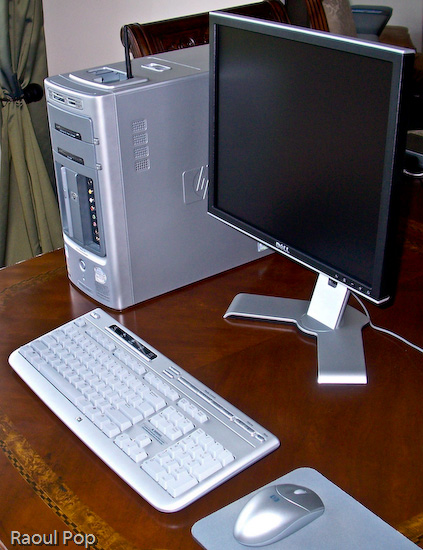
I’ve been using the Pavilion m7480n desktop for the last 2 and a half months, and I’m pleasantly impressed. This is a great desktop system, it’s fast, stable, packed with great features, but most of all, it’s well designed, and that’s what sets it apart from other desktops on the market.

HP Pavilion m7480n Desktop

HP Pavilion m7480n Desktop

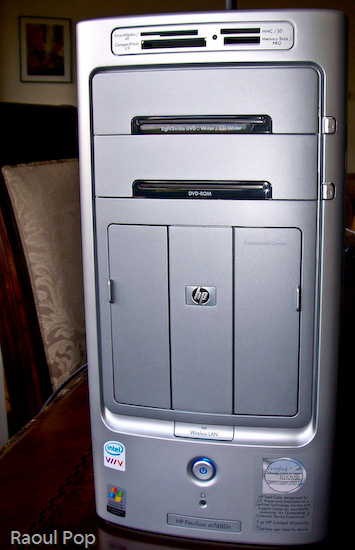
I have never seen so many great and useful features packed into the desktop form factor. Let’s start with the front side of this computer, which is, as far as I’m concerned, fantastic.

HP Pavilion m7480n Desktop

HP Pavilion m7480n Desktop

A lot of computers have flash memory readers, but not a lot of them have them custom-built into the desktop case, located right at the top for easy access, and have so many choices when it comes to card formats.Want an all-in-one solution for writing DVDs and CDs? The LightScribe drive is it. Not only will it write single- and double-layer DVDs, DVD-RWs, CD-Rs and CD-RWs, but it will also print your label for you. Also included is an extra DVD-ROM/CD-ROM drive, just for fun.

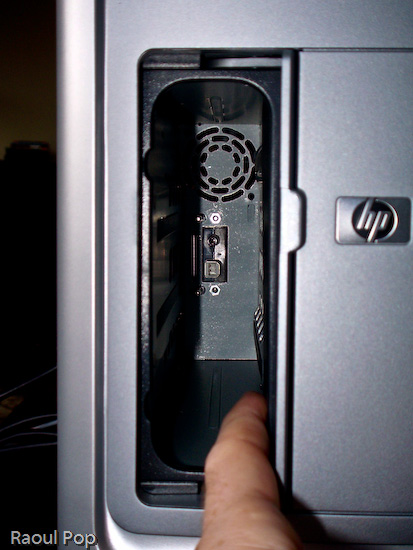
See the two panel doors? One of them is for the Personal Media Drive Bay, which is hands-down, the coolest feature you’ll find in any desktop computer. Want extra storage? Just slide in a Personal Media Drive. Want to add another hard drive? Just slide in another Personal Media Drive. Seriously, it’s that easy! The drive slides in, and automatically connects to the computer through USB, and is also powered by a special connector, no wires required. I don’t know about you, but I’m really annoyed by the extra power cords and power adapters that come with external storage drives. Sure, the drive may look nice by itself, but when you add the bulky adapter and power cord, it’s suddenly not so nice and neat. So the great thing about HP’s Personal Media Drives is that there are no cables and power adapters – you only need the drive, which is a beautiful thing.

HP Pavilion m7480n Desktop

You’d think HP would charge you a ridiculous price for this extra convenience and the custom form factor, but they don’t, which is also nice. Currently, they come in three sizes: 160GB, 300GB and 400GB. The 160GB PMD is $149.99, the 300GB PMD is $249.99, and the 400GB PMD is $319.99, which runs a little above the low margin of the market for personal storage, but not by a lot.

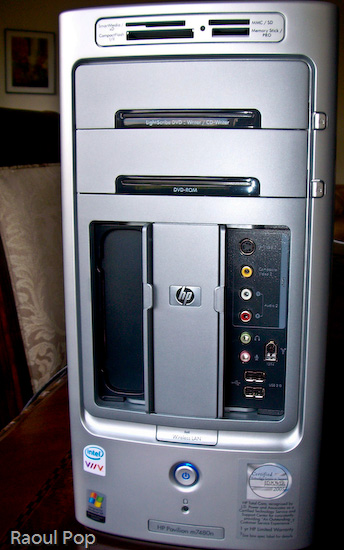
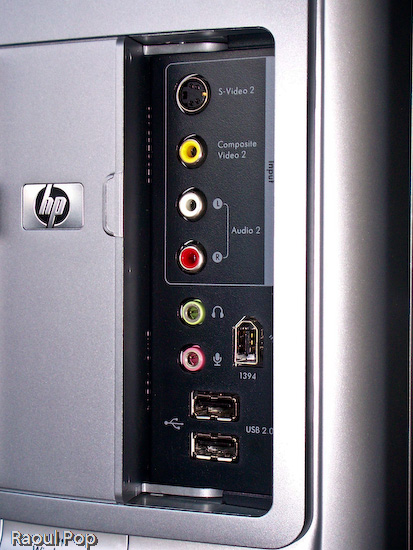
Let’s look at the other useful front panel: the Connectivity Center. Tell me honestly, have you seen such a thorough front panel on any other computer line? I haven’t. There’s an S-Video port, composite video ports, the standard headphone/microphone jacks, two USB ports, and — a really nice thing — a Firewire (1394) port. Finally, a computer manufacturer gets it, and puts a ready-to-use Firewire port on the front of a computer.

HP Pavilion m7480n Desktop

Also on the front side of the desktop, let’s not forget the little things, like the sliding doors that hide inside the chassis for the front panels (the Personal Media Drive Bay and the Connectivity Center). They’re very useful because when you don’t use the panels, you can close the doors and hide away the ports. And, you don’t have to flip them up, like on a Dell desktop (yuck), or you don’t have to slide them up and have the door fall back down after it’s gotten a little used — no, you simply slide them to the side. It just works. An added bonus on the front is a Wireless Lan light that turns on when a connection has been established — this is a great visual indicator for those of us who are less tech savvy.

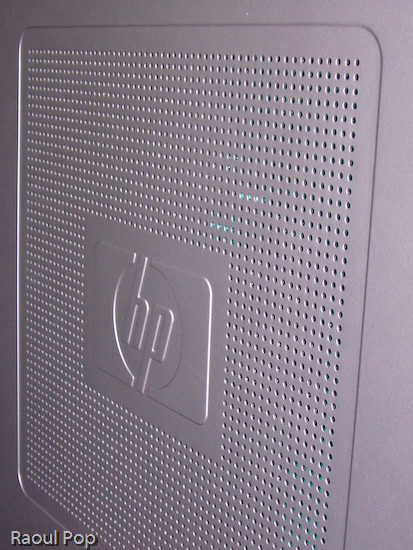
It isn’t just the front of the desktop that’s interesting. I like the side cooling grille as well. One small note: although the finish of the desktop case looks like plastic, it’s actually metal. Only the front and top side of the case are plastic — the sides are metal. Another useful feature is that this desktop runs very quietly. I’ve had desktops in the past that really made a lot of noise, so I can readily appreciate the silence in the room when I use this system. The only sound I can hear out of it is the hard drive — and that only when I really push it.

HP Pavilion m7480n Desktop

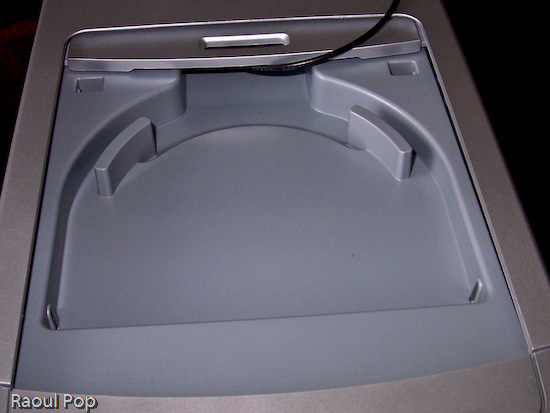
Another notable feature is the dock for an HP Photosmart printer right on top of the computer. Like the Personal Media Drive Bay, this is a feature that’s unique to HP desktops, and I really like it. Who’d have thought of building in a dock for a photo printer on top of the computer — but it makes perfect sense. You have the card reader right on top as well, so you simply slide in the flash card containing your photos or you connect your camera, and print your photos right away. You don’t have to worry about where you place the printer, because it’s right on top of the computer. This is beautiful, functional design.

HP Pavilion m7480n Desktop

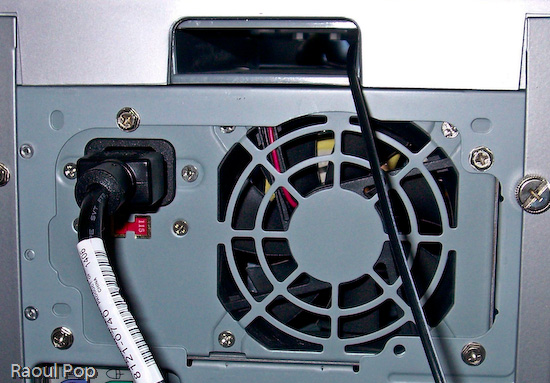
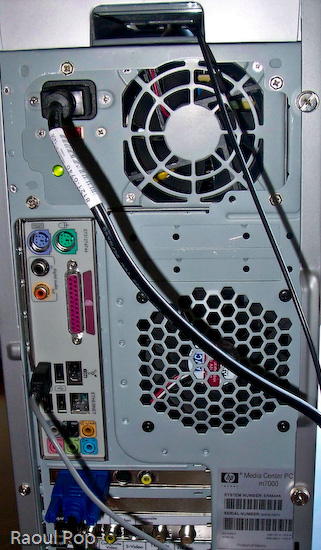
The cover for the dock is easily removed, and the really nifty thing is that HP designers included a slot at the back end of the dock for the printer wires (USB, power). That way, you can slide them right through the case and out the back, easily connecting the printer to the computer and the power supply. Very, very nice! For example, I used the dock to sit my wireless antenna in it, and I slid the antenna cable through the very same slot, pulling it out through the back of the case, as you can see below.

HP Pavilion m7480n Desktop

The back panel itself is also very useful. Besides the usual connectors and ports, it has digital sound in and out, connectors for 5.1 speakers, 4 USB ports and another Firewire (1394) port, a video card with S-video and RCA video out ports, and an input slot with the following ports: composite A/V, S-video, TV/Cable antenna and FM antenna. I would have liked to see a DVI-out connector on the video card, but other than that, this is a pretty good collection of connectors and ports.

HP Pavilion m7480n Desktop

This system comes standard with a wireless keyboard and mouse, and they both work great. The battery life is as expected or longer: I only had to replace the batteries in the mouse after 2 months, and the keyboard batteries are still going strong. The only thing that could be improved on the keyboard are the keys. While they work fine, they’re a bit loud, and could stand to be made quieter. The multimedia controls on the keyboard also work all the time, which, at least for me, is a departure from the norm. I’m used to seeing multimedia keys on other laptops and desktops be unreliable, so it’s nice to see them working non-stop for a change.

The HP Pavilion m7480n is one great desktop. It comes with an Intel Dual Core chip, which clocks in at 3.00GHz for each core. My system had 2GB of RAM in it, and it ran wonderfully on that. The hard drive was 300GB, and HP reserved 10GB of it for a separate recovery drive that can be used to restore the OS and applications when needed. But what sets this desktop apart isn’t necessarily the specs (which are top of the line anyway) but the amazingly useful design. Serious thought was given to functionality and ease of use when it came to the case of this desktop, and that’s what impresses me and really counts.

Standard