

I think I started posting my own photos online sometime in 2002-2003. During all this time, two things have remained the same: the overall ignorance of most web users about photographic copyright and the duplicity of some social media websites in keeping their users ignorant about the topic. Most images uploaded to social media are immediately resized and stripped of their metadata and copyright information, rendering them into multiple pieces of “media” ready for the consumption of the public unaware of their origin. This is strangely similar to food processing when you think about it. You probably don’t want to know where your hot dog’s from, and the vendor is more than happy not to tell you. But back to photos…
It started innocently enough: in a period of much slower internet than today, there was a need to compress images uploaded to websites, in order to serve up smaller, “optimized” versions to those with slower connections. The argument photographers heard then went along the line of, “We need to strip every piece of data except for the visual part, which we also compress, in order to save size and also to optimize the use of space on our servers, but we’ll continue to work on this and see what our options are down the road.” Well, we’re 15 years down that road now, so I thought I’d stop and look around to see where we’ve arrived.
The short of it is this: not far. It’s hard to believe that an ethical solution couldn’t be found in this past decade and a half, as online tech has advanced so much in other ways. A simple, workable solution is surely within grasp for a determined engineer in the land of tech. A pessimistic person could make the case that it’s to the advantage of social media websites for the copyright information to be lost along the way. From a legal point of view, not being able to assign the blame to anyone is better than being able to assign it to someone while it also turns out that you were an accomplice. Say someone reuploads an original photo created by someone else to social media, and that photo gets reposted over and over and over, either through reshares or reuploads. Say the original photographer gets mad and wants to do something about it. We all wish him or her good luck in hunting down all of the unauthorized uses of his or her photograph and trying to get recompense out of anyone. Blame can’t be currently assigned; there is no easy-to-access “chain of custody” for photographs that get used without being licensed or even credited. The media company might say, “But we resize and compress images on upload, we don’t keep any metadata, how are we to know whose image it is?” and the users will say, “But I saw no copyright information, no source, no photographer’s name, how was I to know?” or “It was a popular photo, everyone was posting it, I just wanted to post it for my followers, too.” Works out great, doesn’t it? Guess what? Most people have done it. I’m guilty of it as well. I save photos from all over the web. Then, when I look at them weeks, months and years down the road, I have no idea who took them. I mean I know my own photos, and I know the photos of a few photographers whose style is familiar to me, but good luck with everything else. When I look at the metadata, most of the time, there’s nothing there.
The only one getting screwed here is the photographer who took that photo. Probably worked hard to take it, too. Had to take time off for his or her passion, drive somewhere, hike up a mountain, suffer wind and cold and rain, freeze his or her butt in a flimsy tent during the night, get up at an ungodly hour and find the best place to set up the equipment for the shot then wait for it — no, seriously, wait for it, like another half hour at least — nope, still waiting for it… “Hold on, the sun’s just cresting the ridge, okay, it’s go time, now, now, now… goddammit… wtf, now the card malfunctions?!” After more trials like this, the fellow or damsel goes home, processes that photo to perfection, uploads it to his or her social media account and gets about 2 likes. But someone else sees it in a friend’s feed and goes, “Wow, that’s a nice photo, hold on, let me download it.” Easy enough, right? If it can’t be downloaded, you can always just take a screenshot and crop it as you like… So that someone else decides to post the photo to his feed, “Check this out, peeps!” and everyone’s like “Wow” and “Awesome shot, dude” and “One thumb, two thumbs, three thumbs up” or whatever, and the photo gets over 100 likes or faves or pluses or hearts easily; well, maybe not that many pluses… And it could be that the photographer didn’t have to go to all that trouble to get it, maybe only worked all of 2 minutes for a photo that turns out to be popular, and that’s with counting the time it took to edit it, but that shouldn’t matter. The point is, does anyone ask whose photo it is? Can they even find out out? Can anyone easily look up that information?
Shouldn’t those vital bits of information remain stored with the photo, through all its resizes and compressions, no matter what? It’s only a few bytes of data, dammit. You have (1) the photographer’s name, (2) the source (that’s typically where we put our website), (3) the title of the photo and (4) the caption. How hard would it be to keep just those bits, in every version of the photo, on all of the social media websites? Actually, that question shouldn’t even be asked. It shouldn’t even be a question. It should be a statement, as in, “Of course we’ll keep in those pieces of metadata. They’re vital information as far as photographs are concerned. Now let’s make it happen, people.”
Those four bits of information should be sacrosanct. Here’s another word for it: sacred. Here’s another: untouched. Here’s another: don’t fuck with them. What I don’t understand is why this hasn’t happened yet across the board, everywhere, especially when so many software engineers are also photographers. Yes, that’s an odd coincidence, but an ungodly number of coders and engineers of all sorts also love taking photographs and they also work at social media companies. Somehow no one’s put two and two together yet. It hasn’t clicked in their minds yet that they could be part of the solution, that they’re right there and could be advocating for this, heck, not just running their mouths but actually coding the fixes.
Let’s look at specific examples from social media websites.
Here’s what goes on with photos uploaded to Facebook: they get renamed, compressed and resized. And they get a special identifier code written to one of the metadata fields; I think FB uses this code to track internally what happens to the photo on its platform. I don’t know how well they can identify images based on those codes when they’re downloaded and re-uploaded, but perhaps that’s one way to help photographers keep track of the images they upload to the platform in the future. Now, here’s the part that baffles me. For my own photos, the ones I upload to my page, such as this one, I see that FB keeps my copyright information. When I download it from the platform and look up its metadata, my info is right there, even when I download it from another browser and I’m not logged into FB.
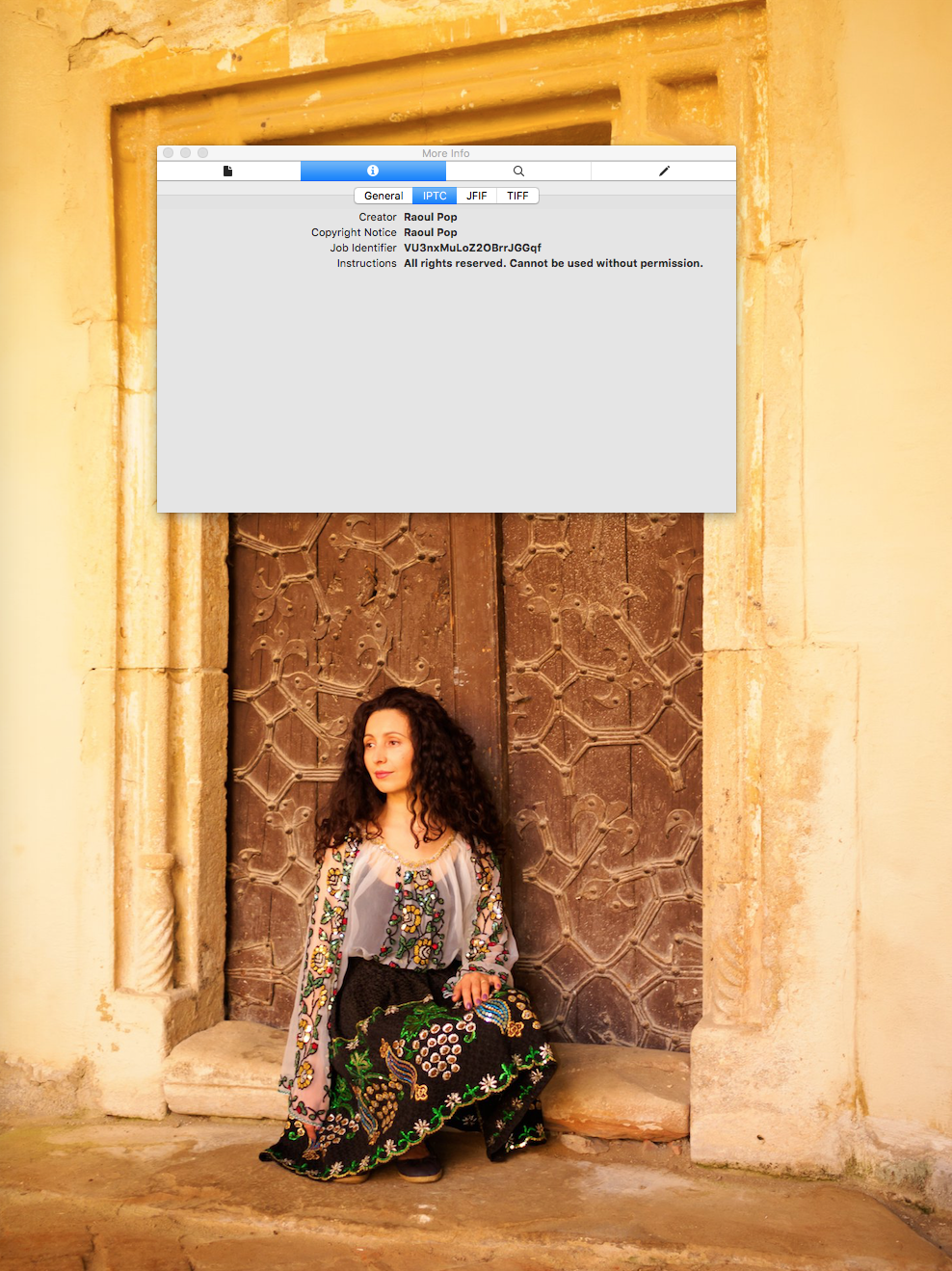
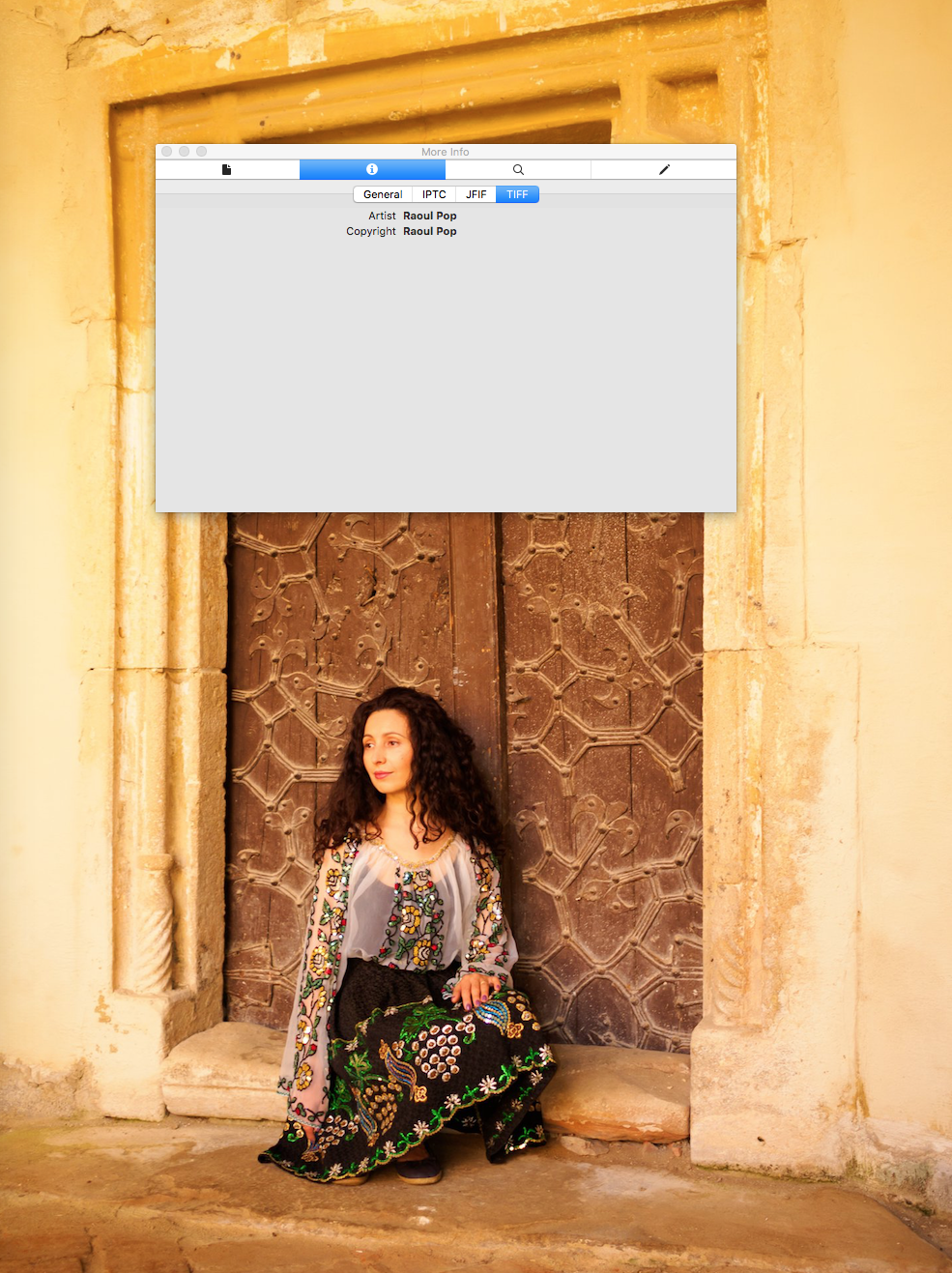
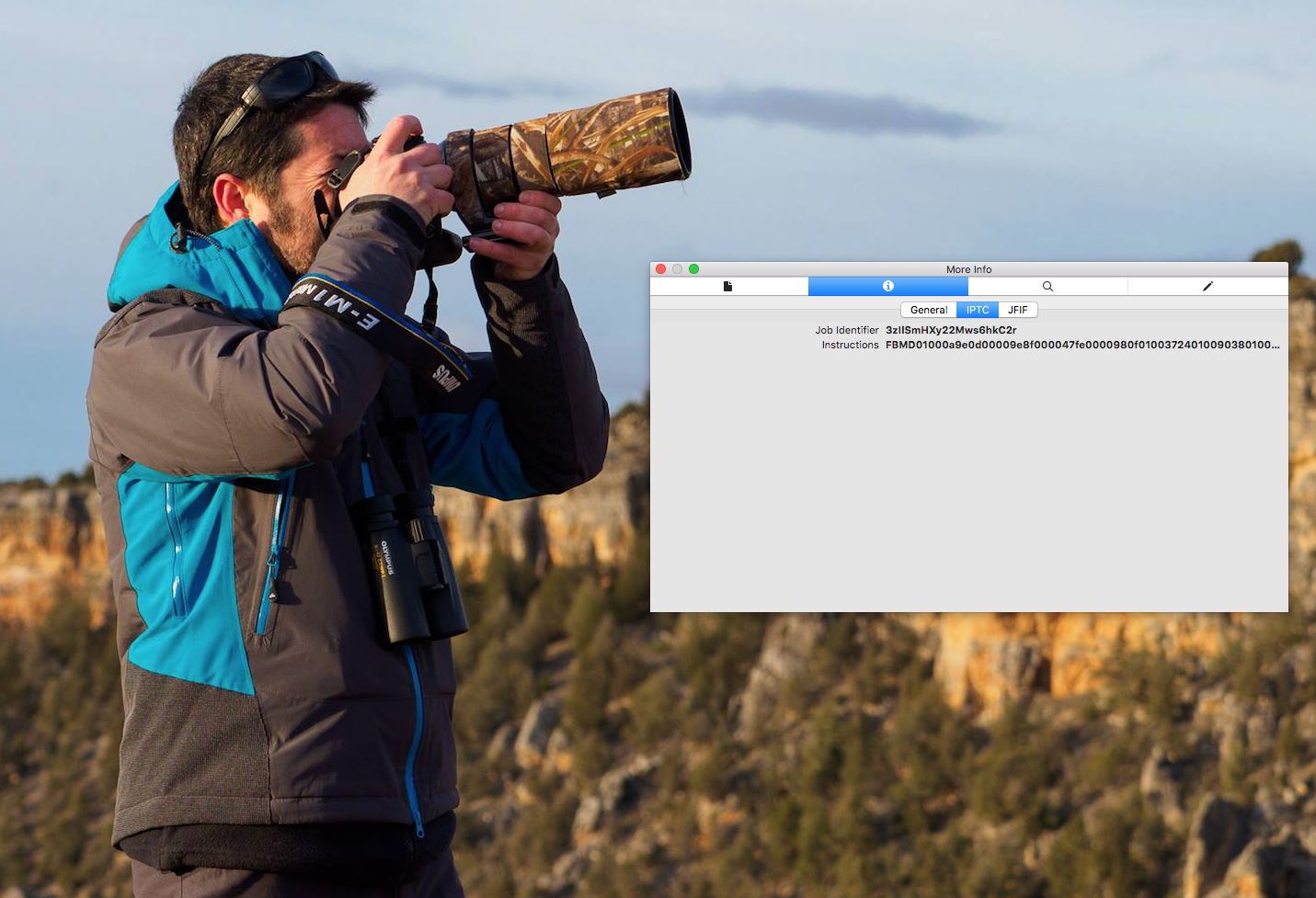
However, that info isn’t there for the photos posted by other people and other pages. I don’t get it. Is it that they don’t specify it, or that it’s not kept for most? Could someone enlighten me on this? Here’s a photo I downloaded from the Olympus Europe FB page. There’s no such info available.
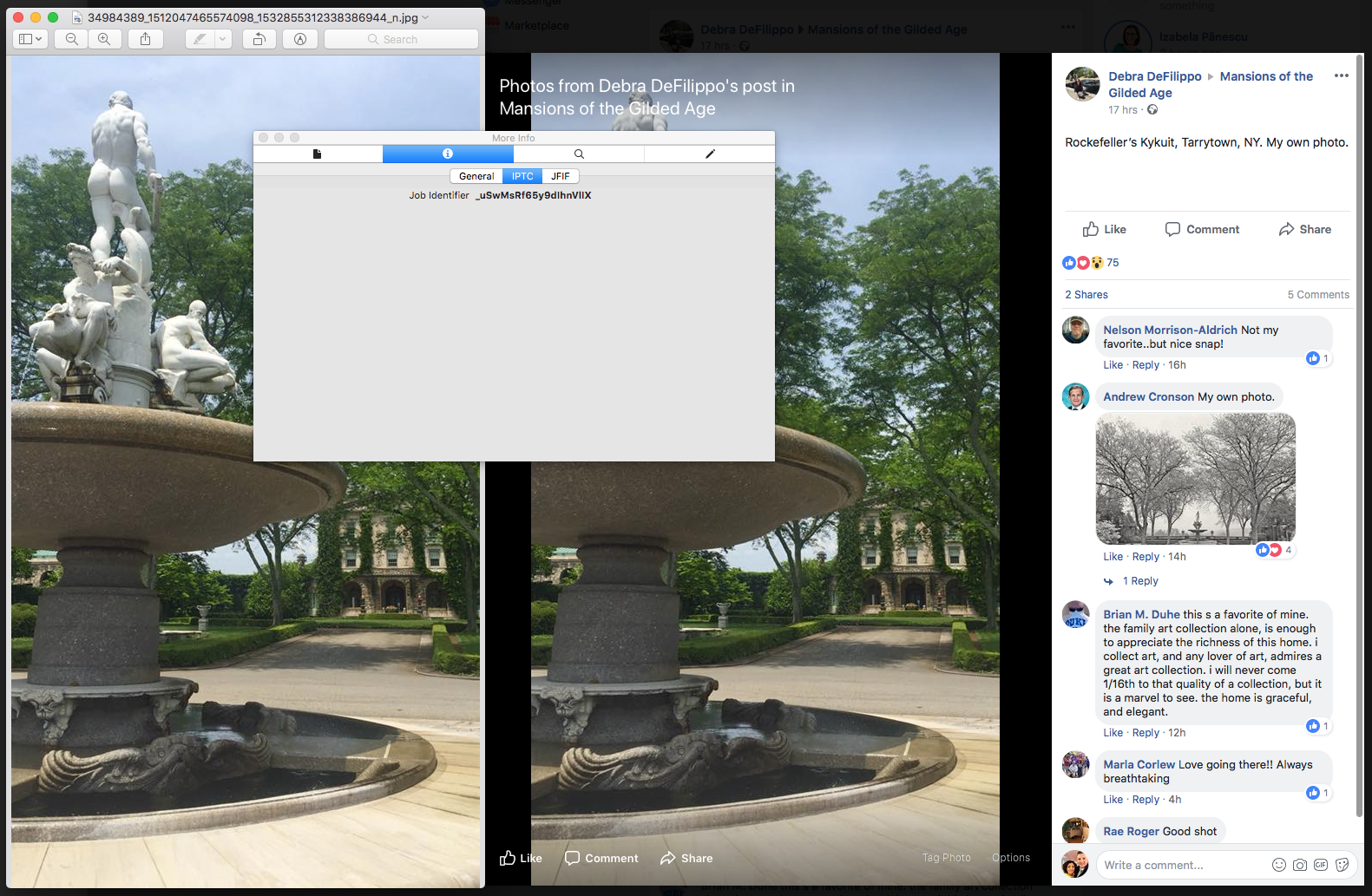
When I looked at a photograph uploaded by someone to a FB group, again I found no metadata. So even though the photographer identifies herself in the caption of the photo, that caption isn’t in the metadata, and should the photo be downloaded and re-uploaded, it’s easy to see, in spite of good intentions, how easy it would be to lose track of the photographer’s information.
I also looked at photos uploaded by other photographers to their FB pages. I couldn’t see any identifying metadata. Here’s one such example. That’s a beautiful photograph which I’m sure will get downloaded and possibly re-uploaded. The photographer’s placed a watermark on it, but that’s not going to be necessarily helpful if someone’s not well-intentioned. The same software that helps you place watermarks on photos can help you remove them without trace, and I’m talking about Photoshop, of course.
Can anyone tell me what’s going on with Facebook? Do they or do they not keep photographer information for the photos uploaded to their platform?
There’s no way to check what happens with photos uploaded to this service, because you can’t download them after you’ve put them on there. Supposedly that’s done to protect your intellectual property, but actually that’s more so the photos you see on Instagram stay on Instagram and you have to use their platform. Congratulations, you’ve just uploaded your photo to a platform that keeps it prisoner. Not that it helps you with your copyright problems, because discouraging downloads just means people take screenshots and crop out the offending information. Good luck getting copyright info from a cropped screenshot…
Clearly a much better way of doing it would be to keep all of the metadata intact and if it’s not there, to write the original uploader’s account name to the copyright field (that would be the responsible and ethical thing to do), and to allow people to dowload these photographs and to view the metadata and thus see who took the photo. It would probably be asking too much to also do a bit of education of the viewing public about the importance of knowing who is the creator of the image they’re enjoying…
Bad job, Instagram! Bad job!
Google+
G+ is a revelation when it comes to keeping photographers’ information intact. I downloaded a recent photo of mine from another G+ account (my wife’s) and was pleasantly surprised to discover that they keep all of the relevant metadata. I would have been happy if I’d seen just the four bits of data I wrote about above, but they keep everything. Bonus: they also keep your own filename for the photo. Beautiful!
A bit of an aside here: if you’re not renaming your photographs after you download them from your camera, you’re missing out on a great opportunity to store bits of data right in the name and also to organize your photographs. There are many tutorials on how to do it and multiple pieces of software that let you do it in bulk. Have a look at this tutorial from Adobe, for example.
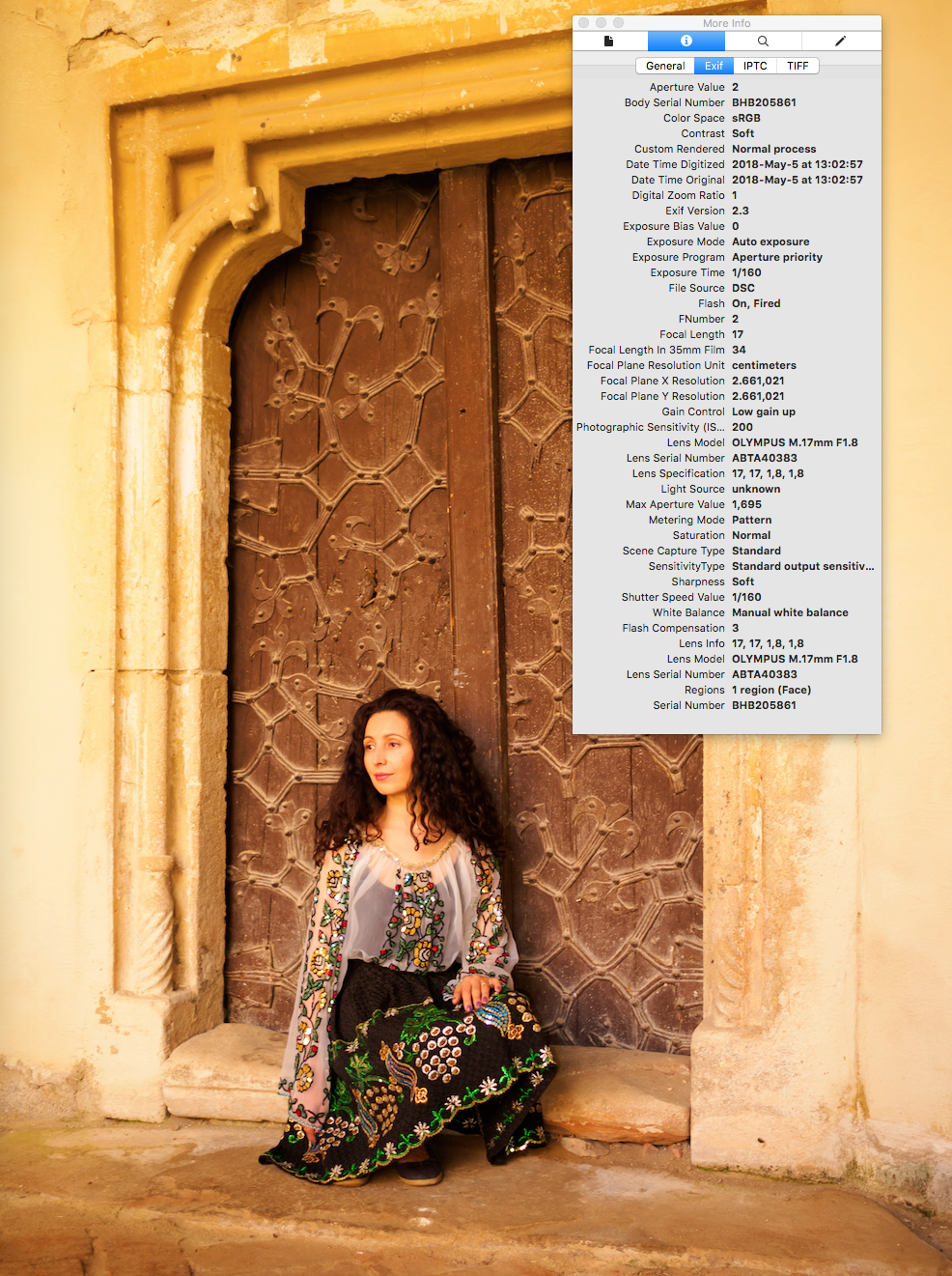
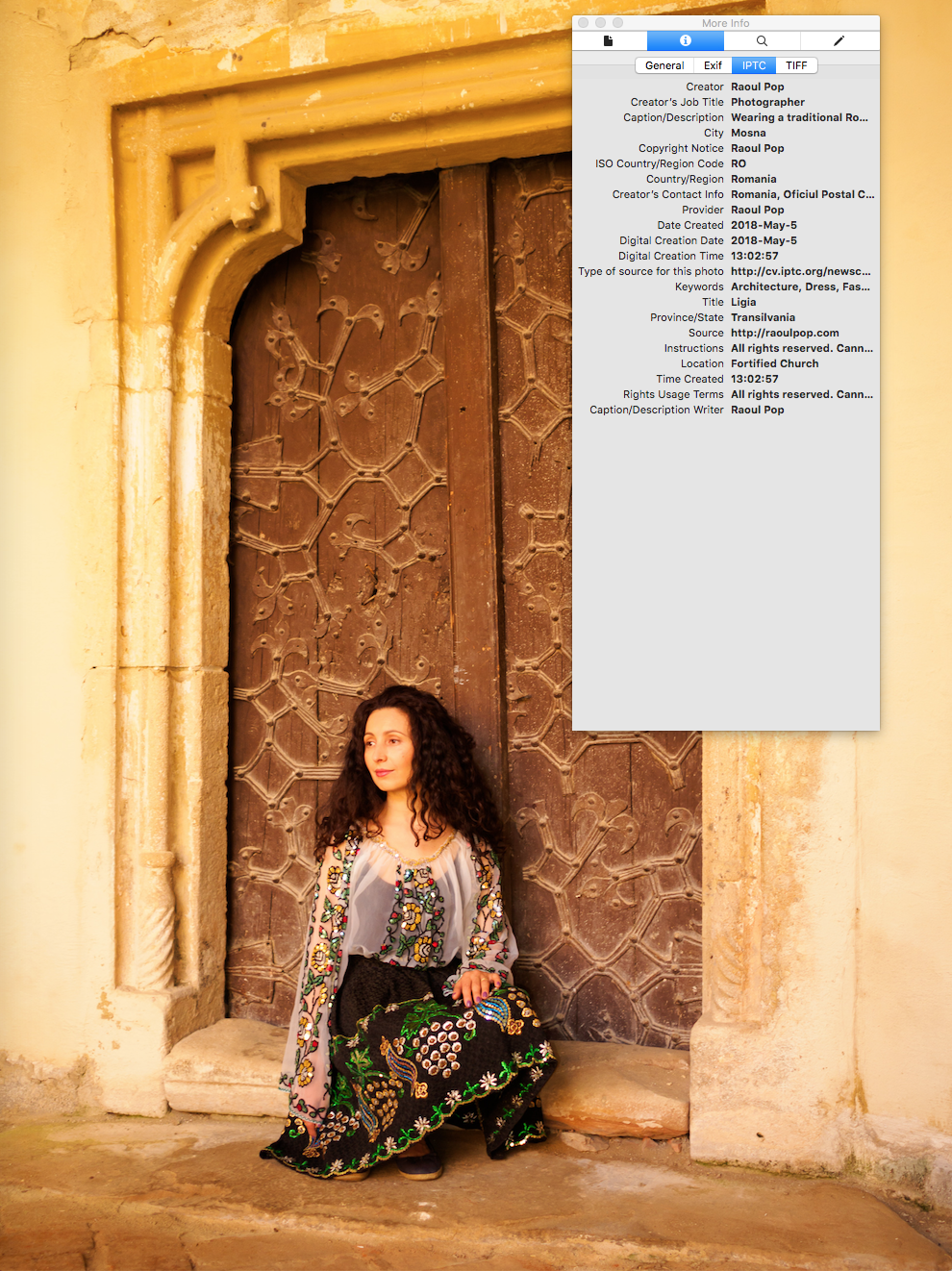
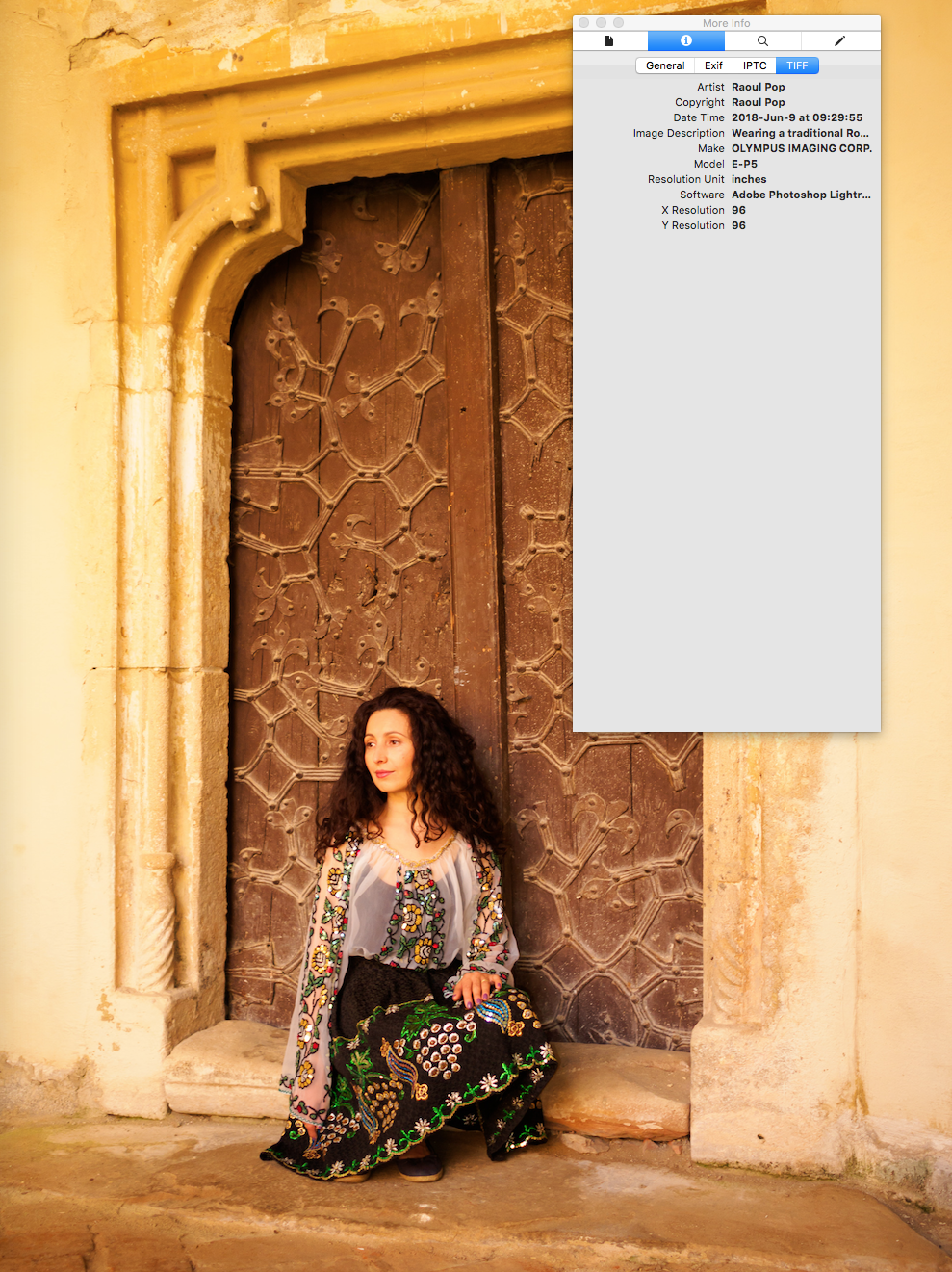
I typically don’t upload photos directly to Twitter. I feed my Flickr feed to it. For the purposes of this article, I uploaded a photo to test things out. I then downloaded it to see what they kept. I’ve got bad news for you. They don’t keep a damn thing when it comes to your own information. Not an iota. Not a 1 and 0, if you will.
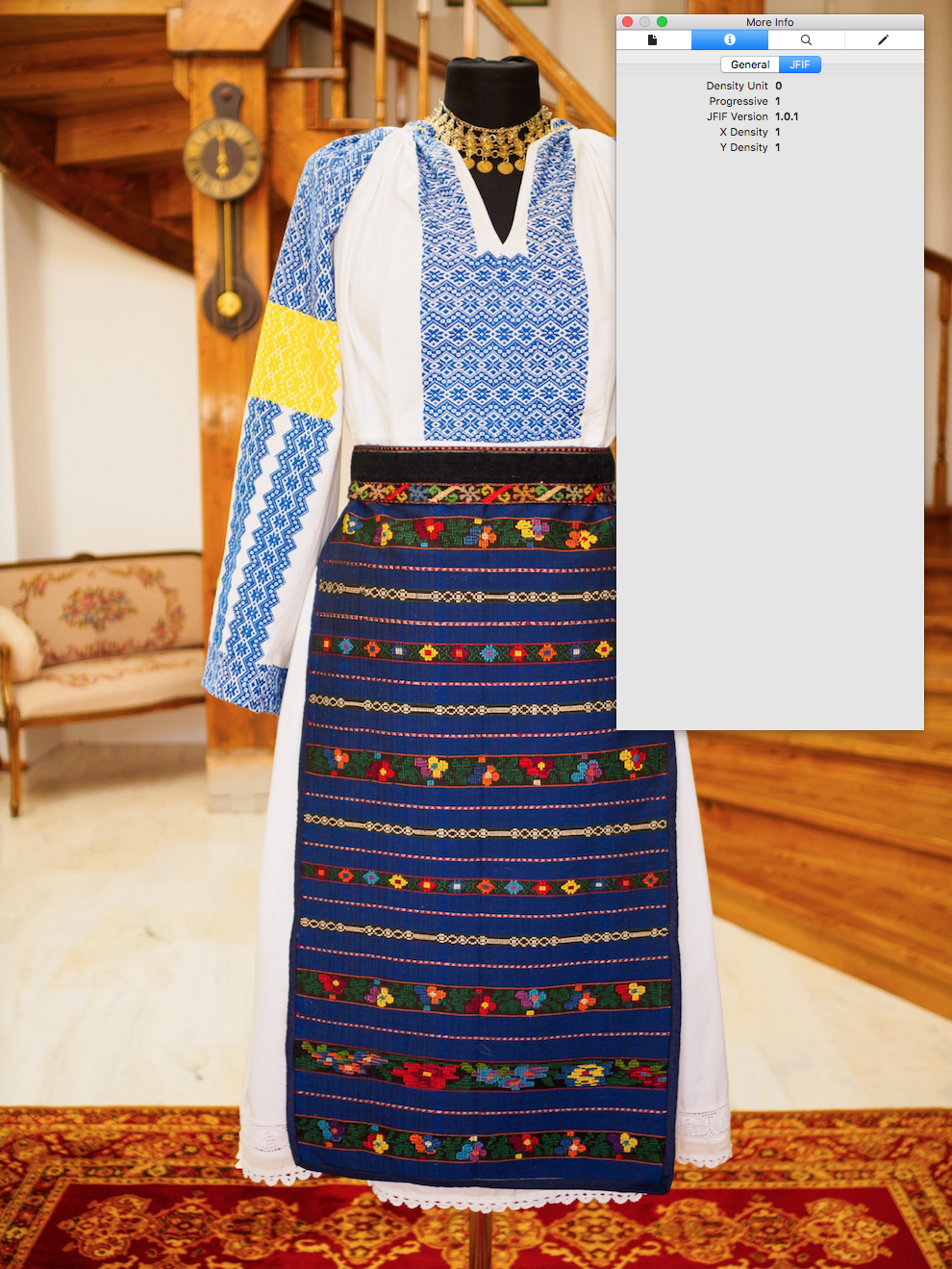
Bad job, Twitter! Bad job!
Flickr
I’ve been using Flickr since 2004. As a matter of fact, it was one of the first websites (if not the first) to trigger discussions about the way it handled photographers’ metadata back in those days. There were also heated discussions about the way it handled filenaming and unauthorized access to original photos. I wrote about that issue back then. And yet, in spite of its flaws, I and many others continued to use the service, because we love it. I wonder how it’s doing now, so let’s have a look.
Here’s one of the photos I uploaded. I’ve got good news and bad news. The good news is that in about 14 years, it’s managed to make progress on this front. The bad news is that it’s very little progress.
When I look at the metadata for my original photo, after I uploaded/downloaded it from the service, I’m happy to see that it’s kept it intact. But remember, this is the original photo. It had damn well better keep it in there. Granted, 14 years ago, it used to clear the metadata from the originals as well. So that’s some progress…
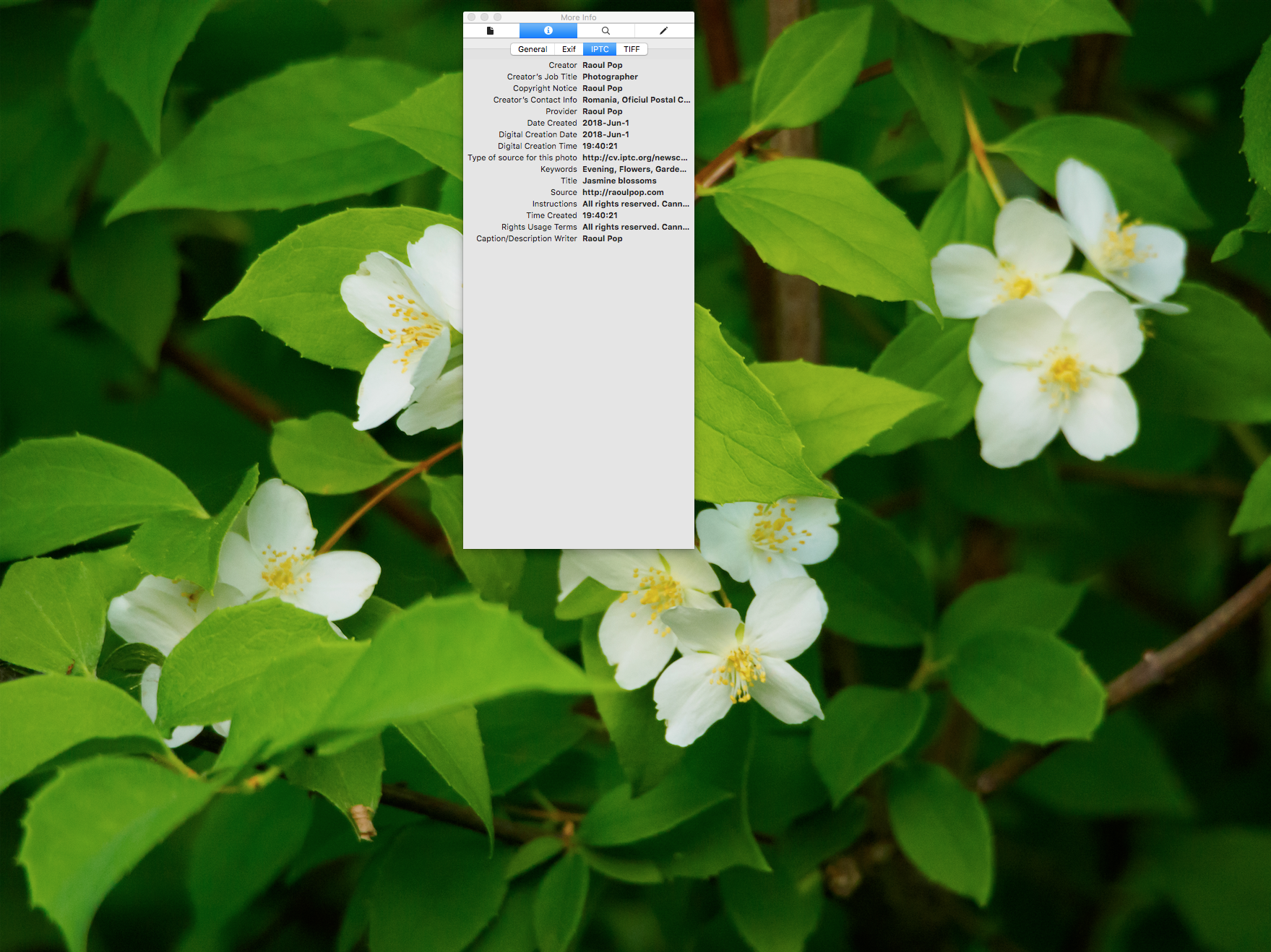
The bad news is that it clears it out of every other image size, even from the large size (2048×1536).

Flickr, what kind of example are you setting here? You are the original photography sharing website. You should be standing up for photographer’s rights. And yet here you are, trampling all over them. If you don’t keep the metadata, who should? So what if it’ll add a few bytes or kilobytes to the size of each image. Isn’t it worth it?
Bad job, Flickr! Bad job!
WordPress
We may not consider WordPress a social media website, but the fact of the matter is that a great deal of us love and rely on WP to share our lives and our content, whether that be text, image or video. So how does WP handle it? I’m glad to say that they’re the most forward-thinking of the group. Not only do they preserve all of the metadata, but they also present it right off the bat to the website visitors. For example, should you click on one of my image galleries (such as this one, for example), you’ll see the copyright information right away. It’s displayed in the bottom-right corner. You see, that’s not only preserving the data, but also educating the public.
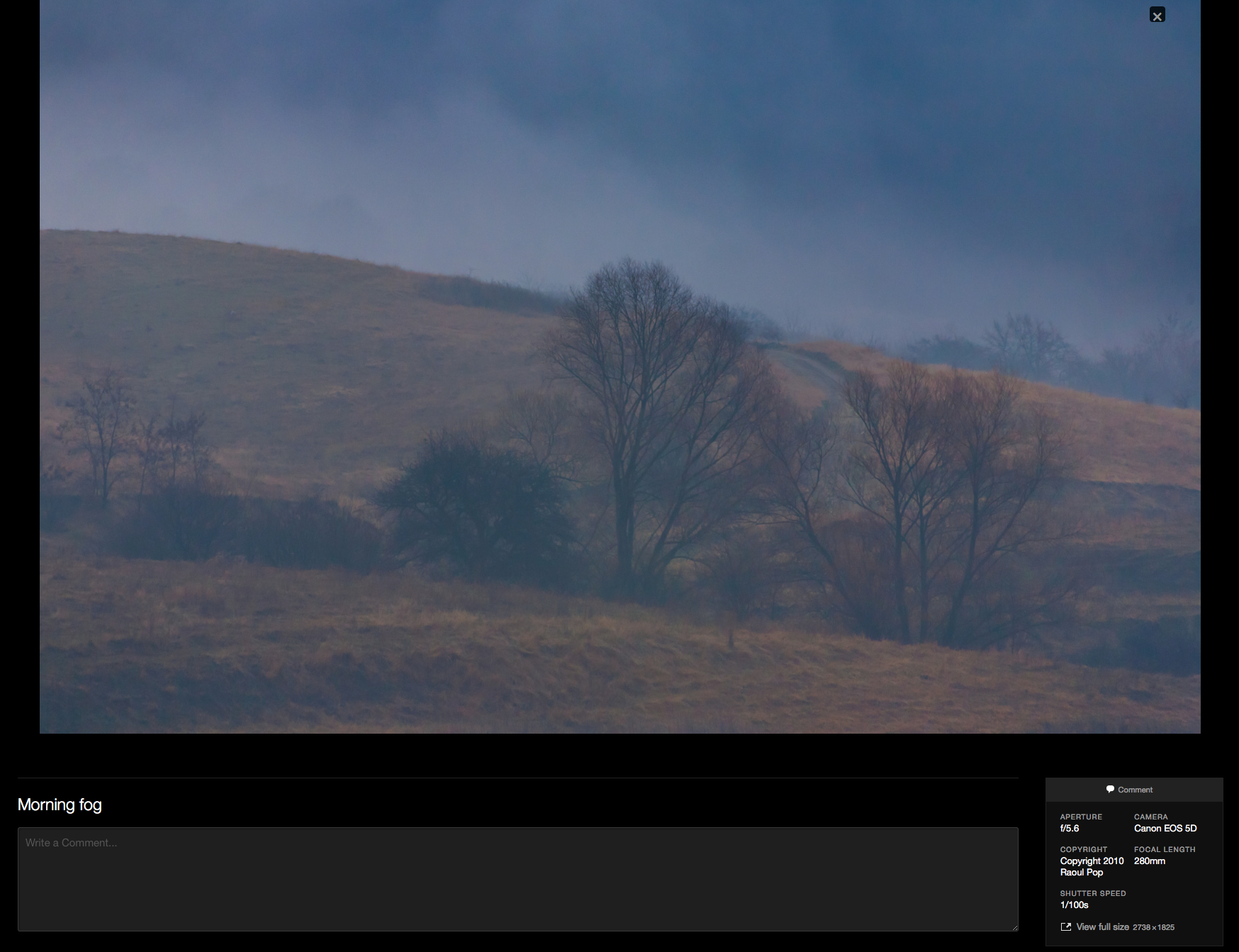
And should you want to download a photograph (which you can do, btw), it’ll have all of the metadata in it, so you’d have to be mal-intentioned in order to re-post a photo published with WP elsewhere and not even credit the photographer.
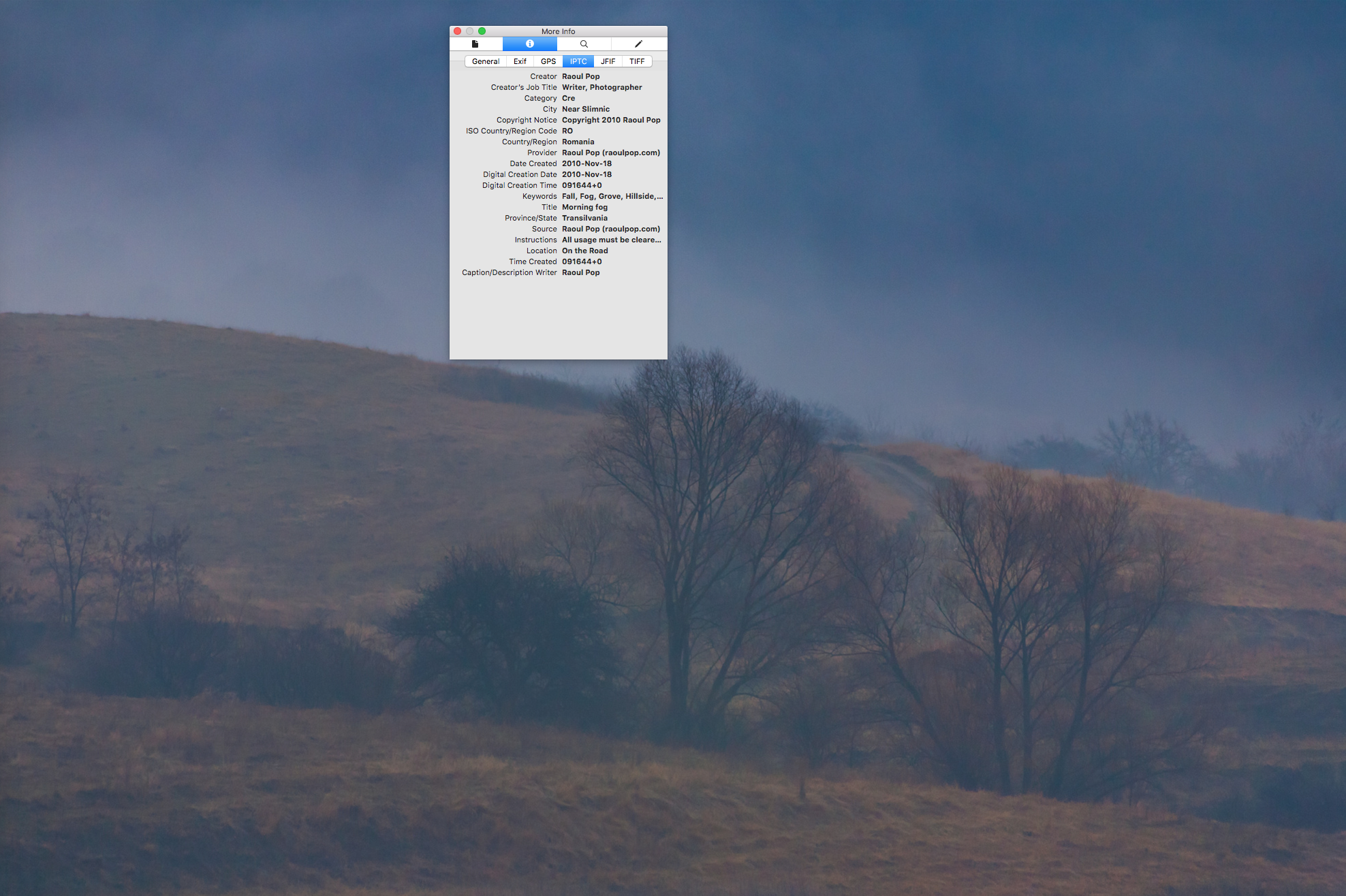
Now that we’ve made the social media rounds, so to speak, let’s talk a bit about watermarks and about not allowing people to download photographs.
I don’t believe in watermarks. You ruin a photo’s aesthetic appeal when you watermark it. It just ends up looking like shit. I’ve experimented with all kinds of watermarks over the years and no matter how big or small they were or how good they looked, in the end I regretted putting them on my photographs, because they take away from a photograph’s artistic merit. The good-looking watermarks, the ones that I tend to tolerate visually, tend to be stylish and unobtrusive, but they’re also easy to remove, and the bad watermarks… well, you might as well crap all over your photo. The sad part is, when you look online, the people who take the shittiest photos are the ones who use the biggest and uggliest watermarks to “protect” them. You almost want to comment and say, “Dude, no one would steal this shit even if you printed it on thick glossy paper and left it on the street,” but it would be unproductive for all.
Some sites (Flickr, Instagram and others) don’t allow people to download photographs, not even the smaller, compressed versions. On Flickr, you can choose if you want to enable or disable this feature. While I think it’s a great idea to lock down access to the originals (I upload my photos at original resolution on Flickr and certainly wouldn’t want people to have access to them without my say-so), I also think it’s a great idea for people to be able to download smaller versions of my photographs. Disabling the “right-click to download” feature in browsers is lame. You can always take a screenshot. But letting someone download a smaller version of your photo, provided your identifying metadata is in it, is a great way for them to remember you down the road. But you gotta keep that metadata in there!
I believe the public needs more education on copyright and no one is better positioned to provide it than social media companies and software companies. Make it easy and obvious for people to see who took a photograph and where they can be found. Don’t ever mess with that metadata. Always keep it in the photo and make it easy for people to see it, both on the web and on the desktop/tablet/phone! It’s that simple.
And for those who still favor watermarks, I would propose an alternative that doesn’t visually alter the image but lets the viewer know who took it right away. I’ve been asking the people at Lightroom to make it easy and automatic to do this as an export preset with their software for years, but they haven’t been listening. You still need Photoshop to do it at the moment. It’s this: a simple, white border at the bottom of the photograph, where you can put your name and website.

It’s not rocket science, it’s not glitzy, but you’re also not crapping on the image and it’s very easy to see whose photo it is. Yes, you can crop it out, but you can also wipe out the metadata and you can also get rid of watermarks. Those with bad intentions will always skirt the legalities. But good, law-abiding people will be glad to know right away who took the photo, and also to know that the information can’t be wiped away by mistake and will remain there even if the photo is resized or compressed.
I hope this has been helpful and, if you are one of the people positioned to take action, please do.











 Raoul Pop