Thoughts

Metadata: DNG vs RAW

Generally speaking, I prefer the Adobe DNG format over the proprietary RAW format given to me by a camera, because I like the fact that it’s more or less future-proof. With a DNG file, the meta-data resides inside the file — like with a JPG — but the format is lossless, same as a RAW file — and unlike a JPG.

In spite of the fact that it’s a “publicly available archive format”, I would like to see more camera manufacturers adopt it, so I can feel more comfortable using it. I realize companies like Hasselblad and Leica have already adopted it, and you can take photos directly in DNG format on some of their cameras, but until the big camera manufacturers like Canon and Nikon adopt it, it won’t have the mass acceptance it needs to ensure its long-term survivability.

Still, I have begun to convert the RAW files in my photo library to DNG. By my count, I have converted about 30% of my 77,000 photographs to DNG format, and I am converting more of them every day. Let’s hope Adobe sticks to its word in the future and I’m not left holding the bag, having locked my photos into a format that might become obsolete.

Long-term benefits and potential caveats aside, I should point out a more current disadvantage between DNG and RAW. It has to do with metadata.

Yes, it’s true that with a RAW file, you’re stuck working with your metadata in sidecar XMP file, and that file may get corrupted, or you may lose it, thus losing your metadata and the processing directives for Camera Raw or Lightroom or whatever you’re using to process your photos. With a DNG, everything resides inside the file. There’s no XMP file, which is a good thing, most of the time.

But when you’re backing up your library, and let’s say for the sake of the argument that you’ve got to back up 20,000 photos, which is what I’m doing right now, and you’ve made minute changes to the metadata of all those files — only changed one EXIF or IPTC field — the backup software won’t care. You’ll have to back up 20,000 DNG files, each (in my case) between 12-24 MB. That’s going to take a LOT longer than backing up 20,000 XMP sidecar files, each of which is only 15-25 KB, because those are the only files that will have been changed if I update the EXIF or IPTC data for a whole bunch of RAW files.

That’s one area where RAW trumps DNG. I’m willing to overlook it if DNG will indeed prove to be a future-proof format, but that remains to be seen.
Standard
How To

Stop the headache – generate 1:1 previews before editing

One of my gripes with Lightroom ever since I started using it was the image blurring that took place as it generated image previews or re-rendered images while in Develop mode. (I started using LR in February 2007.)

It looks like Adobe listened, and the image preview rendering that takes place as I develop photos isn’t noticeable anymore — that, or my faster laptop has something to do with it, too. However, the very noticeable lag in generating either standard or 1:1 previews still occurs as I browse through images in my catalog, and that can’t be helped even by my zippy MacBook Pro. As you move through images, Lightroom will blur them until it generates a standard preview, then blur them some more you zoom in, until it generates the 1:1 preview.

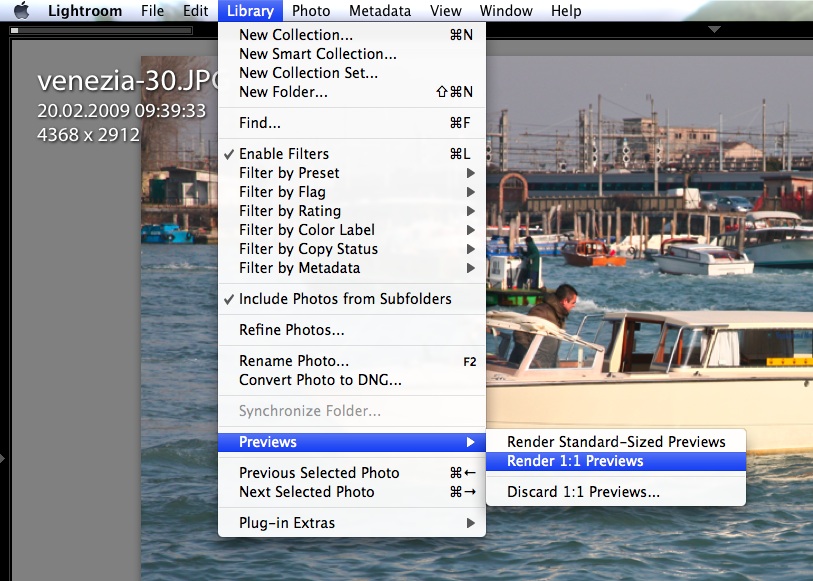
Fortunately, there’s a solution for it. I’m not sure if this existed from the start, or if it was introduced in later versions of the software, but you can choose to generate 1:1 previews for a set of photos before you begin working with them. (I found this out thanks to this article from Steve Paxton at O’Reilly.) Just select the images you plan to work with on a given day, and go to Library >> Previews >> Render 1:1 Previews.

lightroom-generate-previews

If you choose that option, Lightroom will also render Standard-Sized Previews in addition to the full ones, allowing you to work with the photos right away, in standard or loupe view, with no lag or blurring (well, your computer’s specs might also have something to do with it). Still, if you’re sorting through a large set of images (hundreds or thousands), this pays off handsomely, in ways that you cannot even appreciate until you start popping aspirins to deal with the tension headache caused by all that screen blurring you could have avoided if you planned ahead.

If you’ve been a long-time subscriber to my site, then you may know about an article of mine written in January ’08, entitled “The next stage for Lightroom“. In it, I described the need for Lightroom to:

  1. Allow the storage of photos from its catalog on multiple volumes
  2. Allow people to work with photos from the catalog even when external volumes were disconnected
  3. Allow for the storage of the previews database (which can be very sizable) on an external volume, or for its splitting into two parts

Guess what? Most readers just couldn’t get what I was saying. But Adobe listened. Points one and two have already been implemented in later versions. Now I can store my photos on multiple volumes, and I can work with their meta-data even when I can’t access the image files because I’ve disconnected the external drives. As for the the storage of the previews, that’s now easily solved, too.

Because I’m now storing my Lightroom catalog on my laptop, where hard drive space is an issue, this means I have to limit the size of the previews database. I do this by giving it very little play. I tell LR to generate medium-quality 1024 px standard previews, and to delete 1:1 previews after a day. The previews database is no joking matter. Just a short while back, LR was set to discard 1:1 previews after a month, and my previews database had ballooned to over 60 GB!

lightroom-previews-settings

So, even though I allow myself the luxury of generating 1:1 previews for hundreds of photos, as you’ve seen above, the size of my previews folder stays manageable, and the free space on my hard drive stays where it needs to stay, because Lightroom cleans up after itself. Instead of worrying about free space, I allow my MacBook Pro to flex its processing muscle for 15-30 minutes before I dig into a large set of photos from a particular location, and then I can work undisturbed and headache-free for that day.

Standard
How To

Get the tiltshift look right from Adobe Lightroom

If you use Adobe Lightroom and want to apply a tiltshift effect to your photos, you can spend hundreds of dollars on expensive Photoshop plugins, or you can do it for free, with an Adobe AIR app called TiltShift.

If you’ve used TiltShift before, you know you can open any photo in it and apply tiltshift effects to it, but did you know you can do this right from Lightroom? Here’s how.

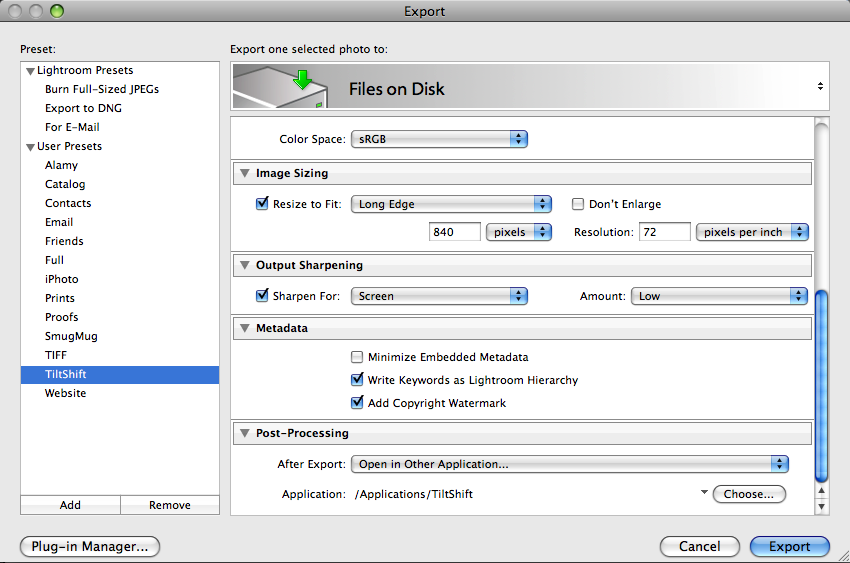
In Lightroom, open up the Export window and add a new Export Preset. See the screenshot below. I called mine TiltShift, so I can easily remember it. Adjust any of the settings, like color space, sizing, sharpening, etc. They don’t really matter, although it’s better to keep the image smaller so TiltShift can work faster with it.

The really important option is in the post-processing section — the very last one in the Export window. There, you’ve got to make sure you tell Lightroom to “Open [your photo] in Other Application…”, then click on the Choose button and browse to find the TiltShift app. This is pretty much it.

lightroom-tiltshift-setup

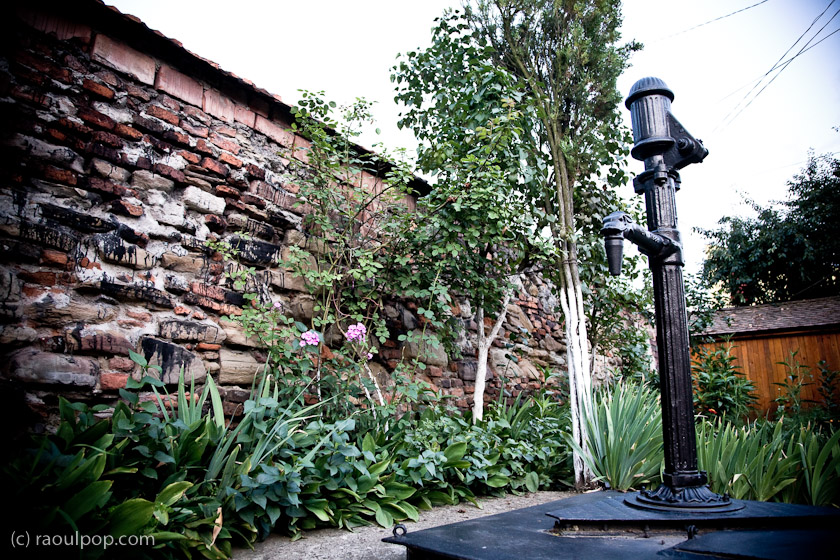
Lightroom will automatically pass your image to TiltShift, which will open it and allow you add tiltshift effects to it, to your liking. For example, I initially processed this image of a medieval water pump found on the streets of Medias, Romania, in Lightroom.

The old water fountain

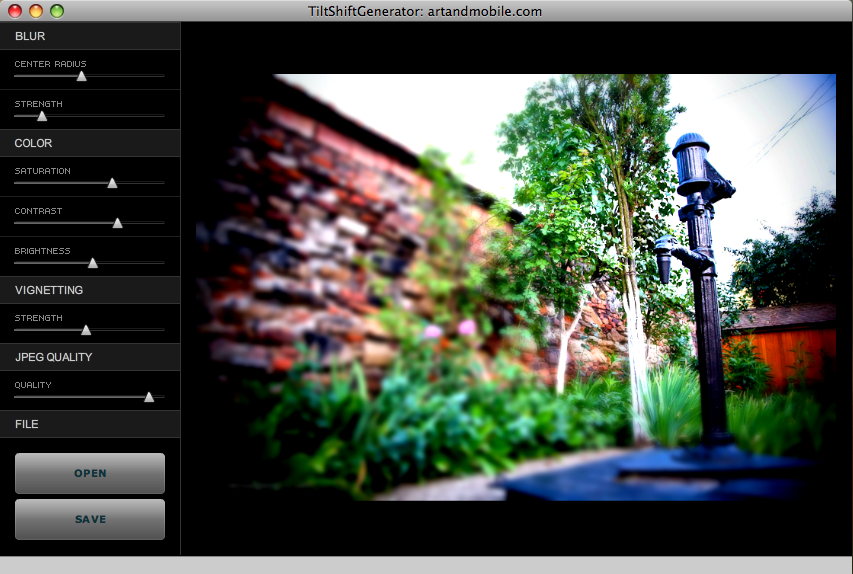
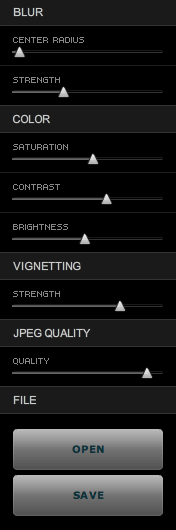
Then I exported it into TiltShift using the export preset set up as described above, and adjusted the settings there to get the effect I wanted. This is how the controls and the image looked inside TiltShift.

tiltshift-screenshot

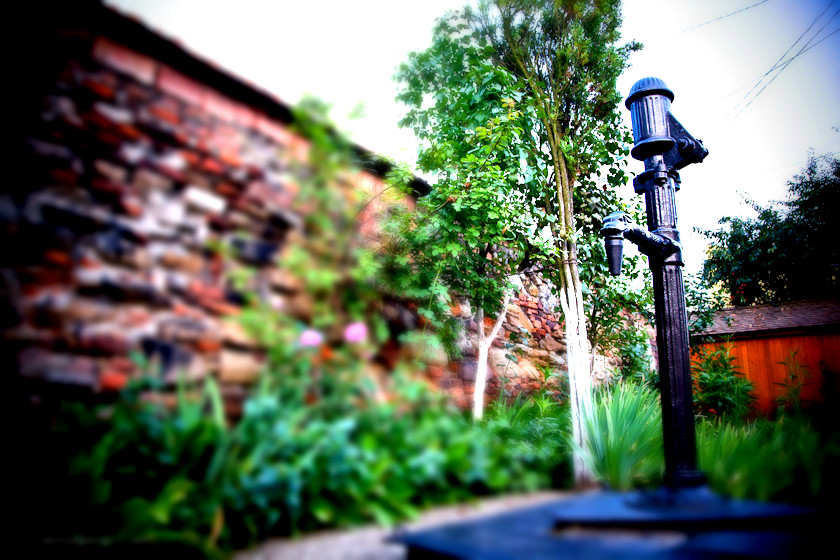
Once I did that, I saved the photo and uploaded it here. This is how the final image looks.

water-fountain-tiltshift

It couldn’t be easier, and again, let me remind you TiltShift is a free app.

[TiltShift home page] [Download TiltShift]

Standard
Reviews

Create tiltshift photographs on Mac, Windows and Linux, for free

Takayuki Fukatsu has created a free Adobe AIR app called TiltShift, which runs on any OS that supports AIR (namely Mac, Windows and Linux). It will allow you to easily apply tilt-shift effects to any photograph. Best of all, the price is right: it’s free. Even if this app cost $10 or $20, I’d still rather buy it than some Photoshop plugins that cost hundreds of dollars and do pretty much the same thing.

In less than a couple of minutes, I was able to open a photograph of my wife and niece, walking on the streets of Medias, Romania, and add tilt-shift effects to it. Here’s what it looks like now.

Ligia and Laura

Sure, the tiltshift effect isn’t what you’d get with a LensBaby or with a real tilt-shift lens like the Canon TS-E 24mm f/3.5L (or any of the other professional tilt-shift lenses made by camera manufacturers), but still, it’s better than no effect at all, and it’s free. TiltShift’s controls are really slider-based and really easy to use. You’ll be making tiltshift photos in no time flat. Give it a go and see how you like it.

tiltshift-controls

I mentioned TiltShift initially in one of my Condensed Knowledge posts, back in May.

[Download TiltShift]

Standard
Thoughts

Using the economy as an excuse to shortchange employees

I’ve seen companies do some pretty disgusting things in my time, and the move some of them are pulling lately definitely ranks right up there with some of the biggest stinkers.

In effect, they’re using the current weak economy/recession as an excuse to lay off employees and burden the existing ones with the extra work, while keeping them mum under the fear of losing their jobs. If this isn’t corporate exploitation of its workforce, I don’t know what is.

I’m going to give you three examples, each juicier than the other, but I’m sure you can come up with more if you’re in the US and you’re employed in a full time job.

The niche business with an owner

I talked with an employee from a certain company lately, one which specializes in a niche market that has not been affected by the economic slowdown, nor does it look like it will be affected any time soon. I can’t disclose any identifying details, because the employee confided in me. What he told me was this: the president (and owner) of the company fired some employees while cutting year-end bonuses for the rest of the employees, using the recession as an excuse. The employees, the ones doing the hard work, have been handling a record amount of business for the past year, but the president cited a slump in incoming business. I was told the same president has been spending lavishly to expand his own mansion and buy extra cars and toys, during the same year when the supposed slump in business took place.

Adobe’s record profits

This example is more concrete than the previous one. In December, Adobe reported record revenues for the 4th quarter of 2008, and the sixth consecutive year of double-digit growth, yet they still laid off employees in November just the same. I’m not surprised though. I talked with a friend who is a long-time software developer, and he told me Adobe has another ugly habit: historically speaking, they have relied mostly on contractors, because it’s cheaper, and they’re easier to shed without bad press.

JPG Mag starts a bidding frenzy

Let’s look at JPG Mag. It’s the darling of many amateur photographers, because it gave them the chance to publish their work when other magazines might turn them down. I never really liked it, and I’ll tell you why: I thought they were cheap.

Here was an easy way to get print-worthy photographs without paying a dime. Turns out you could get amateur shutterbugs happy and willing to give away their work simply by dangling the illusory promise of publishing their pics in your magazine. The incentive was fame, which is as fleeting as a fart and just as troublesome, if you’ll excuse my expression. Where’s the moolah? Last I checked, bills were still payable in money, not fame.

When they announced they were going under, I thought it fitting. Good riddance to bad rubbish. First they don’t pay the photographers, then they fire the founders, now they’re going under — okay by me. Unfortunately, the buzz generated by their announcement stirred the vanities of those with bigger wallets, and a bidding war began.

But wait, there’s a nugget of bitter truth to be found among all this fake glimmer and shine. Turns out they fired all their employees, and now the CEO trumpets the company’s earning potential in messages to the bidders. PDN Pulse called them out on this, and rightfully so. Sure, now the company has earning potential since everyone’s gone. Hire a skeleton staff, make them do double or triple the work, pay no money to the photographers, and you’ve got a hand-dandy business model fit for the 21st century.

To sum things up

So you see, it’s okay to use the economy as an excuse when it befits your bottom line. Apparently, it’s okay to lay off people, it doesn’t matter that they’ve got bills to pay, that they’ve put a lot of hard work and time into your company. You shouldn’t do what you can to protect them in a weak economy when it’s harder to get jobs.

None of that matters, right? Ethics are so passĂ©. You just use whatever excuse you can to make sure your precious bottom line gets bigger and bigger. It’s all about GREED. You can never have enough money, and people are only a means to it, right?

Well, I think that’s wrong. I don’t care if you’re afraid that the recession will affect your company. I don’t care if you really want that shiny new toy and a couple of employees and their mortgages stand in your way of getting it. I don’t care if your stockholders will bitch. If greed and money are your only motivators when you run a business, and you’d gladly step over people to balance the spreadsheets — don’t give me any of that I’m so sorry and I feel your pain crap — then you’re a spineless, slimy, pus-covered slug, and you deserve to be squashed under a steel-toe boot.

Standard