How To

How to avoid nightmares when upgrading your Drupal install

I had some real “fun” today (about a full day’s worth) after upgrading one of my Drupal installs from 7.7 to 7.8. The whole site went awry: the template no longer showed, I was only getting text, I kept getting either 404 or 500 errors when clicking on links, and nothing I did seemed to make it better. Even restoring from a backup yielded the same garbled pages. It’s fixed now and working perfectly (well, not perfectly, because some modules are still in beta and there will always be some errors, but it’s working as expected, let’s put it that way).

If you’re only here because your site is garbled after an upgrade, let me save you some time. There are two reasons (I know of ) for it:

  1. You have Clean URLs enabled and your .htaccess file got replaced. That means the RewriteBase rule is now commented out. Don’t bother to turn off Clean URLs, there’s no need to do that. Uncomment it, refresh your site and links should be working properly.
  2. If your theme is now messed up and you only see text, plus you can’t navigate around your site, you have your site cache and compression turned on, don’t you? Yeah you do, and now the new version of Drupal doesn’t know how to read the cache files, because it didn’t write them. So do yourself a favor and turn the cache files off. You’ll have to use the “dirty” URLs if you can’t navigate to the admin panel, so instead of example.com/admin you’ll need to type example.com/?q=admin, and so on and so forth. Disable the compression and the cache, and delete all the cache files. Presto-change-o, your site now looks normal again!

So, what can you do to avoid having the same crappy day I did? Let’s take it by the numbers, shall we?

1. Put your site in maintenance mode.

2. Always, always back up your site and your database before doing a core upgrade.

I would recommend doing a backup even before upgrading modules. Don’t rely on backup modules. Do the backups manually, and just so you won’t panic when something goes wrong, test your backup method by restoring from it to a separate install, to make sure you’re doing the right things. This is especially important for database backups, where it’s REALLY important for you to be able to restore from a downloaded SQL file.

Before doing the core upgrade, do a full backup of the entire site, not just the sites folder. And just to make it easier for you to restore the sites folder afterward, do a separate backup of that folder, and of the .htaccess file at the root level of your drupal install. And back up the database, that’s really important! If you do this right, you’ll only need to use the database backup.

3. Turn off all site caching and compression and clear the site cache. This is really important! If you don’t do this, it’s quite likely that your site will be just as garbled as mine after the core upgrade.

4. Create a new site folder on your server, because you’re going to do a brand new install of Drupal (whatever the latest version is). Inside that folder, wget the latest drupal tar.gz file and untar it.

Okay, now comes the fun part.

5. Delete the sites folder in the new Drupal install and copy over your old sites folder.

6. Make sure any changes done to your .htaccess and robots.txt file are reflected in their counterparts in the new Drupal install. Or, it’s quite likely that the old thing that you need to change in the .htaccess file is to uncomment the Rewrite Base line. Find it and uncomment it.

If you don’t uncomment this line and you have Clean URLs enabled, your site will either give you 404 or 500 errors when you try to access the admin interface or alias URLs, so this is quite an important step!

7. Restore your database from the SQL backup. That is, create a new database on your server and through the web interface or through SSH, restore your database backup to it, to get an exact copy of your live Drupal database.

8. Now run the database update script. Browse over to your Drupal install + /update.php and run it to make sure the database upgrade is also completed.

9. Now you have some choices to make. Once you do this, you have two working installs of Drupal: the old, reliable install, which you’ve been using, and the new install, which should be working, but who knows what bugs there might be in the code, that you’ll only discover as you begin working with it.

So now you have two choices: you can either map your domain to the new directory or rename the old directory then rename the new directory to match the old. In other words, you’ll want your domain to point to the new Drupal install. Or, you have the luxury of saying “Forget this new version for now!” and keep using your old Drupal install, until they work out all the bugs (that’ll be the day…)

That’s it! Pat yourself on the back. This should have taken about 15 minutes or less, not a whole day…

I hope this has been helpful!

Standard
Thoughts

The value of a good backup

While working on the fifth episode of RTTE, I learned first hand the value of a good backup. The hard drive on my editing computer (my MacBook Pro) died suddenly and without warning. Thankfully, my data was backed up in two geographically different locations.

The day my hard drive died, I’d just gotten done with some file cleanups, and was getting ready to leave for a trip abroad. I shut down my computer, then realized I needed to check on a couple things, and booted it up again, only this time, it wouldn’t start. I kept getting a grey screen, meaning video was working, but it refused to boot into the OS. And I kept hearing the “click of death” as the hard drive churned. I tried booting off the Snow Leopard DVD, but that didn’t work either. I’d tested the hard drive’s SMART status just a couple of weeks before, and the utility had told me the drive had no problems whatsoever.

I had reason to worry for a couple of reasons:

  1. The laptop refused to boot up from the OS X DVD, potentially indicating other problems than a dead hard drive. I do push my laptop quite a bit as I edit photos and video, and I’d already replaced its motherboard once. I was worried I might have to spend more than I wanted to on repairs.
  2. All of the footage for the fifth episode of RTTE was on my laptop. Thankfully, it was also backed up in a couple of other places, but still, I hadn’t had reason to test those backups until now. What if I couldn’t recover it?

I had no time for further troubleshooting. I had to leave, and my laptop was useless to me. I left it home, and drove away, worried about what would happen when I returned.

A week later, I got home and tried to boot off the DVD again. No luck. I had to send it in, to make sure nothing else was wrong. In Romania, there’s only one Apple-authorized repair shop. They’re in Bucharest, and they’re called Noumax. I sent it to them for a diagnosis, and a couple of days later, I heard back from them: only the hard drive was defective, from what they could tell.

I was pressed for time. I had to edit and release the fifth episode of RTTE, and I also had to shoot some more footage for it. I didn’t have time to wait for the store to fix the laptop, so I asked them to get it back to me, while I ordered a replacement hard drive from an online store with fast, next-day delivery (eMag).

The hard drive and the laptop arrived the next day. I replaced the hard drive, using this guide, and also cleaned the motherboard and CPU fans of dust, then restored the whole system from the latest Time Machine backup. This meant that I got back everything that was on my laptop a few hours before it died.

I’d have preferred to do a clean OS install, then install the apps I needed one by one, then restore my files, especially since I hadn’t reformatted my laptop since I bought it a few years ago, but that would have been a 2-3 day job, and I just didn’t have the time. Thankfully, OS X is so stable that even a 3-year old install, during which I installed and removed many apps, still works fairly fast and doesn’t crash.

Some might say, what’s the big deal? The laptop was backed up, and you restored it… whoopee… Not so fast, grasshopper! The gravity of the situation doesn’t sink in until you realize it’s your work — YEARS of hard work — that you might have just lost because of a hardware failure. That’s when your hands begin to tremble and your throat gets dry, and a few white hairs appear instantly on your head. Even if the data’s backed up (or so you think) until your data’s restored and it’s all there, you just don’t know if you can get it back.

I’ve worked in IT for about 15 years. I’ve restored plenty of machines, desktops and servers alike. I’ve done plenty of backups. But my own computer has never gone down. I’ve never had a catastrophic hardware failure like this one until now. So even though I’ve been exposed to this kind of thing before, I just didn’t realize how painful it is until now. And I didn’t appreciate the value of a good backup until now.

So, here’s my advice to you, as if you didn’t hear it plenty of times in the past… BACK UP YOUR COMPUTER!

If you have a Mac, definitely use Time Machine. It just works. It’s beautifully simple. I’ve been backing up my laptop with Time Machine to the same reliable drive for years. It’s this little LaCie hard drive.

But the LaCie drive might fail at some point, which is why I also back up my data with CrashPlan. For this second backup, I also send my data to a geographically-different location. Since we live in Romania these days, I back up to my parents’ house in the US, where the backup gets stored on a Drobo. And the backup is also encrypted automatically by CrashPlan, which means it can’t be intercepted along the way.
It’s because of my obsessive-compulsive backup strategy that I was able to recover so quickly from the hardware failure. Thankfully, these days backups are made so easy by software like Time Machine and CrashPlan that anyone can keep their work safe. So please, back up your data, and do it often!

One more thing. You know the old saying, every cloud has a silver lining? It was true in my case. When I ordered the new drive for my laptop, I was able to upgrade from its existing 250GB SATA hard drive with an 8MB buffer and 5400 rpm to a spacious 750GB SATA hard drive with a 32MB buffer and 7200 rpm, which means my laptop now churns along a little faster, and has a lot more room for the 1080p footage of my shows. 🙂

Standard
Exercise

Some things you shouldn’t do after a workout

I learned these things the hard way. Maybe you won’t have to.

  • Don’t shave!
    It may come naturally to you after a morning workout. You take a shower, then you’ll want to shave, since your hair’s been softened by the hot water. Don’t do it! There’s still plenty of blood right under your skin, thanks to the workout, and your hand muscles, having just lifted heavy weights, will inadvertently exert too much pressure on the skin. These two things will translate into cuts, cuts and more cuts… unless your face is tougher than treated leather.
  • Don’t eat right away.
    Allow your body to relax a bit, for at least 30-60 minutes. You may be tempted to drink a shake, or dig into a steak, wanting to get some proteins and carbs into your body, but it’s not a good idea. You’ve just lifted heavy things or done some strenuous cardio, and your body is still racing. It needs time to relax and get back to normal before you can eat and digest food properly.
  • Don’t go outside in cold weather.
    Sure, you may think you’re tough, because you’ve just bested yourself at the deadlift, leg press or bench press, but if you’ve broken out in sweat, and then you go outside in your workout clothes, or right after a shower, thinking you’ll be just fine for a few minutes, you may discover pneumonia couldn’t care less about your fitness level. Dry yourself thoroughly, get dressed properly, and then head outside.
Standard
A Guide To A Good Life, How To

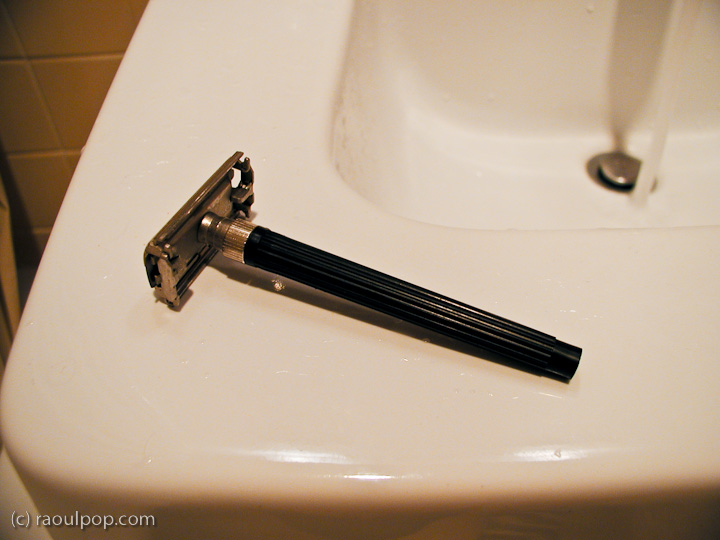
How to shave with a safety razor – the video

In December of 2005, I wrote an article on wet shaving. Back then, there wasn’t a lot of shaving advice on the internet — at least none I could find. So I wrote the article with the sincere desire to help others like me, who were having a tough time with disposable razors and electric razors, and with constantly irritated faces and necks. For me, it got so bad at times that my whole face and neck would just bleed from every pore, every time I took a razor to my face. It was crazy.

What worked for me then was using a Gillette Mach 3 Razor, because I didn’t know better. I would use a safety razor from time to time, just to troubleshoot where my shaving techniques needed improving. Since then, I graduated to using the safety razor all the time. What helped me improve my shaving technique was watching mantic59‘s videos on YouTube about three years ago. I was really glad to find him again today so I could link to his videos. I haven’t seen them since, and I wasn’t sure if he was still around.

Now that it’s been more than a few years since I wrote the original article, I thought I’d update it with a how-to video on wet shaving with a safety razor, where I show how a typical shave goes for me. I shot the video in 720p HD, with the wonderful Olympus PEN E-P2. My wife acted as my trusty camera-woman.

Shaving is an art, and it has to be learned. It doesn’t come naturally to us. One’s shaving form must by necessity differ, depending on the type of shaving utensil used: straight blade, safety razor, disposable razor, electric razor, etc. For me, a safety razor is the perfect balance between sustainability and shave quality, and that’s what I’m going to talk about here and in the video.

A straight blade is too scary for me. There’s that potential of slitting one’s throat. A safety razor still gives you the benefit of shaving with a sharp blade, but this time it’s contained within an apparatus that won’t let it cut your throat. A disposable razor, whether it has one, two, three, four or five (who cares!) blades, doesn’t offer as good a shave, because it’s less maneuverable, it’s made to be even safer — or in this case, useless — and creates non-recyclable waste, thus polluting the environment.

Just think how many blades and handles you use every year — all of those end up in a landfill. They can’t be recycled, because the plastic can’t be separated from the steel. It’s waste that can be easily avoided. On the other hand, all you throw away from a safety razor is a thin steel blade, which is perfectly recyclable. The razor itself lasts practically forever, which is why the companies that make shaving products would rather you get the disposable stuff. I say consequences have to trump profits sometimes, even in a capitalist society.

And, as Cary Grant says in “Mr. Blandings Builds His Dream House”, I like a safety razor because “I prefer the clean sweep of tempered steel as it glides across my face.” Yes indeed, Cary, yes indeed.

I hope you enjoy the video and come away from it with a better appreciation for the art of shaving, and with a few tips that will help you get a better shave!

Standard
How To

Are you really backing up your WP blog?

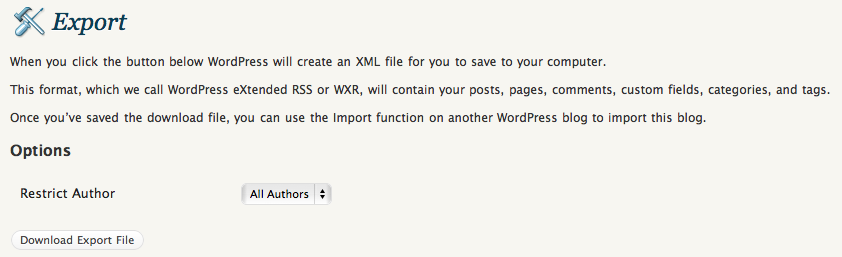
When those of us with self-hosted WordPress blogs back up our content using the built-in WXR functionality, do we ever check the downloaded XML file? Until recently, I didn’t worry about it. I’d click on the Export button, copy the WXR file to a backup folder and think my blog was safe, but I was wrong.

You see, what may be happening is the creation of the WXR file on the server side may be terminated before all the content gets written to it, and we’ll end up with a partial backup of our blogs. This is no fault of the WordPress platform, but will happen when the server settings don’t allow enough resources to the PHP script which writes out the XML file. When that’s the case, this is what the end of the WXR XML file looks like.

In the screenshot you see above, the script ran out of memory (I’d set PHP’s memory_limit at 64 MB, which was too little for my needs), but it can also run out of time, if PHP’s max_execution_time is set too low.

Depending on your scenario, you may or may not have access to the original php.ini file on your web server. If not, check with your host, you may be able to create a php.ini at the root of your hosting account to adjust these parameters (within limits). The thing to do is set the memory_limit and the max_execution_time high enough to allow PHP enough resources to generate the full WXR file. I can’t prescribe any specific limits here, because the amount of memory and time the script needs depends on how big your blog is. All I can suggest is that you experiment with the settings until they’re high enough for the WXR file to generate fully. You don’t want to set them too high, because your server will run out of memory, and that’s not fun either. This is what my setup looks like.

What happens if you use a cheap web host is that you’ll get crammed along with hundreds of other sites on a single virtual server where all the settings are tightly reined in, to make sure no one’s hogging any resources. Chances are that as your blog grows, your WXR file will get too big and will need more resources than are available to write itself, which means you’ll start getting truncated backup files. If you never check them by opening up the XML and scrolling to the end to rule out any error messages, you’re not really backing up your blog.

Keep this in mind if you want to play it safe. Always check the WXR file. A good backup should close all the tags at the end, particularly the tag, like this screenshot shows.

Standard