Thoughts

WordPress Stats plugin has gone cuckoo

For over a month now, I have been unable to rely on the official WordPress Stats plugin. (I say official because the folks that made WordPress also made this plugin.) It, all of a sudden, started assigning all site visits to the same article, so that all of my stats became completely skewed. Let me explain it with a screenshot:

WordPress Stats has gone cuckoo

Instead of seeing the proper distribution of site visits by titles, which is what happened in the past, almost all of the site visits get assigned to a random post. I have no idea any more which titles get the most traffic for a given day. I know this is wrong because I’m also using Google Analytics. Here’s a screenshot of the 20 most popular titles for the past 30 days.
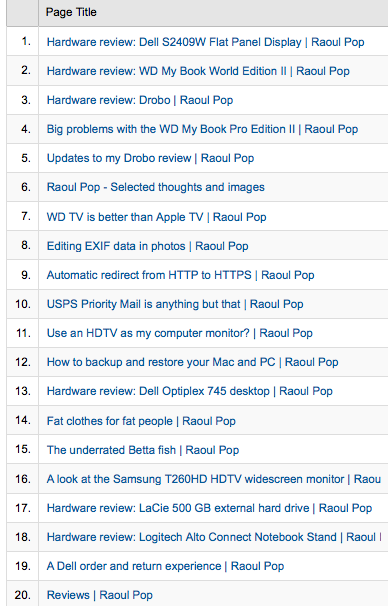
Google Analytics Content by Title

I like WordPress Stats because they aggregate the data almost instantly, whereas there’s a 3-4 hour delay with Google Analytics. Sometimes they even correct the data a day afterward (this happened to me recently) so you can’t rely on their figures until 24-36 hours after the fact [reference].

I stopped using WordPress Stats for a while, hoping the problem would somehow work itself out, but when I re-activated the plugin, all that happened is that it started assigning all site visits to a different random post. Whoopee…

If someone at WordPress reads this, please let me know if it’s something I’m doing wrong, or if it’s something that you’ve got to work out on your end. I posted about this problem in the WordPress forums, but I have yet to receive a reply there.

Standard
Reviews

Flash Player 10 breaks teh internets

Shortly after upgrading to Adobe’s new Flash Player, version 10, I noticed I could no longer upload photos to my blogs. And I also noticed that FriendFeed’s image uploader didn’t work the same way. I didn’t relate that to the Flash Player upgrade at first, and tried to rule out problems on my own machine. Then I did a bit of research and discovered that others were in the same boat.

Quoting from this thread on the WP forums:

“The new Flash version 10 is incompatible. The latest version 9 of Flash is what you want. There will be a workaround (ugly hack) for this in WordPress 2.7. But since the problem is actually with Flash 10 itself, stick with Flash 9 for the time being. Hopefully, WordPress 2.8 will get rid of the Flash altogether, since Adobe has made it clear that they consider this problem to be a security fix.”

On FriendFeed (FF), people complained about image uploader issues as well. In that same FF thread, I found out that Adobe archives their old versions of the Flash Player, something which is not readily apparent on their site, nor easy to find. I also found that I need to uninstall Flash Player before downgrading — should I decide to do it — using Adobe’s Flash uninstaller.

Now, we’re faced with an issue: stay with Flash 10 and a non-working image uploader on WP sites, or downgrade to Flash 9? I’ll let each of you decide what to do about that. Since there appears to be a security issue in Flash 9, it’s not something you should take lightly, but at least you’ll have options.

You may think I’m joking in my post title when I say that the new Flash Player broke the internet. Not necessarily. When you consider that there are about 3.8 million blogs at WordPress.com, and at least a few hundred thousand self-hosted WP installs from WordPress.org, that makes over 4 million websites whose WP Image Uploader broke when Flash 10 was released. I’m not sure how many FriendFeed (FF) users there are, but there should be 100,000 or more by now.

The FF developers came up with an alternate image uploader fairly quickly when they discovered the problem with Flash Player 10. WP is going to release a workaround in WP 2.7, then possibly do away with Flash for the Image Uploader in WP 2.8. WP also has an alternate way to upload photos, through the old, form-based browser uploader, where you can only do one photo at a time. That’s what I’ve been using while I wait for the new version of WP to come out.

Still, when you consider that over 4 million internet users were negatively impacted by this new version of the Flash Player, that’s not a number to take lightly. I do wish Adobe had worked with WordPress ahead of time to make the transition smoother or to offer them some sort of workaround. I found out about this the hard way, and my guess is you did, too. That’s not the ideal way to do business when you’ve got Silverlight nipping at your heels.

Standard
Reviews

Synkron and I don't see eye to eye

I’ve been using Synkron lately to keep several directories synced up across a couple of external drives — a backup of sorts, just in case one of the drives decides to kick the bucket. I’ve also been cleaning up my drive, and something drove me bonkers: I couldn’t figure out why, in spite of my best efforts to clean up the drive, I couldn’t get 100GB free or more on my MBP (total HD size is 250GB). It just didn’t make sense; after all, I’d been able to do it just a couple of months ago, before I filled up my drive with photos from Austria and Romania. Why couldn’t I do it now?!

I decided to download Disk Inventory X, a drive space analysis tool based on WinDirStat, which I’d already used on a couple of Windows machines. What do you think was the biggest culprit on my MBP’s hard drive? The Synkron cache.

It was eating up 30.6GB of my space, without me even realizing it…

Look, Synkron, you may have a nice, shiny icon, and you may be able to put a nice GUI on rsync or subversion (not sure which you’re built on), but I’m sorry, when you can’t clean up after yourself or at least take up less space on my drive, you’re no good to me — into the Trash you go.

If you’re using Synkron as well, and you’ve noticed your free space shrinking inexplicably, you may want to give Disk Inventory X a try, and to consider whether another utility to sync your files may be a better option. I’m not ruling out Synkron completely, and I hope that its developers decide to fix this cache issue at some point.

Standard
How To

Cannot change WP theme if Turbo mode is enabled

I’ve been wondering what sort of bug I’ve had in my WP installs for the last few weeks, and only now figured out what’s going on.The Turbo mode for WP is done through Google Gears. There’s a bug in the Turbo mode that will not allow you to change your blog’s theme. It works by not displaying the “x” (Close) or the “Activate …” options in the DHTML layer that opens up when you preview a theme.

Try it out if you want. Enable Turbo mode, then go to Design >> Themes and click on a theme that you’d like to preview and possibly activate. It’ll open as a full page instead of opening in a separate layer above the regular page, and the option to activate it will not display. In essence, you’re locked out of switching themes. You have to hit the Back button to get back to the Admin panel, else you’re stuck in a Live Preview mode.

This has nothing to do with file permissions, as I originally thought, or with corrupt theme files. No, it has everything to do with Turbo/Google Gears and the way WP implemented this. It’s a bug that needs to get fixed. The only way to enable theme-switching for now is to disable Turbo mode. After that, things work just fine.

This bug is present even in the latest WP version, 2.6.3. I hope it gets fixed soon.

Standard
How To

If iMovie '08 crashes…

You can try bothering with the preferences files, or the codecs, or the color profiles, as the forums tell you to do, or you can do the following:

  1. Go to your home folder > Movies > iMovie Events. Locate the folder with the last clips you imported. Delete the iMovie Cache and iMovie Thumbnails folders.
  2. Restart iMovie. For most of you, that’s all you’ll need to do.
  3. If it still crashes, that means one or more of the actual clips themselves weren’t closed properly by the video camera (perhaps you ran out of battery, space on the card, etc.). Open them up in Quicktime (if you have Quicktime Pro) or some other application (like the software that came with the camera) and snip 1-2 seconds off the end of each clip. Save them, then delete the iMovie Cache and iMovie Thumbnails folders (in case iMovie re-created them).
  4. Now restart iMovie. It should work fine now.

A few words to explain some things:

  • If a movie clip doesn’t open at all from the Finder, then it is corrupted. Perhaps only its header is messed up for some reason. At any rate, I have not yet found software that will fix those movie clips. I searched enough, and only found spyware that promises to do it.
  • If a movie clip opens and plays fine in Quicktime, but iMovie crashes when trying to import it, then its ending is corrupted, as explained in step #3 above. Cutting 1-2 seconds off the end of the clip in some software other than iMovie will restore its ending and let you import it without crashes in iMovie.
  • The method I described above has worked reliably for me on three occasions now, and this is after I wasted hours on the phone with Apple Support. It only occurred to them to let me re-import video clips after having me try all of that other stuff, including a re-install of iMovie ’08 and also the creation of a new account to see if the problems re-occur there. Pointless. I say go to the root of the problem and take care of it right away, don’t beat around the bush.

Hope this helps you too.

Standard