Reviews

Hardware review: mStand by Rain

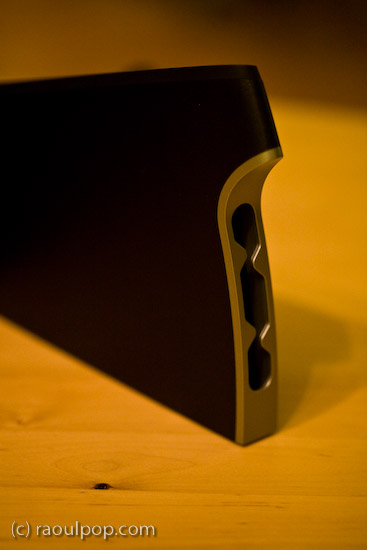
The mStand is quite possibly the best stand for the MacBook Pro line of laptops. It raises the laptop to an appropriate height, it does not block any of the MBP ports or buttons, its design is truly distinctive, its cast aluminum build matches the MBP line to a tee, and it is reasonably priced at $50.

I’ve tried out quite a few notebook stands in my time, and I’ve looked at even more of them in detail. I am happiest with the mStand. It suits my needs perfectly. However, it is not without faults, as you’ll see shortly. Its Apple-like design and look isn’t executed to the Apple standards.

First, the good:

  • Functional, simplistic and very elegant design
  • Although it is built of a single piece of aluminum, it will not scratch your laptop because it has little rubber contact points where your laptop rests on it
  • All aluminum build means it will dissipate your laptop’s heat fast.
  • The empty space underneath the stand aids with ventilation and also serves as a great place to store the external keyboard when not in use
  • The wire routing hole at the back of the stand looks very similar to the one on iMacs and Apple Cinema Displays and complements their design nicely
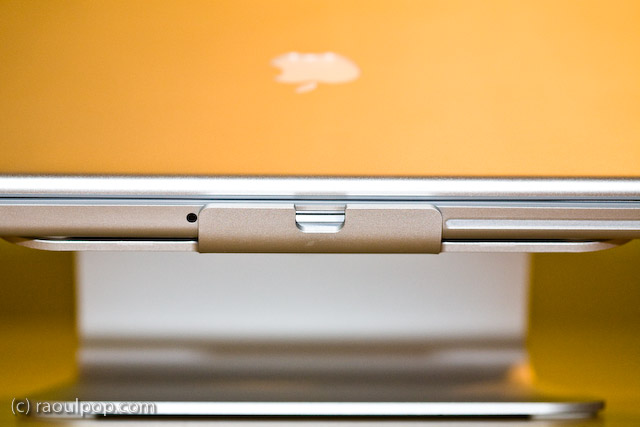
  • It blocks NONE of the MBP ports or buttons, such as the IR remote port, the latch for the top lid, or the SuperDrive slot. Of course, it does not block any of the side ports either, as you can see from the photos.

Now, the bad:

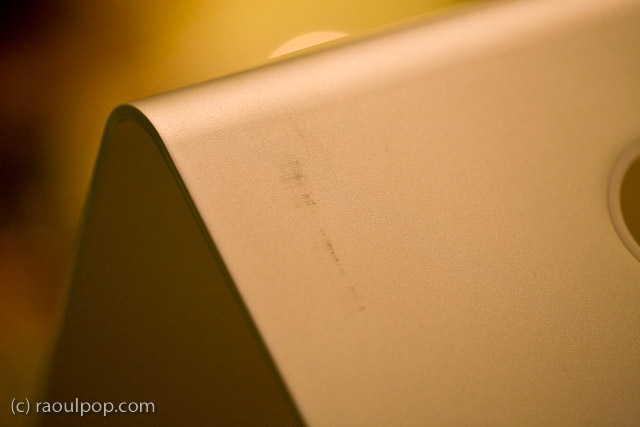
  • The paper (recycled?) packaging leaves terrible scuff marks on the stand, which mar its otherwise beautiful design and matte finish
  • The stand itself was covered in a thick white dust when I unboxed it, which caused significant sneezing. I hope it wasn’t harmful to my health, not sure what it was, and it sure didn’t look like regular dust.
  • The edges of the stand are not properly filed, which means they can be literally sharp enough to tear through one’s skin if you’re not paying attention. I had to use a metal file to finish the job they should have done at the factory.
Still, I think this is the best stand for my needs. As you may know, I already tried out the Logitech Alto and the Rolodex Stand, and had already tried other stands through the years, including the original Griffin Curve. I looked at vertical stands as well, like the Docking Stand from Power Support. But none of the stands offered unfettered access to all of the buttons and ports on the MBP, were as stable, and looked as good as the mStand.
While I loved the idea of the Docking Stand, it blocked access to the IR port, the latch button and the SuperDrive altogether, because the laptop sits top edge down in it. Putting the laptop in that stand the other way would cause some serious overheating to occur, since the venting grille is on the lid hinge side.

At any rate, I’m very happy with my mStand. In spite of its faults, which can be easily fixed through better quality control, it looks great and works great.

Standard
Reviews

Problems with meta-data entry in Lightroom

I’ve been having problems with meta-data entry in Lightroom, particularly the location meta-data. It’s not my computer that’s to blame. The problems exist on both the PC and Mac versions of Lightroom, although they’re more apparent on the Mac version.

When I first mentioned this on Twitter and Friendfeed (see here, here and here) I promised I’d put together a video if I found a good screencasting application. Ken Verburg pointed me to iShowU, which I used to make a short screencast demonstrating the problems. Thanks Ken!

I uploaded the video to my Vimeo account last night, but don’t try to view it there. The compression is terrible and you won’t be able to see what I’m doing. Instead, go there and scroll down till you see the download link. Click on that and view it locally on your computer (you’ll need Quicktime or iTunes). Another option is to download the video directly from my site. The original video has no loss in quality and you’ll be able to see everything properly.

The video will do a good job of conveying my frustration with the user interface in Lightroom. I really do hope the final version of Lightroom 2 will address these issues, because entering location metadata in Lightroom right now is terribly frustrating.

Standard
A Guide To A Good Life

My favorite pair of casual shoes

–> Updated: these shoes turned out to be terribly put together. The sole came apart from the shoe less than a year after I got them. I asked LL Bean to replace them, which they did. They sent me a new version of the shoes whose soles also came apart from the shoes about a year after I got that pair. So while they were comfortable to wear, their durability was terrible. Caveat emptor. 

I’ve been wearing a new pair of Keen shoes for the past few weeks, and I love them. If they haven’t got the showroom look in my photos, it’s because they haven’t been sitting in the closet.

I spotted them at L.L.Bean and couldn’t resist the design. They looked so comfortable and cool, up there on the shelf, that I had to try them on and get them. Indeed they are comfortable, even for extended walks, and they’re a lot of fun to wear.

One thing I should mention, if you care about that sort of thing: this particular design will make your feet seem smaller. I took a photo of one of my formal shoes next to one of my Keen shoes, just to show you the difference. Believe it or not, the formal shoes are slightly tight on my toes (length-wise, not width-wise). The Keen shoe looks smaller, yet my feet have no problems fitting in there.

While women may love having their feet look smaller, I understand that some men may not go for that sort of thing… Apparently foot size is associated with a certain other size in our vernacular. Personally, I’ve gotten over that, because I like these shoes a lot. Just thought I’d put that out there in case any of the women reading this are thinking about getting them for their significant others.

Standard
Reviews

Hardware review: Rolodex laptop stand

What I find interesting about this Rolodex laptop stand is its modularity. A few years or so after it launched, it’s still on the market. I’ve been using it for two of those years with my Windows laptop, and while it doesn’t look cool or feel cool, it’s sturdy, and it works just fine.

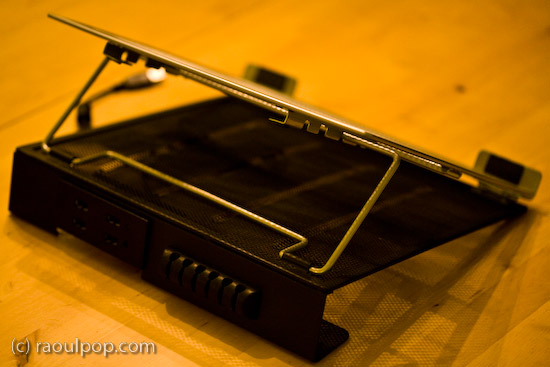
The stand is made of metal mesh and reinforced with rounded steel frames at the edges. Its tilt level can be adjusted as needed, and — here’s where the modular part comes in — it can be fitted with a wire organizer and a USB hub. The wire organizer comes with the stand and attaches as seen above, and the 4-port USB hub is sold separately. Once purchased, the hub slides into a slot on the back of the stand and is secured there by two metal arms on each side.

It’s best suited for 15-inch laptops like the one you see in my photos. Its design would make a 17-inch laptop feel oversized, and I’m not sure that it could support the weight of some of the heavier 17-inch laptops I see on the market nowadays.

The stand works best with an external keyboard and mouse. Although you can type comfortably on the laptop while it’s positioned on the stand, you’ll get tired pretty soon of the sound that the stand makes as you type on the laptop’s keyboard. Remember, it’s made of metal mesh, and it will resonate with each key click.

Once you position it at your eye level and plug in an external keyboard and mouse set, this stand will perform just fine for your needs, and at an affordable price, too.

Because it holds the laptop in place with the aid of two raised metal lips on each side, you need to make sure it doesn’t block any ports on your laptop. For example, it would definitely not work with any MacBook Pro laptops, which have the CD/DVD slot in the front. The placement of my audio line out/line in ports on my Averatec Windows laptop meant that it blocked those ports with the right support lip, as you can see below.

The USB hub that can be bought along with the stand is not self-powered (it does not have its own power supply cable), and that means it’ll draw power from the laptop’s USB port. This means you’ll likely experience power surges if you should plug in a USB drive that also does not have its own power supply. See my Logitech Alto Connect review for more details on this particular issue.

If interested, you can buy the stand and the USB hub to go along with it from Amazon. There’s even a variation on the hub which has only 2 USB ports but features a grounded, three-prong plug.

Standard
Reviews

Hardware review: Logitech Alto Connect Notebook Stand

I bought two Logitech Alto Connect Notebook Stands (with 4-Port USB Hub). One’s a keeper and the other is going back. I love its design and functionality, but there are a couple of things that you need to know if you intend to buy it.

This innovative stand is shaped like an X and wrapped in glossy, black plastic. Does the shape remind you of anything? How about OS X? Or the X-Men? Or the old saying, “X marks the spot”? Not that Logitech is copying anybody, but that shape looks cool, is very different from any other laptop stand on the market, and supports a larger amount of weight, meaning it can work with heavier laptops.

The stand comes unassembled in the box, and you must put the two pieces together (they dovetail precisely). The assembly time is 1-2 minutes or so. It may take you a try or two until you figure out the right way to join the two pieces together (there’s a 50/50 chance you’ll get it right the first time).

An added benefit of this stand is the addition of a built-in USB hub. The hub is self-powered, meaning that you’ll need to plug in a small adapter (included in the box). One port is located on the left front leg of the stand (visible above), and the other three ports are in the back, as you can see below.

As I said, I love this stand, and I think the design is wonderful. I have a lot of respect for Logitech. I’ve used wireless keyboards made by them, Kensington and Microsoft, and Logitech has consistently stood head and shoulders above its competitors when it came to battery life and ease of connectivity. I have a Logitech wireless keyboard and mouse set right now, have been using it for almost two years, and have nothing but good things to say about it. Last, but not least, I like Logitech because they use ColdFusion on their website, and CF is my favorite programming language. 🙂

I bought the first one of these stands for my father’s MacBook, and it works just great with it. The X-shape allows for greater cooling than the flat stands, and it blocks none of the laptop’s ports. My father uses it happily. I noticed an issue with the built-in USB hub though, as soon as I started using it.

I have a Western Digital Passport drive, which I carry pretty much everywhere. That drive has worked with any computer where I’ve used it. I love it. It’s powered directly by the USB port, and that’s where the issue lies when it comes to the Logitech Stand. Right after I plugged it in on my father’s stand, I got a message on-screen (on the laptop) telling me that the USB port where I’d connected the USB hub had experienced a power surge and was shut off. I had to unplug the port from the laptop, and re-connect it without the drive.

Let me clarify. The USB hub built into the stand is self-powered. It has its own power supply. It should be able to power just about any USB device. Why then did it draw power from the laptop when I plugged in the drive? Obviously the design of the hub is defective in some way if every time you plug in port-powered devices like the WD Passport drive, it causes a power surge in the USB circuitry. The only way I could get the drive to connect to the laptop was to plug it directly into the laptop, which I did, and it had no problems there.

The only time when I’ve had issues with port-powered devices was when I plugged them into USB hubs that had no power supplies of their own. On those occasions, the devices would draw power from the hub, which would then draw too much power from the laptop’s USB port, would cause a small surge, and shut off the port. But when you have a self-powered USB hub, this simply shouldn’t happen.

Just so you’re not confused, let me state outright that USB flash drives, which have no moving parts and thus draw much less current, can be used just fine with the built-in USB hub in this stand. And USB drives which have power supplies of their own (the regular 3.5″ drive enclosures of products like Drobo or LaCie) will work just fine with the hub, too.

Second, although the stand will work with pretty much any laptop on the market, it will not work with the MacBook Pro line. That’s because it blocks the CD/DVD slot on those laptops. I didn’t realize this until I bought the second stand to use with my 15″ MacBook Pro, which I’d just bought as well. I brought the stand home, sat my laptop on it, and this is what I saw.

Oops… While I appreciate the need for a built-in USB hub (even a half-working one) on a laptop that has only 2 USB ports, I’m going to return this second stand. I’m not going to take my laptop off the stand every time I need to burn a CD or play a DVD. Incidentally, on the Logitech website, this stand is recommended for Windows, not Apple computers, but I bought both stands at the Apple Store, so I doubt Logitech intended it only for the PC market.

Otherwise, like I said, I really like this stand’s innovative design. It’s beautiful, functional and sturdy. It even has a built-in wire routing slot, which is a nice touch.

And let’s face it, it complements very nicely the design of just about any laptop.

If you don’t have a MacBook Pro, and you don’t mind the USB surge issue with the built-in USB hub, then give this stand a try, you might like it quite a bit. Have a look at the other photos in the gallery below to get a better idea of its looks.

One more thing… The good thing about the way it raises the laptop is that the height of the front lip is low enough to let you type directly on the laptop without discomfort, but the height of the display is high enough for you to maintain proper posture. Of course, you can also use it with a separate keyboard and mouse if you’d like.

Buy the Logitech Alto

Standard