Reviews

WD TV is better than Apple TV

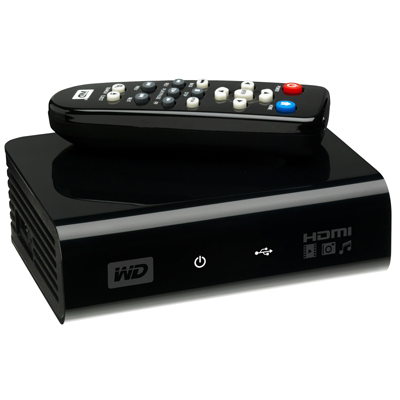
WD has put a new device on the market, and it’s called the WD TV HD Media Player. It’s a small box that can connect to a TV via HDMI or Composite output cables, and can take most USB external hard drives as input (it should even read USB flash drives as long as they’re formatted in FAT32). Once a device is connected, the WD TV will read the media from that drive (movies, photos, music) and let you browse through them and play them on your TV. What sets this device apart for me is that it has gone beyond other similar devices like the LaCinema Premier, or Apple TV. I’ll explain below.

The LaCie product, for example, doesn’t play as many formats as WD TV, and can only support NTFS and FAT32 file systems.

You’re limited in the amount of content you can play with LaCinema Premier, since the drive is integrated within the device itself, and because not as many video formats are supported (see the specs on the LaCie website). That means you have to lug the whole thing from your home office to your living room, re-connect it at each place, and copy files onto it when you want to refresh its inventory. The remote also leaves something to be desired (too many buttons).

I know and like Apple TV myself, having bought one and configured it for my parents, but frankly, I find it overpriced and under-featured. The more you use Apple TV, the more limitations you find:

  • It has an internal hard drive that syncs with content over a wireless network, which means you have to wait forever to get a movie onto it. The drive can also fill up quickly, depending on which size you pick. (Yes, you can also connect it via a Gigabit network, if you’ve pre-wired your living room and home office with Gigabit wires already — but most people have not.)
  • You can stream to it, but then you always have to keep iTunes open, and it’s a hassle to remember that, especially when you’ve just sat down on the living room couch and turned on the TV.
  • You also need to be able to troubleshoot WiFi issues in case you’re not getting enough bandwidth and Apple TV playback stutters.
  • You have to add every single video clip you want to play on Apple TV to the iTunes library, and I don’t care for that sort of thing. I just want to store my stuff in folders and browse it from a device (like WD TV).
  • Apple TV has a USB port on the back, but you can’t use it for anything but “diagnostics” unless you hack the device. This is stupid. I can’t use the port to connect Apple TV to my computer and copy content onto it, I can’t use it to connect an external hard drive to it and have it read the content from it (like WD TV), and it just sits there, unused, unless I pay for a hacking device like aTV Flash.
  • It overheats like crazy. It can burn your fingers if you’re not careful.

I love the design of Apple TV and its diminutive remote. I love the fact that I can swap remotes between it and my laptop if I want to. I think the on-screen menus are well done. I also like the fact that it can stream Flickr photos and YouTube videos, but these extra functions are just that: extra-neous. It simply cannot do its basic job well, and that is to play my media conveniently.

I’m not alone in being frustrated with it. Thomas Hawk has written repeatedly against Apple TV, and for the very same reasons I describe in this post. Steve Jobs recently said he’s not sure what to do with Apple TV. He’s treating it like an unwanted step child. It’s not listed in the Mac product lineup on Apple’s website. It sits off to the side in a section of its own, and you have to do a search for “Apple TV” in order to find it. Corrected 11/11/08: It’s listed in the iTunes and More line-up along with the iPods.

For one thing, Mr. Jobs, you can stop being so greedy in your approach to the device and let people use the USB port on the back. Or how about letting people stream Netflix videos with it, so they don’t have to buy a separate device? I’m a Mac user and have a Netflix account. Until Netflix release Roku and opened up its streaming program to Mac users, I was in the dark. You probably don’t want to do these things because it’ll cut into your video rentals and purchases, and you like that extra revenue stream, but the fact remains that sales of the device will always remain low if you insist on hamstringing it.

The WD TV Player, on the other hand, is made to suit most people. It has a USB port where you can connect most external hard drives. It will read NTFS, FAT32, and HFS file systems too. (I found that out from WD Support, because the info isn’t listed among the specs. They pointed me to KB article #2726.) There seems to be an issue with HFS+ file systems, but they’ll still work, only differently. I’ll have to look into that later.

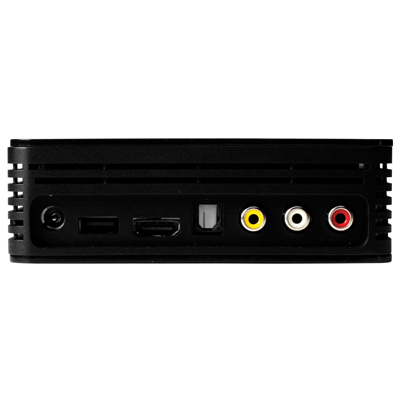
Also not listed among the specs is an Optical Audio port, but when I look at the back of the device, it seems to me I can see one there.
To me, WD TV is the long-awaited answer to my media player needs. At around $99 (street price), this is one device that will make its way to my Christmas stocking pretty soon, because I’ve got a Drobo full of content I’d like to play my way, not to mention that I also have two WD Passport drives.

I may even get one for my parents, to replace their Apple TV. They’ve had to keep their Drobo connected to their iMac in the home office, with iTunes open, all this time, just so they could watch a movie or two from the Drobo. That’s not right. Once I get the WD TV, I can take their Drobo, put it in the living room, and hook it up right there, without worrying about WiFi, streaming, iTunes, and a whole bunch of nonsense. Apple dropped the ball with Apple TV, and WD picked it up and started running with it.

The WD TV supports the following file formats:

  • Music: MP3, WMA, OGG, WAV/PCM/LPCM, AAC, FLAC, Dolby Digital, AIF/AIFF, MKA
  • Photo: JPEG, GIF, TIF/TIFF, BMP, PNG
  • Video: MPEG1/2/4, WMV9, AVI (MPEG4, Xvid, AVC), H.264, MKV, MOV (MPEG4, H.264). It will play MPEG2/4, H.264, and WMV9 videos up to 1920x1080p 24fps, 1920x1080i 30fps, 1280x720p 60fps resolution. That’s awesome.
  • Playlist: PLS, M3U, WPL
  • Subtitle: SRT (UTF-8)

I plan to get one soon, and I’ll let you know in this post if it lives up to its specs and my expectations. If you’d like to get one too, Amazon lists them. See below.

You can buy the WD TV Player from:

Standard
How To

Cannot change WP theme if Turbo mode is enabled

I’ve been wondering what sort of bug I’ve had in my WP installs for the last few weeks, and only now figured out what’s going on.The Turbo mode for WP is done through Google Gears. There’s a bug in the Turbo mode that will not allow you to change your blog’s theme. It works by not displaying the “x” (Close) or the “Activate …” options in the DHTML layer that opens up when you preview a theme.

Try it out if you want. Enable Turbo mode, then go to Design >> Themes and click on a theme that you’d like to preview and possibly activate. It’ll open as a full page instead of opening in a separate layer above the regular page, and the option to activate it will not display. In essence, you’re locked out of switching themes. You have to hit the Back button to get back to the Admin panel, else you’re stuck in a Live Preview mode.

This has nothing to do with file permissions, as I originally thought, or with corrupt theme files. No, it has everything to do with Turbo/Google Gears and the way WP implemented this. It’s a bug that needs to get fixed. The only way to enable theme-switching for now is to disable Turbo mode. After that, things work just fine.

This bug is present even in the latest WP version, 2.6.3. I hope it gets fixed soon.

Standard
Reviews

Hardware review: Dell S2409W Flat Panel Display

The Dell S2409W 24-inch Widescreen Flat Panel LCD Monitor is a new model from Dell which has a 16:9 display ratio and runs about $350. Its native resolution is 1920×1080 pixels, which means it can display full quality HD content (1080p). It has three inputs: VGA, DVI and HDMI, which means you could connect it to your computer and to a DVD player or some other video device, and switch between the inputs as needed.

I purchased this monitor on 7/31, and it arrived on 8/21. My reason for buying it was the price. It is one of the lowest prices for a 24″ display from a reputable company, and I was also drawn to the 16:9 display ratio. I had a chance to work with it over these past four days.

I like the design of the monitor. It’s fairly thin in terms of depth, the rounded bezel is interesting, and the white power light is a very nice touch. It sits on a round base that has a sort of round indentation built-in, which I found to be a handy spot for post-it notes or a small remote control.

My computer setup is described in detail here. I have a MacBook Pro, and I do a lot of photography editing. As soon as I connected the S2409W to my MBP, I could see that fonts and curves weren’t displayed properly. There was some noticeable rasterization that took place at the edges of smaller objects on screen. I’m not sure of the word to describe it, but edges weren’t smooth, they were craggy.

I set up my MBP and the monitor in dual display mode, and I dragged windows back and forth between the two displays repeatedly, in order to compare the differences. As soon as a window made it onto the Dell monitor, things just didn’t look as good and as crisp as on my MBP’s display.

Also, no matter how much I calibrated it, I couldn’t get the contrast and brightness settings right. If the contrast was too low, then colors and shadows appeared washed out, and if the contrast was too high, the light-dark difference bothered my eyes. If I turned down the brightness, there was too little light on-screen, and if I turned it up, there was too much light, which made my eyes burn.

The next day, I brought my MBP into work and connected it to my Dell W2407WFPb monitor, another 24-inch flat panel display. This particular model belongs to the UltraSharp model line, which is higher quality. Here the colors showed up properly from the start, without calibration, and there was much less rasterization around the edges of letters and other small objects. I had to admit the S2409W display isn’t made as well as the W2407WFPb, which is understandable, since the latter model retails anywhere from $600-700.

I did one more thing: I started my XP VM on the Mac while connected to the S2409W, set it to full screen, and noticed that, at least when running Windows, the display quality was acceptable.

No matter how much I tried to adjust the display while I worked on my Mac, I couldn’t get it to work in a satisfactory manner for me. Since I do most of my work on a Mac and within OS X, the Dell S2409W won’t work for me, and I will have to return it.

Updated 8/28/08: You can read about my Dell return experience if interested. I find it very encouraging that Dell is now engaging with its customers the way they’ve done it after I wrote that post.

On a more general note, I haven’t been very successful with my monitor picks so far. I already tried using an HDTV as my computer monitor, but that didn’t work out. Now using a regular monitor hasn’t worked out either. It looks like I may need to spend upwards of $700 to get a good monitor that will work well for my needs.

Keep in mind that my needs are more demanding than those of the average user, and that I may be more critical of a monitor’s display quality than you may be. You may find the S2409W does just fine for you, particularly if you do most of your work on Windows, where it seems to work better. At $350 for a 24-inch display, it fits the bill as well.

Promotional: Shopping for Dell hardware? Use Dell coupon codes on your next purchase.

Standard
Thoughts

What's on my desk?

The idea for this post has been sitting among my drafts for a long time. I always thought it’d be a good idea to share how I work and what equipment I use, for the benefit of those of you that want to put together a similar setup. Let me make it clear that I’m not doing this to brag. I realize my equipment is fairly expensive and out of reach for some. Believe me, I’m keenly aware of its cost, and have made certain sacrifices in order to acquire it.

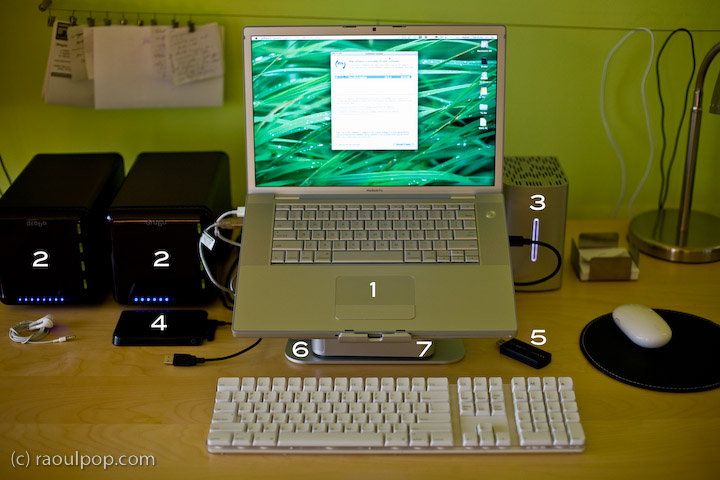
The hardware I have now is the best hardware I’ve had so far, and it allows me to easily develop for my clients, write for my sites, process my photographs and edit my videos and movies. See the photo enclosed below. Each important piece of equipment is marked with a number, and each number is explained in detail.

Here’s what you see above:

  1. 15″ Apple MacBook Pro: I love its dedicated 512 MB video card, and its design and speed. It allows me to focus on my work, not twiddle my thumbs while the computer plays catchup to my commands.
  2. Drobo: I have two of them. I store backups of my photos on one, and my videos on the other. Both of them are shared over my home network, so that my other Mac, a 20″ iMac G5, can access the videos and play them in Front Row.
  3. 2TB WD My Book Studio Edition II drive, running in RAID 0 (striped) mode: WD was kind enough to give me this drive as a gift of sorts, considering the significant problems I had with my 1TB WD MyBook Pro Edition II drive. I think they got tired of my complaining, and sent it to me to shut me up. Well, it worked. This drive has done great so far, and I have no complaints. I plan to write a review for it soon. I’ve been putting it through its paces so far, and it’s held up nicely. I connect it to my MBP through the Firewire 800 port, and I love the transfer speeds.
  4. 250GB WD Passport drive: I bought this last year, and it has been very useful. It’s small, stylish, and it’s powered solely by the USB port. I use it a LOT to transfer big files between computers.
  5. Turbo.264: a nifty little gadget built by the folks at Elgato, it speeds up H.264 conversions significantly. I’ve been putting this through its paces as well, and plan to write a review soon.
  6. mStand laptop stand: I love this stand, and reviewed it recently. It’s the best-designed stand for the MBP.
  7. newerTech miniStack v1: This is the first version of the popular miniStack drive enclosure. It uses PATA drives, and it has built-in FireWire and USB hubs (3 ports each). I use it as a USB hub, and it sits underneath my laptop stand — that’s why it’s not clearly visible in the photo. Both my Drobos are connected into it, and I have a spare USB port that I can use for my CF card reader, etc. If you want to have a better look at this enclosure, you can see it better in my Drobo review, where it appears in both the photos and the video.

As you can see, I aimed for simplicity in my setup. I wanted the most amount of processing power and hard disk space, in the smallest amount of physical space. You’re looking at about 5TB of storage in the photo.

Most of the heavy lifting (in terms of data crunching) happens on the WD Studio drive. I use it as a staging area for video processing, and transfer the finished, edited ones to one of the Drobos. I also use it to store and work with my Lightroom photo libraries. Working with photos in Lightroom from a Drobo is too slow for me, and the WD Studio Drive offers a visible advantage as I process each photo. I then back up my laptop and the WD Studio Drive to the Drobo through Time Machine.

You may recall I initially moved my photo libraries to one of the Drobos because I kept experiencing Lightroom library corruption and thought the WD Studio drive was at fault. As it turns out, Lightroom itself is to blame. Once your photo library reaches tens of thousands of photos (I have over 40,000 photos in one of my libraries), Lightroom will experience library corruption on a fairly regular basis. It’s just an unstable piece of software, and I hope that the next version will be better.

Just a quick note for those of you that noticed it. There’s a wire that runs behind the laptop, along the wall. The photo isn’t crooked, the wire is. I use it to hang small wires or notes to myself on it, and being loaded down with a few toward the center (which is only partially shown in the photo), it appears slanted. Sorry about that. It bothered me, but I wasn’t going to spend an hour or so in Photoshop cloning it out.

Hope this helped give you some ideas! If you have any questions, let me know.

Standard
Reviews

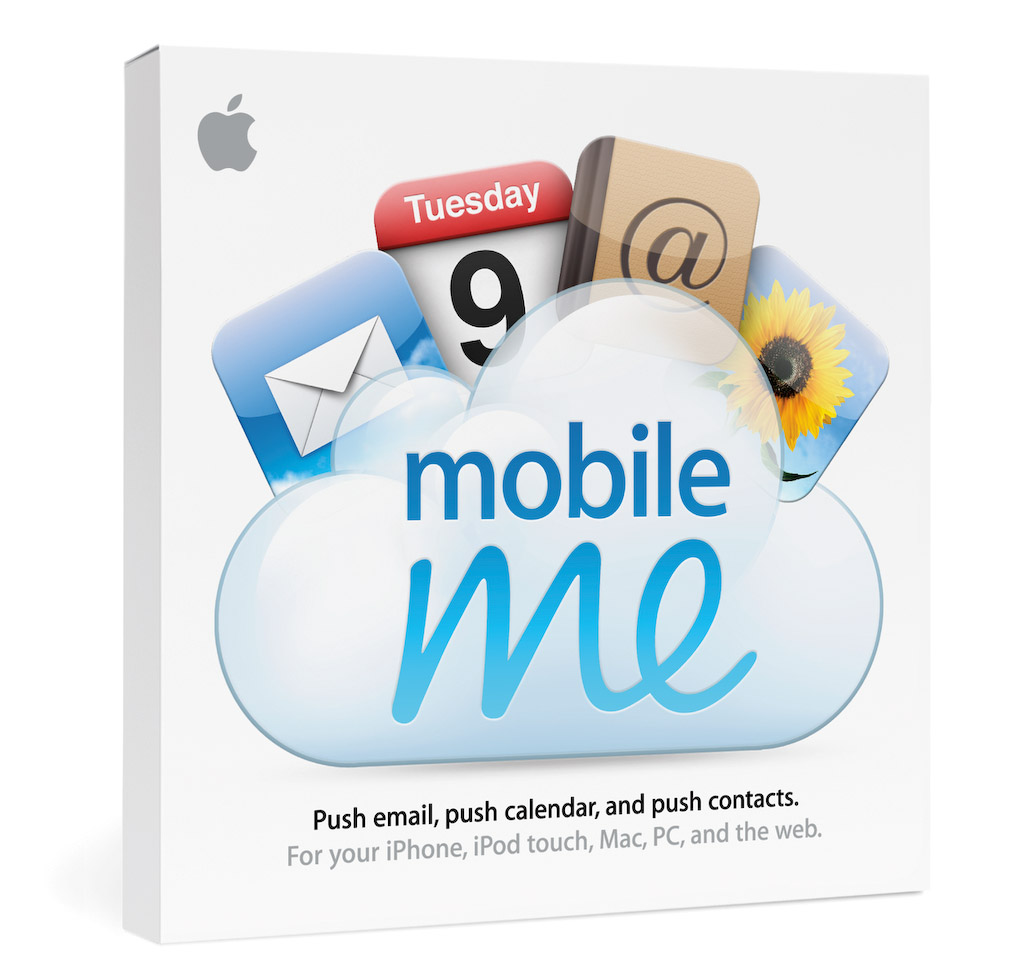
Meet the replacement for .Mac: MobileMe

I mentioned in yesterday’s iPhone 3G announcement that Apple had secretly purchased the domain me.com for an undisclosed sum of money (in the neighborhood of 11 million). It came as no surprise to Apple fans when we found out that MobileMe was the replacement for .Mac. Users had griped for years about .Mac’s lackluster performance and puny space available (1GB for $99/year last I used it).

So, other than the new domain name (personally, I liked the .Mac domain), how’s the new service different?

  • More space: 20GB for the same price ($99/year for individuals and $149/year for a family pack). Additional space is $49/year for another 20GB or $99/year for another 40GB.
  • Push… everything: Apple has upgraded their .Mac email service and calendar and contact syncing to “push” technology. I don’t really see what’s different here when I compare it to .Mac, except the syncing is seamless and faster. And oh, now it works with PCs/Exchange as well.
  • Great web interface: Apple outdid itself here. .Mac had a web interface as well, but it was slow and kludgy. The new web interface behaves like desktop applications and looks really, really nice. Not sure how fast it loads on regular broadband connections, but we’ll find out soon, won’t we?

That’s about it, really. The bulk of the effort went into the better, cross-platform syncing and the innovative, beautifully-designed web interface. The additional space was long overdue.

Existing .Mac members will be upgraded automatically to MobileMe, and their existing subscriptions will be transferred over to the new service when it becomes available on July 11.

What’s the draw to MobileMe? For me, it’s the Back to My Mac service, which was introduced alongside iChat Screen Sharing in Leopard. It wasn’t enough to get me back when .Mac was overpriced and underfeatured, but it may be enough now that MobileMe has more space and is better designed. For iPhone users, it’s the obvious integration and contact/calendar syncing between the phone and the computer(s).

In terms of web storage space, the 20GB isn’t really that big of a deal for me. There are PLENTY of companies out there that offer more space. ADrive, for example, offers 50GB for free, and they’ve worked reliably for the past several months that I’ve used them. Dropbox, although it offers less space for free, has incredibly nice integration between Macs and PCs, and lets me share files seamlessly from computer to computer, or with my friends.

What I have to wonder about is Gmail. Given the partnership between Apple and Google, I’d have hoped that Google products would be better integrated into MobileMe somehow. It seems they’ve still been left by the wayside. They work, but not quite. I still can’t sync my calendar appointments properly from Gmail to iCal, and still can’t sync my contacts properly from Addressbook to Gmail (unless I have an iPhone or iPod Touch). Even Gmail’s IMAP interface in Mail leaves a lot to be desired. After using it for a few months, I switched back to POP3.

That’s annoying. I suppose it may have had something to do with Apple’s desire to keep building on their existing products and to develop an Apple-designed web interface (which is quite different from the spartan design of Google’s products).

Images used courtesy of Apple, Inc. More information about MobileMe can be found in Apple’s original press release, or on the MobileMe website.

Standard