Reviews

Hardware preview: DroboPro FS

Updated 1/14/19: I have revised my opinion of Drobo devices. After experiencing multiple, serious data loss events on multiple Drobo models, even recent ones, I no longer consider them safe for my data.

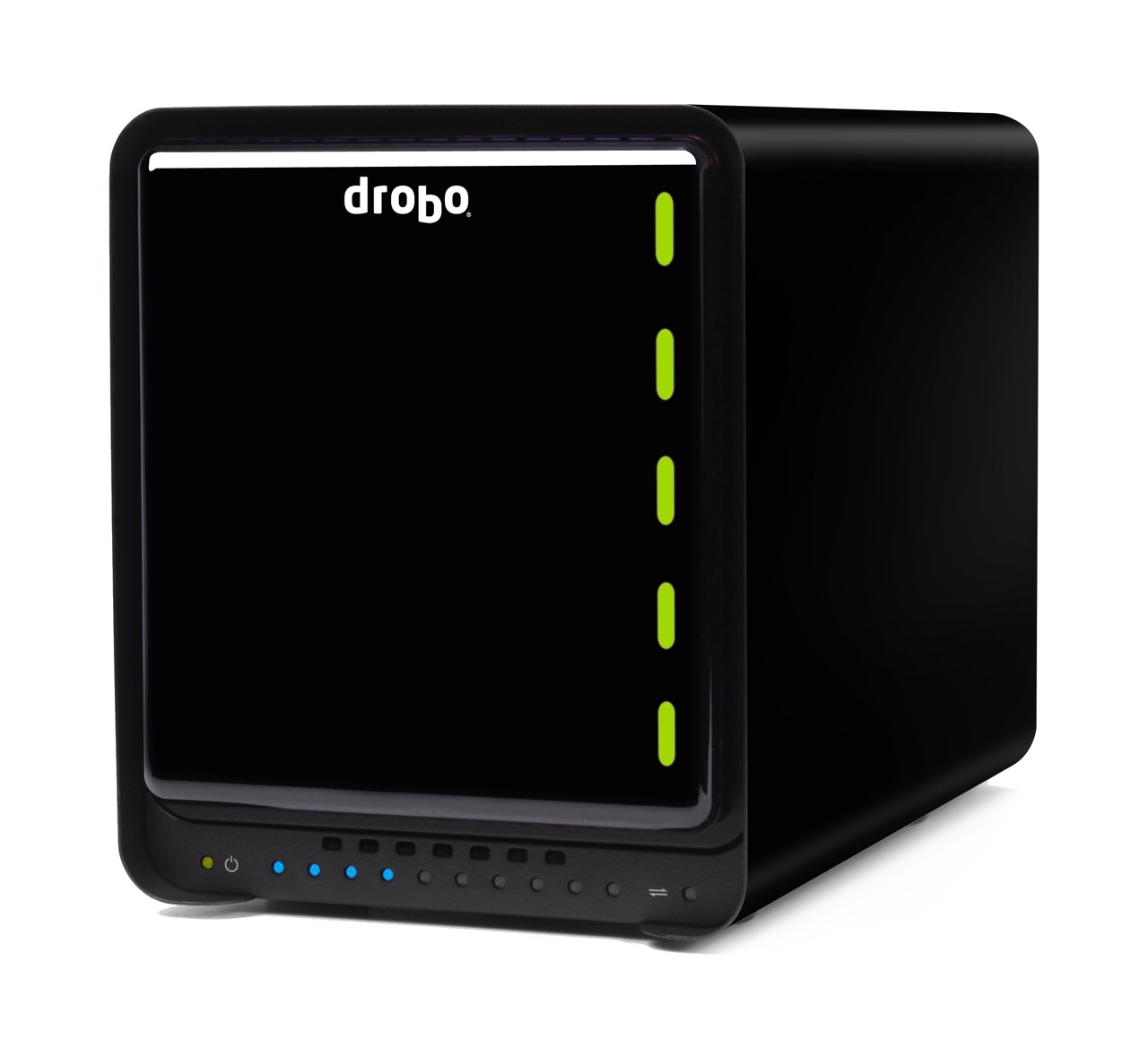
Today, the DroboPro FS will be announced by Data Robotics. It’s the bigger brother of the Drobo FS, and it’s aimed at creative professionals, SOHOs and SMBs.

There was a gap in Drobo’s file sharing lineup. They had a NAS device, sure (the Drobo FS), but it didn’t have the capacity and the bandwidth of the DroboPro FS, which has two Gigabit Ethernet ports and eight drive bays.

Its ethernet ports can be configured two ways:

  1. On two different subnets, for offsite file replication, and
  2. Failover mode, where one port takes over if the other one dies

The really nice part here is the DroboPro FS works seamlessly with a new piece of software (to be introduced shortly) by Data Robotics, called Drobo Sync. The way it works makes the DroboPro FS the perfect candidate for offsite backups, for disaster recovery purposes.

Say you have two DroboPro FS units. You keep the first one in your company’s server room, do your internal backups to it, over the local network, and then run a quick DroboPro FS to DroboPro FS initial sync job using Drobo Sync. When that’s done, you can take the 2nd DroboPro FS unit to your disaster recovery site, plug it in over there, and Drobo Sync will start doing incremental backups automatically, saving you bandwidth and validating each file on a block-by-block level to make sure the data is identical on both Drobos. This is a solution that would be perfect for overworked sysadmins, because the setup and administration are easy, and the total cost is less than that of comparative solutions.

It uses the same form factor as the DroboPro and the DroboElite, which means it shares the same measures, and the same rack-mount kit. And you can also customize it with Drobo Apps, just like the Drobo FS.

A base DroboPro FS costs around $1,999, but you can buy it bundled with hard drive sets (8TB, 16TB and 32TB). It’s available directly from Data Robotics, or from B&H Photo, Amazon and other retailers.

Standard
Events

Win your choice of a Drobo S or Drobo FS – enter now!

Updated 9/24/10: The winner of the drawing is Keith LaBarre! He’ll soon get to pick between a Drobo S ($799) or a Drobo FS ($699). Congratulations, you lucky guy! 🙂

My thanks go out to Data Robotics for their generous offer, and to all for your participation! Data Robotics will be in touch with each of you to provide you with a discount coupon good toward a shiny new Drobo. Have a wonderful weekend everyone!

I’m happy to announce an awesome contest where you can win your choice of a Drobo S or Drobo FS. It starts today, Tuesday, 9/21/10, at 12:01 AM Pacific Time, and it runs until Friday, 9/24/10, at 9:00 AM Pacific Time. That’s not a lot of time, so enter now!

All you have to do is to fill in your info right here. The winner will be picked at random and announced here on my website, on my Twitter account, and on the @Drobo Twitter account.

Although there can be only one winner, everyone who enters will get a nifty discount good toward the purchase of a new Drobo. So go ahead, enter now!

Standard
Reviews

Time of capture metadata bug in iPhone 4 movie clips

Updated 9/12/10: I’m not sure any more if this is an iPhone 4 glitch or an Adobe Lightroom 3.2 bug. A thread has been opened in the Adobe Lightroom Forum, if you’d like to chime in there.

After upgrading the iPhone with iOS 4.1, I recorded a new video clip, imported it and some new photos into Lightroom, and the same wrong date and time appear for it.

According to a comment on my thread in the Apple Support Forums, the correct time of capture is displayed for iPhone 4 video clips elsewhere but Lightroom. And I also noticed that Lightroom displays the very same incorrect date and time of capture for video clips taken with the Nokia N95.

Updated 9/27/10: I’ve been in touch with Adobe, and it turns out this is a “designed” behavior. That is, because movie clips do not have EXIF data (there is no standard for EXIF data when it comes to them), they are assigned a random date and time as they’re imported into Lightroom. HDSLR video files are accompanied by a .THM file which stores the necessary EXIF data, and that’s why they show up properly.

Quoting from Davide M.’s (Adobe) response:

So I then had a look at our bug database and it turns our this is a known issue with mobile phones although somewhat out-with our control. Movie files do not technically have EXIF data or at least the standard has not yet been established. Since the import process can assign a timestamp to a movie file, we ignore this time stamp since it can be inaccurate, as shown by the example of your video file being changed by the simple process of email. Other applications while appearing to work fine, in fact are simply showing you the files creation date. If you were to duplicate the file, you will see that the timestamp in these other applications will change to the time the file duplication took place.

The reason why most DSLRs work is because they create a sidecar file containing that information. Files with no timestamp, such as the ones from the iPhone and the Nokia N95 do not create this and hence default to 1/1/04 when looking at the Loupe information overlay.

In the example you used, the Canon 7D creates a .THM sidecar file with the same name as the video file it generates. This contains all the data associated with the video file.

Still, this is problematic behavior, as it introduces erroneous times of capture in these movie files. So I asked Davide if it would be possible for Lightroom to be updated so that it writes a more accurate time of capture for these movie files. Thankfully, he agreed to log it as a feature request. Time will tell if this will make it into a future LR update. Quoting him below:

That’s certainly something I can log in our feature request list. Because this has been deemed ‘as designed’ by our engineering team (due to the lack of EXIF data in movie files) it is not technically a bug. None the less, I can see that this would be a useful addition to our application. Thanks for bringing this to our attention.

Thank you, Davide!

After downloading a few movie clips taken with an iPhone 4 (running iOS 4.0.1) onto my computer, I saw right away that their time of capture was incorrect, even though the iPhone’s time had been set up correctly. I took a few screenshots of the movie clips in Lightroom, which you can see below. Click on each to view them large.

This time metadata error happens when using either the main (back-facing) HD video camera, as shown above, or the front-facing VGA camera, as you can see from the screenshot below.

It looks like iPhone 4 records the same time for all video clips recorded with it, set at 1/1/04 1:44:24 AM.

It goes without saying that any digital video camera worth its salt will record the time of capture properly. The question, naturally, is when Apple will fix this glaring bug?

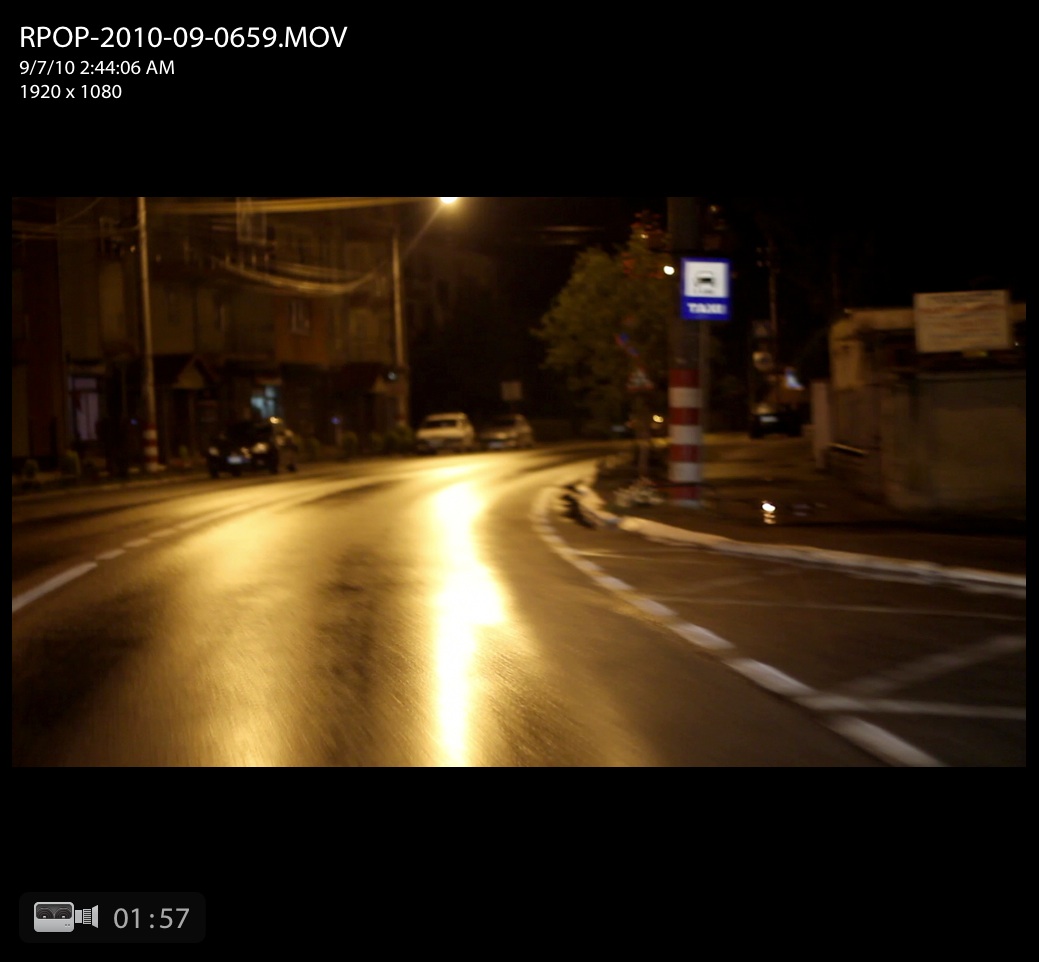
For comparison purposes, here is a screenshot of a Canon 7D movie clip, also shown in Lightroom. The time of capture was recorded properly, as was to be expected.

Standard
How To

Always check a SATA drive’s jumper settings

I made a quick video that shows you why it’s always important to check a SATA drive’s jumper settings. Many of us assume that since we’re dealing with SATA, not PATA/IDE drives, the jumper settings are no longer important. After all, the Master/Slave relationship no longer applies to the SATA model. Not so. The jumper settings on SATA drives control other important drive settings, such as their speed of operation.

Have a look at this Seagate 500GB SATA drive, the one in my video. I assumed (wrong) that it was operating at 3.0 Gb/sec all along. It wasn’t. For over 2 years, I had three of these drives in one of my Drobo units, and I thought I was getting 3.0 Gb/sec from them, when in fact I was only getting 1.5 Gb/sec. That’s because they shipped with a jumper set to limit their speed of operation at 1.5 Gb/sec from the factory, and I didn’t check it before sticking them in my Drobo and forgetting about them.

Only now, as I re-shuffled the drives between my Drobo units, did I realize I hadn’t been getting 3.0 Gb/sec from them, and corrected the situation right away.

I can understand why Seagate would want to ship the drives set to 1.5 Gb/sec. After all, some older computers might not be capable of 3.0 Gb/sec, and you’d run into compatibility issues. They assume IT geeks would know what to do, and they’re right, they would, if they’d only bother to look…

Standard
Reviews

Hardware preview: ioSafe SSD – fireproof, waterproof, crushproof and shockproof

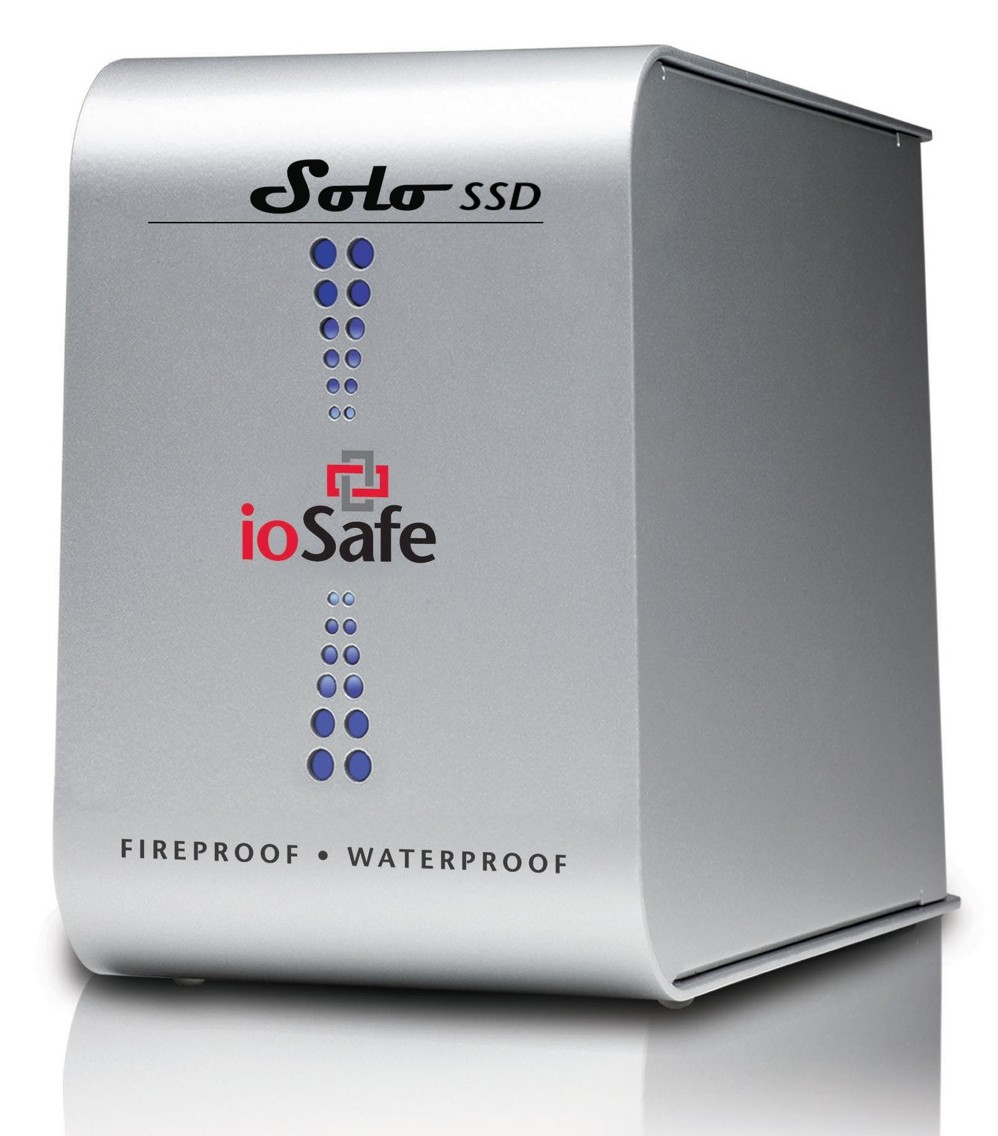
Back in September 2009, I wrote about the ioSafe Solo, a fireproof and waterproof drive. In January 2010, at CES in Las Vegas, ioSafe, the company behind these disaster-proof drives, launched a new product, the ioSafe Solo SSD.

It’s the same size as the ioSafe Solo, it looks the same outside, except for the branding, which now adds “SSD”, but inside, it’s a whole new ballgame. Instead of using a regular 3.5″ SATA drive, they’re using a 2.5″ Solid State Drive. This means they have even more spare space to play with when it comes to disaster-proofing the device — which they certainly did!

The ioSafe SSD isn’t only fireproof (same serious specs as ioSafe Solo), and waterproof (better specs than ioSafe Solo, now with full immersion up to 30 ft for 30 days with no data loss), but it’s also crushproof (5000 lbs, any axis with no data loss) and shockproof (20 ft drop into rubble, 1000g shock for 1ms with no data loss).

Here’s a video from CES where Rob Moore, the company’s CEO, burns the drive, then floods it with a firehose, then has it dropped from about 20 feet, then has it run over with a bulldozer. In the end, even though the enclosure gets destroyed, the data stored onto it remains perfectly safe.

Quoting from the press release:

“Combining ioSafe’s new proprietary ArmorPlate, a military grade steel outer casing with SSD technology, the new ioSafe Solo SSD adds unprecedented shock, drop and crush protection to the existing fire and water protection.

The ioSafe Solo SSD combined with ArmorPlate helps to protect data in a two story building collapse, 5000 lb. crush forces, 20’ drop into rubble and up to a 1000g shock. In addition the original HydroSafe™, FloSafe™ and DataCast™ work to keep the drive cool during normal operation and protect the data from fires up to 1550°F for 1/2 hour and complete water submersion of 30’ for 30 days in fresh or salt water. Like all ioSafe products, the ioSafe Solo SSD comes with ioSafe’s Data Recovery Service, a “no questions asked” policy to help customers recover from any data disaster including accidental deletion, virus or physical disaster.”

The specs say the ArmorPlate military-grade steel is 1/4″ thick. That’s mighty thick. It also makes the ioSafe SSD about 5 lbs heavier than the ioSafe Solo. It now weighs in at 20 lbs.

I wonder if the whole device could withstand bullets, because then it would make a perfect military storage device for use in conflict zones. For example, it could be placed in tanks, humvees and helicopters to store video, audio and coordinate information during patrols. And at 256GB for the largest size drive, it could store plenty of HD video, if the military should want to go in that direction.

But let’s not go into hypothetical situations. The ioSafe SSD can work for disaster recovery right now. Should your place of business burn down or fall down or be flooded, any data stored on the ioSafe SSD will be available to you immediately, as soon as you dig it out of the rubble. That’s a tangible advantage. You can simply add this drive to your server room, or put it in the CEO’s or CFO’s office, and let him or her back up important documents to it, knowing they’ll be there in case of a disaster.

The thought just occurred to me — do you know how they could make it better? If it’s meant to survive disasters and be buried in rubble, it needs a geo chip of some sort, so you can locate it with a proximity device. It could be something simple that beeps faster the closer you are to the drive, so you don’t have to dig through all the rubble to find it, should it come to that.

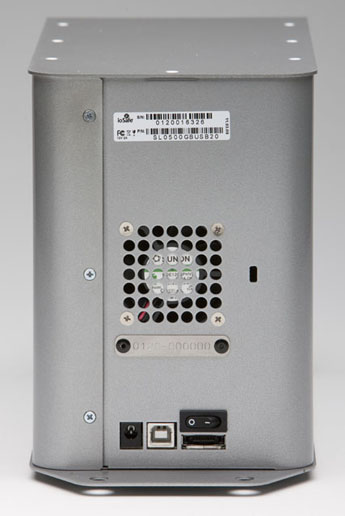
And there’s another goodie packed into the drive: an eSATA interface. This, coupled with an SSD, means you’ll get blazing fast write and read speeds. You can see the eSATA connector on the back, next to the USB and power connectors.

Pricing for the three different Solo SSD models starts at $499 for 64GB, $749 for 128GB, and $1250 for 256GB. It’s a bit steep, but then, SSDs are still expensive, and no other drive on the market (that I know of) offers this level of physical protection for your data.

Images used courtesy of ioSafe. You can see photos, videos, specs and more information about the Solo SSD on their website.

Standard