 I’ve been using the Zoom Search Engine for over a year, and I’ve been very happy with it. But today I realized I hadn’t told many people about it, so I had to fix that.
So what’s the Zoom Search Engine? It’s a beautiful piece of software written by WrenSoft, an Australian web software company. Here’s what I think is amazing about it:
- It’s inexpensive: the Standard edition is $49, and the Professional edition is $99. (I have the Pro edition.) There’s also a free edition for smaller sites. A side-by-side comparison of the different editions is available on the WrenSoft website.
- It’s small in size, but feature-packed. The executable is 1.65 MB. Bloatware this is NOT. It is small and it packs a powerful punch. If you don’t believe me, install it, then run through the various options. There are a LOT of them!
- It does the job — no crashing, no malfunctions. In over a year of serious use, with it running daily to index a lot of files for most of that time, it didn’t crash once. It just did its job.
- Tech support is great, and included in the price of the software. I needed to contact them twice to ask them about some advanced configs for the app, and they responded within 12 hours. What’s more, they actually solved my problem. There were no excuses and no passing the buck.
- It’s a scalable piece of software. Not only will it index small, simple sites, but its indexing engine can use ASP, PHP, JavaScript or CGI. The CGI engine can be used for enterprise sites – we’re talking hundreds of thousands of pages here! Not only will it index sites hosted on web servers, but it will also let you put a search engine on a site that runs off a CD or DVD.
- It spiders and indexes most document file types with the aid of free plugins that work with the paid editions of the software. They’ve got plugins for Word, WordPerfect, Excel, PowerPoint, PDF, Flash and FlashPaper, and Rich Text formats. Having used all of these plugins over the last year, I can tell you they work a treat. They certainly do the job, and there’s no false advertising involved.
- It’s a customizable and flexible piece of software. You possess the search index. You have access to the actual files used by the search engine, and you can tweak the engine and the index as you please. You can adjust everything. I can’t think of any other solution on the market that will let you do that. When it comes to this, it beats Atom and Google and any other solution, hands-down. Google’s search appliances are a black box. You can play with the options, but you don’t have access to the search technology. You can’t pop the hood and have a look at what makes their searches tick.
So how exactly have I been using the Zoom Search Engine? It’s been powering the site searches on Exprimare and the Road Management Catalog, among a few others. While Exprimare is a fairly small site (it’s my consulting/portfolio site), the Road Management Catalog is a big site in terms of the content, file types and number of pages. It belongs to the World Bank, and vendors of various road construction, measuring and testing equipment have accounts where they submit company information and upload brochures in various file formats. The Zoom Search Engine’s job on that site is to index all of the uploaded files, all of the various companies’ info, the regular site pages, and to make them all available in the search index. It’s been doing a wonderful job over the past year, and I love it. I’ve scheduled it to run every day, and to index all of the files. When it’s time for it to start, it does so automatically. It spiders the site, builds the index, uploads it to the site through FTP, then closes automatically. I don’t have to do anything other than adjust search parameters here and there as the need arises.
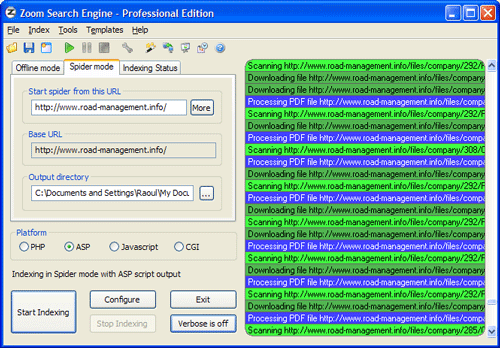
Here is a screenshot of the main app window, just as it’s indexing the Road Management Catalog. Once it’s configured, it spiders the site (you can set it to start multiple threads so the indexing goes faster) and then it goes about its business.
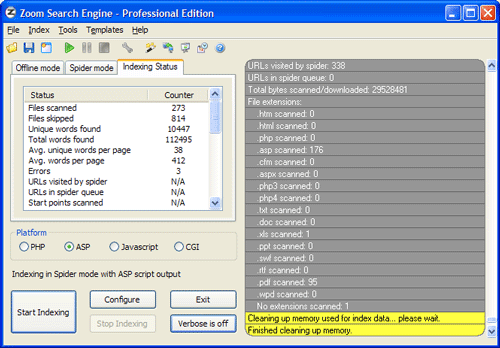
When it’s done, it gives you an index status report, to let you know what it found. It also outlines in red any indexing errors, such as files or pages it couldn’t download or index.
If I had to talk about the many configuration tabs, I’d have to reproduce their user manual. Instead, let me just show you a screenshot of one of them, the Indexing options. How cool is this! I get to decide what gets indexed, what gets boosted, and how words get joined. And this is just a small sample of what the app can do.

A lot more screenshots are available on the WrenSoft site. Their support section is extensive, a forum is also available, and their tech support is only an email away.
The Zoom Search Engine is an amazing product, and well worth its price. As a matter of fact, I’d call it underpriced. It’s a tremendous value given its functionality. So if you own a site and have been looking around for a suitable search engine, don’t settle for something that’s overpriced or inflexible. Get something that’s been tried and tested, something that’ll work, something you can use on a daily basis and tweak until you get just what you want.

 I’ve been trying out a Firefox extension that displays the minutes used in my mobile phone plan (I’ve got T-Mobile) since yesterday, and I’m really excited about it. Once you install it, you can configure it to query your plan and display the minutes used out of the total monthly minutes, right in the status bar, at the bottom of the browser window.


 Raoul Pop