Reviews

Hardware review: Rolodex laptop stand

What I find interesting about this Rolodex laptop stand is its modularity. A few years or so after it launched, it’s still on the market. I’ve been using it for two of those years with my Windows laptop, and while it doesn’t look cool or feel cool, it’s sturdy, and it works just fine.

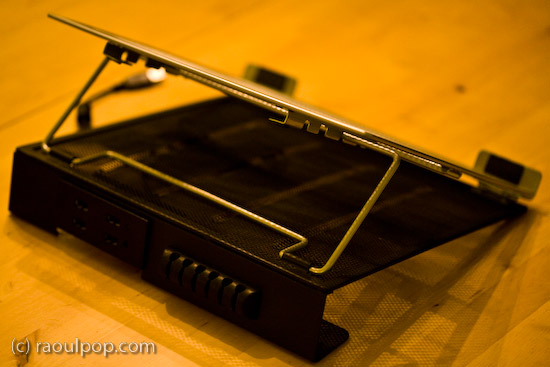
The stand is made of metal mesh and reinforced with rounded steel frames at the edges. Its tilt level can be adjusted as needed, and — here’s where the modular part comes in — it can be fitted with a wire organizer and a USB hub. The wire organizer comes with the stand and attaches as seen above, and the 4-port USB hub is sold separately. Once purchased, the hub slides into a slot on the back of the stand and is secured there by two metal arms on each side.

It’s best suited for 15-inch laptops like the one you see in my photos. Its design would make a 17-inch laptop feel oversized, and I’m not sure that it could support the weight of some of the heavier 17-inch laptops I see on the market nowadays.

The stand works best with an external keyboard and mouse. Although you can type comfortably on the laptop while it’s positioned on the stand, you’ll get tired pretty soon of the sound that the stand makes as you type on the laptop’s keyboard. Remember, it’s made of metal mesh, and it will resonate with each key click.

Once you position it at your eye level and plug in an external keyboard and mouse set, this stand will perform just fine for your needs, and at an affordable price, too.

Because it holds the laptop in place with the aid of two raised metal lips on each side, you need to make sure it doesn’t block any ports on your laptop. For example, it would definitely not work with any MacBook Pro laptops, which have the CD/DVD slot in the front. The placement of my audio line out/line in ports on my Averatec Windows laptop meant that it blocked those ports with the right support lip, as you can see below.

The USB hub that can be bought along with the stand is not self-powered (it does not have its own power supply cable), and that means it’ll draw power from the laptop’s USB port. This means you’ll likely experience power surges if you should plug in a USB drive that also does not have its own power supply. See my Logitech Alto Connect review for more details on this particular issue.

If interested, you can buy the stand and the USB hub to go along with it from Amazon. There’s even a variation on the hub which has only 2 USB ports but features a grounded, three-prong plug.

Standard
Reviews

Hardware review: Logitech Alto Connect Notebook Stand

I bought two Logitech Alto Connect Notebook Stands (with 4-Port USB Hub). One’s a keeper and the other is going back. I love its design and functionality, but there are a couple of things that you need to know if you intend to buy it.

This innovative stand is shaped like an X and wrapped in glossy, black plastic. Does the shape remind you of anything? How about OS X? Or the X-Men? Or the old saying, “X marks the spot”? Not that Logitech is copying anybody, but that shape looks cool, is very different from any other laptop stand on the market, and supports a larger amount of weight, meaning it can work with heavier laptops.

The stand comes unassembled in the box, and you must put the two pieces together (they dovetail precisely). The assembly time is 1-2 minutes or so. It may take you a try or two until you figure out the right way to join the two pieces together (there’s a 50/50 chance you’ll get it right the first time).

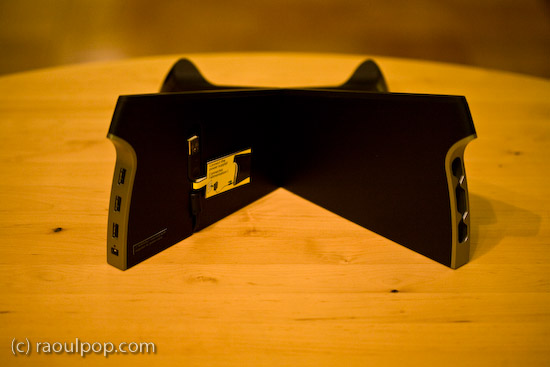
An added benefit of this stand is the addition of a built-in USB hub. The hub is self-powered, meaning that you’ll need to plug in a small adapter (included in the box). One port is located on the left front leg of the stand (visible above), and the other three ports are in the back, as you can see below.
As I said, I love this stand, and I think the design is wonderful. I have a lot of respect for Logitech. I’ve used wireless keyboards made by them, Kensington and Microsoft, and Logitech has consistently stood head and shoulders above its competitors when it came to battery life and ease of connectivity. I have a Logitech wireless keyboard and mouse set right now, have been using it for almost two years, and have nothing but good things to say about it. Last, but not least, I like Logitech because they use ColdFusion on their website, and CF is my favorite programming language. 🙂

I bought the first one of these stands for my father’s MacBook, and it works just great with it. The X-shape allows for greater cooling than the flat stands, and it blocks none of the laptop’s ports. My father uses it happily. I noticed an issue with the built-in USB hub though, as soon as I started using it.

I have a Western Digital Passport drive, which I carry pretty much everywhere. That drive has worked with any computer where I’ve used it. I love it. It’s powered directly by the USB port, and that’s where the issue lies when it comes to the Logitech Stand. Right after I plugged it in on my father’s stand, I got a message on-screen (on the laptop) telling me that the USB port where I’d connected the USB hub had experienced a power surge and was shut off. I had to unplug the port from the laptop, and re-connect it without the drive.

Let me clarify. The USB hub built into the stand is self-powered. It has its own power supply. It should be able to power just about any USB device. Why then did it draw power from the laptop when I plugged in the drive? Obviously the design of the hub is defective in some way if every time you plug in port-powered devices like the WD Passport drive, it causes a power surge in the USB circuitry. The only way I could get the drive to connect to the laptop was to plug it directly into the laptop, which I did, and it had no problems there.

The only time when I’ve had issues with port-powered devices was when I plugged them into USB hubs that had no power supplies of their own. On those occasions, the devices would draw power from the hub, which would then draw too much power from the laptop’s USB port, would cause a small surge, and shut off the port. But when you have a self-powered USB hub, this simply shouldn’t happen.

Just so you’re not confused, let me state outright that USB flash drives, which have no moving parts and thus draw much less current, can be used just fine with the built-in USB hub in this stand. And USB drives which have power supplies of their own (the regular 3.5″ drive enclosures of products like Drobo or LaCie) will work just fine with the hub, too.

Second, although the stand will work with pretty much any laptop on the market, it will not work with the MacBook Pro line. That’s because it blocks the CD/DVD slot on those laptops. I didn’t realize this until I bought the second stand to use with my 15″ MacBook Pro, which I’d just bought as well. I brought the stand home, sat my laptop on it, and this is what I saw.

Oops… While I appreciate the need for a built-in USB hub (even a half-working one) on a laptop that has only 2 USB ports, I’m going to return this second stand. I’m not going to take my laptop off the stand every time I need to burn a CD or play a DVD. Incidentally, on the Logitech website, this stand is recommended for Windows, not Apple computers, but I bought both stands at the Apple Store, so I doubt Logitech intended it only for the PC market.

Otherwise, like I said, I really like this stand’s innovative design. It’s beautiful, functional and sturdy. It even has a built-in wire routing slot, which is a nice touch.

And let’s face it, it complements very nicely the design of just about any laptop.
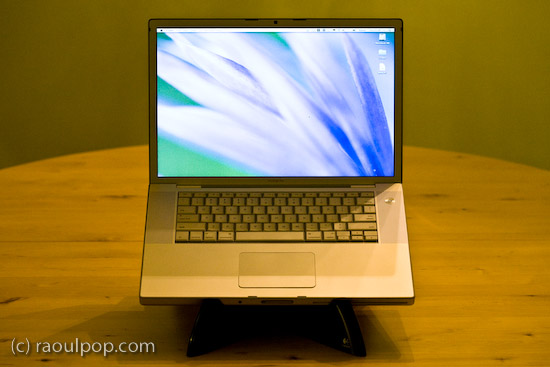
If you don’t have a MacBook Pro, and you don’t mind the USB surge issue with the built-in USB hub, then give this stand a try, you might like it quite a bit. Have a look at the other photos in the gallery below to get a better idea of its looks.

One more thing… The good thing about the way it raises the laptop is that the height of the front lip is low enough to let you type directly on the laptop without discomfort, but the height of the display is high enough for you to maintain proper posture. Of course, you can also use it with a separate keyboard and mouse if you’d like.

Buy the Logitech Alto

Standard
Reviews

One more reason why Microsoft doesn't get it

At work, I use Windows Vista Ultimate Edition. I tried to install Vista SP1 on my computer yesterday. I created a restore point, just in case something went badly, and started the install. Here’s the error message that I got:

Vista SP1 cannot install

Apparently, Vista SP1 cannot install on my machine, because I’ve got too many language packs installed. Fine, I can understand that. But what I don’t understand is why Microsoft itself kept tagging the extra language packs as “Important Updates”, basically shoving them down my throat and forcing me to install them in the first place. Don’t believe me? Hang on, I’ll give you proof of it below.

I started to remove the language packs, and the uninstall process itself is just horrible. You cannot remove more than one language pack at a time, and it takes at least 10 minutes to do it. Try it yourselves and see. It’s a three-step process. You run the uninstaller from the Control Panel, it takes a few minutes for that, then you’re prompted to reboot, you do so, it takes a few more minutes for the second step, then reboots and runs the third step, which takes the longest. It’s insanely frustrating and a big waste of time. I’m hard-pressed to think Microsoft couldn’t have come up with a better and faster way to install/uninstall language packs.

I had about 7-8 extra languages installed (other than the standard EN/FR/IT/JP). I only did it because Windows wouldn’t quit bugging me to update it by installing the language packs in the first place, and now I find I have to waste more than an hour of my time uninstalling them after having already wasted more than an hour installing them a few months ago. Thanks, Microsoft! Increased productivity my foot…

I uninstalled a few of them yesterday, and here’s the message that I got from Windows after doing that:

Windows Update: Available Updates

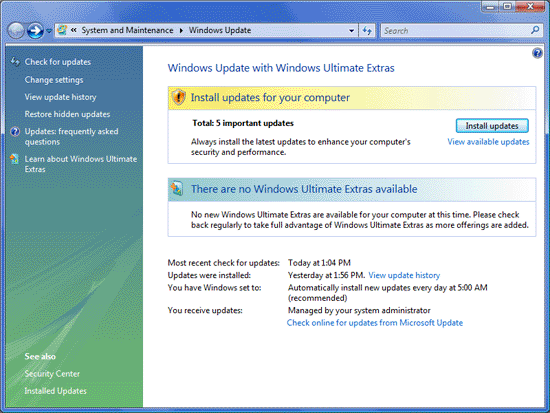
See those 5 important updates tagged with yellow, that Windows advises me to install in order to “enhance my computer’s security and performance”. That’s Microsoft-speak for “waste your time and decrease your computer’s performance”. Guess what they are?

Windows Update: Available Updates

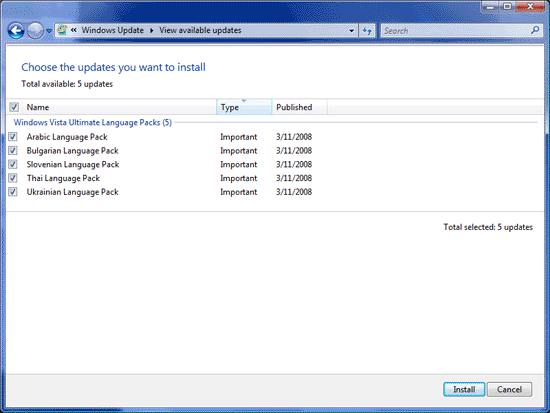
As you can see, it’s the very five language packs that I uninstalled. Windows wants me to install them right back, just so I can’t upgrade to SP1. Isn’t that grand? Don’t you just love Microsoft for their obvious programming logic?

That’s exactly the same type of message I kept getting from Windows before I installed the damned things in the first place. I only installed them so Windows would leave me alone. I guess that won’t happen any time soon, because I now see the same “Available Updates” icon in the taskbar, glaring at me, nagging me to install the stupid language packs. Do you see it below? It’s the blue icon with some sort of orange satellite flying around it.

Windows taskbar available updates icon

I only hope Vista SP1 will fix this annoying behavior, but somehow I doubt it. I have a feeling I’m going to have to revert to an earlier system restore point, which would be a real shame, but then again, it would be just what I’d expect from Microsoft.

Standard
Reviews

TurboTax better this year, but still needs work

TurboTaxJust got done with my taxes. Yes! Being a long-time user of TurboTax, I’m naturally concerned with how it fares each year. I’ve been using the online version ever since it came out, and let me tell you, it’s much, much better than it was in 2006, when I had this to say about it. With that in mind, here’s what I think of it right now.

TurboTax has really improved for the 2007 tax year, but it still needs work. While it’s easy to prepare the federal tax return, and to navigate to specific sections when you need to look things up (which was a big complaint of mine in the past), you’re pretty much on your own when it comes to the error check. The messages given for the errors are almost cryptic, there are no links that explain what those fields are, and more importantly, there’s no way to go directly to those fields on the pages without exiting the error check, which defeats its purpose.

This year, I noticed that random fields were carried over from past years, unseen in the online return as I progressed through it. They showed up when I printed it, but there were nowhere to be found in the online forms.

What’s more, the error check discovered that required fields weren’t filled in when the return was prepared, but those fields simply don’t appear on the online forms, so there’s no way to fill them out until you get to the error check.

The state tax return portion of TurboTax still needs serious work. There is absolutely no guidance (field explanations, help files) when you get there. You’re completely on your own, and that sucks. It makes me wonder why I’m paying for that portion of the program. I’d actually be willing to pay more for it if TurboTax offered me real, tangible help there.

Other than the points I outlined above, I found TurboTax to be helpful and easier to use this year. I also saw that it packs more value through the addition of the two downloadable applications (QuickBooks Simple Start and Audit Support). I plan to give those a try when I get a chance, and if I have anything worthwhile to say about that experience, I’ll write about it here.

Standard
Lists

Condensed knowledge for 2008-03-24

Standard