How To, Reviews

How to watch Netflix from abroad

At the start of 2009, when I left the US to spend most of the year abroad, I was an avid Netflix subscriber, and I looked forward to being one even as I lived abroad. There was a loophole in the Netflix protocols which allowed my wife and I to watch movies from outside the US (see this post), but they plugged it very quickly — within three days after I wrote about it.

I was, needless to say, very disappointed. Here I was, a US citizen, with a US mailing address, a US bank account and a US credit card, wanting to watch movies legally instead of downloading them from torrent websites, not able to do it, just because my IP address happened to be from another country. This was not fair. I cancelled my subscription. In hindsight, my anger was unnecessary. The situation is probably a result of certain stipulations in their contracts with the movie studios.

Still, there’s obviously a need for a legal way to watch movies online, right? And until Netflix (or another company) decides to open up their servers to paying customers from all over the world (which I hear might happen), here’s how to watch Netflix from abroad, right now.

You’ll need:

  1. A US credit card and a US mailing address. If you’re from the US but you happen to be abroad, great, you’re in luck, because you probably still have both of these. If you’re not from the US, see if you can make some arrangements with friends in the US.
  2. A VPN connection that will give you a US IP address, or a DNS Proxy Service subscription which will make Netflix and other US streaming sites think you’re based in the US. 
  3. A computer that’s compatible with Netflix Streaming. At this time, I believe only Mac and Windows computers can do it. The last time I tried it, a Linux machine wasn’t compatible. You could get a Netflix-compatible device or media appliance but if you want to keep things simple, stick with a computer.

That’s all you’ll need.

The DNS Proxy Service is a fairly new offering and is, in my opinion, the easiest way to configure your device to watch Netflix from abroad, without installing any additional software or configuring a custom VPN connection. You simply change the DNS servers for your network card (see these instructions).

Now let me talk a bit about the VPN service. In the two years I’ve spent abroad, I’ve used two services: AceVPN and HideMyNet. I’m currently using HideMyNet for my VPN service, and I’ve been using them for the past four months. Both cost about the same, but from my experience, HideMyNet has faster, more reliable service.

I started out with AceVPN but after several months, I started getting a lot of buffering messages when watching Netflix (you know, where you wait for it to load up the movie). It would take minutes, sometimes 5-10 minutes to load up a movie, and toward the end of my subscription with them, the movie would stop playing multiple times as we watched it, and we had to wait for it to rebuffer. It was annoying, particularly when the movie stopped playing during a gripping scene. Who knows, perhaps they were experiencing growing pains or temporary issues with their servers…

Out of the blue, the folks from HideMyNet contacted me to see if I wanted to try their service and write about it. Disclaimer: they offered me a 1-year subscription to give an honest opinion about their service. I told them I would, but that I’d need to try out their service thoroughly before I spoke about it, and if I found anything negative, I was going to reveal that as well. That was back in April of this year. It’s now August, four months later, and after all this time, I can definitely recommend them.

I do have a few pieces of advice for you:

  • If you’re not sure how to set up a VPN connection as L2TP or PPTP on your Mac, go with OpenVPN and Tunnelblick. Check out their setup instructions for the details. If you’re on Windows, setting up an L2TP connection is super easy and takes only a few minutes.
  • Make sure to ask their Tech Support which of their servers would be faster for you. Here’s some general advice I got from them on this issue: “Generally you want to connect to whichever server is closest to you [geographically]. If you’re in the EU you should try our DC and NYC servers. If you’re in Asia you should try the Seattle or LA servers. If you’re in South America you should try the Dallas and LA servers.” 
  • They currently have a limit of two simultaneously connected devices, so keep that in mind. I believe Netflix has the same limit, but if you were, for example, watching Netflix on one computer and browsing the internet on another, both through their VPN service, you wouldn’t be able to, for example, connect a third device (computer or phone) through the VPN service until you disconnected one of other two.

So there you have it. That’s how you can watch Netflix from abroad. It’s simple, it’s easy and it’s legal.

On a side note, I can’t understand why movie studios prefer to hang on to costly and outdated ways of distributing content, and thus encourage piracy, instead of promoting lower-cost, easily available methods of renting or purchasing their content, for any customer, anywhere. There are many people who would rather pay than use torrents, but the cost is either too high, or there’s no way to pay even if they wanted to. Thank goodness for VPN technology, otherwise I’d start thinking about using the torrents as well.

Standard
Reviews

WordPress.com gets more expensive

Ever since I learned about WordPress, I thought it was the coolest blogging platform, and the more I found out about the WordPress.com network, the more I liked the options they offered their users. To this day, I regret not having started to publish directly on WordPress.com instead of doing it on my own with a self-install of WordPress, but each path has its pros and cons. Incidentally, I discussed them (the pros and cons) at length with WordPress staff recently, and may put together a guide to switching from WP.com to WP.org and vice-versa, at some point.

One of the things I really liked about WordPress.com was the 5GB space upgrade, which, among other things allowed me to upload videos that would be transcoded and played directly inside the blog. For $20/year, it was a great deal. I never got to use it on my own blogs, which were and still are self-hosted, but I recommended it to clients and friends. I liked it because the video player was and still is integrated into the blogging platform. This saves the user the hassle of uploading it to a different video sharing site, then putting the right embed code into the blog post.

Now, sadly, that option is gone. I received an email from WordPress today which announced the arrival of a formal video upgrade option, called VideoPress, at a cost of $60/year. Like other video upgrades on the market (such as Vimeo’s own Plus program), VideoPress allows the upload and streaming of SD and HD video. The price is also the same.

wordpress-upgrades

I can understand this change though. According to WordPress, allowing people to upload videos under the regular 5GB space upgrade was a testing ground which allowed them to figure out what they needed to charge long-term. After all, HD video eats up a lot of space and requires a lot of processing power to compress, not to mention the bandwidth needed to stream it. Here’s what Matt Mullenweg, WP’s founder, says in a response to a question about the price tag:

“We try to run every part of our business in a way that’s sustainable and supportable for the long-term. By charging a fair amount for a superior service we can continue to invest in expanding the feature to be a great option for high-end video, just like WordPress is a fantastic option for high-end blogging. (And you wouldn’t believe how expensive it is to host and stream video, which is part of the reason we’ve waited to launch this until now, we’ve been working at getting the costs down.” [source]

Now when you realize that both WordPress and Vimeo charge $60/year for HD video uploads, think about YouTube, and the astronomical expenses it has to eat up every year because it doesn’t charge its users anything to upload gobs and gobs of video.

I looked at the specs for the video sizes of the new WordPress Video Player, and there are three of them: 400px (SD), 640px (DVD) and 1280px (HD). That’s plenty for live streaming. I do wish there was an option that would let the video authors allow downloads of the original video files, like Vimeo does it.

The upper limit on a single video file is 1GB, although it’s not hard-capped like at Vimeo. WordPress will let you upload 1.5-2GB files, although they say results may vary and uploads may die out if your connection is slow.

One thing I’m not clear on is the space allowed for the uploaded videos. Is there a weekly cap, like Vimeo’s 5GB/week limit, or can we upload as many videos as we want? And if so, what’s the total space limit allotted to us when we purchase the upgrade? Is there a special cap, separate from the standard space of 3 GB per blog? Or does each video count against the total space allotted to the blog? Because if that’s the case, that would mean VideoPress is going to be more expensive than Vimeo Plus, since users will need to purchase space upgrades for their videos in addition to VideoPress.

For example, a user would shell out $60 for VideoPress, then soon find out they’ve filled up their 3GB quota, and need to purchase a space upgrade. It’s not hard to imagine one would need about 15GB or more per year with HD video, and that would mean an additional $50 on top of the initial $60, bringing the price tag to $110. This point definitely needs clarification, because it just wouldn’t be fun to get taxed twice for it.

I do like the nice gesture on WordPress’ part, where they gave existing users of the space upgrade and the video player a free VideoPress upgrade for a year. Had they not done that, the transition would have been too jarring for them, so kudos to WordPress for putting money aside and thinking about the user experience.

Standard
Reviews

Mozy advertising versus user experience

A few months ago, I was interested in offsite backup, and thought I’d give Mozy a try. Their Home Backup plan intrigued me. It was only $4.95, and was billed as unlimited. Could it actually work as advertised?

Short answer is no, not by a long shot. Sure, it only costs $4.95/month. That much is accurate. The unlimited part is where Mozy starts to stretch the truth. The problem lies with bandwidth, and I’ll give them this much: uplink speeds on US broadband connections, particularly on DSL lines, are horribly inadequate in order to perform any sort of decent backups.

But Mozy also does something I dislike, something that isn’t readily advertised on their site when users sign up: they cap the bandwidth for Home users at 1 Mbps. Even if you should be blessed with faster uplink speeds (like a fiber connection), you won’t be able to take advantage of it with Mozy. You’ll still only upload to the Mozy servers at 1 Mbps or less (usually around 600-800 kbps from my experience).

I had around 150GB of data I wanted to back up on my laptop at the time. It would have taken me several weeks (I think up to 13 weeks) to back up that data from my home DSL connection (860 kbps uplink). I had to reduce that amount to about 96GB, took my laptop into work, where the uplink pipe was much fatter, and still, it would have taken over 12 days to get that data backed up, because they were capping the uplink speed.

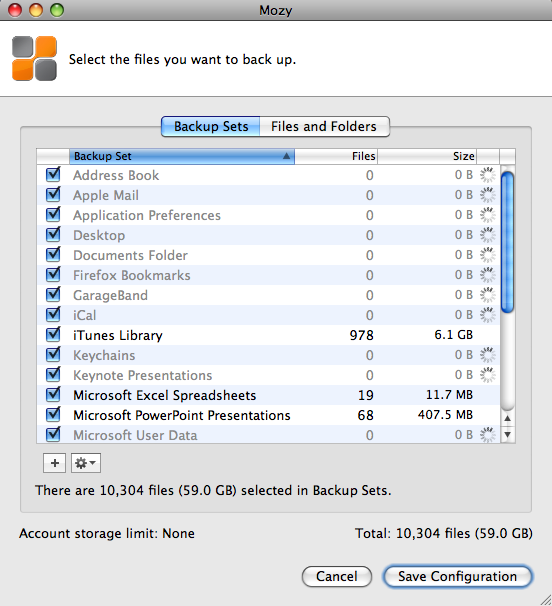
I then reduced my backup set even more, down to 59 GB (see below), hoping this would speed things up. It would have still taken a ridiculous amount of time to back up my data, and I only ended up getting frustrated with Mozy’s software in general, because of its poor design. Every time I wanted to configure the backup set, I needed to wait for the software to finish calculating the aggregate size for all file types, and that could take half an hour or more every time I opened that panel. Couldn’t they have cached this data when the operation was performed the first time?

Isn’t it ironic how they say the “Account storage limit” is “None”, yet you can never really quite test that None unless you leave your computer on and connected to the Internet for a month or more, which is clearly not feasible in the case of a laptop? Let’s not even consider the possibility that your Internet connection might go down, in which case the backup job would fail, and you’d need to start over…

In the end, in order to get any sort of progress with the Mozy backups, I reduced my backup set to 1GB. That’s right, 1GB, which allowed me to back up my Address Book, iCal, and Application Preferences, plus some documents. Then, and only then, did Mozy manage to complete the backup jobs in time.

I’m sorry, but I’m not going to pay $5/month so I can back up my contacts, calendar, and a few docs. That’s not acceptable to me. I canceled the service.

I did write to them to complain about this, and that’s how I found out about the 1 Mbps cap on uplink bandwidth. They also offered to give me a free month, but what good would that have been? I’d have only ended up more frustrated.

Some might say I should have tried the Mozy Business plan, which doesn’t cap uplink speeds and offers more options. For one thing, I don’t care for those extra options. For another, it would have cost me roughly $80/month ($3.95 for the license and $75 for the storage at $0.50 per 150GB). That’s not counting what it’d have cost me to back up my photos offline, which is what I really wanted to do. I have roughly 500 GB of photos, and according to Mozy’s pricing, that would be $250/month in addition to the $80/month I’d already be paying to back up my laptop.

Clearly, at those prices, Mozy is no longer the cheap, easy to use $4.95/month service that they advertise so widely, and instead of paying $330/month to them, I’d rather pay it to buy hard drives, copy my data, and ship them to my parents once every few months. It’d cost me a lot less.

I suppose they’re not entirely to blame. For some reason, $4.95 has become the price point for online home backup plans. Carbonite offers a similar plan for the same amount and other competitors are crowding around the same amount, although with different offerings. The thing is, you can’t really give people unlimited backup for $4.95 a month. Your costs as a business are higher. So what do you do? You fudge. You get truthy. Well, I don’t like it. I’d much rather see them offer a $15/month Home plan where they don’t cap the bandwidth but cap the amount I can back up — say, up to 75GB or something like that. I’ll let them work out the numbers, but the point is, I appreciate honesty a lot more than some cheesy pricing gimmick.

Updated 7/2/09: A reader (M.J. from Denmark) wrote to say the upload bandwidth cap at Mozy has been raised from 1 Mbps to 5 Mbps. It’s an interesting move on Mozy’s part, but I still have questions about their customer service and the ability to properly restore customers’ data, as other people have indicated in the comments below.

Standard
How To

Use a Nokia N95 as a Bluetooth modem on a Mac

One of the reasons I bought a Nokia N95 was the ability to tether it as a Bluetooth modem on my MacBook Pro. I wanted to access the internet via my mobile phone if I’m away from home or from a WiFi spot. While Nokia’s PC Suite of applications includes an option to tether the phone to a Windows machine with just a few clicks of the mouse, it’s not that simple for the Mac.

Fortunately, once you go through a 5-10 minute initial setup process (outlined below), connecting to the net via the N95 becomes a simple matter of two mouse clicks. Keep in mind that this tutorial will help you configure a Nokia N95 phone only for the T-Mobile network; you’re on your own when it comes to other service providers, but the process should be fairly similar.

I’m indebted to this pre-existing tutorial from The Nokia Blog. However, I found the instructions a bit confusing, as the Mac OS X operating system has been updated since and the network preference screens don’t look the same. Consider my post an updated tutorial, with screenshots from the current Mac OS X (10.5.5).

1. Get the 3G modem scripts for Nokia phones from Ross Barkman‘s website.

Look for the section called “Scripts for Nokia 3G (EDGE/UMTS) phones”.

He’s written numerous such scripts and posted them for download on his site. They work fine for countless people, so please, if his script works for you, show your thanks by donating a few dollars to him.

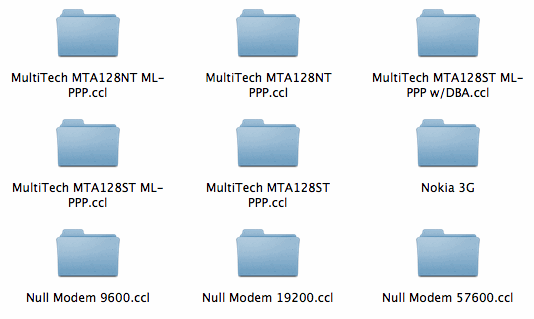
2. Drop the “Nokia 3G” folder containing the modem scripts (yes, the entire folder), in the /Library/Modem Scripts/ directory at the root level of your Mac’s hard drive.

It should look like this once it’s in there:

3. Add your Nokia N95 phone as a paired Bluetooth device.

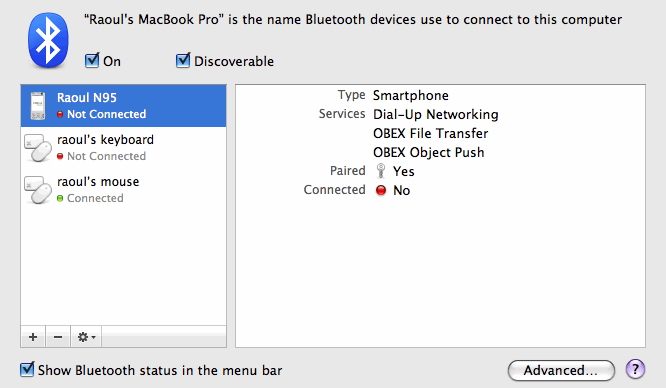
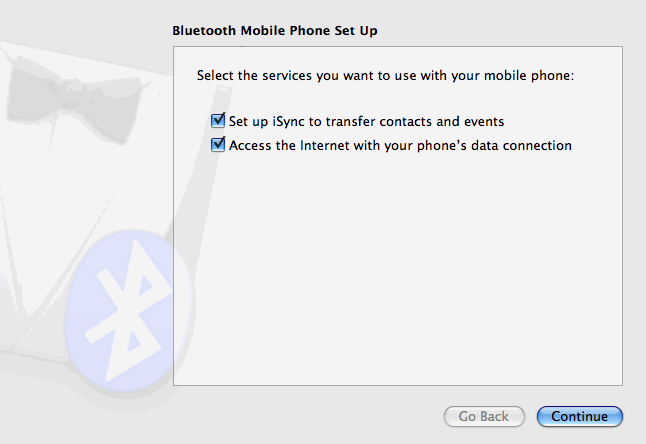
If you haven’t added your phone as a Bluetooth device yet, click on the plus sign in the lower left corner and go through the wizard to add it. Make sure to check both boxes shown below, and to pair it as well.

If you have already added it as a Bluetooth device, you may want to run through the configuration wizard again, making sure to mark both checkboxes, as seen below. Click on the phone to select it from the list of Bluetooth devices (see screenshot above), then click on the little gear icon in the lower left corner of the dialog box and select “Configure this device”. You will get the following screen. Click on Continue and run through the wizard to the end.

4. Configure the Bluetooth service preferences.

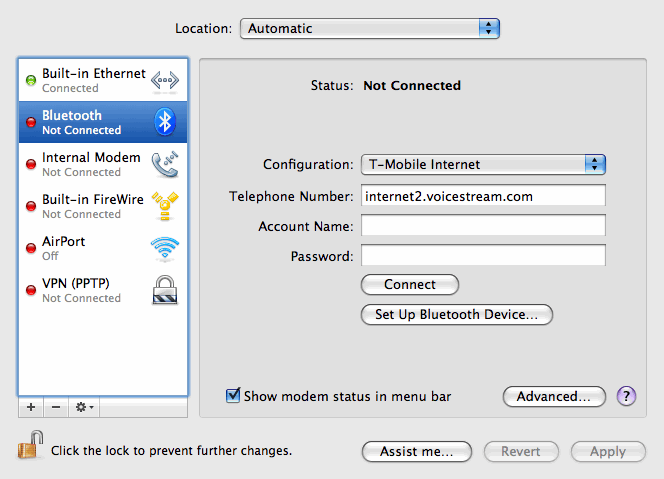
Go to Network preferences. Here’s where you have a choice. If you’re going to want to use multiple mobile phones or Bluetooth devices as modems, you may want to duplicate the existing Bluetooth service and configure each copy separately, naming them accordingly (Nokia N95, iPhone, etc). To do that, select Bluetooth, then click on the little gear in the lower left corner and select “Duplicate Service”.

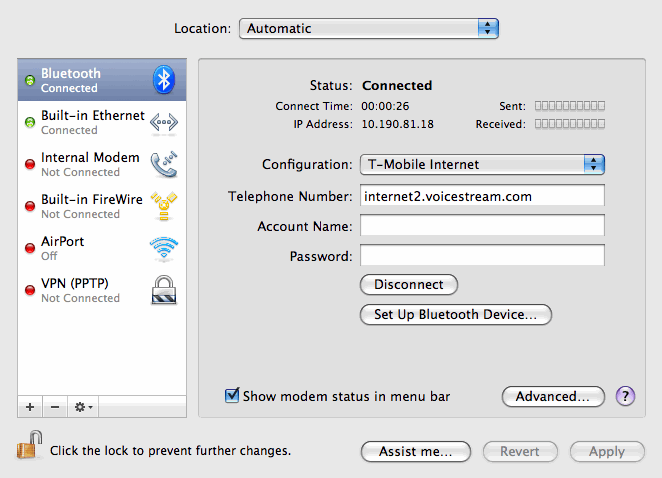
I’m only going to use the Nokia N95 as a Bluetooth modem, so I chose to work directly with the existing Bluetooth service, as you can see below. To do that, click on the Configuration drop-down menu and choose “Add Configuration”. You’ll be asked for a name. I named it “T-Mobile Internet”. In the Telephone Number field, I put “internet2.voicestream.com”.

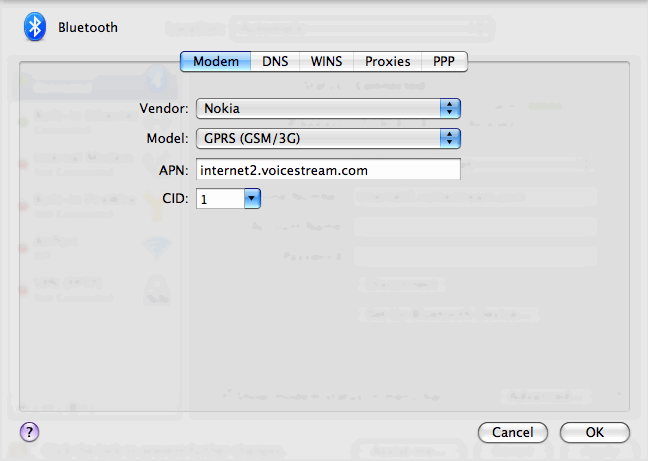
Now click on Advanced, and you’ll get a whole series of preference panes. Modem is the first one. Make sure the information matches what you see below.

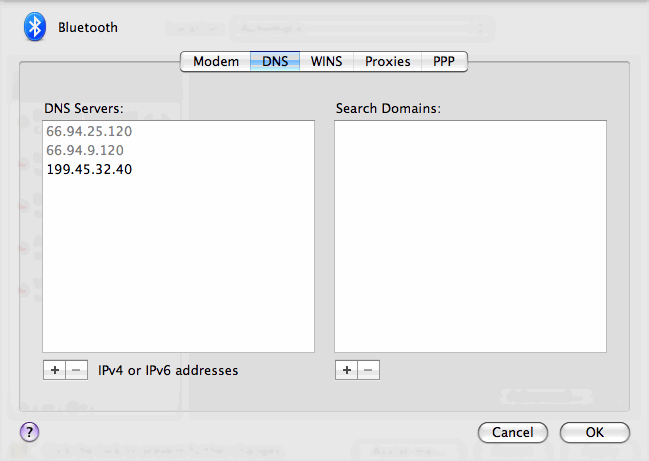
Now click on DNS. Some say you should pre-fill DNS server addresses, because your mobile service provider may or may not give them to you. Thankfully, T-Mobile will automatically assign you two DNS server addresses when you connect, but just to be on the safe side, grab one or two more DNS addresses from a public DNS server list like this one and add them to the DNS preference pane. If you look below, the two DNS addresses that are grayed out were automatically assigned by T-Mobile after I connected through the phone, and the single address in black was the one I manually added.

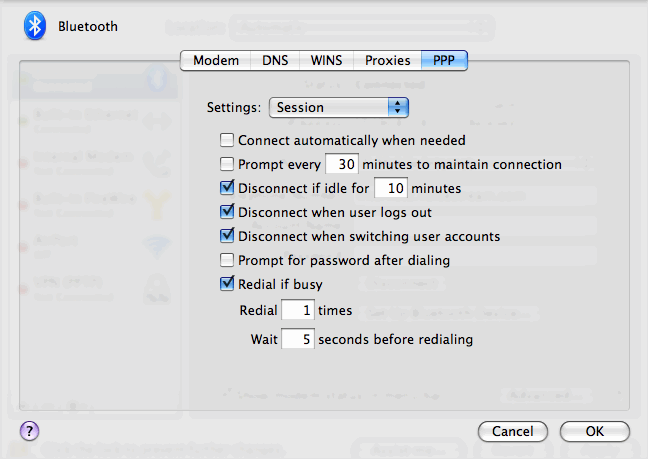
Don’t worry about WINS or Proxies, go to PPP, where you’ll have a drop-down menu. The Session options on the PPP preference pane should look like this:

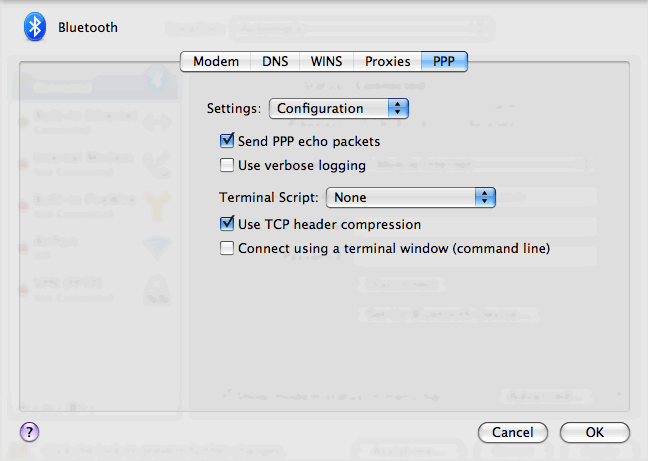
And the Configuration options on the PPP preference pane should look like this:

Some people say you should disable “Send PPP echo packets” and “Use TCP header compression”. I left them enabled, and my connection works just fine. But, if you should have problems connecting and staying on, you may want to disable them. Just uncheck them and hit OK.

5. Apply the changes and click on Connect.

The Bluetooth modem status should change in the menu bar and first say “Connecting…” then “Authorizing…”. After it connects, it should show the time elapsed since the connection started, like this:

There’s one thing I haven’t been able to figure out though, and I would appreciate your help on this. Getting the Mac to connect to the internet reliably through the phone, every single time, is still something that I need to work out.

That first evening after I configured things as outlined above, I was able to connect and disconnect at will. However, the second morning, I got a “Could not authenticate” error. I clicked on the “Set Up Bluetooth Device” (shown above), and re-configured my N95 (as detailed in Step 3). After that, it was okay for the rest of the day, but the same connection issue re-surfaced the next day. I’d read that keeping iSync open while you connect will help, and I tried it, but it didn’t seem to work reliably for me. What has seemed to work is logging in and out of my account on the Mac, and rebooting the phone.

It seems that Nokia would be best equipped here to make things easier and more reliable. I do wish they’d release a tethering app for the Mac, just like they released an iSync plugin that lets the N95 sync with the Address Book and iCal. Until then, you can try any of the following workarounds when you experience connection issues:

  • Re-configure the phone as a Bluetooth device (as outlined in Step 3 above)
  • Disable “Send PPP echo packets” and “Use TCP header compression” in the PPP Configuration preference pane
  • Open iSync before you try to connect to the Internet through the phone
  • Log out of your account on the Mac and reboot the phone

Once the phone is tethered properly, it’s an enjoyable experience. There’s a newfound freedom I feel when I can go online from just about anywhere. There’s something elegant in using my phone as a Bluetooth modem. It can stay in my pocket or on the table next to my laptop, tethered wirelessly, still working fine as a phone while also letting me get on the Internet. Cool stuff indeed.

Standard
How To

How to get T-Mobile Total Internet at 42% off

It’s easy: sign up before 11/1/2008. Why? Because the price will apparently go up to $35/month on or around that date, according to T-Mobile Customer Service.

Updated 10/27/08: Please see this comment below for an up-to-date clarification of the planned price increases. It’s not as bad as I originally thought, but a price increase will still take effect [source].

Updated 11/24/08: It looks like the rate hike will take effect on 12/1, not 11/1. And it also looks like G1 users will have to move to the new, more expensive plans, even if they signed up before the rate hike.

T-Mobile’s current Internet/Data plan for smartphones (it’s called T-Mobile Total Internet) costs $19.99/month, and includes either EDGE or 3G speeds, depending on your area. If you live in the Washington, DC area, like me, you’re currently getting EDGE speeds, but should be upgraded automatically to 3G by the end of this year.

Starting around 11/1/2008, T-Mobile will increase the price for the plan to $35/month, probably because of the G1 smartphone they’re launching, and the extra demand that’s going to place on their networks. I’m guessing they have some infrastructure upgrades to pay for. If you get the Internet plan now (which is what I did) the price for it will stay locked at $19.99/month for as long as you’re with T-Mobile. That’s what I was told by T-Mobile Customer Service yesterday afternoon.

That means you’ll be saving $15 (42%) every single month while others are going to pay $35, and you’ll get the same speeds they’re getting.

Standard