Exercise, Reviews

The RPM System: first impressions

I had my first workout on the RPM (Results Power Movement) System last night, and I recorded my thoughts in a video clip which you can see below, or on YouTube.

As it turns out, I like the workouts. Of course, I’ve only had one workout so far, but for me, it’s an interesting change to work out without weights. As I mentioned in my previous post, I’ve always worked out with weights. I’ve never really dedicated any significant time, on a regular basis, to working out with just my body weight, doing anything else but crunches, pull-ups and push-ups. So my first workout was a revelation of sorts. I discovered I could get sore and work out all sorts of muscle groups using only my body weight, an exercise ball and an exercise band…

with one caveat: you need a couple more things, without which you can’t do the workouts properly.

You also need a door wedge — something to allow you to anchor the exercise band so you can do band presses and band rows. I didn’t get it, so I had to improvise. Make sure you find one at a sports store, and buy it along with the exercise band. Maybe you’ll get lucky and find it as a set with the exercise band.

Make sure you read through the Equipment PDF, which mentions the door wedge (the general website doesn’t), and also make sure you get an exercise ball that’s the right size for your height. Check the PDF, which has a table listing the various ball sizes for height ranges.

You also need a metronome. If you don’t have one around the house, see if you can pick up an inexpensive one from a music or sports store, or if you have an iPhone or iPod touch, get a metronome app from the App Store. I opted for the second choice, and got an app called Metron, a highly rated metronome app, which costs $1.99. I like it, and it’s got a ton more options than I need for the workouts. The important thing for your metronome is that it needs to be able to go down below 50 BPM, and, just in case you need it, go up to 200 BPM.

The metronome is important, because almost every one of your exercises on the RPM System will have a beat which will dictate how fast or how slow you need to do it. The beat may increase or decrease, depending on the exercise, making it harder to do as you advance. Without a metronome, you won’t be able to keep the proper beat, and you won’t reap the full benefits of your workout regimen.

Another thing I recommend you do before your first workout is to read through the Strength Program Description PDF, which explains how the circuit training works the RPM workouts. It’s really important you do that, or you’ll be looking at your workout schedules like a hen looks at a newspaper, which is how I looked at it the first time…

That’s pretty much it so far. I look forward to the next workout!

If you’d like to try out the RPM System, use this code (553677456) which will get you a free week’s trial.

Standard
How To

Always check a SATA drive’s jumper settings

I made a quick video that shows you why it’s always important to check a SATA drive’s jumper settings. Many of us assume that since we’re dealing with SATA, not PATA/IDE drives, the jumper settings are no longer important. After all, the Master/Slave relationship no longer applies to the SATA model. Not so. The jumper settings on SATA drives control other important drive settings, such as their speed of operation.

Have a look at this Seagate 500GB SATA drive, the one in my video. I assumed (wrong) that it was operating at 3.0 Gb/sec all along. It wasn’t. For over 2 years, I had three of these drives in one of my Drobo units, and I thought I was getting 3.0 Gb/sec from them, when in fact I was only getting 1.5 Gb/sec. That’s because they shipped with a jumper set to limit their speed of operation at 1.5 Gb/sec from the factory, and I didn’t check it before sticking them in my Drobo and forgetting about them.

Only now, as I re-shuffled the drives between my Drobo units, did I realize I hadn’t been getting 3.0 Gb/sec from them, and corrected the situation right away.

I can understand why Seagate would want to ship the drives set to 1.5 Gb/sec. After all, some older computers might not be capable of 3.0 Gb/sec, and you’d run into compatibility issues. They assume IT geeks would know what to do, and they’re right, they would, if they’d only bother to look…

Standard
How To

Switch drive packs between two Drobos while keeping your data safe

Updated 1/14/19: I have revised my opinion of Drobo devices. After experiencing multiple, serious data loss events on multiple Drobo models, even recent ones, I no longer consider them safe for my data.

Sometimes you’ll need to switch your drive packs (the set of drives that sits in a Drobo) between two Drobos. Or say you’re using two drive packs on the same Drobo. How do you switch the two packs safely, to ensure you lose none of your precious data?

That’s the question I asked myself a couple of days ago, when I found that I needed to interchange the drive packs between my 2nd Generation (FW800) Drobo and my 1st Generation (USB 2.0 Drobo). I’d expected this move for a while, as I hinted to it in a recent post entitled “What’s on your Drobo“. It has to do with my photography workflow, and if you’d like to read through the rationale, you’re welcome to check out that post.

So, what’s involved?

  1. Safely shut down the Drobo(s)
  2. Disconnect power and FW/USB cables
  3. Take out disk pack as a whole from one Drobo
  4. Insert disk pack as a whole into another Drobo (or same Drobo, as the case may be)
  5. Connect FW/USB cables
  6. Connect power cables
  7. Boot up the Drobo(s)

I’ve put together a video demonstration of the process, which you can watch below or on YouTube. This was unrehearsed, and it’s not something I did before, so there was a fair bit of related anxiety. I rely very heavily on my Drobo units for data archival, and I don’t ever want to lose any of my data. Thankfully, everything went smoothly, and things are working great!

The detailed steps involved in the process are listed in two tech notes on the Data Robotics website:

  1. How do I safely shut down my Drobo?
  2. Can I move my disk pack from one Drobo storage device to another?

I need to add here that drive packs aren’t interchangeable between all Drobo models. You’ll need to read carefully through that second tech note listed above to make sure you don’t unintentionally corrupt your Drobo volume by putting the pack in an incompatible Drobo device.

If you’re wondering why one ought to bother to switch data packs, the decision needs to be made on a case-by-case basis. In my situation, the alternative would have been a manual copy of the data, which would have taken days, since I work with terabytes. Switching the drive packs took 15-20 minutes altogether (reading through the tech notes, emailing Drobo Support to ask them a question, and actually doing it). The trade-off, if I hadn’t done things correctly, would have been costly and possibly irreversible data loss. Fortunately, things went according to plan!

Standard
Reviews

Reduce your waste with a toothbrush? Yes.

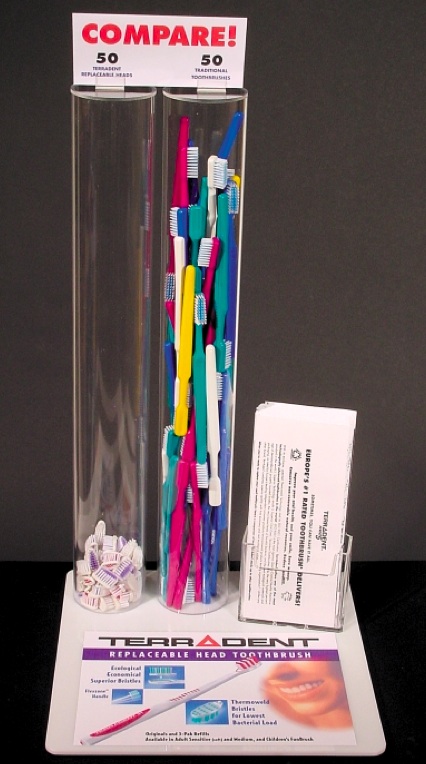
The Terradent toothbrush stands out from the pack of dental hygiene products out there not because of the complicated design of its head and the multitude of angled bristles, but due to the simplicity and thinking behind its design.

In two words, it has replaceable heads. When you need to change the brush, you don’t change the whole thing. You snap in a new head, and you keep the same handle. It’s beautifully simple and yes, it’s hygienic.

After you remove the old head, if you feel it’s needed, you can scrub the handle’s tip with a little soap and a brush, or you can pour some little hydrogen peroxide on it, to make sure it’s squeaky clean before you attach the new head, but don’t get hung up on it. As long as you replace the heads regularly, the toothbrush will be safe to use for years and years.

My wife and I have been using Terradent toothbrushes for about 4 years, and we love them. We only buy replacement heads, which is cheaper than getting the whole toothbrush and means we’re generating less waste. All that fancy rubber and injection-molded handles in today’s toothbrushes means you’re throwing away a whole bunch of plastic, every time you get rid of one. That’s a shame, particularly when the Terradent toothbrush proves it’s so easy to do the smarter thing.

I put together a short video demo of the head replacement on one of our toothbrushes, to show you how easy and simple it is. You can watch it on YouTube or above. I hope you’re going to think about buying one of them the next time you go shopping for your bathroom. They’re available at Whole Foods, Trader Joe’s, or directly from the company’s website.

Image used courtesy of Eco-Dent.

Standard
Reviews

Field video test with the Olympus PEN E-P2

Here’s a HD (720p) field video test I recently did with the PEN E-P2, the diminutive DSLR from Olympus. I shot it in South Florida, and it features tropical plants and flowers. No additional equipment beside the camera and the 14-42mm kit lens was used. The sound you hear is from the in-camera microphone. The DSLR was hand-held, and I had motion-stabilization turned off.

When I edited the video, I tweaked the colors just a little bit, but the images are pretty much right out of the camera. No software motion stabilization was used, either. You’ll see that the kit lens is quite capable of macro shots and it gives beautiful bokeh under the right conditions. There’s even a surprise shot at the end. Try to guess what it is.

You can watch the video on YouTube. And if you haven’t yet read my full review of the E-P2, you might want to check it out.

Standard