How To

Stop the headache – generate 1:1 previews before editing

One of my gripes with Lightroom ever since I started using it was the image blurring that took place as it generated image previews or re-rendered images while in Develop mode. (I started using LR in February 2007.)

It looks like Adobe listened, and the image preview rendering that takes place as I develop photos isn’t noticeable anymore — that, or my faster laptop has something to do with it, too. However, the very noticeable lag in generating either standard or 1:1 previews still occurs as I browse through images in my catalog, and that can’t be helped even by my zippy MacBook Pro. As you move through images, Lightroom will blur them until it generates a standard preview, then blur them some more you zoom in, until it generates the 1:1 preview.

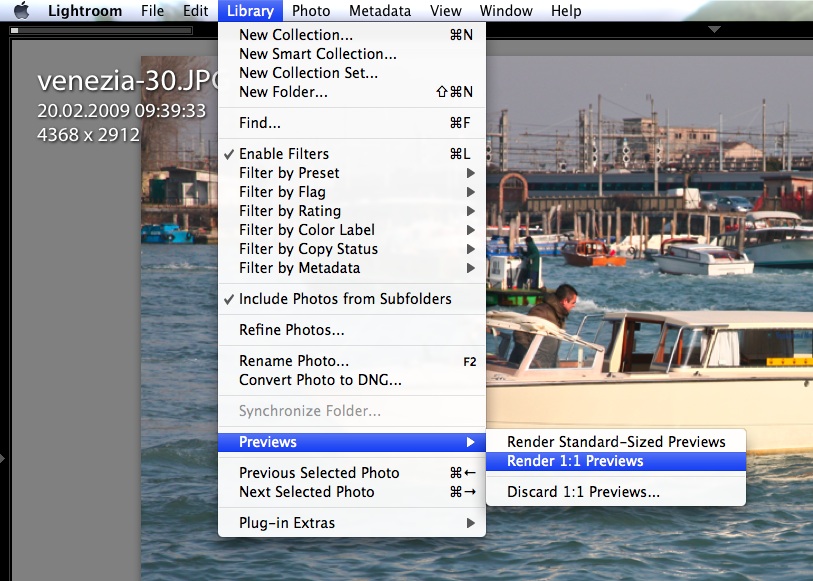
Fortunately, there’s a solution for it. I’m not sure if this existed from the start, or if it was introduced in later versions of the software, but you can choose to generate 1:1 previews for a set of photos before you begin working with them. (I found this out thanks to this article from Steve Paxton at O’Reilly.) Just select the images you plan to work with on a given day, and go to Library >> Previews >> Render 1:1 Previews.

lightroom-generate-previews

If you choose that option, Lightroom will also render Standard-Sized Previews in addition to the full ones, allowing you to work with the photos right away, in standard or loupe view, with no lag or blurring (well, your computer’s specs might also have something to do with it). Still, if you’re sorting through a large set of images (hundreds or thousands), this pays off handsomely, in ways that you cannot even appreciate until you start popping aspirins to deal with the tension headache caused by all that screen blurring you could have avoided if you planned ahead.

If you’ve been a long-time subscriber to my site, then you may know about an article of mine written in January ’08, entitled “The next stage for Lightroom“. In it, I described the need for Lightroom to:

  1. Allow the storage of photos from its catalog on multiple volumes
  2. Allow people to work with photos from the catalog even when external volumes were disconnected
  3. Allow for the storage of the previews database (which can be very sizable) on an external volume, or for its splitting into two parts

Guess what? Most readers just couldn’t get what I was saying. But Adobe listened. Points one and two have already been implemented in later versions. Now I can store my photos on multiple volumes, and I can work with their meta-data even when I can’t access the image files because I’ve disconnected the external drives. As for the the storage of the previews, that’s now easily solved, too.

Because I’m now storing my Lightroom catalog on my laptop, where hard drive space is an issue, this means I have to limit the size of the previews database. I do this by giving it very little play. I tell LR to generate medium-quality 1024 px standard previews, and to delete 1:1 previews after a day. The previews database is no joking matter. Just a short while back, LR was set to discard 1:1 previews after a month, and my previews database had ballooned to over 60 GB!

lightroom-previews-settings

So, even though I allow myself the luxury of generating 1:1 previews for hundreds of photos, as you’ve seen above, the size of my previews folder stays manageable, and the free space on my hard drive stays where it needs to stay, because Lightroom cleans up after itself. Instead of worrying about free space, I allow my MacBook Pro to flex its processing muscle for 15-30 minutes before I dig into a large set of photos from a particular location, and then I can work undisturbed and headache-free for that day.

Standard
How To

The cat house – part 1

This is part one of a personal carpentry project whose stages were recorded on video: building a cat house for our two kittens. Here are the other parts:

The materials used are a mix of reclaimed and leftover lumber, insulation and double-pane glass from the renovation of our place. Instead of letting them go to waste, I decided to build a solid shelter that could withstand the cold temperatures of the coming winter and also provide adequate insulation and ventilation against the summer heat.

In this video clip, I show the frame and the joints of the cat house. You’ll also get to see our two kittens.

See this video on blip.tv, SmugMug or YouTube.

Standard
How To

Site optimization — the order of your scripts and styles

I watched this video yesterday, where a Googler talks about the importance of ordering your scripts and styles correctly in order to speed up the rendering of your website, made a quick change to my header file, then ran the Page Speed extension for Firefox to see how I was doing. While there still some things to address that could make my site load faster, some of which don’t depend on me but on external JavaScript files from ads and stats and such, I’m glad to see things are a little snappier today.


Google Webmaster Central — Optimizing the order of scripts and styles

There’s extra documentation on this very topic available from Google, in the help files for its Page Speed extension. It’s worth a read, because a quick re-ordering of the code in your site’s header could shave as much as 50% off your site loading times, depending on how much JavaScript you’re using.

Standard
How To

How much water should I drink daily?

Falling upwards

Several years ago, the common advice was 6-8 cups of water a day. Lately, I’ve been hearing 8-10 cups a day. Thankfully, there’s a easy formula you can use to calculate the amount you need.

½ * bodyweight = x ounces of daily water

I didn’t come up with this on my own. It’s a formula you can find on the Hippocrates Health website. So let’s see, for my 160 lbs. body, I’d need 10 cups of water per day.

½ * 160 = 80 ounces / 8 = 10 cups of daily water

For those of you on the metric system, 1 ounce is about 25.6 ml, and 8 ounces (1 cup) is 237 ml (or a little more than a quarter liter).

For my needs, that would work out to 2.36 liters per day. It’s really not that much, particularly on these hot summer days. The sad thing is I’m not drinking enough, and then I end up with these monster headaches. The lack of water may not be the main reason, since I’ve got plenty of other things going on, but it sure is one of the contributing factors.

Standard
How To

How to display recent photos from your SmugMug feeds

I was asked by a reader (Andrew M.) how I display the most recent photos from my SmugMug galleries on my home page. He was aware that I use the SimplePie plugin for WordPress, but wasn’t sure how to get the same look when starting from scratch.

Before you read any further, keep in mind this is a very specific tutorial about WordPress, SimplePie and SmugMug. It has other applications, like for other image feeds and with some code tweaking, for other blogging platforms, but if you want to do those things, then Google is your friend.

recent-photos-screenshot

The thing that makes things a little complicated in my situation (as opposed to other image feeds) is the somewhat non-standard structure of the SmugMug feeds. For one thing, they don’t provide a URL for the image thumbnail where you’d expect it to be, and for another, they provide the image description instead of the image title. (To check this, mouse over a SmugMug thumbnail, and you’ll see the description pop up over the image.) But as long as you’re willing to dig into the feed code and find the names for the fields you need, then you can plug that info into SimplePie and go from there. Thankfully, I’ll do it for for you below. Lucky you.

Just a quick general disclaimer before I start though: I don’t do handholding. I’ll provide the instructions for how I did it. But in the unlikely event that things still don’t make sense to you, do me a big favor and read the SimplePie Manual, before you ask me questions. I did it and it helped me work things out. It should do the same for you if you use a little elbow grease. Thanks.

Okay, onto step 1: find the SmugMug feed URI. SmugMug provides several feeds for each user account. Go to the bottom of your gallery page and click on the Available Feeds link to see all of them. We’re going to use the Recent Photos Atom feed. In my case, it is:

http://www.raoulpopphotography.com/hack/feed.mg?Type=nicknameRecentPhotos&Data=raoulpop&format=atom10

smugmug-available-feeds

Step 2 is creating an Images Only template for SimplePie. If you’re not sure what this is, you need to read through the SimplePie documentation. The location where you need to place the new template is:

[WP Install]/wp-content/plugins/simplepie-plugin-for-wordpress/templates/

This is not arcane info, btw. It’s provided in right on the SimplePie general settings page, which is what I’ll talk about in Step 3 below. Now let’s talk about what you’ll put in the template file. This is where the digging through the feed code part comes in. I kept things simple, and this is what my images_only.tmpl file looks like.

simple-pie-template-files

images-template-code

As you can see, the code is minimal, which is the way I like things. I am specifying a simplepie class in the code, but as you can see from my CSS file, I’m not styling the div in any way. I’m letting the rest of the CSS code and the other divs handle the way the images flow within this particular section.

Step 3 is adjusting the general settings for SimplePie. Now that we’ve created an Images Only template, we need to let SimplePie know that it should use it. Go to the WP Admin Panel and locate the SimplePie settings. Match my settings as you see them below.

simple-pie-rss-general-settings

I’m telling it to pull the latest 18 photos. You may find you need to pull less or more. It’s really up to you. Use the caching option, it’s faster, but know that you’ll need to create a cache directory where SimplePie can store the images. It’ll walk you through it when you say Yes, and you may need to adjust privileges on the server side. Check out this chmod tutorial from WordPress if you’re not sure how to do that.

Step 4 is placing a code snippet on the home page. Now that you’ve gone through all that fun, you’ve got to wrap things up. Go to your home page template in WordPress, and where you want the images to appear, place the following code snippet — it’s what triggers SimplePie to pull your SmugMug photos feed and display the feed items how you want them, in accordance with the code in your Images Only template.

home-page-simple-pie-codeSee the highlighted text, but you only need to worry about the php code line. The rest is my own code that specifies the div and section styles. Use your judgment about how to style the thumbnails, and how you want them to display. It may take a bit of trial and error until you get it right, but if you persist, it’ll look good in the end.

Hope this helps!

Standard