Reviews

Mozy advertising versus user experience

A few months ago, I was interested in offsite backup, and thought I’d give Mozy a try. Their Home Backup plan intrigued me. It was only $4.95, and was billed as unlimited. Could it actually work as advertised?

Short answer is no, not by a long shot. Sure, it only costs $4.95/month. That much is accurate. The unlimited part is where Mozy starts to stretch the truth. The problem lies with bandwidth, and I’ll give them this much: uplink speeds on US broadband connections, particularly on DSL lines, are horribly inadequate in order to perform any sort of decent backups.

But Mozy also does something I dislike, something that isn’t readily advertised on their site when users sign up: they cap the bandwidth for Home users at 1 Mbps. Even if you should be blessed with faster uplink speeds (like a fiber connection), you won’t be able to take advantage of it with Mozy. You’ll still only upload to the Mozy servers at 1 Mbps or less (usually around 600-800 kbps from my experience).

I had around 150GB of data I wanted to back up on my laptop at the time. It would have taken me several weeks (I think up to 13 weeks) to back up that data from my home DSL connection (860 kbps uplink). I had to reduce that amount to about 96GB, took my laptop into work, where the uplink pipe was much fatter, and still, it would have taken over 12 days to get that data backed up, because they were capping the uplink speed.

I then reduced my backup set even more, down to 59 GB (see below), hoping this would speed things up. It would have still taken a ridiculous amount of time to back up my data, and I only ended up getting frustrated with Mozy’s software in general, because of its poor design. Every time I wanted to configure the backup set, I needed to wait for the software to finish calculating the aggregate size for all file types, and that could take half an hour or more every time I opened that panel. Couldn’t they have cached this data when the operation was performed the first time?
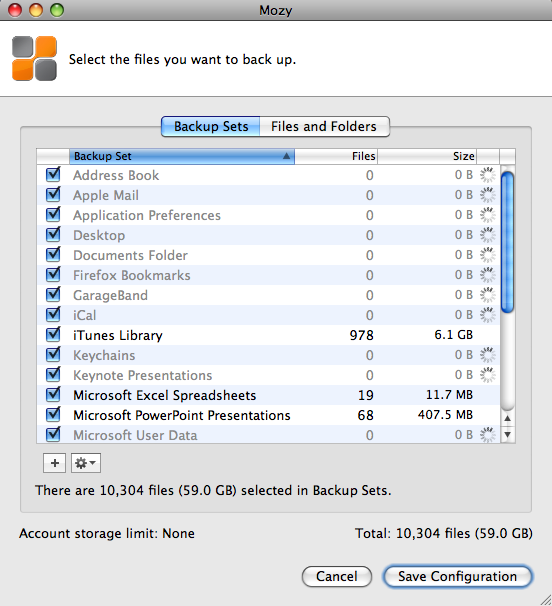
Isn’t it ironic how they say the “Account storage limit” is “None”, yet you can never really quite test that None unless you leave your computer on and connected to the Internet for a month or more, which is clearly not feasible in the case of a laptop? Let’s not even consider the possibility that your Internet connection might go down, in which case the backup job would fail, and you’d need to start over…

In the end, in order to get any sort of progress with the Mozy backups, I reduced my backup set to 1GB. That’s right, 1GB, which allowed me to back up my Address Book, iCal, and Application Preferences, plus some documents. Then, and only then, did Mozy manage to complete the backup jobs in time.

I’m sorry, but I’m not going to pay $5/month so I can back up my contacts, calendar, and a few docs. That’s not acceptable to me. I canceled the service.

I did write to them to complain about this, and that’s how I found out about the 1 Mbps cap on uplink bandwidth. They also offered to give me a free month, but what good would that have been? I’d have only ended up more frustrated.

Some might say I should have tried the Mozy Business plan, which doesn’t cap uplink speeds and offers more options. For one thing, I don’t care for those extra options. For another, it would have cost me roughly $80/month ($3.95 for the license and $75 for the storage at $0.50 per 150GB). That’s not counting what it’d have cost me to back up my photos offline, which is what I really wanted to do. I have roughly 500 GB of photos, and according to Mozy’s pricing, that would be $250/month in addition to the $80/month I’d already be paying to back up my laptop.

Clearly, at those prices, Mozy is no longer the cheap, easy to use $4.95/month service that they advertise so widely, and instead of paying $330/month to them, I’d rather pay it to buy hard drives, copy my data, and ship them to my parents once every few months. It’d cost me a lot less.

I suppose they’re not entirely to blame. For some reason, $4.95 has become the price point for online home backup plans. Carbonite offers a similar plan for the same amount and other competitors are crowding around the same amount, although with different offerings. The thing is, you can’t really give people unlimited backup for $4.95 a month. Your costs as a business are higher. So what do you do? You fudge. You get truthy. Well, I don’t like it. I’d much rather see them offer a $15/month Home plan where they don’t cap the bandwidth but cap the amount I can back up — say, up to 75GB or something like that. I’ll let them work out the numbers, but the point is, I appreciate honesty a lot more than some cheesy pricing gimmick.

Updated 7/2/09: A reader (M.J. from Denmark) wrote to say the upload bandwidth cap at Mozy has been raised from 1 Mbps to 5 Mbps. It’s an interesting move on Mozy’s part, but I still have questions about their customer service and the ability to properly restore customers’ data, as other people have indicated in the comments below.
Standard
Reviews

Hardware review: LaCie Little Disk 500GB

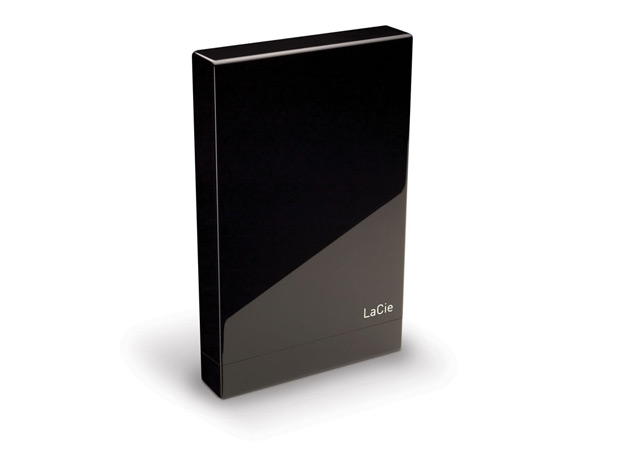
I needed a larger external drive to do my Time Machine backups, and the LaCie Little Disk 500GB was the best value for my money. It’s a portable drive (2.5″ form factor), it has 500GB of space, and it only cost me $100 at B&H. They’re pricing it at $124.95 now, so I guess I bought it at the right time (right before Christmas). (Amazon still has it for $100 if you want it.)

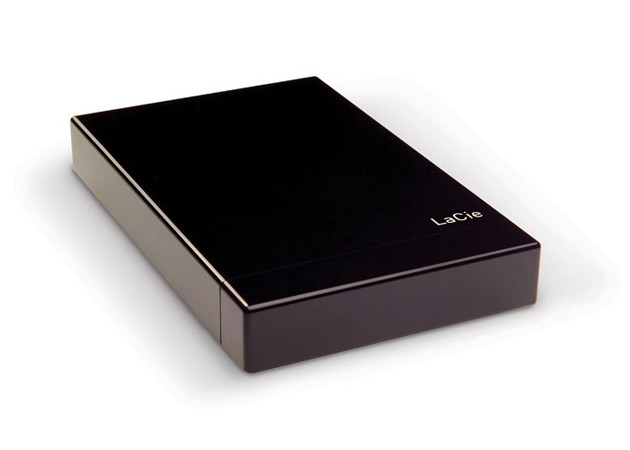
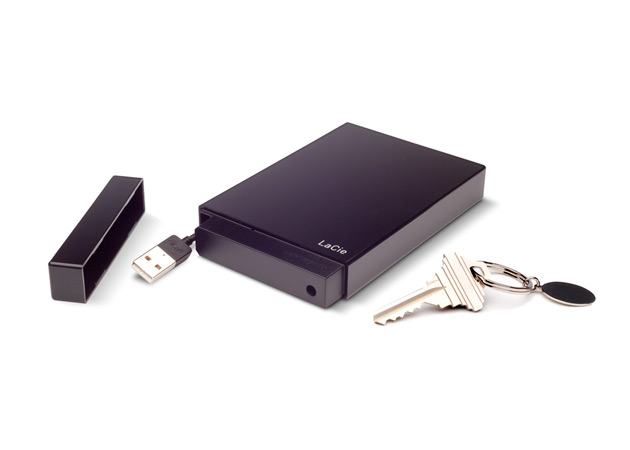
The design of the drive is distinctive, and builds upon the brick design that LaCie used to their advantage in the past. The enclosure is made of glossy black plastic, and it comes with a removable top/lid, which masks a short, retractable USB cable. I’m not crazy about that top, since it doesn’t sit tightly on the enclosure, but at least it can be removed easily.

In terms of weight, the drive is as light as other portable drives — perhaps even lighter. In terms of size, it is a little longer and thicker than my 160GB WD Passport drive, whose design, although almost three years old by now, is still one of the best I’ve ever seen.

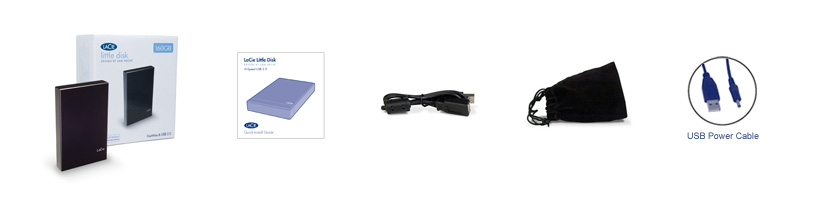
I like my little LaCie drive though. It’s fast and roomy enough for me to back up my MBP’s 250GB hard drive as often as I need. Time Machine backups complete in minutes, and then I can simply eject the drive and put it away until I want to do another backup. I am even using the carrying pouch for now, to protect the drive as it sits in my backpack during travel.

Photos used courtesy of LaCie.

Standard
Reviews

Hardware review: Elgato Turbo.264

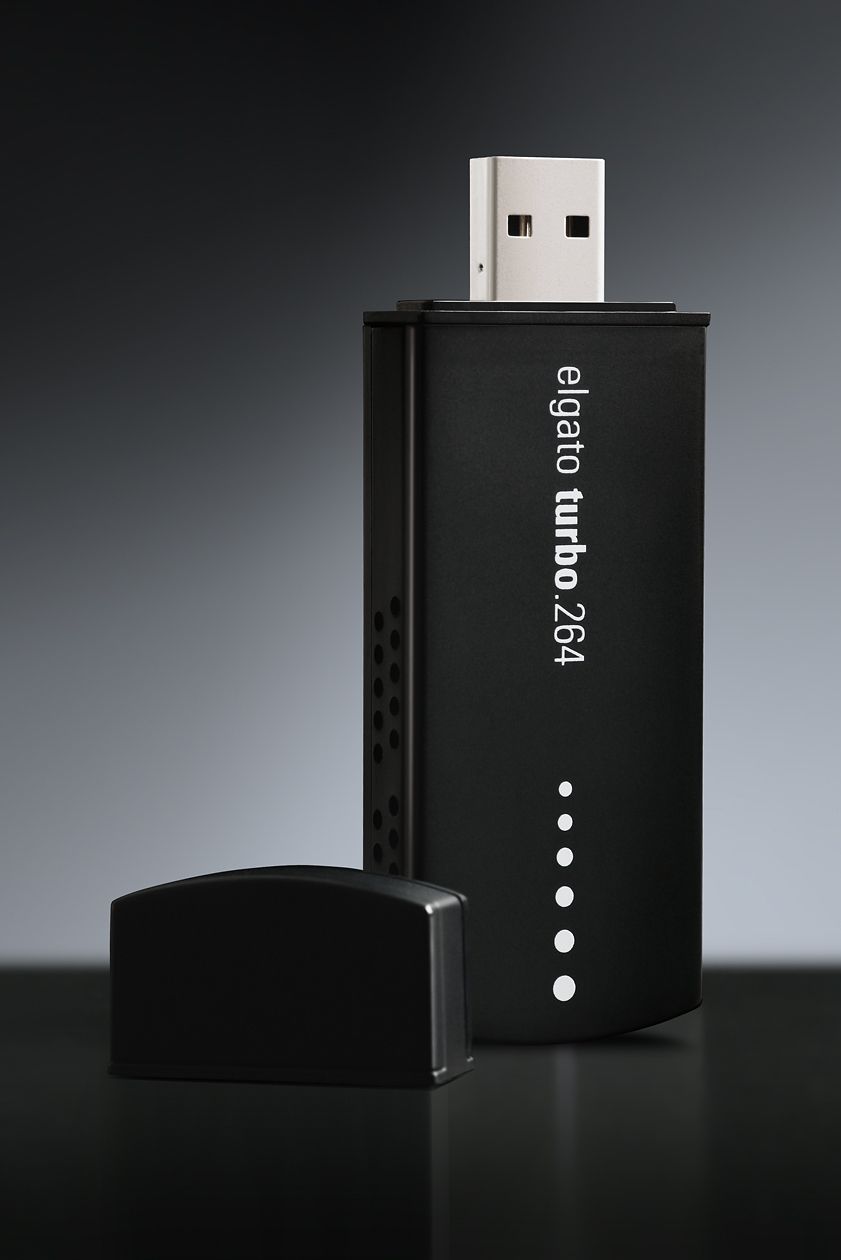
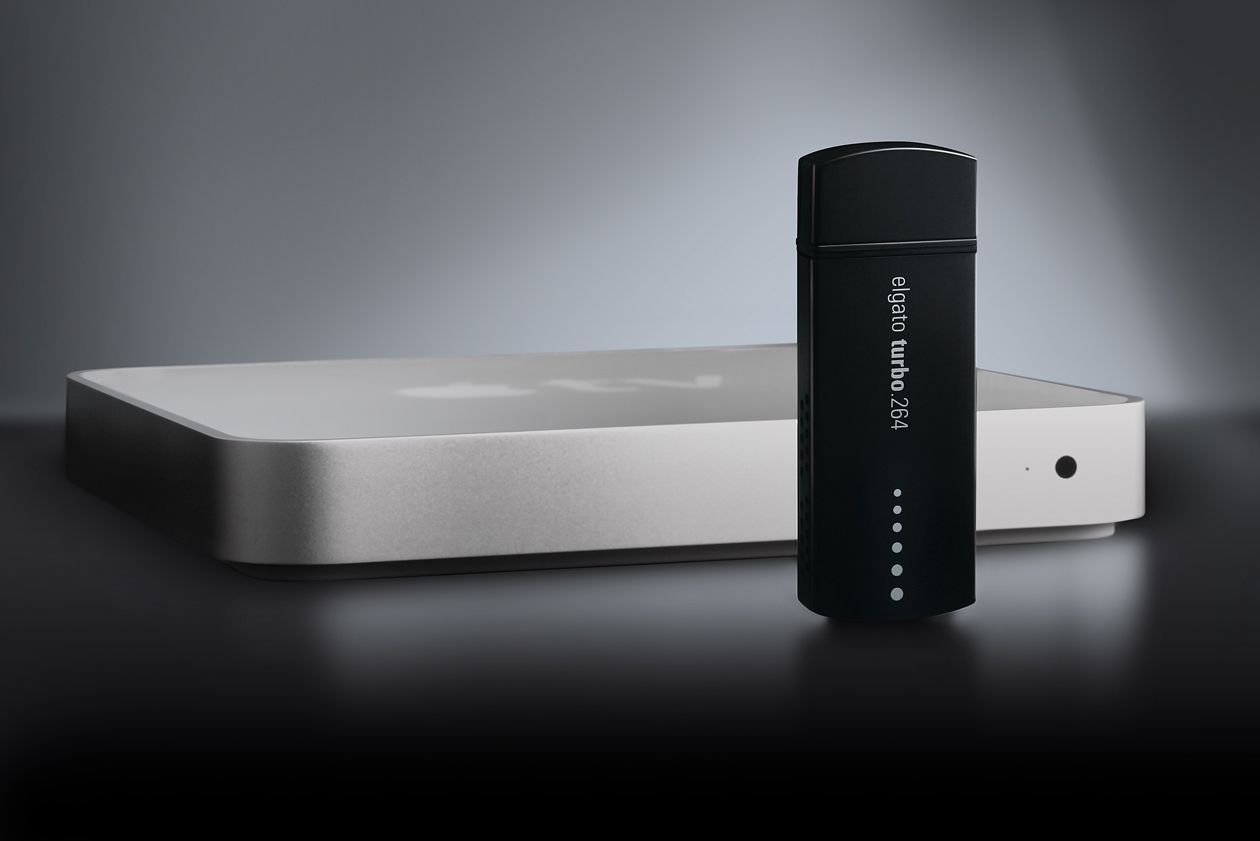
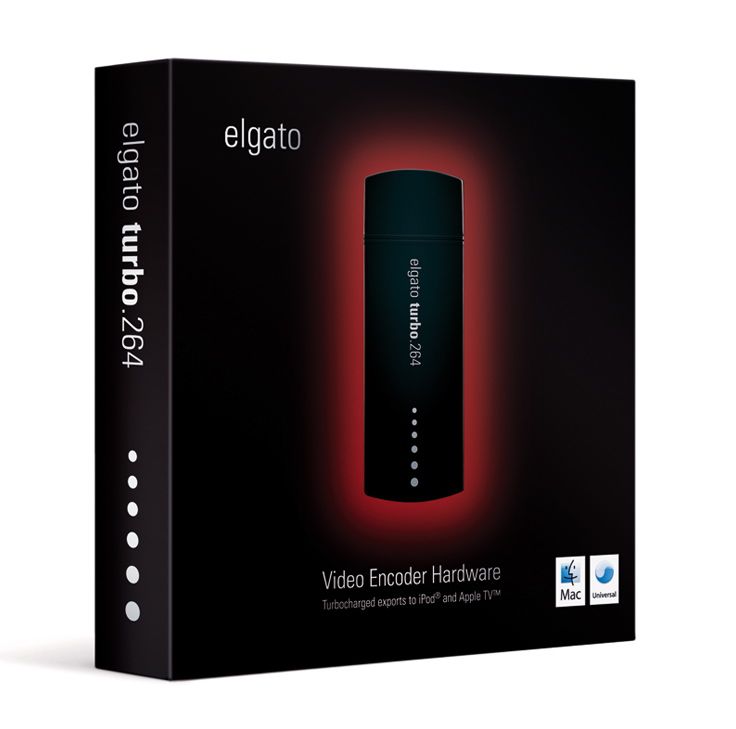
I’ve been using the Elgato Turbo.264 hardware encoder since February of 2008 (see item 5 here) and am happy with it. When I first saw it on the Elgato website, I thought it was a gimmick. After all, what could a little USB stick do that my iMac’s or my MacBook Pro’s CPU and GPU couldn’t do? I was in for a pleasant surprise.

Elgato Turbo.264

The Turbo.264 was launched on May 16, 2007. The original press release claimed that it would not only speed up encodings to the MP4 format using its own software, but that it would also speed up exports from iMovie, Quicktime Pro and other Mac software. I haven’t been able to figure out how to do the latter, but can definitely vouch for the former. I’ve converted virtually all of my DVDs to electronic format with the Turbo.264, and yes, it has sped up that process significantly.

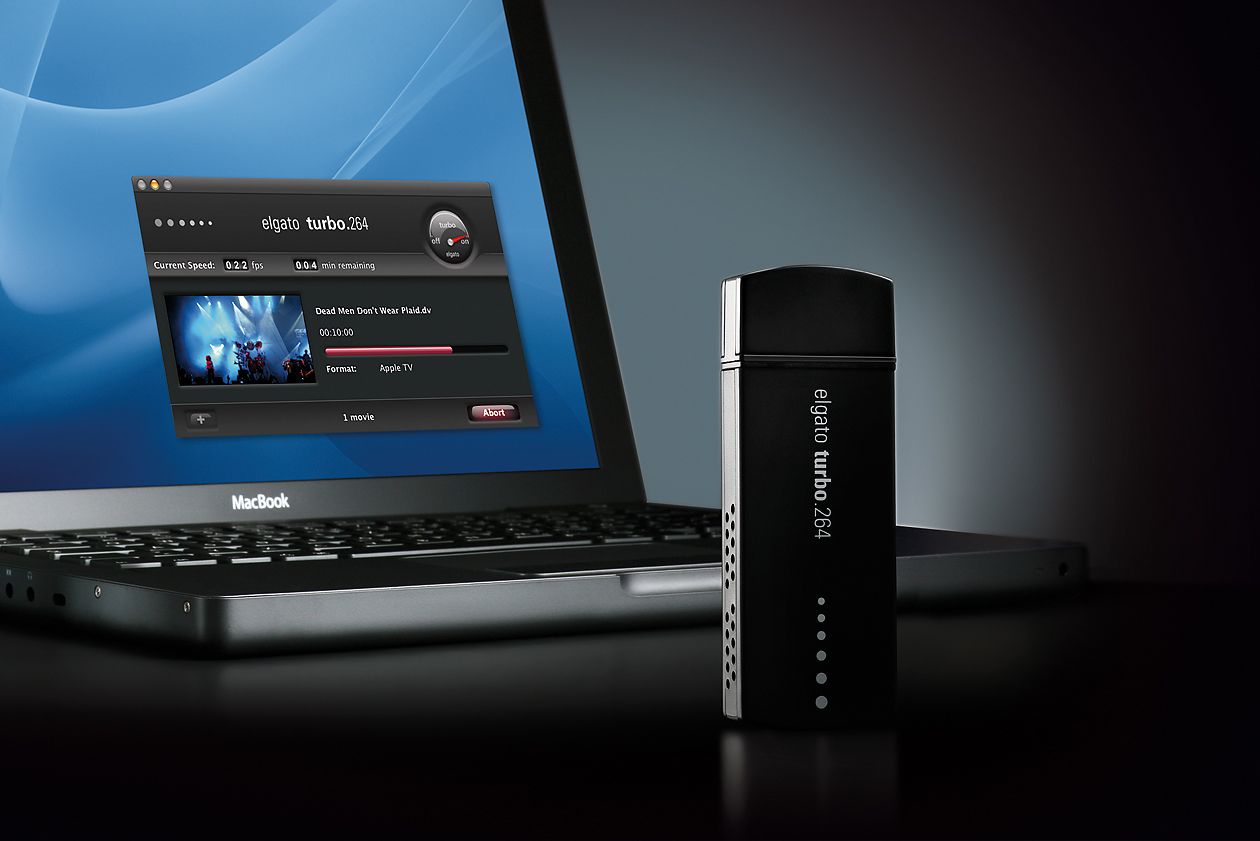
Encoding speeds will vary depending on what your computer is doing at that time, and on the export quality (Apple TV, iPod, etc). You can easily select the type of output for your exports from a drop-down menu when you drag a movie onto the Turbo.264 app — yes, the UI is that easy to use. The encoding speeds I’m quoting below refer to exports for Apple TV, which are the highest quality in terms of resolution and bit rate.

I should mention that while the Turbo H.264 takes most of the processing load off your CPU, it doesn’t handle all of the computing tasks by itself. From my experience, encoding movies without the Turbo.264 meant the CPU usage stayed somewhere between 90-100%. Encoding movies with the Turbo.264 meant the CPU usage stayed somewhere between 25-35%, allowing me to use my machine for other tasks such as processing photos in Lightroom or working in Dreamweaver.

Elgato Turbo.264

From my own experience, I’ve seen the Turbo.264 take a mere 2-3 hours to encode a movie on my iMac G5 (2GHz PowerPC CPU, 2GB RAM) when it would have taken me somewhere between 24-48 hours to do it with Quicktime Pro. This usually meant encoding speeds were somewhere between 20-24 fps. On my MacBook Pro (2.5GHz Intel Core 2 Duo CPU, 4GB RAM), encoding speeds approach and sometimes excel 30 fps, which means movies are encoded at normal playing speeds.

Speeds will also vary given the type of storage you’re using for the original movies and exported movies. I’ve seen slightly faster encoding speeds on Firewire 400 drives vs. USB 2.0 drives, and I’ve gotten my fastest encoding speed to date, 35-36 fps, when I used a FW 800 drive. In other words, the movie to be encoded should be stored on the FW drive, and you should also be exporting to that same FW drive. If you’re storing and exporting movies to your local drive, encoding speeds will be slower, and you’ll be slowed down even more by Time Machine, because it’ll kick in every hour and try to copy the changed files to the backup drive.

When I encoded movies, I usually had no other apps open, or if I did, it was usually only Firefox or Safari or Mail or some other lightweight app. As a matter of fact, I’m encoding a movie from a portable USB 2.0 drive (see item 4 here) as I write this, and I’m getting 31 fps, which seems to be the usual encoding speed on my MBP.

Encoding speeds were fastest when exporting for my iPod Touch (it’s the iPhone setting in the Turbo.264 app). It took as little as a half hour to encode a full movie for my iPod, which meant I could be done preparing movies for a long plane ride in about 2 hours.

Nothing’s perfect, and I do have a few complaints about the Turbo.264. While the encoding software is intuitive and easy to use, sometimes it’s too easy, and there’s no option that lets me separate chapters from titles. What happens then is for DVDs that aren’t built right — the main feature isn’t a separate title from the ads, previews and other features on the DVD — the Turbo.264 won’t know the difference and it will encode all of those things together with the main feature, which means I have to do extra work afterward cleaning up the file.

Elgato Turbo.264

For example, I’ll sometimes get those annoying and tacky copyright warnings at the start of my encoded movies. I couldn’t care less about them and I don’t want to see them. These are my movies and I’m not doing anything illegal. Or, I’ll get the second title on a DVD appended onto the end of the first title, and then I have to split the file, making me do extra work.

If you’re looking for a product that will let you speed up the encoding of HD videos (720p and 1080p), the Turbo.264 can’t help you there; it can only encode videos up to 800x600p in resolution. On the plus side, it will encode both NTSC and PAL videos, which is to be expected given that Elgato is a German company.

Sometimes, and only for some movies, the Turbo.264 won’t properly mux the audio with the video. The sound will be off by a fraction of a second (or more), which is really annoying. I discussed the muxing issue in more detail in the past. The thing to do is to always check the encoded files carefully. Sometimes you may need to re-encode some files, or use an alternative encoding app, such as Handbrake.

This leads me into a discussion of the Turbo.264 alternatives. There are two that I’ve used and liked: Handbrake, mentioned above, and ffmpegx. They are both faster than using Quicktime Pro, naturally, but both are slower than Turbo.264. Of the two, only Handbrake can encode with the H.264 codec, which is the preferred way to encode MP4 files these days, and it’s much slower than Turbo.264 at that. However, if you use the ffmpeg codec in Handbrake, it is significantly faster than Turbo.264, about 2-3 times faster when exporting for Apple TV, at a similar bit rate (cca 2500 kbps). Of course, then you can get into a discussion of the quality issues between the two codecs, and that’s beyond the scope of this review. The important thing is that the alternative is there if you want it.

Elgato Turbo.264

The question you’ve got to ask yourselves is this: is your time more precious than $100? If you find yourselves with a big library of movies that you want to encode for Apple TV or for WD TV, and you want to encode them using the H.264 codec, then the answer is yes — at least it was in my case. For a few days at least, Elgato is making that decision easier: if you’re in the US, they’re running a special MacWorld deal for this week only (until 1/10/09), and they’re selling the Turbo.264 for $69.95.

Reference: official specs for Turbo.264. Buy it from: Amazon, B&H Photo. Photos used courtesy of Elgato.

Standard
Reviews

Join MP4 files with Front End Digital Media Workshop

Want an easy way to join MP4 clips together? Front End Media Workshop, a nifty piece of Mac software published by the now defunct K-werkx, can definitely help you out. While the folks that put it together aren’t online any longer, the app is still available for download from CNET.

FE_DMW makes it really easy to join video clips

FE_DMW makes it really easy to join video clips

The app (it shows up as FE_DigitalMediaWorkshop in the Apps folder by the way) is meant to do a bunch of other things, but I found it most useful to join together several MP4 clips from my video collection.

For example, I’d purchased a DVD of “The Curious Adventures of Mr. Wonderbird“, a re-titled version of the 1952 original, La Bergère et Le Ramoneur. The film is little known, and features the dramatic escape of a pair of lovers from the claws of a despotic ruler. A curious bird helps them escape and orchestrates the toppling of the ruler’s oppressive regime, which mirrored, at the time, what was going on behind the iron curtain of Eastern Europe. Peter Ustinov voices the bird and also narrates the story.

At any rate, I’d copied the DVD to my computer only to later realize that I’d done it by chapters instead of copying the entire movie as a single file. Front End Digital Media Workshop allowed me to drag the five or six clips for each chapter onto its main window, drag and drop to arrange them in order, then, within minutes, join them together as a single file. The output was saved to the desktop in a folder (one for each join operation), where I could review, rename and archive it.

Sure, if you have Quicktime Pro, you can join video files there, or you can also import them into iMovie, but a small, single purpose app that does it faster and without a lot of fuss scores higher in my book. I may even use it later to snip clips from the beginning and end of some of my other video files, since I see that it has that feature built in as well.

Standard
Reviews

Hardware review: WD My Book Studio Edition II

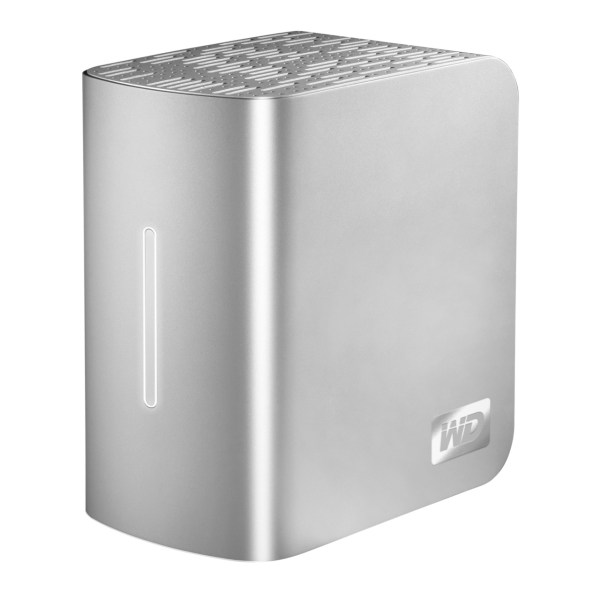
WD MyBook Studio Edition II - 02

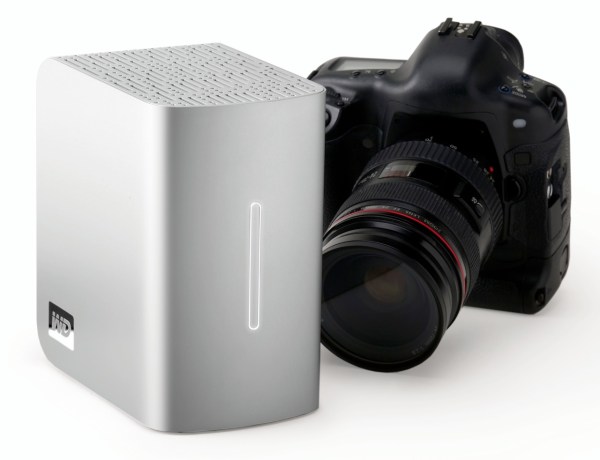
I have been working daily with a WD My Book Studio Edition II drive for the past eight months (since April ’08). I mentioned it back in July in my popular “What’s on my desk” post. It is a quad interface (USB 2.0, FW400, FW800, eSATA) 2TB drive that can run in RAID 0 (2TB total space) or RAID 1 (1TB total space). My review can be summed up in these three words: it works great.

I should say here, just as I said in my other two reviews of the My Book Pro Edition drive (see paragraph below for links), that this drive was given to me by WDC as a replacement for my faulty My Book Pro drive. I didn’t purchase it, but at the same time, I am under no obligation to anyone to praise it needlessly. I do so because it has really worked for me.

After all these months of heavy use, I have nothing bad to say about this drive. I have put it through its paces, transferring terabytes of data back and forth from it to my laptop and to my other drives, I have used it daily, I have put it through sustained data writes of several hundred gigabytes at a time, and it has not failed me yet. In stark contrast to my experience with the WD My Book Pro Edition II drive, this drive has outshined all of my other external storage devices, including my Drobo.

True, while nothing beats the Drobo when it comes to sheer storage space and flexibility in terms of its building blocks (the drives themselves), the My Book Studio Edition II drive has been faster than the Drobo when it came to working with my photos in Lightroom, in both RAID 0 and RAID 1 modes, and it has also been faster when it comes to data transfers (writing to the drive itself).

WD MyBook Studio Edition II - 07

I did not have a chance to use the drive through the eSATA interface. I used it mostly through the FW800 interface, and, briefly, through the FW400 and USB interfaces. Given that it can transfer data at up to 3GB/s through eSATA, I might just buy an adaptor for my MacBook Pro in the future. I was pretty happy with the FW800 speeds though (up to 800 Mb/s).

My feelings about this drive are somewhat harder to understand for those of you that have not had to deal with a My Book Pro Edition drive. If you did not have to put up with constant overheating, data loss, fan noises, disconnects and computer resets while using that drive, then you can’t possibly appreciate how WDC managed to get things so right with the My Book Studio Edition drive.

Somehow, they have, and for me, it’s a pleasure to use this drive. It suffers from none of the problems of its predecessor. It works reliably, each and every time. It’s fast. It’s quiet. It doesn’t overheat. It doesn’t cause my computer to crash. It doesn’t lose any of my data. The enclosure looks even better. The white LED on its front is much less annoying than the blue LED on the My Book Pro. It has greater capacity. It has more interfaces. It has a 5-year warranty, which amazes me when I consider that most tech products have a 3-year projected lifespan. The list goes on and on, and I have only good things to say about it.

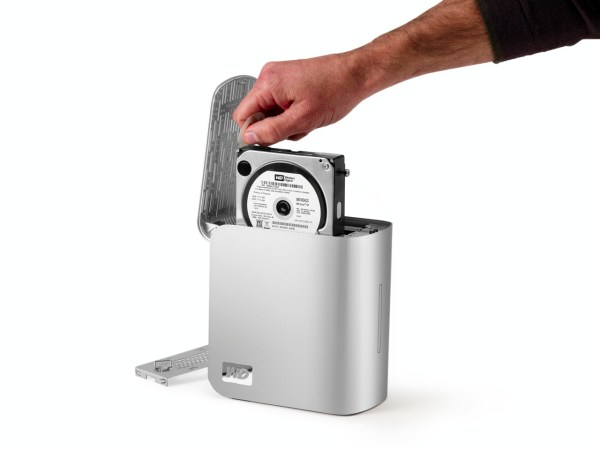
The drive uses the new GreenPower drives from WD, which use 30% less energy and do not get as hot as older hard drives. This means the new enclosure doesn’t need a fan. Another cool thing is that it’s much easier to replace the hard drives, since you won’t need a screwdriver. The enclosure opens easily, and the hard drives pull out with the aid of tabs. Having needed to open the enclosure for the My Book Pro Edition drive, I can tell you it was a lot more convoluted than this.

WD MyBook Studio Edition II - 08

The wonderful thing about this drive is that it’s such a great deal right now. As I pointed out in a previous how to article entitled “A look at hard drives: finding the best deals“, it’s always a good idea to compare the price of the hard drives themselves to the price of the enclosure plus the hard drives, to see how much you’re paying for the packaged, branded product, and whether it’s worth it. Well, 1TB hard drives are anywhere from $100-140 at the moment (there are two of them in the My Book Studio Edition II), and the product itself costs about $280-290 right now. That means, if you factor in the best price scenario for the hard drives, that you’re getting a quad-interface enclosure which is quiet and it actually works on most computers (which isn’t something I can say about other off-the-shelf DIY enclosures) for about $80-90. That’s a great deal in my book.

Detailed specs for the My Book Studio Edition II drive are available from the WDC website. You can buy it from Amazon or from B&H Photo.

Photos used courtesy of Western Digital Corporation.

Standard