
Reviews

Google Health is a good thing

When it launched a few weeks ago, Google Health received fairly lackluster reviews. Privacy issues and lack of features were the main complaints. Well, I’m here to tell you those initial views are wrong.

Even if you’re a long-time reader of my site, you may not know what qualifies me to make that statement, so let me tell you a bit about myself.

My background

A few years ago, I was Director of Health Information Systems at a South Florida hospital, where I implemented an electronic medical records system. My job was fairly unique, because I not only wrote the policies and procedures for the system and oversaw its implementation, but I also rolled up my sleeves and built the various screens and forms that made it up. I, along with my staff, also built and maintained the servers and databases that housed it.

As far as my education is concerned, I hold a Master’s Degree in Health Services Administration (basically, hospital administration). I was also admitted to two medical schools. I ended up attending one for almost a year until I realized being a doctor wasn’t for me, and withdrew.

For plenty of years, I’ve been a patient of various doctors and hospitals, as have most, if not all of you, for one reason or another.

Furthermore, my father is a doctor: a psychiatrist. He has a private practice, and also holds a staff job at a hospital. My mother handles his records and files his claims with the insurance companies, using an electronic medical records system. I get to hear plenty of stories about insurance companies, billing ordeals, hospitals and the like.

So you see, I’ve seen what’s involved with medical records and access to said records from pretty much all sides of the equation. Again, I say to you, Google Health is a good thing, and I hope you now find me qualified to make that statement.

The benefit of aggregation

Just why is it such a good thing? Because I wish I could show you your medical records — or rather, their various pieces — but I can’t. That’s because they exist in fragments, on paper and inside computer hard drives, spread around in locked medical records facilities or in your doctors’ offices, all over the place. If you endeavored to assemble your complete medical history, from birth until the present time, I dare say you’d have a very difficult time getting together all of the pieces of paper that make it up — and it might not even be possible. That’s not to mention the cost involved in putting it together.

A few of the problems with healthcare data sharing

Do you know what my doctor’s office charges me per page? 65 cents, plus a 15 cent service fee. For a 32 year old male (that’s me) it would take a lot of pages (provided I could get a hold of all of them) and a lot of money to put my medical record together.

The sad part is that this is MY medical information we’re talking about. It’s information that health services workers obtained from MY body. It’s MY life and MY record, yet I can’t have access to it unless I fill in a special form at every doctor’s office I’ve ever visited, and pay for the privilege. Is that fair? NO. Can something be done about it? YES, and so far, Google Health is the only service I’ve seen that is trying to pull together all of the various pieces that make up my medical record, for my benefit and no one else’s. Sure, the system is in its infancy, and there’s a lot of work to be done to get it up to speed, but that’s not Google’s fault.

I’ve been inside the healthcare system, remember? I know how things work. I know how slowly they work, to put it mildly. I know how much resistance to change is inherent in the system. Just to get medical staff to use an electronic medical records system is still a huge deal. The idea of giving the patient access to the records, even if it involves no effort on the part of the medical staff (but it does, as you’ll see shortly) is yet another big leap.

Let’s also not forget to consider that medical records systems are monsters. Each is built in its own way. There are certain lax standards in place. Certain pieces of information need to be collected on specific forms. The documentation needs to meet certain coding standards as well, or the hospitals or doctors’ offices or pharmacies won’t get reimbursed. There are also certain standards for data sharing between systems, and the newer systems are designed a little better than older ones.

Yet the innards of most medical health systems are ugly, nasty places. If you took the time to look at the tables and field names and views and other such “glamorous” bits inside the databases that store the data, you’d not only find huge variations, but you’d also find that some systems still use archaic, legacy databases that need special software called middleware just so you can take a peek inside them, or form basic data links between them and newer systems. It’s a bewildering patchwork of data, and somehow it all needs to work together to achieve this goal of data sharing.

The government is sort of, kind of, pushing for data sharing. There’s NHIN and the RHIOs. There are people out there who want to see this happen and are working toward it. Unfortunately, they’re bumping up against financial and other barriers every day. Not only are they poorly funded, but most healthcare organizations either do not want or cannot assign more money to either getting good record systems or improving their existing ones to allow data sharing.

Add to this gloriously optimistic mix the lack of educated data management decisions made in various places — you know the kind of decisions that bring in crappy systems that cost lots of money, so now people have to use them just because they were bought — and you have a true mess.

Oh, let’s also not forget HIPAA, the acronym that no one can properly spell out: Health Insurance Portability and Accountability Act. The significant words here are Insurance and Accountability. That’s government-speak for “CYA, health organizations, or else!” There’s not much Portability involved with HIPAA. In most places, HIPAA compliance is reduced to signing a small sticker assigned to a medical records folder, then promptly forgetting that you did so. Your records will still be unavailable to you unless you pay to get them. Portability my foot…

Benefits trump privacy concerns

Alright, so if you haven’t fallen asleep by now, I think you’ve gotten a good overview of what’s out there, and of what’s involved when you want to put together a system like Google Health, whose aim is to pull together all the disparate bits of information that you want to pull together about yourself. Personally, I do not have privacy concerns when it comes to Google Health. There are more interesting things you could find about me by rummaging through my email archives than you could if you went through my health records. If I’m going to trust them with my email, then I have no problems trusting them with my health information, especially if they’re going to help me keep it all together.

Not sure if you’ve used Google Analytics (it’s a stats tool for websites). Not only is it incredibly detailed, but it’s also free, and it makes it incredibly easy to share that information with others — should you want to do it. You simply type in someone’s email address in there, and you grant them reader or admin privileges to your stats accounts. Instantly, they can examine your stats. Should you prefer not to do that, you can quickly export your stats data in PDF or spreadsheet format, so you can attach it to an email or print it out, and share the information that way.

I envision Google Health working the same way. Once you’ve got your information together, you can quickly grant a new doctor access to your record, so they can look at all your medical history or lab results. You’ll be able to easily print out immunization records for your children, or just email them to their school so they can enroll in classes. A system like this is priceless in my opinion, because it’ll make it easy to keep track of one’s health information. Remember, it’s YOUR information, and it should NOT stay locked away in some hospital’s records room somewhere. You should have ready access to it at any time.

Notice I said “whose aim is to pull together all the disparate bits of information you WANT to pull together” a couple of paragraphs above. That’s because you can readily delete any conditions, medications or procedures you’d rather keep completely private from Google Health. Should you import certain things into it that you don’t feel safe storing online, just delete that specific thing, and keep only the information you’d be comfortable sharing with others. It’s easy; try it and see.

Lots of work has already been done

Another concern voiced by others is that there isn’t much to do with Google Health at the moment — there isn’t much functionality, they say. I disagree with this as well. Knowing how hard it is to get health systems talking to each others, and knowing how hard it is to forge the partnerships that allow data sharing to occur, I appreciate the significant efforts that went on behind the scenes at Google Health to bring about the ability to import medical data from the current 8 systems (Beth Israel Deaconess, Cleveland Clinic, Longs, Medco, CVS MinuteClinic, Quest, RxAmerica and Walgreens).

What’s important to consider is that Google needed to have the infrastructure in place (servers, databases) ready to receive all of the data from these systems. That means Google Health is ready to grow as more partnerships are forged with more health systems.

In order to illustrate how hard it is to get other companies to share data with Google Health, and why it’s important to get their staff on board with this new development in medical records maintenance, I want to tell you about my experience linking Quest Diagnostics with Google Health.

Quest is one of the companies listed at Google Health as having the ability to export/share their data with my Google Health account. What’s needed is a PIN, a last name and a date of birth. The latter two are easy. The PIN is the hard part. While the Quest Diagnostics websites has a page dedicated to Google Health, where they describe the various benefits and how to get started, they ask people to contact their doctors in order to obtain a PIN. I tried doing that. My doctor knew nothing about it. Apparently it’s not the same PIN given to me when I had my blood drawn — by the way, that one didn’t work on Quest’s own phone system when I wanted to check my lab results that way…

Quest Diagnostics lists various phone numbers on their site, including a number for the local office where I went to get my bloodwork done, but all of the phone numbers lead to automated phone systems that have no human contact whatsoever. So Quest makes it nearly impossible to get in touch with a human employee and get the PIN. Several days later, in spite of the fact that I’ve written to them using a web form they provided, I still don’t have my PIN and can’t import my Quest Diagnostics lab results into my Google Health account.

➡ Updated 5/27/08: Make sure to read Jack’s comment below, where he explains why things have to work this way with Quest — for now at least.

That is just one example of how maddening it is to try and interact with healthcare organizations, so let me tell you, it’s a real feat that Google managed to get eight of them to sign up for data sharing with Google Health. It’s also a real computer engineering feat to write the code needed to interact with all those various systems. I’m sure Google is working on more data sharing alliances as I write this, so Google Health will soon prove itself even more useful.

More work lies ahead

I do hope that Google is in it for the long run though, because they’ll need to lead data sharing advocacy efforts for the next decade or so in order to truly get the word out to patients, healthcare organizations and providers about the benefits of data sharing and Google Health.

For now, Google Health is a great starting point, with the infrastructure already in place and ready to receive more data. I’m sure that as the system grows, Google will build more reporting and data export capabilities from Google Health to various formats like PDF, as mentioned several paragraphs above, and then the system will really begin to shine. I can’t stress enough what a good thing this is, because just like with web search, it puts our own medical information at our fingertips, and that’s an invaluable benefit for all.

Join me for a short screencast where I show you Google Health. You can download it below.

➡ Download Google Health Screencast

(6 min 28 sec, 720p HD, MOV, 39.8MB)
Standard
Reviews

Use an HDTV as my computer monitor?

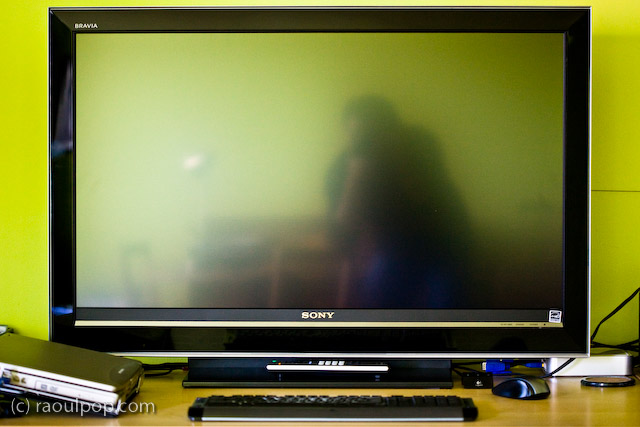
A couple of months ago, I had a crazy idea, which I thought might just work: get a 1080p HDTV, a really nice one, and use it as my computer monitor. The advantage: cheaper and bigger than 30″ LCD monitors. I also found a model that I thought couldn’t be beat — one that displayed 10-bit color. If you’re unfamiliar with monitor color depth, you might want to have a look at the following:

Basically, you should have a monitor capable of displaying 8-bit color or better. Why? Because DSLRs capture 12-bit, 14-bit and 16-bit color, and you’re going to miss out on a lot if you can’t see all those colors when you’re editing the photos.

Laptops display only 6-bit color and use dithering to make up for the difference between 6-bit and 8-bit. Normal displays, including Apple Cinema Displays, have 8-bit color. The more expensive computer displays out there have 10-bit, 12-bit and even 14-bit color. LaCie and Eizo seem to be the only companies that build these sorts of high-end monitors.

The prices start around $1,000 for a 21″ or 24″ monitor at 10-bit color, and go up from there, to $2,000 or even $3,000. So you can imagine my delight at finding an HDTV at 40″ that could display 10-bit color and cost only $1,300. Granted, the resolution was only 1920×1080, and at that size, a computer monitor would have been at 2560×1920 or more, but you can’t have everything, right?

The particular HDTV I found is made by Sony and is from their Bravia series. It’s no longer being made — Sony keeps changing models every couple of months. Apparently HDTVs evolve so fast these days there’s a need to do that. I’d give you the model number, but it doesn’t matter any more. The specs were great though:

  • Full 1080p
  • 24p True Cinema
  • 10-bit color processing and 10-bit color display
  • Full digital video processor
  • Advanced contrast enhancer
  • An assortment of ports (HDMI, PC, S-Video, component and composite)

That’s how it looked on my desk. Did it do everything promised in the specs? Yes. Was the quality of the display as I expected? Yes. Editing photos on it was a stunning experience. I was able to see colors like I couldn’t see them before. Believe me, you don’t know what you’re missing until you see your DLSR photos on a high quality display.

So why am I speaking in the past tense about it?! For a single reason: it was much too bright for my eyes. Therein lies the main difference between TVs and monitors. TVs are built to be much brighter, since they’re meant to be viewed from a distance. Monitors are built with a much subtler level of brightness and contrast, since they’re meant to be viewed up close. This didn’t become apparent to me until I had the TV on my desk, about 2 feet from my eyes. I didn’t have a problem with the size of the screen (although it was bigger than expected), but the brightness killed me. Within a half hour, my eyes started to burn and I got a headache. I tried to tune down the brightness and contrast, but I couldn’t get it where it needed to be; I don’t think the TV could go down that low.

After much arguing with myself, and trying all sorts of things, including stepping back from it as much as possible, I had to come to grips with the fact that it wasn’t the fit I needed. Stepping back to an appropriate distance would have defeated the purpose of using it as a monitor, because at that point, it would have become a TV displaying my laptop’s DVI feed. Although it had the display quality I needed — and not a single bad pixel, it was a perfect display — I couldn’t use it.

If you’re in the market for an HDTV, definitely check out the Sonia Bravia line. They’ve got stunning color. They’re amazing TVs. Just don’t try to use them as computer monitors. It won’t work. To their credit, they’re not intended to be monitors. They’re TVs — really good TVs.

Standard
Places

A weekend down in Florida

Ligia and I took a mini-vacation this past weekend and flew down to Florida to see my parents. You might remember it as the place where I feel most at home here in the States.

We left our cozy little apartment last Friday morning, and in a couple of hours, thanks to the amazing convenience of modern travel, I found myself wielding a weed whacker in my parents’ yard. After other assorted yard work, a little dazed by the torrid sun, I took refuge under the auspices of a cold shower, where I cleaned bits of grass and plants… from places I didn’t even know I had. There’s something funny about switching computer work for yard work. I just know there is.

So what else did I do? The usual geeky son stuff. I assembled a home theater furniture piece and rewired the various components that made it up, such as the two satellite dish receivers, VCR, DVD player and Apple TV. Now it looks really nice, if I might say so myself.

I installed the latest updates from Apple on their two Macs. Installed SP3 on their XP virtual machine running on Parallels. (Which reminds me, I need to check with my mom soon and see if Parallels will continue to give her grief now that I reinstalled it.)

Also updated their Drobo with the latest version of the Dashboard. By the way, their Drobo is still loud because the fan cranks into high gear prematurely and stays there inordinate amounts of time. I talked about this in my Drobo review, and I’d like to see Data Robotics come out with a firmware update for this problem in the near future.

We also found time to go to the beach, twice. I got to blind everyone there with my amazingly white complexion. It felt good — after all, I worked hard to get it. It took months and months in front of the computer to achieve that perfect pasty pallor.

One of our walks on the beach was at dusk.

As night fell and the sky darkened, city lights became more apparent in the distance.

We attended a friends’ wedding as well. I’d post their photo, but I’m not sure how comfortable they’d be with that, so I’ll stick to a photo of Ligia and I, taken by my mom.

I asked my parents if I could post a couple of photos I took of them, and they agreed. Here’s my dad.

And here’s my mom.

I’m happiest about convincing my mom to sit down with us on the last evening to watch The Awful Truth (1937), one of our most favorite movies. Yes, she enjoyed it.

Standard
Reviews

Problems with meta-data entry in Lightroom

I’ve been having problems with meta-data entry in Lightroom, particularly the location meta-data. It’s not my computer that’s to blame. The problems exist on both the PC and Mac versions of Lightroom, although they’re more apparent on the Mac version.

When I first mentioned this on Twitter and Friendfeed (see here, here and here) I promised I’d put together a video if I found a good screencasting application. Ken Verburg pointed me to iShowU, which I used to make a short screencast demonstrating the problems. Thanks Ken!

I uploaded the video to my Vimeo account last night, but don’t try to view it there. The compression is terrible and you won’t be able to see what I’m doing. Instead, go there and scroll down till you see the download link. Click on that and view it locally on your computer (you’ll need Quicktime or iTunes). Another option is to download the video directly from my site. The original video has no loss in quality and you’ll be able to see everything properly.

The video will do a good job of conveying my frustration with the user interface in Lightroom. I really do hope the final version of Lightroom 2 will address these issues, because entering location metadata in Lightroom right now is terribly frustrating.

Standard
Places

Shenandoah Valley panoramas

You are about to see several panoramic photos that have taken me well over 35 hours to create — and I’m not counting travel time, setup time, time it took to take the photos, and the time it took to write this post.

This slideshow requires JavaScript.

A couple of weekends ago, Ligia and I got into our MINI and drove up to Shenandoah National Park, for a single purpose: to take a few panoramic photos of the valley from the tops of the Appalachian Mountains. Fortunately, that simply meant driving on beautiful, scenic Skyline Drive and stopping at various points to set up the tripod and take series of shots that would later be stitched together. Unfortunately, the weather wasn’t exactly collaborating, in spite of the cheery weather report. The day was neither sunny nor cloudy. The light was diffuse and had that washed, in-between quality that doesn’t really make it good for anything. But, I was there, and if that’s what I had to work with, so be it.

As it turned out, driving out there and taking the photos was the easiest part of the whole thing. Like I mentioned in the opening paragraph, putting together the panoramas was by far the longest, most excruciatingly slow stretch of processing work I have ever done. I do not recommend it to anyone, for multiple reasons, which I’ll mention below. If you just want to see the photos, skip ahead.

A few thoughts on the whole thing

I will not do panoramas very often in the future, unless I’m commissioned to do specific ones. If and when I do another panorama for myself (not for a client), it will likely only be a 5 to 10 photo image, simply because it takes an enormous amount of time to stitch and process them on the computer if they’re made up of more images than that.

For one thing, you would need a super fast, quad-core or better computer loaded to the gills with RAM to get any sort of decent speed while processing panoramas. A Mac Pro worth about $7,000 or better should do the trick. Seriously, every single simple operation, like cropping or rotating, took at least 10 minutes or more to execute. Sometimes just assembling a single panorama in Photoshop (through the Photomerge feature) took about 45 minutes. I have the latest MacBook Pro laptop (2.5 GHz Intel Core 2 Duo processor, 512 MB video card, 4 GB RAM), and it still took what seemed like forever to get through each panorama.

The resolution of the photos also matters. My individual photos are 12-megapixels each, at 240 dpi, made by a Canon 5D. Just imagine how much processing power is needed to put together 20 or 30 of these photos into a single image!

People don’t appreciate panoramas. I bet you most people will skim this post, unimpressed, and move on. You can’t really appreciate panoramic photos unless they’re printed out in their full size and spread out on a wall, right in front of you. You can’t appreciate their size on your computer monitor, no matter how large it might be. The largest single monitors nowadays are 30″ and have a maximum resolution of 2560×1600. That’s equivalent to about 6 megapixels at 72 dpi. You can’t possibly appreciate a 12 megapixel photo at 1:1 size on a current-day monitor, much less a panorama made up of 20 of those photos.

As an aside, don’t confuse monitor size with resolution. There are LCD HDTVs on the market that are 42″, 46″ or more in size, but they can only display up to 1920×1080 pixels, which is much less resolution than a 30″ monitor.

I can’t show you the full panoramas on my site, because of photo theft. Not that I think my panoramas (these ones in particular) are spectacular and would fetch amazing prices, but I know for a fact that if I post my panoramas at full resolution, there will be people who will steal them and try to profit from them.

How does the new Lightroom 2 Beta handle panoramas?

After I processed the photos in Photoshop CS3, which worked without crashing for the whole bunch, although it ate an amazing amount of space on my hard drive for its scratch disk, I imported them into the new Lightroom 2 Beta, to see how it would handle them.

Most of the photos were over 1 GB in size, uncompressed. Because I saved most as TIFs, using ZIP compression, their file size on disk was significantly lower. Lightroom did amazingly well to start with. It created small previews very quickly, and also created the 1:1 previews much quicker than Photoshop would have been able to render them. I was able to use the spot heal brush to remove sensor dust spots, and also used the new selective retouching brushes, without any problems. Lightroom 2 was able to do these things without significant delays, and would show the effects instantaneously.

LR2 only started hiccuping when I started to add some meta-data to the photos. As I went through and added meta-data, then opened them at 1:1 size once more, it would hang, literally forever. I had to keep force quitting it, and had to do that regularly, for each and every photo that I wanted to look at. Interestingly enough, when I wanted to export the panoramas to use them here on my site, it did it without any problems, and without crashing. It’s certainly odd behavior, but it is in Beta after all.

On to the photos

While I cannot post the panoramas at full resolution here, I did post them at higher sizes than I would normally post, in order to give you a better idea of what they look like. I also created 1:1 previews of regions of each photo, to help you realize how big they really are.

If you click on each panorama (not its 1:1 detail), it will take you to its photo page, where it will tell you how large it is (in megapixels), and how many photos went into making it. If you click on it again (on that page), it will take you to its larger size. Sorry for the double-clicking, but that’s how things work in WordPress these days.

First, a panoramic of Skyline Drive itself. This road is amazing, and I’m so glad the US government decided to build it back in the 1930s. It literally hugs the tops of the Appalachian mountains and lets average John and Jane drive on top of the world (as high as possible in this area of the world, anyway).

We stopped along Skyline Drive, parked our car, and took a hike through the forest on one of the paths marked out there. In the middle of nowhere (literally), we found this cabin, called Range View.

It was a darling little place built out of stone and off the grid (in spite of the fact that wires ran right above it). The fireplace was outside the cabin, by the front door. While the place was locked up and the windows equipped with thick wire and netting, Ligia and I could spot beds and various pieces of old furniture inside. Don’t know what it’s used for nowadays, but it is used, because there was an open bottle of wine standing in plain sight near one of the windows, and it was of recent vintage.

The rest of the photos, including the 1:1 previews, are found in the gallery below. Click on each to get to the photo page, then click again to see it in a larger size. Enjoy!

Standard