Reviews

PictureSurf, a new gallery plugin for WordPress

PictureSurf Plugin

PictureSurf is a new WordPress plugin that launches today (February 10, 2009). It aims to make it easier for bloggers to upload galleries to their WordPress sites.

I spoke with PictureSurf’s founder, Alan Rutledge, via chat this morning, and I wanted to find out what makes his plugin different from the standard WordPress functionality. You may or may not be aware of the fact that WordPress offers an Image Gallery feature that’s built into the core WP install.

From Alan’s perspective, the PictureSurf plugin differentiates itself by offering:

  1. An enhanced user interface, because it lets you drag and drop photos to rearrange them, label multiple photos at once and,
  2. A little more SEO juice, because of better permalinks and conditional nofollow tags on the thumbnail links. The nofollow tags are activated when there’s too little content on the photo page — for example, your description of the photo is too short, etc.

As I told Alan, I don’t see enough of a difference between this plugin and what WordPress already offers to convince me to use it myself. The PictureSurf website claims that it’s faster to build a gallery with their plugin than with WP, but I ran into a glitch when I tried to use it. I couldn’t upload any photos. The upload engine froze and even though I hit Cancel and tried to re-upload the photos a few more times, I wasn’t able to do it. Still, that’s not too important. I’m sure that if I had more time, I could have gotten it working properly.

The thing is, I built a WordPress Image Gallery for this review in under 30 seconds. Each thumbnail links to its own photo page, very much like PictureSurf does it. I was able to choose how many images I wanted in each row. And I was also able to drag and drop the images to change the order in which they appear in the gallery. You can see the gallery below.

Another claim made by the PictureSurf plugin is that you can monetize your blog much better when an image sits on its own page instead of displaying on a blank page. I’ll agree with that, but I’ll also add that WordPress lets you do the very same thing. In WP’s Image Gallery options page, you get to choose where the thumbnail links go: they can go to the images themselves, or to something called attachment pages, which are pages that WP generates dynamically for each photo, using your blog’s own theme. So I ask again, what is it that differentiates PictureSurf from WP’s built-in functionality?

As much as I love WordPress plugins, I’m a big believer in built-in functionality. I don’t want to be stuck in a situation where I need to stop using a plugin, for whatever reason, and have my post archives become unusable because the plugin is no longer there. I ran into that issue with a video plugin I used in the past. It stopped being supported, and then I had to modify all of my old posts where I embedded videos, in order to make them playable again. If the long-term survival of your content is not a concern for you, then don’t worry about it. It is a concern for me though.

Last, but not least, I found PictureSurf’s design somewhat rough. It just doesn’t integrate as well as it should into the WordPress Editor. Furthemore, if it aims to take over the image gallery role, then it should fully take over that role. If I install PictureSurf, once I click on the Image Upload button in the WordPress Editor toolbar, it’s the PictureSurf AJAX window that should open up, not the WordPress Image Uploader. And when I access an old post that uses an image gallery, written before I installed PictureSurf, it should automatically take over that gallery and display the images using the PictureSurf gallery settings. But none of this happens. Old posts remain the same. I’d have to modify each and every one, manually, in order to get PictureSurf working there. As a publisher and writer, that’s a labor I’m not willing to undergo.

For me, the PictureSurf plugin does not differentiate itself enough from the standard WordPress functionality and does not offer enough added value in order to make it to my roster of active plugins. I find the WordPress Image Gallery feature quite adequate and necessary, and therefore, using the PictureSurf plugin becomes a matter of preference, not need. I myself do not need it, therefore I won’t use it. Your situation may differ. Feel free to try it out and see what you think.

Standard
Thoughts

New site design is live

This past week, I spent a feverish few days working on this new site design. I have been working on several different layouts during these past few months, but liked none of them except the one you see now. I built it from scratch, since that’s the way I like to do things.

New site design

One of the decisions I pondered was whether I should go with a three-column or a two-column design. The three-column layout would have allowed me to reserve one of the columns for ads. In the end, I thought good taste should trump ad space, unlike what’s happening on so many other sites.

If you find my articles useful and you’d like to support my site, please use the sponsors listed in the sidebar. Buy the stuff you need from them. I’ll get a small percentage of each sale.

Site sponsors

I’m also looking for a main site sponsor, whose logo and link will be featured in the top right corner of my site. I’d like the arrangement to be simple: a flat monthly fee over a certain period of time; the fee and period can be negotiated. See the Advertising page for more details.

Main sponsor placement

Standard
Lists

Gadget Monday – February 9, 2009

Here are this week’s seven cool gadgets. Did you see last week’s Gadget Monday?

Aptera 2e to begin deliveries in October

The Aptera 2e, the wonderfully designed electric car that gets over 100 mpg  and has a 0.15 drag coefficient, will begin to deliver on its orders this October, in 2009. The car is lightweight, fast, strong and impact resistant, and will have all of the amenities we’ve become used to in our cars: AC, stereo, etc. It can charge overnight in your garage using a standard 120V socket, and the projected cost is $0.50 per charge, which will last up to 100 miles.

Aptera 2e - 4

[via LikeCool and Aptera]

World’s first 10 megapixel camera phone

Samsung launched the first 10 megapixel camera phone in Korea, the SCH-B600. Guess when? I did a double-take when I saw the date of this press release: October 10th, 2006!

US mobile phone users, it’s time to feel ashamed of the pathetic specs of your cellphones! Seriously, the iPhone is still at 2 megapixels. As a matter of fact, most cellphones are still at 2-3 megapixels. My Nokia N95 is only at 5 megapixels, yet the Koreans have had a 10 megapixel cellphone with 3x optical zoom — not a crappy digital zoom — for over 2 years! Did I mention they can also watch satellite TV on it?

Don’t feel too bad, though. T-Mobile users in the US will soon get the Samsung Memoir (SGH-t929), an 8 megapixel cellphone with no optical zoom and a touch screen. It’ll run on T-Mobile’s 3G (EDGE in most areas) network.

Let me get this straight: US users get an 8 megapixel cellphone with no optical zoom and no TV, more than 2 years after the Koreans have had a 10 megapixel cellphone with 3x optical zoom. Yeah, that makes sense. Just wanted to make sure.

[via Samsung PR: 1, 2]

Nikon Fabre Photo EX Microscope

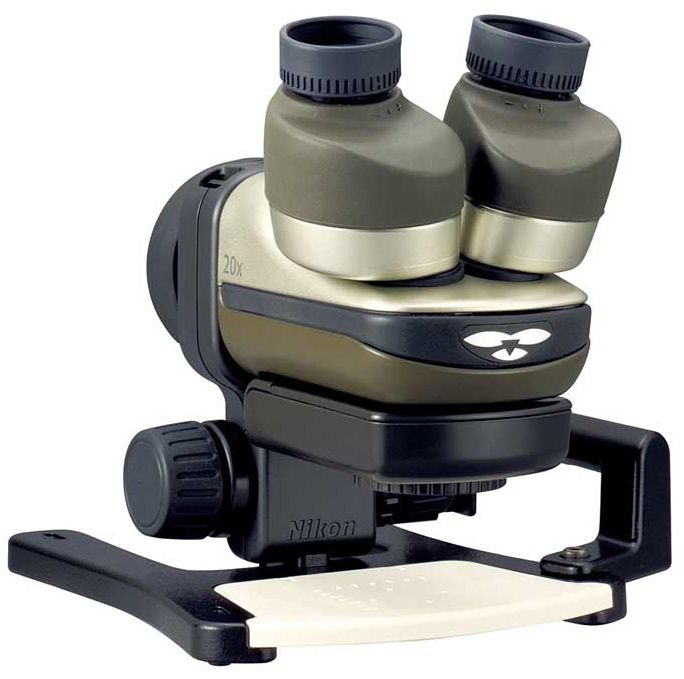
This upgraded version of the Fabre Photo microscope from Nikon, originally introduced in 2006, will launch on February 20th. It will let you connect any Nikon DSLR to it via a NAS-L1 digital SLR attachment. If you use a FSB-U1 compact digital camera bracket, you can attach any Coolpix series camera.

The optical system has 20x magnification, and field of view of 11mm in diameter. Shooting magnification varies with the camera, but it will range from 45x without extension tubes to 66x with two extension tubes and a DX-format camera.

(DX is Nikon’s cropped-sensor format; FX is their full sensor format, equivalent to the original 35mm film.)

[via Engadget]

Mission One, the first all-electric motorcycle

Mission Motors, an SF-based company, has built an all-electric road bike. It’s designed to be the fastest all-electric motorcycle. It’ll go up to 150 mph. Its range is 150 miles on a single charge. Recharge time is under 2 hours at 240 V, or 8 hours at 120 V. It was engineered to have a constant 100 foot-pounds of torque anywhere between 0 and 60 mph. I tried to look up the spec 0-60 time, but couldn’t find it anywhere.

[via DesignBoom and Mission Motors]

Homemade Scrabble Keyboard

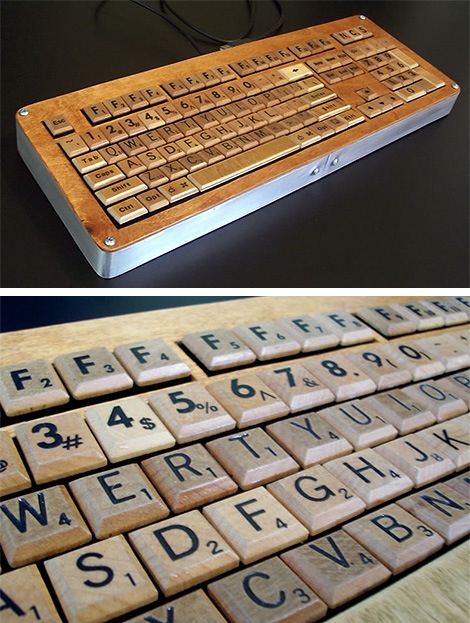
Someone took the time to assemble a full set of keyboard keys from wooden Scrabble playing bits, bevel their edges, and fit them to a keyboard enclosure that can connect to your computer via USB. I love the effort they put into this, and I love the idea of a wooden keyboard as well.

[via LikeCool]

RITI Coffee Ink Printer

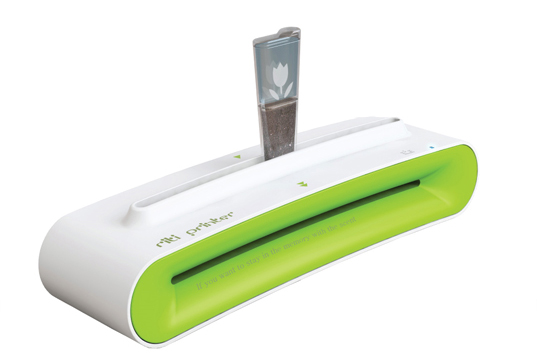
This new printer uses the pigment from used coffee grounds to print on regular paper. You simply pour the coffee grounds into the ink cartridge, print a document, then move the cartridge back and forth to print each line and advance the paper through the printer. This printer not only uses less electricity but also no expensive ink whatsoever. I don’t know what its print resolution is, but I imagine it’s decent enough for readable text.

[via The Design Blog]

Wooden Vespa by Carlos Alberto

It’s a classic Vespa, and it’s built of wood. It looks amazing. Enough said.

Make sure to visit Carlos’ website (use link below) to see the-making-of photos.

[via Boing Boing and Carpintaria Carlos Alberto]

Standard
How To

New Gmail buttons and shortcuts

Gmail's new buttons

I woke up today to find new Gmail buttons. At first I thought it was just Firefox playing tricks on me, but no, the buttons look the same in Safari. The Gmail Team announced the change on their blog yesterday, on 2/3/09. As expected, the change took a while to propagate to all of the Gmail accounts.

Along with the new buttons, they introduced two new keyboard shortcuts, “l” and “v”, which will allow you to label and label/archive messages on the fly. The “l” key opens a drop-down menu which allows you to label emails. You can navigate the drop-down menu using the arrow keys and mark a label using the Enter key. The “v” key does the same thing, and it also archives the message at the same time, removing it from the inbox.

Don’t forget that while you’re in the Gmail inbox, you can select multiple message by using the Shift key. Left-click on the first one, then Shift-Click on the last one, and all in-between will be selected. You can then use “l” or “v” to apply labels to all of them at once.

Standard
Reviews

A look at the Samsung T260HD HDTV widescreen monitor

I tried, unsuccessfully, to use an HDTV as my main computer display in the past. Although the specs of that Sony HDTV were superb, its brightness and contrast levels were made for a TV, not a computer display, and it gave me headaches when I stood close to it, as I would when I’d work at my computer. Things have a way of working out though. One of the commenters on my HDTV post, Adam Juntunen, pointed me to something that might just work for my needs.

Samsung has come up with a product that is made to work as both a display and an HDTV. It’s the first such product that I’ve heard of: the T260HD, a 26″ widescreen computer display and HDTV. The T260HD is part of a line-up of four monitors which includes the T200HD (20″), T220HD (22″) and the T240HD (24″).

What sets the T260HD apart for me is the fact that it was made to fulfill both functions from the factory. Although I haven’t used it (yet), my hope is that the Samsung engineers accounted for the difference in display characteristics that is needed when one uses it as a computer display vs. a TV. What is heartening for me is that it’s listed among the computer displays, not the HDTVs, on the Samsung website, which means it’s really more of a computer display than an HDTV, which is just what I need.

The design makes this display stand out. The enclosure is made of glossy black plastic, and it looks as if there’s a clear panel of glass set over the front of the display, which should make it easy to clean. A hint of maroon color marks the bottom of the enclosure, right below the logo, giving it a distinctive look. I do hope though that the glossy black plastic doesn’t scuff easily. Other Samsung TVs do scuff over time, which means that as you dust them, small hair-width scratches appear on the plastic, marring its glow.

Promotional: Don’t spend too much on flat screen TVs; there are flat panel TV deals you can take advantage of. LCD TV deals are available for consumers to buy at discounted prices.

The specs listed on the Samsung website are thin on the details, and I can’t make out whether its color depth is 8-bit, 10-bit or 12-bit. My guess, given its price, is that it’s 8-bit or 10-bit — probably the former, not the latter. Color depth in a display is a very important specification, because if you work with photos, like I do, and your DSLR captures 12-bit or 14-bit color images, you won’t be able to edit them competently on a display whose color depth capabilities are much lower. A 6-bit display, for example, like many laptops have, would be fairly useless to you, because it just won’t reproduce the color tones faithfully.

Let’s have a look at some of the salient features of this display:

  • Full HDTV monitor: that’s good, and also to be expected since it’s a computer display as well, and its resolution is 1900 x 1200 pixels.
  • Dolby Digital Surround sound: it has invisible speakers built in, and they’re rated at 3 W each; I’ve heard these types of speakers on other Samsung products, and they’re pretty good — certainly a lot better than most monitor speakers.
  • Dual HDMI, DVI and VGA inputs: that’s impressive for a 26″ display. I see that Samsung didn’t skimp and even included a SCART connector for the European countries. I love that.
  • Low power consumption: one spec says it uses 0.3W in Standby mode, yet another says it uses < 2W in that same mode. At any rate, it only uses 70 W max, and that’s great for a 26″ display.
  • 10,000:1 dynamic contrast ratio: I think this spec is trumped up, as I see it on a lot of other, cheaper displays and TVs. I have no idea what it means. Supposedly, the increased contrast between light and dark helps you see things better. I’ll be the judge of that when I try it in person. I see that the Apple Cinema Displays are listed at a 700:1 contrast ratio, which I think is a much more reasonable figure.
  • 5 ms response time: this is a little sluggish given that most displays in that size are at 3 ms. Still, it’s better than the Apple Cinema Displays, which are still listed at 14 ms. I think 5 ms is sufficient for most movies and video games, but then I’m not into the violent, fast-paced video games.
  • 300 cd/m² brightness: this isn’t as bright as other displays in the same sizes, which are at 400-700 cd/m², but you know what, I’d rather not have headaches caused by too much brightness, so this should be fine for me.

What I’ve seen so far of this monitor has certainly whet my appetite, and I’d love to try it out for myself. If and when I do, I’ll let you know how it works out.

The Samsung T260HD is available from Amazon and B&H Photo.

Photos used courtesy of Samsung.

Standard