How To

My own sort of HDR

I’ve been intrigued by HDR (High Dynamic Range) post-processing for some time. At its best, it renders incredible images. At its worst, average, and even good, it renders completely unrealistic, overprocessed, unwatchable crud. Even some of the best images made with HDR methods seem weird. They’re not right — somehow too strange for my eyes. But, I did want to try some of it out myself and see what I’d get. The challenge for me was to keep the photo realistic and watchable. I wanted to enhance the dynamic range and color of my photos in an HDR sort of way. I also didn’t want to sit there with a tripod taking 3-5 exposures of the same scene. As much fun as that sounds, I don’t always carry a tripod with me.

By way of a disclaimer, I have not researched the production of HDR-processed images thoroughly. I have, however, seen a boatload of HDR images on both Flickr and Zooomr. I did read the tutorial that Trey Ratcliff posted on his Stuck in Customs blog. Of course, we all know Trey from Flickr, where he posts some fantastic HDR images on a daily basis. So, given my disclaimer, realize I don’t say I’m the first to have done this. I’m just saying this is how I worked things out for myself. If indeed I’m the first to do this, cool! If not, kudos to whoever did it before. I’d also like to encourage you to experiment on your own and see how things work out for you. Change my method, build on it, and make something even better. While I’m on the subject, I’m not even sure I should call this processing method HDR. It’s more like WCR (wide color range). What I’m really doing is enriching the color range already present in the photo while introducing new color tones.

When I started, I experimented with Photoshop’s built-in Merge to HDR feature. Using Photoshop, after a few non-starts that I deleted out of shame, I got something halfway usable. Have a look below.
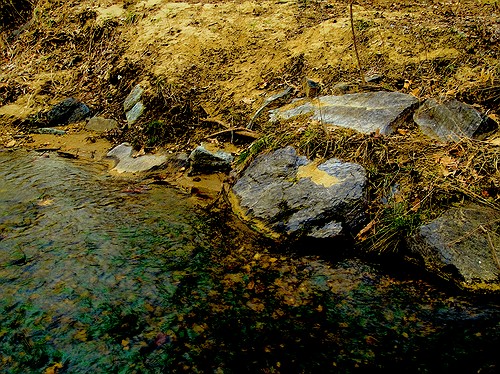
Brook and rocks

Here’s how I processed the photo above. I shot three exposures of that scene in burst & bracket mode, handheld (no tripod), in RAW format. Then, I darkened the low exposure, lightened the light exposure, and exported all three to full-res JPGs. Used Merge to HDR in Photoshop, got a 32-bit image, adjusted the exposure and gamma, converted to 16-bit, adjusted exposure, gamma, colors, levels, highlights, then smart sharpened and saved as 8-bit JPG. It came out okay — not weird, at least not too much, anyway, but still not to my satisfaction. I should mention I also used a sub-feature of the Merge to HDR option that automatically aligned the images. As I mentioned, I shot handheld, and there were slight differences in position between the three exposures. Photoshop did a pretty good job with the alignment, as you can see above. It wasn’t perfect, but definitely acceptable.

I know there are people out there saying Photoshop doesn’t do as good a job with HDR as Photomatix. It’s possible, although I got decent results. Maybe at some point in the future I’ll give Photomatix a try, but for now, I’m pretty happy with my own method — see below for the details.

But first, what’s the point of HDR anyway? When I answered that question for myself, I started thinking about creating my own (WCR) method. The point as I see it is this: to enhance the dynamic range of my images. That means bringing out the colors, highlights and shadows, making all of the details stand out. Whereas a regular, unprocessed photo looks pretty ho-hum, an HDR-processed photo should look amazing. It should pop out, it should stand out in a row of regular images. It should not look like some teenager got his hands on a camera and Photoshop and came up with something worthy of the computer’s trash bin. As I’ve heard it from others, the standard way to postprocess a scene in HDR is to take 3-5 varying exposures, from low to high. Those exposures can then be combined to create a single image that more faithfully represents the atmosphere and look of that scene.

But, what if you don’t have a tripod with you? Can’t you use a single image? Yes, you can shoot in RAW, which is the equivalent of a digital negative, and good HDR software can use that single exposure to create multiple varying exposures, combine them and create an image that’s almost as good as the one made from multiple original exposures.

What if you want to make your own HDR/WCR images, in Photoshop, all by yourself? I wanted to do that, and I think I arrived at a result that works for me. Here’s what I did. I took a single exposure of a brook in the forest, which you can see below, unprocessed.
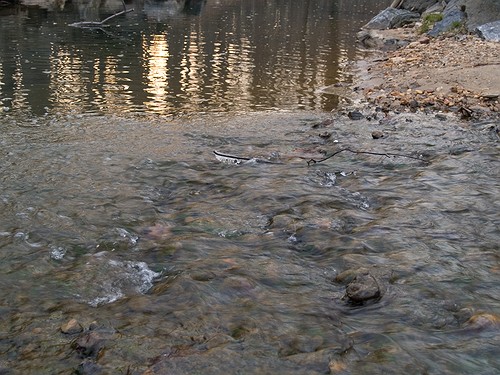
Brook, unprocessed

There’s nothing special about this photo. It’s as the camera gave it to me, in RAW format. The colors are dull and boring. There’s some dynamic range, and the color range is limited. It’s all pretty much made up of tones of brown. I took this single exposure, converted it to full-res JPG (but you don’t have to, you can use the RAW directly,) put it in Photoshop, created three copies of the original layer, called them Low, Medium and High, then adjusted the exposure for Low to low, left the exposure for Medium as it was, and adjusted the exposure for High to high. Then I set all of them to Overlay mode. (The original JPG, preserved in the Background layer, was left to Normal mode and was visible underneath all these layers.) The key word when talking about exposure here is subtle. Make subtle changes, or you’ll ruin the shot.

As soon as I adjusted the layers and changed them to Overlay, things looked a lot better. The dynamic range was there, it just needed to be tweaked. So I went in and adjusted the individual exposures for each layer some more to make sure parts of the photo weren’t getting washed out or ended up too dark. Then I threw a couple of adjustment layers on top for levels and colors. Finally, I duplicated the three layers and merged the duplicates, then used the smart sharpen tool. The adjustment layers were now on top of it all, followed by the merged and sharpened layer, and the three exposure-adjusted layers, which were no longer needed, but I kept them in there because I like to do non-destructive editing. Here’s the end result, exported to a JPG.
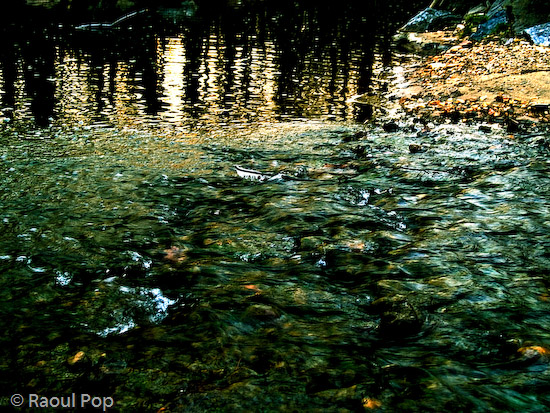
Brook, processed

This is the sort of post-processing that pleases my eye. The details were preserved, the colors came out looking natural yet rich, and things look good overall. Even though some spots are a little overexposed, I like it and I’m happy with it. Let’s do a quick review. Using my own WCR/HDR-like method, I accomplished the following:

  • Used a single RAW/JPG exposure
  • Didn’t need to use a tripod, could shoot handheld
  • Didn’t need special software, other than Photoshop
  • Achieved the dynamic range I wanted
  • The photo looks natural, at least to my eyes
  • The post-processing was fairly simple and took about 30 minutes

There is one big difference between my WCR method and the usual HDR post-processing. Done right, the latter will help bring detail out of the shadows. Because of that single or multiple exposure done at +2 EV or more, spots that would normally be in the dark in a regular photo can be seen in HDR. Not so with my method. Here the darks become darker. The atmosphere thickens. The highlights become darker as well. The whole shot gains character, as I like to call it. So this is something to keep in mind.

Just to clarify things, the image above was the first result I obtained using my method. There was no redo. I then processed some more images, and got a little better at it. It’s worth experimenting with the Shadow/Highlight options for each individual layer. It helps minimize blown-out spots. It’s also very worthwhile to play with the Filter tool for each layer. This really helps bring out some nice colors. It’s sort of like taking three exposures of the same scene with different color filters. The results can be stunning if done well. You also don’t need to use three overlays. It all depends on the photo. Some photos only need one overlay, while others need four or five. Subtle changes in exposure can help bring out areas that are too dark. You can see some photos below where I used my own advice.
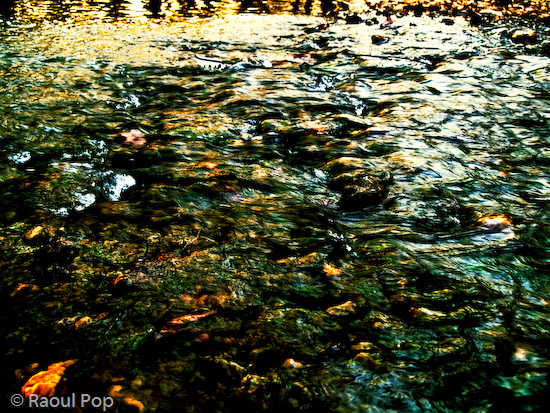
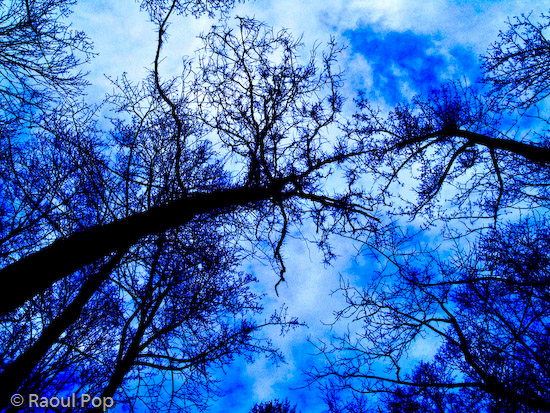
Brook, take two, processed

Meeting of the minds

Parallel lines

There you are

I hope this proves useful to those of you out there interested in this sort of post-processing. It’s my dream to see more natural and colorful photos, regardless of whatever post-processing method is used.

Standard
Thoughts

Some variety

I’m too tired to write a long, coherent post tonight. I worked late today and got home pretty much exhausted.

I’ve started using Adobe’s new Lightroom yesterday to postprocess my photos, and I like it more than Bridge/Camera Raw. It has a ton more options, not only for developing RAW files, but also features that I’d normally only find in Photoshop, like red eye removal and a really good healing brush. And the crop tool is much easier to use than the one in Camera Raw. Another benefit is that it can also work with JPG files, so I don’t have to open those in Photoshop for editing. That’s a huge plus, because I can do it all in a single application. So this means I get to open Photoshop a lot less these days, which is great, given how slowly it opens on my machine. Say, Lightroom opens up lightning fast compared to Bridge! And oh yeah, it does automatic conversion to DNG, whereas this was a manual operation in Camera Raw. That’s cool for me, since DNG’s turn out to be about 50-60% of the size of my regular RAW files. That means I need about half the storage. I’ll that that any day and run with it. I’ve got enough gizmos and wires on and under my desk.

I’m annoyed with Costco for changing their return policy. It basically does away with any serious differentiation between them and other retail chains. I wrote them an email to complain, and they responded that they have a new concierge service that offers tech support for the higher-priced items, and they also extend the manufacturer’s warranty to 2 years, but still, I miss their wonderful (and now defunct) return policy. Yes, I can understand that cheesy people would return used items and eat away at their profit margins, but I don’t do that stuff, and I really liked the extra peace of mind that their old return policy provided me for items like cameras, electronics and appliances.

You may notice (or not) that the Technorati buttons and links are gone from my site, except for one little unobtrusive link in the sidebar. I took them off today. Technorati’s pretty much been useless to me. It’s driven no traffic to my site according to my stats, and they’ve also managed to decrease my site rank with their latest “tweaks”. I don’t like that. And on top of it all, my site has been loading slower lately because it had to wait for their graphics and JavaScript to load. My browser would sit there for seconds on end, with “waiting for technorati…” in the status bar.

Talking about slow load times, I also took off the Twitter status box from the sidebar. Twitter’s been up and down more times than an elevator lately, and they’ve been another reason my site has been slow to load. It would take forever to bring up the little Twitter status message at times, and I had enough of that. So if you want to see what I’ve been twittering about lately, just bookmark my Twitter page or subscribe to my uni-feed. Or you could also create an account at Twitter and add me to your friends…

Say, this post is pretty long after all!

Standard
Thoughts

Winnowing my photos

I seldom keep more than 50-60% of the photos I take. There’s no reason to waste my disk space with digital trash. It’s funny, the more photos I shoot, the less of them I keep. Lately, only about 10-20% of my photos manage to survive deletion. It’s an inversely proportional relationship.

When I decided to share my photos online, I whittled down my collection of over 18,000 photos (already winnowed) to about 7,000 that I wanted to upload. Over the past few weeks, I’ve been winnowing even those photos. I was a little too enthusiastic at first, and uploaded some photos that should have stayed on my computer or gone straight to the trash bin because they missed my initial winnowing. It’s been a painful process, and it’s very bruising to the ego, but it’s got to be done. It’s really hard to delete a photo when it’s had 10, 20, 30, even 50 or 60 views, but if it’s inferior, there’s no reason to let it stay.

I’ve reached a point now where I’m sharing thousands of photos (over 3,500 are public, with a total number of over 5,800), so there’s no reason not to winnow. If someone’s going to take the time to go through my photos, I don’t want them to see chaff, I want them to see substance. I know I’m sick of chaff. With time, my eye has gotten better at spotting good photos. And it’s also gotten more sensitive and easily disgusted with crappy snapshots that don’t deserve to waste disk space. I see so many of those when I hunt for good photos, that I can’t stand to see any in my own collection.

If you’ve been looking at my photos, and wondering how it’s possible that the total number of photos stays constant and even goes down while I upload new photos every day, now you have your answer. If you’re an experienced photographer, and you’ve seen some photos in my collection that you think are terrible, let me know. I’ll have a look and gladly delete any inferior photograph.

Standard
Reviews

Editing EXIF data in photos

I’ve been doing a bit of research about the ability to edit a photo’s EXIF data, and I came across four pieces of software, three of them for the PC and one for the Mac.

The first one, recommended by people in various forums, is PowerEXIF Editor, made by a company called Opanda. Everyone seems to say it’s a really powerful editor, but I find it overpriced given its features. What I’m most interested in at this point is being able to batch edit the EXIF data in my photos. I have thousands of photos I’ve got to edit, and being able to select entire sets and change the date and other info directly would be a huge help. Well, the Standard version of PowerEXIF doesn’t do this, even at $49.99, which is a fairly high price for the application’s limited scope. No, I’d have to get their Professional version, at $89.99, in order to do batch EXIF editing. I find that ridiculous. At that price, I might as well add another $100 and spring for Aperture, where I get a professional photo management application that not only edits EXIF data but allows me to work with my images in pretty wonderful ways. I wouldn’t recommend PowerEXIF at their current prices. I think they should price the Standard version at $19.99, and the Professional version at $39.99. Then I’d be tempted to purchase it.

Luckily, I found Exifer. It’s coded by a single person, Friedemann Schmidt, and it comes recommended by LifeHacker as well. It’s “postcardware”, which means you’ll “need” to send a postcard to the author if you like the software. It’s a cool concept that used to be popular in the 90’s and now it’s sort of retro-cool. For those of you unfamiliar with the concept, yes, this means it’s free. It also does batch-editing of photos, so I highly recommend you give it a try.

The third piece of software is called EXIF Pilot, and it’s shareware ($19.99). While it’s got a cleaner interface than Exifer, it won’t let you edit photos in batch-mode until you pay up. It will, however, let you edit the EXIF data of individual photos, so that’s something to keep in mind. Still, $19.99 is a reasonable price to pay given the functionality of the software, and if it indeed delivers on the promise of batch EXIF data editing, then it’s well worth it.

The fourth piece of software is Reveal, made for the Mac. It’s free, and it’s meant to be mainly an EXIF data viewer, with “limited editing capabilities”. It also doesn’t do batch editing of photos. What you do is add it to the Dock, then drag photos from iPhoto onto it to display that photo’s info. You can edit each photo individually, but it’s anyone’s guess as to whether that info gets written to the original photo itself, or to a cached iPhoto copy.

Why am I interested in EXIF data editors? Because I manage my photos in iPhoto, which does not edit EXIF data by itself. This is something that I find truly annoying. I need a way to add dates and other EXIF data to my photos. What I currently propose to do is to export the photos from iPhoto, over the network, to my Windows laptop, where I can edit entire sets with EXIF Pilot or Exifer. This all seems very unnecessary, and I should be able to edit the EXIF data directly in iPhoto, but with things being what they are, this is what I have to go through.

➡ Updated 8/16/07: Since I wrote this post, I discovered two more free utilities for photographers, created by Microsoft. They work on Windows XP, and some of their functionality is built into Vista. I’ve also switched to editing my photos entirely on my PC laptop using Adobe Photoshop Lightroom. I do most of the EXIF and IPTC editing in there, because the batch editing functionality is amazing. Sometimes I also use Microsoft Photo Info (one of the utilities) to do some further EXIF editing. But if you’re not a pro or semi-pro photographer, using the two free utilities discussed in this post should work for most of your needs.

Standard
Reviews

Cannot edit EXIF data in iPhoto

Those of us using iPhoto (up to version 6) are probably pretty disappointed to find out that we can’t edit a photo’s EXIF data. What’s more, whatever data we add to the photo (changing title, date, description, rating) also doesn’t get stored to a photo’s EXIF fields. Instead, it gets put in some other associated file, and gets lost entirely when the photo is exported out of iPhoto — for example, uploaded to Flickr.

This may not be so bad for photos that we take with our digital cameras, because they’ve already got a good amount of EXIF data stored in them, but it absolutely stinks for photos that we’ve scanned in. I’ve got all of my family’s photos in iPhoto, organized and rated and dated. A good chunk of those photos — over 60% of some 17,000 odd photos — are scanned in. That means that when I email those photos or import them into a program like Picasa on my PC, or upload them to Zooomr, all of the date information and other data that shows up in iPhoto is lost, by design (and a poor one at that). Isn’t this ridiculous? It makes all of that time spent working with the photos in iPhoto useless. They pass through the program like a duck through water. All of that “water” drips right off when the photo’s out of the app. It’s just not right.

If I can crop and adjust a photo’s color, brightness, contrast, exposure, sharpness and other parameters in iPhoto, and have those changes be preserved when I drag that photo into an email, it stands to reason that any other changes made to the photo (date, title, description, rating) should also be preserved. Otherwise, iPhoto is really not a full-fledged photo management app.

Now, I understand there are apps like Aperture, Lightroom, and of course, Photoshop, for editing photos and getting at more of a photo’s EXIF data. But not everyone wants or needs those applications. They’re meant for users who do a lot more with photos. To me, even though I have Photoshop, it seems silly to open it up just to edit the EXIF data of a photo. And I’m not going to get Aperture just to edit EXIF data. Aperture is meant for professional photographers and I’m still just an amateur photographer. This is such a basic function that it should be integrated directly into iPhoto. If the EXIF data from a photo can be viewed in iPhoto, it should also be editable, and that same data should be preserved inside the photo when it is exported to the web or for use in other applications.

Standard