How To

How to properly clean your keyboard

I found myself needing to clean our iMac’s keyboard a few days ago. I remembered watching a video recently that suggested we should simply stick the keyboard in the dishwasher. I wasn’t about to do that. I doubted the circuitry would have worked afterwards, particularly the Bluetooth link between the keyboard and the computer.

The safer route was to simply remove the keys, wash them separately with warm water and soap, then wash the keyboard base with a cloth moistened with water and a mild soap solution. Ligia also got some cotton swabs and rubbing alcohol ready, just to make sure we’d be able to get into all of the keyboard’s crevices.

This solution should work for all keyboards. A word of caution: before you start doing anything to your keyboard, take a couple of photos of the key layout! You don’t want to find yourself with a bunch of keys in your hand, clueless about where to stick them… Take photos of the keys and have them ready to display on your computer, or print them out ahead of time.

Removing the keys is quite simple. You take a quarter or any larger coin, put it under a key, and pry upwards. The key should pop right out. Be careful though, you don’t want to break them — that would render the keyboard quite useless afterwards.

After the keys are removed, the keyboard should look something like this:

Apple keyboard with keys taken off

Please excuse the distortion caused by the camera lens. I used my 24mm prime to make for fast work.

Once the keys are off, Ligia cleaned the keyboard, and I got to work cleaning the keys. I used a basin filled with warm water and I poured in some detergent, then gave each key a light scrubbing with a brush. You can also use the sink directly, but you’ve got to be very careful there. Sinks have drain holes under the top lip, and your keys might just run into them, since they’re plastic and they float. Once they go into the drain, good luck getting them out. You can open up the P-trap and see if they’re there, but chances are that they’re already gone. So be very, very careful as you wash the keys. You want to make sure that you don’t lose any of them.

After the keys were washed, I put them in an absorbent cotton towel and shook them around a bit to get drops of water dislodged from the keys’ undersides, then, while keeping them bunched up in the towel, I ran a hair dryer in there to make sure they got dry a little faster. Here you’ll need to make sure all of the corners of the towel are raised up, otherwise your keys will start flying around… You can also leave them on a towel overnight if you don’t want to bother with the hairdryer.

Keys from Apple keyboard

You also want to be careful that you don’t get excess liquid on the keyboard itself. The last thing you need after you go through the trouble of cleaning it is some problem with the circuits in there. Use a moistened cloth or paper towel, and clean it carefully, making sure you remove any debris or gunk or crumbs or whatever you find in there. Use cotton swabs moistened with rubbing alcohol to get into the tighter spots. When you think you’re done, examine it carefully under a strong light, to make sure you got everything off. Sometimes keys will stick because you or someone else in your house/office spilled sticky liquids on the keyboard, and if you don’t get that sticky gunk cleaned off, the keys will continue to stick even after you think you’ve cleaned them.

After Ligia got the keyboard base cleaned up, we stuck all of the keys back on the keyboard, and it looked quite beautiful when we got done. It was as if we’d gone out and bought a brand new keyboard. Just think of it! We did our part for the environment by re-using a piece of perfectly good hardware, and we also saved about $60. Pretty cool!

Apple keyboard after thorough cleaning

Standard
Reviews

Hardware review: WD My Book Pro Edition II

Less than a month ago, I reviewed the WD My Book World Edition II, a NAS device from Western Digital, and I promised that I’d also review the My Book Pro Edition II, which I also bought. Here are my thoughts.

Updated 12/13/2007: Before I say anything else, I need to discourage you strongly from buying this drive. There are MANY flawed units of this drive on the market. There are serious problems with cooling, which result in excessive fan noise and even random drive shutdowns while in use. Scroll to the end of the review to read the updates and see what sorts of problems I’ve had with the drive.

Design

The Pro Edition II should be a better and faster external hard drive than the World Edition II when it comes to working with my photo library, since it connects directly to my computer instead of going through the network. Its exterior design is just as good as that of the World Edition II, and the photos enclosed below will show it.

I have to confess that I’m design-obsessed. If something looks good, I’m willing to overlook the fact that it may not work as expected, which is definitely the case with this device. Of course, if it were truly designed well, it wouldn’t have the serious problems that it has, but at least it looks good on my desk… I suppose I could call it a very expensive paperweight. It’s so unfortunate that Western Digital couldn’t deliver with this product. It looks so nice, and does so poorly…

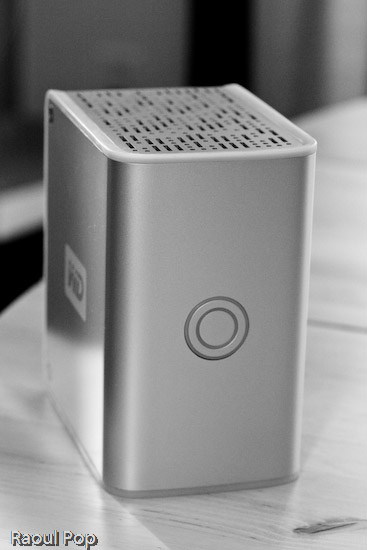
WD My Book Pro Edition II (front)

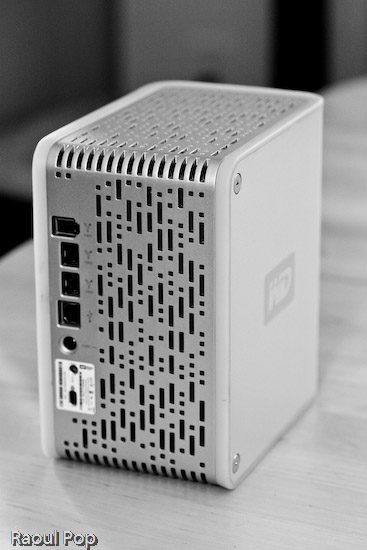
The drive has three interfaces: USB 2.0, Firewire 400 and Firewire 800. A nice touch is the inclusion of two Firewire 800 ports. This is probably because most computers have only one Firewire 800 port, and the WD engineers wanted to give us the ability to daisy-chain other devices onto the drive. In terms of the RAID settings, it has RAID 0 and RAID 1. I’m using my drive in RAID 1, to get the data redundancy I need when it comes to my photo library.

Serious problems

I’ve read complaints about the drive being loud, and I agree. I’ll say this: when it works fine, it’s quiet. When it has problems, it’s VERY loud. There are persistent cooling issues with the drive, that have been partially solved through firmware updates, but they keep showing up even on later builds. I think the WD engineers still have a LOT of work ahead of them when it comes to this model. See below for more on this.

My workflow involves working mainly with Adobe Lightroom, and doing the following:

  • Importing and viewing RAW files
  • Winnowing
  • Adding meta data
  • Editing images and
  • Exporting them to JPG files for the web or for clients

The drive is usually fine with this, but if I spend more than an hour (and sometimes, even less than an hour in Lightroom), it’ll start to overheat. Then the fan speed will auto-switch to what I call “medium speed”, and the drive will get a little louder. If after a few minutes or so, I’m still not done working, the drive fan will kick into high gear, something that I and others call “hairdryer mode”. After a couple of minutes at that speed, the drive will either return to “medium speed” or shut off completely, leaving me and Lightroom wondering where the photo library went.

I’ve learned to save my work and exit Lightroom when the drive fan goes into “hairdryer mode”, because I can almost certainly expect the drive to shut off. I called WD Support on this, and I applied a firmware fix a few weeks ago, but the cooling problem is still there. By the way, the drive has to stand vertically at all times, or you’ll have even more serious cooling problems.

Getting support

I need to say that WD Support are responsive, but they live in serious denial. They will agree to an RMA, but they insist that these drives are just fine, which is definitely NOT the case. Speaking from personal experience, WD Support is better than the support I’ve gotten from other tech companies like Microsoft and HP. At least they try to be helpful and polite. This was one of the main reasons I stuck with the drive through serious, repeated problems.

As I stated at the start of this post, I continue to have problems with my drive, even after two replacements. I like the design, and I like the fact that it has three interfaces. But I cannot use it long-term, because, let’s face it, it’s an unreliable piece of crap, and it’s very frustrating to use it when it overheats and crashes my computer. I’ve already bought a Drobo (which I love) for my photo library, and I’m going to re-purpose this drive to store some other files.

Working with the drive

In my review of the My Book World Edition II, I mentioned how I’m in a mixed OS environment at home. I have both an iMac and a Windows laptop. It’s necessary for me to be able to read and write to my external devices from both computers. This is in case I do large file transfers, which are obviously a lot faster to do over a USB or Firewire connection than a wireless network. So what I did to solve this problem was to format the My Book Pro Edition II in the Mac file system (HFS+ Journaled). Now I can read and write just fine to it from both machines because I purchased MacDrive, a piece of software that lets you access Mac drives on Windows as if they were NTFS or FAT32 volumes.

WD My Book Pro Edition (back)

Let’s review

I like the drive, and the design, but it has SERIOUS quality control problems and manufacturing defects. Make sure to read through the Updates section below for the latest news on the drive, and remember to spare yourself the agony I’m going through by NOT buying it.

Updates

Updated 10/30/07: It turns out the cooling problems with my drive weren’t normal. After calling WD Support a second time, I was offered an RMA. They sent out a replacement drive to me via 2-day Fedex, free of charge, and let me keep my old drive for a month while I transferred my photos over to the new drive. During that month, I worked exclusively on the new drive, to make sure that it wouldn’t overheat and shut off anymore. While it goes into “hairdryer mode” once in a blue moon, the fan speed always returns to “low speed”, which is barely audible, and the drive never shuts off. Whatever problems existed in the earlier builds of this drive, WD fixed them, and the new drives work just fine. If you’re having cooling problems with your My Book Pro, I encourage you to contact WD Support and see if you can exchange it.

Updated 12/03/07: I’ve just arranged to receive my 2nd replacement drive from WD via RMA. While I like the consistently high level of customer support they provide, I have to point out that there are manufacturing defects that still haven’t been ironed out. While my first drive, the one I purchased from a store, only overheated, and worked okay otherwise, the replacement drive had three problems. It also overheated, although less often than the original drive. Its Firewire 400 connector didn’t work. I tried different cables, to no avail. The computer just didn’t see it while it could see other Firewire drives just fine. Most importantly, it kept crashing my iMac every time I connected it. Not right away, but within minutes or less than an hour, it would crash the system so badly that I’d have to reset it. I’d get the standard Apple screen of death with a message that asked me to reset the computer. When I’d look at the logs, they’d always point to the USB as the problem for the crash, and the only drive I had connected via USB was the My Book Pro. Let’s hope this third drive that WD will send me will finally work properly.

Updated 12/13/07: As stated at the top of this post, DO NOT buy this drive, for the reasons already detailed. I am NOT alone in having problems with this drive. Many Mac users are having the same problems with it, and you can see this by doing a search on the Apple forums for “My Book Western Digital“.

The drive also DOES NOT work as advertised. The specs say it works with USB, Firewire 400 and Firewire 800, but it DOES NOT work with Firewire 400. I have not had the chance to test it with Firewire 800, so I can’t speak about that, but I know for sure that Apple computers cannot see it when connected through Firewire 400. It does work with USB, but it tends to crash Apple computers when connected to them through that protocol. Trust me on that last bit, I’ve checked the error logs every time and confirmed it reliably — it’ll crash my iMac, which runs Leopard (the latest Mac OS X), when connected through USB, while other USB or Firewire drives can connect just fine and have no problems. Have a look at this article of mine for a video of the crashes it causes, and for photos of the damaged drives that WD sends out as replacements.

Western Digital is also NOT doing a good job testing these drives before they send them out. I’m now on my third replacement drive from Western Digital (My Book Pro), and it exhibits the same problems: overheating and NOT working with Firewire 400. Western Digital Support refuses to believe it and continues to stubbornly cling to the idea that the drive works just fine since it can connect through USB. They offered to send me out another replacement drive, and I refused. I’m not going to spend my entire life swapping drives and data until Western Digital decides to get their manufacturing and quality control processes in order.

I also want to mention that the re-certified drives they send out can be scratched, scuffed and smudged. They are NOT cleaned, and Western Digital simply DOES NOT care if they send you a drive in bad aesthetic condition. My re-certified drives arrived in progressively worse condition, to the point where this last replacement drive looks absolutely horrible. It looks like it’s been banged up and dragged on the floor. It’s got oily smudge marks on its sides… basically, it’s a mess.

DO NOT BUY this drive unless you want to run into the problems I’m having right now, and believe me, it’s not fun at all. Western Digital needs to get its act in order on this model, because they’re churning out some real duds.

Updated 7/3/08: I updated my other post about the My Book Pro as well with the following information.

On 4/16/08, I received a replacement drive from Western Digital. It’s a 2TB Studio Edition II drive, which works in USB, Firewire 400/800 and eSATA modes. I’ve been using it since in RAID 0, and it’s been working great. To see how I use it, read this recent post of mine, where I talk about the hardware I use on a daily basis. I also plan to write a detailed review of the drive shortly.

I guess the lesson is that the My Book Pro line had serious faults, and WD got things right with the My Book Studio line. So, if you’re in the market for a drive, DO NOT get a My Book Pro. But DO get a My Book Studio drive. They seem to work alright.

More information

Standard
Reviews

Hardware review: WD My Book World Edition II

After looking around for a storage solution to house my growing collection of photographs, I found the Western Digital My Book World Edition II. I’ve been storing my photos on single external hard drives so far, but data loss has always been a concern with that approach. All it takes is a hard drive failure, and I’m going to lose a good portion of my hard work. Naturally, I’ve been looking into various RAID or other failsafe solutions, since they’ve gotten to be fairly affordable.

Great design

I was immediately drawn to the new WD My Book line because of their beautiful design, 1 TB capacity, and the ability to configure the device in RAID 1 format, which would mean my data would be mirrored across the two hard drives inside it. (This would also halve the amount of space available, but that was okay with me — I wanted data redundancy.)

WD My Book World Edition II (front)

For those of you not familiar with WD’s external drives, they have done a beautiful job with their enclosure design, and I raved about their Passport line several months ago. It turns out I now own one of them, a sleek black 160 GB 2.5″ drive just like the one pictured in that post. It’s perfect for data portability, and for a while, I even stored some of my photos on it. But it is just a single drive, and as I said, I’m worried about data loss.

Choosing the product

Back to the My Book line. There were two models I really liked: the My Book Pro and the My Book World. Because I have a mixed OS environment (both PC and Mac), I thought a NAS solution like the My Book World would work best for me, even though its specs said it would only work for Windows. I had a pretty good hunch that I would also be able to access it with my iMac. It runs on Java, it has Samba shares, and those are readily accessible from any Mac. But, this isn’t advertised, and that’s a pity.

By the way, if you’re thinking about getting the My Book Pro drive, make sure to read my review of that model. The takeaway message is to stay away from it, and I explained why in that article.

How it works

The drive itself is beautiful and fairly quiet, except when it boots up. WD has also made firmware upgrades available that make the drives even quieter, so that’s a good thing. I can tell you this right away. If you only plan to use the drive in a Windows environment, it’ll work great. Feel free to buy it, you’ll be happy. But, if you plan to use it in a mixed OS environment, and are looking to access it in more flexible ways, such as with custom drive mappings, and not through the software provided with the drive, you might be very frustrated.

Let me explain. The drive comes with a custom version of something called Mionet. I’ve never heard of it, but it’s software that installs on your machine and makes your files and computer remotely accessible from anywhere. When you run the installer, it’ll prompt you to create an account on the Mionet website, and it’ll register the WD drive, along with your computer, as devices that you can then access remotely. (There’s a monthly fee involved if you want to control your own PC remotely with the software, but you don’t need to pay it to use the WD drive fully.)

Once you install the software, you start up Mionet, and the WD My Book World drive gets mapped automatically to your machine. You also have the option to manage the drive through a browser interface. That’s actually where you configure its volumes (1 TB single volume, or RAID 1, still single volume, but mirrored data and only 500 GB) and other options. Basically, you have to remember that the only proper way to access the drive, whether you’re at home or you’re away, is to start up Mionet and get it mapped to your “My Computer”. If you do that, you’re good to go.

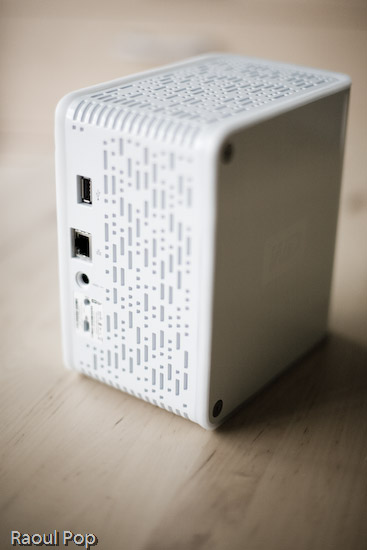
WD My Book World Edition II (back)

Potential problems

The problem with this approach (and this tends to be a problem only for geeks like me) is that the drive is readily accessible over the network without Mionet. I can simply browse my workgroup and find it, then log in with separate accounts I can set up by using the WD drive manager, which is accessible through my browser. So here’s where the frustrating part comes in. I can browse to my drive over the network, without Mionet, from any PC or Mac in my home, administer its options, add users and shares, etc. Then I can use Tools >> Map Drive on my PC or Command + K on my Mac to connect to the share name, and log in using those user accounts I’ve just set up. But, I can only read from those shares. I can’t write to them. The drive operating system assigns weird UNIX privileges to those shares, and they don’t correspond to the accounts I’ve just set up. It makes no sense to me and you’ll only fully know what I mean if you do this yourself. Suffice it to say that it’s really frustrating, and it’s not what I expected.

It would have been alright if Mionet made a version of their software for the Mac, but they don’t, and they don’t seem to have any plans to make any. It would have still been alright if the drive hadn’t been accessible through any Mac whatsoever. But the fact that they are accessible, and that I can log onto the drive with usernames and passwords that I can set up through the admin interface, yet I can only gain read-only access to those shares even though I’m supposed to have full access really gets me. Sometimes it’s a real pain to be a geek…

So, my verdict is that I really like the design and the RAID 1 capability, but I do not like the implementation. I ended up returning this and getting the My Book Pro Edition, which I love, and will review very soon. But remember, if you don’t have a mixed OS environment, and have no problems with starting up Mionet when you want the drive to appear in “My Computer”, My Book World will work great for you, and the remote access capability is a really nice feature.

Updates

Updated 7/19/07: I purchased and reviewed the My Book Pro as well. You can read my review right here.

Updated 8/3/07: Multiple commenters have pointed out (see this, this, this, this, this and this) that you can use the drive just fine with both Macs and PCs, over the network, if you skip the install of the Mionet software altogether. It looks like the clincher is the Mionet install itself. Just forgo it, and you’ll be able to map the drive to both PCs and Macs, and read/write as much as you want. I didn’t realize that I had to uninstall Mionet entirely in order for the read/write to work properly.

But keep in mind, if you don’t use the Mionet software, you won’t be able to access the drive remotely. Well, you might be able to arrange some access, but you’ll need to custom-configure your firewall settings to allow traffic on certain ports, and you’ll need a static external IP or dynamic DNS so you can get at your firewall from the outside. And then you’ll need to worry about data encryption as well, unless you don’t care that your data will travel unencrypted over open networks. If you’re a hardcore geek, feel free to try this last bit out, but if you aren’t, beware, it’s a weekend project, and I can’t help you.

Updated 8/9/07: I’ve had several people comment on how they bought the drive based on this post and the comments made on it by others, believing they could get it working over the network with their Mac. The kicker is that they thought they could connect it directly to their machine and get it working that way. 😐 I don’t know how they got that idea, but let me set the record straight. This is a NETWORK drive. It needs a network in order to work. There’s a chance you might get it working by using a crossed ethernet cable or connecting it directly to your machine, but it probably has to be a crossed ethernet cable.

The best way to get it working is to use a hub or a switch, or best of all, your home router, which can assign IP addresses. The drive ships configured for DHCP. That means it has no IP address to start with, and it’s looking for a place to get them. If you don’t have such a place, you’re going to have a lot of headaches. Get such a place (router) or go buy a USB/Firewire drive. Most people who’ve commented already made it plainly clear that’s what they needed, but they still insisted on using this drive. I don’t know why they enjoy the stress of doing that. I didn’t. As I already said in my post, I returned it and got a WD My Book Pro Edition II.

Last but not least, please do me a big favor. Read through the existing comments before you write one. There are so many already, and there’s a very good chance someone’s already asked your question, and I or someone else has already answered it. Thanks!

Updated 12/11/07: I found out today that Western Digital is going to disallow the sharing of all media files through the Mionet software. In other words, if you’re going to use Mionet to share the files on your drive and make them accessible remotely, you will not be able to see or use any of your media files. I think this is a pretty stupid move on WD’s part, and it’s going to come back to bite them. Until they decide to do away with this boneheaded downgrade, keep it in mind if you’re looking to purchase a My Book World Edition. Do NOT use Mionet. Install the drive without it, and if you’ve got to make the files accessible remotely, find other ways to do it, like through a custom config of your firewall.

Updated 12/18/07: Christian, one of the commenters, has left two very useful comments that are worth mentioning here in the post. The first shows you how to access the drive remotely (when you’re away from home) without using the Mionet software. The second tells you why you don’t need to worry about defragging the drive, and how to troubleshoot its performance if you think it’s not as fast as it should be. Thanks Christian!

Updated 4/5/10: Andrew Bindon has posted an easy-to-follow tutorial on how to remove Mionet completely from your computer and the My Book World Edition drive. If you, like me and many others, think Mionet is an annoyance that would best be removed, then follow his advice.

More information

Standard
Thoughts

A white MacBook unwrapping

My mother was fed up with multiple crashes on her Windows laptop, and wasn’t sure what to do. Should she get a new Windows laptop? Should she try to fix the existing laptop? It was all very traumatic for her, because she lost precious data with each crash.

When I first suggested she switch to Apple, she said no thanks, she wasn’t going to learn a new operating system. She had little spare time as it was. But with time, she relented. I convinced her to visit the Apple Store at her local mall and play around with the computers. I remember a few months ago, she called me from the store, excited. She was willing to give it a try and consider a purchase. She wanted a laptop, and didn’t want to spring for the expensive MacBook Pro, so I suggested the MacBook. She liked the white one. I advised her to wait till they came out with the Core 2 Duo and fixed the random shutdown and discoloration issues.

Fast forward a couple of months, and I placed the order for her. I expected to wait about a week till Apple shipped it out, like I did with my iMac G5. Was I ever surprised when I got a shipment notification the very next day! I thought boy, they really improved… but in typical Apple fashion, they managed to mess up the order somehow. When I ordered my iMac, they sent me a Spanish keyboard and instruction manual. This time, they didn’t ship the Apple Care plan for the MacBook. [sigh] Some things are just the way they are…

I had the laptop sent to me, since I promised I’d take her through the switch. Now I’ve got my work cut out for me. I’ve got to import all of my parents’ documents , photos, music and other things from the PC backup files to the MacBook. As if that’s not enough, I need to transfer her Outlook-based mail archive to Apple Mail, and that’s not a walk in the park. Fortunately, I’ve done it before. When everything’s set up, I’m going to fly it down to her and hand it over. There may be an official hand-off ceremony, I don’t know, we’ll have to see.

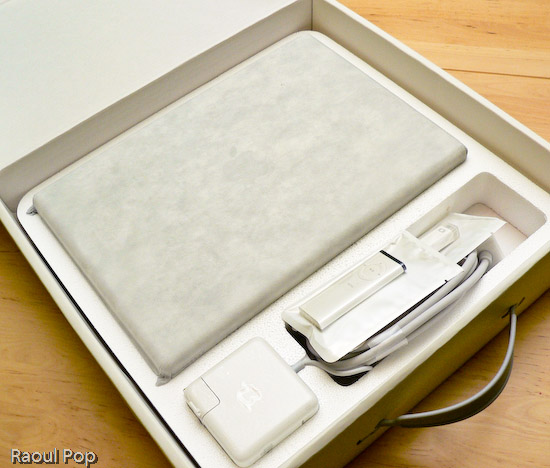
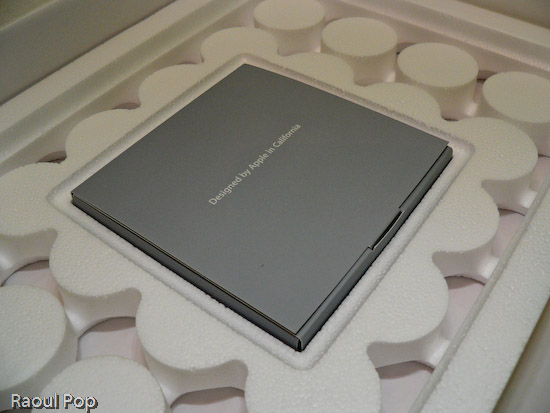
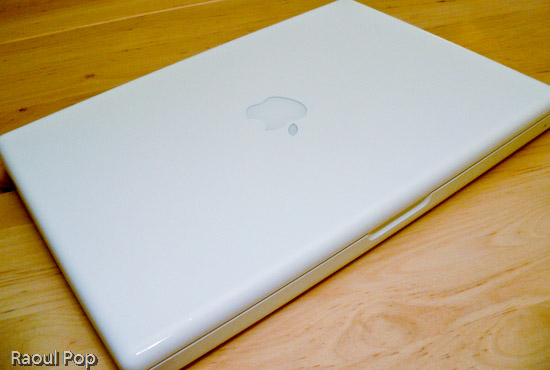
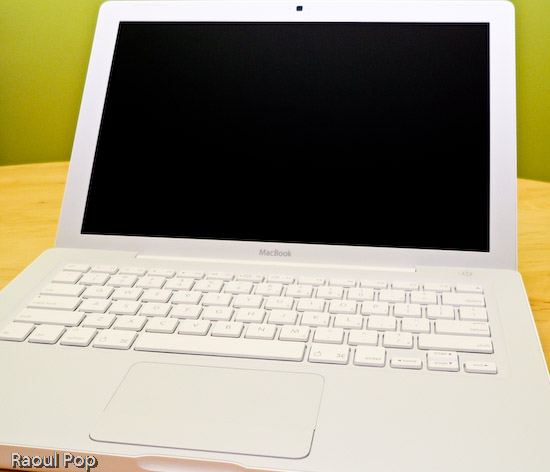
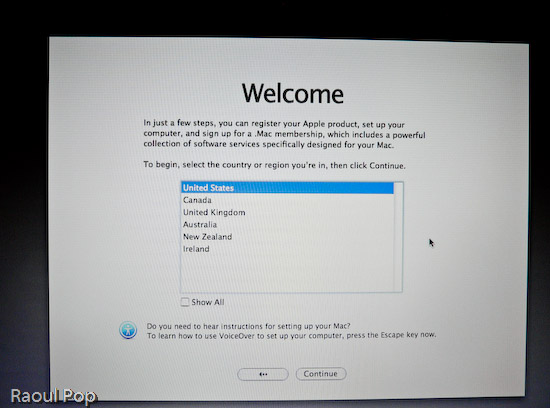
Anyway, the laptop arrived yesterday and I took it out of the box, duly documenting the process with photos. You’re welcome to have a look.

MacBook in its box

MacBook box opened

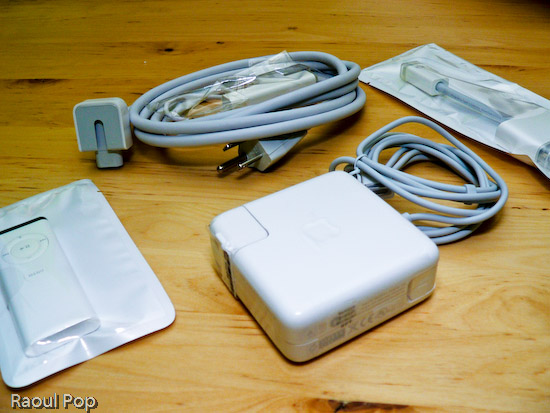
MacBook wires, adaptors and remote control

MacBook DVDs, manuals

13? White MacBook

13? White MacBook with lid open

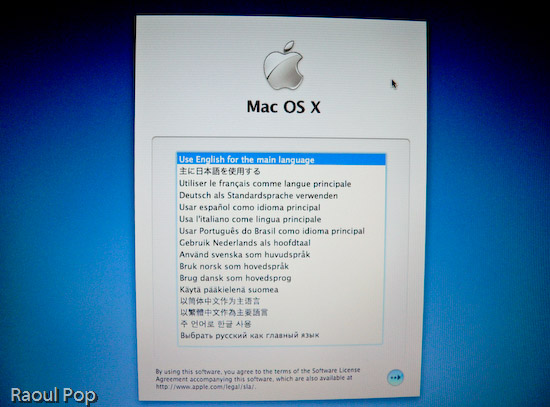
MacBook language selection screen

MacBook welcome screen

Standard
Reviews

ChiliBox, the do-it-all machine

The ChiliBox

I’m pretty impressed with the specs for the ChiliBox. This little machine really seems to do it all, right out of the box, and for a very reasonable price. Given the proliferation of NAS devices these days, you wonder how much functionality you get out of them, and for some, it’s not much. Well, the ChiliBox could be the network server for a small business, eliminating the need for other servers or separate hardware. Have a look at its capabilities below, or check out the full spec sheet:

  • Firewall
  • NAS File Share (works with Windows, Mac and Linux)
  • VPN
  • Web Proxy Server
  • Remote Administration
  • Dynamic DNS
  • Wireless Access Point
  • NAT/PAT and Advanced Routing
  • Email
  • Backup
  • Anti-virus

Do you really need more to run your network? Unless you’re a medium to big company, you don’t. Just plug this in, and you’ve got more than you need to run everything at home or at work. If you need extra storage, just plug in another USB drive. How easy is that!

When I first saw it a few months ago, I said to myself, I’d love to have a small office and have a need to run this thing. Right now, I’ve already spent enough for my existing setup, but boy, I’m tempted to get this anyway…

Standard