Reviews

Using Contenture to handle micropayments

Back in April, I wrote about micropayments, and why I thought they were an equitable way to reward web publishers for their time and effort. I shared my thoughts on ad revenues, which, for most people, are minimal and not enough to live on, unless you are one of the relatively few websites that gets massive amounts of traffic.

In that same article, I also talked about how I thought micropayments should work, via a standard, instant way to charge readers a few cents per article, through protocols that were integrated into each browser. Instead of charging fees for each transaction, which would be impractical for such small amounts, micropayment processing centers would charge for bundles of transactions which exceed a set limit.

Fast forward a few months, and ZDNet publishes an interview with Barry Diller, one of the early Internet millionaires, where he talks about the very same thing: the need to go beyond falling ad revenues by charging small amounts for useful information. That article was hotly debated on FriendFeed, which is where I found out about it. Among the comments, I found one pointing me to Contenture, a newly launched micropayment system (it saw the light of day on 5/26).

contenture

Contenture’s method of handling micropayments is different from what I envisioned, in that it involves a monthly subscription. Here’s how they say it works:

“… a fully automated system that requires no user interaction. Users simply pay a set fee to Contenture on a monthly basis, and that money is automatically distributed to the sites they visit. How much each site gets from each user is determined by how often that user visits that web site, relative to all of the other Contenture sites they visit. Users get their seamless experience, and the site actually makes money. Everybody wins.”

So what’s involved on my end? I installed Contenture’s WordPress plugin and pasted in an extra line of code to customize the ad hiding behavior. Others might need to paste a Javascript snippet in their footer, which is basically what the plugin does for you.

On your end (the reader), the code will check to see if you’re a Contenture user, and will automatically distribute your subscription fee to the websites that you visit, based on how often you visit each site. As an immediate benefit, all ads on my site are hidden from you. They’ll load as the page loads, but they blink out of view and the ad space collapses unto itself as soon as the page finishes loading. It’s pretty cool.

Other benefits I might be able to offer you in the future are the ability to view exclusive content, or perhaps to even close off the archives to those who aren’t Contenture users, although I’m not too keen on that, since Google won’t be able to index me properly any more if I do it. At any rate, the ability to offer more benefits is built in, and that’s nice.

Contenture’s model is opt-in (also called freemium) and so it has some limitations, in that I don’t get paid for everyone that accesses my content. My micropayment model, the one I envisioned and the one Barry Diller and others are talking about, is standardized across platforms and browsers and works for everyone, all the time. Eventually, I think we’ll get there, but Contenture has made a good start of it, and they did it now, which is why I signed up with them.

To let site visitors know they can support my site, I placed a small link in the header, as you can see below. I also have a link in the footer, also shown below.


header-screenshot

footer-screenshot

I look forward to seeing Contenture’s user base grow, so I can tell whether I’ve made the right choice. I want to keep writing and publishing online for a long time to come, but the only feasible way for me to do that is if I get rewarded properly for my efforts. I believe micropayments are the way to do it. It’s affordable for the readers, and it scales up nicely for me, the web publisher. Time will tell exactly which micropayment method will work best, and you can be sure I’ll continue to monitor the options available out there.

Standard
Reviews

Netflix Watch Instantly comes to the Mac

On October 27 (last month), Netflix started testing a new way to stream movies for its Watch Instantly feature. They began using Microsoft’s Silverlight player, which is platform-independent and can still handle the DRM that movie studios love so much. This meant that Mac users were no longer left out of the picture, and could finally watch Netflix streaming movies on their machines.

On October 31, they finished their first round of testing and allowed all Netflix customers to opt into the new feature. They cautioned users that there might still be some bugs and lower-than-expected quality on some movies. I started using the new feature immediately, and after having watched a few movies, here are my impressions:

  • Streaming quality is indeed a bit lower than expected on some movies, and during some scenes. Not sure why, but it’s not prevalent, and will likely be addressed soon.
  • PowerPC Macs are left out of the picture, not due to Netflix, but Microsoft, who have not released a version of Silverlight for PowerPC Macs — I doubt they will, unfortunately. This means our iMac G5, which now works great (after repeated trips to the Apple Store for repairs), will never be able to stream Netflix movies. I think that’s pretty sad.
  • Silverlight doesn’t come with any preference pane for Macs where its various options can be adjusted. This means that unless certain of its built-in options are adjusted “from the factory”, so to speak, your Mac’s screen will go dim and your screensaver will come on while you’re watching a movie on full screen. Your Mac might even go to sleep. Every time the screensaver comes on, Silverlight exits full screen mode. This gets old pretty quickly, as you can imagine, and it’s not ideal by any measurement.
  • Movies cache and play much quicker than before.
  • Netflix will remember where I stopped watching a movie, and will bring me back to that exact point when I log on again and hit play on a title. I watched a portion of The Adventures of Baron Munchausen while logged onto Netflix from Safari, then went to bed; the next day, I logged on through Firefox, clicked on Play, and almost instantly, the movie started playing from the very spot where I’d stopped watching.
  • Did I mention we can watch streaming movies on our Macs, finally? This is incredibly cool!

I couldn’t be happier with Netflix. As a service, I think it’s one of the best business ideas that was ever put into practice. It fulfills a customer need at a reasonable price, and (at least for now), that price includes the ability to watch a LOT of streaming movies at no extra charge. I say “for now” because, let’s face it, there are costs associated with licensing and serving streaming movies (copyrights, hardware, bandwidth, overhead, etc.), and at some point, I think Netflix will have to adjust its prices to reflect this. I don’t think the price changes at that point will be big, but as more and more people start using the Watch Instantly feature, the extra usage will need to be taken into account.

I also believe that long-term, Netflix intends to emphasize its movie streaming service and slowly phase out its DVD mailers. It won’t happen until they can ensure a ubiquitous streaming experience for its customers, and that means flawless streaming for TVs and computers alike. They’ve already made incredible inroads with Roku, Xbox 360, and with Tivo, which can all stream Netflix movies directly to TVs. Now that you can watch streaming movies on both Macs and PCs, things are looking better and better, and Apple TV looks more hamstrung than ever.

Standard
How To

Use a Nokia N95 as a Bluetooth modem on a Mac

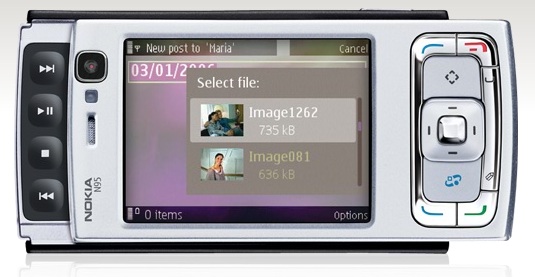
One of the reasons I bought a Nokia N95 was the ability to tether it as a Bluetooth modem on my MacBook Pro. I wanted to access the internet via my mobile phone if I’m away from home or from a WiFi spot. While Nokia’s PC Suite of applications includes an option to tether the phone to a Windows machine with just a few clicks of the mouse, it’s not that simple for the Mac.

Fortunately, once you go through a 5-10 minute initial setup process (outlined below), connecting to the net via the N95 becomes a simple matter of two mouse clicks. Keep in mind that this tutorial will help you configure a Nokia N95 phone only for the T-Mobile network; you’re on your own when it comes to other service providers, but the process should be fairly similar.

I’m indebted to this pre-existing tutorial from The Nokia Blog. However, I found the instructions a bit confusing, as the Mac OS X operating system has been updated since and the network preference screens don’t look the same. Consider my post an updated tutorial, with screenshots from the current Mac OS X (10.5.5).

1. Get the 3G modem scripts for Nokia phones from Ross Barkman‘s website.

Look for the section called “Scripts for Nokia 3G (EDGE/UMTS) phones”.

He’s written numerous such scripts and posted them for download on his site. They work fine for countless people, so please, if his script works for you, show your thanks by donating a few dollars to him.

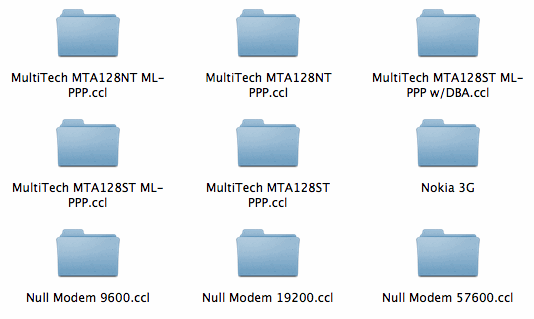
2. Drop the “Nokia 3G” folder containing the modem scripts (yes, the entire folder), in the /Library/Modem Scripts/ directory at the root level of your Mac’s hard drive.

It should look like this once it’s in there:

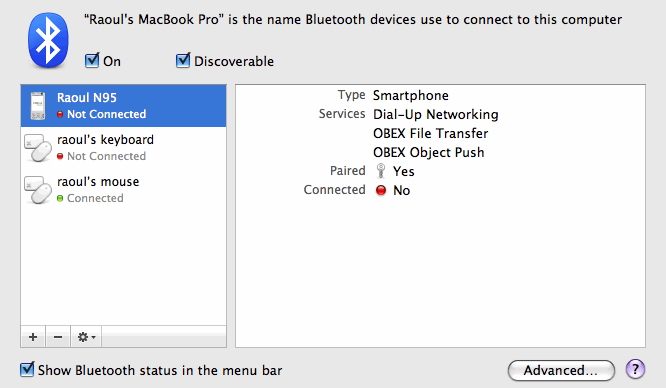
3. Add your Nokia N95 phone as a paired Bluetooth device.

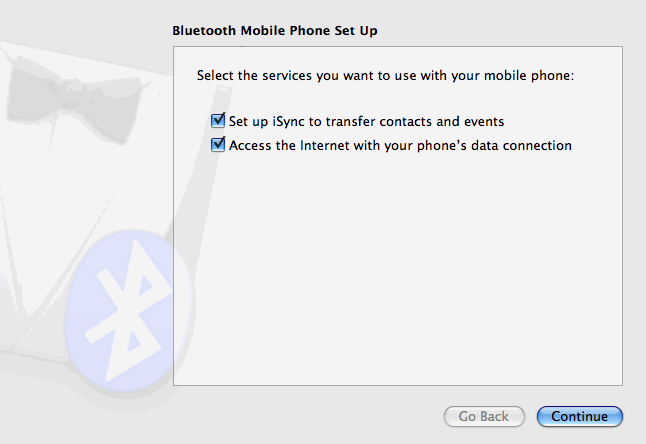
If you haven’t added your phone as a Bluetooth device yet, click on the plus sign in the lower left corner and go through the wizard to add it. Make sure to check both boxes shown below, and to pair it as well.

If you have already added it as a Bluetooth device, you may want to run through the configuration wizard again, making sure to mark both checkboxes, as seen below. Click on the phone to select it from the list of Bluetooth devices (see screenshot above), then click on the little gear icon in the lower left corner of the dialog box and select “Configure this device”. You will get the following screen. Click on Continue and run through the wizard to the end.

4. Configure the Bluetooth service preferences.

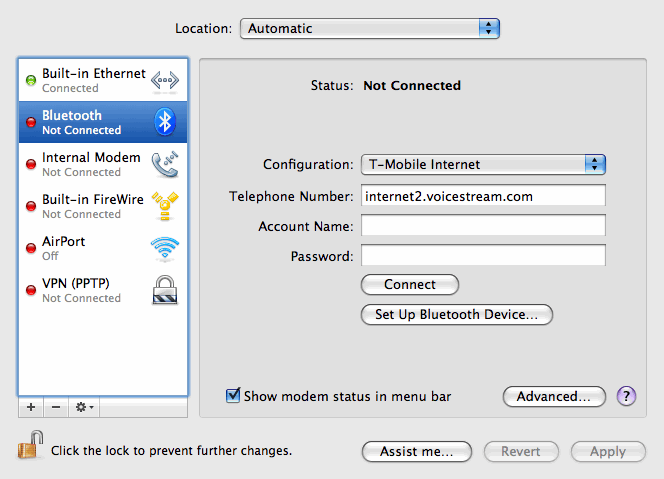
Go to Network preferences. Here’s where you have a choice. If you’re going to want to use multiple mobile phones or Bluetooth devices as modems, you may want to duplicate the existing Bluetooth service and configure each copy separately, naming them accordingly (Nokia N95, iPhone, etc). To do that, select Bluetooth, then click on the little gear in the lower left corner and select “Duplicate Service”.

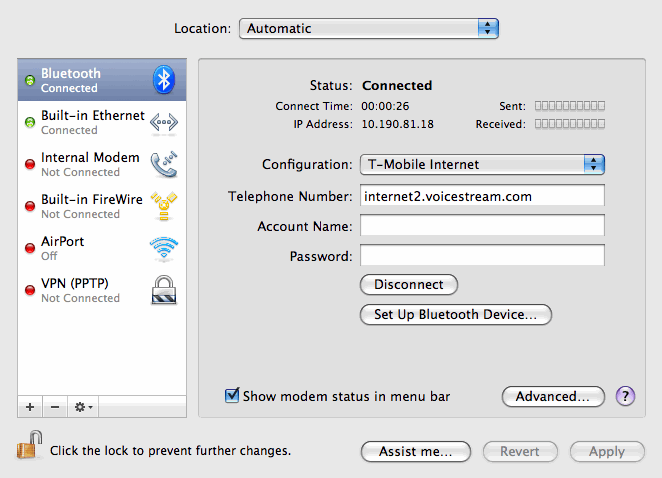
I’m only going to use the Nokia N95 as a Bluetooth modem, so I chose to work directly with the existing Bluetooth service, as you can see below. To do that, click on the Configuration drop-down menu and choose “Add Configuration”. You’ll be asked for a name. I named it “T-Mobile Internet”. In the Telephone Number field, I put “internet2.voicestream.com”.

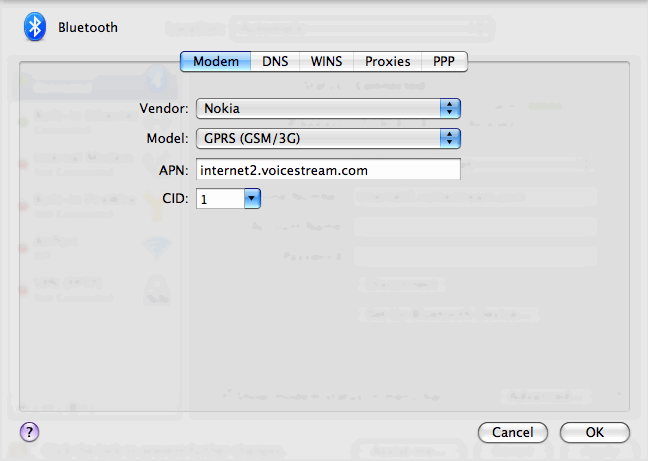
Now click on Advanced, and you’ll get a whole series of preference panes. Modem is the first one. Make sure the information matches what you see below.

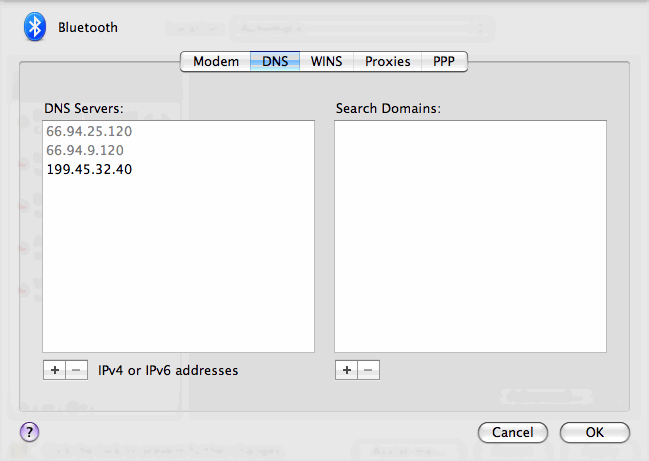
Now click on DNS. Some say you should pre-fill DNS server addresses, because your mobile service provider may or may not give them to you. Thankfully, T-Mobile will automatically assign you two DNS server addresses when you connect, but just to be on the safe side, grab one or two more DNS addresses from a public DNS server list like this one and add them to the DNS preference pane. If you look below, the two DNS addresses that are grayed out were automatically assigned by T-Mobile after I connected through the phone, and the single address in black was the one I manually added.

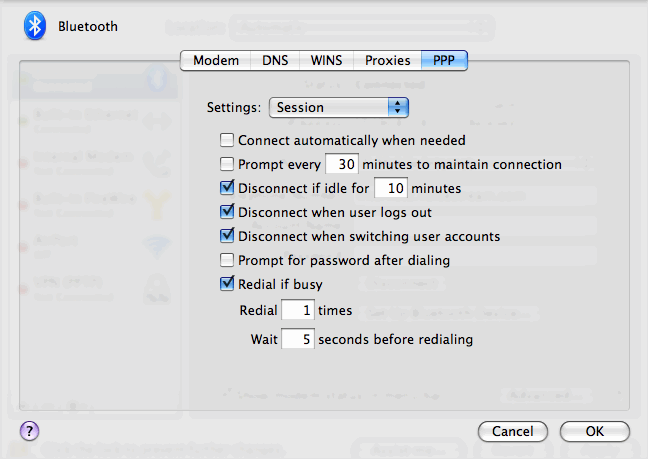
Don’t worry about WINS or Proxies, go to PPP, where you’ll have a drop-down menu. The Session options on the PPP preference pane should look like this:

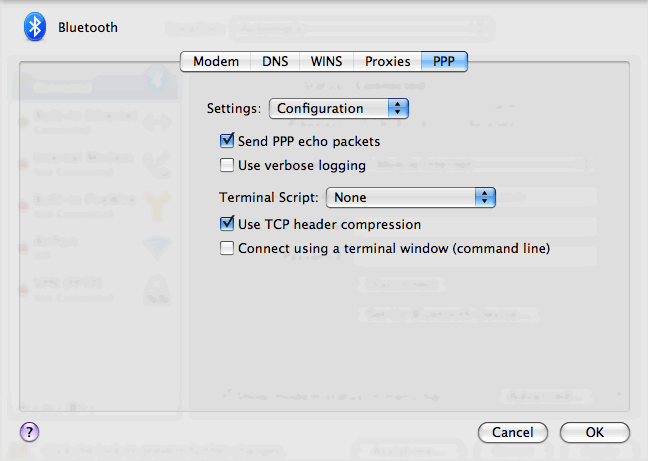
And the Configuration options on the PPP preference pane should look like this:

Some people say you should disable “Send PPP echo packets” and “Use TCP header compression”. I left them enabled, and my connection works just fine. But, if you should have problems connecting and staying on, you may want to disable them. Just uncheck them and hit OK.

5. Apply the changes and click on Connect.

The Bluetooth modem status should change in the menu bar and first say “Connecting…” then “Authorizing…”. After it connects, it should show the time elapsed since the connection started, like this:

There’s one thing I haven’t been able to figure out though, and I would appreciate your help on this. Getting the Mac to connect to the internet reliably through the phone, every single time, is still something that I need to work out.

That first evening after I configured things as outlined above, I was able to connect and disconnect at will. However, the second morning, I got a “Could not authenticate” error. I clicked on the “Set Up Bluetooth Device” (shown above), and re-configured my N95 (as detailed in Step 3). After that, it was okay for the rest of the day, but the same connection issue re-surfaced the next day. I’d read that keeping iSync open while you connect will help, and I tried it, but it didn’t seem to work reliably for me. What has seemed to work is logging in and out of my account on the Mac, and rebooting the phone.

It seems that Nokia would be best equipped here to make things easier and more reliable. I do wish they’d release a tethering app for the Mac, just like they released an iSync plugin that lets the N95 sync with the Address Book and iCal. Until then, you can try any of the following workarounds when you experience connection issues:

  • Re-configure the phone as a Bluetooth device (as outlined in Step 3 above)
  • Disable “Send PPP echo packets” and “Use TCP header compression” in the PPP Configuration preference pane
  • Open iSync before you try to connect to the Internet through the phone
  • Log out of your account on the Mac and reboot the phone

Once the phone is tethered properly, it’s an enjoyable experience. There’s a newfound freedom I feel when I can go online from just about anywhere. There’s something elegant in using my phone as a Bluetooth modem. It can stay in my pocket or on the table next to my laptop, tethered wirelessly, still working fine as a phone while also letting me get on the Internet. Cool stuff indeed.

Standard
How To

How to get T-Mobile Total Internet at 42% off

It’s easy: sign up before 11/1/2008. Why? Because the price will apparently go up to $35/month on or around that date, according to T-Mobile Customer Service.

Updated 10/27/08: Please see this comment below for an up-to-date clarification of the planned price increases. It’s not as bad as I originally thought, but a price increase will still take effect [source].

Updated 11/24/08: It looks like the rate hike will take effect on 12/1, not 11/1. And it also looks like G1 users will have to move to the new, more expensive plans, even if they signed up before the rate hike.

T-Mobile’s current Internet/Data plan for smartphones (it’s called T-Mobile Total Internet) costs $19.99/month, and includes either EDGE or 3G speeds, depending on your area. If you live in the Washington, DC area, like me, you’re currently getting EDGE speeds, but should be upgraded automatically to 3G by the end of this year.

Starting around 11/1/2008, T-Mobile will increase the price for the plan to $35/month, probably because of the G1 smartphone they’re launching, and the extra demand that’s going to place on their networks. I’m guessing they have some infrastructure upgrades to pay for. If you get the Internet plan now (which is what I did) the price for it will stay locked at $19.99/month for as long as you’re with T-Mobile. That’s what I was told by T-Mobile Customer Service yesterday afternoon.

That means you’ll be saving $15 (42%) every single month while others are going to pay $35, and you’ll get the same speeds they’re getting.

Standard
Thoughts

Where are the Condensed Knowledge posts?

Good question. Some of you have gotten quite accustomed to those daily Condensed Knowledge posts, and they’ve gone AWOL since last week. On the other hand, others have told me they were distracting, and detracted from the substance of my site.

I’d been giving the matter some thought myself, and in the end, sided with the folks who said I should stick to writing original content. You see, while I enjoy sharing the information with you, and while I also believe that it’s important to highlight valuable content on the Internet, those posts were distracting me from writing. Since I had something to post every day, other than my own writing, I tended to do less of it, and that was not good.

So, for the time being, no more Condensed Knowledge posts. That’s not to say you can’t access them anymore. You still can, but in a separate feed: feeds.feedburner.com/FavoriteBlogPosts. Subscribe to it if you’d like. The feed is actually more reliable than the method I used with the Condensed Knowledge posts, which was to share items from Google Reader, publish them to Twitter, then use the Twitter Tools plugin to collect them in a daily summary. That method was highly dependent on Twitter’s uptime/downtime, and that meant you weren’t getting the full link list every day. With the feed, you are getting everything I share from Google Reader.

I can’t deny I’d rather have the same link summaries present in my site feed, just like with my daily del.icio.us links, and perhaps at some point in the future that’ll be possible, but until then, the separate feed will do just fine.

If you have any questions, let me know in the comments and I’ll see if I can answer them.

Standard