How To

A look at hard drives: finding the best deals

Given my recent push to find a feasible solution for my photo library, which resulted in the purchase of a Drobo (three, actually, but that’s beside the point), I’ve gotten to know a bit about hard drive prices. Here are my two cents on the issue.

Keep in mind that this advice is applicable only during the present time, since prices will continue to fluctuate and larger hard drives will become available, driving down the prices for the smaller ones. Let me also say that if you didn’t get your hard drives before, during or after Christmas, you missed out on some great deals.

Right now, the most economical drives (best size to price ratio) are the 500 GB ones. You can get great SATA drives with 16 MB caches (current standard size), 7,200 rpm and 3.0 GB/sec transfer speed at $120 (retail-boxed; OEM drives are cheaper).

If you must get a drive smaller than 500 GB, you can, but it’s not economical. The price per GB starts to go up once you go smaller. It’s about the economics of the thing. Regardless of the actual size of the drive, the price of the components and labor has to be factored in. Even if the drive is smaller in size, and it stands to reason that it should be cheaper, it costs money to put it together, and that cost is fairly inflexible. That’s why you may gasp when you look at the prices of 40 GB or 80 GB drives (if you can still find them) and you wonder why they cost so much when no one uses them anymore.

Back to bigger drives. I remember just 1-2 months ago, the 750 GB hard drives were double the price of the 500 GB ones, but the prices are coming down. In just another few months, or even less than that, they will close the gap and become the most economical drives you’ll find. That time isn’t here yet though. Right now, the least expensive 750 GB drives (retail-boxed) I can find start at $199. If 500 GB can be gotten for $100-120, then, proportionally speaking, 750 GB drives should be $150-180 in order to be as economical as the 500 GB drives. Not yet.

Updated 2/27/08: The 1 TB (1,000 GB) drives have just dropped in price enough to be just as economical as the 500 GB drives. I’m very surprised that it’s happened this fast. The market has leapfrogged the 750 GB drives, as I thought it would. I’ve seen the WD 1 TB SATA drive pictured below for as as low as $230.

The 1 TB (1,000 GB) drivesaren’t economical yet, either. It’s likely that in 6 months or so, they’ll get to be great deals. It’s even possible that market forces will cause the prices to leapfrog over the 750 GB drives and push the 1 TB drives to the forefront. Right now, the least expensive 1 TB drive comes in at $260, which is more expensive than if you were to get two 500 GB drives. Keep in mind I’m talking strictly about the GB to price ratio here, not the convenience of having a single drive instead of two, which trumps the price difference somewhat.

Because I have a Drobo, I’m isolated somewhat from having to worry about whether I have a single drive or two drives. I can still get plenty of space if I stuff my Drobo with four 500 GB drives, then replace them with 750 GB or 1 TB drives later. Or, even better, I can take the wait and see approach. Right now, there’s plenty of space on the Drobo that stores my photo library, even with only two 500 GB drives inside. That means I can wait till the bigger drives get cheaper and buy an extra drive at that point.

Similarly, the Drobo that stores our movies and videos, plus our various other files, is doing just fine with three 500 GB drives. I don’t think I’m going to fill it up in the next month or two, and that means I can wait until the 750 GB drives, or maybe even the 1 TB drives, become economical.

With hardware, it’s about striking the balance between what you must have, and what can wait. Thankfully, even 500 GB is a ton of space for most people, so it’s a buyer’s market, as they say.

Another thing you can look at, once you know the prices of internal hard drives, is the prices of external drives. When you know how much an internal drive costs, you can subtract it from the cost of an external drive and figure out how much you’re paying for the enclosure and design alone, and whether it’s worth it to buy it.

This is why I said that the 500 GB LaCie drive was a bargain, and why I recommended that people buy it. Given that you can get a 500 GB drive for $100, and the drive costs $118 (at one point it cost only $109) you know this is a bargain. You’re paying only $18 to get the drive packaged nicely in a great USB 2.0 enclosure that makes no noise. Having fiddled around with plenty of enclosures in my time, I know a great deal when I see one.

By the same token, when you look at the G-Tech Quad Interface 500 GB drive, you know that’s not a bargain. When the drive itself costs only $100 and you pay $270 to get the drive and the enclosure, that means you’re paying $170 for just the enclosure and the quad interface. Is that worth it? You decide.

Don’t think I’m implying your decision has to be guided by price alone. While I dislike paying a premium for a product, I do it if I think it’s worth it. I think the Drobo is overpriced. I still bought three of them and I recommend them to others. I think Apple products are overpriced, but I still buy them and recommend them to others. (You’ll have to excuse my tone in that post — I was seriously irritated with Apple at the time, but what I said was true.)

It’s just that it’s worth knowing what you’re buying. If you’re going to spend your money on something, then you should do the research to back up your purchase decision. This is also why I’m steamed up about Apple’s non-transparency when it comes to their hardware specifications. I don’t know what I’m buying, and it bothers me. It doesn’t mean I don’t want to buy, it’s just that I’d like to know where my money’s going.

I hope this has been helpful to you.

Standard
Reviews

The next stage for Lightroom

Adobe LightroomI am a happy user of Adobe Lightroom. It has helped me get a handle on my growing photo library. While it largely replicates the functionality of Adobe Bridge, it does so with a much better interface, and includes extra functionality that makes its price worthwhile. I do most of my photo processing in Lightroom these days, and don’t go into Photoshop unless I absolutely need it.

There are a few things that need to change in order for Lightroom to become a truly valuable addition to a digital photographer’s tool set. Sure, there are some small features that could be introduced here and there, and there are some bug fixes that need to occur as well. By and large though, what I see as the biggest needed improvement can’t be explained in a few words. It requires a more detailed explanation.

Say someone starts getting into photography in a serious sort of way. They begin editing their photos on their computer, and soon find, as they get into the several hundreds and thousands, that they need something to help them organize and manage their photos. Right? Well, say they get Lightroom. They’re happy campers now. They take more photos, and then even more. They can edit the meta-data, batch process photos, export for web and print, put together photo galleries, etc. It’s great!

Here’s where things start to get tricky though. As that photo library gets bigger, it needs to be moved off the primary computer, be it a laptop or a desktop machine. Its sheer size demands a large external device, and hopefully one that stores the data in redundant fashion, to guard against hardware failures. Well, no problem, they get a huge drive and move their photos onto it. That drive is connected via USB or Firewire, and they continue to work with Lightroom. Things are just peachy.

Guess what: at some point, that photographer will need to shoot on location. They’ll take a trip either out of town, or out of the country. If they don’t have a laptop already, they’ll need to get one, because every digital photographer knows they’ll very likely need to process some photos on location, away from home.

But guess where their photo library is? It’s at home, of course. So what do you think happens when you open Lightroom while you’re away from your photo library? Why, you can’t! It tells you drive X is not available. (I should specify this occurs when the Lightroom library is stored on an external device. You can, of course, store the library locally and the photos externally, but as the library gets bigger, you’ll run into space problems. I did.)

So what can you do? You can create a new photo library, import the photos into it, and work with them that way. But wait a minute? Where’s all that beautiful meta-data that you worked so hard at? Where’s your keyword database, with its hierarchical structure, so you can tag easier without having to remember all the keywords you’d want to use? Where are all your locations? Where are your collections? Nowhere. You have to start fresh, and then when you get home, you have to re-import those photos into your main library, then reconcile keywords, locations, etc. It’s just not pretty, and it’s not practical. And on top of that, you may run into certain import bugs

What Lightroom needs is the ability to have a two-part library: a portable, main library, that travels with the machine where Lightroom is installed, and an archive library that can sit on an external device, or multiple external devices. This is NOT the same as the Vault concept one finds in Aperture. No, it goes far beyond that. The Vault concept is meant for backing up the photo library, but doesn’t address the problem of running out of space in the main library. It simply allows you to back up your work on multiple devices.

Hear me out, because I realize the concept I’m introducing is a bit complicated. The Lightroom user needs to have the ability to have access to all of their meta-data from all of their photos while traveling or while away from their main photo library. It doesn’t matter whether that person uses a laptop or a desktop. If they separate their computer from the external device that hosts their photos, they should still be able to have access to their photo library — everything but the actual photos which are to be found elsewhere.

Huh? Stay with me on this one. This isn’t the same thing as having your photo library on the laptop itself instead of the external drive. In that case, should you have your laptop with you, only the photos stored on the laptop will show up in the library, while the ones to be found on an external drive will not show up when you open Lightroom. But this points out two problems.

One, you’ll run out of space on your laptop very soon if you have a large library, even if you store the bulk of your photos elsewhere, because Lightroom builds either full-size previews, or fairly large ones (you decide this in the Preferences). Those previews are stored with the photo library, and if it resides on the laptop, the drive will fill up pretty soon.

Two, simply making those photos stored externally unavailable when Lightroom is separated from the external device doesn’t help you much. You need to be able to see at least the thumbnails, and have the meta-data available for searching, not crossed out or grayed out.

Let me outline the main points of my proposed functioning for the Lightroom library. Perhaps this will make it easier to understand:

  • A two-part library. A local/portable one, that holds all of the meta-data and thumbnails, plus a portable collection of photos that the photographer would like to have ready for processing and use no matter where they are. And the main/archive library, that holds a backup copy of the library’s meta-data and thumbnails, plus all of the photos that have been moved off the local/portable library.
  • Obviously, the ability to move photos freely from the local/portable library to the main/archive library, as needed. This would allow the photographer to decide which photos to keep local and portable, and move others to the archive in order to save space on the laptop or desktop that they’re taking with them on location.
  • The two-part library syncs the meta-data and thumbnails automatically and perhaps offers choices for conflicting data when the external device that holds the main/archive library is reconnected to the laptop/desktop.
  • Just to make things clear, the local/portable library would hold meta-data, thumbnails for all of the photos in the library, plus whatever group of photos the photographer decides to keep local. This would keep its size small and portable while allowing the user to view thumbnails for all of the photos in the library even when away from the archive library. They would even be able to do searches on the meta-data and update it as needed. The changes would sync when the archive would be re-connected. The photos stored in the archive would be marked by a special border or icon to let the user know they’re not available in their full size while the archive would be disconnected.

This is the sort of functionality I will expect from Lightroom. It would make it a truly powerful and portable piece of software. I know some people say that Bridge does the same things, but I’ve used both, and I like the Lightroom interface a LOT more.

Standard
Reviews

Hardware review: Drobo

Updated 1/14/19: I have revised my opinion of Drobo devices. After experiencing multiple, serious data loss events on multiple Drobo models, even recent ones, I no longer consider them safe for my data.

Updated 3/18/09: My review of the new Firewire Drobo is now published. You may want to have a look at that as well.

The Drobo is a new way to store your data. It works like RAID, only better. Made by Data Robotics, the Drobo is an enclosure that can use anywhere from 2 to 4 SATA hard drives of any size and brand to keep multiple copies of your files and ensure against hard drive failures.

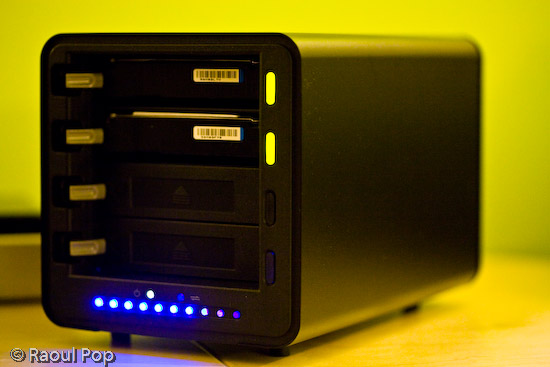
Drobo (front view with cover on)

It’s all about the data

The main advantage is that consumers are freed from the problem of having to use identical hard drives (which is how things work in RAID) and can rely on the largest and cheapest drives they can find on the market for their data storage. In a word, the Drobo turns hard drives into a commodity, a building block of your data storage that can be replaced at any time with any SATA hard drive without negatively affecting your data.

Depending on the amount of total space available on the Drobo, it can withstand the failure of one or even two of its hard drives without losing any data. (Naturally, you’ll need to have more than two hard drives in there in order for it to protect against a double hard drive failure…)

It is its capacity to withstand drive failures and use any SATA hard drives that makes it both remarkable and unique for a consumer product.

I bought a Drobo a few weeks ago, and have been using it since to store my photo library. You may recall I first tried a WD My Book World Edition II, then a WD My Book Pro Edition II to store my photos, and both failed me. The My Book Pro failed me miserably, but that’s another story. (Incidentally, I’m working with WD’s advanced tech support to see if my issues can be resolved, so I may have an update on that in the near future.)

I believe I’ve finally found my storage solution with the Drobo. It offers the data redundancy I need to keep my over 36,000 photos alive and well, and it works on both my Mac and my PC. Not only that, but I know it will grow with me as my data storage needs expand.

➡ Updated 1/6/08: Since writing this article, I purchased two more Drobos. An additional one to store my videos and other files, and one more for my parents.

How it works

I bought two 500 GB SATA hard drives with 32 MB buffers and installed them in my Drobo. Installation is a snap, you just need to slide them in and a locking lever snaps into place, securing them in their slots. (If you think a 32 MB buffer is overkill for a hard drive, you might want to have a look at my review of the Dell OptiPlex 745.)

The two drives give me about 464 GB of total storage. There’s a wonderful tool called the Drobolator that lets you see exactly how much storage you’ll get with your Drobo when you stick in drives of various sizes.

Drobo (front view with cover off)

There is one detail I want to point out here that you may or may not be aware of, depending on how well you read through the Drobo literature. Because there’s an upper limit of 2 TB on a single USB volume, if your Drobo’s storage capacity exceeds that limit, your computer will then see two Drobo volumes.

Let me put it another way. If you use the Drobolator and you stick 4 (four) 1 TB hard drives into the Drobo, your total available storage will be 2.7 TB. This means, according to Drobo’s literature, that you will see two volumes on your computer. (This is because of that pesky 2 TB limit on USB devices.) Given that USB 3.0 specs are in the works now, and that Data Robotics has acknowledged they’re looking at the possibility of Firewire connectivity in the future, that may be a non-issue at some point, but it is something to know about now.

Updated 1/17/08: Data Robotics will soon release a firmware update that will bump the upper limit up to 16 TB for a single USB volume. Those who already own the DroboShare accessory will already be able to format the Drobo volume at 16 TB. To get the details on how this works, read my comment below.

The perceived vs. actual size of the volumes can be confusing, so let me explain it a bit further. Even now, my computer sees my Drobo as having a size of 2 TB. The Drobo only has 2×500 GB drives in there, and the total size of my available storage is 464 GB. But since the Drobo’s storage can expand or decrease, and it needs to be a platform-independent device — one that does not depend on the computer for sizing information or partition tables — it has to declare its maximum size (2TB) from the start. That’s the perceived size. The actual size is indicated by the capacity meter, and if you’ve installed it on your machine, the Drobo software, which communicates with the device and displays information from it locally. In our case, if we were to put in 4×1 GB hard drives in the Drobo, we would have two actual volumes: a 2 TB volume, and a 700 MB volume. Their perceived size will be 2 TB each. If this is still confusing to you, don’t worry. Just go by the Drobo’s capacity meter to monitor how much free space you have left, and don’t worry about the perceived size.

Transfer speeds

Some people are saying that it’s slower than other storage solutions. In terms of speed, I’ve found it to be equivalent to RAID 1 drives like the My Book Pro II (which can be configured in RAID 0 or 1). I haven’t done benchmark testing, and I don’t intend to — I focus on real world use in my reviews, not lab tests — but it’s not what I’d call slow, and it’s not what I’d call fast. It’s somewhere in the middle, and it’s good enough for me. I’m willing to give a little when it comes to transfer speeds in exchange for data redundancy and safety.

Updated 5/1/08: When the Drobo will get up to and a little over 70% used space, and even before the orange light will turn on in a drive bay to indicate that you need to puchase additional hard drives, the transfer speeds will start slowing down. I’ve experienced significant slowdowns in transfer speeds, to the point where copying a 1 GB file onto the Drobo takes 10 minutes or more (when it usually takes 1-2 minutes) when the used space was 80% or more, and the orange light wasn’t yet turned on. You may want to keep this mind as you plan your storage needs. As soon as I put in another drive and the used space dropped back down, the transfer speeds went back to normal.

Updated 7/1/08: Data Robotics has released a firmware fix for the issue pointed out above, and it doesn’t occur any longer.

Updated 7/15/08: Data Robotics has recently released the Drobo 2.0, a Firewire/USB version of the Drobo, which is much faster than the original USB-only Drobo.

How it looks

In terms of physical size, or footprint, you should know that the Drobo is significantly larger than other consumer-level storage products out there. It’s big, as you can see from both the photos and the video that accompany this review. If you’re thinking about buying it, make sure you have enough space on your desktop to accommodate it.

Drobo (top view - size comparison with other external drives)

In the photo shown above, I’ve got a NewerTech miniStack (1st generation) sitting next to the Drobo. I’ve also got a WD Passport Drive on top of the miniStack. This is to give you an idea of how it compares to other external hard drives. The miniStack, for example, is the same size as a Mac Mini, and is actually meant to be stacked with it. I’m using it as a standalone drive, because it has both a USB and Firewire hub built in, so it’s quite versatile.

I like the design of the Drobo. I like rounded corners and glossy surfaces. Apple has spoiled me that way. The Drobo’s black, glossy ends (front and back) are really beautiful.

How it sounds

I think it’s quiet — when not accessed. Even though it has a big fan in the back, it makes barely any noise. The Drobo becomes audible when you are reading or writing to the hard drives. Because it’s a metal enclosure, the sounds generated by the seek operations are amplified slightly by it. The metal adds a melodious echo to each sound. It’s not what I would call loud, and I find it somewhat interesting. Ligia doesn’t share my opinion, but I guess you can’t please everybody. At any rate, just be aware of the fact that you will hear sounds coming from the Drobo when you’re actively using it.

Updated 4/2/08: I had some noise issues with my Drobos, which were resolved nicely by Data Robotics. You can read the details at the end of my review.

Updated 5/1/08: When you fill up the Drobo (all four drive bays are taken) you will notice that the fan will kick into high gear a lot more often, and even when the Drobo is barely being accessed, or not even accessed at all — only plugged into the computer’s USB port. It’s not an overheating issue, because I put my finger on all four drives, and they weren’t hot to the touch, only warm, so I think it’s a firmware issue. This has happened with two of my Drobos. It seems that if the temperature gets above 75 degrees Fahrenheit in the room, the fan will start spinning faster, and if it gets close to 80 or over it, the fan will start going nuts and will generate quite a bit of noise. For a consumer device which isn’t meant to sit in a server room (controlled temperature environment), I think this is excessive, and the fan speed needs to be adjusted in one of the next firmware releases.

Drobo (back view)

Video review

I hope this video will give you a better idea of Drobo’s looks, size and functioning, as well as its sounds. I tried to make the video as useful as possible by looking at the Drobo from various angles and by comparing its size with other external drives that I own. I also pulled out one of the drives with the Drobo turned on, so you could see that that they’re hot-swappable and that it wouldn’t miss a beat. You can also watch it here, and download it as well.

If you’ve just finished watching the video, don’t worry, the hard drive status lights stopped blinking after the data check. It’s just that when you remove a drive and stick it back in, the Drobo does a thorough check to make sure all the data that should be there is there. It may even re-sync all the data across the drives. It took a few hours for that check to complete since I had over 300 GB of data. By the way, all of it (the data, that is) was accessible during the check, so yes, you can work with the Drobo immediately after you do a hard drive replacement.

A few thoughts on the design

I like the idea of the lights on the front of the drive. It’s great to have an easy-to-use capacity meter, and to indicate the health of each drive through different-colored lights next to it. What I don’t like is the blue LEDs used for the capacity meter. They’re very blue, and very strong.

Generally speaking, blue LEDs cause headaches, because the eyes can’t focus properly on them. They always seem out of focus when you look directly at them. Every time I see blue LEDs on something that’s meant for constant use I cringe. Fortunately, the Drobo isn’t meant to sit directly in front of the user, but off to the side, which is where I have it.

It would be nice if Digital Robotics would do something about the capacity meter in their next build of the Drobo. They could even leave the blue LEDs in there, but obscure the light slightly by orienting them at an angle instead of having them point straight out toward the user. I’ve found that when I look at blue LED light from an angle, it doesn’t cause the same vision problems.

Drobo (front view with cover off)

I like it

Is the Drobo a keeper? I think so. I’m happy with it. Even though there are a few sticking points, it’s nothing that would have dissuaded me from buying it, even if I had known about them beforehand. As a matter of fact, I’m so satisfied with it, that I signed up for the Drobo Evangelist program. That means that between now and December 31st, if you buy a Drobo from the Digital Robotics online store and you mention my evangelist code (EVPOP), you’ll get $25 off its purchase price. In the interest of full disclosure, you’ll also help me, because I’ll get $25 for each successful sale as well. Remember, this is only until 12/31/07, unless Data Robotics extends the program — and I haven’t heard anything about that. (Updated 1/2/08). I heard from Data Robotics today: they’ve extended the evangelist program until 6/30/08. That means the discount code will work until June 30th if you decide to use it.

Let’s review

The good points:

  • Data redundancy ensures availability, even if up to 2 hard drives fail
  • Virtually unlimited data storage (but remember the 2 TB limit for each volume when connected through USB 2.0)
  • Independence from hard drive size and manufacturer: as long as it’s SATA, it’s fine
  • Size can expand as your storage needs grow
  • Great design
  • Ease of use

The sticking points (nothing bad, just some things you need to consider):

  • Price is hefty: total cost is significant when you count in the enclosure and the individual hard drives
  • You may or may not like the sounds it makes when data gets accessed on the drives: make sure you listen to my video carefully to see what I mean (if yours is making too much noise, you may need to get it replaced)
  • Blue LED lights used for capacity meter are too intense and may cause headaches if you look directly at them
  • Transfer speeds may not be fast enough for you

Buy a Drobo

If you’re interested in buying one, here’s where you can find one:

Updates

Updated 1/6/08: Since I now own three Drobos, I can tell you that my first impressions about the noise were wrong. It seems my first Drobo is unusually loud. My other two Drobos are very quiet. I can barely hear them, even when writing or reading to the hard drives actively and for prolonged periods of time. I’ll need to contact Drobo Support to see if I can get my first Drobo replaced.

Updated 1/7/08: I called Drobo today to ask them why one of my Drobos is making more noise than the other two. I described the situation to them, and told them I’m using the exact same drives inside each Drobo (2x500GB Seagate SATA drives with 32MB cache). Their initial response was to blame the hard drives. I doubt they’re at fault, but it’s possible, since it’s the hard drive churning noises that are louder in this particular Drobo of mine. So what I’m going to do later today, since I have the luxury of having more than one Drobo at home, is I’m going to take out the two hard drives from the louder Drobo and stick them in one of my two quiet Drobos. We’ll see what happens next. If the hard drives are at fault, then the quiet Drobo will start being loud. If not, then there’s a problem with my original Drobo. I told them all this, and asked for a case number. I indicated that I’ll be looking for a replacement if it turns out that the Drobo is at fault, not the hard drives. I’ll keep this review updated with my findings.

Updated 1/7/08: Okay, spoke with Drobo again about the noise, and it turns out that the hard drives are at fault. I did just what I described above. I wouldn’t have thought it, but these two drives that I’ve got in the original Drobo are louder than the four I use in the other two Drobos, even though they’re the exact same size, brand and model. I’m going to return them and order new ones, and I believe the noise will go away. This is definitely something to keep in mind if you’re having noise issues with your Drobo. Don’t assume it’s to blame. If you can, check the hard drives first. Remember to do it properly though. You have to turn OFF the Drobo and unplug it BEFORE removing the hard drives, or you’ll lose your data. Read this clarification, and if you’re still not sure, don’t take risks, call Drobo Support and have them stay on the line with you while you swap out the hard drives.

Updated 1/9/08: I still have noise issues with that original Drobo even after swapping out the hard drives. At this point, I’m not sure what to think. Could it be that Adobe Lightroom, the application I use to process my photos, places such a high I/O load on the Drobo that the hard drives will churn heavily no matter what, or could it be that this particular Drobo of mine is not phonically isolated as well as my other two? Not sure. I ordered hard drives of a different brand, to see if those will be quieter. I’m going to try those out for a day or two to see what happens. Then I’m also going to switch Drobos, and use one of my quiet Drobos for a day or two with the new hard drives and with the old hard drives, and then I’ll be able to get a better idea of what’s going on. Perhaps it’s just Lightroom causing this. Perhaps it’s the Drobo. Perhaps it’s the hard drives. But one thing’s for sure, while I was on the phone with Drobo Support, I didn’t use Lightroom heavily enough in order to compare the noise levels.

Updated 2/6/08: I sent two of the original Seagate 500 GB drives back, and purchased two Western Digital 500 GB drives. The difference between them, specs-wise, is that the Seagate drives have 32 MB caches, and the WD drives have 16 MB caches. But it turns out that there’s a problem with the Seagate drives where their caches default to 8 MB if the latest firmware upgrade isn’t applied. And there is NO way to apply a firmware update to the drives while they’re in the Drobo. Doesn’t work, I tried it. At any rate, the two WD drives are quieter than the Seagate drives, although they run hotter. At least noise-wise, things are alright now, and the Drobo’s cooling system seems to handle the extra heat just fine.

Updated 2/6/08: You’d think now that I’ve got the noise issues straightened out, things have quieted down, but they haven’t. I’ve got noise issues with one of my other Drobos, and this time it’s related to the fan for sure. I’ve swapped out the drives, and I’ve swapped the Drobos, and I’ve pushed on various drive bay flaps and listened carefully, and it’s the fan. Trust me, I spent about a month ferreting out this particular noise issue. I arranged for an RMA, which arrived today, only to disappoint me thoroughly.

Guess what? I received a heavily used Drobo from Data Robotics in return for my brand new Drobo (thanks for nothing!), even after I’d asked them kindly over the phone not to send me a used one or a damaged one. To make things worse, there’s serious dust in the crevices of this Drobo. The drive bays themselves are lined with dust that sticks to my finger when I touch it. One of the blue LED capacity indicators doesn’t light up (it’s broken), and as if that’s not enough, one of the ejection springs for the drive bays doesn’t work. When I wanted to take out a drive, it wouldn’t push it out. I had to point the Drobo’s mouth downward and shake it. To top it all off, it makes the same fan noise as my own Drobo.

But wait, there’s more! The firmware versions are different! While this replacement Drobo was able to read all of my data from the drives, when I turned it off (disgusted by all its problems) and removed the drives, intending to put them back in my own Drobo, I found out I couldn’t! That’s right, because the firmware versions are different, my original Drobo now can’t read any of my precious data. I’m stuck. My Mac wanted to initialize the Drobo, which would have meant erasing all of my data. I think at this point I’m stuck transferring all of my data to external USB drives and reformatting my Drobo, only to stick all of the data back onto it afterwards.

Understandably enough, I’m upset and disappointed with Data Robotics. To send me a heavily used Drobo with existing problems, and then to also put my data in danger when they’re supposed to make my data safer, is simply not acceptable. I notified them by phone and email, and will give them a chance to make things right. I’ll keep you updated of what happens.

Updated 2/7/08: Drobo’s Tier-3 Support replied to my emails. They were courteous, apologized for the experience, and promised to make it right. I believe they’ll try to ship out a new drive to me in replacement in a few days. Until then, they emailed me the latest version of the firmware (which is not yet available to the public) and showed me how to upgrade my Drobos manually. I upgraded the firmware on all of my Drobos, successfully, and now my original Drobo can read my drives without any problems. I didn’t lose any data after all. I’m very glad things have worked out!

Standard
Reviews

Hardware review: WD My Book Pro Edition II

Less than a month ago, I reviewed the WD My Book World Edition II, a NAS device from Western Digital, and I promised that I’d also review the My Book Pro Edition II, which I also bought. Here are my thoughts.

Updated 12/13/2007: Before I say anything else, I need to discourage you strongly from buying this drive. There are MANY flawed units of this drive on the market. There are serious problems with cooling, which result in excessive fan noise and even random drive shutdowns while in use. Scroll to the end of the review to read the updates and see what sorts of problems I’ve had with the drive.

Design

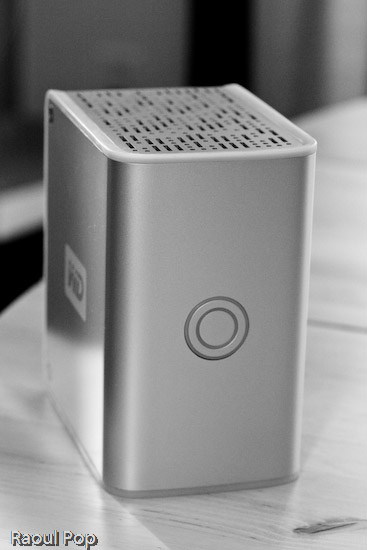
The Pro Edition II should be a better and faster external hard drive than the World Edition II when it comes to working with my photo library, since it connects directly to my computer instead of going through the network. Its exterior design is just as good as that of the World Edition II, and the photos enclosed below will show it.

I have to confess that I’m design-obsessed. If something looks good, I’m willing to overlook the fact that it may not work as expected, which is definitely the case with this device. Of course, if it were truly designed well, it wouldn’t have the serious problems that it has, but at least it looks good on my desk… I suppose I could call it a very expensive paperweight. It’s so unfortunate that Western Digital couldn’t deliver with this product. It looks so nice, and does so poorly…

WD My Book Pro Edition II (front)

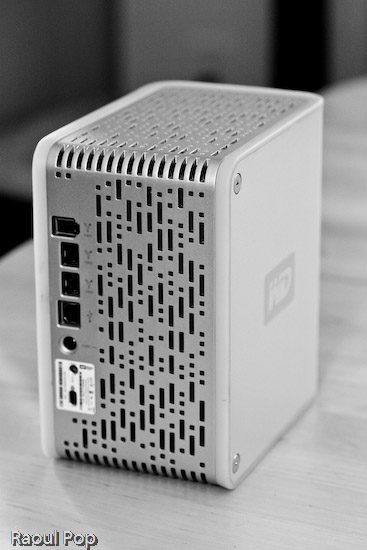
The drive has three interfaces: USB 2.0, Firewire 400 and Firewire 800. A nice touch is the inclusion of two Firewire 800 ports. This is probably because most computers have only one Firewire 800 port, and the WD engineers wanted to give us the ability to daisy-chain other devices onto the drive. In terms of the RAID settings, it has RAID 0 and RAID 1. I’m using my drive in RAID 1, to get the data redundancy I need when it comes to my photo library.

Serious problems

I’ve read complaints about the drive being loud, and I agree. I’ll say this: when it works fine, it’s quiet. When it has problems, it’s VERY loud. There are persistent cooling issues with the drive, that have been partially solved through firmware updates, but they keep showing up even on later builds. I think the WD engineers still have a LOT of work ahead of them when it comes to this model. See below for more on this.

My workflow involves working mainly with Adobe Lightroom, and doing the following:

  • Importing and viewing RAW files
  • Winnowing
  • Adding meta data
  • Editing images and
  • Exporting them to JPG files for the web or for clients

The drive is usually fine with this, but if I spend more than an hour (and sometimes, even less than an hour in Lightroom), it’ll start to overheat. Then the fan speed will auto-switch to what I call “medium speed”, and the drive will get a little louder. If after a few minutes or so, I’m still not done working, the drive fan will kick into high gear, something that I and others call “hairdryer mode”. After a couple of minutes at that speed, the drive will either return to “medium speed” or shut off completely, leaving me and Lightroom wondering where the photo library went.

I’ve learned to save my work and exit Lightroom when the drive fan goes into “hairdryer mode”, because I can almost certainly expect the drive to shut off. I called WD Support on this, and I applied a firmware fix a few weeks ago, but the cooling problem is still there. By the way, the drive has to stand vertically at all times, or you’ll have even more serious cooling problems.

Getting support

I need to say that WD Support are responsive, but they live in serious denial. They will agree to an RMA, but they insist that these drives are just fine, which is definitely NOT the case. Speaking from personal experience, WD Support is better than the support I’ve gotten from other tech companies like Microsoft and HP. At least they try to be helpful and polite. This was one of the main reasons I stuck with the drive through serious, repeated problems.

As I stated at the start of this post, I continue to have problems with my drive, even after two replacements. I like the design, and I like the fact that it has three interfaces. But I cannot use it long-term, because, let’s face it, it’s an unreliable piece of crap, and it’s very frustrating to use it when it overheats and crashes my computer. I’ve already bought a Drobo (which I love) for my photo library, and I’m going to re-purpose this drive to store some other files.

Working with the drive

In my review of the My Book World Edition II, I mentioned how I’m in a mixed OS environment at home. I have both an iMac and a Windows laptop. It’s necessary for me to be able to read and write to my external devices from both computers. This is in case I do large file transfers, which are obviously a lot faster to do over a USB or Firewire connection than a wireless network. So what I did to solve this problem was to format the My Book Pro Edition II in the Mac file system (HFS+ Journaled). Now I can read and write just fine to it from both machines because I purchased MacDrive, a piece of software that lets you access Mac drives on Windows as if they were NTFS or FAT32 volumes.

WD My Book Pro Edition (back)

Let’s review

I like the drive, and the design, but it has SERIOUS quality control problems and manufacturing defects. Make sure to read through the Updates section below for the latest news on the drive, and remember to spare yourself the agony I’m going through by NOT buying it.

Updates

Updated 10/30/07: It turns out the cooling problems with my drive weren’t normal. After calling WD Support a second time, I was offered an RMA. They sent out a replacement drive to me via 2-day Fedex, free of charge, and let me keep my old drive for a month while I transferred my photos over to the new drive. During that month, I worked exclusively on the new drive, to make sure that it wouldn’t overheat and shut off anymore. While it goes into “hairdryer mode” once in a blue moon, the fan speed always returns to “low speed”, which is barely audible, and the drive never shuts off. Whatever problems existed in the earlier builds of this drive, WD fixed them, and the new drives work just fine. If you’re having cooling problems with your My Book Pro, I encourage you to contact WD Support and see if you can exchange it.

Updated 12/03/07: I’ve just arranged to receive my 2nd replacement drive from WD via RMA. While I like the consistently high level of customer support they provide, I have to point out that there are manufacturing defects that still haven’t been ironed out. While my first drive, the one I purchased from a store, only overheated, and worked okay otherwise, the replacement drive had three problems. It also overheated, although less often than the original drive. Its Firewire 400 connector didn’t work. I tried different cables, to no avail. The computer just didn’t see it while it could see other Firewire drives just fine. Most importantly, it kept crashing my iMac every time I connected it. Not right away, but within minutes or less than an hour, it would crash the system so badly that I’d have to reset it. I’d get the standard Apple screen of death with a message that asked me to reset the computer. When I’d look at the logs, they’d always point to the USB as the problem for the crash, and the only drive I had connected via USB was the My Book Pro. Let’s hope this third drive that WD will send me will finally work properly.

Updated 12/13/07: As stated at the top of this post, DO NOT buy this drive, for the reasons already detailed. I am NOT alone in having problems with this drive. Many Mac users are having the same problems with it, and you can see this by doing a search on the Apple forums for “My Book Western Digital“.

The drive also DOES NOT work as advertised. The specs say it works with USB, Firewire 400 and Firewire 800, but it DOES NOT work with Firewire 400. I have not had the chance to test it with Firewire 800, so I can’t speak about that, but I know for sure that Apple computers cannot see it when connected through Firewire 400. It does work with USB, but it tends to crash Apple computers when connected to them through that protocol. Trust me on that last bit, I’ve checked the error logs every time and confirmed it reliably — it’ll crash my iMac, which runs Leopard (the latest Mac OS X), when connected through USB, while other USB or Firewire drives can connect just fine and have no problems. Have a look at this article of mine for a video of the crashes it causes, and for photos of the damaged drives that WD sends out as replacements.

Western Digital is also NOT doing a good job testing these drives before they send them out. I’m now on my third replacement drive from Western Digital (My Book Pro), and it exhibits the same problems: overheating and NOT working with Firewire 400. Western Digital Support refuses to believe it and continues to stubbornly cling to the idea that the drive works just fine since it can connect through USB. They offered to send me out another replacement drive, and I refused. I’m not going to spend my entire life swapping drives and data until Western Digital decides to get their manufacturing and quality control processes in order.

I also want to mention that the re-certified drives they send out can be scratched, scuffed and smudged. They are NOT cleaned, and Western Digital simply DOES NOT care if they send you a drive in bad aesthetic condition. My re-certified drives arrived in progressively worse condition, to the point where this last replacement drive looks absolutely horrible. It looks like it’s been banged up and dragged on the floor. It’s got oily smudge marks on its sides… basically, it’s a mess.

DO NOT BUY this drive unless you want to run into the problems I’m having right now, and believe me, it’s not fun at all. Western Digital needs to get its act in order on this model, because they’re churning out some real duds.

Updated 7/3/08: I updated my other post about the My Book Pro as well with the following information.

On 4/16/08, I received a replacement drive from Western Digital. It’s a 2TB Studio Edition II drive, which works in USB, Firewire 400/800 and eSATA modes. I’ve been using it since in RAID 0, and it’s been working great. To see how I use it, read this recent post of mine, where I talk about the hardware I use on a daily basis. I also plan to write a detailed review of the drive shortly.

I guess the lesson is that the My Book Pro line had serious faults, and WD got things right with the My Book Studio line. So, if you’re in the market for a drive, DO NOT get a My Book Pro. But DO get a My Book Studio drive. They seem to work alright.

More information

Standard
Reviews

Hardware review: WD My Book World Edition II

After looking around for a storage solution to house my growing collection of photographs, I found the Western Digital My Book World Edition II. I’ve been storing my photos on single external hard drives so far, but data loss has always been a concern with that approach. All it takes is a hard drive failure, and I’m going to lose a good portion of my hard work. Naturally, I’ve been looking into various RAID or other failsafe solutions, since they’ve gotten to be fairly affordable.

Great design

I was immediately drawn to the new WD My Book line because of their beautiful design, 1 TB capacity, and the ability to configure the device in RAID 1 format, which would mean my data would be mirrored across the two hard drives inside it. (This would also halve the amount of space available, but that was okay with me — I wanted data redundancy.)

WD My Book World Edition II (front)

For those of you not familiar with WD’s external drives, they have done a beautiful job with their enclosure design, and I raved about their Passport line several months ago. It turns out I now own one of them, a sleek black 160 GB 2.5″ drive just like the one pictured in that post. It’s perfect for data portability, and for a while, I even stored some of my photos on it. But it is just a single drive, and as I said, I’m worried about data loss.

Choosing the product

Back to the My Book line. There were two models I really liked: the My Book Pro and the My Book World. Because I have a mixed OS environment (both PC and Mac), I thought a NAS solution like the My Book World would work best for me, even though its specs said it would only work for Windows. I had a pretty good hunch that I would also be able to access it with my iMac. It runs on Java, it has Samba shares, and those are readily accessible from any Mac. But, this isn’t advertised, and that’s a pity.

By the way, if you’re thinking about getting the My Book Pro drive, make sure to read my review of that model. The takeaway message is to stay away from it, and I explained why in that article.

How it works

The drive itself is beautiful and fairly quiet, except when it boots up. WD has also made firmware upgrades available that make the drives even quieter, so that’s a good thing. I can tell you this right away. If you only plan to use the drive in a Windows environment, it’ll work great. Feel free to buy it, you’ll be happy. But, if you plan to use it in a mixed OS environment, and are looking to access it in more flexible ways, such as with custom drive mappings, and not through the software provided with the drive, you might be very frustrated.

Let me explain. The drive comes with a custom version of something called Mionet. I’ve never heard of it, but it’s software that installs on your machine and makes your files and computer remotely accessible from anywhere. When you run the installer, it’ll prompt you to create an account on the Mionet website, and it’ll register the WD drive, along with your computer, as devices that you can then access remotely. (There’s a monthly fee involved if you want to control your own PC remotely with the software, but you don’t need to pay it to use the WD drive fully.)

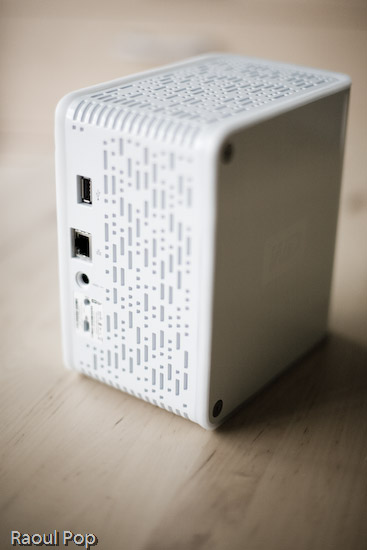
Once you install the software, you start up Mionet, and the WD My Book World drive gets mapped automatically to your machine. You also have the option to manage the drive through a browser interface. That’s actually where you configure its volumes (1 TB single volume, or RAID 1, still single volume, but mirrored data and only 500 GB) and other options. Basically, you have to remember that the only proper way to access the drive, whether you’re at home or you’re away, is to start up Mionet and get it mapped to your “My Computer”. If you do that, you’re good to go.

WD My Book World Edition II (back)

Potential problems

The problem with this approach (and this tends to be a problem only for geeks like me) is that the drive is readily accessible over the network without Mionet. I can simply browse my workgroup and find it, then log in with separate accounts I can set up by using the WD drive manager, which is accessible through my browser. So here’s where the frustrating part comes in. I can browse to my drive over the network, without Mionet, from any PC or Mac in my home, administer its options, add users and shares, etc. Then I can use Tools >> Map Drive on my PC or Command + K on my Mac to connect to the share name, and log in using those user accounts I’ve just set up. But, I can only read from those shares. I can’t write to them. The drive operating system assigns weird UNIX privileges to those shares, and they don’t correspond to the accounts I’ve just set up. It makes no sense to me and you’ll only fully know what I mean if you do this yourself. Suffice it to say that it’s really frustrating, and it’s not what I expected.

It would have been alright if Mionet made a version of their software for the Mac, but they don’t, and they don’t seem to have any plans to make any. It would have still been alright if the drive hadn’t been accessible through any Mac whatsoever. But the fact that they are accessible, and that I can log onto the drive with usernames and passwords that I can set up through the admin interface, yet I can only gain read-only access to those shares even though I’m supposed to have full access really gets me. Sometimes it’s a real pain to be a geek…

So, my verdict is that I really like the design and the RAID 1 capability, but I do not like the implementation. I ended up returning this and getting the My Book Pro Edition, which I love, and will review very soon. But remember, if you don’t have a mixed OS environment, and have no problems with starting up Mionet when you want the drive to appear in “My Computer”, My Book World will work great for you, and the remote access capability is a really nice feature.

Updates

Updated 7/19/07: I purchased and reviewed the My Book Pro as well. You can read my review right here.

Updated 8/3/07: Multiple commenters have pointed out (see this, this, this, this, this and this) that you can use the drive just fine with both Macs and PCs, over the network, if you skip the install of the Mionet software altogether. It looks like the clincher is the Mionet install itself. Just forgo it, and you’ll be able to map the drive to both PCs and Macs, and read/write as much as you want. I didn’t realize that I had to uninstall Mionet entirely in order for the read/write to work properly.

But keep in mind, if you don’t use the Mionet software, you won’t be able to access the drive remotely. Well, you might be able to arrange some access, but you’ll need to custom-configure your firewall settings to allow traffic on certain ports, and you’ll need a static external IP or dynamic DNS so you can get at your firewall from the outside. And then you’ll need to worry about data encryption as well, unless you don’t care that your data will travel unencrypted over open networks. If you’re a hardcore geek, feel free to try this last bit out, but if you aren’t, beware, it’s a weekend project, and I can’t help you.

Updated 8/9/07: I’ve had several people comment on how they bought the drive based on this post and the comments made on it by others, believing they could get it working over the network with their Mac. The kicker is that they thought they could connect it directly to their machine and get it working that way. 😐 I don’t know how they got that idea, but let me set the record straight. This is a NETWORK drive. It needs a network in order to work. There’s a chance you might get it working by using a crossed ethernet cable or connecting it directly to your machine, but it probably has to be a crossed ethernet cable.

The best way to get it working is to use a hub or a switch, or best of all, your home router, which can assign IP addresses. The drive ships configured for DHCP. That means it has no IP address to start with, and it’s looking for a place to get them. If you don’t have such a place, you’re going to have a lot of headaches. Get such a place (router) or go buy a USB/Firewire drive. Most people who’ve commented already made it plainly clear that’s what they needed, but they still insisted on using this drive. I don’t know why they enjoy the stress of doing that. I didn’t. As I already said in my post, I returned it and got a WD My Book Pro Edition II.

Last but not least, please do me a big favor. Read through the existing comments before you write one. There are so many already, and there’s a very good chance someone’s already asked your question, and I or someone else has already answered it. Thanks!

Updated 12/11/07: I found out today that Western Digital is going to disallow the sharing of all media files through the Mionet software. In other words, if you’re going to use Mionet to share the files on your drive and make them accessible remotely, you will not be able to see or use any of your media files. I think this is a pretty stupid move on WD’s part, and it’s going to come back to bite them. Until they decide to do away with this boneheaded downgrade, keep it in mind if you’re looking to purchase a My Book World Edition. Do NOT use Mionet. Install the drive without it, and if you’ve got to make the files accessible remotely, find other ways to do it, like through a custom config of your firewall.

Updated 12/18/07: Christian, one of the commenters, has left two very useful comments that are worth mentioning here in the post. The first shows you how to access the drive remotely (when you’re away from home) without using the Mionet software. The second tells you why you don’t need to worry about defragging the drive, and how to troubleshoot its performance if you think it’s not as fast as it should be. Thanks Christian!

Updated 4/5/10: Andrew Bindon has posted an easy-to-follow tutorial on how to remove Mionet completely from your computer and the My Book World Edition drive. If you, like me and many others, think Mionet is an annoyance that would best be removed, then follow his advice.

More information

Standard