Thoughts

SmugMug now supports oEmbed

According to this GetSatisfaction discussion, SmugMug have implemented support for oEmbed. When I first tried it a few weeks ago, putting a one-line URL in a WP.com post didn’t show the video, but it worked on WP self-installs. Still, you had to hack the URL by prefacing the video URL from the address bar with the SmugMug oEmbed API URL (http://www.smugmug.com/services/oembed/?url=), so that was a hassle. I have found out since that the folks at SmugMug are working with WP on simple video embeds (like the ones at YouTube or Vimeo or blip.tv) — see the GS discussion for the details.

Tonight, I decided to try the old hack URL on my blog (hosted at WP.com) to see how things are coming along. Surprise, surprise, videos play nicely! Have a look below. It’s a video of my tom cat, Felix, sleeping in my arms. The direct URL to the video, in case the embed stops working at some point, is this.

http://www.smugmug.com/services/oembed/?url=http%3A//www.raoulpopphotography.com/Other/My-Videos/8635949_WoFHs#741544973_ZdwRZ

Standard
Thoughts

TechCrunch is now at WordPress.com

When did TechCrunch make the move to WordPress.com? I took a look at the top WP.com blogs today, and it was listed there, which means it’s no longer self-hosted, it’s literally at WP.com, under their VIP hosting program.

I did a quick search of their site, but they say nothing about their migration. I can imagine it was a grueling piece of work given the sheer size of the site and their various content embeds, like CrunchBase. With Google’s help, I saw that CenterNetworks wrote a post on 2/8 where they asked and got confirmation that TC is indeed hosted at WP.com, so it looks like they migrated sometime in late January or early February 2010.

I completed my own migration to WordPress.com (albeit not under their VIP program) on January 31st, and support from WP was very hard to come by during my migration. Perhaps they were busy at work on the TC migration?

Back when TechCrunch was a smaller operation, they were hosted at Media Temple, and were continually running their banners on the site. Then they moved to the RackSpace cloud, presumably after they outgrew Media Temple’s Nitro service. Apparently RackSpace no longer sufficed, for whatever reason.

What I do know is that WP’s own VIP hosting program is a compelling choice for those who need that kind of horsepower. Pricing begins at $500/month, with a one-time setup fee of $1,500, and your site will pretty much be able to handle any kind of traffic that comes its way.

Standard
Thoughts

Better media width compatibility in WordPress

One thing that works against you when you want to try out new WordPress themes (and this applies for either self-hosted WP installs or for WP.com blogs) is the width of your media, like the images you upload for your blog posts. Many themes are narrower than the width you may have chosen for your images over time, and this means images will either overflow beyond the margin of the main column, crowding out the sidebar and generally making your site ugly, or be cut off, which looks a little better but still ruins the user experience.

For example, most of my posts have images posted at 640 px, 600 px or 550 px wide, and that eliminates a lot of themes for me, even though they may be very nice, because their post column is too narrow to display the images.

I have a solution to this problem.

You know how you can set the size of your photos and videos on the Media Settings page?

And did you know there’s also a media width “guideline” within each theme’s CSS settings page (at WP.com)?

That width is the maximum allowed for videos and images. My current theme, “Journalist” by Lucian Marin, allows media embeds at widths up to 720 px, which is a LOT wider than most other themes, which are still stuck at 500 px or even less, at 420 px.

All of these differences would be okay, provided the WordPress platform were to read the maximum column width of a theme and adjust the maximum image width on the fly.

In other words, instead of hard-coding the image width when they’re uploaded to a blog post, it could simply say “thumbnail”, “medium” or “large”, much like it does for the image align attributes (“left”, “center”, “none”), then figure out what the “large” size really means by looking at the theme’s width limit value.

This way, no matter what theme we may choose, images and videos will still display properly and we’d be happier. After all, they’re already doing this for video auto-embeds. As you’ll see if you look at the screenshot I’ve posted above, they say “if the width value is left blank, embeds will default to the max width of your theme.” What’s to stop them from doing the same with images?

I would also encourage Automattic, should they consider building this into a future version of WordPress, to make sure it’s backward compatible, so that no user should have to go back through all of his or her old posts and make sure all the images are set to the right width if they decide to switch themes. Perhaps they can do this with a wizard that goes through all the images and sets them to the correct width, or the new image embed code can auto-magically fix the image width for old posts.

Standard
Events

Site migration complete

Last night, I completed what could be called an unusual site migration. I went from a self-hosted WP install to WP.com. That’s right, my full site is now hosted at my WP.com account. People usually migrate from WP.com to WP self-installs after their site gets big and they decide they want more options, like the ability to run all sorts of ads and fiddle with the code, etc. With me, it was the opposite. I wanted to stop worrying about my web server and focus on publishing my content.

As I mentioned here, things got worse after upgrading to WP 2.9. My server kept going down for no reason, and often, too. It’d go down several times a day. I’d have to keep watching it all the time, and that got old real quick, especially when I traveled and had no internet access. I’d often get home to find out my site was down and had been down for several hours, if not more. Since I hadn’t mucked about with my server to make things worse, and had already fiddled with optimized my Apache, MySQL and PHP settings to last me a lifetime, I decided to have WP have a go at hosting my site and let them worry about keeping it going. Judging by the initial results, it looks like they had a bit of trouble with it too (see this, this, this and this), but at least it’s not my headache anymore.

During the migration process, I learned three things:

  1. I hadn’t been getting full XML transcripts of my site in the past, when I used WP’s WXR Export feature. See this for more, and make sure you’re not in the same boat.
  2. The WordPress Import wizard still needs a TON of work to iron out the bugs. You’ll see why below.
  3. WordPress.com Support can be terribly unresponsive. I waited over 20 days for a resolution to my ticket about the site migration, and in the end, I had to work things out myself. When I told them as much — and I tried to be as nice as possible about it — it would have been nice to get a small apology, but I didn’t even get that.

Granted, my site migration does not represent the usual WP user’s migration path, nor was it a typical migration. By current count, I have 1,552 posts, 4,129 comments and 3,090 media files. That’s quite a bit more than your average blogger, and I think that’s what served to point out the bugs in the Import Wizard.

What exactly were the bugs?

  • Failure to import all posts, comments and media files
  • Post and media file duplication
  • Failure to properly change all paths to media files (either image source or image link or both)

Here’s where I need to acknowledge the help I did receive from WP Support. My WXR file was over 20 MB. The WXR upload limit at WP.com is 15 MB. WP Support modified the upload limit to allow me to go through with the WXR upload, and they also adjusted the timeout limit, because the migrations timed out prematurely as well. So I thank them for that help.

The big problem turned out to be the third issue mentioned above. The Import Wizard didn’t change all the paths to the image files. It turned out to be a very hit-or-miss operation. Given the scale of the operation, I might even call it a disaster. Some posts were fine, some weren’t at all, and some were a hodge-podge of images that were okay, and images whose paths were wrong, or whose links were wrong, or both. You might imagine that checking and fixing the image paths for over 3,000 media files can turn out to be a very big job, and it was.

I was also under pressure to finish the job quickly, since the site was live. Imagine how you’d feel as a reader if you visited a website and none of the image files showed up — you’d probably think the site was dead or dying, right? Well, I certainly didn’t want people to think my site was on its last legs, so I had to act quickly.

Thankfully, only (sic) about 40% of my posts had their image files messed up. The rest were fine, but then I also had plenty of posts with no images. If all my posts contained images, I might have had 90% of my posts to worry about… Still, I had to check every post, and as you might know if you’re a regular reader, I post lots of images per post, and where a post was messed up, brother, I had to do a bunch of work to get it fixed up. Just as an example, some posts have anywhere from 20-50 images…

Here are a couple of screenshots that show you how things stood. Here, the image link was okay, which meant I didn’t have to modify it. This was a happy scenario. However, the image path was still wrong, as you’ll see below.
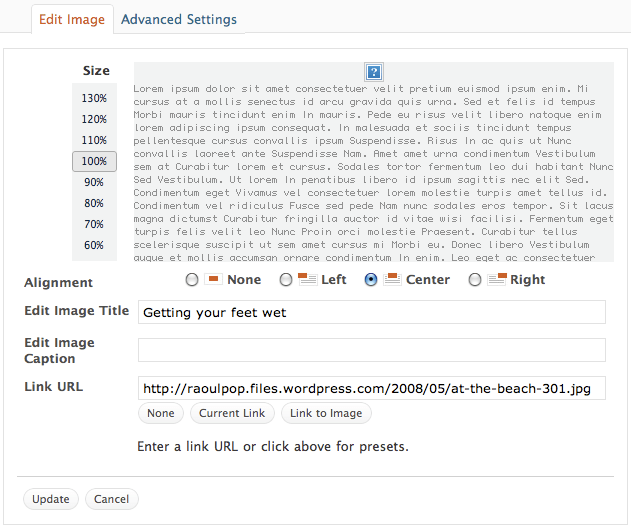
The image source, or path, didn’t change during the import process, which meant I had to change it manually, or browse for the image by title or file name in the media library and re-insert it.
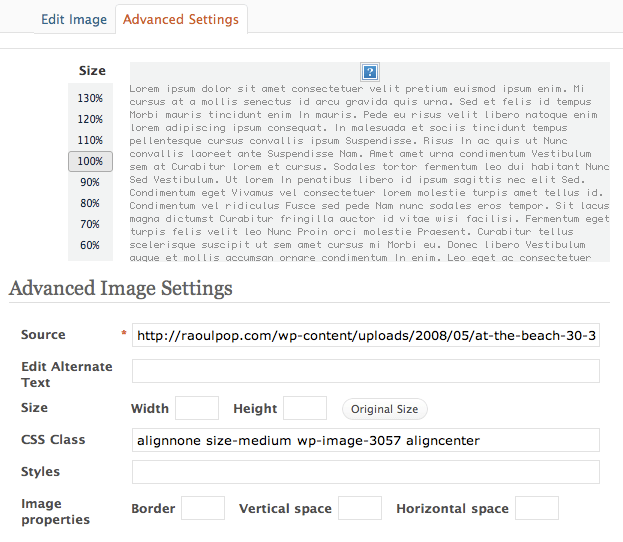
The image size was also lost, which meant that if I changed the image path manually, I had to also enter the width of the image.

What made things more cumbersome was the lack of an image insert button in the Gallery dialog box. That’s one of the differences between a WP self-install and WP.com. This meant that even though I’d uploaded a certain image for a certain post, and it showed on the Gallery tab, I couldn’t go there and re-insert it into a post. I had to go to the Media Library tab, search for it, then re-insert it, which takes precious time and clicks, particularly when you’re dealing with thousands of images.
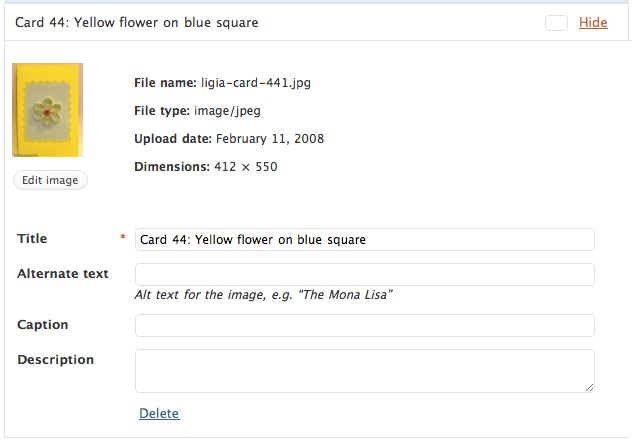
In spite of all the extra work which I had to do, and which took about 1½ weeks of my time, I got done last night. My site is now fully functional, thank goodness!

As for my experience with WP Support, there are no hard feelings. I like the WordPress platform and it’s done good by me so far. I wasn’t a VIP customer and they didn’t have any financial incentives (besides the small fees for a space upgrade and a domain mapping) to get their hands dirty with my code. They offered minimal support, and to a certain degree, that’s to be expected when most of your customers are non-paying customers, as is the case with the large majority of WP bloggers.

Still, I would encourage them to consider doing the following:

  • Improve their Import Wizard so that it will not terminate until it checks and doublechecks to make sure it has imported all the posts, comments, pages, tags, categories and media files, and all the paths to the media files are correct. They’ve still got one of my WXR files, and they can use it as case study to help improve the accuracy of the import wizard.
  • Include an image insert button on the Gallery tab of the “Add an Image” dialog box, like the one that already exists on WP self-installs.
  • Offer the functionality of the Search & Replace WP plugin for WP.com blogs. This would have been a huge help to me as I fixed the image paths. I could have run a couple of queries on my blog’s content to change most of the image paths, and it would have halved my workload.

If you were one of the folks who kept seeing no images during this transition period, sorry for the inconvenience, and I’m glad you’re still around. If you’re still seeing no images, definitely get in touch with me, I might have missed a few — after all, I’m only human.

Standard
How To

Are you really backing up your WP blog?

When those of us with self-hosted WordPress blogs back up our content using the built-in WXR functionality, do we ever check the downloaded XML file? Until recently, I didn’t worry about it. I’d click on the Export button, copy the WXR file to a backup folder and think my blog was safe, but I was wrong.

You see, what may be happening is the creation of the WXR file on the server side may be terminated before all the content gets written to it, and we’ll end up with a partial backup of our blogs. This is no fault of the WordPress platform, but will happen when the server settings don’t allow enough resources to the PHP script which writes out the XML file. When that’s the case, this is what the end of the WXR XML file looks like.

In the screenshot you see above, the script ran out of memory (I’d set PHP’s memory_limit at 64 MB, which was too little for my needs), but it can also run out of time, if PHP’s max_execution_time is set too low.

Depending on your scenario, you may or may not have access to the original php.ini file on your web server. If not, check with your host, you may be able to create a php.ini at the root of your hosting account to adjust these parameters (within limits). The thing to do is set the memory_limit and the max_execution_time high enough to allow PHP enough resources to generate the full WXR file. I can’t prescribe any specific limits here, because the amount of memory and time the script needs depends on how big your blog is. All I can suggest is that you experiment with the settings until they’re high enough for the WXR file to generate fully. You don’t want to set them too high, because your server will run out of memory, and that’s not fun either. This is what my setup looks like.

What happens if you use a cheap web host is that you’ll get crammed along with hundreds of other sites on a single virtual server where all the settings are tightly reined in, to make sure no one’s hogging any resources. Chances are that as your blog grows, your WXR file will get too big and will need more resources than are available to write itself, which means you’ll start getting truncated backup files. If you never check them by opening up the XML and scrolling to the end to rule out any error messages, you’re not really backing up your blog.

Keep this in mind if you want to play it safe. Always check the WXR file. A good backup should close all the tags at the end, particularly the tag, like this screenshot shows.

Standard