
Brilliant ad for The Economist magazine, featuring a tightrope walker that begins his ascent from the sidewalk, and, by walking across interconnecting red ropes, reaches a place high above the city. The tagline is “Let your mind wander.” All I can say is it’s wonderfully done. Does anyone know who the rope walker is?
Yearly Archives: 2009
Read the Bill, Congress!
The US Congress recently passed the Cap and Trade Bill without reading through the over 1200-page document, which more than likely contained more pork than a Louisiana farmer’s pantry. It was a bill drafted by lobbyists and edited in closed door committees, paving the way for tons of very lucrative government contracts and taxes that will surely pad many insiders’ pockets for decades to come.
Now they’re getting ready to fast-track the House Health Care Bill, another over 1000-page document, introduced as H.R. 3200, which no one will likely read, except the lobbyists drafting it and the few congressmen whose larder needs refilling as the way for the bill is greased through the inner workings of our illustrious Congress.
What’s to be done about this? At the very least, Congress should bother to read the bills before they vote and sign them. Pretty simple, right?
That’s why the Sunlight Foundation came up with ReadtheBill.org, a website which proposes a simple rule: post all bills online for 72 hours before they are debated. This was introduced as H. Res. 554 — a change to the House resolutions — and is slowly making its way through the approval process thanks to people like you and me, who are bugging our representatives to vote for it. The 72 hour delay would give constituents a decent amount of time during which to read through the proposed bills and see if they need to act.

Let’s not forget President Obama promised his own 5-day delay on signing any new bills during his campaign, but has almost never respected that promise. So we’ve got a Congress and a President that don’t really bother to read all the bills they’re signing, and don’t even want to pretend like they’re doing it — at least not yet. It’s a grand example they’re setting for the rest of the world, isn’t it? They’re passing bills they haven’t read, and they’re telling us everything is on the up and up, and we have nothing to worry about, because they’re hard at work on fixing America. Whoopee!
Please tell your friends about ReadtheBill.org. Go there, sign the online petition, and bug your Representatives to pass the 72-hour rule.
Read The Bill from Sunlight Foundation on Vimeo.
Luna by Malajube
Cool music video that involves synchronized swimming and hallucinations induced by a near-drowning experience. I’m making it sound weird, but it’s very nicely done. The band is Malajube, and the song is called “Luna”. With Nicolina Tokic and the Synchronized Swimming Club of Montréal-Nord, Aquana.
Malajube || Luna from Dare To Care Records on Vimeo.
You can download the full HD video if you click through. And there’s also a “making of” video.
Malajube || Dans les coulisses du vidéoclip de Luna from Dare To Care Records on Vimeo.
How to display recent photos from your SmugMug feeds
I was asked by a reader (Andrew M.) how I display the most recent photos from my SmugMug galleries on my home page. He was aware that I use the SimplePie plugin for WordPress, but wasn’t sure how to get the same look when starting from scratch.
Before you read any further, keep in mind this is a very specific tutorial about WordPress, SimplePie and SmugMug. It has other applications, like for other image feeds and with some code tweaking, for other blogging platforms, but if you want to do those things, then Google is your friend.
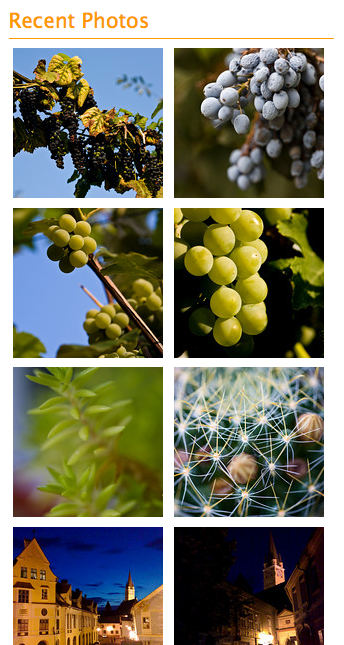
The thing that makes things a little complicated in my situation (as opposed to other image feeds) is the somewhat non-standard structure of the SmugMug feeds. For one thing, they don’t provide a URL for the image thumbnail where you’d expect it to be, and for another, they provide the image description instead of the image title. (To check this, mouse over a SmugMug thumbnail, and you’ll see the description pop up over the image.) But as long as you’re willing to dig into the feed code and find the names for the fields you need, then you can plug that info into SimplePie and go from there. Thankfully, I’ll do it for for you below. Lucky you.
Just a quick general disclaimer before I start though: I don’t do handholding. I’ll provide the instructions for how I did it. But in the unlikely event that things still don’t make sense to you, do me a big favor and read the SimplePie Manual, before you ask me questions. I did it and it helped me work things out. It should do the same for you if you use a little elbow grease. Thanks.
Okay, onto step 1: find the SmugMug feed URI. SmugMug provides several feeds for each user account. Go to the bottom of your gallery page and click on the Available Feeds link to see all of them. We’re going to use the Recent Photos Atom feed. In my case, it is:
http://www.raoulpopphotography.com/hack/feed.mg?Type=nicknameRecentPhotos&Data=raoulpop&format=atom10

Step 2 is creating an Images Only template for SimplePie. If you’re not sure what this is, you need to read through the SimplePie documentation. The location where you need to place the new template is:
[WP Install]/wp-content/plugins/simplepie-plugin-for-wordpress/templates/
This is not arcane info, btw. It’s provided in right on the SimplePie general settings page, which is what I’ll talk about in Step 3 below. Now let’s talk about what you’ll put in the template file. This is where the digging through the feed code part comes in. I kept things simple, and this is what my images_only.tmpl file looks like.
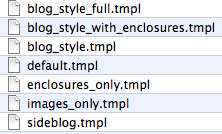
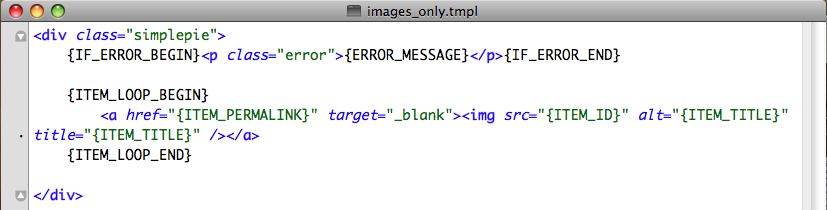
As you can see, the code is minimal, which is the way I like things. I am specifying a simplepie class in the code, but as you can see from my CSS file, I’m not styling the div in any way. I’m letting the rest of the CSS code and the other divs handle the way the images flow within this particular section.
Step 3 is adjusting the general settings for SimplePie. Now that we’ve created an Images Only template, we need to let SimplePie know that it should use it. Go to the WP Admin Panel and locate the SimplePie settings. Match my settings as you see them below.
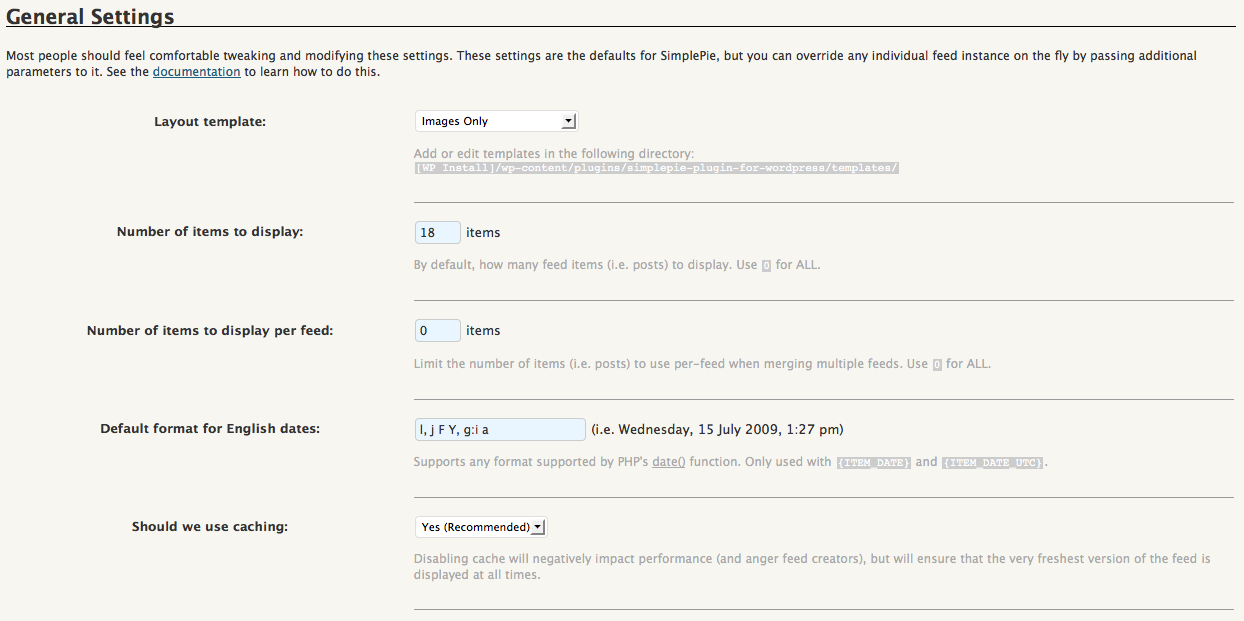
I’m telling it to pull the latest 18 photos. You may find you need to pull less or more. It’s really up to you. Use the caching option, it’s faster, but know that you’ll need to create a cache directory where SimplePie can store the images. It’ll walk you through it when you say Yes, and you may need to adjust privileges on the server side. Check out this chmod tutorial from WordPress if you’re not sure how to do that.
Step 4 is placing a code snippet on the home page. Now that you’ve gone through all that fun, you’ve got to wrap things up. Go to your home page template in WordPress, and where you want the images to appear, place the following code snippet — it’s what triggers SimplePie to pull your SmugMug photos feed and display the feed items how you want them, in accordance with the code in your Images Only template.
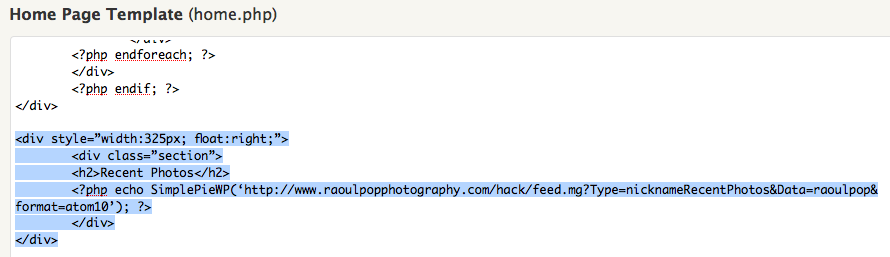 See the highlighted text, but you only need to worry about the php code line. The rest is my own code that specifies the div and section styles. Use your judgment about how to style the thumbnails, and how you want them to display. It may take a bit of trial and error until you get it right, but if you persist, it’ll look good in the end.
Hope this helps!
Inventor portraits by David Friedman
David Friedman, a photographer from NYC, is putting together short video documentaries of inventors. The first three are already up on Vimeo. A very cool idea. Wish I’d thought of it first. Kudos to Dave.
Inventor Portrait: Clint Fruitman from David Friedman on Vimeo.
Inventor Portrait: Jerry Ford from David Friedman on Vimeo.
Inventor Portrait: Tom Roering from David Friedman on Vimeo.
There are more details about each inventor on Dave’s blog, along with more non-video profiles of interesting inventors. Check it out.
 Raoul Pop