How To

Luigi Cornaro and the simple life

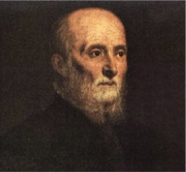
Luigi Cornaro

A Venetian nobleman on the brink of death discovered a way to stay healthy and alert to the ripe old age of 102. He lived in the 15 century, and his name was Luigi Cornaro (1464-1566).

At that time, Venice was a thriving commercial port — one of the main shipping hubs in Europe — and a life of abundance with little thought for health was the norm for all wealthy people there. What also factors into the equation is the average life expectancy during that time, which was somewhere around 40 years. Yet Luigi Cornaro was a nobleman who chose to live a balanced life, eat a healthy diet, and lived to 102 years. That is truly remarkable.

How did he do it?! It’s really no mystery. At the age of 83, he wrote a treatise on the subject, entitled “Tratatto de la vita sobria”, followed by three more treatises on the same subject, published at the ages of 86, 91 and 95, respectively. In his treatises, he described in detail just how he lived his life and what he ate, hoping that others would follow his advice and reap the same benefits.

He believed in consuming the best quality and most easily digestible foods in small amounts. He reduced his food intake, cutting it down to twelve ounces a day of solid foods, divided into two meals with fourteen ounces of light wine, also divided into two servings. He sometimes ate a little beef, but mostly he would eat one egg yolk, vegetable soup, coarse, unrefined bread, salads, small quantities of locally grown fresh seasonal fruits and vegetables, and he’d drink slightly fermented wine. His stomach didn’t agree with fish or chicken, so he avoided them.

The amazing part is that all his faculties stayed intact and even better, improved with age, right up to the day of his death. He had no memory loss, his eyesight and hearing grew keener with the years, and he was able to stay active, physically and mentally, in his advanced age. In his nineties, he even studied singing and horseback riding.

His writings are now part of the public domain and thus freely available for download. If you want to live a healthy life, do yourself a favor and read through them. Google Books, has an 1833 English translation of his writings, entitled “Discourses on a Sober and Temperate Life“, translated and edited by Sylvester Graham. You can download the entire book as a PDF there, or here on my site (see 1st PDF below). You can also download an abridged version of Cornaro’s writings as a 6-page PDF (see 2nd link below). It was sent to me via email, and am not sure who its translator is, but would be glad to give credit if someone will contact me.

If you’re interested in modern advice on the subject, US News recently published an article entitled “10 Healthy Habits that Will Help You Live to 100“. They didn’t mention Cornaro, but their advice is easy to follow, if you’ve got the willpower.

Download Luigi Cornaro’s writings:

Standard
How To

Get the tiltshift look right from Adobe Lightroom

If you use Adobe Lightroom and want to apply a tiltshift effect to your photos, you can spend hundreds of dollars on expensive Photoshop plugins, or you can do it for free, with an Adobe AIR app called TiltShift.

If you’ve used TiltShift before, you know you can open any photo in it and apply tiltshift effects to it, but did you know you can do this right from Lightroom? Here’s how.

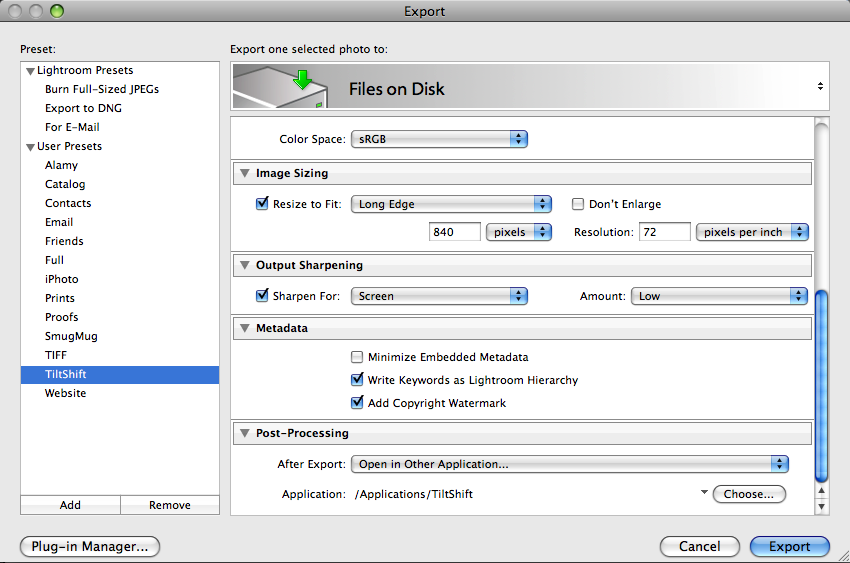
In Lightroom, open up the Export window and add a new Export Preset. See the screenshot below. I called mine TiltShift, so I can easily remember it. Adjust any of the settings, like color space, sizing, sharpening, etc. They don’t really matter, although it’s better to keep the image smaller so TiltShift can work faster with it.

The really important option is in the post-processing section — the very last one in the Export window. There, you’ve got to make sure you tell Lightroom to “Open [your photo] in Other Application…”, then click on the Choose button and browse to find the TiltShift app. This is pretty much it.

lightroom-tiltshift-setup

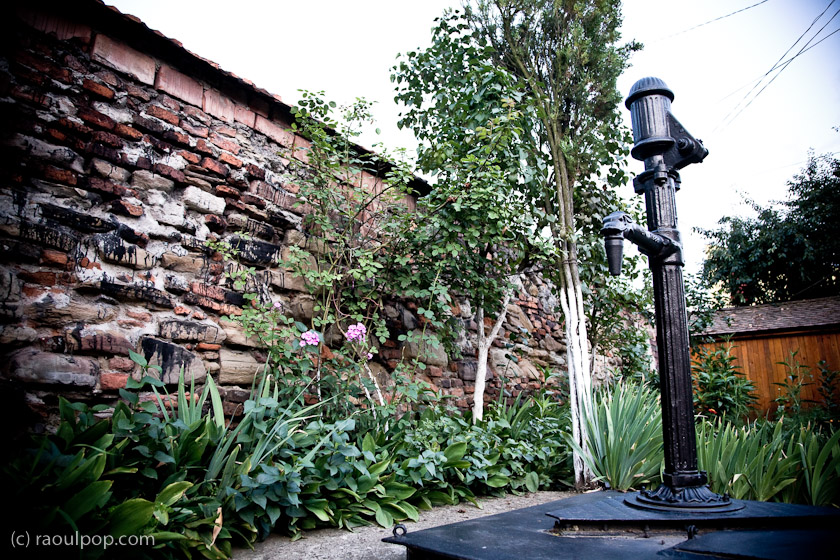
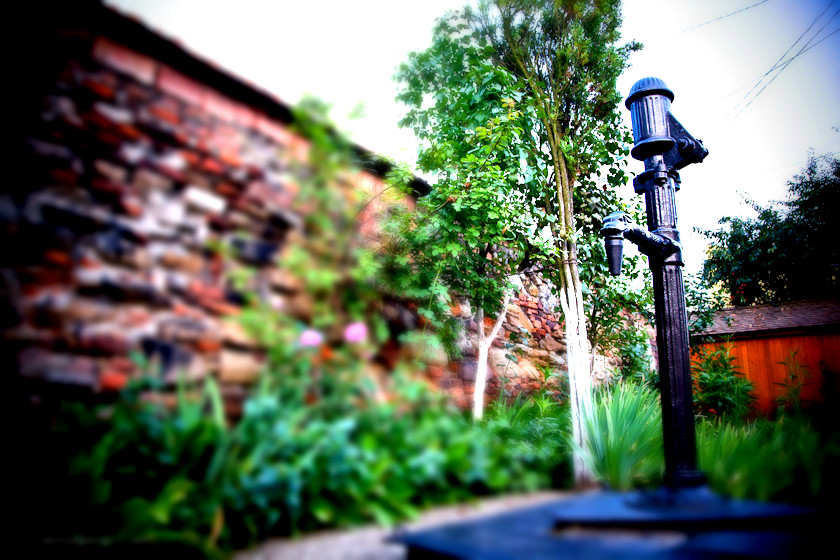
Lightroom will automatically pass your image to TiltShift, which will open it and allow you add tiltshift effects to it, to your liking. For example, I initially processed this image of a medieval water pump found on the streets of Medias, Romania, in Lightroom.

The old water fountain

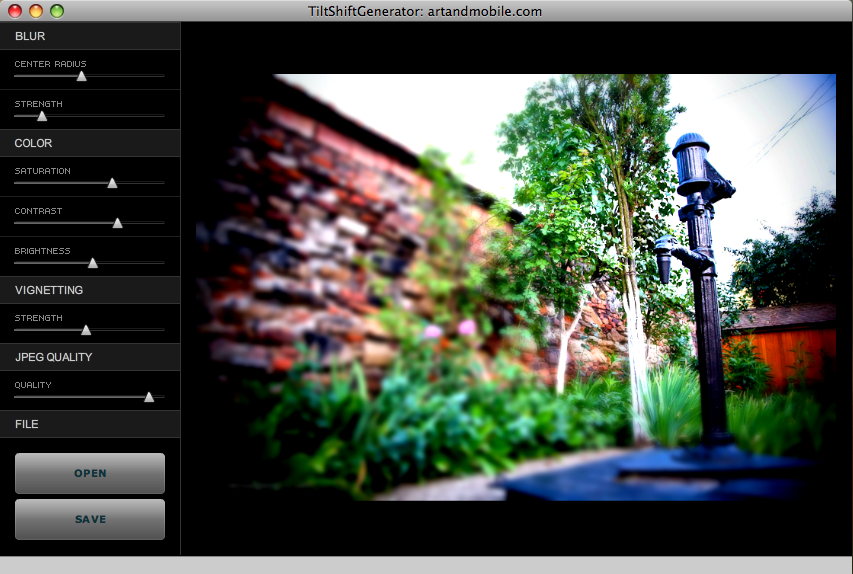
Then I exported it into TiltShift using the export preset set up as described above, and adjusted the settings there to get the effect I wanted. This is how the controls and the image looked inside TiltShift.

tiltshift-screenshot

Once I did that, I saved the photo and uploaded it here. This is how the final image looks.

water-fountain-tiltshift

It couldn’t be easier, and again, let me remind you TiltShift is a free app.

[TiltShift home page] [Download TiltShift]

Standard
How To

Finally, an update for Apple's Bluetooth problems

Updated 8/26/09: It turns out the firmware update didn’t fix the Bluetooth issues. But OS X 10.5.8, which also came out recently, seems to have mostly fixed the problems. I still get the occasional Bluetooth connection error, but it’s nowhere near as often as before.

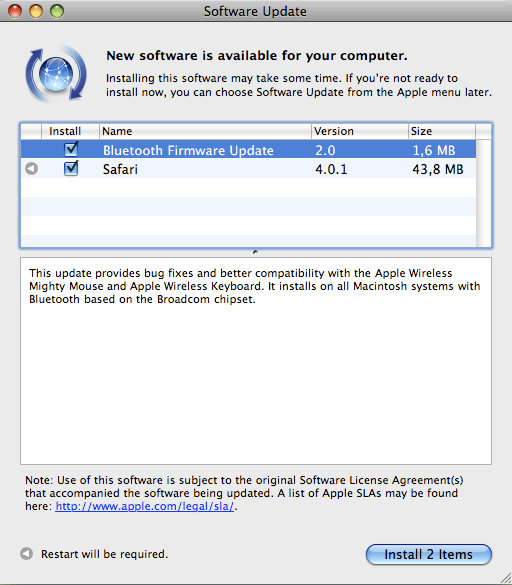
A software update noticed popped up on my MBP today, telling me Bluetooth Firmware Update 2.0 was available for download and install.

bluetooth-update-1

The update explanation says the following:

“This update provides bug fixes and better compatibility with the Apple Wireless Mighty Mouse and Apple Wireless Keyboard. It installs on all Macintosh systems with Bluetooth based on the Broadcom chipset.”

Finally! If you’re unfamiliar with the Bluetooth crashing problems on Mac computers, then you’re one of the few lucky ones. But the rest of us with late generation laptops like the MacBook Pro have had this issue for at least a few months now. This, for example, is just one of the many threads in the Apple Forums dealing with this persistent Bluetooth issue. On June 9, I’d had enough and vented on FriendFeed about it.

Basically, Bluetooth communications stopped working after a Mac was woken up from sleep mode, necessitating either a turn off/on cycle of the Bluetooth hardware, or another quick sleep/wake cycle. I for one didn’t have too many problems with the keyboard and mouse not working, but I did have a serious issue maintaining connectivity with my Nokia N95 via Bluetooth. My MBP kept refusing to connect to it, and I can’t remember how many times I removed and re-added it from my preferred Bluetooth devices. I even thought my N95 was to blame, until I tried turning Bluetooth off/on and realized my MBP could connect to it just fine after that.

From the looks of things, Apple’s been at work on a fix for the problem, and it’s now available for general install. So, by all means, download away and see if it helps you. I for one will be on the lookout for any more Bluetooth issues, to see if this firmware update has truly fixed the bug.

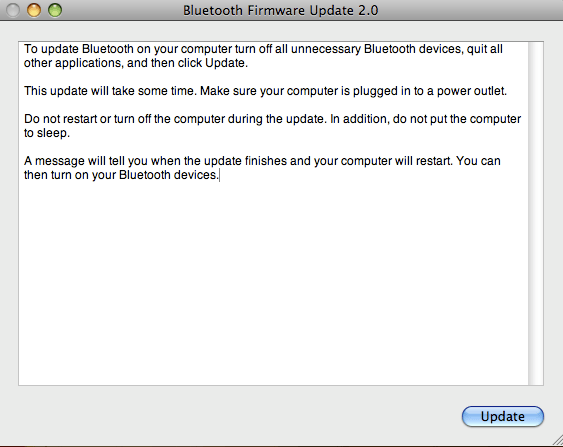
Before I close, I’d like to point out that even though a restart is not announced for the firmware update, you will most certainly need to restart your Mac. Once the Safari update installs, and your Mac restarts, the following dialog box pops up on the screen, informing you that the Bluetooth update will now begin, and your machine will restart once it’s finished. Just FYI.

bluetooth-update-2

Standard
How To

Connect two Drobo units to your computer at the same time?

➡ Updated 1/14/19: I have revised my opinion of Drobo devices. After experiencing multiple, serious data loss events on multiple Drobo models, even recent ones, I no longer consider them safe for my data.

One of my readers asked me a little more than a month ago if I could post some screenshots of the Drobo Dashboard with two Drobos connected at the same time. Sure, no problem. It’s easily doable, and the Dashboard software automatically differentiates between each of them and displays the proper stats for each, even if they’re name the same. I haven’t tried it yet, but you could probably connect three Drobos at the same time if you wanted to.

Here’s what the drive icons look like on my MBP’s desktop.

mbp-drive-icons

The main screen inside the Drobo Dashboard software will display buttons for each connected Drobo, allowing you to switch between them as needed.

drobo-dashboard-drobo

drobo-dashboard-backup

As you can see, I need to either free up some space on my main Drobo or get some new drives. Using the Drobolator, it turns out I’d need to get two new drives (either 1.5TB or 2TB each) in order to see any increase in the available space.

The Advanced Controls screens inside the Drobo Dashboard show the drive layouts inside each Drobo.

advanced-controls-drobo

advanced-controls-backup

I’d like to point out a possible bug in the Drobo Dashboard software while I’m at this. As you can see on the following screenshot, when I click on the Check for Updates button to see if there’s a firmware upgrade for my Backup Drobo, which is a USB-only unit, I get a message which tells me both the Dashboard and the firmware are up to date, when I know that the firmware is out of date, as you can see from the firmware version itself. I’ve often had to perform manual firmware upgrades to my Drobos, because I keep getting this message in error. I hope this bug can be resolved at some point.

drobo-dashboard-check-for-updates-error

Other than that, the Drobo Dashboard software works as expected, and can work with multiple Drobo units as well. No problems there.

Update: After doing a manual upgrade to firmware version 1.2.4, the automatic check for updates from within the Drobo Dashboard worked, and when my Drobo rebooted, I was prompted to upgrade to 1.3.0. After an initial unsuccesful attempt, I was able to upgrade just fine. One less item on my to-do list. Good.

drobo-dashboard-new-firmware-notice

Standard
How To

Can the WD TV be networkable with firmware upgrade?

The WD TV can be placed on a network via an unofficial firmware upgrade available from B-RAD. The souped-up firmware apparently allows one to plug USB ethernet sticks (I’ve had one of those lying around in my desk drawer for years) into the WD TV and mounts its connected drive(s) onto the network — among other additional features.

I haven’t tried this yet. I found out about it from Tobias Schneble, a reader from Germany who emailed me after seeing my article on upgrading the WD TV to the new official firmware from WDC. Tobias tells me there’s a wiki site where detailed instructions are given.

Updated 4/5/09: I modified the post in accordance with the very helpful comment you see below, provided by the fellow who runs the B-RAD website. It turns out that hacking the WD TV to add it to a network and to enable other extra features is as easy as upgrading it with a normal firmware package. That’s great!

Standard