How To

How to travel with the Drobo

You might think this is a banal topic, but I don’t. I’ve had to take three of my Drobos with me on a recent overseas trip, and I had to make some clear decisions about how I was going to transport each of them.

The first thing I wondered about is whether there’s a carrying case or bag for the Drobo. I’ll talk about this first, then I’ll give you some practical travel advice.

Right, the carrying case — there isn’t any. There’s a grainy pic on TwitPic of some sort of a large plastic case with foam where you could place the Drobo and its hard drives, but that’s too big to take with you most places, particularly when you have lots of other luggage. It won’t work. We need something slim, something that fits right around the Drobo’s rectangular shape, has handles, sort of like a bowling bag, and yet is well-padded to protect the Drobo. Alas, there isn’t any such thing…

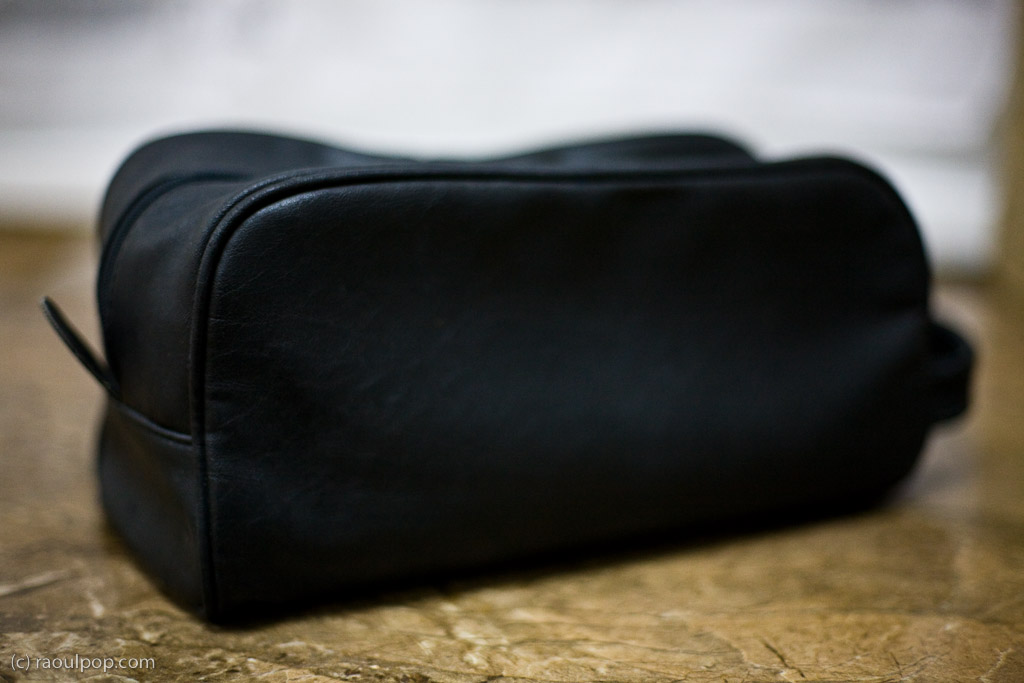
Let me show you a potential design that could work. It’s not something I invented — it’s my travel toiletry bag. Notice its handle is on the front, but I think there ought to be two handles at the top, one on each side, since the Drobo can be fairly heavy with the hard drives inside. The zipper ought to be down the middle of the case, at the top, and the bag ought to have two compartments on each side, or one below, where you can stick the power brick and the USB and Firewire cables.

Potential design for a Drobo carrying case

If Data Robotics or some other company made this sort of a carrying case, we would simply take the Drobo, with its hard drives inside, put it in the bag, and stick the bag in our carry-on luggage. I wouldn’t trust airport personnel enough to check the bag containing the Drobo. Given the way they throw baggage around like it’s bales of hay, they’d likely damage the Drobo and our data.

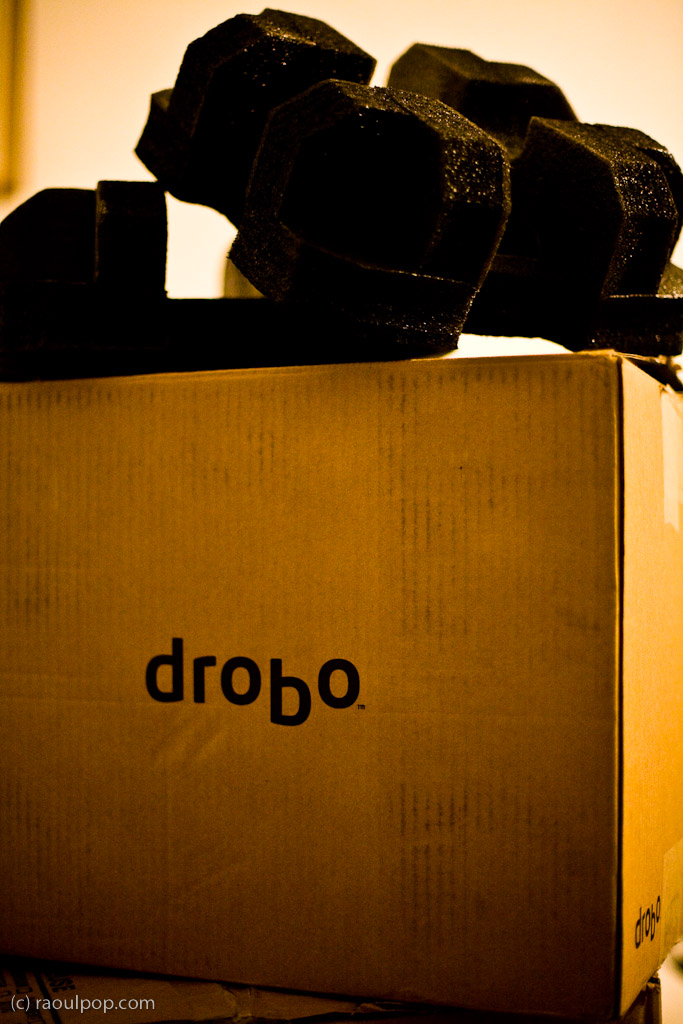
Now let’s get back to reality. There isn’t any carrying case yet. What do we do? What did I do? I was able to send two of my Drobos separately, by ship, and I placed them in their original boxes, which I packed into larger cardboard boxes with other items. They arrived safely, thank goodness. I love those Drobo boxes, they hold up so well! I kept all of them and used them often for storage or transport.

Original Drobo box

As for my third Drobo, the Firewire Drobo, my current primary storage unit, that had to come with me on the plane. I kept the hard drives inside it, packed it in woolen sweaters and other soft clothes, and put it in one of the carry-on bags. Yes, in case you’re wondering, I had to pull it out of the bag for airport security and show it to them. They kept wondering what it was and what it does, and couldn’t believe it was basically an external hard drive. Expect the same treatment from them, at least until they see more Drobos. As for the Drobo’s original box, I didn’t want to lose that, so I flattened it and placed it in one of the checked pieces of luggage along with the foam holders and the box that contains the wires, power brick and software CD. I’m glad to tell you that it arrived safely with me, and it’s connected to my MacBook Pro as I write this.

One last bit of advice. If you travel by car, and there isn’t yet any Drobo carrying case/bag, make room in your trunk for the Drobo’s original box. Pack it inside, and you’ll know that short of an accident, your Drobo will be well protected.

Standard
How To

Firmware update available for WD TV

There’s a firmware update available for the WD TV. It’s version 1.01, and you can download it and install it right now from the WD website. A lot of issues were resolved. The complete list is available in the release notes.

Here’s a summary of the salient points:

  • Now you can update the firmware when using a drive larger than 500GB. You may think this is an unlikely scenario until you try to use a large storage device like the Drobo with the WD TV.
  • Better subtitle support (SMI, SUB, ASS, SSA, MKV) with user-selectable font size for subtitles
  • Disk volume name display in folder navigation; this was an annoying bug, as you couldn’t tell which drive you were browsing if you had two of them connected to the WD TV
  • Jump feature: while fast forwarding or rewinding, if next of previous buttons are pressed, the WD TV will jump 10 minutes forward or backward
  • EXIF orientation flag functionality for auto picture rotate. Thank goodness! It was really annoying to have to turn my head sideways or bother with the rotate feature every time a photo taken in portrait mode was displayed.
  • Display sizing menu for photo playback: fit to screen, full screen, keep as original
  • Resolved issue where WD TV would not turn back on with remote after extended period of inactivity; previously WD TV had to be unplugged and was unrecoverable with the remote
  • Added 1080p 24hz support
  • Resolved info bar display issues in PAL (European display standard) mode

It’s important to note that there’s still a known and unresolved issue, namely this: if the user unsafely removes an HFS+ formatted drive from the media player without using the Eject button, the drive will become read only media. I’m not sure when this will be resolved.

The installation instructions for the firmware are what one would expect them to be and fairly simple to follow. I’ll reproduce them for you here from the WD release notes for firmware version 1.01:

  1. Go to http://support.wdc.com and download the latest firmware update compressed file for your Media Player. (Here’s the direct download link for version 1.01.)
  2. Click “Downloads” then the product name (or photo).
  3. Extract the two files (.BIN and .VER files) to the root folder of a portable USB drive.
  4. Connect the USB drive to the HD media player’s USB port.
  5. Press HOME, and then select the Settings bar.
  6. Select the firmware upgrade icon, and then press ENTER.
  7. You are prompted to perform the firmware upgrade.
  8. Select OK on the firmware update prompt, and then press ENTER.  This will restart the system.
  9. After restarting, the system automatically enters firmware upgrade mode.
  10. Once the update process is completed, the HD media player will restart again.
  11. Once the HD media player restarts, the new firmware is automatically loaded.
Standard
How To

How to use a Drobo with the WD TV

The WD TV is my favorite media player (I think it’s better than the Apple TV), and since I also love the Drobo, I wanted to combine the two and have the ultimate media entertainment center: a Drobo packed full of videos, photos and music, connected to a WD TV, which is connected to a large-screen HDTV. I did just that for my parents in December. It was my Christmas gift to them.

Here’s what you need to keep in mind if you want to do the same thing. As you might guess, several complications arise when you attempt to get a device with huge storage capability connected to a media player. The complications have to do mainly with the file systems that the media player can read and use properly, and with the ability of the on-screen menus to navigate an abundance of content efficiently.

The WD TV can only work fully with NTFS, HFS and FAT32 file systems. By “fully”, I mean will build its own catalog of the media present on those devices, store it at the root level of those drives as a hidden directory, and will let you browse using its on-screen menus, by date or by file name. It will also read the HFS+ file system, which is native to the modern Macs, but it will not be able to write to it and build its own catalog; this means you’ll only be able to navigate the media on that device by folder.

The Drobo can be formatted as an NTFS or FAT32 volume when using a PC, or as an HFS+ or FAT32 volume when using a Mac, if you happen to use the Drobo Dashboard to do it. If you use the Disk Utility app on a Mac, and you also happen to have the 3G NTFS drivers installed, you can also format the Drobo as a 3G NTFS or as an HFS volume.

I ended up formatting my parents’ Drobo as an HFS+ volume. I’ll tell you why below. If you’re not interested in the minutiae, skip ahead to the next paragraph.

  • First, I tried formatting it as a 3G NTFS volume. For some reason, the formatting process either froze or took unusually long to complete, and the resulting volume wasn’t readable on the Mac or on the WD TV. I have a feeling that had to do with the fact that the volume was over 2TB in size, and 2TB is the upper limit for NTFS volumes, but I’m not sure.
  • I tried splitting the Drobo into two HFS+ volumes, one 2TB and the other 400GB (2.4 TB was the total available space on the Drobo), then formatting those volumes as 3G NTFS volumes, but that didn’t work either. The formatting process kept hanging up in Disk Utility.
  • I tried formatting the Drobo as a straight NTFS volume using a Parallels VM running Windows XP (I installed the Drobo Dashboard inside the VM), but that kept hanging up as well. Not sure why. Perhaps I should have used a physical Windows machine, but I didn’t have one available to me.
  • I then formatted the Drobo as a FAT32 volume. The upper limit on that was once again 2TB, and I had 2.4TB available. I thought I’d forget about the extra 400GB for a while and just focus on getting the 2TB volume working. Predictably enough, after copying some media over and testing it, it worked fine, but I noticed two things:
    • The WD TV took longer and longer to read the device and build its catalog once I connected the Drobo. The more movies I had on the Drobo, the longer it took the WD TV to catalog each of them. That meant waiting up to 20 minutes for the WD TV to get done with its work before I could use it. I didn’t like that.
    • I had several movies that were over 4GB in size, and since that’s the upper limit for a single file in the FAT32 system, I couldn’t get them copied over to the Drobo. I didn’t like that either.
  • I thought I’d try another route, so I formatted the Drobo as an HFS volume. While this was fully readable and writable on a Mac and also on the WD TV, unfortunately, the maximum file size on HFS is 2GB, and the maximum volume size is also 2TB, same as FAT32 and NTFS. Not much help there.
  • The only choice left to me was HFS+. In spite of the fact that the WD TV can only read it, not write to it, this was and still is, I think, the best choice for formatting a Drobo and for working with the WD TV, from the entire group (NTFS, FAT32, HFS and HFS+). The upper limit on an HFS+ volume is 16 EB (exbibytes), which is equal to 1024 pebibytes — basically, an incredible amount of space. One pebibyte is equal to 1024 terabytes, and the upper limit one can get with a Drobo at the moment is 5.5 terabytes, so it’s nowhere near the technical capability of the file system. Furthermore, the upper limit on a single file in HFS+ is 8 exbibytes, which, as shown above, is just plain huge. In plain English, this mean I could format the Drobo as a single HFS+ volume and not worry about any of my movie files exceeding 4GB or more in size.

Great! Now that I’ve put you to sleep, let’s move on. Next on the agenda came the transfer of all the data to the Drobo. You see, I’m also using my parents’ Drobo as an offsite storage device. You know what they say, give and ye shall receive, right? I made them happy by setting up their media center and also got to back up most of my data, media, and photographs. The transfer of the information took a while, as you might imagine. I didn’t time it, but I think it was somewhere between 24-36 hours to copy about 2TB of data from my Drobo to their Drobo. I’m happy to say that the copy operation did not crash, and completed successfully. That’s a testament to the stability of the Drobo as a storage device.
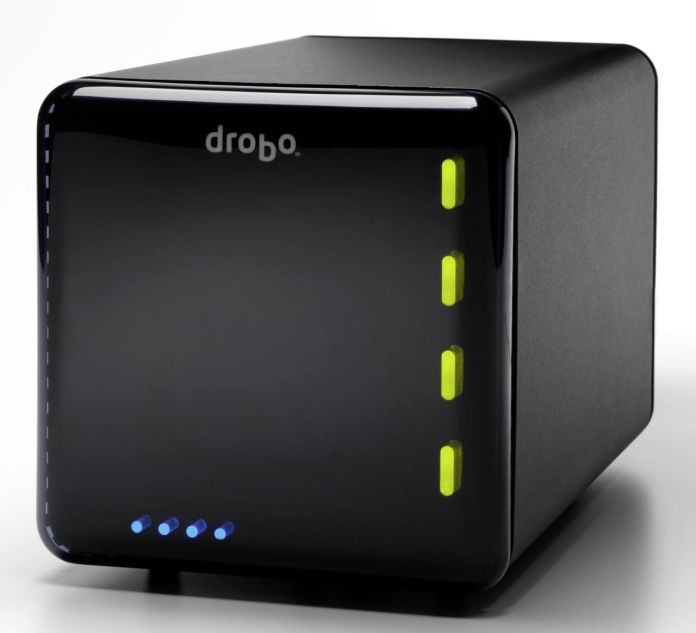
After the data transfer was complete, I was done. It was time to sit back on the sofa and enjoy my hard work. Even though the WD TV couldn’t aggregate the media on the Drobo and build its catalog, which would have let me browse the media by type (video, photo or music), date or title, I was able to browse the Drobo by folder. Since I’d already organized the media that way, I didn’t mind it at all. I had my videos broken down into separate folders for Cartoons (I love classic cartoons), Movies, Documentaries and TV Shows (I love Mister Ed), and I was able to watch most of my stuff.

As a side note, even though the WD TV manual says it’ll play WMV9 files, and my Mister Ed episodes were encoded (I believe) with WMV9 technology, I can’t play them on the WD TV. I’m sad about that, but at least I can watch them on my MacBook and iMac. Perhaps I’ll re-encode them into MP4 files at some point.

I mentioned something at the start of the article about the on-screen menus and their ability to navigate the content efficiently. The WD TV lists the media in thumbnail mode by default, which means you’ll have a little icon next to each media file. When you have a ton of files to look through, that’s not very efficient. Fortunately, you can go into the WD TV settings and change it to List mode. This will list each piece of content on a single line, and will let you see more titles per screen. To scroll up and down the file lists faster, simply hold down the up or down arrows on the WD TV remote, and it’ll accelerate, speeding through the titles.

I’ll concede that the on-screen menus for the WD TV aren’t as slick as those you see on the Apple TV — and by that I mean how easy and quick it is to navigate to a particular title, not the glitz and glamour of a fancier UI skin — so there’s some work to be done there, but the WD TV is much more practical than the Apple TV when it comes to playing your media. You simply plug in a USB drive loaded to the gills with movies and photos, and it’ll play them right away, which is something that the Apple TV just doesn’t do out of the box.

That’s it, folks! Let me summarize things to make it easy for you:

  1. Format your Drobo in HFS+ if you have a Mac, or NTFS if you have a PC. Keep in mind there’s a 2TB per volume limit under NTFS, and that WD TV will only recognize one volume at a time (at least currently). Stay away from FAT32 and HFS because of the file-size limitations (4GB for FAT32 and 2GB for HFS).
  2. Transfer your media to the Drobo.
  3. Enjoy!

Buy a WD TV or a Drobo.

Standard
How To

How to minimize your risk of prostate cancer

A long-time friend who does research into complementary and integrative medicine and is a wiz with statistics — his name is John Lewis — has just published an article entitled “Intake of Plant Foods and Associated Nutrients in Prostate Cancer Risk” where he, along with other researchers, found that your risk for prostate cancer becomes significantly lower if your diet consists mainly of vegetables, fruits and/or fruit juices.

On the other hand, if your diet has an increased amount of protein — or, interestingly enough, daily servings of grains — your risk for prostate cancer is increased. Another finding of his study ties into the racial/ethnic differences in the incidence of prostate cancer, which happens to be higher in African-Americans. The study shows a strong link between dietary intake and the risk of prostate cancer. Caucasian controls had significantly higher daily servings of vegetables and fruits and/or fruit juices compared to their African-American controls, and their incidence of prostate cancer was lower. Thankfully, the study found that those who changed their diets significantly to include more fruits and vegetables stood a better chance of surviving prostate cancer, regardless of race or ethnicity.

The lesson to be learned is simple: eat your fruits and vegetables if you want to keep away prostate cancer.

I should mention that he is also a CFS (Chronic Fatigue Syndrome) survivor. He was bedridden for over a year because of CFS. He cured himself by changing his diet to include only vegetables, fruits, nuts and grains, by exercising regularly, and through special intra-venous vitamin boosters — a treatment called chelation therapy.

Standard
How To

New Gmail buttons and shortcuts

Gmail's new buttons

I woke up today to find new Gmail buttons. At first I thought it was just Firefox playing tricks on me, but no, the buttons look the same in Safari. The Gmail Team announced the change on their blog yesterday, on 2/3/09. As expected, the change took a while to propagate to all of the Gmail accounts.

Along with the new buttons, they introduced two new keyboard shortcuts, “l” and “v”, which will allow you to label and label/archive messages on the fly. The “l” key opens a drop-down menu which allows you to label emails. You can navigate the drop-down menu using the arrow keys and mark a label using the Enter key. The “v” key does the same thing, and it also archives the message at the same time, removing it from the inbox.

Don’t forget that while you’re in the Gmail inbox, you can select multiple message by using the Shift key. Left-click on the first one, then Shift-Click on the last one, and all in-between will be selected. You can then use “l” or “v” to apply labels to all of them at once.

Standard